






Easy Guide to Set Feature Updates for Windows 11 as Optional with Intune
In this article, I’ll walk you through how to set new feature updates for Windows 11 as optional updates via Microsoft Intune.
Setting new feature updates for Windows 11 as optional means configuring your system so that major updates introducing new features are not automatically installed. Instead, these updates will be optional, allowing you to choose if and when to install them.
Users and organizations can maintain greater control over their computing environments by setting new feature updates as optional, ensuring stability, compatibility, and efficient resource use.
By configuring these settings, you can make feature updates for Windows 11 optional, giving you greater control over when and how these updates are applied to your system. This approach helps maintain system stability, ensures compatibility with existing software and hardware, and allows you to manage updates on your schedule.

Considering Windows 11 22H2 and knowing its end-of-support date is crucial for planning upgrades and ensuring continued security and functionality. Microsoft typically provides 24 months of support for each feature update for Home and Pro editions and 30 months for Enterprise and Education editions.
Enterprise Editions of Windows 11 22H2 is expected to reach its end of support on Oct 14, 2025.

- How to Set App Defaults using Intune | Export the Default XML File & Encode it in Base64 format
- Easy Guide to Enable Edge Built-in PDF Reader for WebView2 with Intune
- Best Guide to Deploy New Intune Company Portal App on Windows using Intune
- Intune Win32 App Supersedence and Auto App Update Explained
Why Set New Feature Updates for Windows 11 as Optional Updates
Setting new feature updates for Windows 11 as optional can provide several advantages, especially for those who prefer more control over their systems. Here are some key reasons:
| Points | Details |
|---|---|
| Stability and Reliability | Avoid Early Bugs: New feature updates can sometimes introduce bugs or compatibility issues. Waiting allows time for initial problems to be identified and fixed. System Stability: By avoiding immediate installation of feature updates, you can ensure that your system remains stable and reliable, avoiding potential disruptions. |
| Control Over Changes | User Control: Users have the freedom to choose when to install updates, ensuring that updates are applied at convenient times rather than being forced. Avoid Unwanted Features: Some feature updates might introduce changes or features that users do not need or want. By setting updates as optional, users can avoid these unwanted changes. |
| Compatibility | Software Compatibility: New updates may not be compatible with existing software or hardware. Waiting allows users to check compatibility and avoid potential issues. Enterprise Environment: In business settings, IT departments can test updates on a few machines before rolling them out to the entire organization, ensuring compatibility with critical applications and systems. |
| Resource Management | Bandwidth Management: Large feature updates can consume significant bandwidth. Setting them as optional allows users to manage their internet usage more effectively. System Resources: Installing updates can be resource-intensive. By choosing when to install updates, users can ensure it doesn’t interfere with their work. |
| Security Considerations | Security Updates: While deferring feature updates, users should ensure that security updates are still applied promptly. Security updates can be configured to install automatically while feature updates remain optional. |
| Customization for Organizations | Policy Control: Organizations can use group policies and management tools to control update installations, ensuring that they meet the specific needs and schedules of the business. Testing and Rollout: IT departments can test new updates in a controlled environment before rolling them out to the entire organization, reducing the risk of widespread issues |
Create New Feature Updates for Windows 11 Profile with Intune
Here are the steps to create New Feature Updates for Windows 11 Profile through Intune. Let’s discuss the step-by-step method to create the profile.
- Sign In to the Microsft Intune admin center
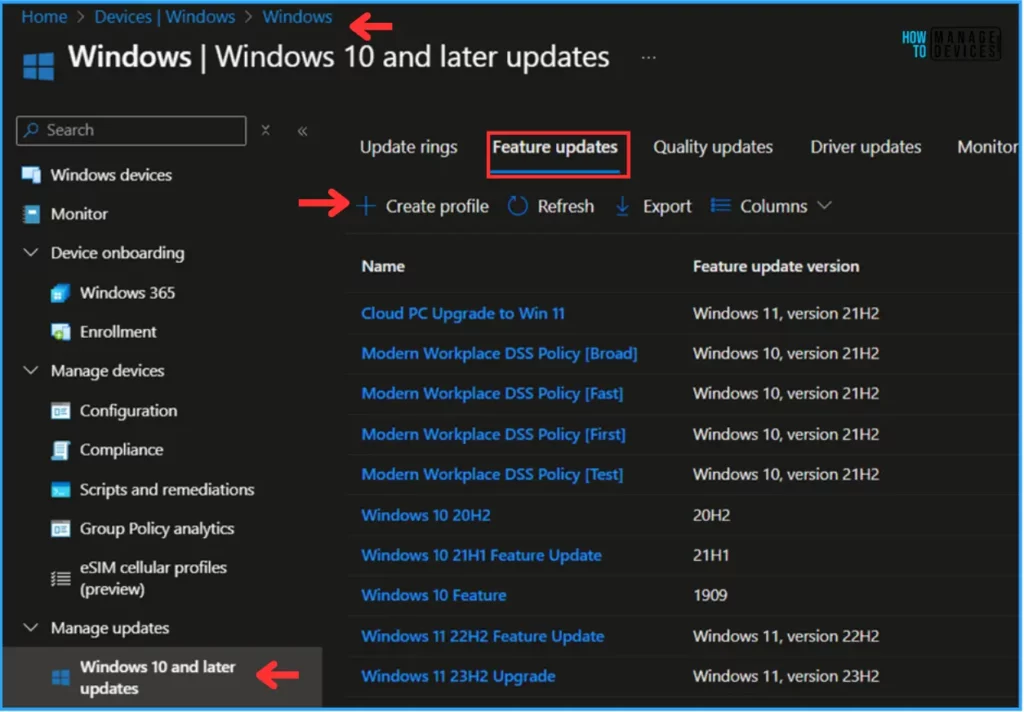
- Navigate to Devices > Windows > Manage Updates > Windows 10 and later updates
- Click on Feature Updates > +Create Profile
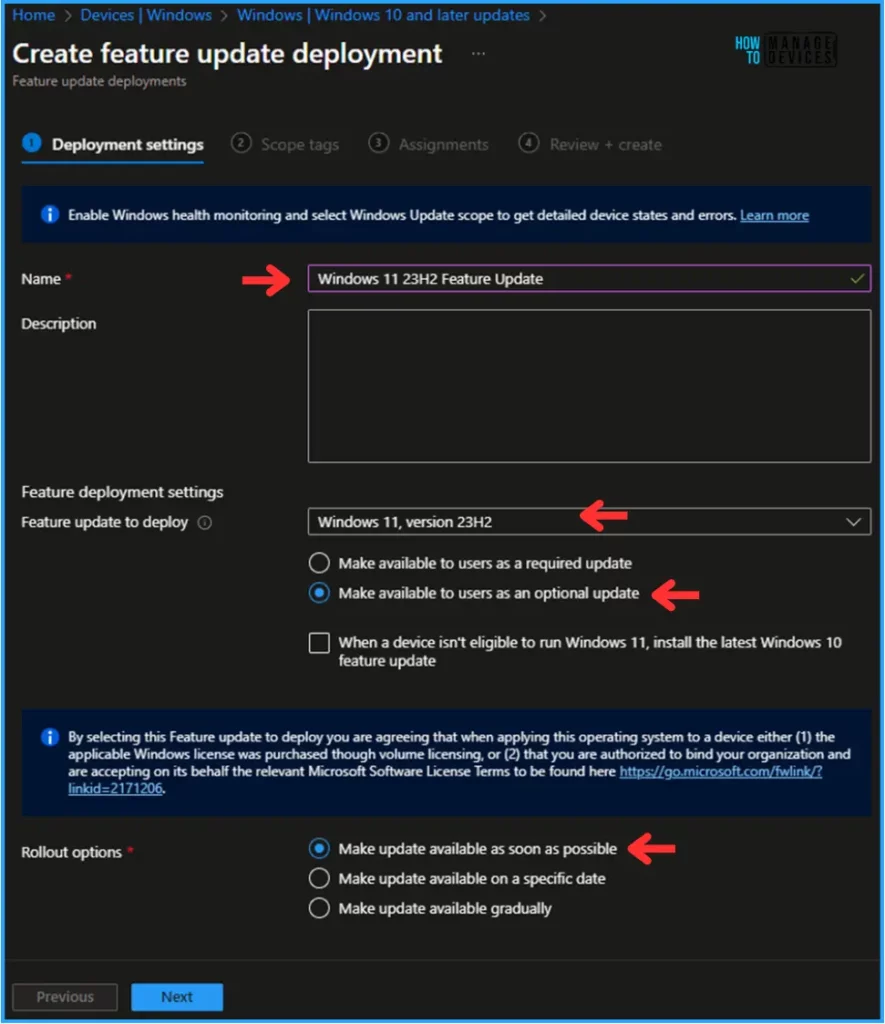
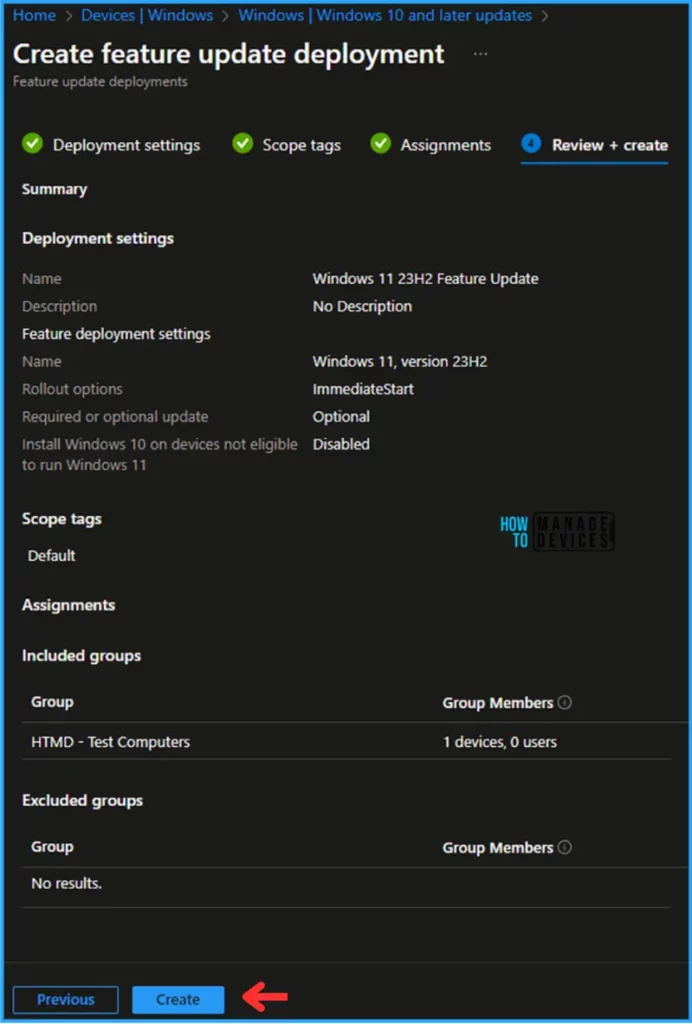
In the Deployment settings pane, fill in the details below. In this example, we are not checking the option. When a device isn’t eligible to run Windows 11, install the latest Windows 10 feature update.
- Name: Windows 11 23H2 Feature Update
- Feature deployment settings feature update to deploy: In the drop-down options, select Windows 11, version 23H2
- Enable the radio button to “Make available to users as a required update“
- Rollout options: Make update available as soon as possible
Note! By selecting this Feature update to deploy, you are agreeing that when applying this operating system to a device, either (1) the applicable Windows license was purchased through volume licensing, or (2) you are authorized to bind your organization and are accepting on its behalf the relevant Microsoft Software License Terms to be found here https://go.microsoft.com/fwlink/?linkid=2171206.
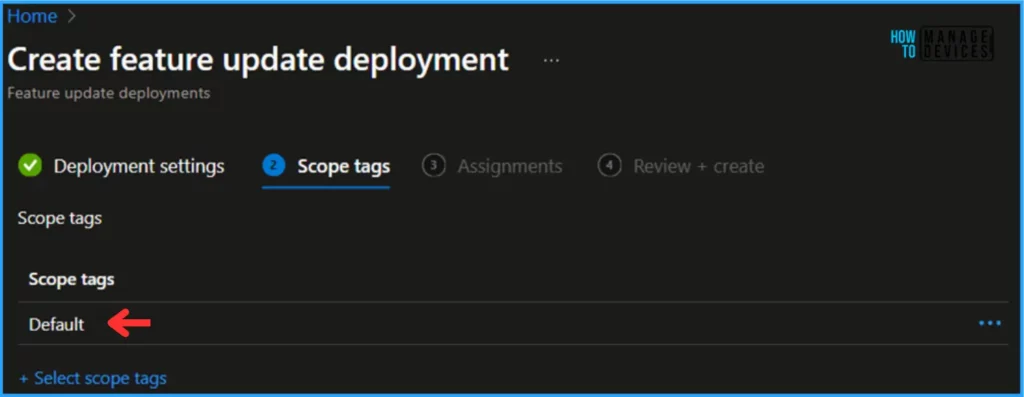
On the next page, leave the Scope tags default. You can also select any other custom scope tags available to the tenant based on your requirements.
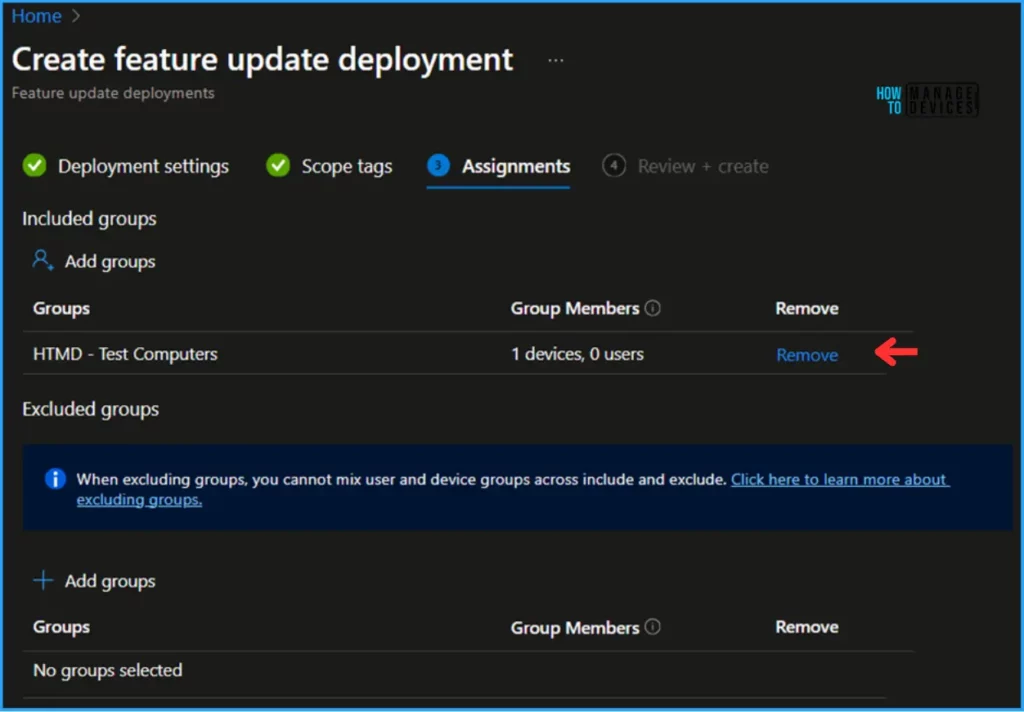
Click on Next and assign the profile to HTMD – Test Computers. Click Add Groups and select the required device group in the Included Groups option.
On the Review + Create page, carefully review all the settings you’ve defined for the New Feature Updates for Windows 11 as an Optional Profile. Select Create to implement the changes once you’ve confirmed everything is correct.
Monitor the Feature Updates for Windows 11 Report
The profile has been deployed to the Microsoft Entra ID groups. The policy will take effect as soon as the device is synced.
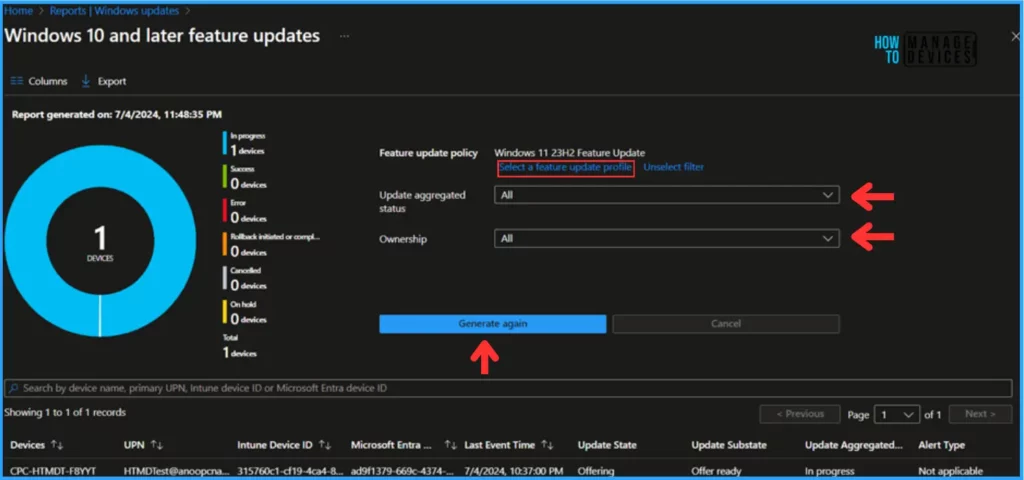
To monitor the profile deployment status from the Intune Portal, follow the steps below. Navigate to Reports > Windows updates> Reports > Select Windows Feature Update Report. Choose the Feature Update profile as Windows 11 23H2 Feature Update. Click on OK.
Leave Update aggregated status and Ownership as “All” and click on Generate report.
End User Experience – Feature Updates for Windows 11 as Optional
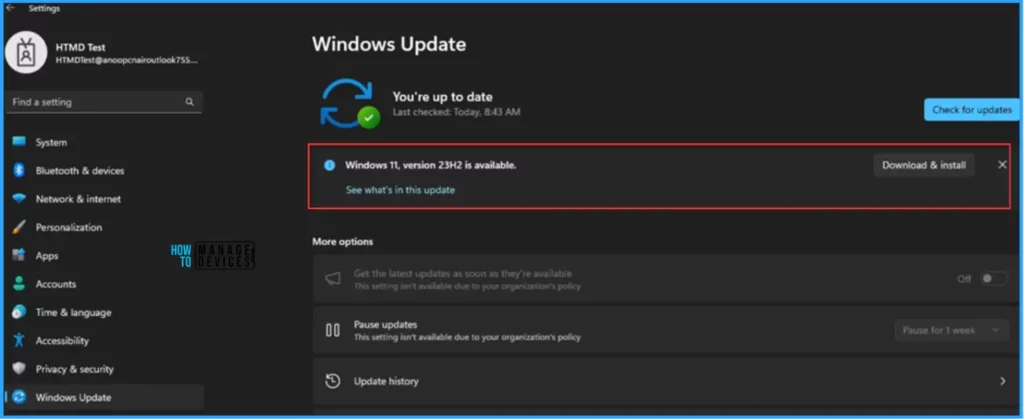
Now, we have to check whether the Set New Feature Updates for Windows 11 as Optional profile is working fine or not. Log in to one of the policy-targeted devices.
Click on Search Icon and Settings > Windows Update. You can see that Windows 11 version 23H2 is available for users who click Download & install to get the same.
I appreciate you taking the time to read my article. I’m excited to see you in the upcoming post. Continue to support the HTMD Community.
We are on WhatsApp. To get the latest step-by-step guides and news updates, Join our Channel. Click here for HTMD WhatsApp.
Author
Vaishnav K has over 10+ years of experience in SCCM, Device Management, and Automation Solutions. He writes and imparts knowledge about Microsoft Intune, Azure, PowerShell scripting, and automation. Check out his profile on LinkedIn.


Discussion