






How to Change Size of Desktop Icon in Windows 11
Let’s discuss how to Change the Size of the Desktop Icon in Windows 11. Desktop Icon in Windows 11 is a small visual representation. Users can easily change the size of the desktop icon in Windows 11 using different methods.
The desktop icon in Windows 11 graphically represents programs and folders. It is part of the Windows GUI (Graphical User Interface). Microsoft always allows users to customize their Windows 11 PC with innovative features.
Providing different methods for changing the size of desktop icons helps users easily prefer other methods. Desktop icons help users navigate a computer system or a website by showing the type of file or function they present.
In this blog post, I will explain how to Change the Size of the Desktop Icon in Windows 11. Users can choose from 3 different sizes of Desktop icons.

- Overview Of Color Filter Settings In Windows 11
- Enable Show Desktop Button on Windows 11 Taskbar
- How to Use Google Docs Desktop App
- Important Things Must Do While Purchasing New Windows Laptop

What are the Advantages of Desktop Icon in Windows?
1. It helps to quickly and easily identify each app or folders
2. It provides a visual representation
3. It helps to identify items easily
How to Change the Size of Desktop Icons in Windows 11
There are 4 methods available for changing the Desktop Icon in Windows 11 PC. Each process is very simple, and users can easily select the method according to their preferences. The table below shows the different methods.
| Different Methods to Change the Size of Desktop Icon in Windows 11 |
|---|
| 1. Change the Size of Desktop Icons using Scroll Wheel |
| 2. Change the Size of Desktop Icons using Context Menu |
| 3. Change the Size of Desktop Icons using Keyboard Shortcut |
1. Change the Size of Desktop Icons using Scroll Wheel
This is one of the easiest methods to change the size of the Desktop Icon. You can easily access your Desktop with the shortcut key Win+D. After accessing the desktop, you can press and hold the Ctrl key while rolling the scroll wheel.
- To change the Desktop Icon larger, Scroll up the wheel when pressing and holding the Ctrl key.
- To change the Desktop Icon smaller, Scroll down the wheel when pressing and hold the Ctrl key.
2. Change the Size of Desktop Icons using Context Menu
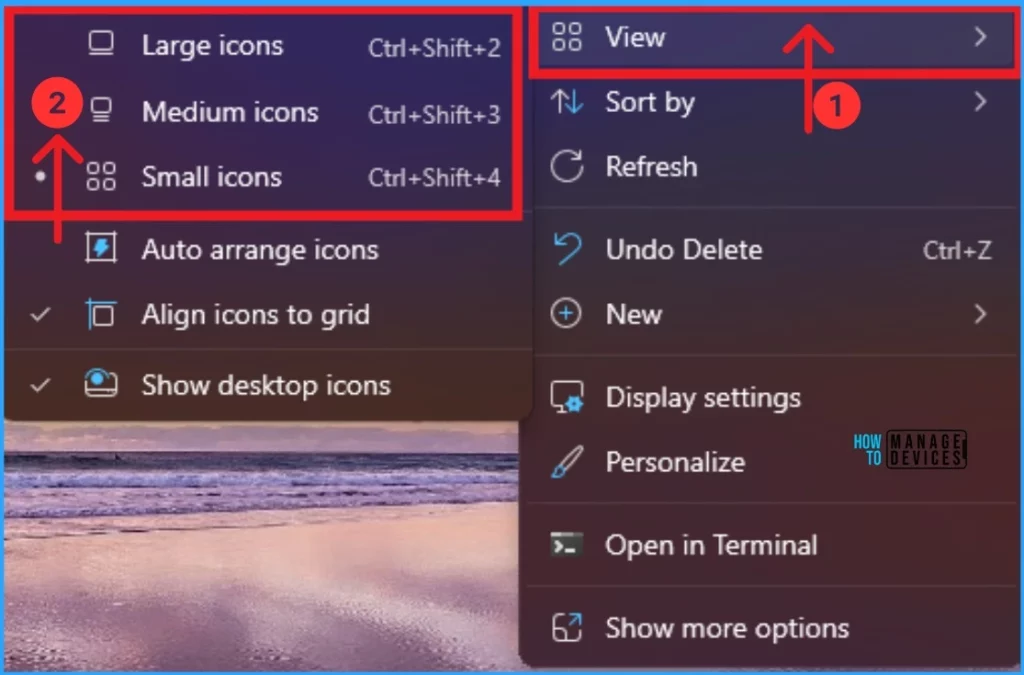
To use this method, you have to access the desktop. Right-click or press and hold on your desktop. Click/tap on View, and click/tap on click/tap on Large icons, Medium icons, or Small icons for the size you want.
- How to Change the Automatic Sleep Settings in Windows 11
- How to Show or Hide Time and Date on Taskbar System Tray in Windows 11
- Enable Disable Leave Touchpad On When Mouse is Connected Feature in Windows 11
- Keep User Desktops Clean by Blocking Windows Media Player Shortcuts using Intune
3. Change the Size of Desktop Icons using Keyboard Shortcut
Using the Keyboard, you can easily change the size of the Desktop Icons. A Keyboard Shortcut is the easiest way to change the Desktop icon. The table below shows the Keyboard Shortcut for changing the size of the Desktop icon.
| Icon Size | Keyboard Shortcut |
|---|---|
| Extra large icons | Ctrl+ Shift + 1 |
| Large icons | Ctrl+ Shift + 2 |
| Medium icons | Ctrl+ Shift + 3 |
| Small icons | Ctrl+ Shift + 4 |
Result Image
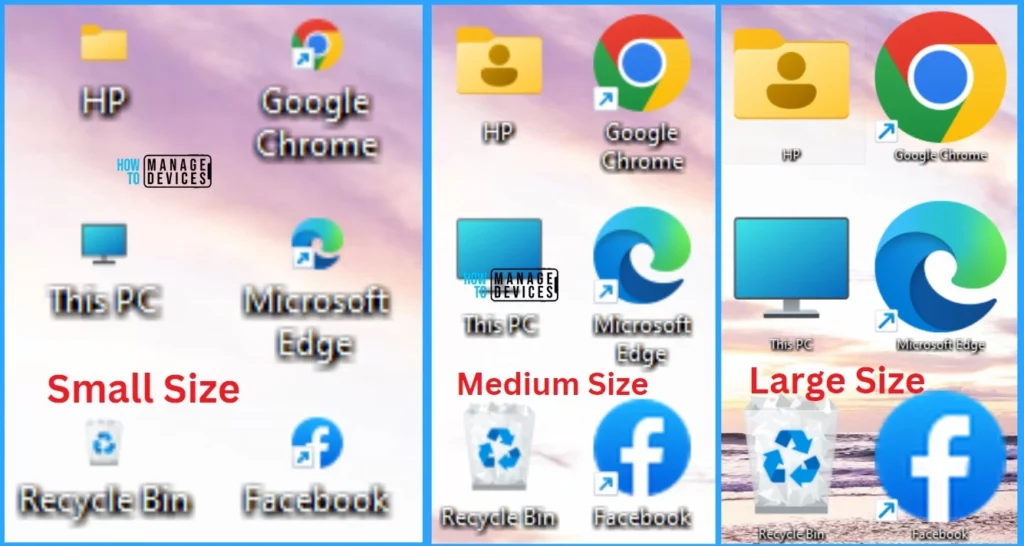
The screenshot below shows 3 different sizes of Desktop Icons. The above-explained steps will help you change the desktop icon. The screenshot below shows desktop sizes such as Small, Medium, and large.
Note: There are 28 sizes available to scroll through, ranging from extra small to extra large.
We are on WhatsApp. To get the latest step-by-step guides and news updates, Join our Channel. Click here for HTMD WhatsApp.
Author
Anoop C Nair has been Microsoft MVP from 2015 onwards for 10 consecutive years! He is a Workplace Solution Architect with more than 22+ years of experience in Workplace technologies. He is also a Blogger, Speaker, and leader of the Local User Group Community. His main focus is on Device Management technologies like SCCM and Intune. He writes about technologies like Intune, SCCM, Windows, Cloud PC, Windows, Entra, Microsoft Security, Career, etc..




Discussion