






Issue on Minimum PIN Length for Startup in Disk Encryption Policies in Intune
News Alert! There is an issue with Configuring the Minimum PIN Length for Startup in Disk Encryption Policies. Some users are concerned about this issue. You all know the importance of disk encryption. Disk encryption has a significant place in data security.
Nowadays, data security is critical; in this case, we have the best options, like data encryption and BitLocker, a popular tool for Windows computers. The Intune Bitlocker offers strong security features, and one of those features is an issue with Configuring Minimum PIN Length for Startup in Disk Encryption Policies.
As we all know, BitLocker is a Windows tool that encrypts the whole drive to protect data. It can be managed using Microsoft Intune, which helps IT administrators apply encryption rules to all company devices.
One crucial security feature of BitLocker is the need for a PIN at startup. This feature ensures extra protection and confirms authorized users can access encrypted data. An issue affecting Configuring Minimum PIN Length for Startup in Disk Encryption Policies will be more crucial. So, in this post, we can briefly discuss this issue.

- Intune Bitlocker Drive Encryption A Deeper Dive To Explore
- Managing Windows Bitlocker Compliance Policy Using Intune | MS Graph | Grace Period
- Block Hide BitLocker Recovery Key From Users Using MS Graph And PowerShell
- Intune Bitlocker Drive Encryption A Deeper Dive To Explore
- Device Encryption – Bitlocker made Effortless
- Deciphering Intune’s Scope w.r.t Bitlocker Drive Encryption
| Index |
|---|
| An Issue with Configuring Minimum PIN Length for Startup in Disk Encryption Policies |
| Basic Solutions to Fix the Issue |
What are Disk Encryption Policies?
Issue with Configuring Minimum PIN Length for Startup in Disk Encryption Policies
As discussed, here is an overall view of device encryption and Bitlocker. So, let’s look into the issue; some users express that one of the significant features in device encryption is missing. That is the Minimum PIN Length for Startup in Disk Encryption Policies.
- When the user sets up the device encryption policy, trouble configuring the minimum PIN length for startup in your disk encryption policies.
- Setting a minimum PIN length is crucial for better security.
- To configure the minimum PIN length for startup, the below steps you need to follow
- Open Microsoft Intune Admin Center
- Select the Endpoint security> Disk encryption>Create policy
- Select the platform as Windows 10; later, the profile will be Bitlocker.
- Also, give appropriate basic details( Name and Description)
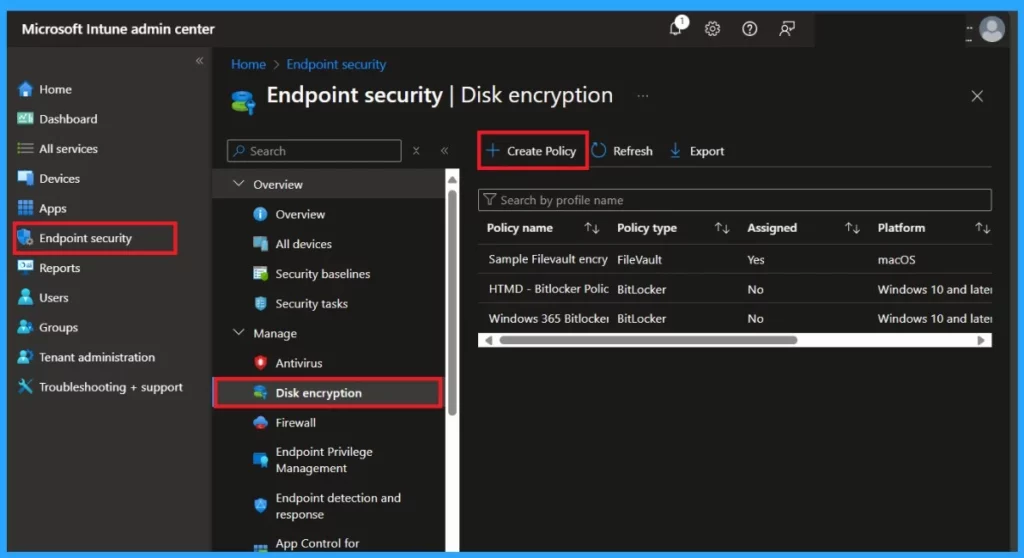
After creating the basic information, the next step is Configuration Settings; many setting categories are available for the Disk description for the Bitlocker, including the Minimum PIN Length for Startup. This option comes under the Operating System Drives.
- This policy setting allows you to configure the minimum length for a Trusted Platform Module (TPM) startup PIN. It is applied when you turn on BitLocker.
- The startup PIN must be at least 4 digits long and can be a maximum of 20 digits long.
- If the minimum PIN length is set below 6 digits, Windows will attempt to update the TPM 2.0 lockout period to be greater than the default when a PIN is changed.
- If successful, Windows will only reset the TPM lockout period back to default if the TPM is reset.
See More: Intune Advisory TPM Attestation Error 0x81039001 with Windows Autopilot.
| Configured Options for Configure Minimum PIN Length for Startup | Info |
|---|---|
| Not Configured | It means it does not set any specific values for the policy |
| Disabled( Default) | If you disable or do not configure this policy setting, users can configure a startup PIN of any length between 6 and 20 digits. |
| Enabled | If you enable this policy setting, you can require a minimum number of digits to be used when setting the startup PIN. |
- Bitlocker Recovery key Screen Prompt Issues | Error 0x800f0922 after installing August Patch KB5012170
- BitLocker Recovery Boot Issue After July 2024 Security Update
Basic Solutions to Fix the Issue
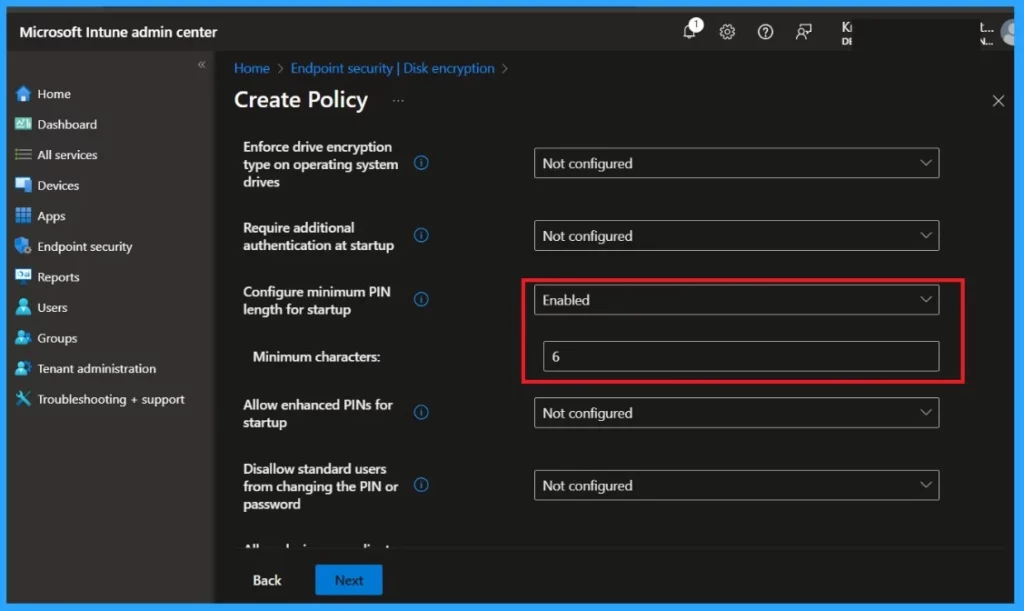
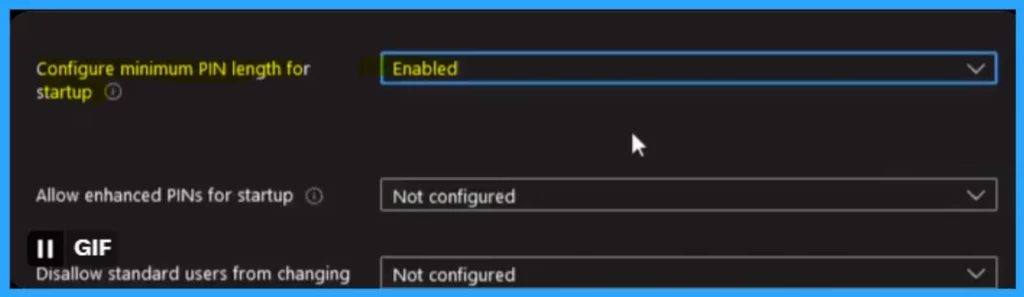
The screenshot below is from a user who shares his concern about missing the Configuring Minimum PIN Length for Startup option in Disk Encryption Policies. When you enable the option to configure the minimum PIN length for startup, it automatically shows the minimum characters of the PIN; here, you can see that the user Enabled the Configuring Minimum PIN Length for Startup option, but the next option is missing.
- If you have issues, you can check the other policies if you have trouble with the Disk Encryption.
- You can check the configuration policy that you entered if any mistakes happen.
- The other reason may be according to the Microsoft Intune Licence policy
- Also, you can Sign out from Intune and sign in again and try again
- Also, you can check that the Internet connection has any issues
We are on WhatsApp now. To get the latest step-by-step guides, news, and updates, Join our Channel. Click here. HTMD WhatsApp.
Author
Anoop C Nair has been Microsoft MVP from 2015 onwards for 10 consecutive years! He is a Workplace Solution Architect with more than 22+ years of experience in Workplace technologies. He is also a Blogger, Speaker, and leader of the Local User Group Community. His main focus is on Device Management technologies like SCCM and Intune. He writes about technologies like Intune, SCCM, Windows, Cloud PC, Windows, Entra, Microsoft Security, Career, etc..


Discussion