






Intune New Clipboard Transfer Direction Settings Now Available in Windows Settings Catalog
News Alert! Intune New Clipboard Transfer Direction Settings Now Available in Windows Settings Catalog. Intune is the best solution for managing devices and applications. As you all know, Microsft Intune will bring out the best updates and features every Month.
We introduced some new Windows Settings Catalog in Intune in the July update. The Windows setting catalogue is an essential tool for managing devices in an organisation. It has many setting options for IT admins to create and manage time policies.
With this update, IT admins will get new Clipboard Transfer Direction Settings in the Windows setting catalog. With the latest settings in the Clipboard Transfer Direction, Administrators can now control data transfer directions for clipboard operations.
These new settings are crucial and allow administrators to control how data is copied and pasted between devices. These settings are essential for data security in Azure virtual desktops. So, in this post, we can look into those settings.

- Deploy Local Primary Account On MacOS Using ADE Method In Intune
- How To Deploy PPPC Utility On MacOS Using Intune
- How to Deploy Microsoft Store for Business Apps using Intune
- Create and Deploy Python Applications with Intune Enterprise App Catalog App
- Install Zoom Client using Windows Enterprise App Catalog App with Intune
What is Clipboard Transfer Direction?
Intune New Clipboard Transfer Direction Settings Now Available in Windows Settings Catalog
I mentioned the new settings in the Windows settings catalogue above. These settings are now available in MS Intune. With the policies, admins can manage clipboard transfer directions. To Access these settings, follow these steps: First, open the MS Intune admin center. Then select the Device option from the Intune admin center.
- Devices > Manage devices (enlarge) > Configuration > Create > New policy
- After creating a new policy, you must select the platform as Windows 10 and later.
- Then, select the profile type as the setting catalog.
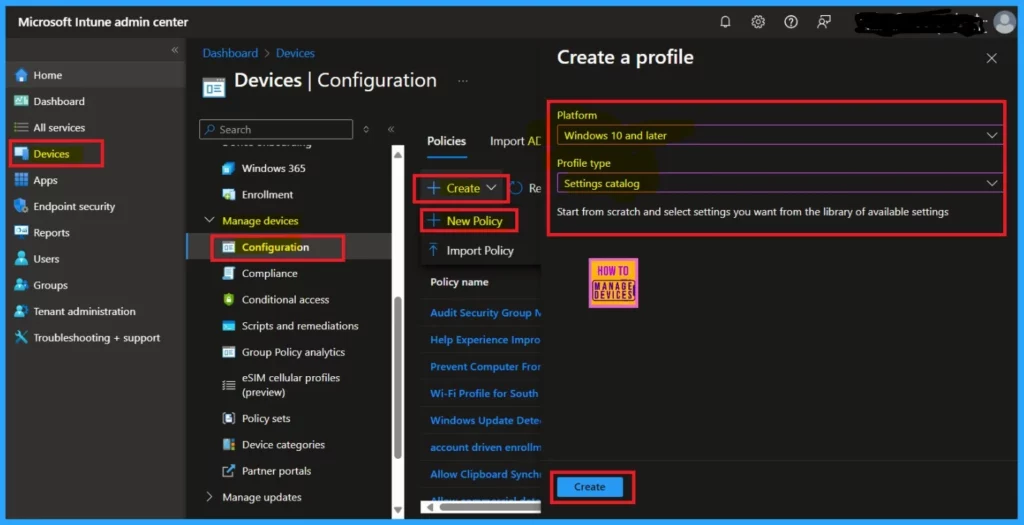
After entering the basic details like Name and description, you know that the next step is the Configuration setting; in the settings, you have to set the settings for the browse category option.
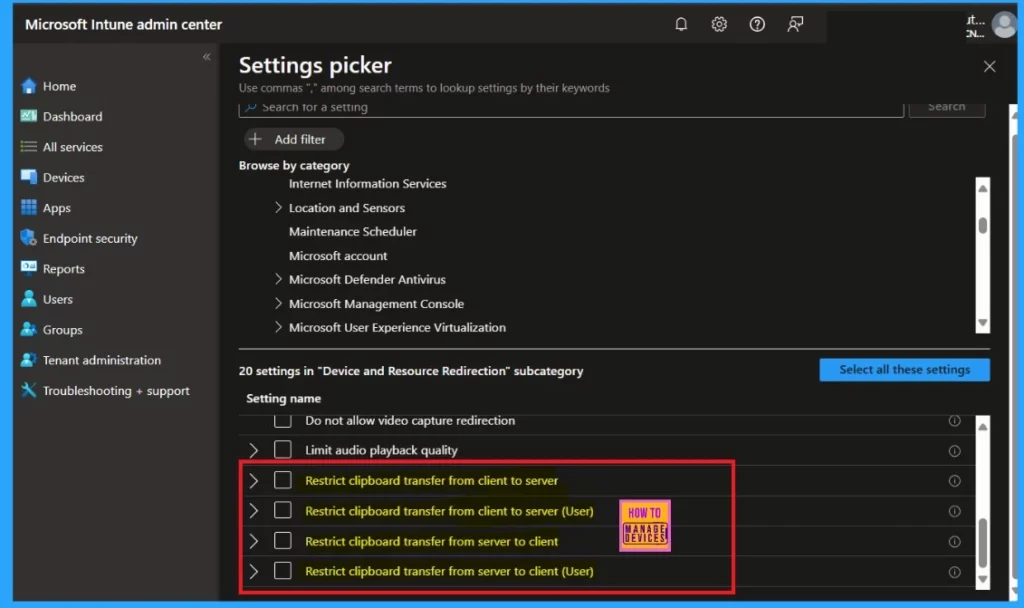
In the browse category, select Settings options such as Administrative Templates>Windows Components > Remote Desktop Services > Remote Desktop Session Host > Device and Resource Redirection.
- The screenshot below and the 4 new settings options in the catalog.
- You can select the settings for which you want to create the policy.
| New Clipboard Transfer Direction Settings | Info |
|---|---|
| Restrict clipboard transfer from client to server | This policy setting allows you to restrict clipboard data transfers from client to server. |
| Restrict clipboard transfer from client to server (User) | This policy setting allows you to restrict clipboard data transfers from client to server. |
| Restrict clipboard transfer from server to client | This policy setting allows you to restrict clipboard data transfers from server to client. |
| Restrict clipboard transfer from server to client (User) | This policy setting allows you to restrict clipboard data transfers from server to client. |
- Fix MDM User License Error Code 0X80180018
- FIX Intune Windows Enrollment Invalid_Client Error
- How to Configure Automatic Intune MDM Enrollment | Auto Enrollment
- Fix Intune Error Code 80192EE7 the Device Management Enablement Issue on Intune
1. Restrict Clipboard Transfer from Client to Server
This policy allows you to restrict clipboard data transfers from client to server. If you enable this policy setting, you must choose from the options. When the Disable clipboard transfers from client to server, Allow plain text copying from client to server.
- Disable clipboard transfers from client to server.
- Allow plain text copying from client to server.
- Allow plain text and images to be copied from client to server.
- Allow plain text, images and Rich Text Format copying from client to server.
- Allow plain text, images, Rich Text Format and HTML copying from client to server.
Note: This policy setting appears in both Computer Configuration and User Configuration. If both policy settings are configured, stricter restrictions will be applied.
2. Restrict Clipboard Transfer from Client to Server (User)
This policy allows you to restrict clipboard data transfers from client to server. If you enable this policy setting, you must choose from the following behaviours. If you disable or do not configure this policy setting, users can copy arbitrary contents from client to server if clipboard redirection is enabled.
| Options for Restrict Clipboard Transfer from Client to Server (User) |
|---|
| Allow plain text and images to be copying from client to server. |
| Allow plain text and images to be copied from client to server. |
| Allow plain text copying from client to server. |
| Allow plain text and images copying from client to server. |
| Allow plain text, images and Rich Text Format copying from client to server. |
| Allow plain text, images, Rich Text Format and HTML copying from client to server. |
3. Restrict Clipboard Transfer from Server to Client
This policy setting allows you to restrict clipboard data transfers from server to client. If you enable this policy setting, you must choose from the following behaviours.
- Disable clipboard transfers from server to client
- Allow plain text copying from server to client
- Allow plain text and images to be copied from server to client.
- Allow plain text, images and Rich Text Format copying from server to client.
- Allow plain text, images, Rich Text Format and HTML copying from server to client.
4. Restrict Clipboard Transfer from Server to Client (User)
This policy setting allows you to restrict clipboard data transfers from server to client. If you enable this policy setting, you must choose from the following options.
| Restrict Clipboard Transfer from Server to Client (User) Options |
|---|
| Disable clipboard transfers from server to client |
| Allow plain text copying from server to client |
| Allow plain text and images copying from server to client |
| Allow plain text, images and Rich Text Format copying from server to client. |
| Allow plain text, images, Rich Text Format and HTML copying from server to client. |
We are on WhatsApp now. To get the latest step-by-step guides, news, and updates, Join our Channel. Click here. HTMD WhatsApp.
Author
Anoop C Nair has been Microsoft MVP from 2015 onwards for 10 consecutive years! He is a Workplace Solution Architect with more than 22+ years of experience in Workplace technologies. He is also a Blogger, Speaker, and leader of the Local User Group Community. His main focus is on Device Management technologies like SCCM and Intune. He writes about technologies like Intune, SCCM, Windows, Cloud PC, Windows, Entra, Microsoft Security, Career, etc..


Discussion