






Overview of Color Filter Settings in Windows 11
Let’s discuss the Overview of Color Filter Settings in Windows 11. Color Filter is one of Microsoft’s best features on Windows 11 PC. Change the color palette on the screen and can help you distinguish between things that differ only by color.
As you know, Windows 11 is the latest major release of Microsoft’s Windows Operating System. Unlike previous Windows versions, it has a new interface with redesigned settings, making each feature unique and user-friendly.
So, the Color Filter feature can also be considered an excellent feature in Windows 11. This feature enhances the visual quality of your Windows 11 PC screen, benefiting users with vision problems and helping them manage their work on PCs.
This feature is also beneficial to other users and it apply to the operating system elements as well as all apps. Color Filter Settings are specially designed for users who have colour blindness. In this blog post, I will help you to know more about Color Filter Settings in Windows 11.

- Windows 11 Accessibility Features Experience
- Best 15 Accessibility Settings Run Commands for Windows
- Accent Colors in Windows Start Menu and Taskbar
What are the Advantages of Color Filter Settings in Windows 11?
1. It changes the color palette on the screen
2. It helps you distinguish between things that differ only by colour.
3. It gives an enhanced visual experience for users
4. Beneficial for Color Blindness users
5. It is very user-friendly
Overview of Color Filter Settings in Windows 11
As I mentioned above, this feature is very effective for users who have color blindness. After enabling this feature, they can easily manage Windows 11 PC. You can easily enable this feature on your Windows 11 PC.
How to Enable Color Filter Settings in Windows 11?
You can easily enable this feature on the Settings Application. In the Settings application, you can see the different specifications of the Color Filter feature.
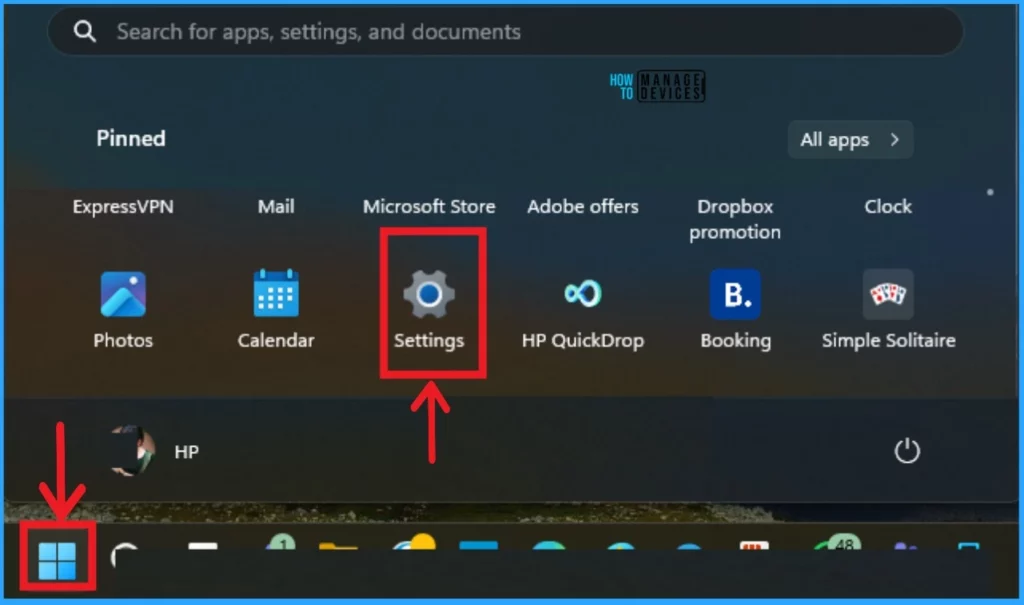
- Select Settings Application from the Start Menu
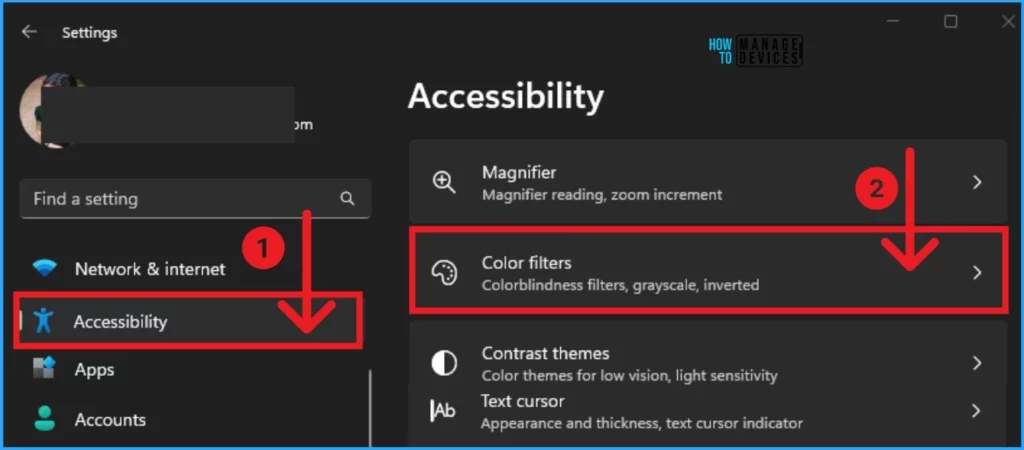
After that, you can see different settings available on the left side of the window. Select Accessibility Settings from the left side of the settings application. The Accessibility Settings helps you to different settings and select Color Filters.
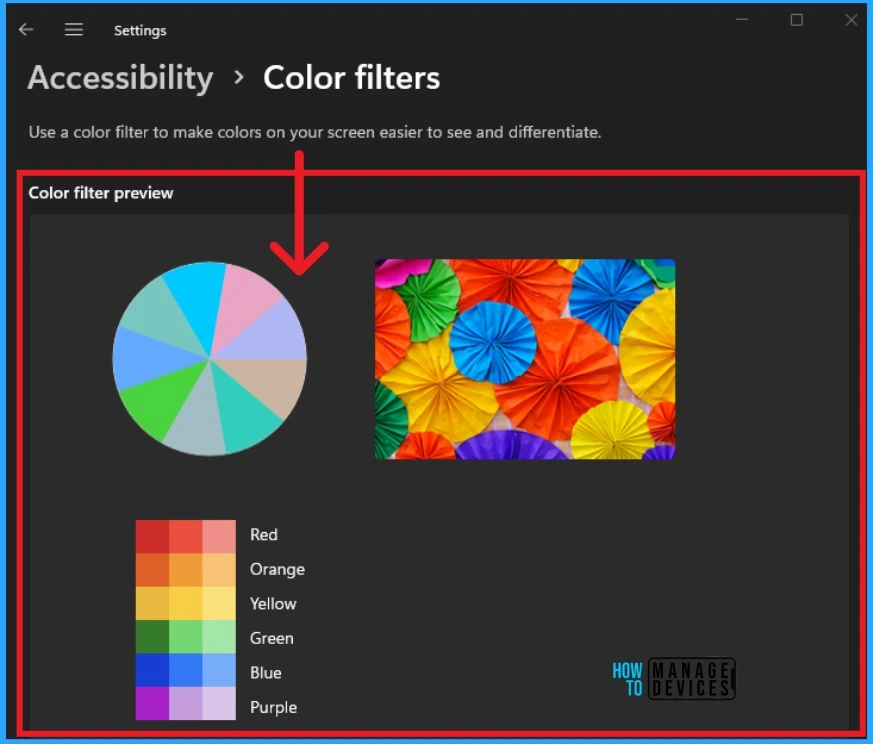
The screenshot below shows the Color Filters screen. Here, you can see the preview of Color Filters. As the image shows, you can see color combinations available on Color Filters. This color combination can be enabled on your Windows 11 PC.
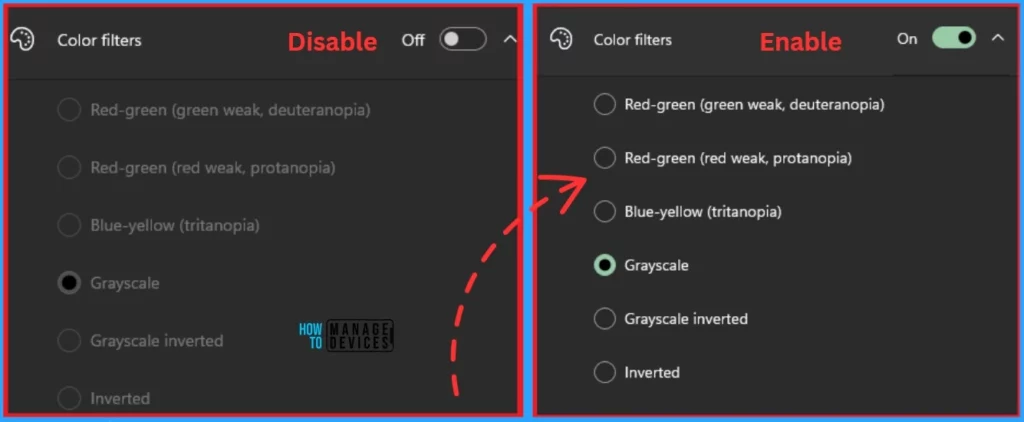
Under the Color Filters preview, you can see the option to enable Color Filters. This feature shows some color combinations that can be applied to your PC. Before this feature was allowed, the Color filter options were also disabled. After enabling color Filters, options are activated.
- To enable Color Filters, toggle the pane to the right side
- How to Change Size of Desktop Icon in Windows 11
- How to Show Hide Virtual Touchpad Icon on Taskbar in Windows 11
- Enable Disable Leave Touchpad On When Mouse is Connected Feature in Windows 11
Different Options Available on Color Filters
Windows 11 PC provides many options for users to change the color palette on the screen. This option shows your Screen with a different color palette. You can easily choose available color filters. By default, a Grayscale color filter is shown. The table below shows different color filter options.
| Different Color Filters on Windows 11 |
|---|
| 1. Red-green (green weak, deuteranopia) |
| 2. Red-green (red weak, Protanopia) |
| 3. Blue-yellow (tritanopia) |
| 4. Grayscale |
| 5. Grayscale inverted |
| 6. Inverted |
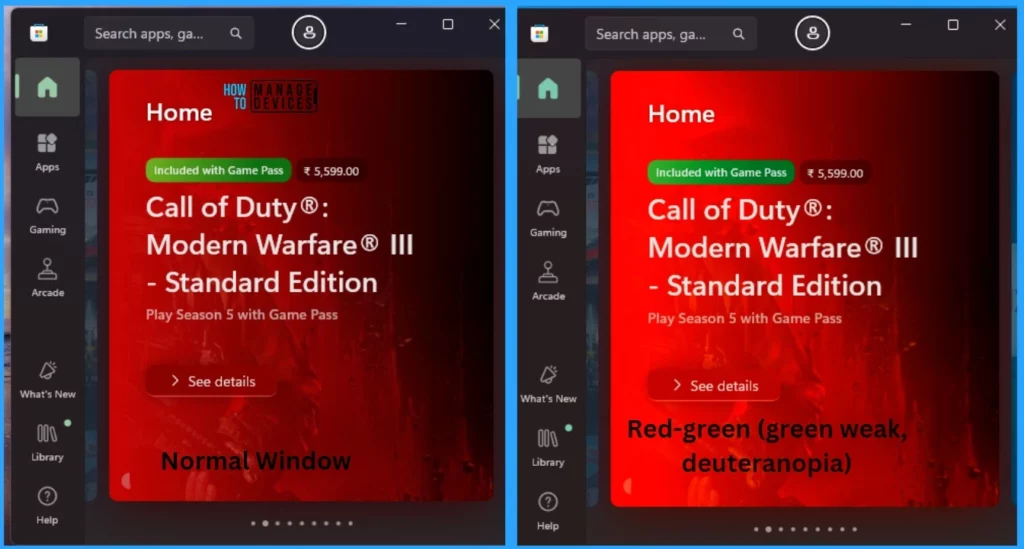
1. Red-green (green weak, deuteranopia)
The 1st option available on Color Filters is 1. Red-green (green weak, deuteranopia). It changes your Windows 11 PC screen to a green, weak, deuteranopia color. The screenshot below shows the difference between the normal window and the Red-green (green weak, deuteranopia) window. Here I shows this difference of screen of the Microsoft Store.
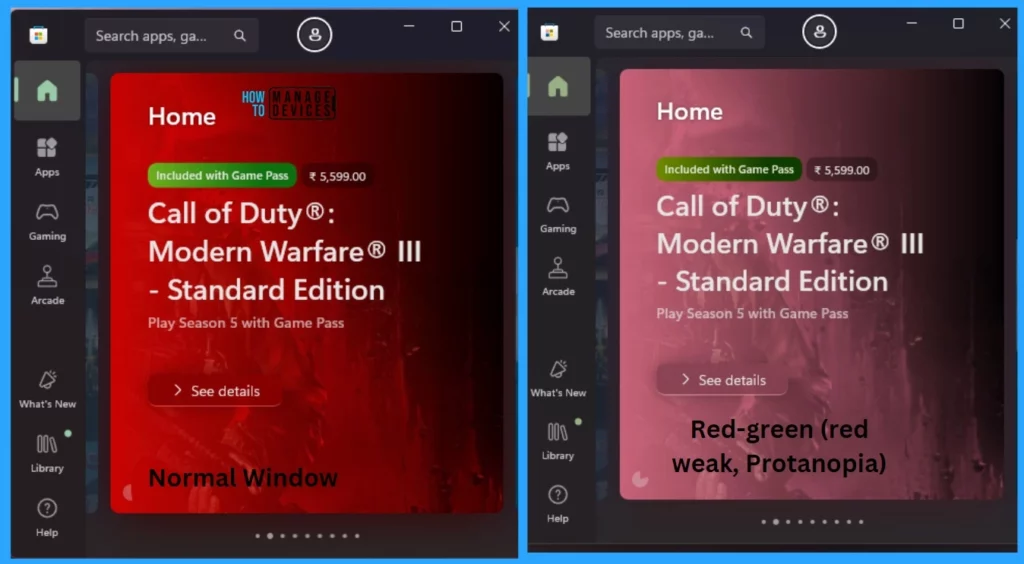
2. Red-green (red weak, Protanopia)
The 2nd option is Red-green (red weak, Protanopia). It gives a different look to your Windows screens. The below screenshot shows the difference.
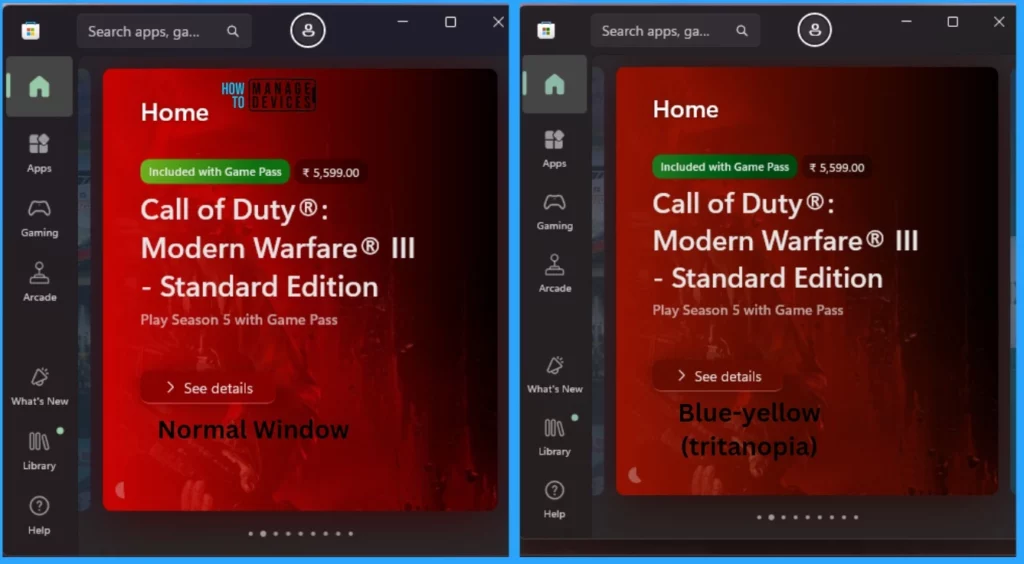
3. Blue-yellow (tritanopia)
The Blue-yellow (tritanopia) option gives a blue and yellowish color for your screens. These options visually enhance your experience. The screenshot below shows the difference between the normal window and Blue-yellow (tritanopia) option.
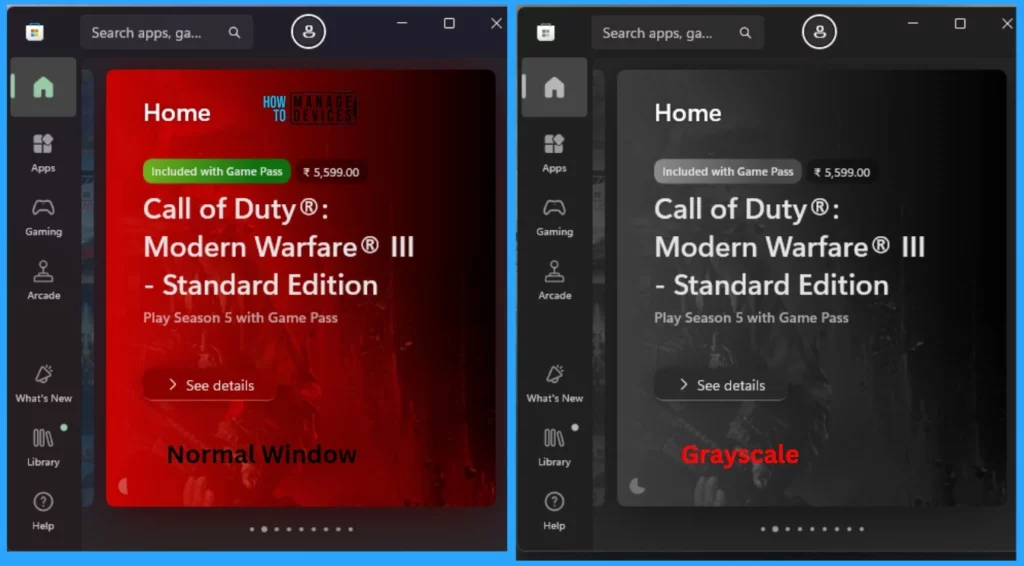
4. Grayscale
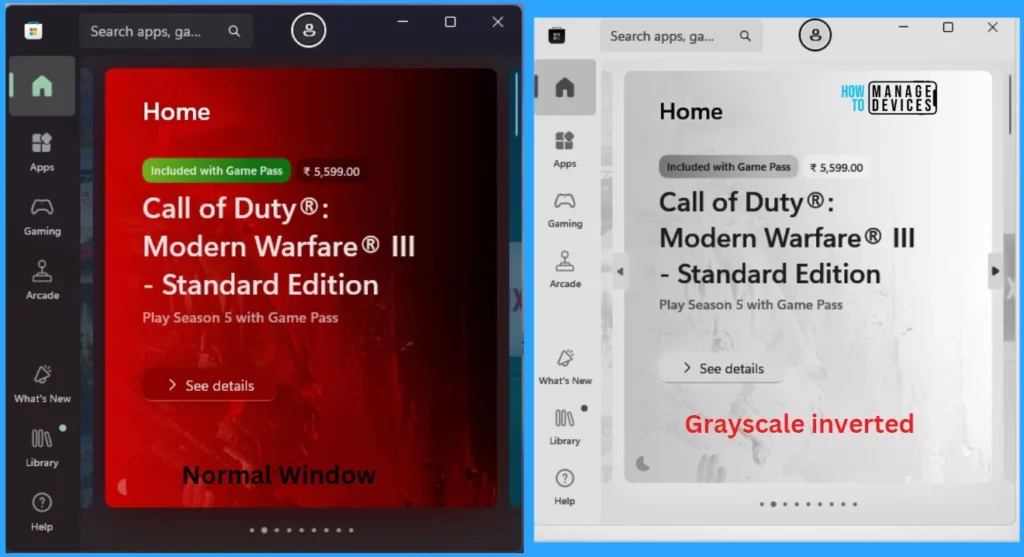
Grayscale is the 4th option on color filter. After enabling this option, you can see the entire screen as a grayish color. The below screenshot shows the differences.
5. Grayscale inverted
Grayscale inverted options are similar to the Grayscale option. The Grayscale inverted color is lighter than the Grayscale. You can see the differences in the below screenshot.
6. Inverted
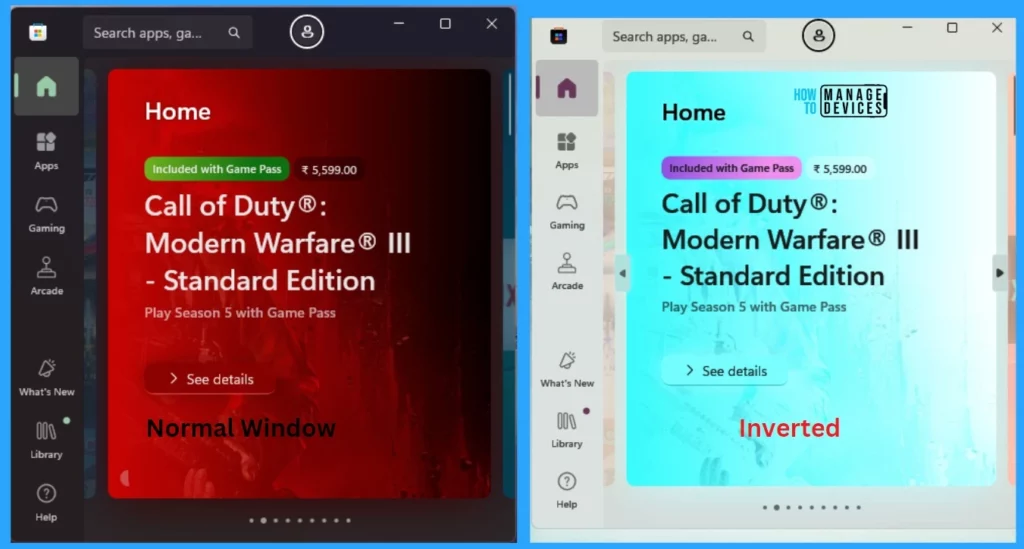
The Inverted option is the 6th option on Color Filters. It is different than other options. It gives a very different appearance to your Windows 11 PC screen.
Keyboard Shortcut for Color Filter
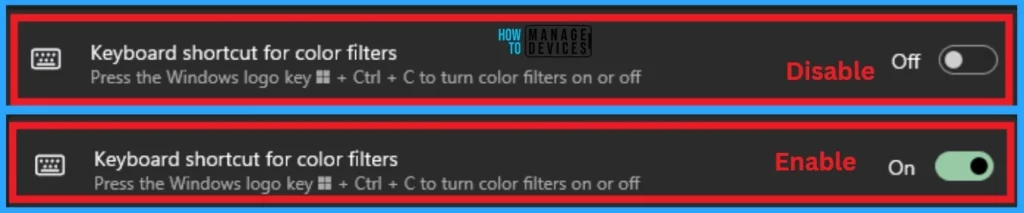
Microsoft provides a Keyboard Shortcut for Color Filters in Windows 11 PC. It helps users to access Color Filters with your fingertip. To get a colour filter using a Keyboard shortcut, you have to enable Keyboard Shortcut for the Color Filter option available on the Color Filter Screen.
- To enable Keyboard Shortcut for Color Filter, toggle the pane to the right side
- After enabling this feature, you can use Win + Ctrl +C key to access color filters
- If you want to disable this again, press Win + Ctrl +C key
We are on WhatsApp now. To get the latest step-by-step guides, news, and updates, Join our Channel. Click here. HTMD WhatsApp.
Author
Anoop C Nair has been Microsoft MVP from 2015 onwards for 10 consecutive years! He is a Workplace Solution Architect with more than 22+ years of experience in Workplace technologies. He is also a Blogger, Speaker, and leader of the Local User Group Community. His main focus is on Device Management technologies like SCCM and Intune. He writes about technologies like Intune, SCCM, Windows, Cloud PC, Windows, Entra, Microsoft Security, Career, etc..




Discussion