






Add Remove Web Pages from Favorites Bar in Microsoft Edge Browser and Set Visibility Registry Method
Hi, Today, we can discuss a new topic: managing the Favorites Bar in Microsoft Edge. Let’s add or remove web pages from the Favorites Bar in Microsoft Edge Browser. As you all know, Microsoft Edge is a great browsing platform known for its speed and security features, unlike many popular browsers.
Microsoft Edge has many new features and tools to satisfy the user. I think Edge provides many features that are very useful for users. It also has many features that make it a great choice for both personal and work use.
One of the interesting features of Edge is the Favorites Bar in Microsoft Edge. I think you all know that the Favorites Bar is one of the useful features for users to access their favourite websites quickly. In my personal opinion, this feature works really well in your everyday working life.
The Favorites Bar in Microsoft Edge is a useful tool with many benefits. It lets you quickly access your favourite websites, helps you stay organized, and allows for customization, making browsing easier and more efficient. In this post, we will look at an overview of managing the Favorites Bar in Microsoft Edge.

Table of Contents
What is a Favourite Bar in MS Edge?
Add Remove Web Pages from Favorites Bar in Microsoft Edge Browser and Set Visibility Registry Method
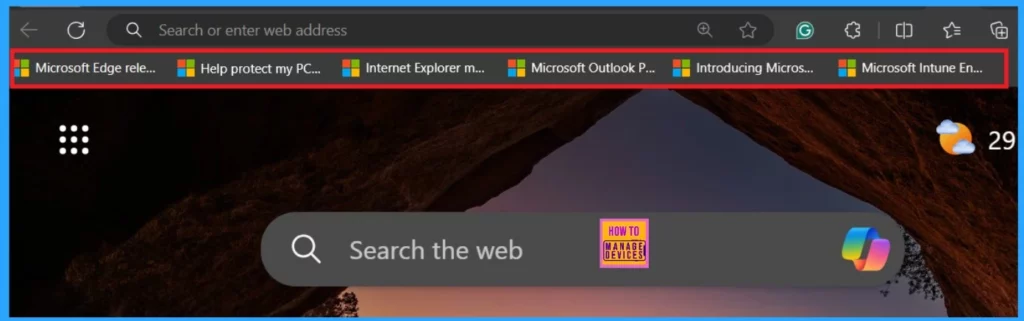
Above, we discussed an overview of the FAvourite bar in Microsoft Edge. This feature adds your favourite webpage and folders to your favourite bar. The below screenshot is an example of the favourite bar. This feature is also located just below the address bar in Microsoft Edge.
- You can view your favourite bar options By using the Ctrl + Shift + B keys.
- MS Edge Browser Automatic Options to Organize Tabs Stay Organized with Tab Groups
- New Error Detecting Feature in Edge Browser using Copilot
- New Text Prediction and other Features in MS Edge Browser
How to Add a Website to the Favourite Bar on the Edge
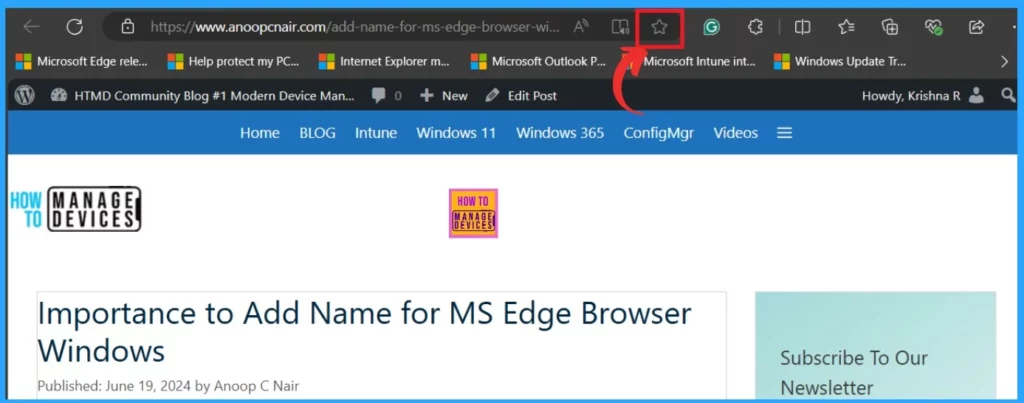
You can add your favourite websites to the favourite bar easily. First, you must open the website you want to add to your favourite. Here, I opened our Website( HTMD) page, and then you can find a Star option near the address bar.
- Now the Website is to be added to the Favourite Bar.
- By default, the favourites bar appears only on new tabs, but you can adjust the settings to always show it or never show it options.
- You can also use the shortcut key for this by using Cntrl+D.
- The information below will provide instructions on setting your favourite bar visibility options using different methods.
1. Set Favourite Bar Visibility Options by Using the Favorites Bar Menu
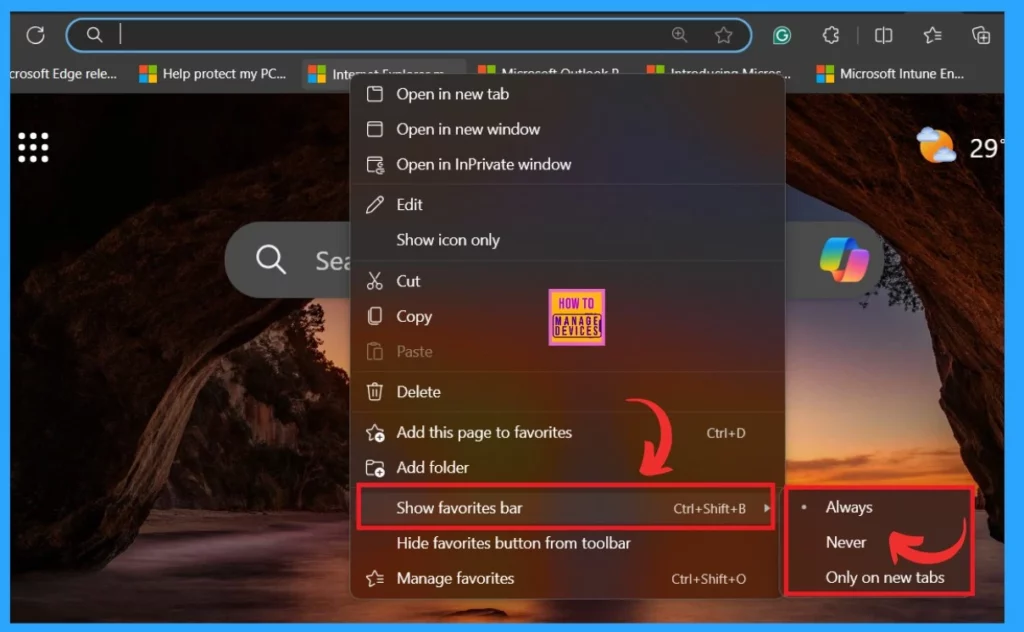
You can easily set the showing options for the Favorites Bar. As I already mentioned, the favourites bar appears only on new tabs by default, but you can change this option. You can customize the favourites bar to always, never, and new tabs only.
- Click on the favourite bar
- In the context Menu, you can select the Show Favourites bar option
- You can set how to display the favourite bar in the Edge
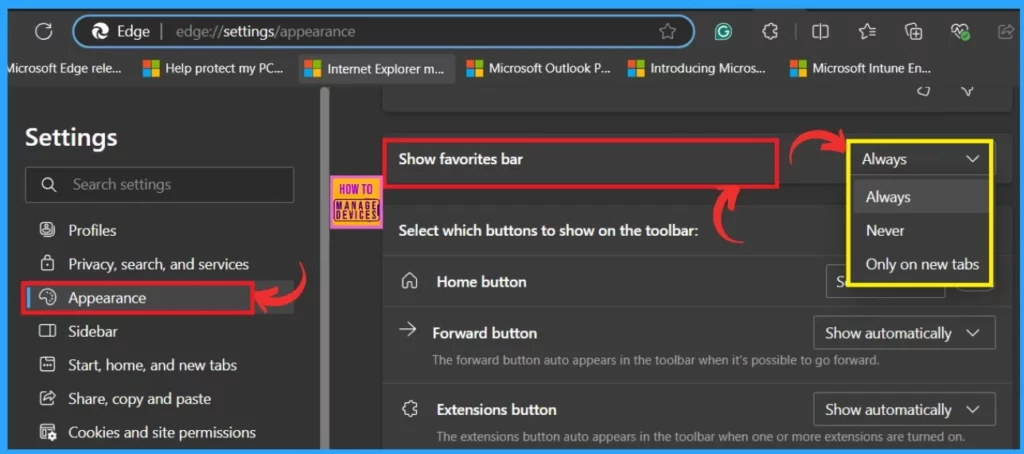
- There are 3 options available, Always, Never, and Only on a new tab.
| Show Favourites Bar Option | Info |
|---|---|
| Always | It shows the Favourite bar option in all tabs |
| Never | It never shows the Favourite bar option |
| Only on new tabs | It is the default option; the favourites bar is set to appear only on new tabs. |
2. Set Favourite Bar Visibility options by Using the Favorites Hub
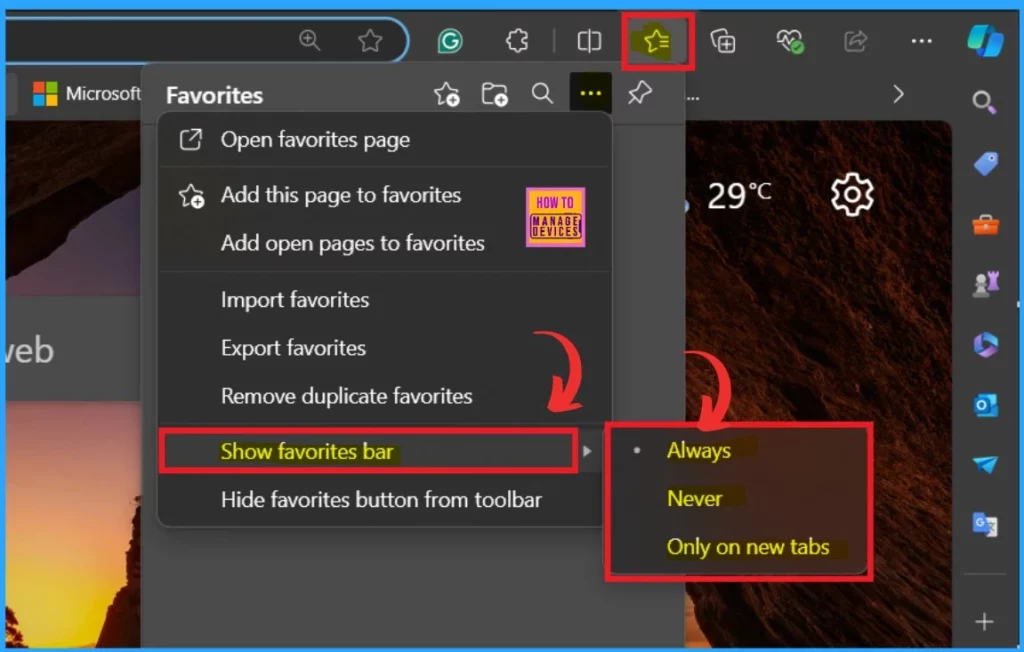
Another option is to use the Favourite Hub option (you can see the Star icon near the address bar). Click on that option to access the settings of the favourite bar. Here, you can select the Show Favourites bar option. As I mentioned above, you can also select the display options for the Favourites bar.
3. Set Favourite Bar Visibility options by Using Settings
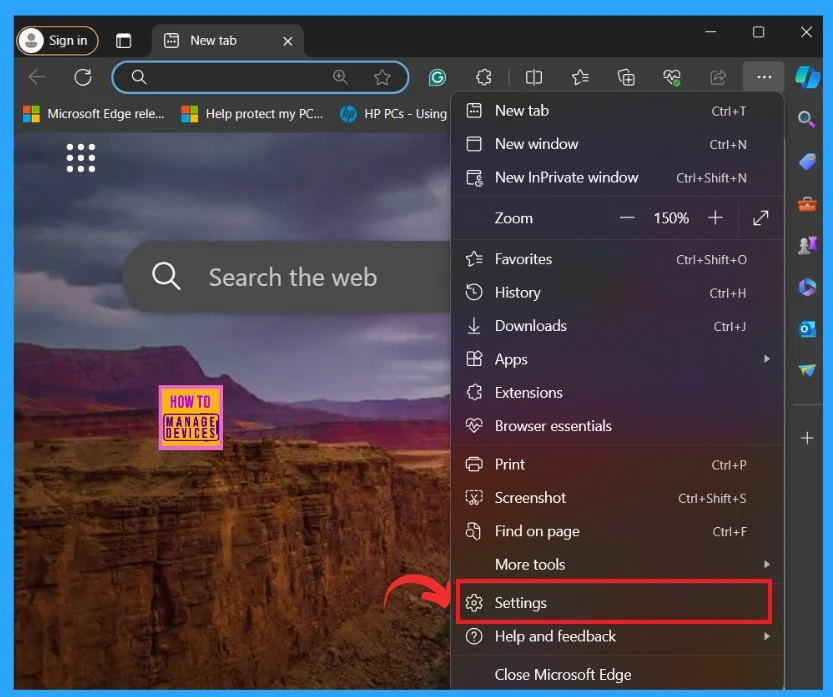
Another method is to use the Edge settings to click on the More option(3 dot Menu). Then you can see the settings option below and click on settings.
- Allow or Block Push Notifications for Sites in Microsoft Edge
- Importance to Add Name for MS Edge Browser Windows
- Method to Start Close Read Aloud in Microsoft Edge
- Guide to Enable Efficiency Mode in Microsoft Edge using Intune
In the Settings Menu, select the Appearance option to see the browsers’ appearance options. When you scroll down those options, you will see the option for the” Show Favourites bar.” Then, you can select any option to display your favourite bar.
4. Set Favourite Bar Visibility Options by Using Registry
The next method is using the Windows registry; this setting is also an easy step. With the Windows registry, users can make changes in the Windows database. So let’s check how to change the view options.
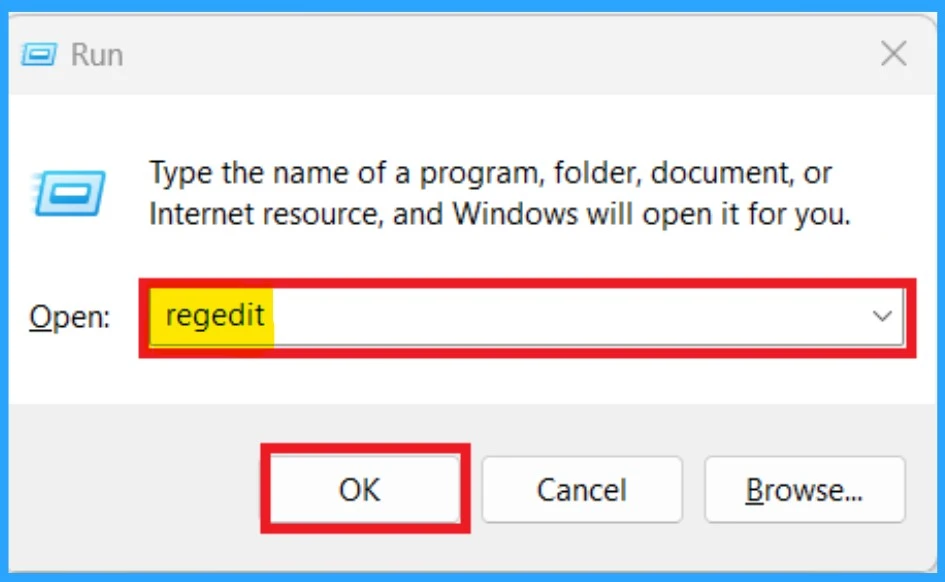
- First, you must open the registry By clicking on the shortcut key Win+R.
- Type regedit
- Click Ok
Then, you have to give an appropriate path. If you want to make some specific settings, you need to enter the correct path for them. So you can use the path below:
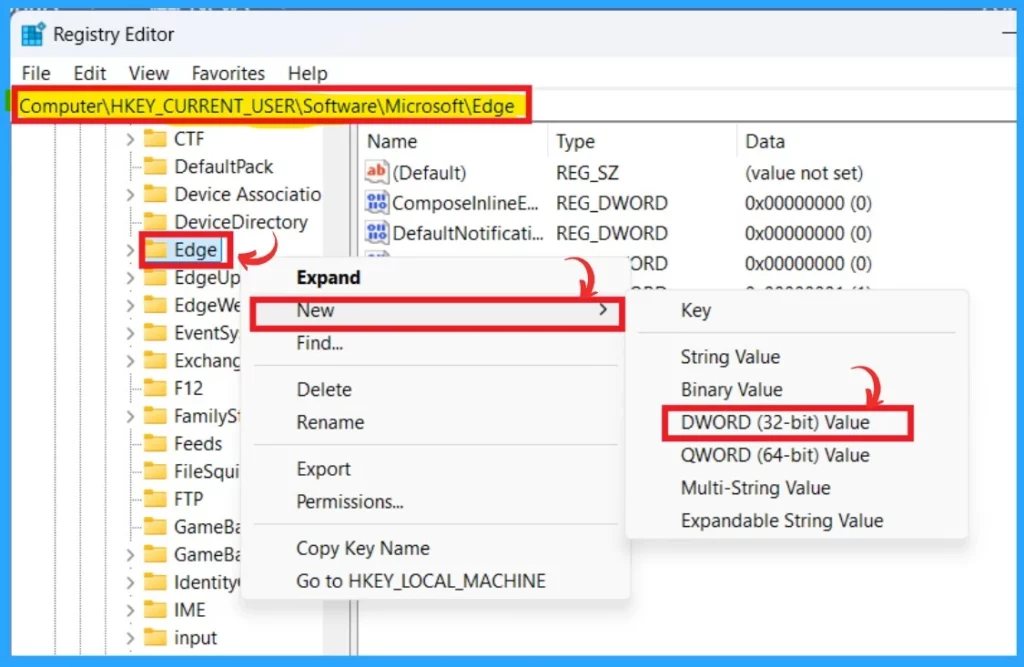
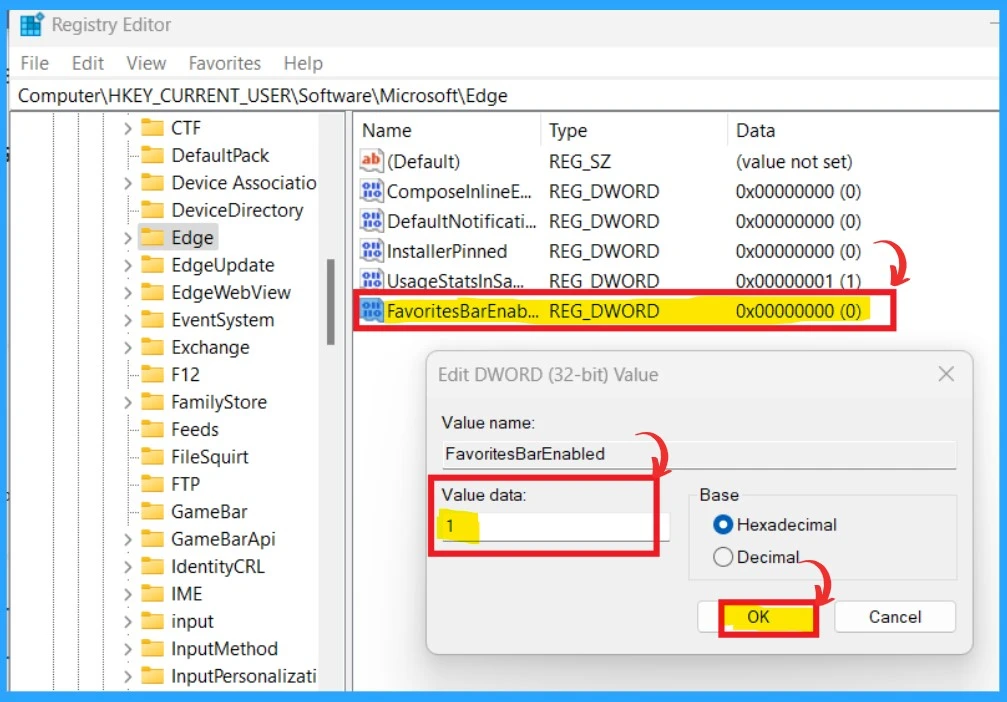
Copy this: Computer\HKEY_CURRENT_USER\Software\Microsoft\Edge
- After entering the path, you can see the Edge option in the left pane, so you can Right click on that
- You have to create a new value as the ”FavoritesBarEnabled”
- When you Right click, you will get the option New>DWORD (32-bit) Value
After giving the new value as DWORD (32-bit) and renaming it as the ”FavoritesBarEnabled’‘. Then, you have to double-click on the new value. So after that, you will get a context menu where you can enter the values for how you want to show the Favourite bar on the Edge.
| Value | Info |
|---|---|
| Value as 0 | This value disables the Favorites Bar. |
| Value as 1 | This value enables the Favorites Bar in Microsoft Edge. |
| Value as – | This is the Default User Choice |
We are on WhatsApp now. To get the latest step-by-step guides, news, and updates, Join our Channel. Click here. HTMD WhatsApp.
Author
Anoop C Nair has been Microsoft MVP from 2015 onwards for 10 consecutive years! He is a Workplace Solution Architect with more than 22+ years of experience in Workplace technologies. He is also a Blogger, Speaker, and leader of the Local User Group Community. His main focus is on Device Management technologies like SCCM and Intune. He writes about technologies like Intune, SCCM, Windows, Cloud PC, Windows, Entra, Microsoft Security, Career, etc..




Discussion