






Add or Remove All Program Lists from the Start Menu in Windows 11
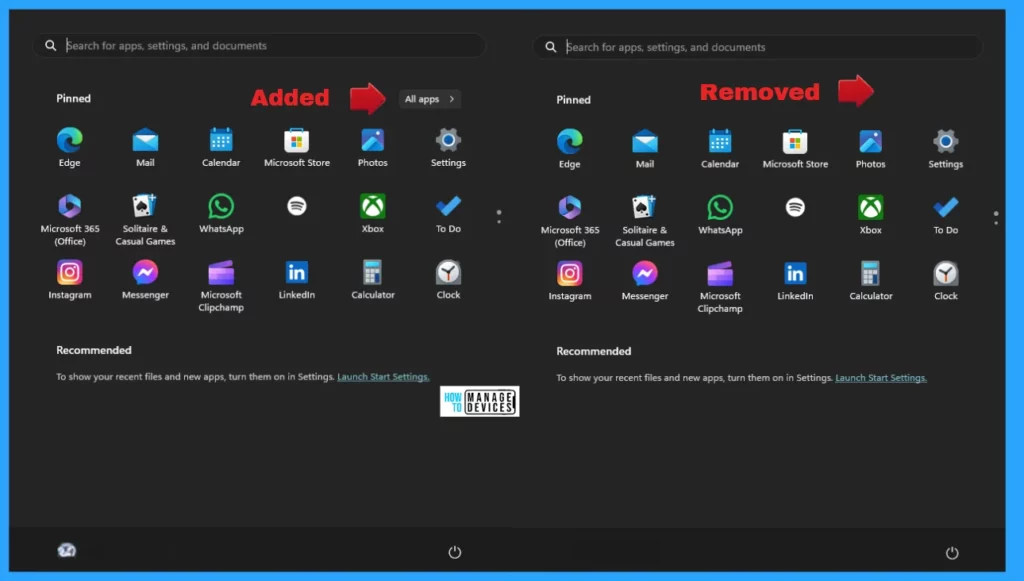
Let’s learn how to Add or Remove All Program Lists from the Start Menu in Windows 11. The Start Menu is mainly divided into three sections: Pinned, All Apps, and Recommended. All apps appear when a user clicks all Applications in the upper-right corner of the Start menu.
All applications are a comprehensive list of shortcuts, in alphabetical order, of all installed apps. Some of the shortcuts are grouped into folders with the expandable folder in the list. Removing all-app lists can be easy if you prefer to see only the pinned apps on Start instead.
To make any change in the Start menu, you must be signed in as an administrator to add or remove all apps on the Start menu. Windows 11 is the latest operating system with many beneficial features and tools.
Windows 11 is one of the best operating systems today. It is not just a simple update but a complete redesign of the Windows experience. You can also learn how to clear the recommended section from the start menu here: How to Clear the Start Menu Recommended Section in Windows 11.


How to Add or Remove All Program Lists from the Start Menu
You can Add or Remove All Program Lists from the Start Menu in Windows 11. The methods for changing the settings are listed below.
- Add or Remove All Program Lists from the Start Menu Using Local Group Policy Settings
- Add or Remove All Program Lists from the Start Menu Using Registry File
- Add or Remove All Program Lists from the Start Menu Using Intune Policy
- Disable or Enable Windows 11 Context Menu How to Guide
- Best Guide to Install Microsoft SQL Server 2016 Report Builder using Intune
- Enable Disable MS Edge Browser Saving Passwords to Password Manager option using Intune
Add or Remove All Program Lists from the Start Menu Using Local Group Policy Settings
In Windows 11, you can set the Local Group Policy Editor to Add or Remove All Program Lists from the Start Menu. Open the Local Group Policy to Add or Remove All Program Lists from the Start Menu, and follow the process.
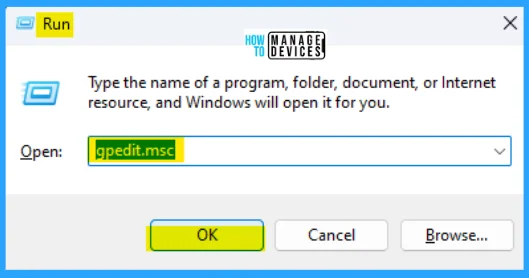
- Open the Run command and press Win Key + R.
- Type gpedit.msc
- Click OK or press Enter.
When the Group Policy Editor opens, navigate to the following path to access the required policy settings. To make changes, select Start Menu and Taskbar.
Computer Configuration > Administrative Templates > Start Menu and Taskbar
NOTE: This setting is applicable to All users.
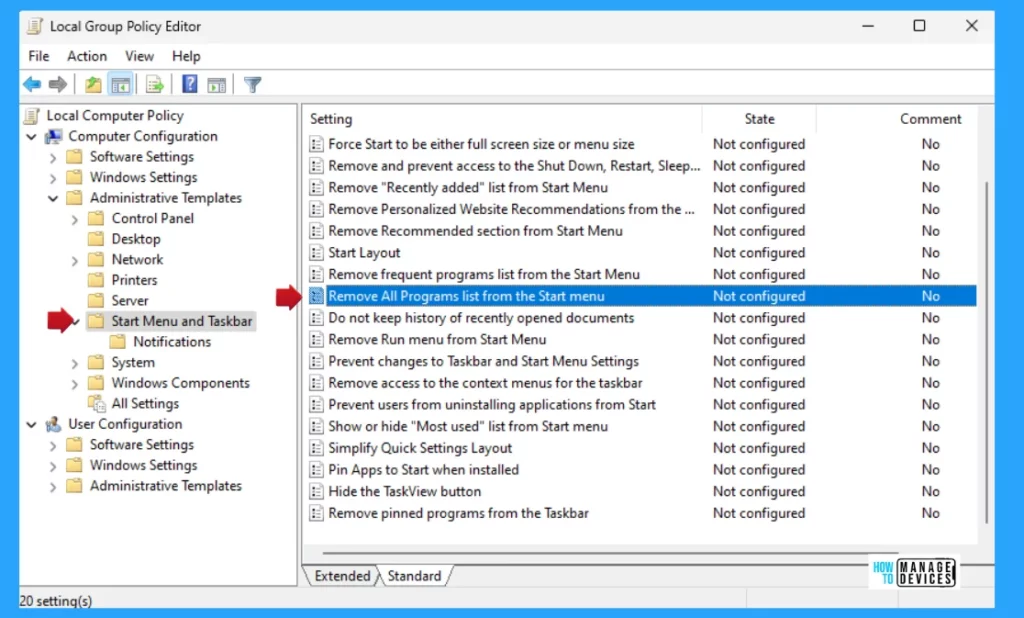
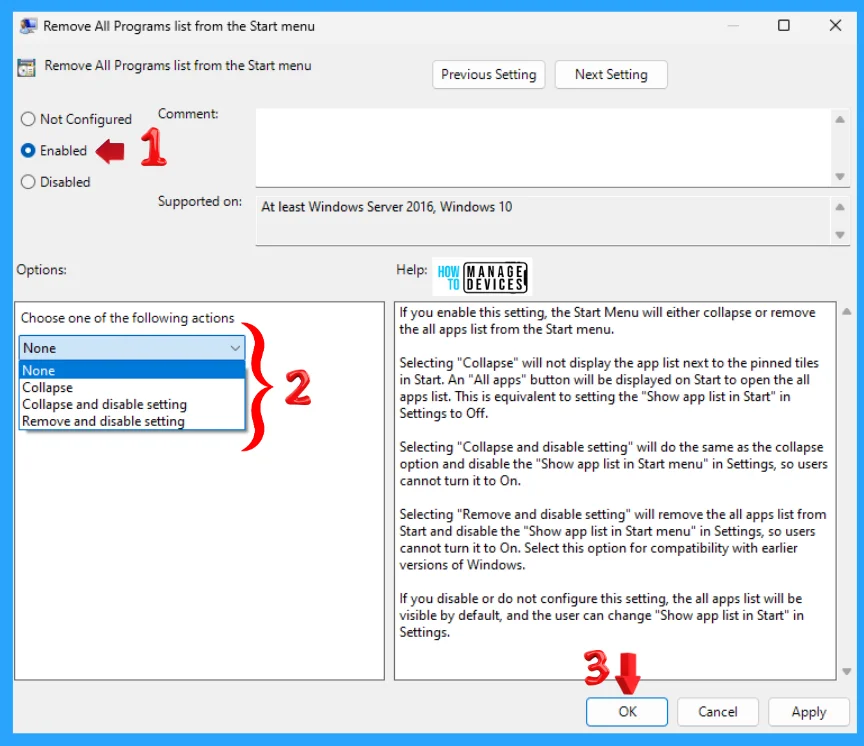
Double-click Remove All Program List from the Start Menu to open the settings. Here, you can see that it needs at least Windows Server 2016 and Windows 10. You can choose the following option: press Apply, then press the OK button to apply the changes.
If you disable or do not configure this setting, all apps will be visible by default, and the user can change “Show app list in Start” in Settings.
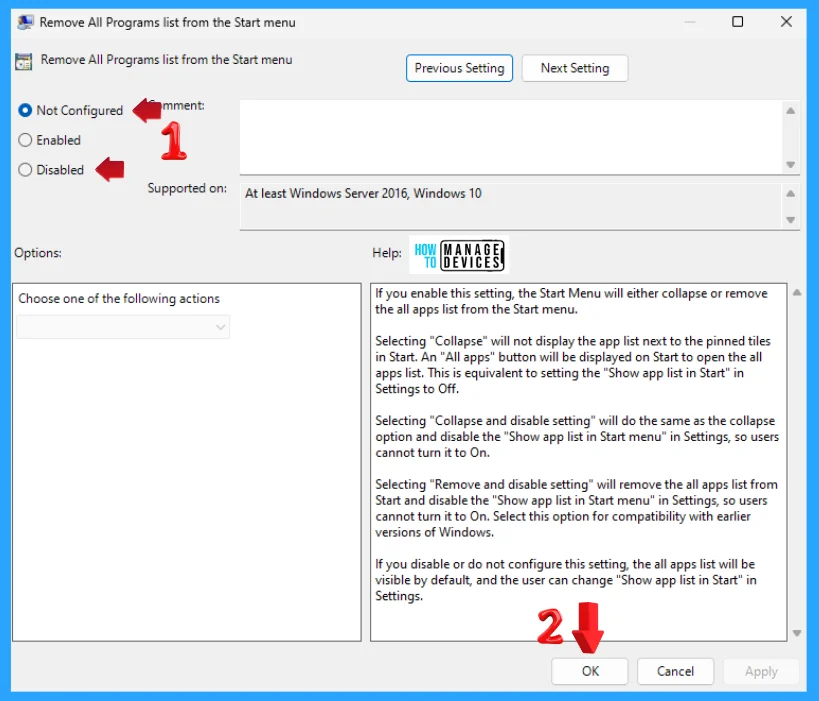
If you enable this setting, the Start Menu will either collapse or remove the all apps list from the Start Menu. But this option has some additional sub-options listed below. Select the Remove and disable setting option and click OK to apply the settings.
- Enable
- Collapse: Selecting “Collapse” will not display the app list next to the pinned tiles in Start. An “All apps” button will be displayed on Start to open the all apps list. This is equivalent to setting the “Show app list in Start” in Settings to Off.
- Collapse and disable setting: Selecting “Collapse and disable setting” will do the same as the collapse option and disable the “Show app list in Start menu” in Settings, so users cannot turn it to On.
- Remove and disable setting: Selecting “Remove and disable setting” will remove all apps list from Start and disable the “Show app list in Start menu” in Settings, so users cannot turn it to On. Select this option for compatibility with earlier versions of Windows.
NOTE: You should restart your device after making any changes for its applicability.
When the Group Policy Editor opens, you can also access the following path to access the required policy settings. To make changes, select Start Menu and Taskbar.
User Configuration > Administrative Templates > Start Menu and Taskbar
NOTE: This setting is applicable to Specific Users or Group.
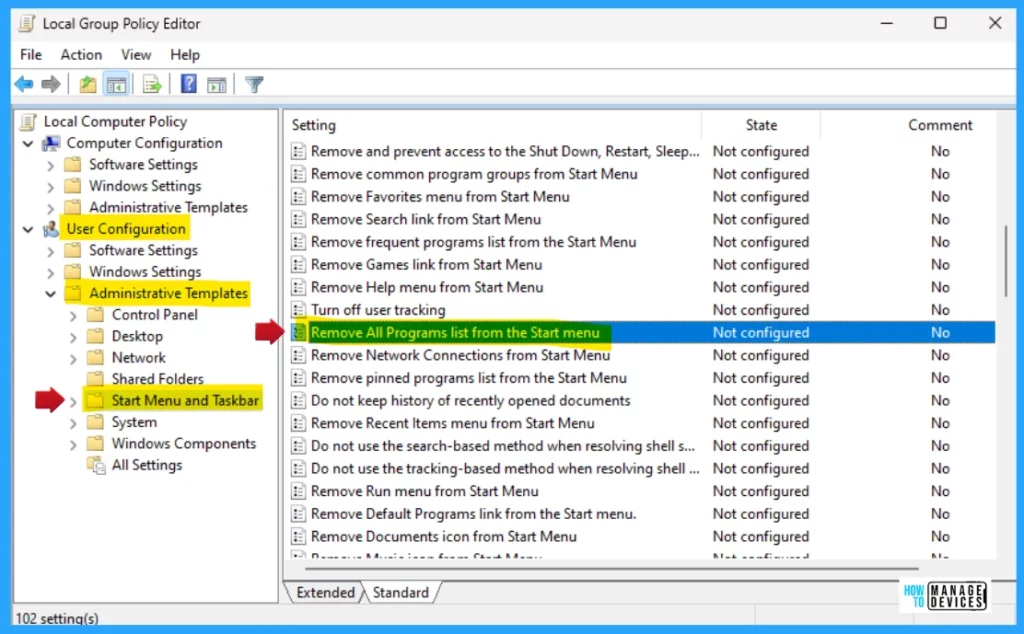
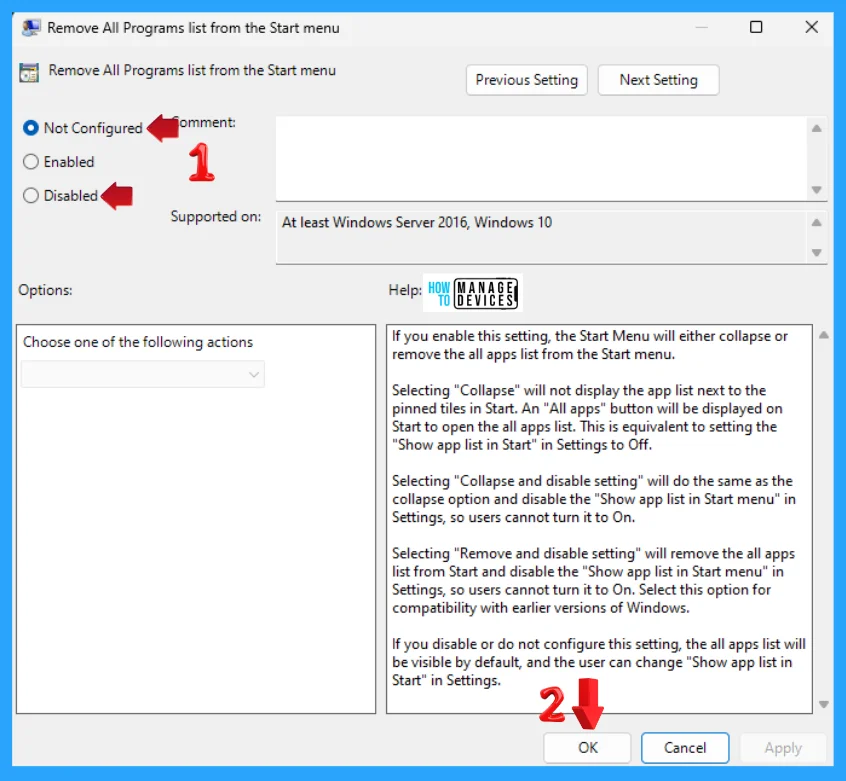
Double-click Remove All Program List from the Start Menu to open the settings. Here, you can see that it needs at least Windows Server 2016 and Windows 10. You can choose the following option: press Apply, then press the OK button to apply the changes.
If you disable or do not configure this setting, all apps will be visible by default, and the user can change “Show app list in Start” in Settings.
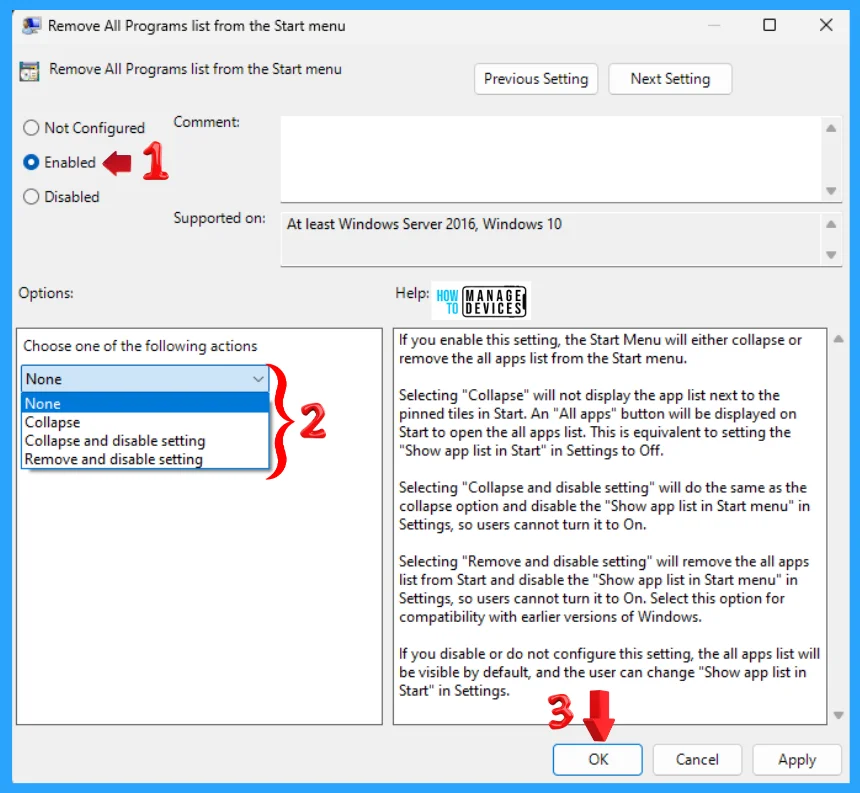
If you enable this setting, the Start Menu will either collapse or remove the all apps list from the Start Menu. But this option has some additional sub-options listed below. Select the Remove and disable setting option and click OK to apply the settings.
- Enable
- Collapse: Selecting “Collapse” will not display the app list next to the pinned tiles in Start. An “All apps” button will be displayed on Start to open the all apps list. This is equivalent to setting the “Show app list in Start” in Settings to Off.
- Collapse and disable setting: Selecting “Collapse and disable setting” will do the same as the collapse option, and disable the “Show app list in Start menu” in Settings, so users cannot turn it on.
- Remove and disable setting: Selecting “Remove and disable setting” will remove all apps list from Start and disable the “Show app list in Start menu” in Settings, so users cannot turn it to On. Select this option to ensure compatibility with earlier versions of Windows.
NOTE: You should restart your device after making any changes for its applicability.
Add or Remove All Program Lists from the Start Menu Using Registry File
Using the registry editor, there are ways to Add or Remove All Program Lists from the Start Menu on the taskbar in Windows. This procedure is done using the Registry File. Let’s discuss the step-by-step guidelines for it.
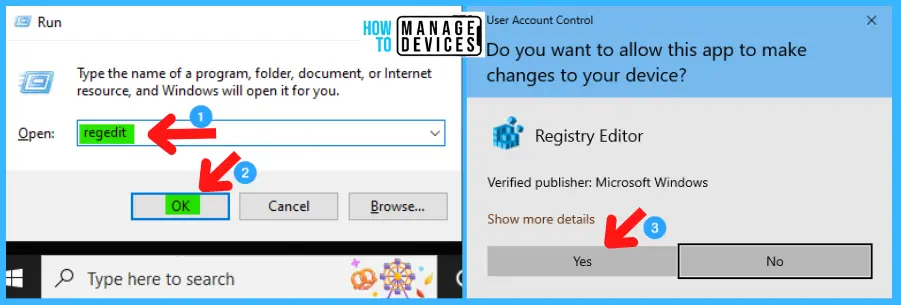
Now, open Run Window, and press Windows Key + R from the keyboard simultaneously. This is the keyboard shortcut to open the run window. Now, type regedit and click on OK to continue. Then, it asks the Admin’s permission to change the Device. Click Yes.
- Window Key + R (To open run command)
- Type ‘regedit‘ and press OK
- Administrator Permission press Yes
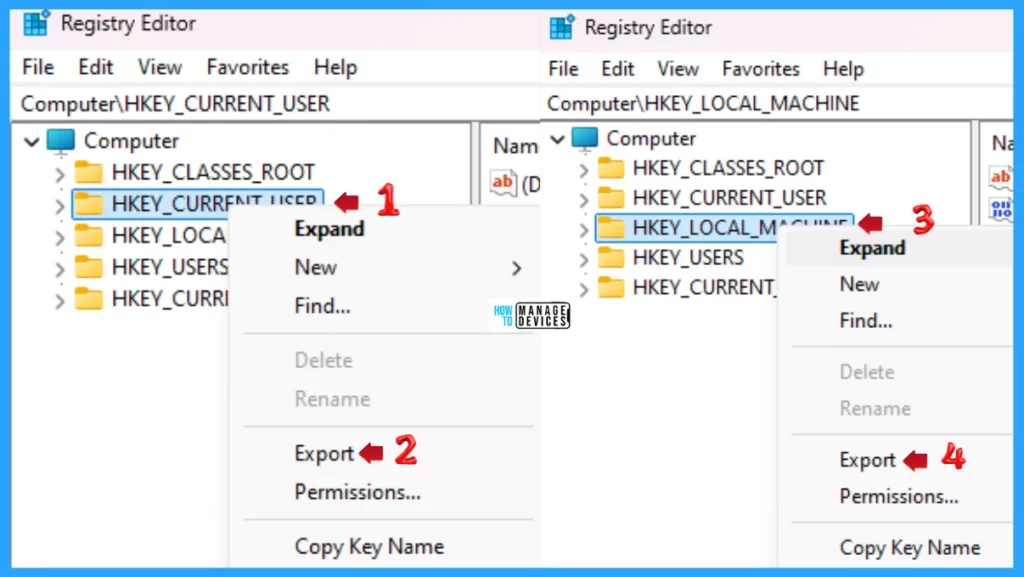
NOTE! Take Backup—If any mistake occurs in the Registry Editor, it may affect the system. It is advisable to take a backup of the Registry before proceeding. To back up, go to File in the top left corner of the Registry Editor. Click on it, then select Export and save the backup.
- Go to File.
- Right-click on HKEY_CURRENT_USER and HKEY_LOCAL_MACHINE.
- Click on Export.
- Please save it.
To add all program lists from the Start Menu in Windows, use the .reg file. To create a .reg file, open NotePad, type the following code, and name it AddAllAppsinStartMenu. Then, save it on the desktop using the .reg extension.
Windows Registry Editor Version 5.00

[HKEY_CURRENT_USER\Software\Microsoft\Windows\CurrentVersion\Policies\Explorer]
"NoStartMenuMorePrograms"=-

[HKEY_LOCAL_MACHINE\SOFTWARE\Microsoft\Windows\CurrentVersion\Policies\Explorer]
"NoStartMenuMorePrograms"=-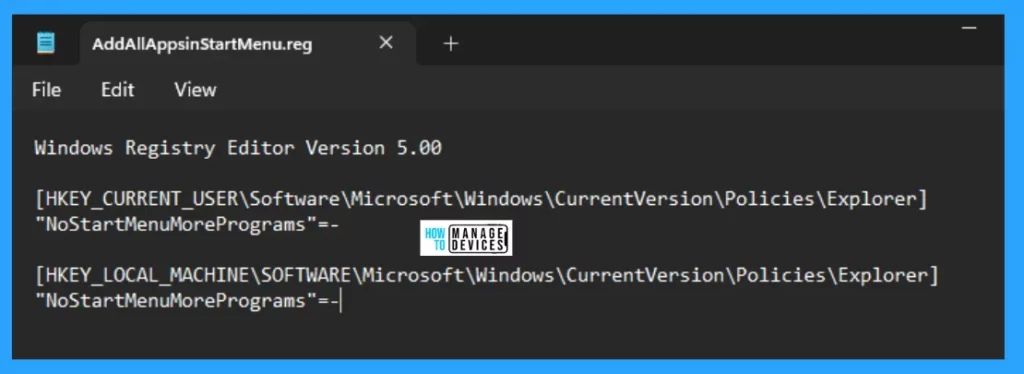
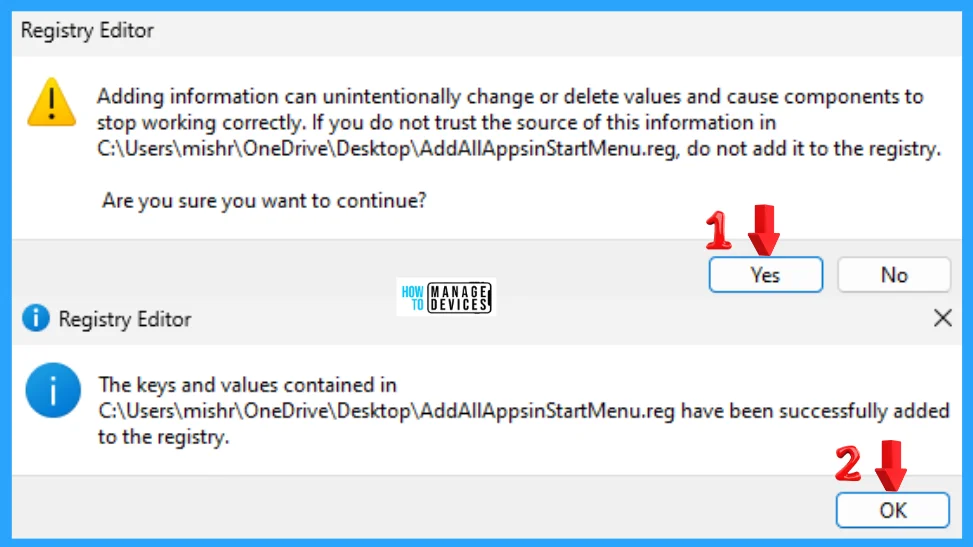
When the file is saved at your selected location, double-click on it. The User Account Control Window will open; click Yes to continue. Then, the Registry Editor Waring window will open.
Adding information can unintentionally change or delete values and cause components to stop working correctly. If you do not trust the source of this information in the path you created, do not add it to the registry; otherwise, click Yes to continue.
The following window shows that the key and value you added have been successfully added to the registry editor. Now click on OK and restart your PC to add the applicable test.
Remove all program lists from the Start Menu in Windows 11 using the .reg file. To create a .reg file, open NotePad, type the following code, name it RemoveAllAppsinStartMenu, and save it on the desktop using the .reg extension.
Windows Registry Editor Version 5.00

[HKEY_CURRENT_USER\Software\Microsoft\Windows\CurrentVersion\Policies\Explorer]
"NoStartMenuMorePrograms"=-

[HKEY_LOCAL_MACHINE\SOFTWARE\Microsoft\Windows\CurrentVersion\Policies\Explorer]
"NoStartMenuMorePrograms"=dword:00000001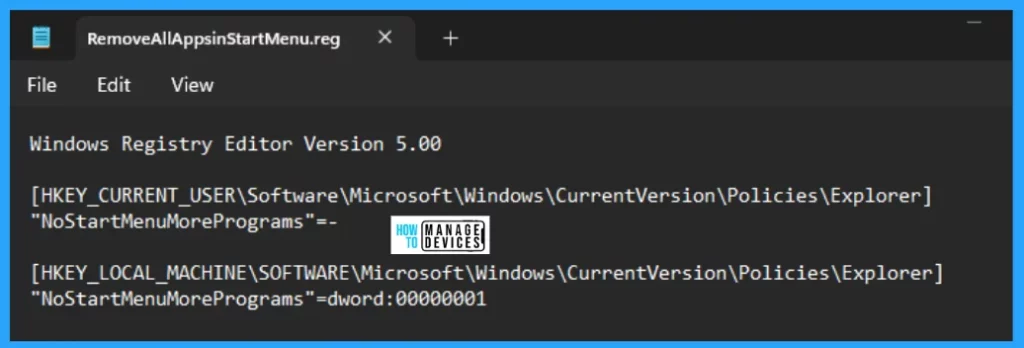
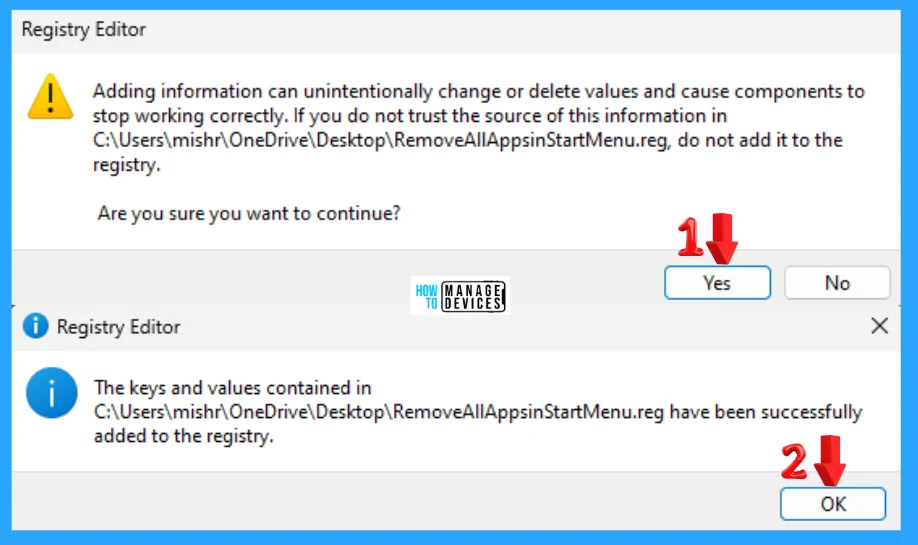
When the file is saved at your selected location, double-click on it. The User Account Control Window will open; click Yes to continue. Then, the Registry Editor Waring window will open.
Adding information can unintentionally change or delete values and cause components to stop working correctly. If you do not trust the source of this information in the path you created, do not add it to the registry; otherwise, click Yes to continue.
The following window shows that the key and value you added have been successfully added to the registry editor. Now click on OK and restart your PC to add the applicable test.
Add or Remove All Program Lists from the Start Menu Using Intune Policy
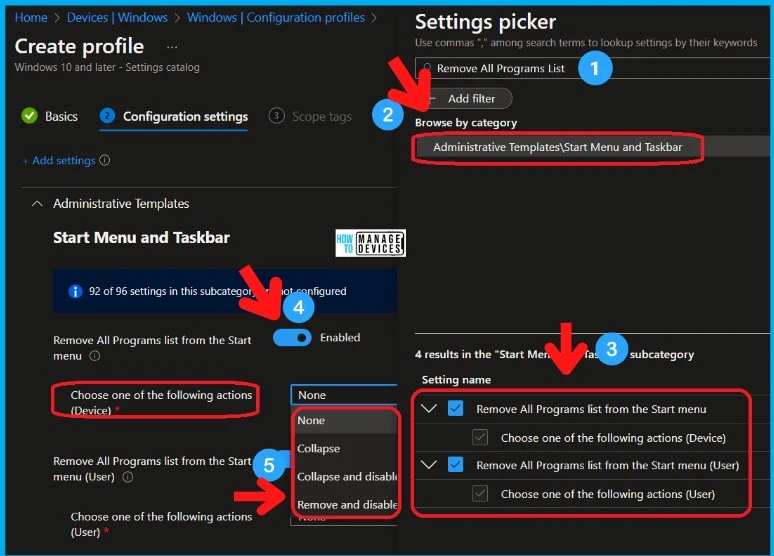
Let’s learn how to Add or Remove All Program Lists from the Start Menu on a Windows device through configuration profiles in Intune and follow these steps meticulously.
- Search with “remove all program list” in the Settings picker search box.
- Select the Administrative Templates\Start Menu and Taskbar Category.
- Select the policies listed below from the Settings name section.
- Remove All Programs list from the Start menu(Device)
- Choose one of the following actions
- Enable – Select the options from the Drop-Down menu
- Collapse, Collapse and Disable Settings, or Remove and Disable Settings.
- Enable – Select the options from the Drop-Down menu
- Choose one of the following actions
- Remove All Programs list from the Start menu (User)
- Choose one of the following actions
- Enable – Select the options from the Drop-Down menu
- Collapse, Collapse, and Disable Settings, or Remove and Disable Settings.
- Enable – Select the options from the Drop-Down menu
- Choose one of the following actions
- Remove All Programs list from the Start menu(Device)
NOTE: Refer to the Intune Settings Catalog policy creation guide to complete the policy creation process – Create Intune Settings Catalog Policy.
Read this guide for more information on Customizing Windows 11 Start Menu Layout Settings Using Intune.
I hope the information on how to Add or Remove All Program Lists from the Start Menu in Windows 11 is helpful. Please follow us on the HTMD Community and visit our website, HTMD Forum, if you like our content. Suggest improvements, if any, and we would love to know which topic you want us to explore next.
We are on WhatsApp. To get the latest step-by-step guides and news updates, Join our Channel. Click here – HTMD WhatsApp.
Author
Alok graduated with a Master of Computer Applications (MCA) degree. He loves writing on Windows 11 and related technologies. He likes to share his knowledge, quick tips, and tricks with Windows 11 or Windows 10 with the community.




Discussion