






3 Methods to Enable Disable Lock Screen Notifications in Windows 11
Hi, everyone. Today, we are discussing a new topic: 3 Methods to Enable Disable Lock Screen Notifications in Windows 11. Some of these methods are suitable for corporate laptops, and some are suitable for Home PCs.
So, Today, our topic is Notifications, right? As you all know, notifications are essential for informing us about some information. Notifications have many types of settings features available in Windows 11. Lock Screen plays an important role, and it is one of the best services provided by Windows 11.
We all consider our security first; in this case, lock screen notifications ensure all users’ security. This feature lets users stay updated and connected easily while managing privacy and customizing settings.
These Notifications include app messages, system alerts, calendar events, and more. Users can select which apps are allowed to display notifications on the lock screen, so we can say that Lock screen notifications in Windows 11 are customizable according to the user’s preference.

Table of Contents
What is a Lock Screen?
Are there any Group Policy options?
3 Methods to Enable or Disable Lock Screen Notifications
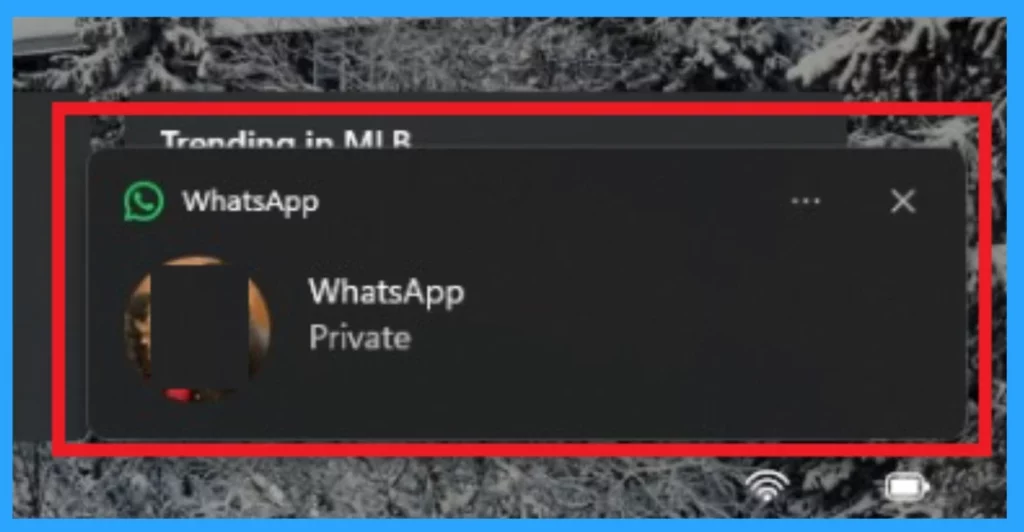
Above, we see an overall view of the Notifications on the Lock Screen in Windows 11. As you all know, Lock screen Notifications are essential. In my personal experience, they never reveal their content.
- For example, if a WhatsApp message notification comes up, it will only show us that it is a private message.
- Below, let’s check different methods for enabling or disabling notifications on the Lock Screen in Windows 11.
- Allow or Block Push Notifications for Sites in Microsoft Edge
- Turn On or Off Do Not Disturb for Notifications in Windows 11
- Enable Flash Screen During Audio Notifications in Windows 11
- 3 Easy Methods to Reset Windows 11 PC
- Enable Disable Auto-restart Notifications for Windows Update in Windows 11
Use Settings
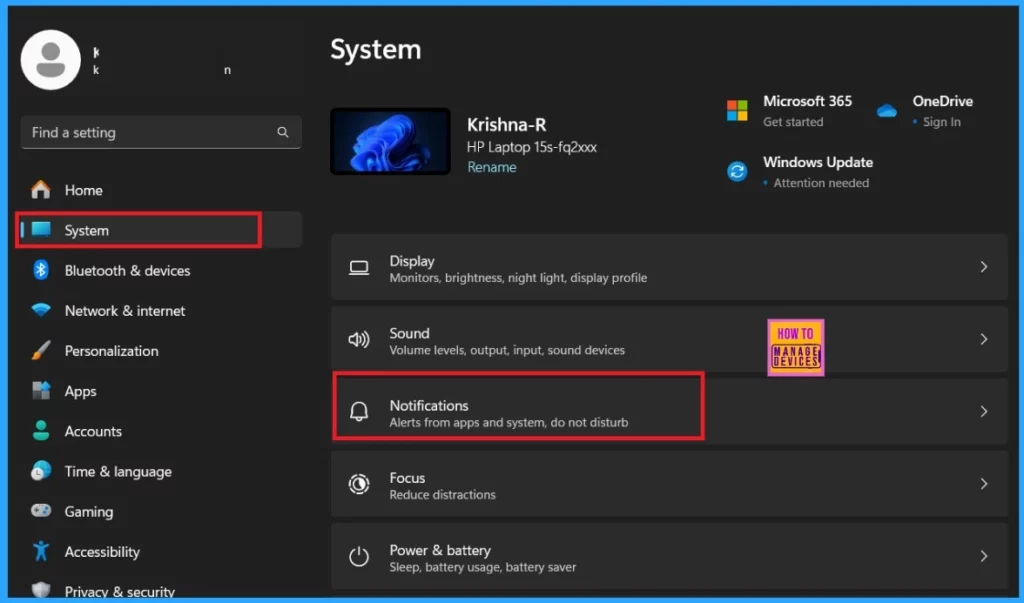
The first method is the setting option, the very first method we all use. To enable Notifications on the Lock Screen in Windows 11, you must first open the settings by pressing the Win+I key. When the settings are open, click on the System option.
- Select Notifications from the System.
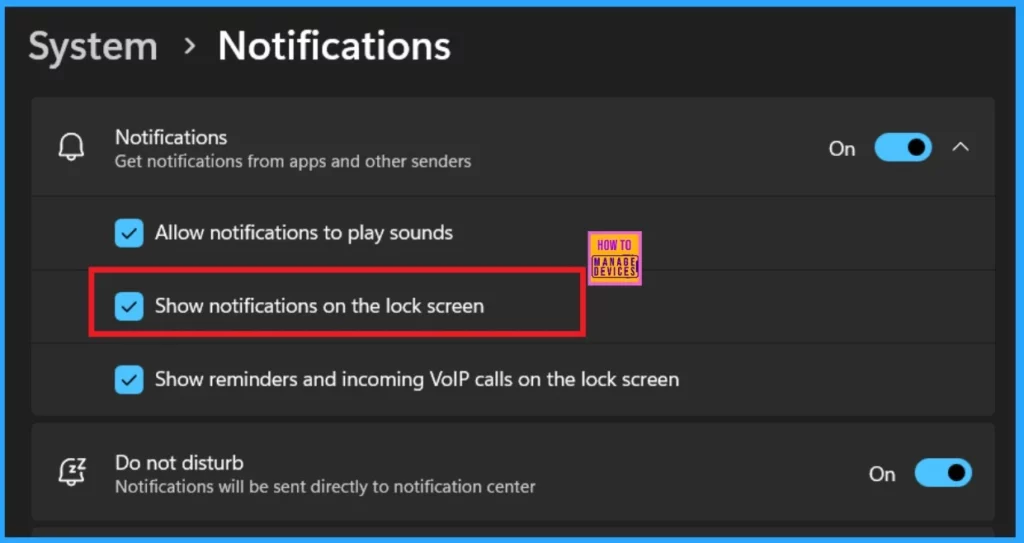
When you click on notifications, a window will appear where you must select the Notification option again. You will get 3 notification options, but they only work when the Notification option is enabled. Here, you can see the Show Notifications option on the Lock screen. You can Enable or Disable this option by selecting (Checkmark).
- Here, I show the notifications on the Lock Screen Enabled (the screenshot below will guide you).
- First, I enabled the Notification by toggling the pane to the Right
- Then, all Notification options are available ( Before enabling the notifications, the options are greyed out on the screen).
- Then, I selected the Show Notifications option on the Lock screen.
| Notification Options | Info |
|---|---|
| Allow Notifications to play sound | This option will allow to play sound when the Notification alert comes in |
| Show the Notifications option on the Lock screen. | This will allow to show notifications on the Lock screen |
| Show reminders and incoming VoIP calls on the lock | This option lets you allow reminders and incoming VoIP calls on the lock screen |
Registry Method
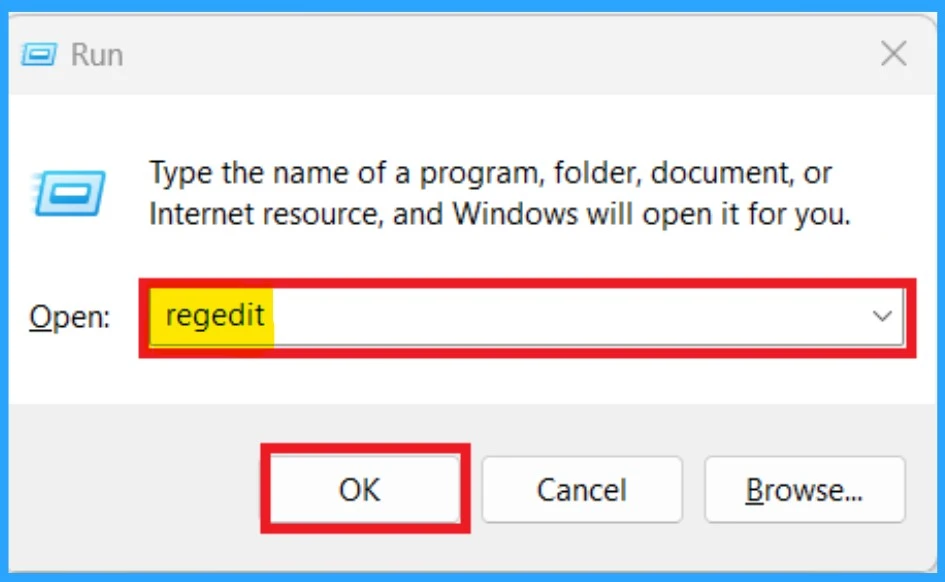
The registry is another method for Enabling or Disabling Notifications on the Lock Screen in Windows 11. In the registry, we can make changes to the Windows database settings. First, open the registry by clicking on the Win+R key. Then Type regedit and click ok.
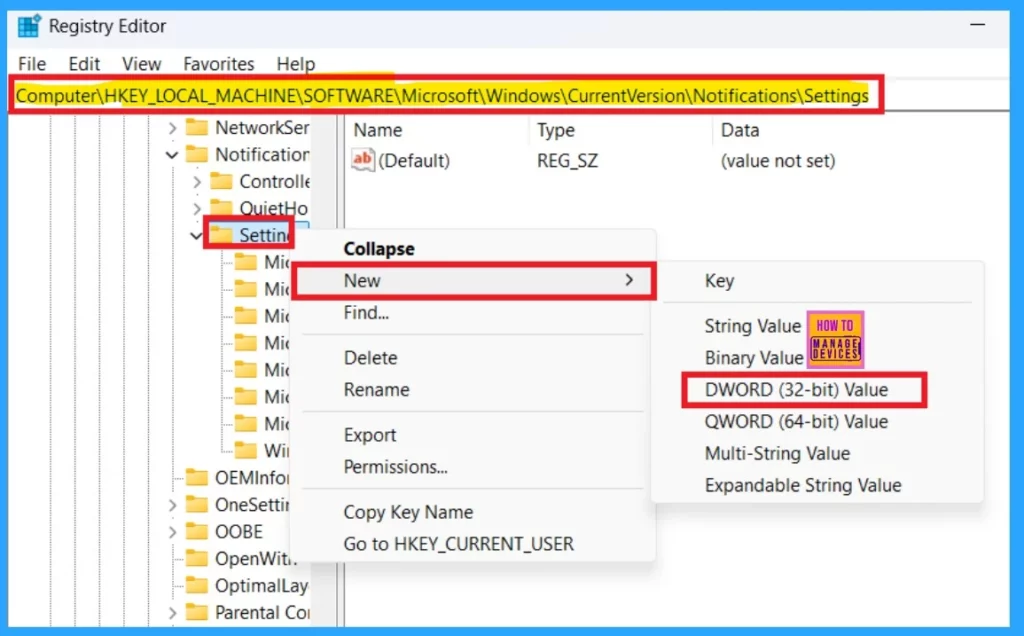
When the registry opens, you must enter the appropriate path. The correct path will help you change the settings easily. You can follow the below path;
Copy this: [HKEY_CURRENT_USER\SOFTWARE\Microsoft\Windows\CurrentVersion\Notifications\Settings]
- After entering the path, you can see the Settings option on the left panel
- Right-click on the Setting values.
- When you Right click, you will get the option New>DWORD (32-bit) Value.
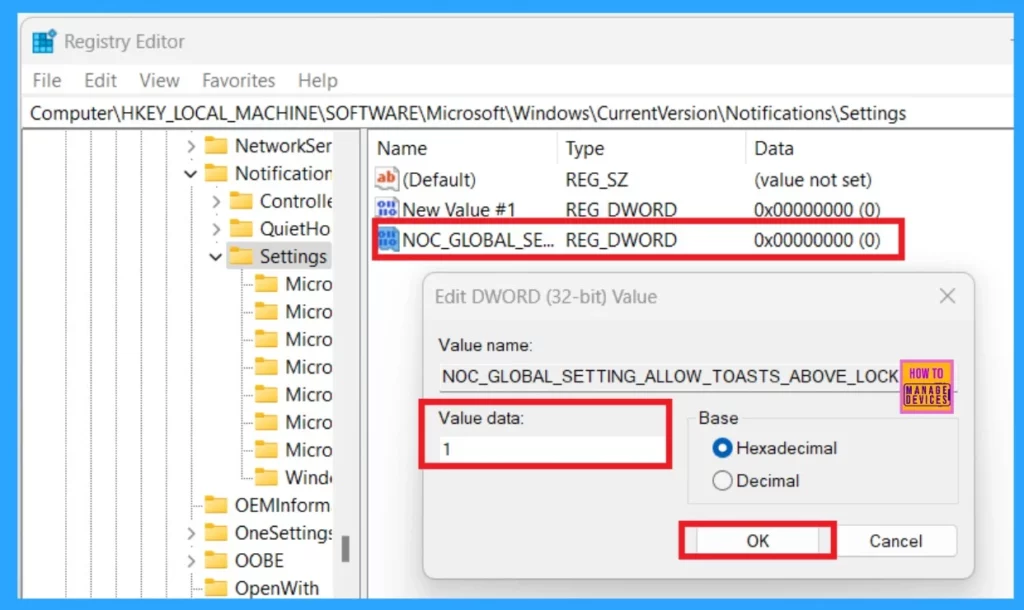
- Then, rename the value to ”NOC_GLOBAL_SETTING_ALLOW_TOASTS_ABOVE_LOCK.”
- Add or Remove Desktop Icons in Windows 11
- How to Change Handwriting Panel Font in Windows 11
- Privacy and Security Settings in Windows 11
After renaming it NOC_GLOBAL_SETTING_ALLOW_TOASTS_ABOVE_LOCK, double-click on the value and get a small context menu. You can add values to Enable and Disable Notifications on the Lock Screen in Windows 11. Enter the Value data as 1 for turn-on show notifications on the Lock Screen.
| Value | Info |
|---|---|
| Value as 0 | This value is used to Disable |
| Value as 1 | This value is used to Enable |
Using the Intune
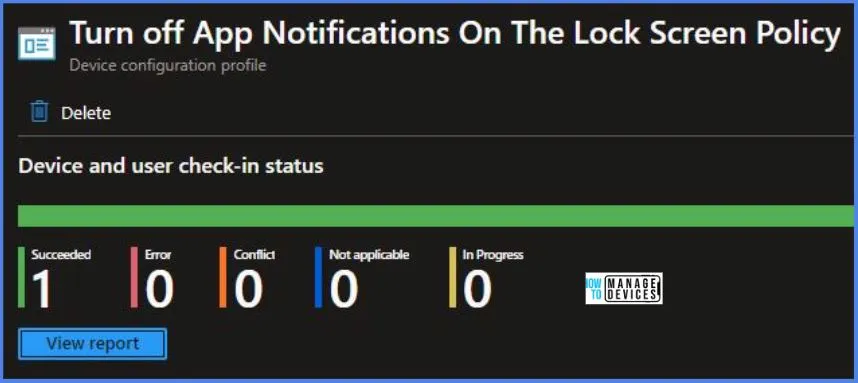
We have a post based on the Turn off App Notifications On The Lock Screen Policy using Intune. In this post, you can get a complete guide on how to set no-app notifications that will show up on the lock screen. Also, there is a complete guide for users to choose which apps display messages on the lock screen based on their preferences.
See More: Turn off App Notifications On The Lock Screen Policy using Intune.
I hope this information works for you!
We are on WhatsApp now. To get the latest step-by-step guides, news, and updates, Join our Channel. Click here. HTMD WhatsApp.
Author
Anoop C Nair has been Microsoft MVP from 2015 onwards for 10 consecutive years! He is a Workplace Solution Architect with more than 22+ years of experience in Workplace technologies. He is also a Blogger, Speaker, and Local User Group Community leader. His primary focus is on Device Management technologies like SCCM and Intune. He writes about technologies like Intune, SCCM, Windows, Cloud PC, Windows, Entra, Microsoft Security, Career, etc.




Discussion