






Classic Outlook Startup Crashes Caused by ucrtbase.dll and Learn How to Run Clean Rules Command
Hi, Today, we are discussing Classic Outlook Startup Crashes Caused by ucrtbase.dll and Learn How to Run Clean Rules Command. Microsoft recently announced a workaround for a known issue related to Classic Outlook Startup Crashes Caused by ucrtbase.dll.
However, Microsoft announced another bug causing crashes in the Classic Outlook app. You all know about the Outlook application and its importance; managing our emails becomes complicated when an error occurs. Outlook sometimes encounters issues, but Microsoft always finds the cause and resolves it.
We recently reported a new issue after updating to Version 2407 Build 17830.20138 or higher. The problem happens when you open Outlook, and it unexpectedly closes. Many users have reported this issue, and Microsoft has finally announced a workaround. Microsoft also announced an issue with Office apps such as Outlook Word or OneNote Closing Unexpectedly While Typing.
Many users point out that this issue occurs when Outlook starts and when you try to run Outlook in Safe Mode. Microsoft says the problem is caused by corrupted server-based rules for Microsoft 365 mail accounts, which Outlook can’t handle properly. So, in this post, we can discuss the issues and the Workaround provided by MS.

Table of Contents
What is the ucrtbase.dll?
Classic Outlook Startup Crashes Caused by ucrtbase.dll
Above, we discussed an overall view of Classic Outlook Startup Crashes Caused by ucrtbase.dll. According to Microsoft, this issue occurs when the server-based rules for the M365 email account are corrupted or when Outlook can’t handle them(ucrtbase.dll).
- The ucrtbase.dll is a file part of the Universal C Runtime in Windows.
- When this ucrtbase.dll encounters an error, Outlook crashes, probably because of a runtime error or corrupted application rules.
| The Event Details | Info |
|---|---|
| Fault Bucket | 1620625936954482602, Type 4 |
| Faulting application name | OUTLOOK.EXE |
| Version | 16.0.17830.20138 |
| Timestamp | 0x66aaad8c |
| Faulting module name | ucrtbase.dll |
| Version | 10.0.22621.3593 |
| Timestamp | 0x10c46e71 |
| Exception code | 0xc0000005 |
| Fault offset | 0x000000000005137c |
| Faulting process ID | 0x5A00 |
| Faulting application start time | 0x1DAE741D3515015 |

- Outlook Word or OneNote Closing Unexpectedly While Typing
- Best Guide to Deploy New Intune Company Portal App on Windows using Intune
- Best Way to Automatically Configure Outlook Profile for Windows with Intune
- Easy Way to Disable Device Password Sync with Intune
Workaround for this Issue
So, let’s check Microsoft’s workaround for the issue. Microsoft provides a solution to confirm the problem by checking the Windows Event Viewer Application Log for crash Event 1000 or Event 1001. This issue may happen because of Corrupted Rules. The rules for your M365 email account might be broken, causing Outlook to crash. Check below for some of the suggested workarounds.
Run Clean Rules Command
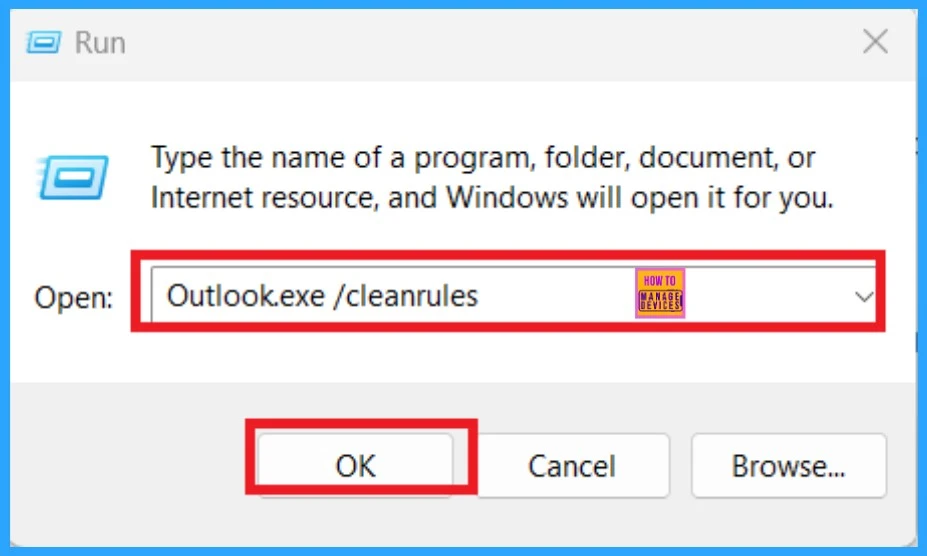
The Run Clean Rules Command is the first step you can take when an issue caused by ucrtbase.dll occurs in your Outlook. Before starting the Run Clean Rule command, make sure to close Outlook. Then go to the Start, right-click the start button, and select the option to Run.
- When you click on the Run, you will get a run box.
- Enter this command ”Outlook.exe /cleanrules”
- Then click “OK.”
- This command will start Outlook and remove all client and server rules that might be causing issues.
Create a New Outlook Profile
Creating a New Outlook Profile is another option if the Run Clean Rules Command does not solve the issue. If it is necessary, you can create another Outlook account for this. To create a new profile, use the profile picker by Holding Shift while starting Outlook.
- In the profile picker dialog box, select Options.
- Choose the profile dialog box with the name of the new profile.
- Then, create a New profile by clicking on the New
- You can enter a name for the new Outlook profile and select OK.
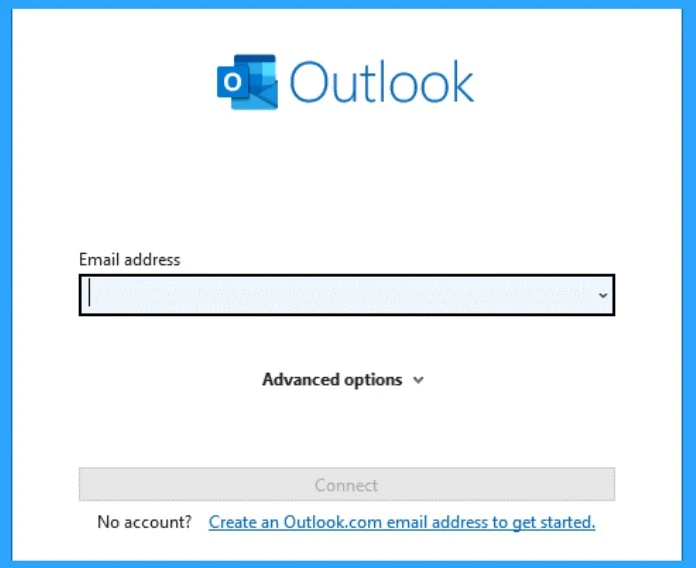
- Once the new profile is created, add an email account.
- FIX MS Outlook Zero-Click RCE Flaw Executes as Email is Opened
- Unable to Join Teams Meetings Using Links from Outlook Because of ASR Rules
- Change to Classic or Modern Theme in Outlook for Windows 11
- How to Set Out of Office in Outlook
Manually Remove the Rules
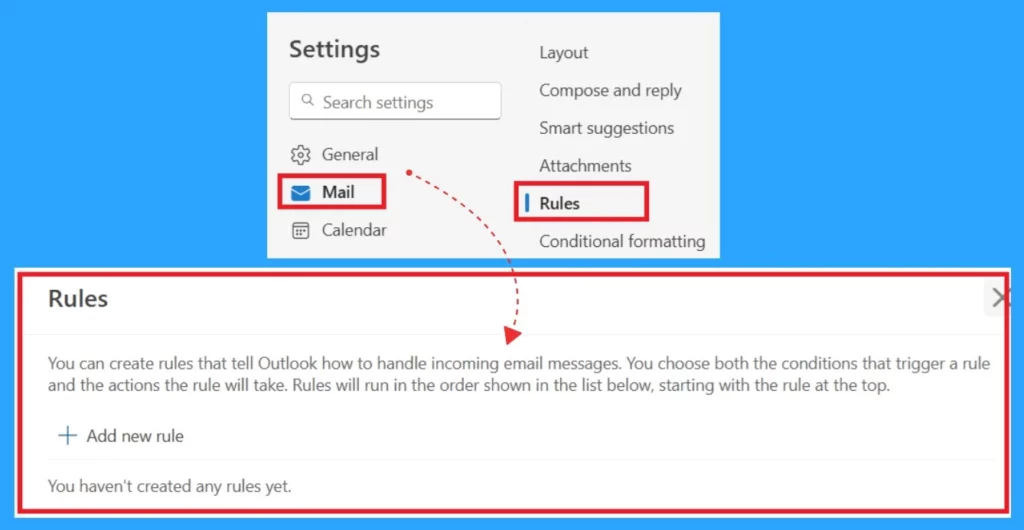
Another method is to manually remove the Rules. You can use web access for this. To do this, log in to your Outlook through Web Access, and once the Outlook is opened, you can go to the Outlook settings.
- Under the Mail settings, click the option on “Rules.”
- This will display a list of all the rules currently set up for your inbox. In this screenshot, I did not set any Rules.
- But if you have rules that you want to delete, select the rule first
- Then Click on the “Delete” button
I think these workarounds will be helpful to you!
We are on WhatsApp now. To get the latest step-by-step guides, news, and updates, Join our Channel. Click here. HTMD WhatsApp.
Author
Anoop C Nair has been Microsoft MVP from 2015 onwards for 10 consecutive years! He is a Workplace Solution Architect with more than 22+ years of experience in Workplace technologies. He is also a Blogger, Speaker, and Local User Group Community leader. His primary focus is on Device Management technologies like SCCM and Intune. He writes about technologies like Intune, SCCM, Windows, Cloud PC, Windows, Entra, Microsoft Security, Career, etc.




Discussion