






MS Word Default Paste Merge Formatting option to Match the Look and Feel of Existing Content
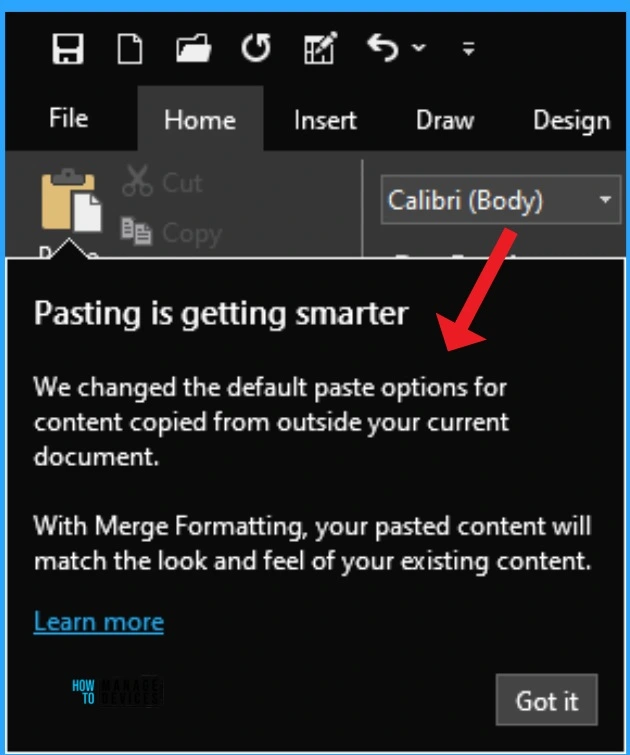
The MS Word Default Paste Merge Formatting option has been changed to match the look and feel of existing content. Let’s discuss the updated default pasting option in MS Word on Windows. Finally, Microsoft changed the default paste setting to Keep Source Formatting and introduced a new paste option, Merge Formatting, when pasting from other programs.
Microsoft introduced this new pasting option to MS Word based on feedback from regular users. Many users wish to change the current Keep Source Formatting default setting, which does not meet their needs. Do you know what Keep Source or Destination Formatting is in Word?
This format allows users to retain the original formatting when they paste content into a document. By default, Word preserves the original formatting when they paste content using Ctrl + V, the Paste button or right-click + Paste.
User actions in Word can be very time-consuming, so Microsoft regularly makes changes to Microsoft Word based on user feedback. In this blog post, I will explain more about the updated paste option and how it works on your Windows PCs.


MS Word Default Paste Merge Formatting option
With the Updated pasting option Merge Formatting, your pasted content will match the look and feel of your existing content. The Merge Formatting paste option help users to visually appealing result when combining Word documents.
- New Approval Request Feature for MS Word
- Copilot is in All Microsoft 365 Apps
- Easy Steps to Convert Word Documents into PDF Format
- AI Powered Copilot in Word to Automate Creation of Complex Documents
How Merge Formatting Works on your MS Word
You can easily use the Merge Formatting paste option on your Windows PCs. This option can be applied to an existing Word document or create a new one.
- With this feature, users can copy the content they want to paste from an internet browser or another program (note: not another Word document).
- Paste the copied content in the Word document and notice that the Merge Formatting option is used.
4 Types of Paste Options on MS Word
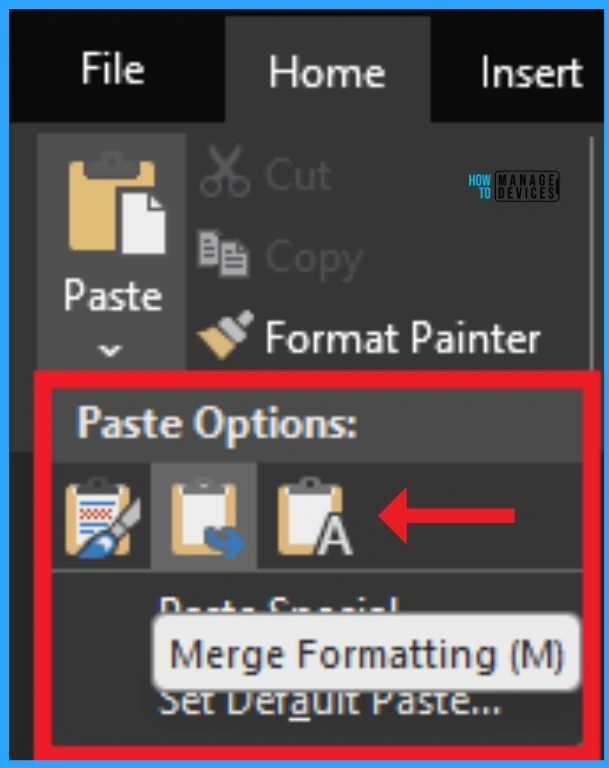
There are 4 types of Paste options available on Word. These options help users paste content into different formats. These paste options affect the look of the resulting pasted content.
| Different Paste options on MS Word |
|---|
| Original web content |
| Keep Source Formatting |
| Merge Formatting |
| Keep Text Only |
Original Web Content
Original Web Content is one of the paste formats in MS Word. It helps users to paste content in Original Web format like bolded and shaded text, a list, and links. You can copy relevant text, images, or other elements with keyboard shortcut Ctrl + C.

Keep Source Formatting
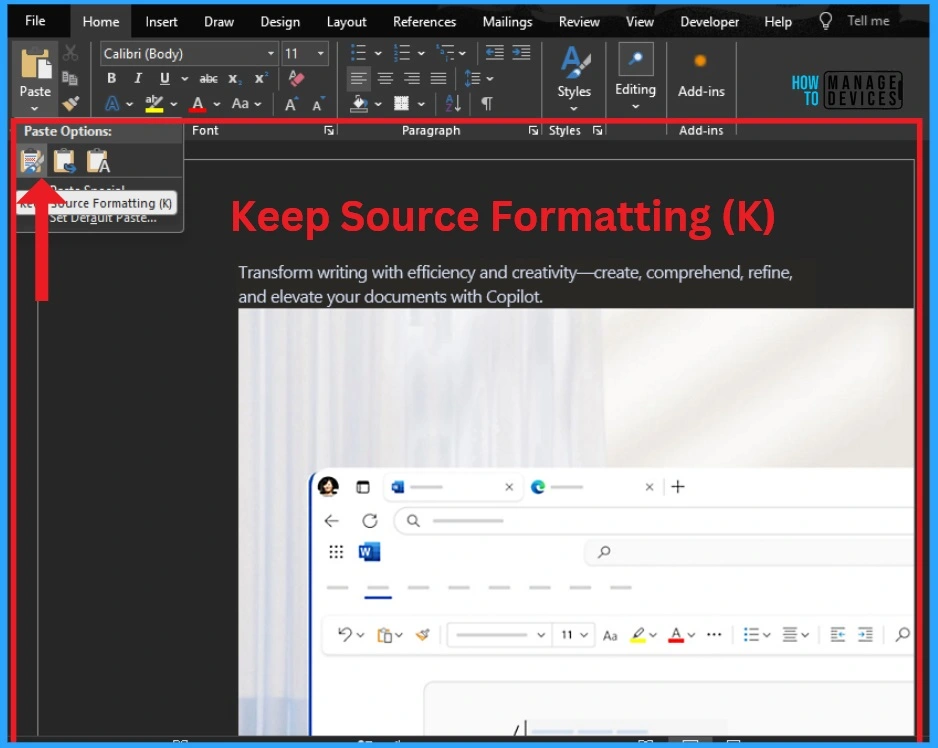
This paste format in Word helps users to Keeps all original formatting and layout properties of the original source content (font color, spacing, bold, etc.)
- Copilot in Excel AI Integration to Automate Excel Tasks Coming Soon
- Copilot AI Integrated Outlook Coming Soon
Merge Formatting
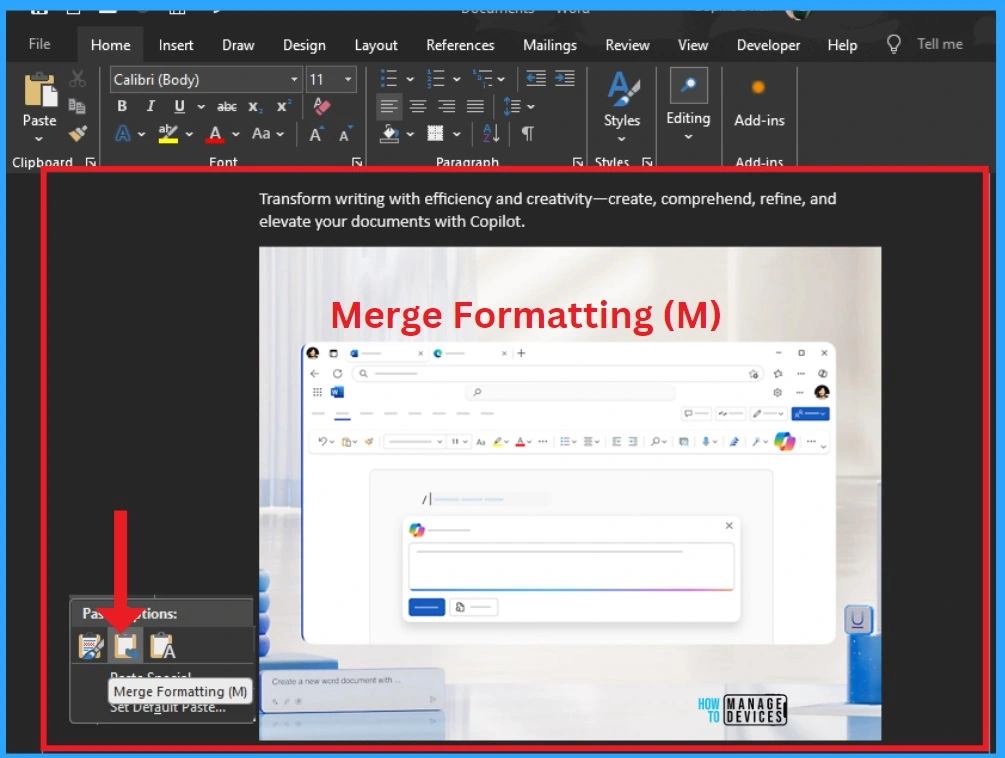
Merge formatting helps users preserve original content. Merge that has meaning (bold, underline, list and table structure, etc.) but matches the formatting of the destination content before your cursor (font family, size, color, etc.) Merge formatting adjusts the formatting to match the surrounding text.
Keep Text Only
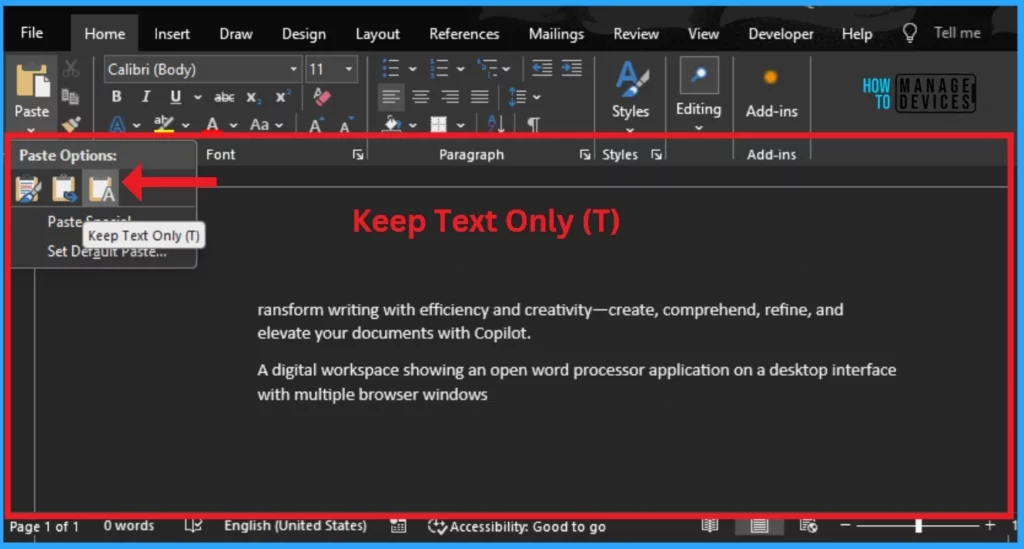
This format allows users to keep just the text and removes items like bullets, table structure, and images. Pasted text will match the formatting of existing text before your cursor.
How to Change it Back
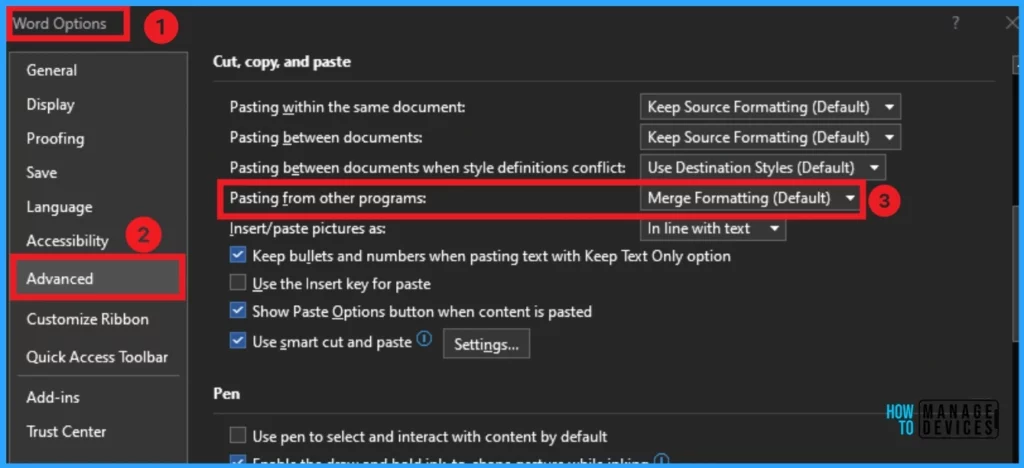
If you want to change the default paste settings back you can do it from MS Word. Any time you can bring changes to the paste settings on your Windows PCs. The below list shows the steps to change the default paste settings back.
- Select File > Options > Advanced > Cut, copy, and paste
- click the Pasting from other programs down arrow and select Keep Source Formatting in the list, and then click OK.
Availability
This feature is available in MS Word for Windows users running Version 2405 (Build 17624.20000) or later. However, the ability to set your default paste option is unavailable on Word for the web or Mac.
We are on WhatsApp now. To get the latest step-by-step guides, news, and updates, Join our Channel. Click here. HTMD WhatsApp.
Author
Anoop C Nair has been Microsoft MVP from 2015 onwards for 10 consecutive years! He is a Workplace Solution Architect with more than 22+ years of experience in Workplace technologies. He is also a Blogger, Speaker, and leader of the Local User Group Community. His primary focus is on Device Management technologies like SCCM and Intune. He writes about technologies like Intune, SCCM, Windows, Cloud PC, Windows, Entra, Microsoft Security, Career, etc.




Discussion