






Create Edge Browser New Theme with an AI Theme Generator and Frame
Let’s discuss Customizing the Edge Browser with an AI Theme Generator and Frame. Microsoft has introduced a new feature for the Edge browser that allows users to personalize their browser Themes. This AI-powered feature changes the look and feel of your browser and the new tab page.
As you know, Microsoft Edge is the first browser to offer AI capabilities. It also brings impressive features to users every month. Each feature boosts users’ abilities and experience, so this browser is the first choice for everyone for different purposes.
With the AI Theme Generator, users can add a personal style, enhancing their visual experience and making it unique. Users can also customize the frame on the edge with any colour. Customized frame are the outer border around the browser window.
Last year, Microsoft launched featured themes for customization of the Edge Browser. You can check our block post on Featured Themes to learn more about them. In this blog post, I will help you personalize the style of your Microsoft browser frame.


Create Edge Browser New Theme with an AI Theme Generator and Frame
When you apply a new theme, you’ll notice the color of your browser frame and the image on your new tab page change. Themes in Edge work with both horizontal and vertical tabs. You can select from preset colours based on your theme or use the color picker to choose a custom shade for Edge frame.
- MS Edge Browser Automatic Options to Organize Tabs Stay Organized with Tab Groups
- New Text Prediction and other Features in MS Edge Browser
- Split Screen Button on Microsoft Edge Browser
- Introducing Microsoft Designer to Create Personalized Invitations
Create a Theme with AI Theme Generator
Microsoft’s AI Theme Generator allows users to transform their words into custom browser themes. You can easily access this by AI Theme Generator in different ways.
- Generate Theme through Microsoft Designer
- DALL·E 3.0
- Microsoft Edge
In the below example I will help you to create AI-generated themes through Microsoft Edge. To access this You must be signed in to Microsoft Edge with a personal Microsoft account as we use the signed-in account for browser theme generation.
- Sign-in Microsoft Edge with a personal Microsoft account
- Open the AI generated theme
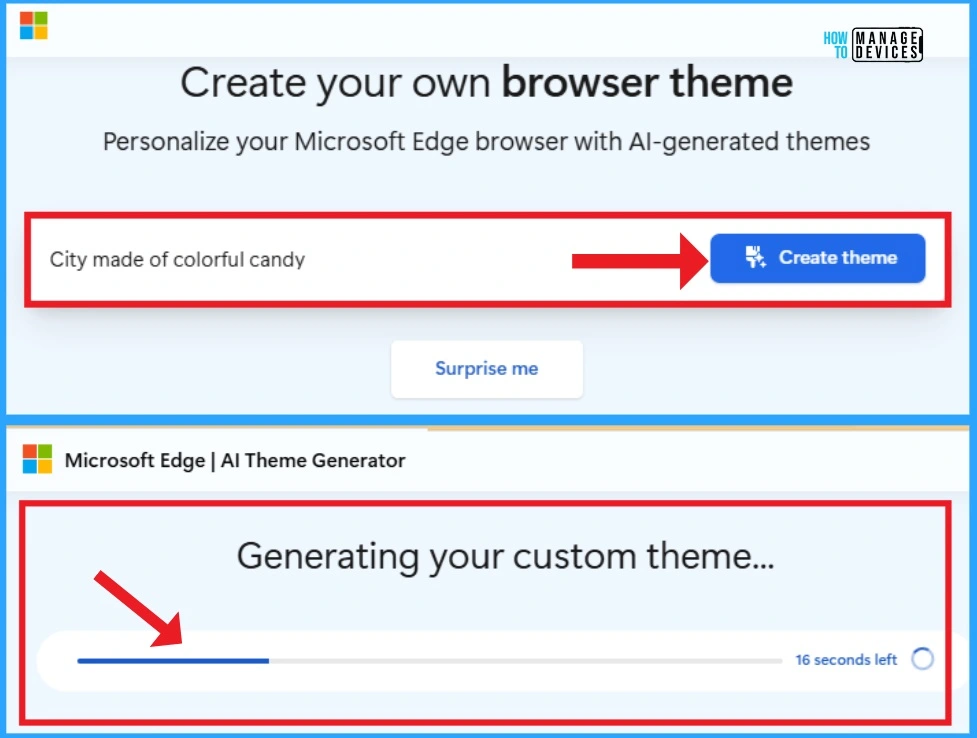
- Click on the Create theme button
- The below window shows the customer theme generating
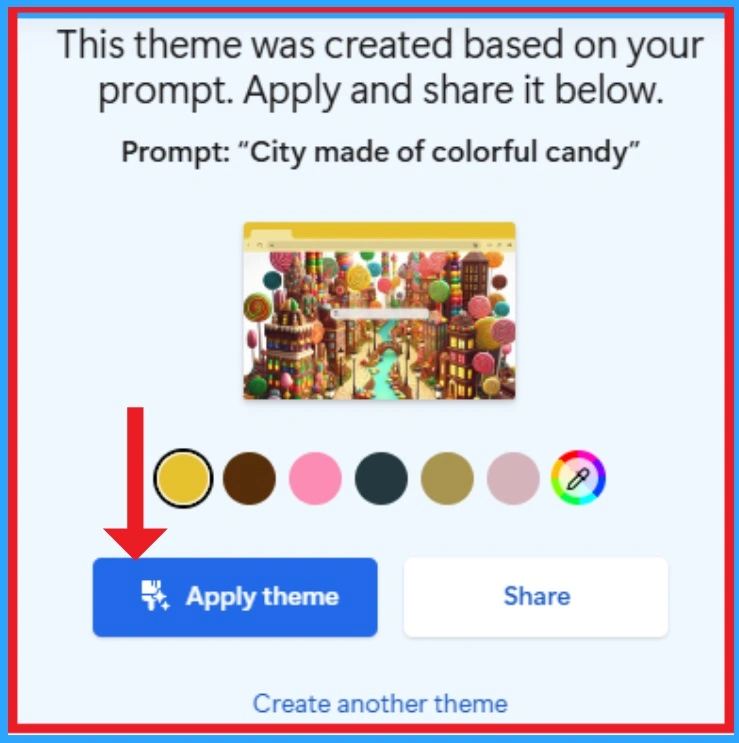
After that, you will get a new window showing the theme preview as your prompt. Click on the Apply theme button to get the theme on your Edge.
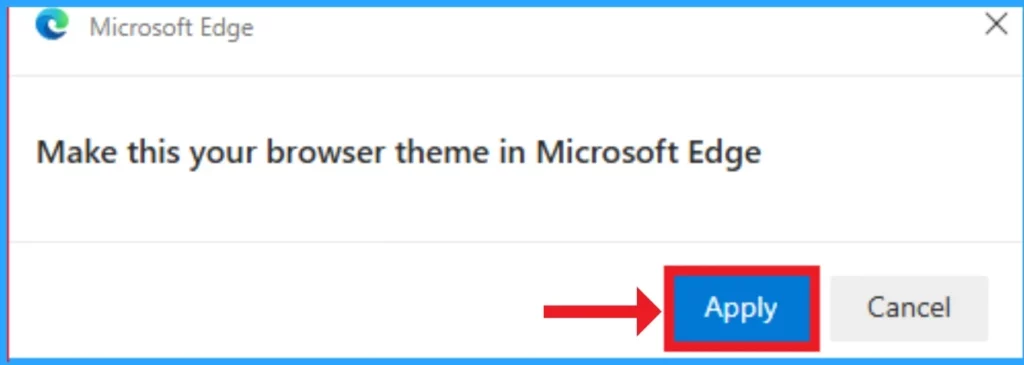
Then, you will get a pop-up window that shows the message “Make this your browser theme in Microsoft Edge.” Click on the Apply button in the window below.
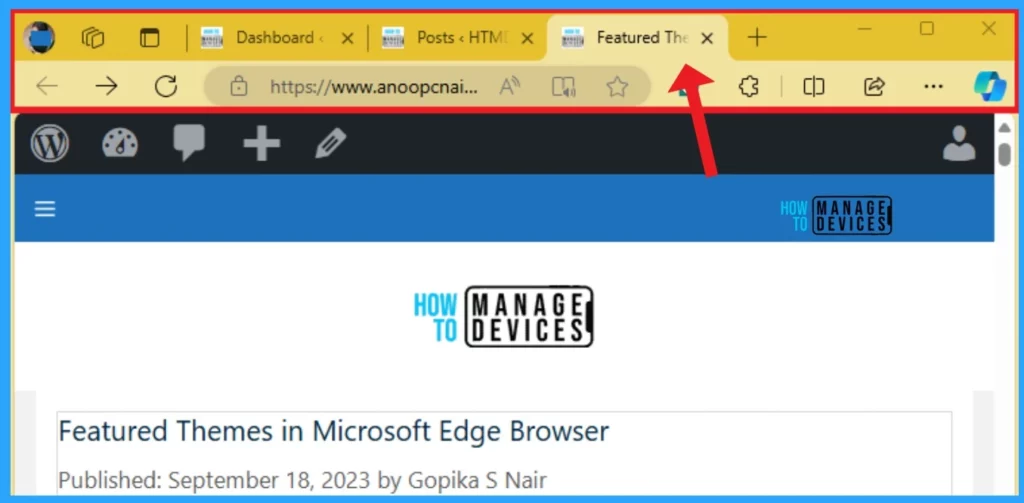
Result Image – AI Theme Generator
The resulting image shows the AI-generated theme appearing on the Edge browser. It looks similar to Custome Edge Frame. The below screenshot will help you.
Customize Edge Browser Frame with Any Color
You can easily apply changes to your Edge frame with your preferred colors. Microsoft provides a color picker for this. Your browser offers hundreds of shades of color. Frame customization can be accessed via Edge browser Settings.
- Open Microsoft Edge from your PC
- Click on the 3 dot option (Settings and more) from the top right corner of Edge
- Select the Settings option from Settings and More
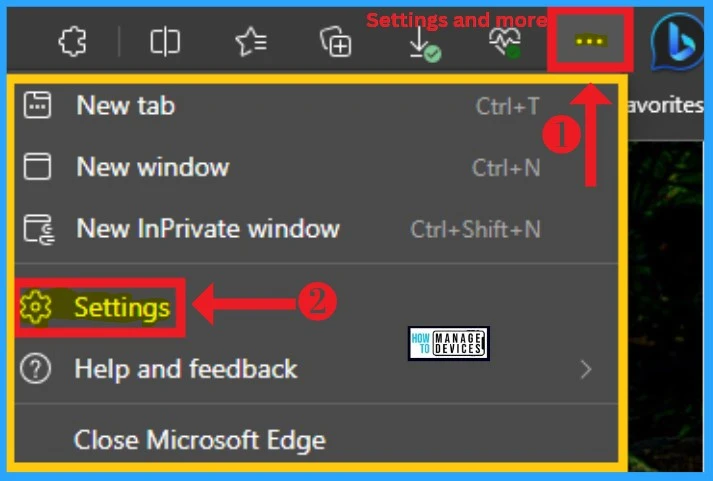
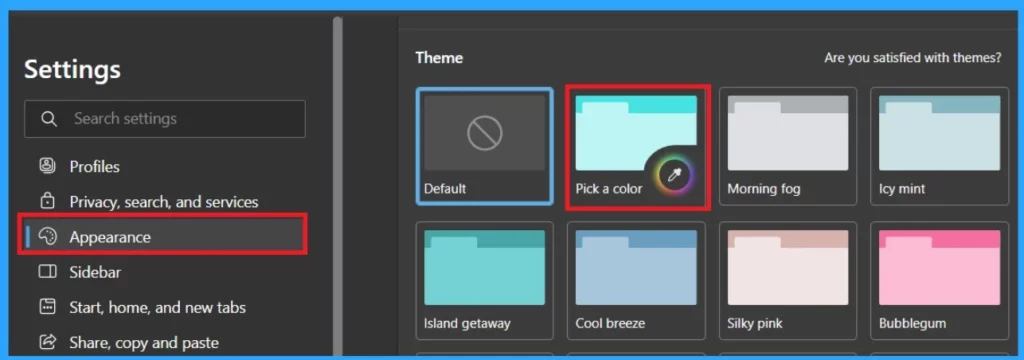
From the Settings option, you can select different settings on the left side of the window. Select Appearance Settings from Edge Settings. Appearance settings allow users to change your Edge appearance in various ways. Select the Themes option under Customize Appearance.
- Click on the Pick a color option from Themes
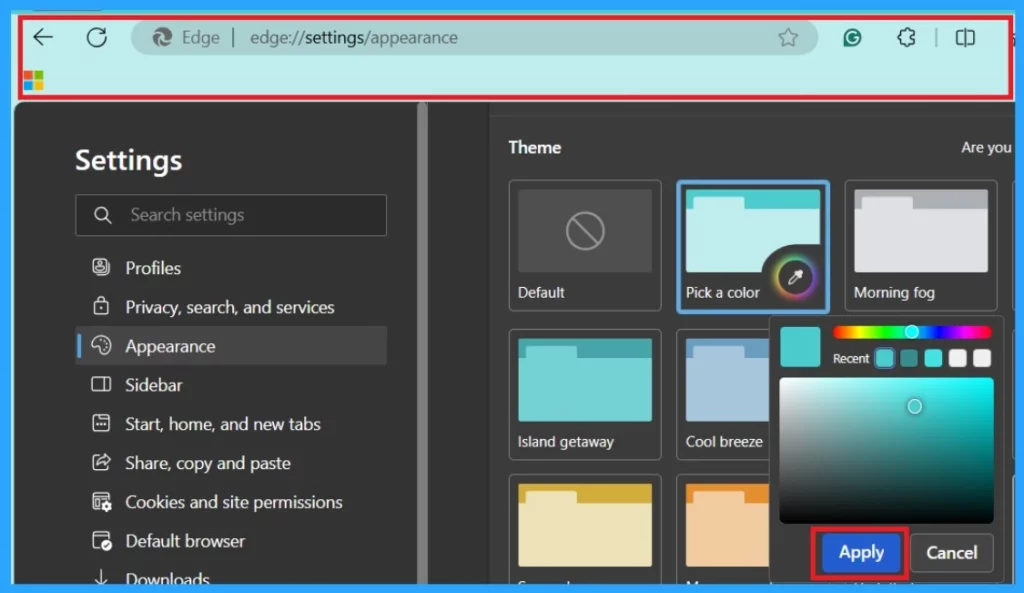
After that, you can see a color picker on this theme. You can move the color bar or click the color picker window to customize your preferred color. After choosing the color, click the Apply button to get this feature on your browser.
- The New Magnify Feature on Microsoft Edge Browser
- Enable Disable Let Copilot Use Content from Microsoft Edge in Windows 11
- Copilot with Commercial Data Protection in Microsoft Edge for Business
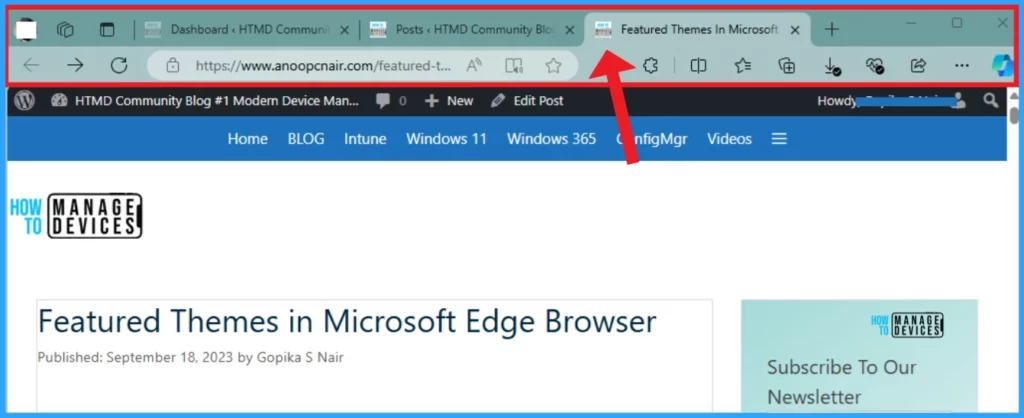
Result Image
The resulting image shows the Customize Frame feature on my Edge browser. I chose a blue shade, which is the default. After clicking on the Apply button, my browser frame appears with a blue shade. The screenshot below will help you.
Custom Edge Frame vs AI Theme Generator
The Custom Edge Frame and AI Theme Generator give almost same result for users. These 2 features enhance the visual quality of your browser. The table below shows the difference between these 2 features.
| AI Theme Generator | Custom Edge Frame |
|---|---|
| It allows you to personalize your browser themes by transforming your words into custom designs. | The Custom Frame feature allows you to choose any color for your browser frame. |
| AI-generated images are applied to the new tab page in Edge, changing the look, feel, and background content. | The color you pick will be applied to the borders of the Edge browser. |
In conclusion, AI Theme Generator creates entire themes based on text prompts, while Custom Frame lets you choose a specific color for the browser frame.
We are on WhatsApp now. To get the latest step-by-step guides, news, and updates, Join our Channel. Click here. HTMD WhatsApp.
Author
Anoop C Nair has been Microsoft MVP from 2015 onwards for 10 consecutive years! He is a Workplace Solution Architect with more than 22+ years of experience in Workplace technologies. He is also a Blogger, Speaker, and Local User Group Community leader. His primary focus is on Device Management technologies like SCCM and Intune. He writes about technologies like Intune, SCCM, Windows, Cloud PC, Windows, Entra, Microsoft Security, Career, etc.




Discussion