






MS Intune Multi-Admin Approval Expands Support to Mobile Non-Windows Devices Policy
MS Intune Multi-Admin Approval Expands Support to Mobile Devices! Administrators can now use this feature to manage and control application access policies across Windows, iOS, Android, and macOS devices.
This enhancement allows you greater flexibility and security by enabling approvals for changes to administrative policies across a broader range of devices. To protect against the risk of a compromised admin account, Intune offers a feature called Multiple Administrative Approval (MAA).
This feature requires that any changes made by one administrator be approved by a second administrator before they take effect. This adds an extra layer of security, ensuring that no single account can make changes without a second check.
This post provides all the details about expanding MS Intune’s Multi-Admin Approval feature to mobile devices, including iOS, Android, and macOS. This update allows administrators to extend the same security and control measures previously available for Windows devices to various platforms.

Table of Contents
What are the Prerequisites for using Multi-administrative Approval in Intune?
To use multi-administrative approval, your tenant must have at least two administrator accounts. One account will be used to make changes; the second is needed to approve those changes.
MS Intune Multi-Admin Approval Expands Support to Mobile Devices
The multi-administrative approval feature now lets you set application access policies for Windows applications, all non-Windows applications, or both types. Microsoft has added a new access policy that requires approval for changes to these multiple administrative settings.
This improvement helps increase control and security over how applications are accessed.
Read More – Configure Multiple Admin Approvals in Intune for Apps and Scripts
Read more – What’s New in Intune August 2024 Update
- How to use Intune Filter cpuArchitecture Device Property for App and Policy Assignments
- Enhanced Reporting Multi-Administrative Approval Microsoft Home Page via Intune August 2024 Update
- Microsoft Intune 2407 New Features Early July Update
How Multi-Admin Approval and Access Policies Work
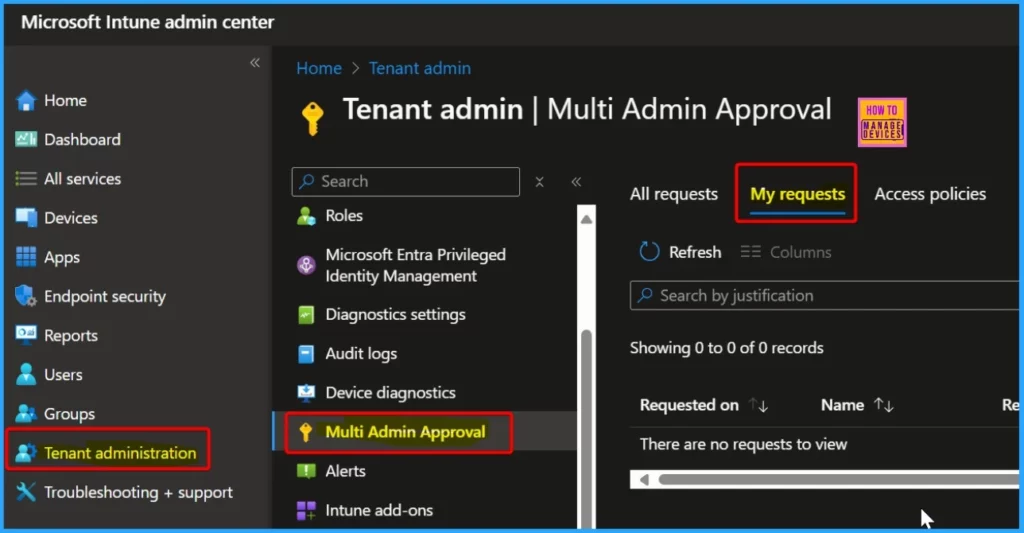
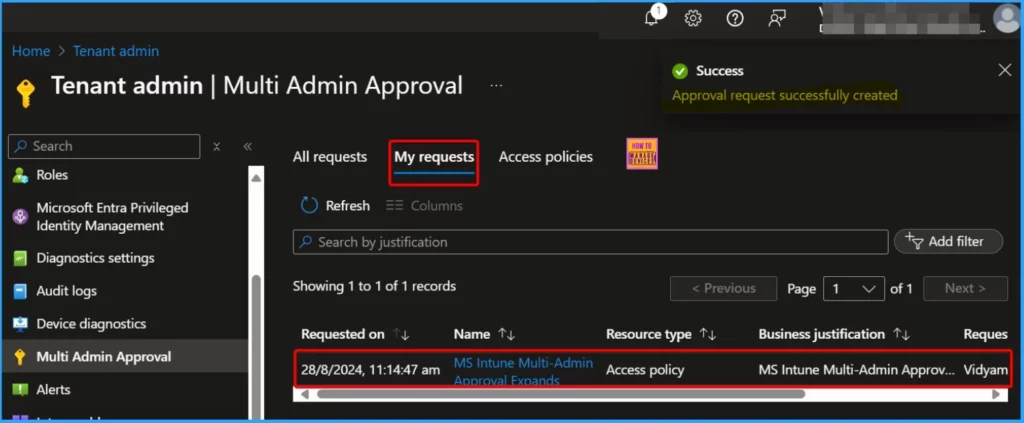
When an administrator makes changes or creates new objects in areas protected by access policies, they must provide a business justification, which is included in the approval request. After submitting the request, they can track its status in the Intune admin center under Multi Admin Approval > My Requests.
- Approvers view requests on the Received Requests page
- Approvers see details like who submitted it, the type of operation, and the status.
- They can click the Business justification link for more details, add notes, and then approve or reject the request.
- Requesters can see their own requests but cannot approve them.
- Once approved, Statuses are visible for up to 30 days
- If not processed within that time, the request expires and must be resubmitted.
How to Create an Access Policy
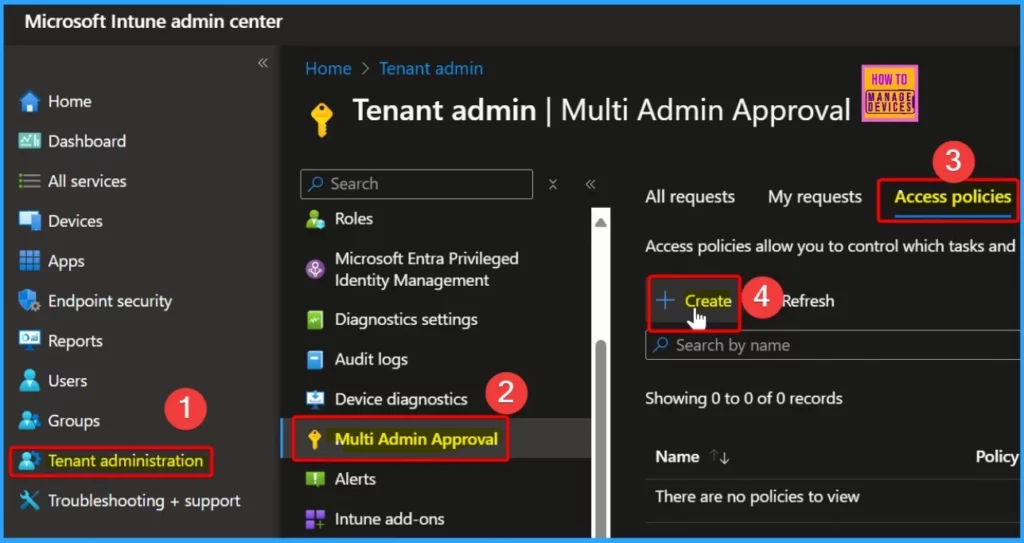
Let’s discuss how to create an Access Policy. To do so, follow these steps: Go to the Microsoft Intune admin center > Tenant administration > Multi Admin Administration > Access policies and click on “Create.”
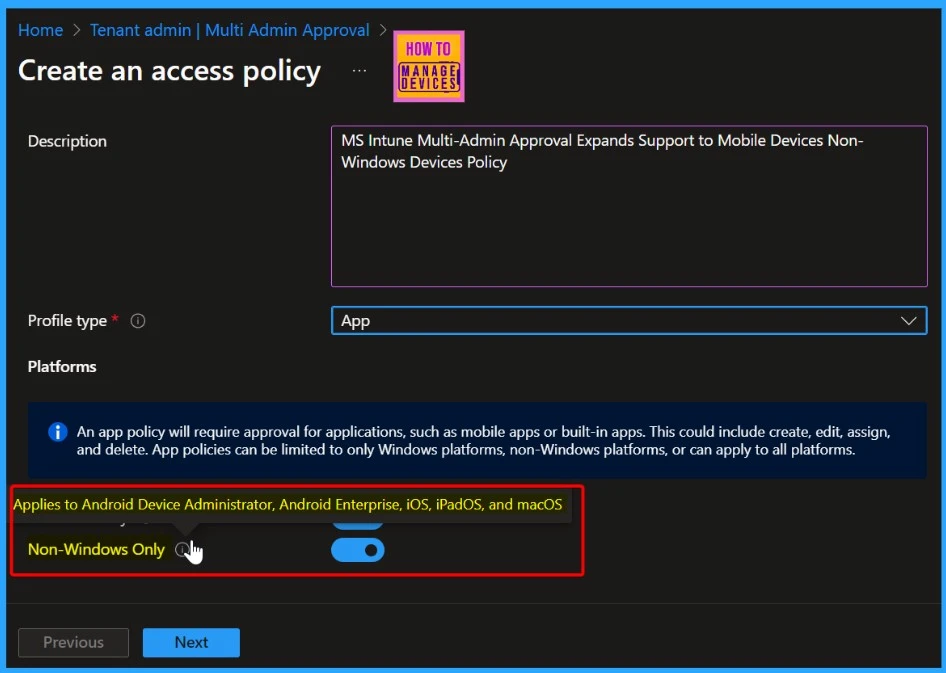
In the Basics tab, enter a policy name and an optional description. Then, choose a profile type from the available options, as each policy supports only one.
| Platform | Details |
|---|---|
| Windows Only | This applies to Windows 10 and later, Windows 8.1 and later, and Windows 10X. |
| Non-Windows Only | Applies to Android Device Administrator, Android Enterprise, iOS, iPadOS, and macOS |
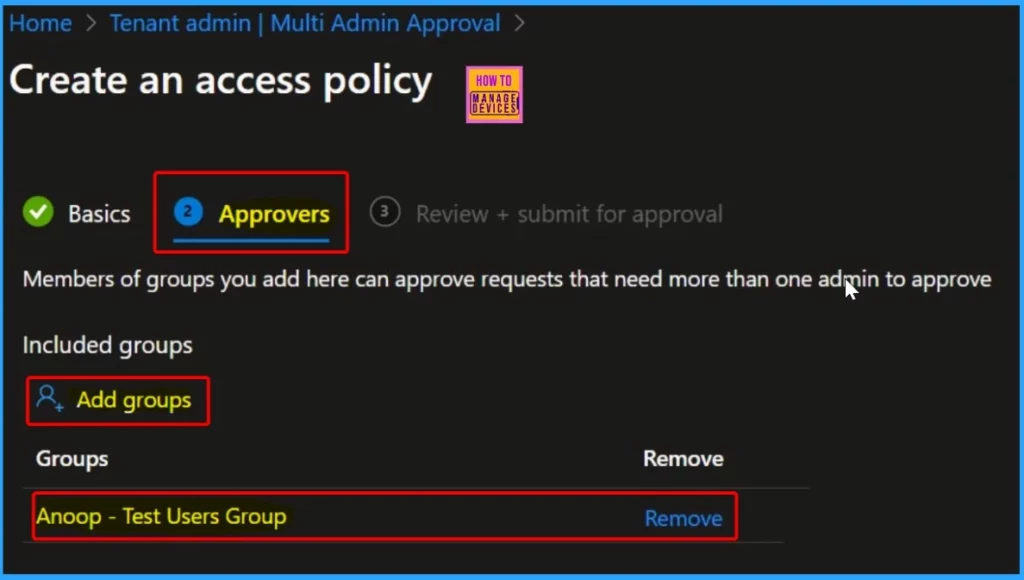
In the Approvers tab, Click “Add groups” and select a group to approve this policy. Here, we selected the HTMD Test computers group.
Please review your settings on the “Review + Create” page and save your changes. Then, click the “Submit for Approval” button in the screenshot below.
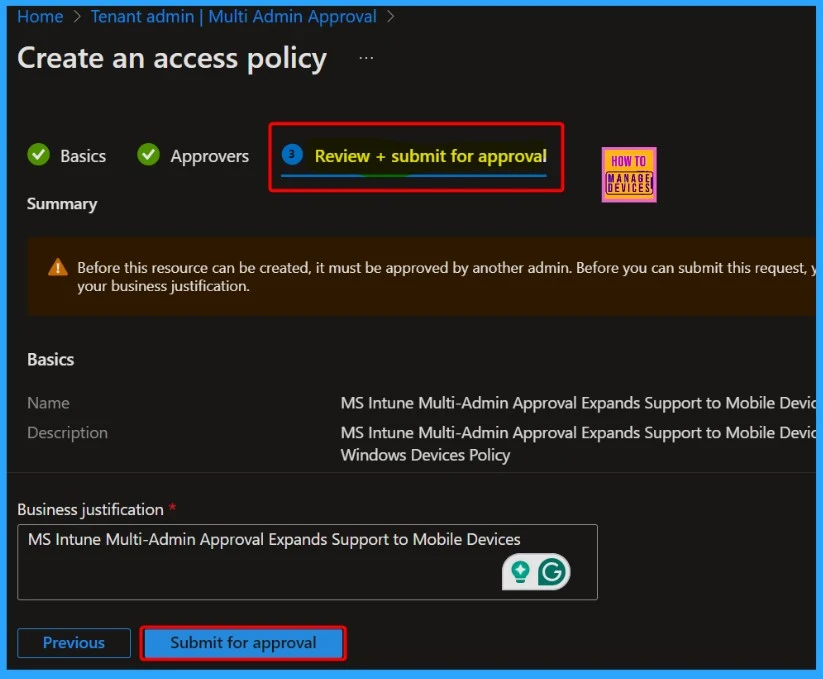
The screenshot below indicates that the approval request was successfully created. One request is listed on the “My Request” tab.
- Managing Activation Lock on Apple Devices with Intune
- How to Use Intune Assignment Filters Comparison Property gt ge lt le with OS Version
- Enforce Users to use Intune Approved Apps with App Protection Policies using Conditional Access Policies
- Issue on Minimum PIN Length for Startup in Disk Encryption Policies in Intune
More Details Regarding Intune Multi-Admin Approval
Let’s discuss more details regarding Intune multi-admin approval. The table below will help you to see more information.
| Consideration | Details |
|---|---|
| Notifications | Intune does not send notifications for new requests or status changes. |
| Monitoring Requests | Track the status of your requests through the My Requests page in the Intune portal. |
| Submitting New Requests | Submit a new request for an object if approval is already pending. |
| Protected Actions | All actions on protected resources require approval, including Edit, Create, Modify, Delete, and Assign. |
| Audit Logs | All actions and approval processes are logged. Refer to the Intune audit logs for more details. |
| Request Status Conditions | Approved: The Request is being processed. Completed: The Request has been successfully applied. Rejected: The Request was rejected. Cancelled: The admin cancelled the request. |
We are on WhatsApp now. To get the latest step-by-step guides, news, and updates, Join our Channel. Click here. HTMD WhatsApp.
Author
Anoop C Nair has been Microsoft MVP from 2015 onwards for 10 consecutive years! He is a Workplace Solution Architect with more than 22+ years of experience in Workplace technologies. He is also a Blogger, Speaker, and Local User Group Community leader. His primary focus is on Device Management technologies like SCCM and Intune. He writes about technologies like Intune, SCCM, Windows, Cloud PC, Windows, Entra, Microsoft Security, Career, etc.


Can this be configured to get approval to wipe a device? Our concern is if one of the admin accounts is compromised the attack could potentially affect thousands of device.
TY
BC