






Enable Intune Custom Hardware Inventory Option for Windows Devices Using Intune Plan 1
Microsoft announced the Intune Custom Hardware Inventory option for Windows devices. This feature will be part of Intune Plan 1, so you need an additional license. Is it a custom hardware inventory? We will find more in this post!
Many IT admins and organizations are waiting for custom inventory, one of the most used features in SCCM, called custom hardware inventory. Don’t expect feature parity between ConfigMgr and Intune custom inventory options. Lior Bela from the Microsoft Intune product team shared all this information via a blog post.
Microsoft Intune: Enhanced device inventory for Windows devices – Gain more inventory information about your Windows devices. You can choose which device properties you want to collect from which device and then view that information for your devices.
Intune custom inventory worldwide standard Multi-Tenant release is planned for October 2024 but delayed now until February 2025 (Delayed Now – Might be delayed until Ignite 2024 – Nov 19th onwards). The other Intune Cloud instances, such as GCC High, DoD, and GCC, are scheduled for February 2025.

Table of Contents
What is Custom Hardware Inventory in Intune?
However, customers with additional licenses can collect device hardware details as an inventory using Intune configuration profiles.
What is Intune Resource Explorer?
Intune already has a resource explorer option for tenant-attached devices, but this differs.
What is an Intune Inventory Profile?
Create Inventory Profile – Intune Custom Hardware Inventory Properties Catalog
The Intune admin center will have a new Configuration Profile with Properties picker search options similar to the settings catalog. In the property picker search bar, you can search and then select the custom inventory attributes.
You can create a new Intune profile to collect the latest inventory data from Intune-managed Windows devices. You can search in Properties Picker to find the available custom inventory properties.
NOTE: In the example below, we selected 6 custom hardware inventory properties from the Intune admin center. These screenshots are taken from the first public release post so that they may change over time.
- Login to Intune Admin Center
- Under Configurations – Create a profile by selecting Windows 10 and Later -> Properties Catalog
- Enter the Name and Description of the Custom Hardware Inventory profile.
- On the Configuration Properties page, Click on +Add Properties.
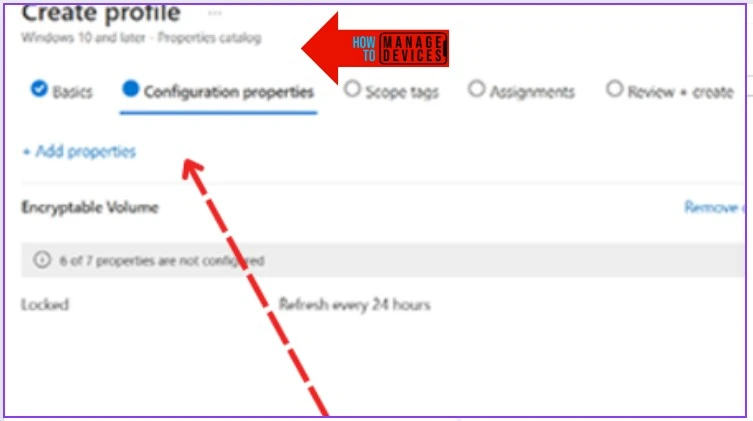
From the Properties catalog blade and search bar, select the custom hardware inventory property you want to collect from a Physical or Virtual Windows device.
Search for custom hardware inventory properties in the Intune portal or select from the properties list. This experience will be the same as the Intune Settings Catalog experience.
- Select the Bios Info property and expand the property to get more granular inventory options by selecting sub-properties such as:
- Bios Name (selected by default – Mandatory?)
- Manufacturer (either you can collect or skip it)
- Release Date and Time (either you can collect or skip it)
- Serial Number (either you can collect or skip it)
- Bios Version (either you can collect or skip it)
- Software Element ID (selected by default – Mandatory?)
- Software Element State (selected by default – Mandatory?)
- Target Operating System (selected by default – Mandatory?)
NOTE! The properties catalog has two kinds of properties under each inventory category. Some are mandatory (for example – Bios Name), and you don’t have the option to skip them! Others are optional (for example, manufacturing); if you want, you can collect them!
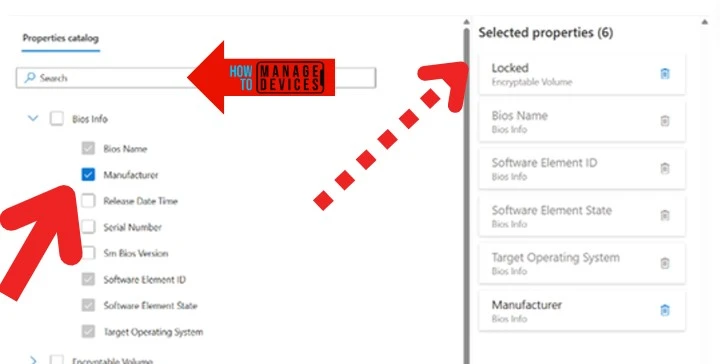
First List of Hardware Inventory Properties
This is the first list of hardware inventory properties that Microsoft shared publicly. This list will change periodically, so check the Intune portal for the latest one.
NOTE! – These are taken from a mockup screenshot shared by Microsoft (ignore the typos)!
- Encryptable Volume
- Memory Info
- Network Adapter
- System Endloture
- Battery
- Logical Drive
- Time
- Windows Ofe
However, Microsoft confirmed in the blog post that they are going to support the following list (9) of hardware inventories in the initial release:
- Network adapter and MAC address
- Battery and health
- BIOS
- Disk
- BitLocker
- CPU
- System
- TPM
- Video
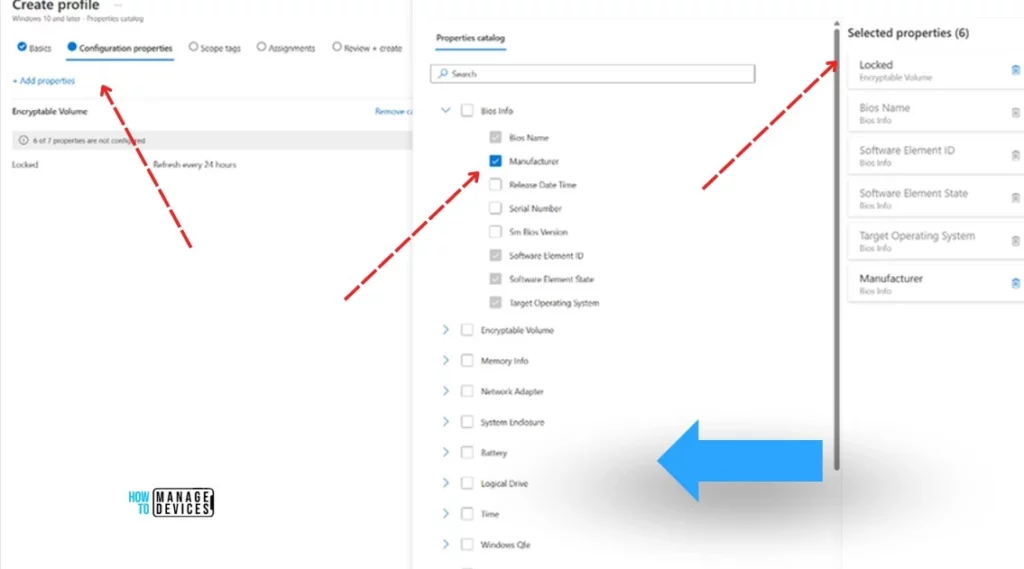
Selected Intune Custom Hardware Inventory Properties
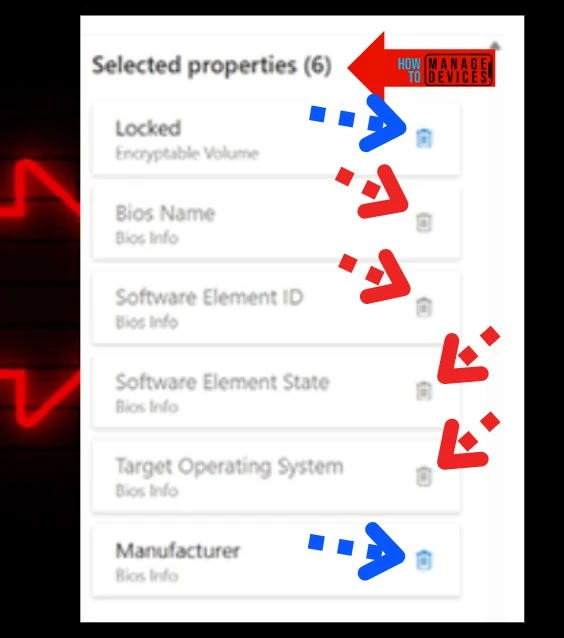
Let’s check out the details of custom hardware inventory categories and properties from the Intune portal. For example, Locked is the property from a category called Encryptable Volume.
| Property Name | Category |
|---|---|
| Locked | Encryptable Volume |
| Bios Name | Bios Info |
| Software Element ID | Bios Info |
| Software Element State | Bios Info |
| Target Operating System | Bios Info |
| Manufacturer | Bios Info |
NOTE: Again, if you look at the screenshot shared by Microsoft, the delete (recycle bin) button is enabled for some of the properties but not all. So, some properties are mandatory for collecting inventory from a particular category, and others are optional.
Intune Resource Explorer – Reporting option
Let’s check out the reporting options available from the Intune portal during the initial release of this custom hardware inventory!
Microsoft confirmed there are options to export these inventory details as a CSV file from the admin portal. However, there won’t be any API support for exporting it during the initial release.
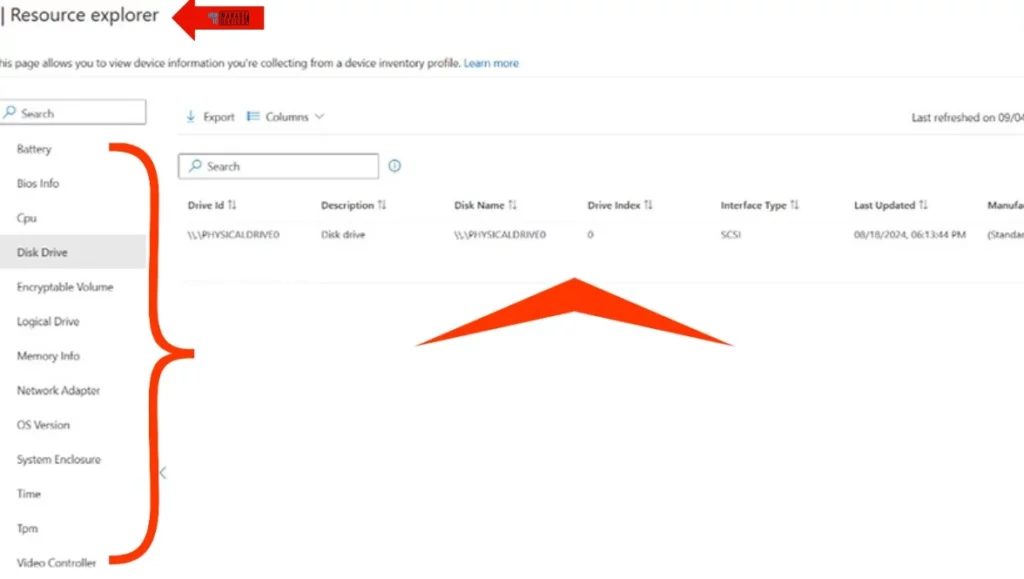
With this, Microsoft is introducing Intune Resource Explorer; you might be familiar with the SCCM resource explorer option! Intune Resource Explorer is where you can view all device information collected from a device inventory profile.
- Open the Intune Portal and navigate to Devices – All Devices.
- Search for a particular device where you have deployed the custom inventory profile.
- Click on the Device record to open the properties page for that device.
Under the Monitor section, click the Resource Explorer tab to view that device’s custom hardware inventory details.
- Now, you will see different categories, and under each category, you can check inventory properties and values, as seen in the screenshot below.
External Resources
Author
Anoop C Nair has been Microsoft MVP from 2015 onwards for 10 consecutive years! He is a Workplace Solution Architect with more than 22+ years of experience in Workplace technologies. He is also a Blogger, Speaker, and Local User Group Community leader. His primary focus is on Device Management technologies like SCCM and Intune. He writes about technologies like Intune, SCCM, Windows, Cloud PC, Windows, Entra, Microsoft Security, Career, etc.


is it possible to create and show queries like the ones in SCCM ?