






Let’s discuss how to Enable or Disable the Copilot Hardware key for specific Windows applications. The Copilot Hardware Key is designed to open Windows Copilot, Microsoft’s AI-powered assistant.
You can customize or disable this key to launch other applications or prevent it from doing any action. This is useful for organizations that want to assign specific tools or users who wish to simplify their workflows.
This post provides a detailed guide on enabling or disabling the Copilot Hardware Key for specific applications in Windows. If you want to disable the Copilot Hardware Key so it doesn’t launch any application—including Windows Copilot—you can do this through the Windows Registry.
This flexibility helps users and IT administrators optimize workflows by customizing or disabling the Copilot Key based on their requirements. Below are more details explained.

Table of Contents
What Does the Set Copilot Hardware Key Policy Do?
What Happens if the Policy is Enabled?
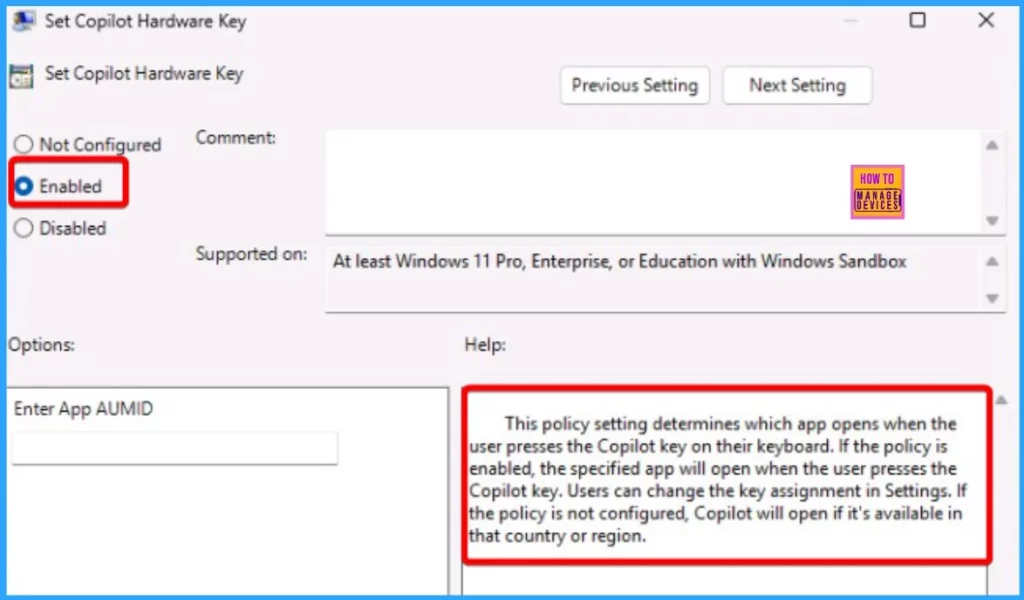
When the policy is enabled, the specified application (defined in the settings) will open when the user presses the Copilot key.
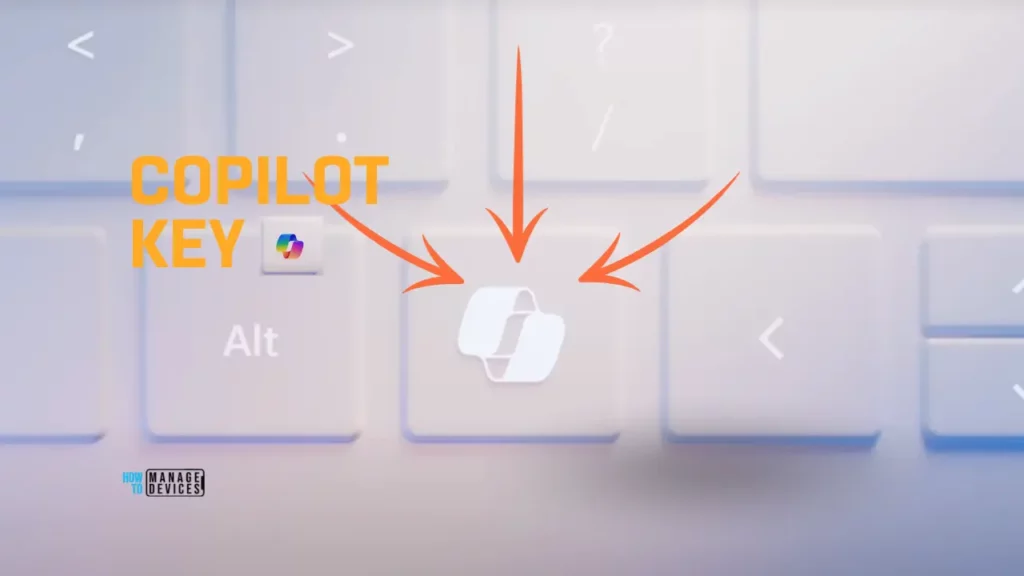
What is Copilot Hardware Key
The Copilot hardware key is the new KEY on your Windows device’s keyboard. You can directly press that key to launch Copilot from Windows. This is similar to the Windows hardware key!
Enable Disable Copilot Hardware key for Specific Applications in Windows
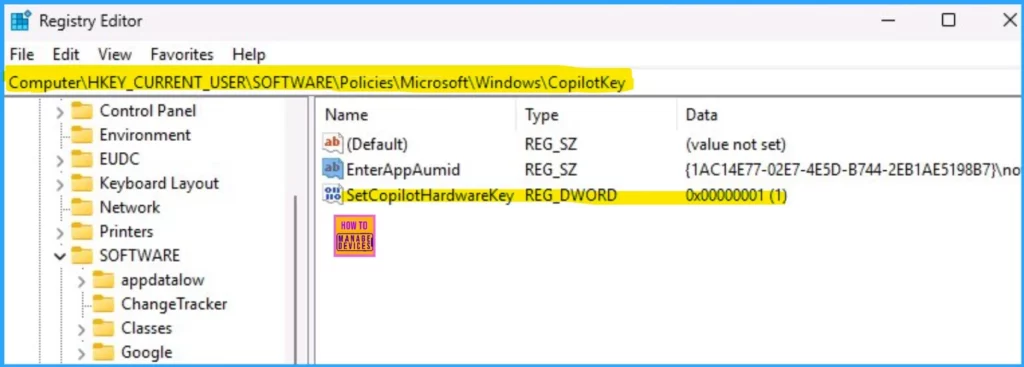
The Registry Editor makes it easy to enable or disable the Copilot Hardware Key for specific applications in Windows. To use the Registry Editor, press Windows + R, type regedit, and press Enter. Then, go to this location.
HKEY_CURRENT_USER\SOFTWARE\Policies\Microsoft\Windows\CopilotKey
- Turn Off Copilot in Windows Setting from Intune Settings Catalog
- Easy Steps to Enable Disable Copilot in Windows 11
- Turn Off Copilot in Windows using Intune and Group Policy
Find or create the SetCopilotHardwareKey value and set it to 0. This will disable the Copilot key, stopping it from launching any app, including Windows Copilot. After making the change, please restart your computer to apply it. This policy setting determines which app opens when users press the Copilot key on their keyboard.
| Set Copilot Hardware Key policy | Enabled/Disabled |
|---|---|
| If the policy is enabled | When the user presses the Copilot key, the specified app will open. Users can change the key assignment in Settings. |
| If the policy is not configured | Copilot will open if it is available in that country or region. |
How to Find the AUMID
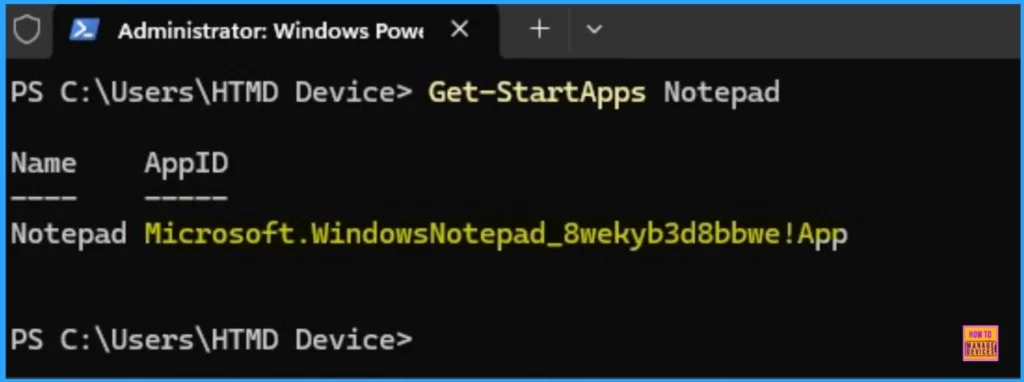
AUMID stands for Application User Model ID, a unique identifier Windows uses to recognize and launch applications. The AUMID is critical when assigning a specific application to launch via shortcuts like the Copilot Hardware Key.
If you customize the Copilot key to launch an app other than the default Windows Copilot, you’ll need to know the app’s AUMID. The AUMID for Notepad is Microsoft.WindowsNotepad_8wekyb3d8bbwe!App.
- Microsoft Copilot LAB Windows 23H2 – Microsoft Event Live Updates
- Windows Copilot Explained | AI Powered First Operating System | License Cost
- Turn Off Copilot in Windows using Intune and Group Policy
- Enable Disable Let Copilot Use Content from Microsoft Edge in Windows 11
We are on WhatsApp now. To get the latest step-by-step guides, news, and updates, Join our Channel. Click here. HTMD WhatsApp.
Author
About the Author: Vidya is a computer enthusiast. She is here to share quick tips and tricks with Windows 11 or Windows 10 users. She loves writing about Windows 11 and related technologies. She is also keen to find solutions and write about day-to-day tech problems.




Discussion