






Windows 11 24H2 Personal Data Encryption Using the Unique Encryption Keys Per User Account
Hi, we are discussing Windows 11 24H2 Personal Data Encryption Using the Unique Encryption Keys Per User Account in Windows 11 24H2. As you all know, Windows 11 24 H2 recently received new features and updates. This update brings the best enhancements toward protecting the desktop by introducing personal data encryption for documents, folders, and, most importantly, photos.
As we all know, security is essential nowadays. In this case, it introduces the capability of Windows 11 Enterprise and Education editions as a personal data encryption method to protect our data. This protection feature protects essential data, such as Documents, pictures, and folders.
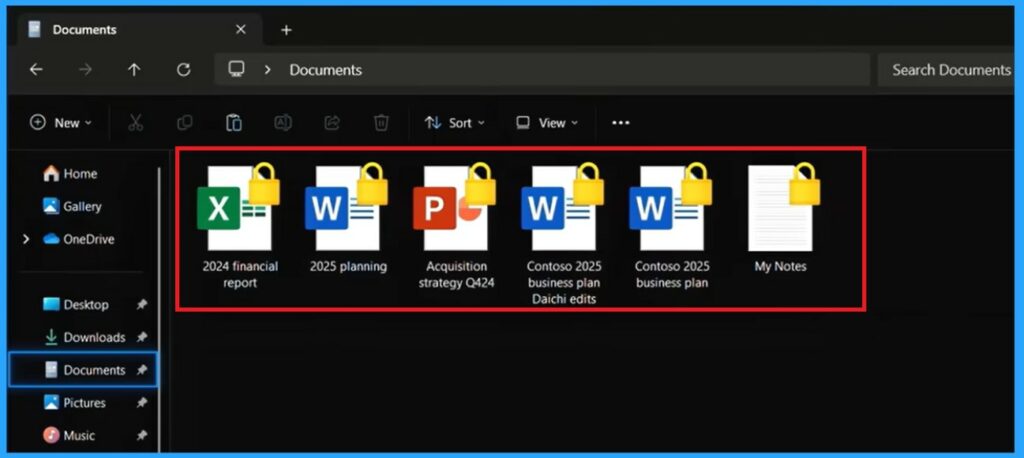
We know how important a document or file is to us, so this feature will significantly enhance the security protection of Windows 11 users. With this protection feature, we can expect many security improvements, and the most significant plus point of this security protection is that these folders will have a lock icon indicating they are encrypted.
This feature improves security by ensuring that personal data is protected and can only be accessed by the correct user. It is combined with the Intune policy. So, in this post, we can discuss what this new feature is for and how personal data encryption is to be worked in this feature.

What are the Benefits of Personal Data Encryption?
Windows 11 24H2 Personal Data Encryption Using the Unique Encryption Keys Per User Account
Above, we discussed an overall view of this topic. Personal Data encryption is a new feature in Windows 11 enterprise and education editions. This feature protects the Desktop, Documents, and Pictures folders. These folders will have a lock icon indicating they are encrypted. Files in these folders are only readable during an active user session.
- Windows Hello for Business will create a unique key for each user profile.
- This means that even if someone else has access to the device.
- They cannot read the contents of these files unless they are the logged-in user.
- This is the best way to protect a document.
- Windows 11 24H2 Now Available Through WSUS | New Features and Enhancements
- Best Way to Set Windows 11 24H2 as Optional Update with Intune
- Enable Disable Personal Data Encryption on Windows 11 Devices using Intune Settings Catalog
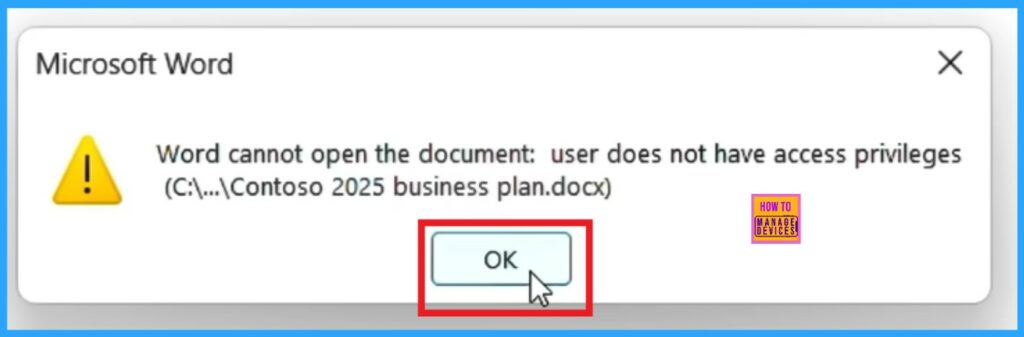
This encryption is separate from BitLocker or any other encryption method. It specifically protects user data on devices with multiple user accounts. If any user is a local administrator on the device, they can only see the folder and file names but cannot decrypt or view the contents.
| No | Personal Data Encryption Features |
|---|---|
| 1 | It allows unique encryption Keys, so each user profile gets a unique encryption key. This allows a more stable security basis on per-user protection for their documents and folders. |
| 2 | Anyone who opens your device can only see your files and folders in an encrypted format because a lock icon indicates it. |
| 3 | PDE can be enabled on devices managed by Microsoft Intune through a policy. |
| 4 | Once enabled, the Personal data is encrypted, and the encryption process runs in the background. |
- If the local administrator tries to open the folder and file names, they can’t because the folder is locked.
- The security feature they provide is the best one for protecting personal data.
Note: This feature supports multiple user accounts on the same device.
- Windows 11 LTSC 2024 Long Term Servicing Channel is Now Available
- BitLocker Recovery Boot Issue After July 2024 Security Update
Personal Data Encryption in Intune
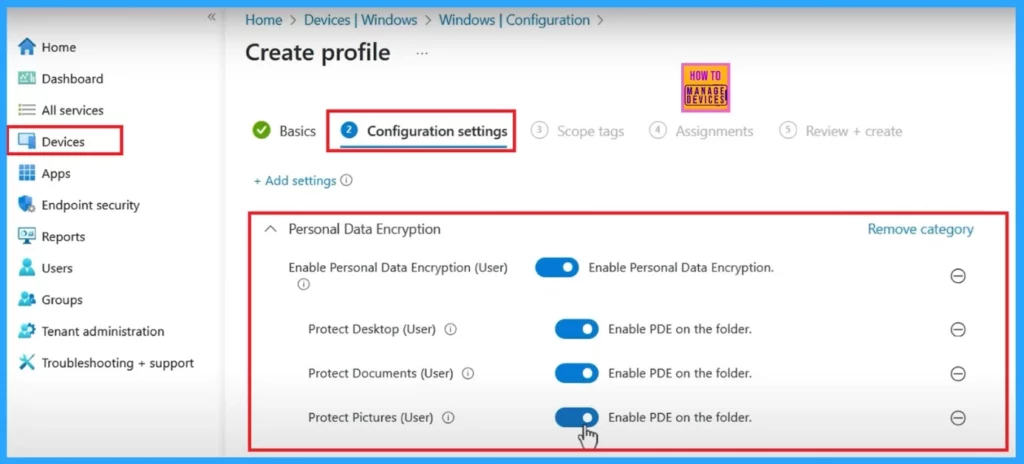
This new feature enables Personal Data Encryption on devices managed by Microsoft Intune through a policy. Once the policy is enforced in Microsoft Intune, the encryption can be completed in 7 days. The processing of this encryption happens on a device’s defined maintenance window.
- This will never impact on productivity.
- Microsoft Intune> Device> Windows>Configuration>Create New Policy
More Details – Intune Bitlocker Drive Encryption A Deeper Dive To Explore (anoopcnair.com) and New BitLocker Disk Encryption Policy For Intune Endpoint Security
Join the LinkedIn Page and Telegram group to get the latest step-by-step guides and news updates. Join our Meetup Page to participate in User group meetings. Also, Join the WhatsApp Community to get the latest news on Microsoft Technologies. We are there on Reddit as well.
Author
Anoop C Nair has been Microsoft MVP from 2015 onwards for 10 consecutive years! He is a Workplace Solution Architect with more than 22+ years of experience in Workplace technologies. He is also a Blogger, Speaker, and Local User Group Community leader. His primary focus is on Device Management technologies like SCCM and Intune. He writes about technologies like Intune, SCCM, Windows, Cloud PC, Windows, Entra, Microsoft Security, Career, etc.




I like this feature a lot but the user needs to login using Windows Hello to be able to access their own documents