






Enable Disable Show Account Email Address on Sign-in Screen in Windows 11 Using Group Policy Intune
Hi, Today, we are discussing how to Enable and Disable Showing the Account Email Address on the Sign-in Screen in Windows 11 Using the Group Policy Method.
Show Account Email Address on the Sign-in Screen is a feature in Windows 11, but I did not think it was a secure feature, so Windows 11 allows users to disable them on the Sign-in Screen. This feature is used for users’ convenience and experience.
This feature will help users quickly identify their accounts. Also, the Enable Disable Show Account Email Address on the Sign-in Screen in Windows 11 Using Group Policy Method helps the user access the right accounts. However, this feature has some notable privacy and security issues.
Along with these advantages, these features also have disadvantages related to security and privacy. If your Sign-in Screen shows you the Email Address, you don’t need to expose it to anyone. In this post, we share some methods to disable features in Windows 11, including the Group policy method.

What are the Benefits of Disabling Email Addresses on Sign-in Screen?
Enable Disable Show Account Email Address on Sign-in Screen in Windows 11 Using Group Policy and Intune Method
Above, we discussed an overview of the Windows 11 feature. This feature is really helpful for those who have multiple accounts. This email identification will give you a clear picture of the accounts. However, displaying the email address can lead to privacy issues.
- Many users don’t prefer to reveal their identity on Sign-in Screen.
- So, Windows 11 can also disable or enable the feature if they want it.
- So, let’s look into the methods for enabling and disabling.
- How To Resolve Microsoft Account Sign-In Issues Caused By March 2026 Update
- Best Guide to Enable Disable Edge Browser Auto Sign-in and Sync with Intune
- How to Change User Account Control Settings in Windows 11
- User Accounts Settings in Windows 11
System Settings
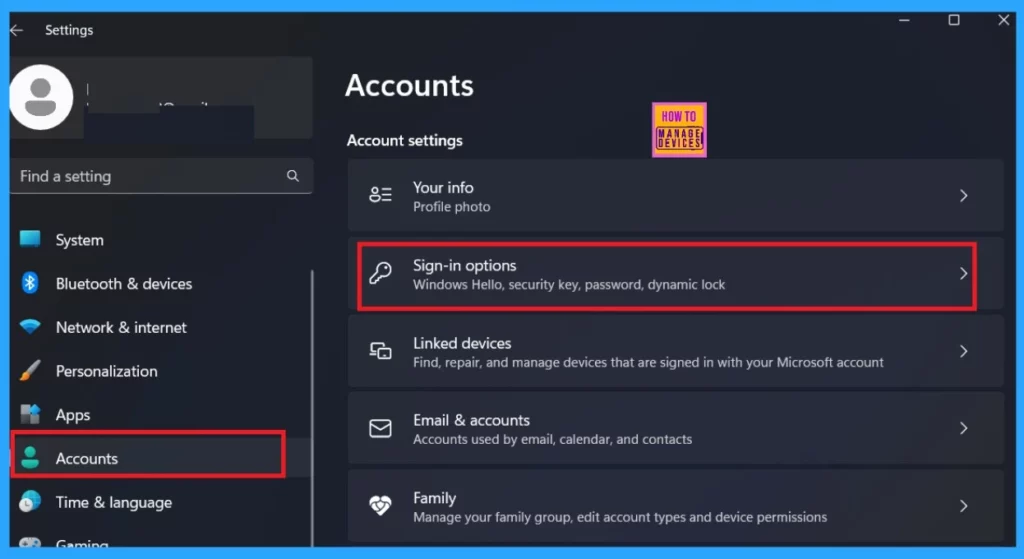
As we all know, the settings feature is the first step we all choose. This method easily enables or disables the display of the account email address on the sign-in screen in Windows 11. So, First, go to the system settings using the Win + I key or search settings on the Windows search.
- In the settings, Select the Account Settings.
- Select Sign in options
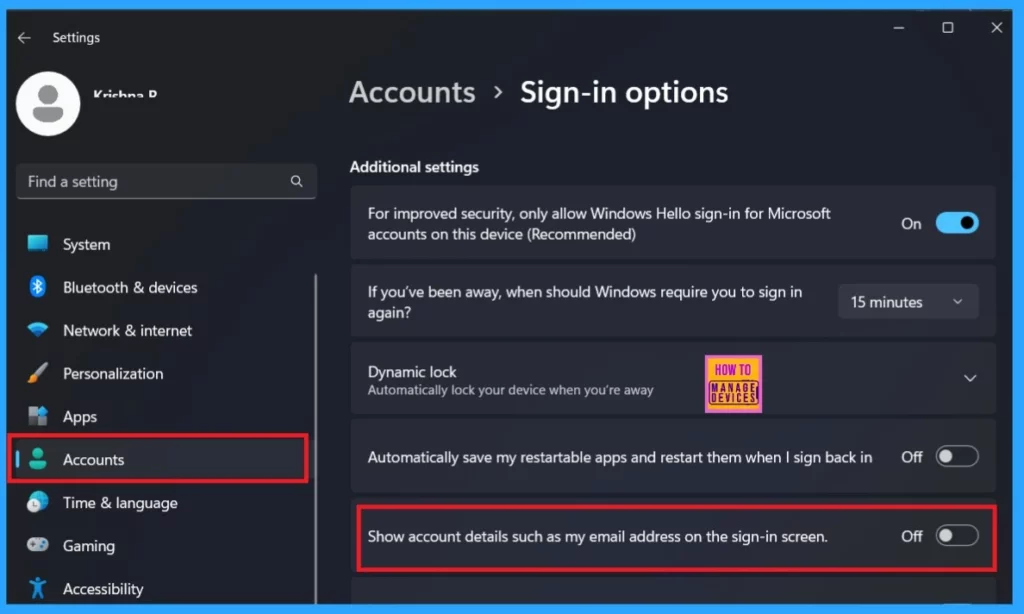
When you click on the sign-in options, you can see sign-related options. So you can focus on the subhead, such as additional Settings. Then select the option to ”show account details, such as my email address, on the sign-in screen”. This option is Disabled by default.
- If you want to show your email address on the sign-in screen, you can easily enable this option by toggling the pane to the Right.
- System Settings Options in Windows 11
- Windows 11 24H2 Personal Data Encryption Using the Unique Encryption Keys Per User Account
- Why Does Windows 11 24H2 Have Outdated Versions of Paint and Snipping Tool?
Registry
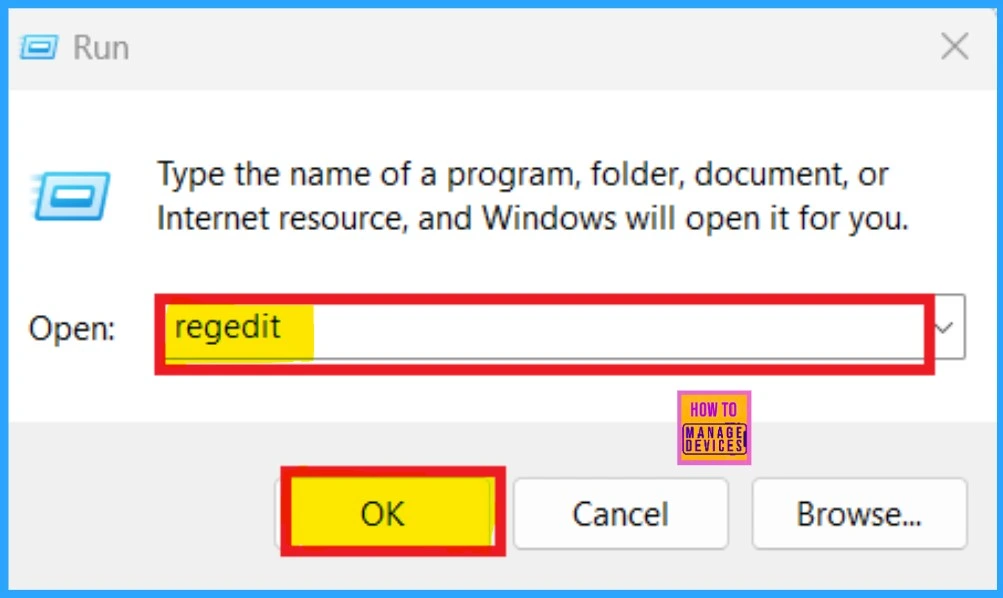
The next method is using the registry as you all know registry methods are used for making changes in system databases. So this is one of the useful methods first you have to open the registry by pressing the Win + R key and typing regedit into the run command box.
When the registry window is open you know that we have to add an appropriate path for better navigation so please copy and paste the below path for the next steps.
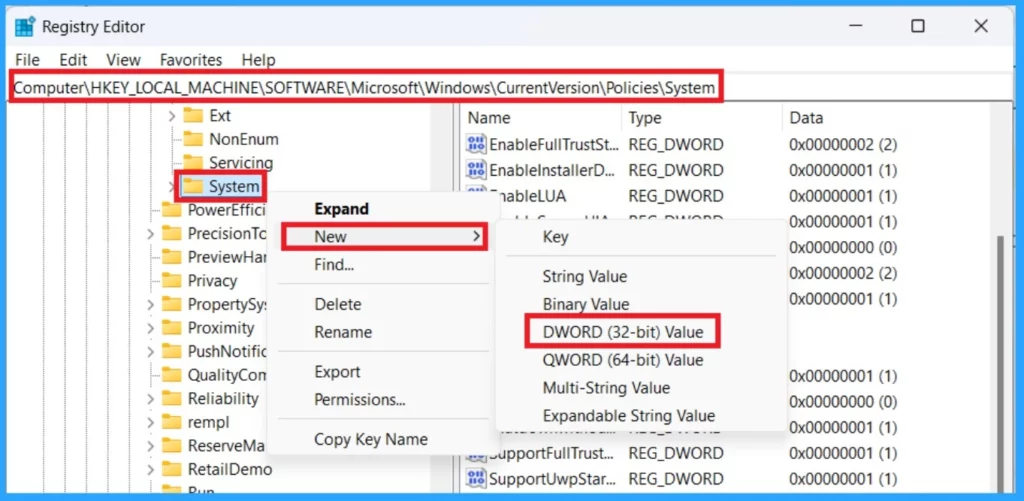
Use this path: Computer\HKEY_LOCAL_MACHINE\SOFTWARE\Microsoft\Windows\CurrentVersion\Policies\System
- Right-click on the System and create a New value of DWORD(32-bit) value
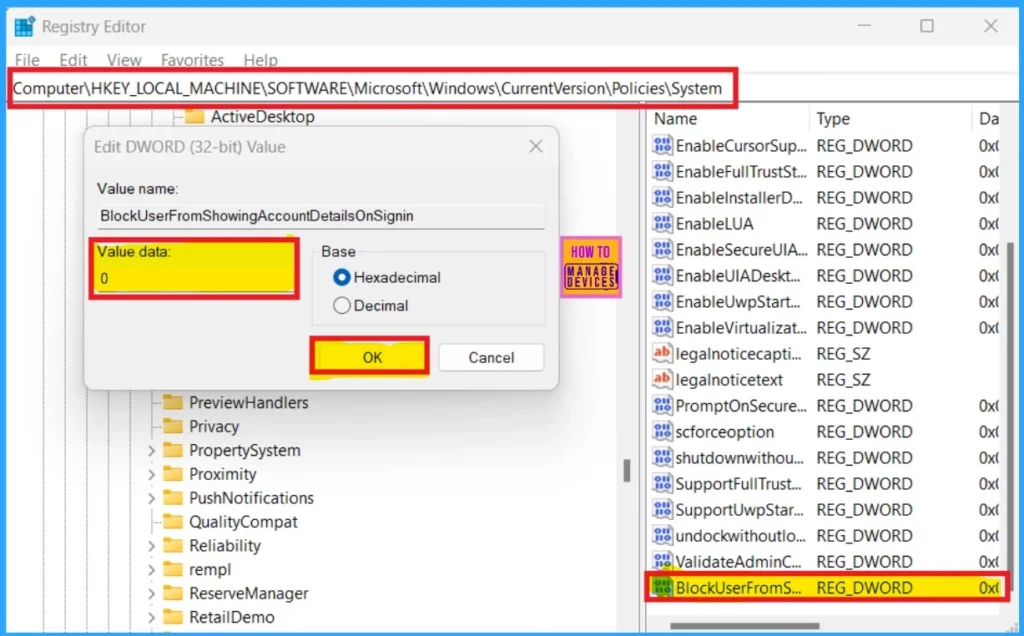
When you create a new value, you can name it BlockUserFromShowingAccountDetails and then double-click the new value you created. When you double-click on that, you will get a value-adding window. You give the value 0 to the Account Email Address on the Sign-in Screen in Windows 11 as enabled.
| Value | Result |
|---|---|
| Value as 0 | Shows the account email address on the sign-in screen |
| Value as 1 | Hides the account email address on the sign-in screen |
Group Policy
Group Policy is the next method. First, you must open the group policy editor by pressing the Win +R to open the run command box. then you can type gpedit. msc and press enter. After this step, the group policy will open. In the Local Group Policy Editor, navigate to the following path:
Use this path: Computer Configuration > Administrative Templates > System > Logon
- After entering the path, find the policy name Block user from showing account details on sign-in”.
- This policy lets you control the email address and other details displayed on the sign-in window.
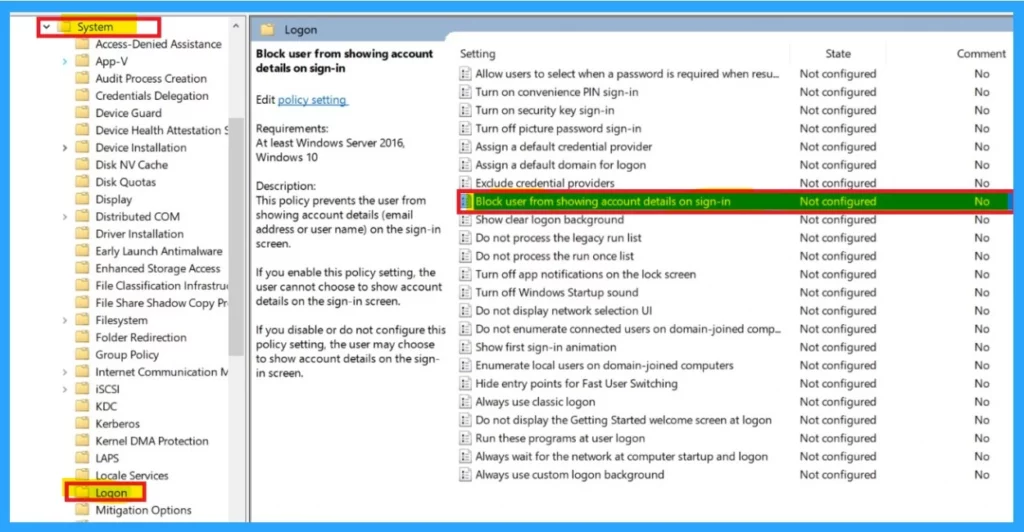
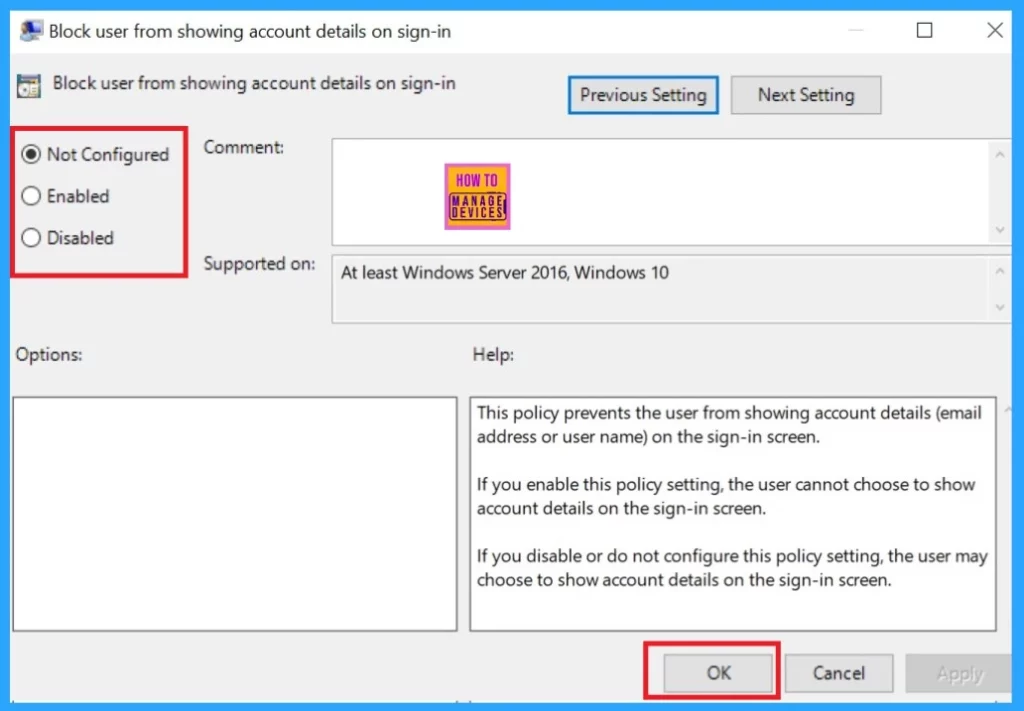
When you find the Block user from showing account details on sign-in”. you have to double-click on the policy to open settings. When you double click you will get 3 options Not configured, Enabled, and Disabled options.
- Select the option you want Enable Disable
- Then Click Ok
| Options | Info |
|---|---|
| Not configured, | Enable user choice to show account email address on sign-in screen for all users |
| Enabled | To enable the display of the email address, select “Disabled” or (Not Configured). These settings allow the email address to be shown on the sign-in window |
| Disabled | For disabling feature select “Enabled”. This setting hides the email address on the sign-in screen. |
Intune Policy
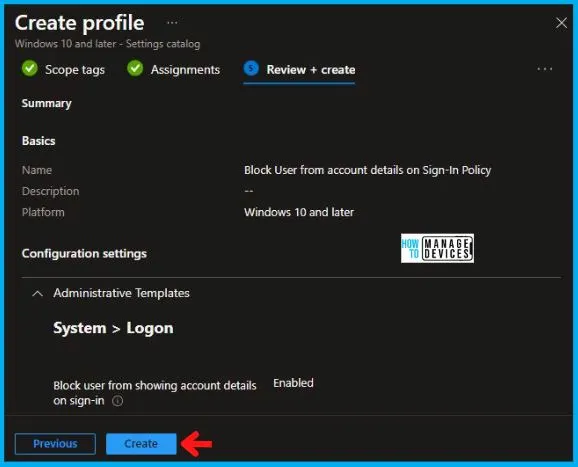
We have an Intune policy related to blocking users from Account Details on the Sign-In Policy using Intune. We have provided a detailed overview of this policy.
With the Intune method, you can block users from displaying account details on the sign-in screen using Intune’s Configuration Profile. Also, emails and usernames, etc. You will have a complete guide for more information when using this method.
See More: How to Block Users from Account Details on the Sign-In Policy using Intune
Result
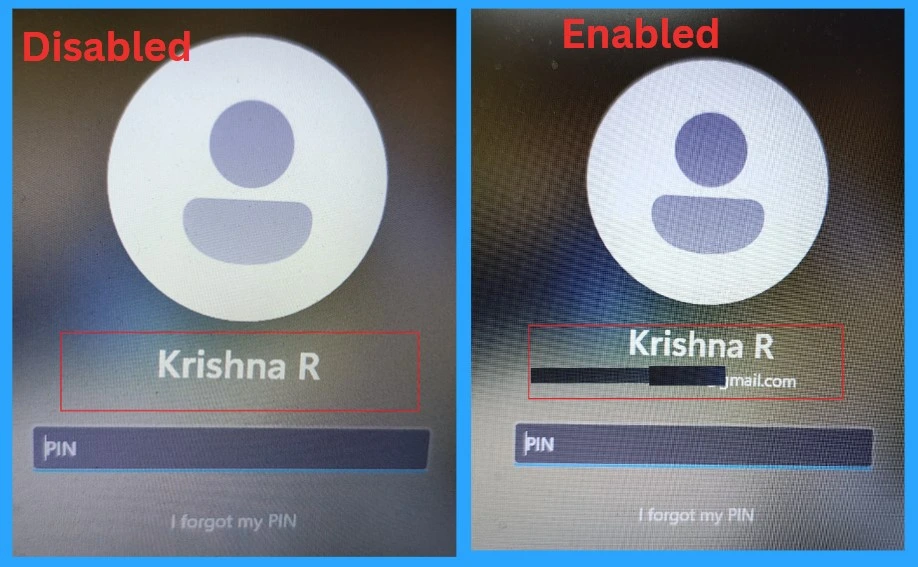
When you use those methods, you can see the above results. When the Email Address on the Sign-in Screen in Windows 11 is Disabled, no information is revealed. When the email or other information is enabled, your email will appear on your sign screen.
Join the LinkedIn Page and Telegram group to get the latest step-by-step guides and news updates. Join our Meetup Page to participate in User group meetings. Also, Join the WhatsApp Community to get the latest news on Microsoft Technologies. We are there on Reddit as well.
Author
Anoop C Nair has been Microsoft MVP for 10 consecutive years from 2015 onwards. He is a Workplace Solution Architect with more than 22+ years of experience in Workplace technologies. He is a Blogger, Speaker, and Local User Group Community leader. His primary focus is on Device Management technologies like SCCM and Intune. He writes about technologies like Intune, SCCM, Windows, Cloud PC, Windows, Entra, Microsoft Security, Career, etc.




Discussion