






Top 14 Tips and Tricks to Extend Laptop Battery Life for Windows Operating System without using ARM
Hi, today we are discussing the Top 14 Tips and Tricks to Extend Laptop Battery Life for Windows Operating System without using ARM. As you all know, battery life is a frustrating problem we often face while using a laptop. We continuously use laptops, and running low on batteries is an issue that always affects our work.
These low battery running issues always cause trouble when no power outlets are nearby. We use many power-saving modes, like power-saver modes, to extend laptop Battery Life in Windows 11. A longer battery life enhances the user experience by allowing productivity without constantly charging laptops. Have you heard about the 14 Hours of Battery for Surface Pro laptops with video play time?
As you all know, our battery drains not only because you use your laptop constantly but also for many other reasons. One of the main reasons is that our system settings are changed by mistake, or some connectivity is the cause of this issue, and we can’t blame it on a particular setting.
When you are going to try tips and Tricks for Extending Laptop Battery Life in Windows 11, you have to change settings, manage apps, and understand how you use your device. So, in this post, we are sharing some tips and tricks to help you maintain the battery drain issue.

Table of Contents
What You Should Avoid to Maintain a Healthy Battery Life in Your Laptop?
1. Please don’t use laptops with low batteries.
2. Unplug the charger once the battery reaches 100%. Otherwise, it will be Overcharging, and the device will not be suitable for it.
3. Always keep the system up to date.
4. Always be aware of the battery settings on your system.
5. Please turn off your system when your works are completed.
Why are ARM processors suitable for extending battery life?
Top 14 Tips and Tricks to Extend Laptop Battery Life for Windows
Above, we discussed an overall review of the Top 10 Tips and Tricks for Extending Laptop Battery Life in Windows 11. We have all encountered this battery drain issue many times. So here are some steps you have to follow to solve the battery drain issue. Over-battery drain issues constantly lose their ability to hold a charge.
- How to Enable or Disable Battery Saver in Windows 11 | Energy Saver Battery Threshold Policies
- Monitor Battery Usage by Apps in Windows 11
- Turn On Diagnostic Data Viewer in Windows 11
Battery Saver
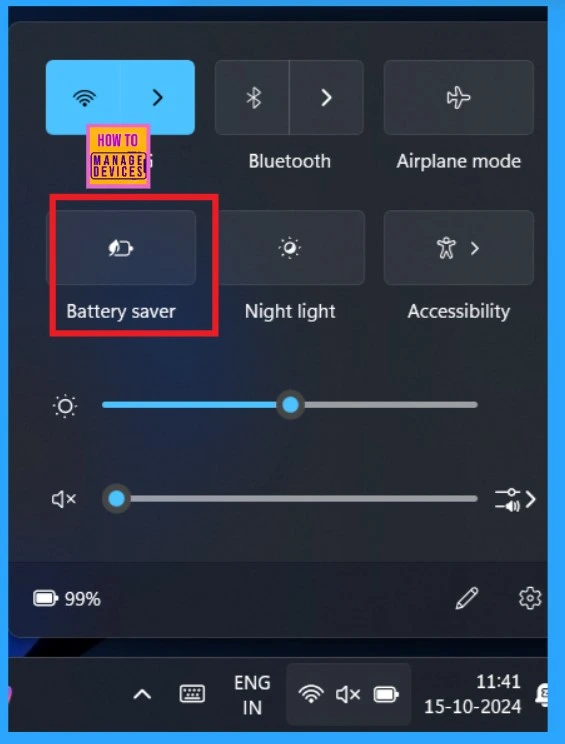
Battery saver: We’ve all known this method for a while, right? It’s our first thought when extending a device’s battery life, like a laptop or mobile phone. So, this method works sometimes. To use this method, press the Win+S keys and select the battery-saver option. Now, your laptop is in battery saver mode, and it will extend your battery.
System Settings/ Power and Battery Settings
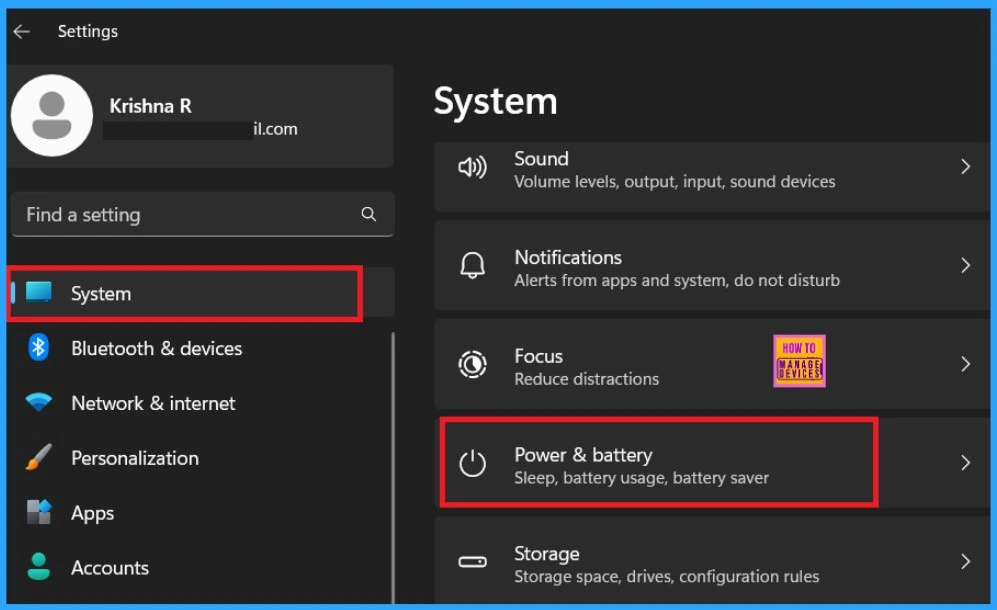
System settings are another option we all use when we need system-related settings. In Windows 11, many battery settings options are provided. To access the settings, press Win+I and open the settings. In the settings, go to System>Power and Battery.
| Power | Battery |
|---|---|
| Screen and Sleep | Battery Saver |
| Power Mode | Battery Usage |
Tweak Power Mode
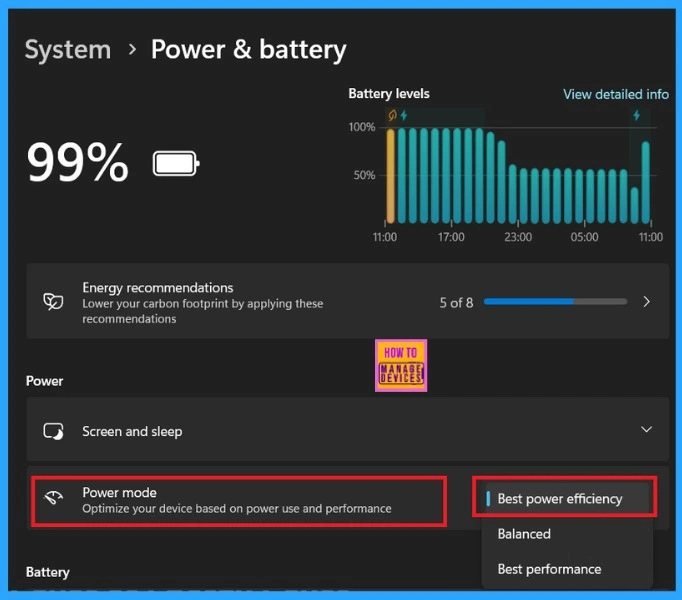
This power mode is the first window you will see when using the System Settings. You will see these mode settings when you open Power and Battery (System>Power and Battery). The screenshot shows the Power mode; you need to set it to Best Power Efficiency.
Enable Battery Saver in Settings
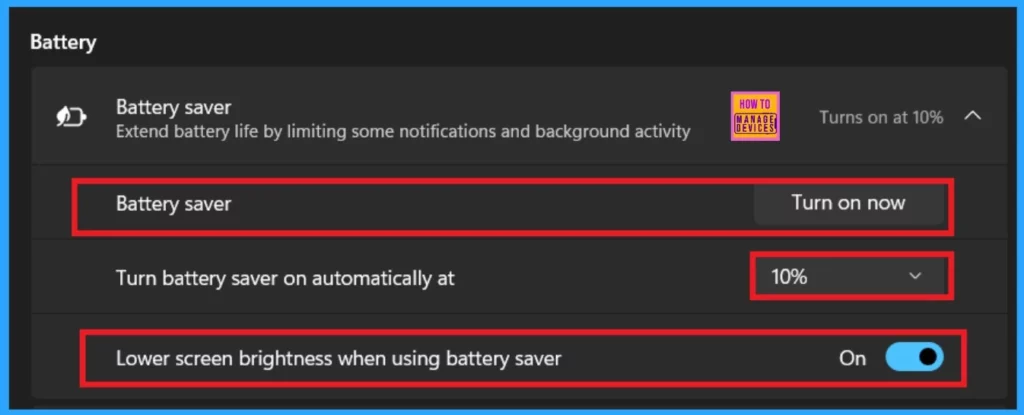
Under the System settings of Powe and battery, you will get another setting mode option like Enable Battery Saver in Settings. You all know the battery saver that we can access in a quick setting, and we can also set it through System settings. In the power and battery window, you can see the battery-saver option
- Turn it now. The Battery Saver
- Turn the battery saver on automatically at 10%(lowest per cent)
- Enable the option to lower the screen brightness when using a battery saver.
Sleep Settings
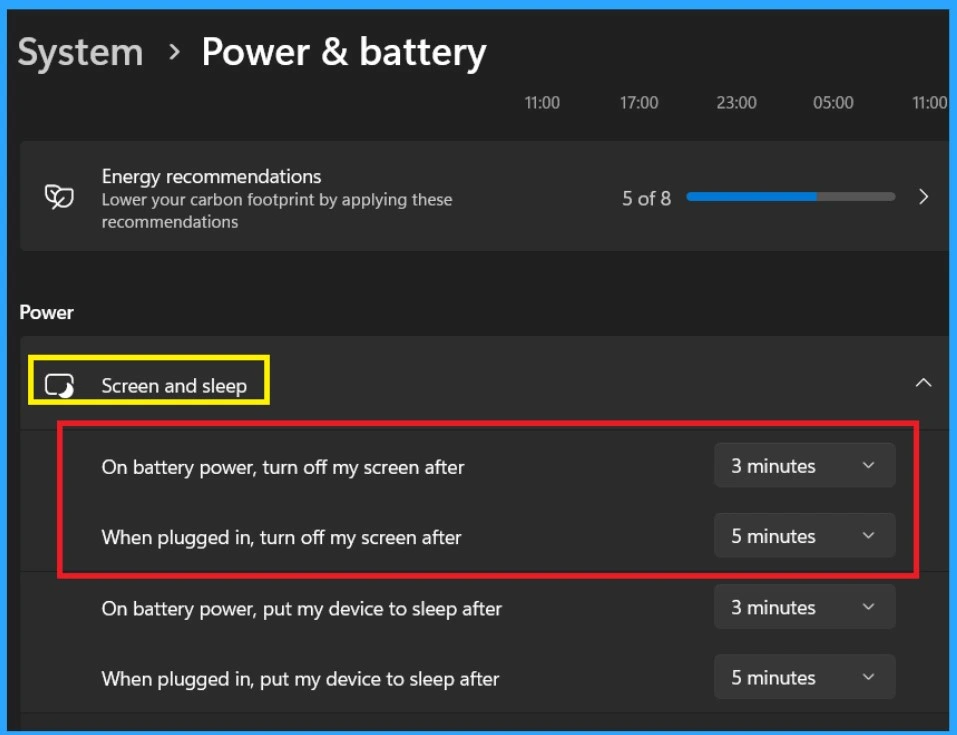
Sleep Settings are an essential tool used in power consumption settings in Windows 11. These settings are the best for managing device power usage and extending battery life. This option will go into the power and battery settings window. You can see the settings in the name on Screen and Sleep Option.
- Set the On battery power, and turn off my screen after the option to 3 or 5 minutes.
- Set the On battery power, put my device to sleep after the option to 5 minutes or more.
See More: How to Change the Automatic Sleep Settings in Windows 11
Low Refresh Rate
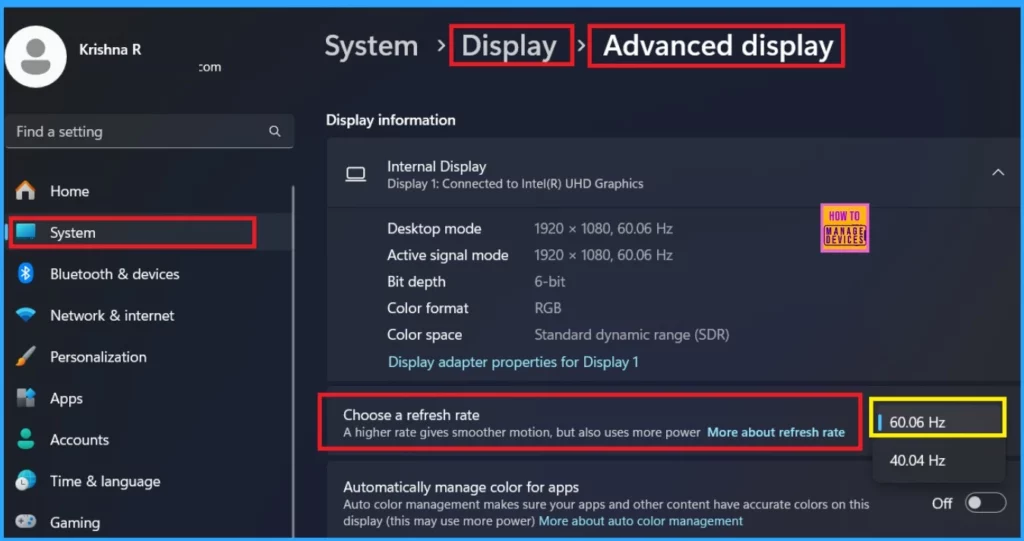
A low refresh rate is another method to extend the battery life in Windows 11. It works as how many times your display updates its images per second. When you lower the rate, it will display the updates fewer times, which will extend the battery. To limit the Refresh Rate, go to the System settings by clicking Win+I. From settings System>Display>Advanced Display.
- Go to the option called ” Choose a refresh Rate. The Refresh rate of 60.06Hz is set by default.
- When you choose the highest rate, it takes More power, so select the 40.04Hz
Disable Startups
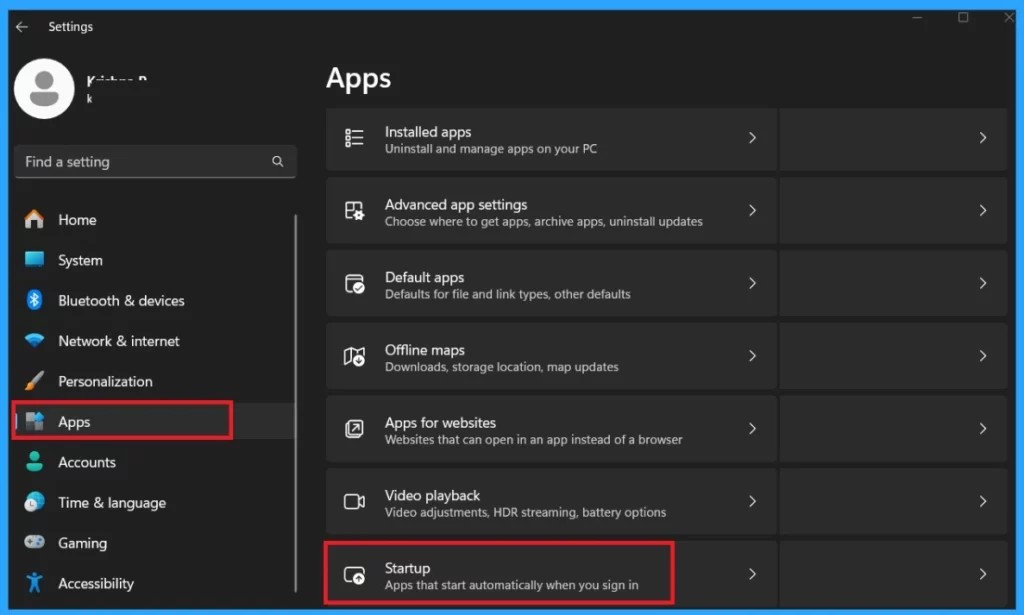
Disabling unnecessary startup and background apps is an effective strategy. To do this, Go to the system settings and select Apps. In the app section, you will see the Startup option; click on that.
See More; How to Enable or Disable Startup Apps in Windows 11
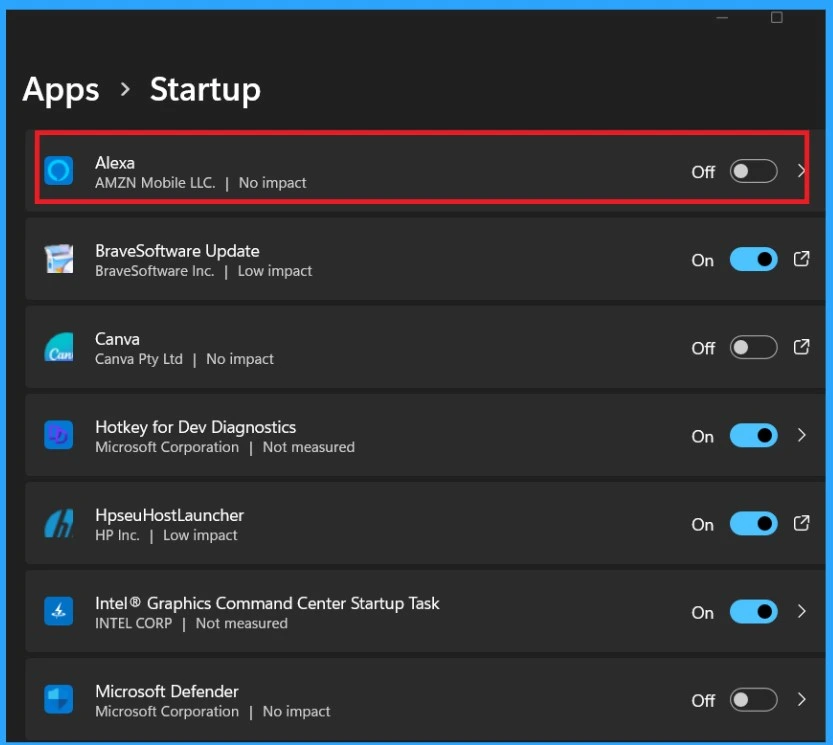
When you click the Startup option, you can see many apps running in the background. You can toggle off apps that run in the background or selectively disable specific apps that you don’t need to operate continuously. You can significantly reduce your system’s battery drain issue by managing these settings.
Configure Graphics Card for Apps
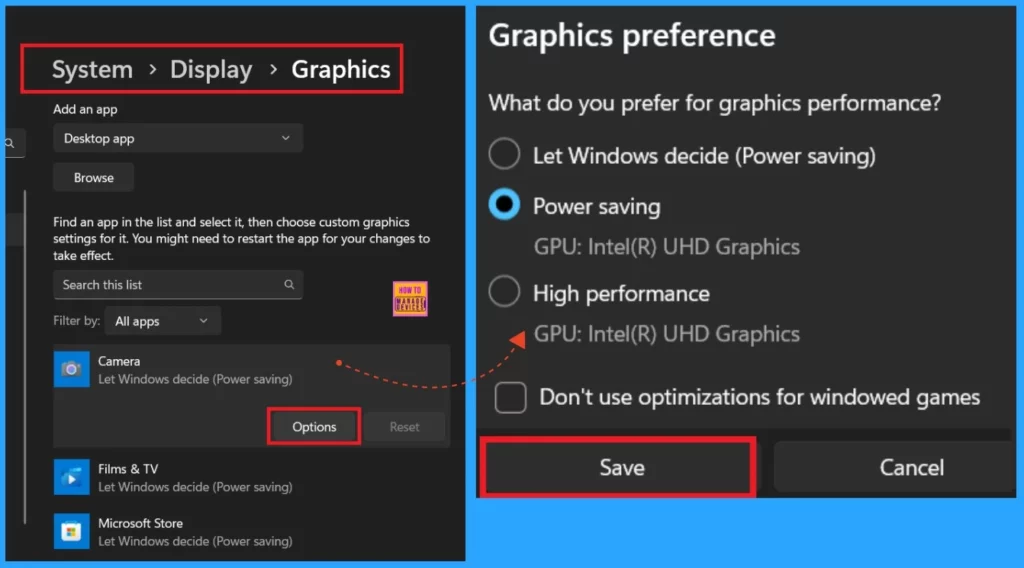
Configuring app graphics settings can impact battery life, especially on devices with multiple GPUs. Windows lets you choose which GPU an app uses, allowing you to prioritize energy over performance when needed. Once you’ve accessed the graphics settings, you can choose between Power Saving and High Performance for each application.
- Search for graphics settings in the taskbar search box and press Enter.
- Or go to the system settings and select Display from the Display Select option Graphics.
- You can find any apps here in graphics. I selected the camera option and the graphic preference as Power saving.
- Then save the Changes.
Disable Wifi and Bluetooth
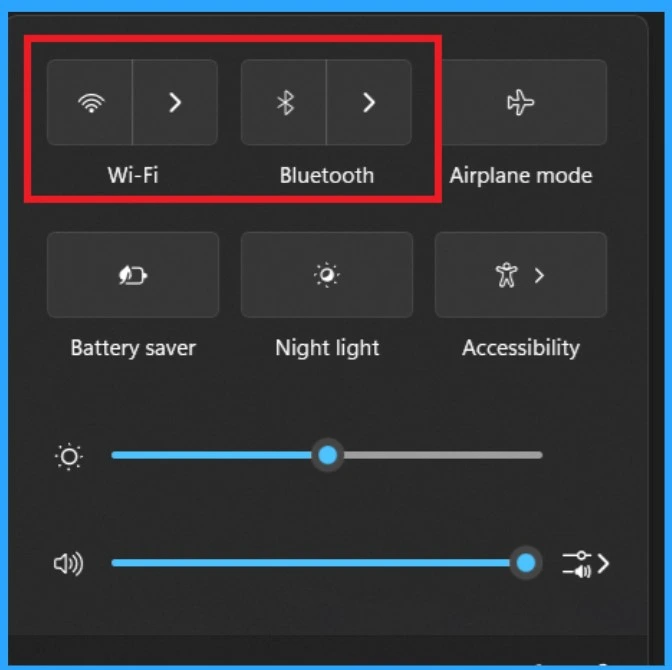
When the battery level is low this time, bluetooth and the internet will access more Battery from the system. At that time, we had a solution: if it is not compulsory to use Bluetooth or the Internet, you can quickly turn them off. This will help you to maintain your battery level until you plug in your laptop.
Power Saving Mode in Browsers
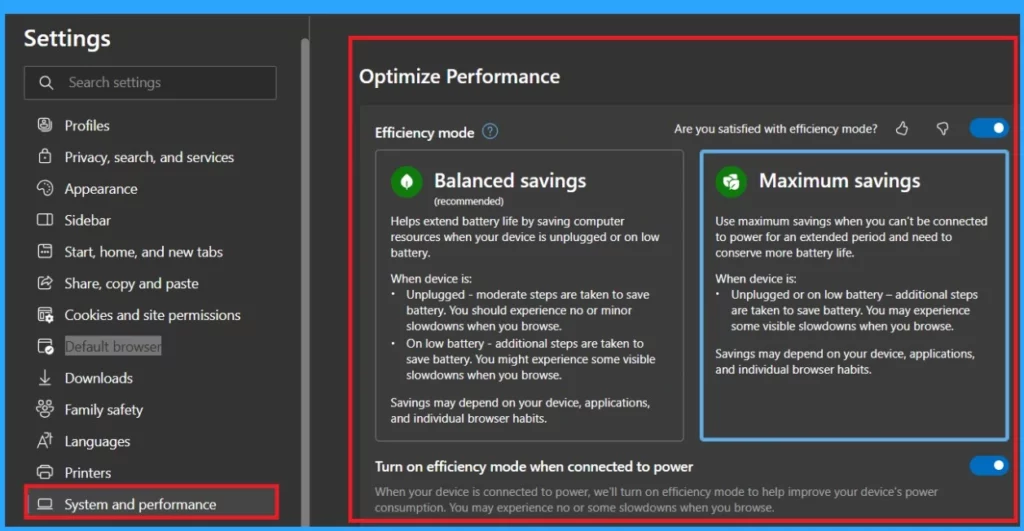
Nowadays, browsers are essential to our lives, and their use is the biggest issue with battery draining. Browsing or watching movies on browsers and downloading huge amounts of data will take more power, so this is one of the battery-draining issues. So, what can we do here?
- Let’s look into our post-related MS Edge Battery Drain Issue below.
See More: Fixing MS Edge Battery Drain Issue on Windows 11
Modify Video Playback Settings
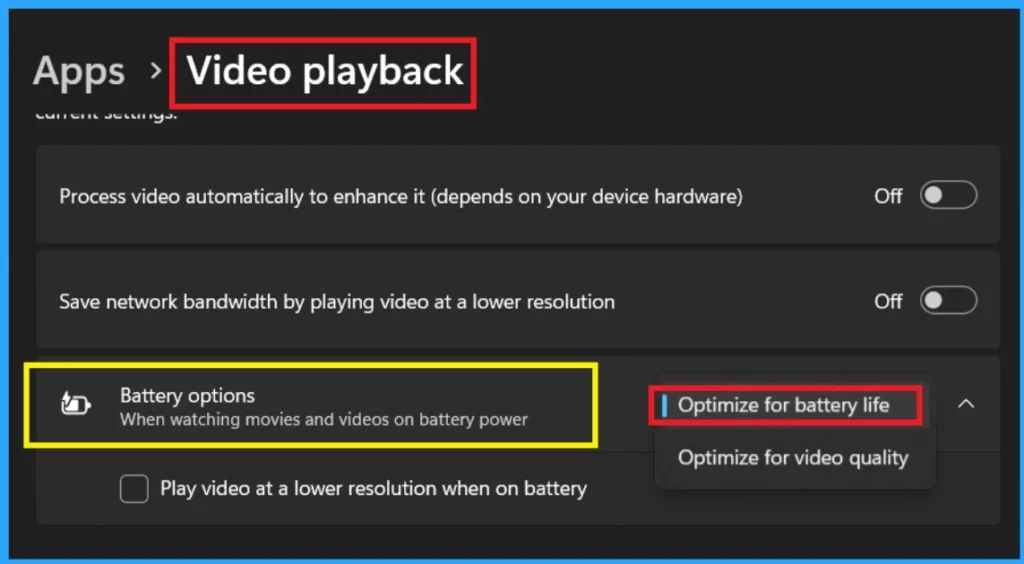
Modifying Video Playback Settings is one of the best strategies for extending battery life. In Video Playback Settings, there is an option for Battery. When you watch movies and videos, this option will help to save battery drain.
- To access this setting, Go to the settings by using Win+I.
- In settings, go through Apps > Video playback and set Battery options to Optimize for battery life.
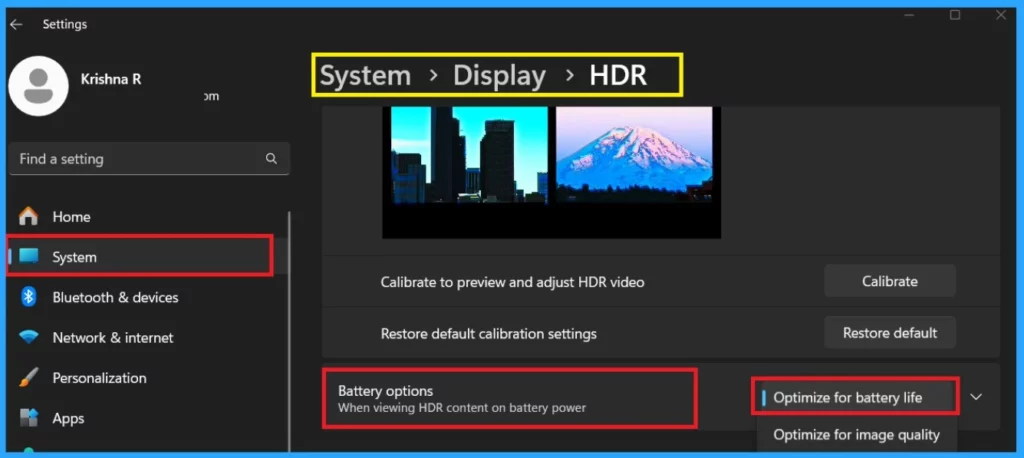
Windows 11 will automatically disable HDR features on your laptop’s HDR display when running on battery power to protect energy. However, if your computer has no HDR display but still uses HDR streaming, you can configure your settings to enhance battery life.
- Press Win + I to launch the Settings app.
- In the Settings window, click on System
- From the system, select Display> HDR
- Set Battery options to Optimize for battery life.
Apply Energy Recommendations
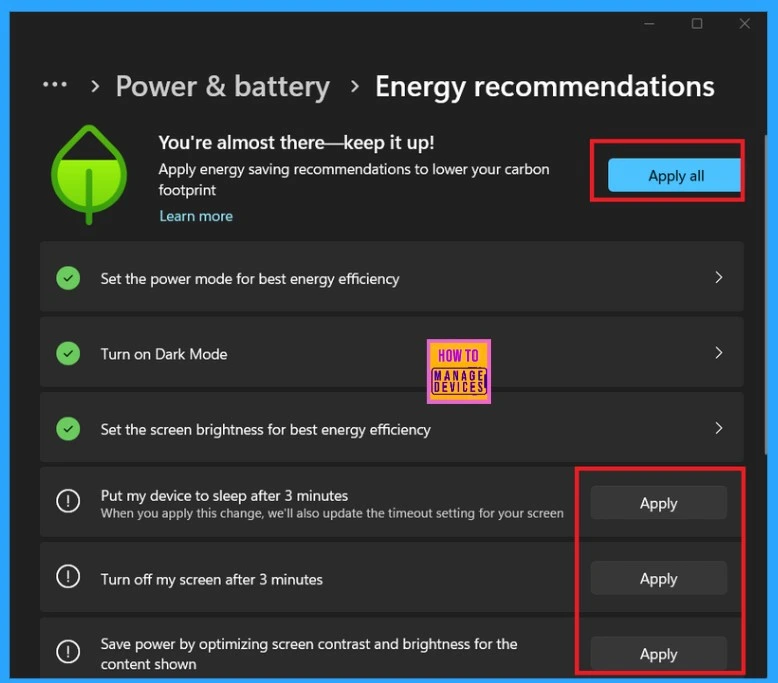
Microsoft also suggests the Apply Energy Recommendations option, whether 23H2 or 24H2. This will enhance your device’s efficiency. You can enable it by navigating to Settings > System > Power & battery and turning On Battery Saver mode.
- This mode automatically dims the screen, reduces background activity, and limits the number of Notifications when the battery level is low.
| Energy Recommendations | Info |
|---|---|
| Put my device sleep after 3minutes | Apply |
| Turn off my screen after 3 Minutes | Apply |
| Save power by optimizing screen contrast and brightness for the content shown. | Apply |
Windows Search Indexing Settings
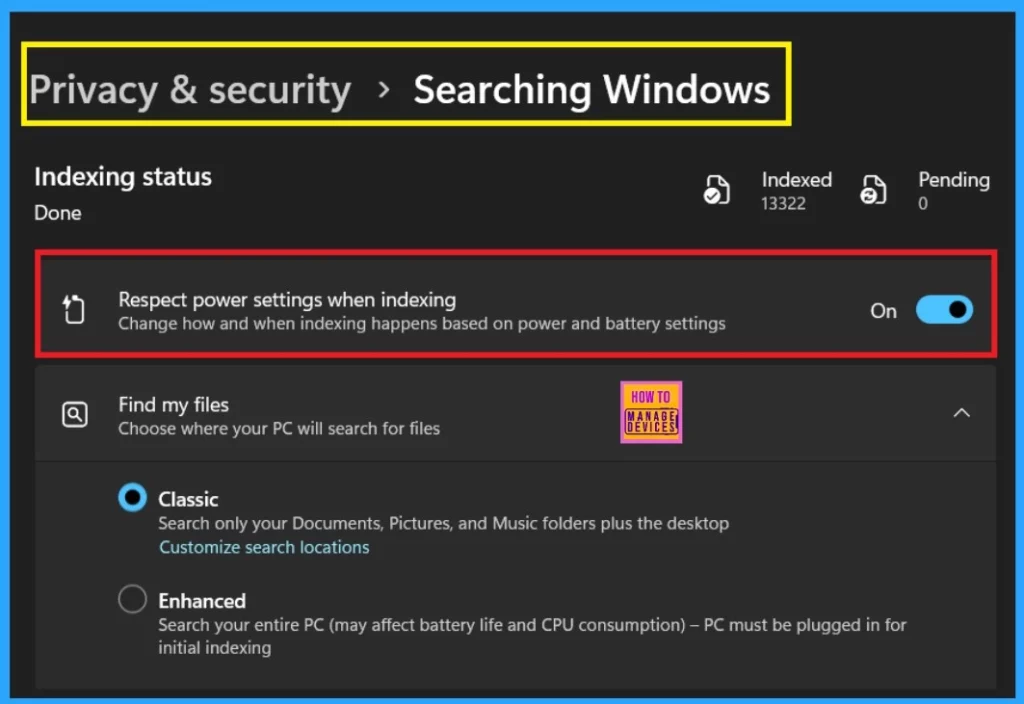
Windows Search Indexing Settings is the next step that you can use to extend your battery. I think this is one of the most powerful options we have. As you know, Windows Search indexing speeds up the search for files and apps on your device by creating an index of their locations. This process takes more power, so the battery drains the issue when it’s controlled.
Set to Dark Mode
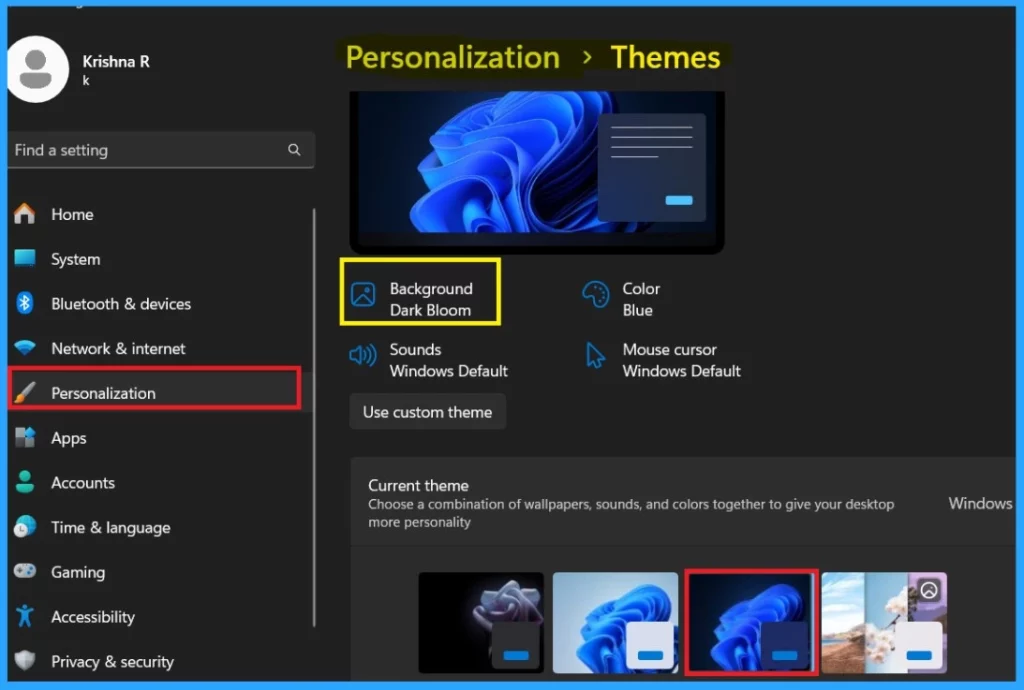
Setting a laptop to dark mode is the simplest way to extend battery life. Dark mode consumes less power than white or brightly coloured pixels, which can help improve laptop battery life.
- Go to the system settings and Personalization>>Theme> Dark mode.
I hope these methods are helpful for your battery issue!
Join the LinkedIn Page and Telegram group to get the latest step-by-step guides and news updates. Join our Meetup Page to participate in User group meetings. Also, Join the WhatsApp Community to get the latest news on Microsoft Technologies. We are there on Reddit as well.
Author
Anoop C Nair has been Microsoft MVP from 2015 onwards for 10 consecutive years! He is a Workplace Solution Architect with more than 22+ years of experience in Workplace technologies. He is also a Blogger, Speaker, and Local User Group Community leader. His primary focus is on Device Management technologies like SCCM and Intune. He writes about technologies like Intune, SCCM, Windows, Cloud PC, Windows, Entra, Microsoft Security, Career, etc.




I have been doing printer services for many years. Now I am also in computer service. Updating myself with the knowledge about the computer issues and their solutions. Being good in printer does help in servicing of computers although the mechanisms are totally different.