






Automatic Intune Device Cleanup Rules Delete Stale Devices
Have you ever faced issues with Intune reporting or compliance reports because of stale device records? If so, I can show you how to set up Automatic Intune Device Cleanup Rules and Delete Stale Devices to prevent these issues from happening. This process is crucial for keeping your Intune environment running smoothly and up-to-date.
With automatic cleanup rules in place, you won’t have to worry about manually deleting stale device records, which can be time-consuming and error-prone. This quick blog post explains more about setting up Automatic Intune device cleanup rules, which are similar to SCCM maintenance tasks.
The Intune device clean-up rule to delete stale records allows Intune admins to choose between 30 and 270 days to remove inactive device records from Intune automatically. I recommend keeping these numbers as per your organization’s requirements.
Microsoft confirmed that you don’t need to worry about the device whose employees are on long leave, such as medical, sabbatical, etc. Even though the device is deleted from the Intune portal, the backend will keep the devices until the device certificate expires.

However, you don’t have the same (like SCCM) control on Intune maintenance tasks. It’s not mandatory to set the cleanup rules within your Intune tenant because of the default behavior explained below.
Video Automatic Intune Device Cleanup Rules Delete Stale Devices
In this video, let’s discuss Intune Device Clean-up Rules in Detail, Remove Stale Records from Intune and Azure AD, and automate maintenance tasks for Intune.
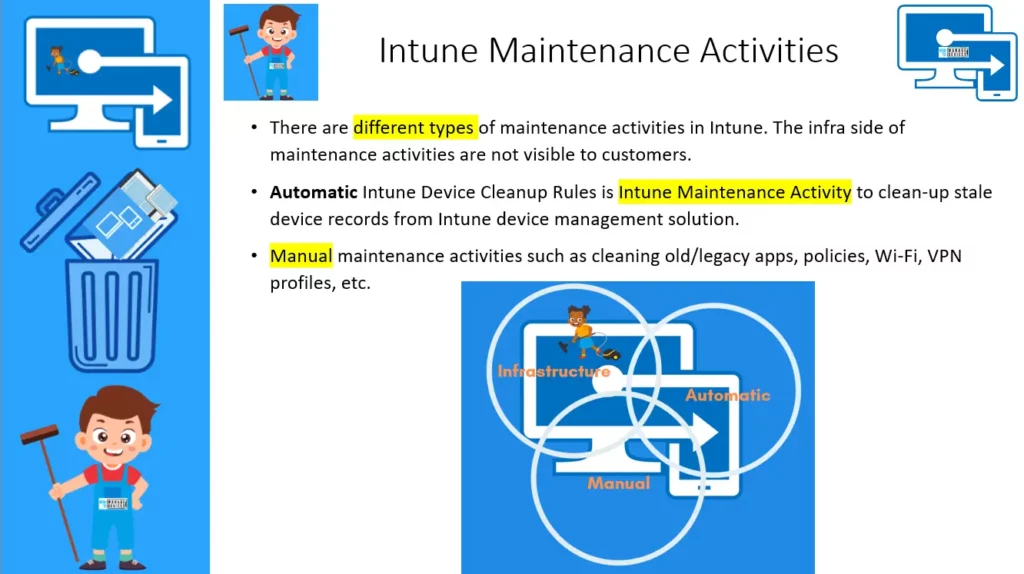
Intune Maintenance Activities
There are different types of maintenance activities in Intune. The infra side of maintenance activities is not visible to customers. Automatic Intune Device Cleanup Rules is an Intune Maintenance Activity to clean up stale device records from the Intune device management solution.
- Manual maintenance activities include cleaning old/legacy apps, policies, Wi-Fi, VPN profiles, etc.
Automatic Intune Device Cleanup Rules Delete Stale Devices
These Device Cleanup rules are available to automatically remove devices that haven’t checked in for several days you set. Go to the Intune pane, choose Devices, and select Device cleanup rules to see a new law.
When setting this Intune Device Cleanup Rule to Yes, Intune deletes devices based on the custom number of days you specify.
- Delete Devices based on last check-in Date – YES.
- Delete Devices that haven’t checked in for this many days – 90 Days (Checkout NOTE 1 for more details)
- Click the SAVE button to apply the rule (Check NOTE 2 for more information).
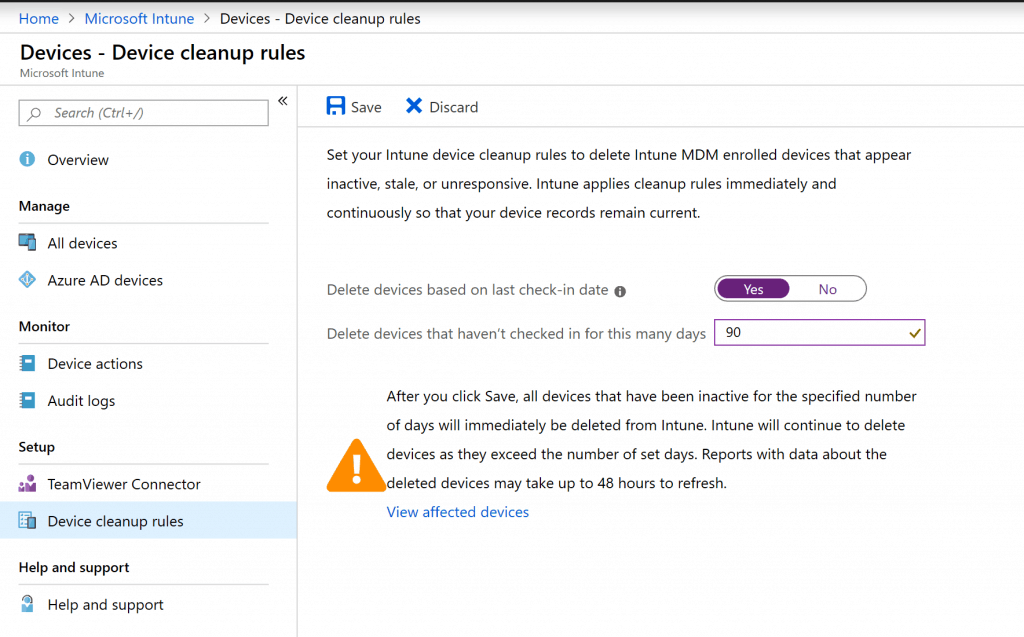
NOTE 1 – You can have custom days value between 90 to 270. Set your Intune device cleanup rules to delete Intune MDM enrolled devices that appear inactive, stale, or unresponsive. Intune applies cleanup rules immediately and continuously so that your device records remain current.
NOTE 2—Once you click the Save button, all devices that have been inactive for the specified number of days will immediately be deleted from Intune. Intune will continue to delete devices as they exceed the set number of days. Reports with data about the removed devices may take up to 48 hours to refresh.
When you set Delete Devices based on the last check-in Date to No, Intune automatically deletes all devices that haven’t checked in to Intune for more than 270 days.
After you click Save, all devices that have been inactive for the specified number of days will immediately be deleted from Intune. Intune will continue to delete devices as they exceed the number of set days. Reports with data about the deleted devices may take up to 48 hours to refresh.
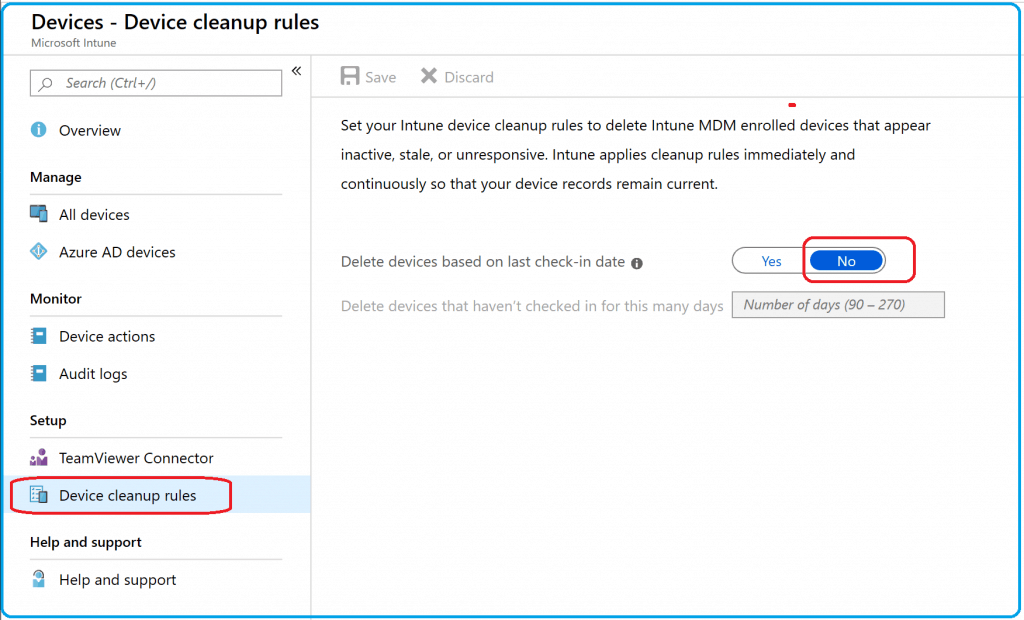
Intune Device Cleanup Rules Behavior
Set your Intune device cleanup rules to delete Intune MDM Enrolled and Co-Managed SCCM devices that appear as any of the following conditions, then Intune applies cleanup rules immediately.
- Inactive
- Stale
- Unresponsive
Intune will also ensure the device’s relevance by continuously performing this cleanup task so that your device records remain current.
NOTE: This deletion action won’t remove or delete or clean up the device from Azure Active Directory. More details are in the Resources section.
How to Find Out Affected Devices
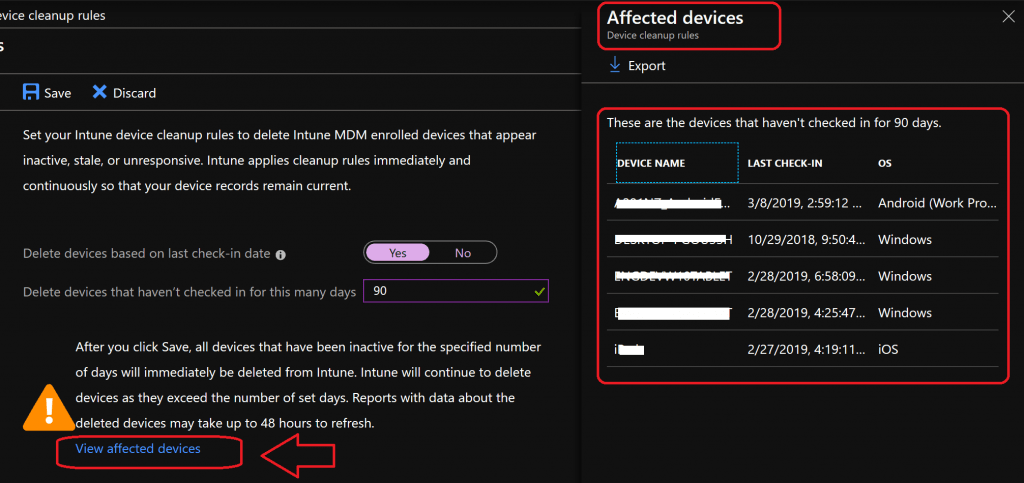
Intune provides an option to identify and export the affected devices using the Device Cleanup rules you just implemented above.
Once you click the Save button on Device Cleanup Rules, all devices that have been inactive for the specified number of days (90 Days in the above example) will immediately be deleted from Intune.
NOTE: To ensure that you are deleting the correct devices, I recommend clicking on the “View Affected Devices” link and confirming whether you want to remove those devices.
These are the devices that haven’t checked in for 90 Days.
Do we have the option to delete only Windows Devices?
At this point, we don’t have the option to delete only Windows Devices. This clean-up rule in Intune is for all the stale records from the Intune Devices node.
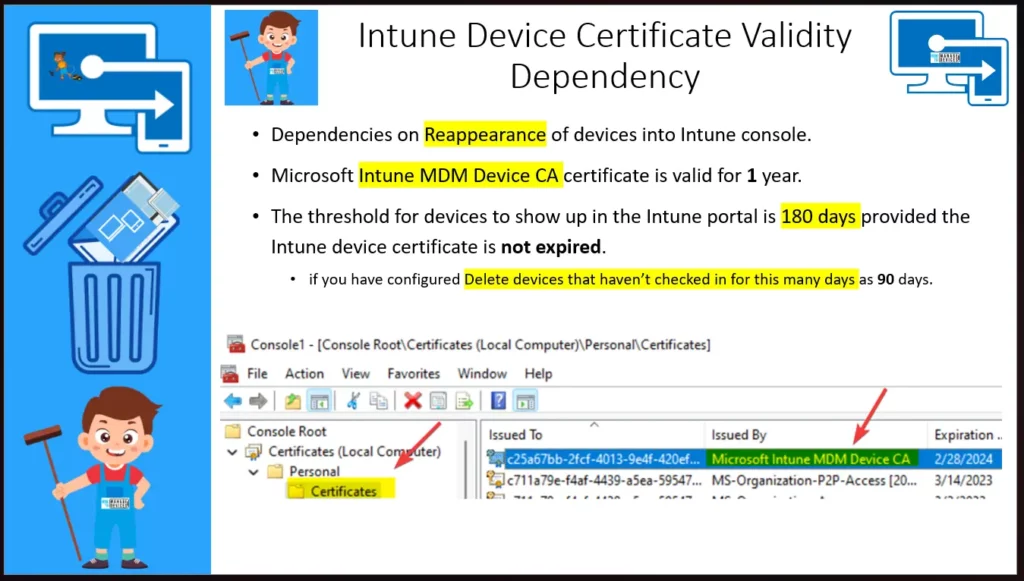
Intune Device Certificate Validity Dependency
Dependencies on Reappearance of devices into Intune console. Microsoft Intune MDM Device CA certificate is valid for 1 year.
The threshold for devices to show up in the Intune portal is 180 days, provided the Intune device certificate has not expired. If you have configured it, Delete devices that haven’t checked in for this many days as 90 days.
Resources
- How to use Intune Cleanup Rules
- Rules for Removing Intune Devices
- Delete Device from Azure Active Directory
We are on WhatsApp. To get the latest step-by-step guides and news updates, Join our Channel. Click here –HTMD WhatsApp.
Author
Anoop C Nair is Microsoft MVP! He is a Device Management Admin with more than 20 years of experience (calculation done in 2021) in IT. He is a Blogger, Speaker, and Local User Group HTMD Community leader. His main focus is on Device Management technologies like SCCM 2012, Current Branch, and Intune. He writes about ConfigMgr, Windows 11, Windows 10, Azure AD, Microsoft Intune, Windows 365, AVD, etc


One of the Microsoft articles says if device checks in before 180 days, it can be auto recovered. Is it 180 days or 365 days. As we have MDM certificate valid for 1 year?
Reference – techcommunity.microsoft.com/t5/device-management-in-microsoft/using-intune-device-cleanup-rules-amp-160/ba-p/377272
StaffIsn’t that an old article from 2019? And this is not the official documentation ..isn’t it?
Hi Anoop,
Thank you for sharing a Nice blog about remove stale devices from Intune. Can you please share me the blog which you have created for Autopilot troubleshooting & Monitoring.
Thanks
Narayanan
StaffHi Narayanan, Here you can explore the Troubleshooting post for Windows Autopilot :: https://www.anoopcnair.com/windows-autopilot-troubleshooting-guide/
Hi Anoop, Thanks for sharing your deep and impressive knowledge of Intune and Cloud management. Like many of us techies who use your articles I haven’t posted my thanks (until now). I do wonder about when the devices that get cleaned up (deleted) from Intune will be removed from the Azure AD database also…? Would this happen automatically after the year long certificate validity expires, or do we need to remove these devices with a script somehow?
I also wonder about Autopilot device objects (by serial number) in Intune – are these device objects also removed at the same time as the computer hostname Intune object is cleaned by this rule?
Thanks for your assistance understanding how this works,
Andy
Hi Anoop, I am looking to clarify something I can’t find out for sure. If you pre-provision a windows device via Autopilot, and the device never reaches a user before the clean up rule kicks in, will that device be removed as well?
We build stock way in advance on occasion so wondering how aggressive we should be with the clean ups.
Thanks
I am curious what is the user experience like for a device returns from being inactive?
Does the device automatically re-appear in Intune, or would it need to go through re-enrollment with Intune either via ADE/Autopilot/Automatic or manual onboarding?
From an educational standpoint we may devices that are offline for a few months then suddenly pop up online again, would be very curious to better understand how that all works from a administrator and user perspective side of things.
Also would the experience be different for a Hybrid vs AAD Environment?
Bonjour,
J’aimerais savoir s’il y’a une possibilité de faire une exception sur certains appareils dont on souhaite encore garder pour des raisons de sensibilités des données.
Si oui, avez vous une méthode ?
Is there a reaction on this question yet?
Because we have the same situation.