






Introducing Right Click Tools for Intune Recast Automation Endpoint Insights Kiosk and Privilege Manager
Introducing Right Click Tools for Intune! Recast Software has launched Right Click Tools for Intune, a set of tools designed to help IT teams manage devices more quickly and efficiently.
These tools simplify everyday tasks, making it faster for IT administrators to keep company devices secure and running smoothly. Whether devices are managed on-premises – physically in the office or in the cloud, these tools help ensure that everything stays up-to-date and compliant with security rules.
Right Click Tools is now integrated into Microsoft Intune, making device management more accessible and efficient. With support for over 60 million endpoints, IT administrators can use a well-known set of tools within the Intune interface.
This integration simplifies workflows and eliminates the need to switch between different platforms. Now, users can access the same features previously available only in SCCM, all from their Intune-managed devices.

Table of Contents
What is Right Click Tools?
Right Click Tools is a robust set of device management tools that help IT administrators simplify workflows and manage endpoints efficiently.
How Many Endpoints Do Right Click Tools Currently Support?
Right Click Tools supports over 60 million endpoints.
What Features can Users Access through the Right Click Tools Integration in Intune?
Users can execute a menu of previously available features only in Configuration Manager directly from their Intune-managed devices.
Introducing Right Click Tools for Intune Recast Automation Endpoint Insights
This post covers all the new features in Right Click Tools for Intune, including Recast Automation, Endpoint Insights, Kiosk Manager, and Privilege Manager. These tools make device management more accessible and efficient for IT teams, helping them automate tasks, access helpful device information, manage kiosks, and control user access.
- Sign in to the Microsoft Intune Admin Center using your administrator credentials.
- Go to Devices > Windows > Windows Devices
- Select One Particular Device
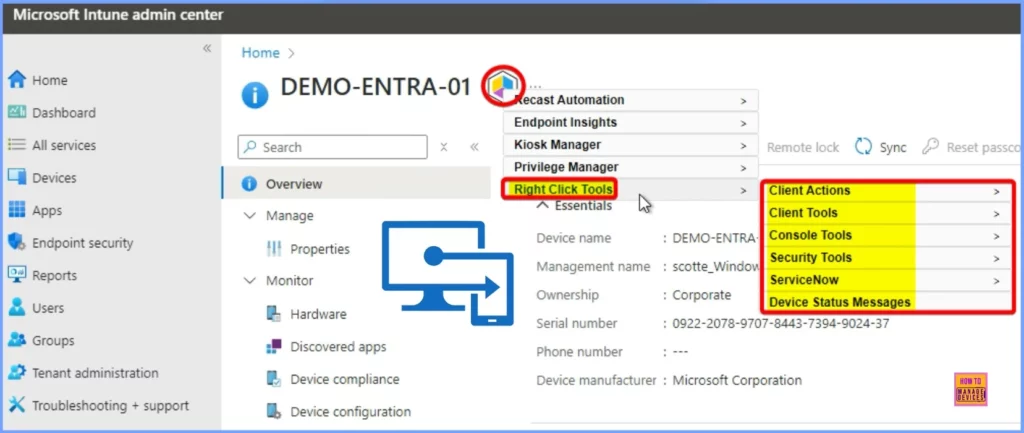
- In the below Intune Console, you can see that the New Recastsoftware Icon
- Click the Icon; It shows a set of options, such as
- Recast Automation
- Endpoint Insights
- Kiosk Manager
- Privilege Manager, and the last option is Right click Tools
- The Right-click Tools shows the following Actions
| Right click Tools |
|---|
| Client Actions |
| Client Tools |
| Console Tools |
| Security Tools |
| ServiceNow |
| Device Status Messages |
- Easy Automated Patching Actionable Insights And Just-in-Time Access In Intune With Right Click Tools
- Microsoft Adds Anti-Spoofing Update to Intune for On-Premises Comanaged Devices
- Intune and Patch My PC Cloud SaaS Solution for 3rd Party App Patching Lifecycle Management
- Robopack Intune Patching Solution is Free for Smaller Customers and NGO
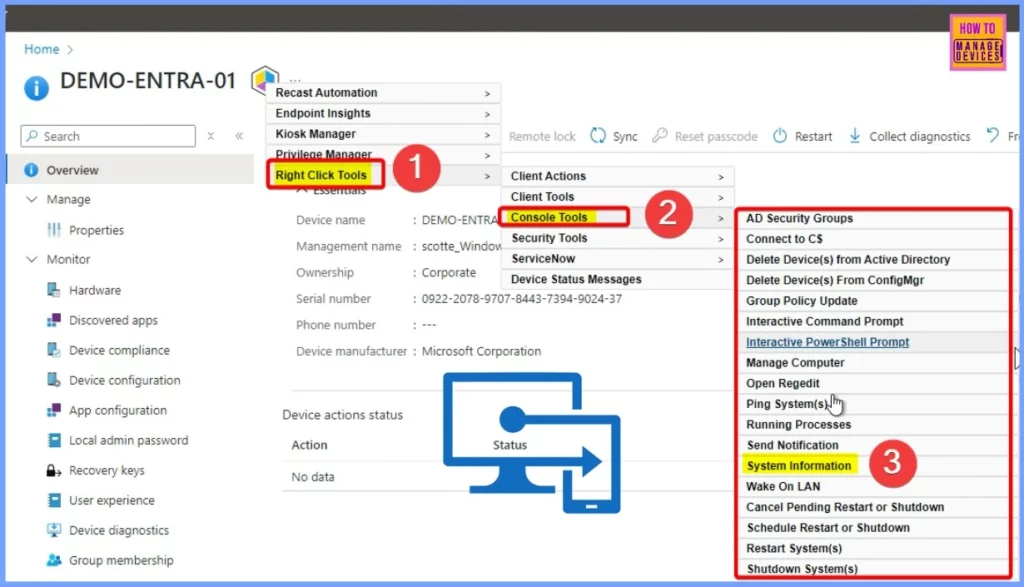
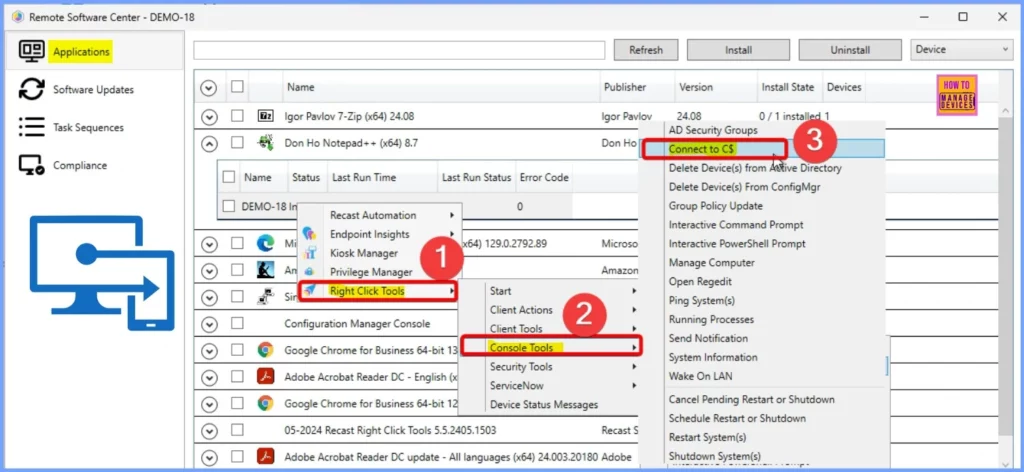
The Console Tools under Right click tools show options such as AD Security Groups, Connect to CS, Delete Device(s) from Active Directory, Delete Device(s) from ConfigMgr, etc. All the other options are listed below.
- Group Policy Update
- Interactive Command Prompt
- Interactive PowerShell Prompt
- System Information
- Wake On LAN
- Cancel Pending Restart or Shutdown
- Schedule Restart or Shutdown
- Restart System(s)
- Shutdown System(s)
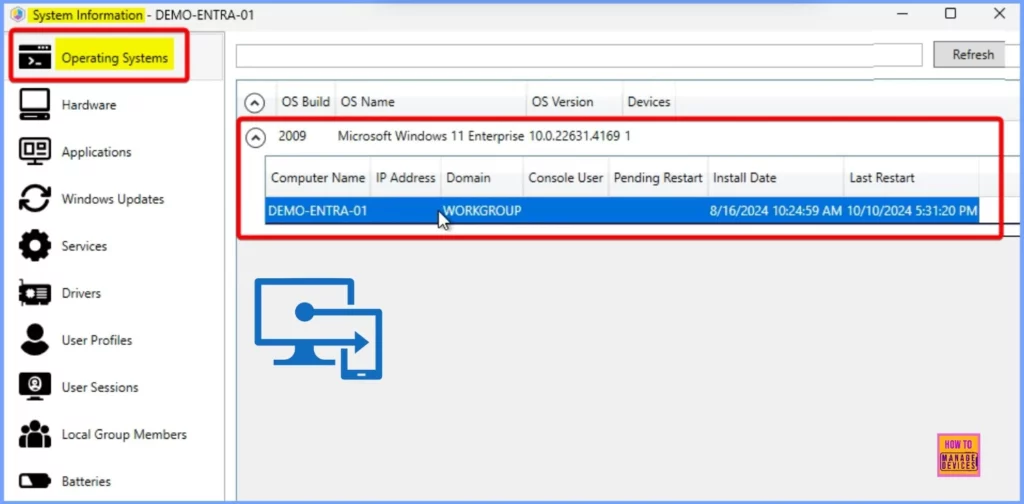
Under System information, there are different tabs on the right side, such as Operating Systems, Hardware, Applications, Windows updates, etc. The Operating Systems tab shows the OS build version, OS Name, OS version, etc.
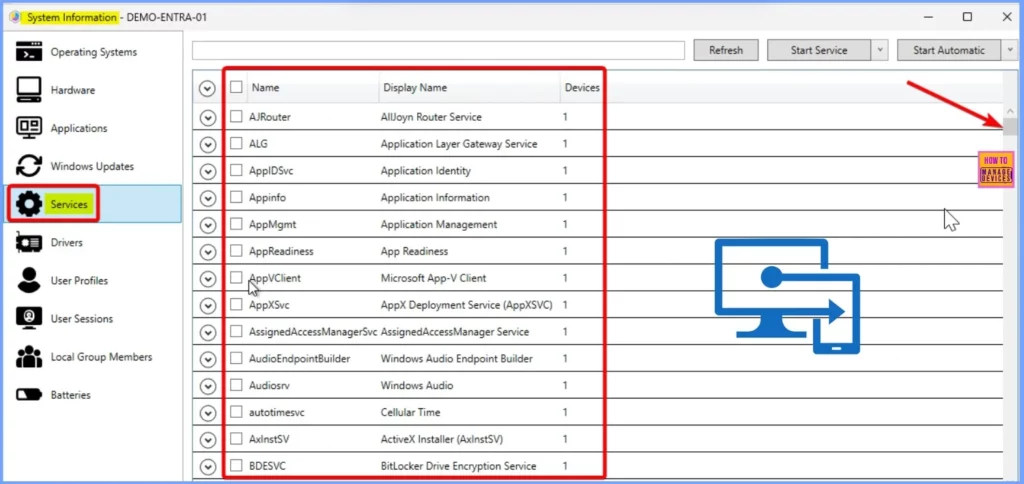
The Services tab under System Information displays important details about services, including the Service Name, Display Name, and the devices they are associated with. This helps IT teams quickly view and manage the status of services on different devices.
- Intune Application Deployment using MSI EXE IntuneWin Formats
- Maximum Size Cap for Intune Win32 App is Increased Now
Recast Automation
The Recast Automation feature includes two settings: Recast Builder and Recast Runner. To proceed, select the Recast Runner from the Recast Automation options. This allows you to execute automated tasks using predefined workflows efficiently.
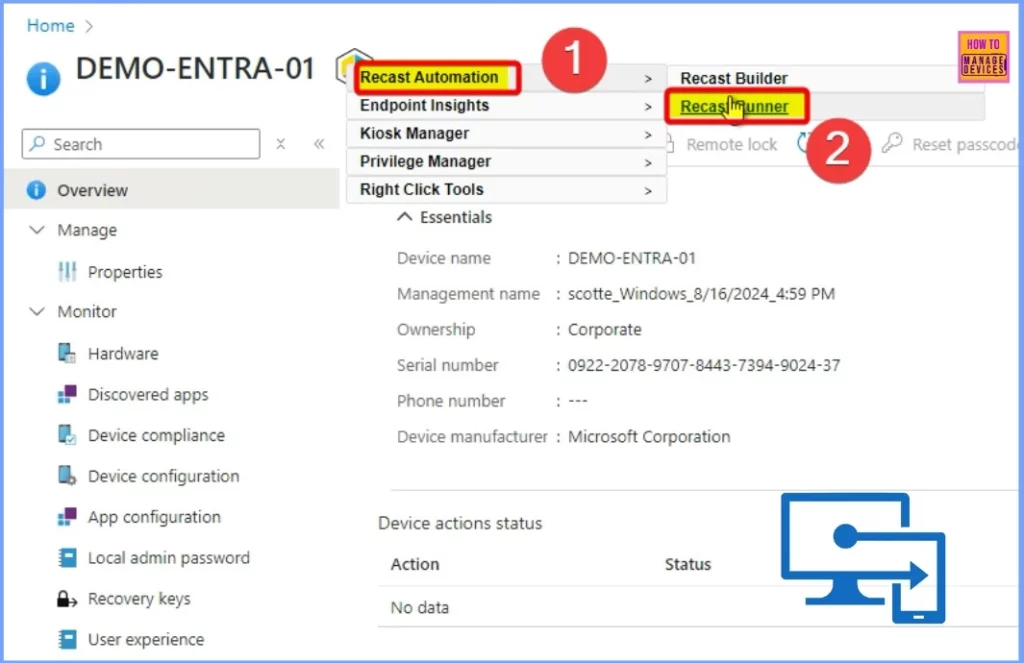
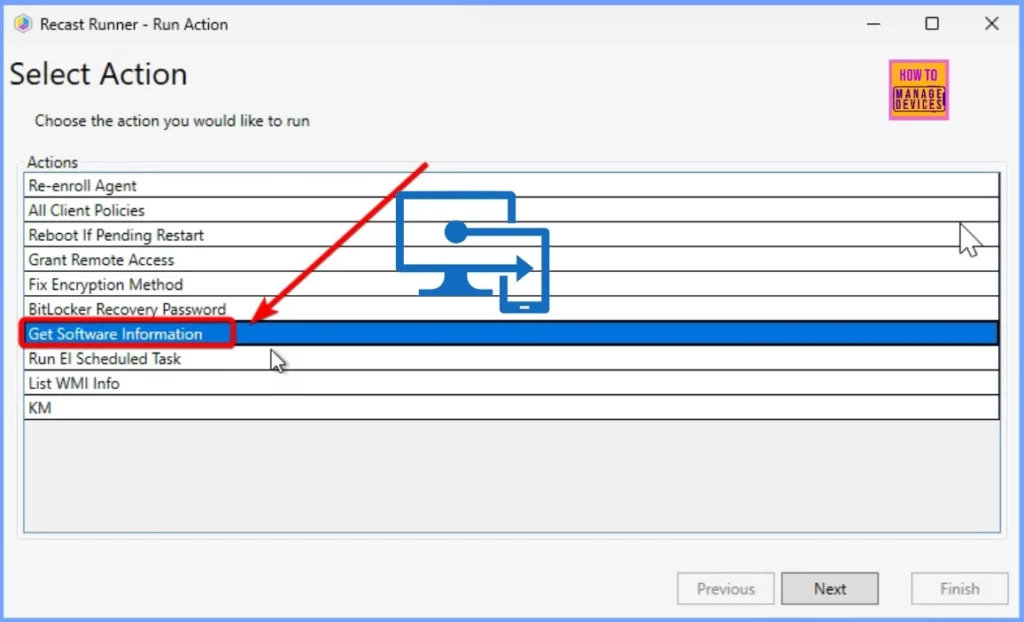
The Recast Runner offers several options, such as re-enrolling the agent and all client policies, Rebooting if a restart is pending, Granting Remote Access, and more. Select the “Get Software Information” action from these options to retrieve details about the software installed on a device.
- Enhanced App Deployment in Intune with Direct App Links from Enterprise App Catalog
- Integrating Dell Management Portal in Intune Admin Center Coming Soon
- Intune Device Firmware Configuration Interface DFCI now Supports VAIO Devices Running Windows 10 and 11
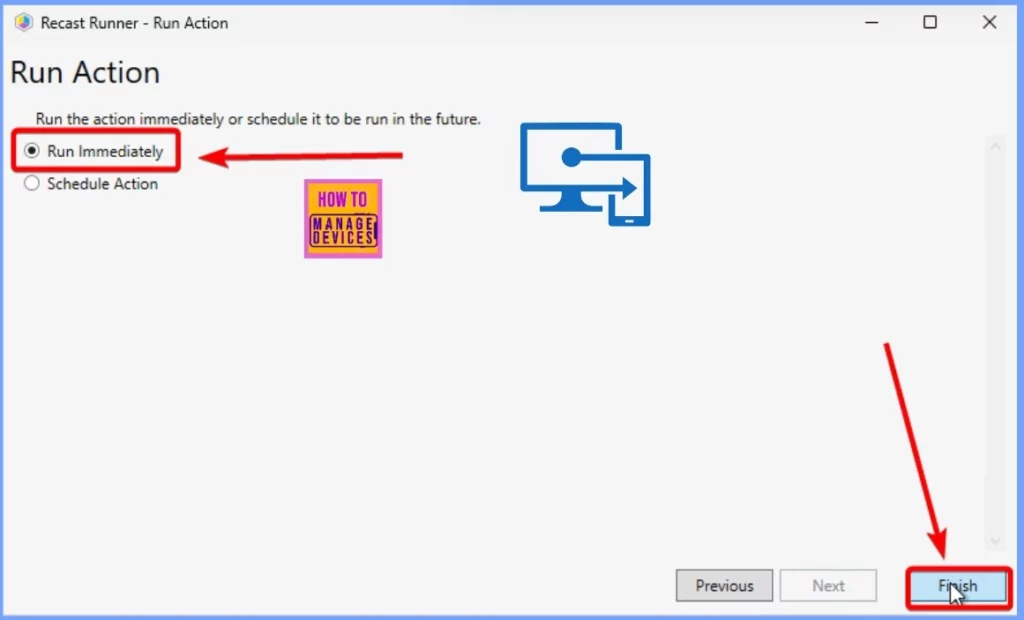
You can either run the action right away or schedule it for later. There are two options: Run Immediately to execute the action now or Schedule Action to set it for a future time. The below screenshot will guide you.
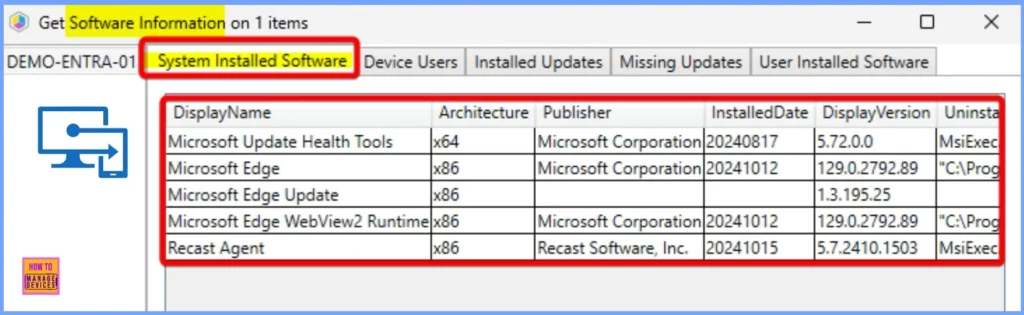
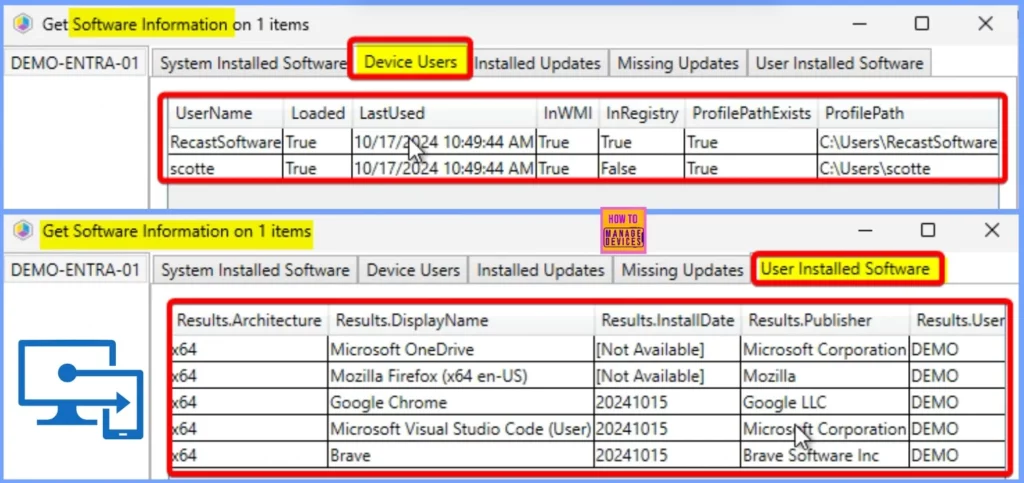
The Get Software Information feature shows different tabs, such as System Installed Software, Device Users, Installed Updates, Missing Updates, and User Installed Software. In the System Installed Software tab, you can see details such as the Display Name, Architecture, Publisher, Installed Date, and Display Version of the software on the device.
The Device Users tab displays information about user users, including their UserName, whether their profile is Loaded, the Last Used time, and whether the user is listed in WMI and the Registry. It also shows whether the Profile Path exists and its location.
The User Installed Software shows options such as the Results Architecture, Results DisplayName, Results InstallDate, etc. The window below shows more details.
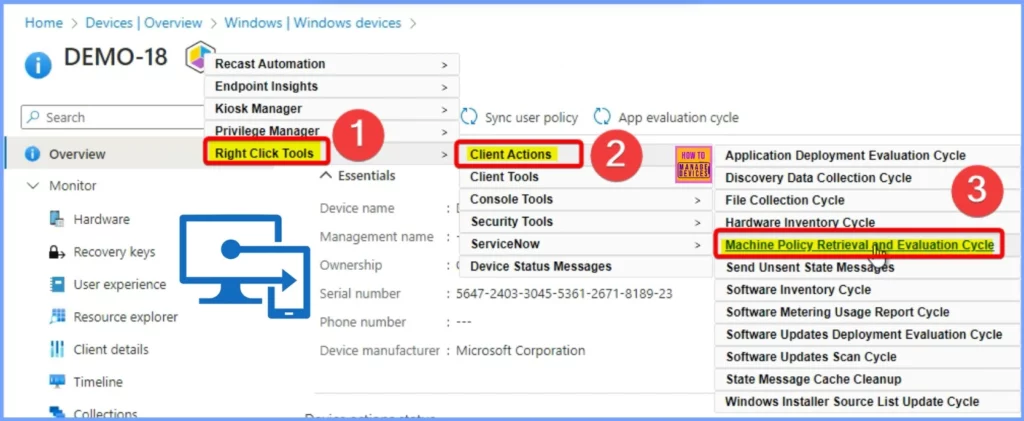
Machine Policy Retrieval and Evaluation Cycle
Machine Policy Retrieval and Evaluation Cycle are the settings available under Client Actions. Client actions cover many settings, all of which are listed below.
- Application Deployment Evaluation Cycle
- Discovery Data Collection Cycle
- File Collection Cycle
- Hardware Inventory Cycle
- Machine Policy Retrieval and Evaluation Cycle
- Send Unsent State Messages
- Software Inventory Cycle
- Software Metering Usage Report Cycle
- Software Updates Deployment Evaluation Cycle
- Software Updates Scan Cycle
- State Message Cache Cleanup
- Windows Installer Source List Update Cycle
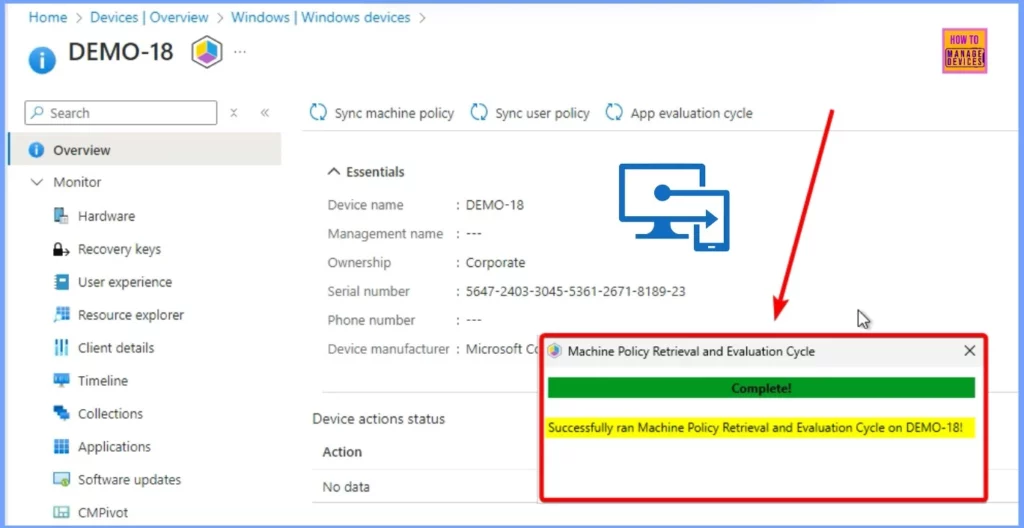
The window below shows the Machine Policy Retrieval and Evaluation Cycle pop-up. It includes a message confirming that it was successfully run on the device.
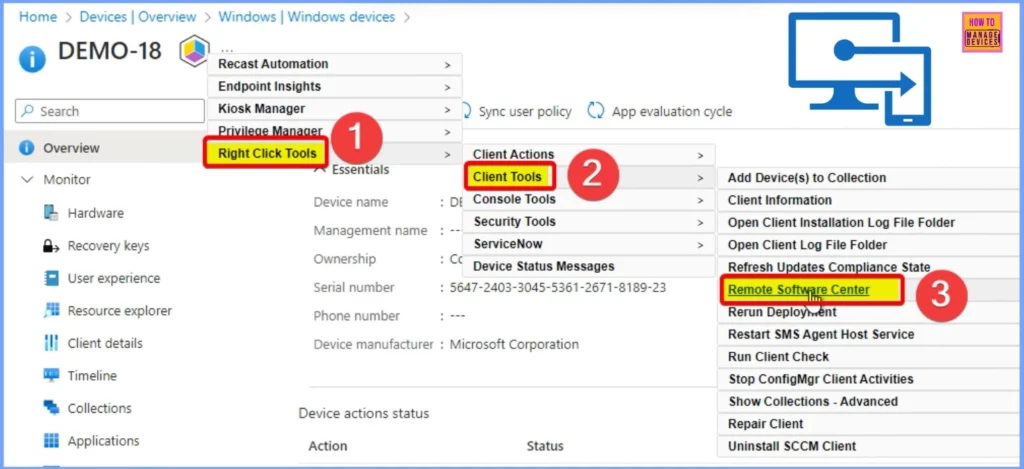
Remote Software Center
The remote software center settings are shown under Client Tools in the Right-click Tools. Client Tools helps you show a set of tools such as Add Device(s) to Collection, Client Information, Open Client Installation Log File Folder, and Open Client Log File Folder. The list below helps you show more Clients.
- Refresh Updates Compliance State
- Remote Software Center
- Rerun Deployment
- Restart SMS Agent Host Service
- Run Client Check
- Stop ConfigMgr Client Activities
- Show Collections – Advanced
- Repair Client
- Uninstall SCCM Client
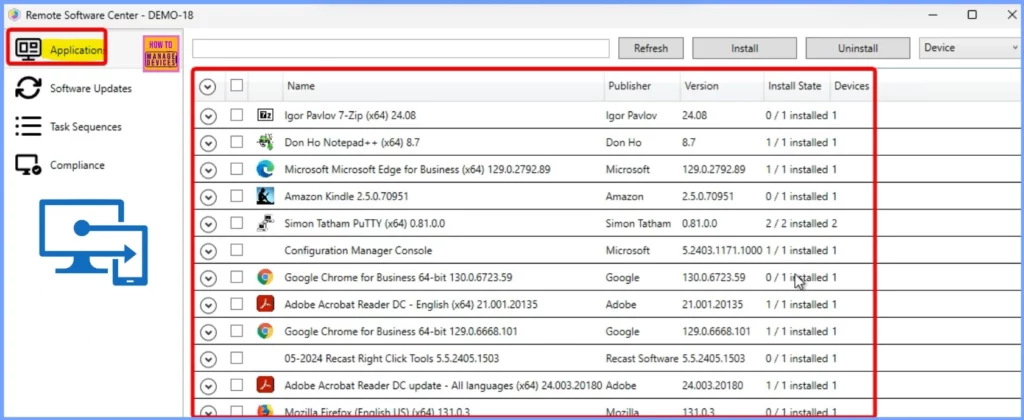
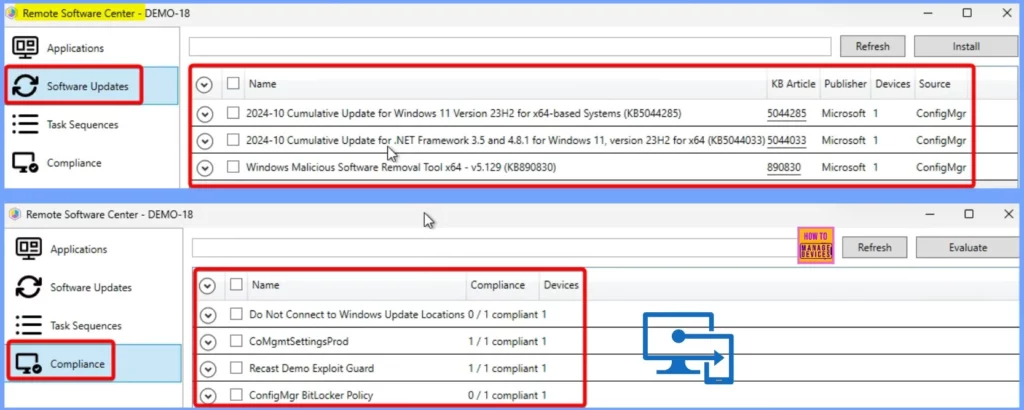
The Remote Software Center features several tabs: Applications, Software Updates, Task Sequences, and Compliance. Each tab provides different options for managing software and monitoring the status of applications and updates on the device.
- The Application tab shows different app names, publisher names, versions, etc.
The Software Updates tab displays cumulative updates for Windows 11, along with details like the KB article number, Publisher name, Device, and Source of the updates. This information helps users track which updates are available for their Windows 11 devices.
Console Tools
The Console Tools is a tool in the Right-click Tools. It shows Tool options, such as AD security groups, Connect to C$, Delete Device from Active Directory, Delete Device from ConfigMgr, etc.
- AD Security Groups
- Connect to C$
- Delete Device(s) from Active Directory
- Delete Device(s) From ConfigMgr
- Group Policy Update
- Interactive Command Prompt
- Interactive PowerShell Prompt
- Manage Computer
- Open Regedit
- Ping System(s)
- Running Processes
- Send Notification
- System Information
- Wake On LAN
- Cancel Pending Restart or Shutdown
- Schedule Restart or Shutdown
- Restart System(s)
- Shutdown System(s)
Join the LinkedIn Page and Telegram group to get the latest step-by-step guides and news updates. Join our Meetup Page to participate in User group meetings. Also, Join the WhatsApp Community to get the latest news on Microsoft Technologies. We are there on Reddit as well.
Resources
Announcing Right Click Tools for Intune and Copilot Capabilities – Recast Software
Author
Anoop C Nair has been Microsoft MVP from 2015 onwards for 10 consecutive years! He is a Workplace Solution Architect with more than 22+ years of experience in Workplace technologies. He is also a Blogger, Speaker, and Local User Group Community leader. His primary focus is on Device Management technologies like SCCM and Intune. He writes about technologies like Intune, SCCM, Windows, Cloud PC, Windows, Entra, Microsoft Security, Career, etc.


Discussion