






Enable AI Gen Themes in Edge Browser using Microsoft 365 Admin Center Configuration Policy
Let’s discuss how to enable AI Gen Themes in Edge Browser using the Microsoft 365 Admin Center Configuration Policy. The AIGenThemesEnabled policy empowers users to personalize their browser experience in Edge through AI-generated themes. It gives administrators control over the availability of this feature.
You can simplify the management of Microsoft Edge policies by creating a configuration profile, allowing you to control settings from a single location conveniently. Microsoft Edge policies can also be deployed directly from the Microsoft Intune Management platform using settings catalog policies, making it easier to manage and apply configurations across multiple devices in your organization.
You can quickly enable the Additional Search Box in the Edge browser through the Microsoft 365 Admin Center Policy. The AdditionalSearchBoxEnabled feature in Microsoft Edge provides users with an extra search box next to the address bar, making it easier for those who prefer a dedicated search tool instead of using the main address bar for searches.
The AIGenThemesEnabled policy allows for the generation of DALL-E themes in Microsoft Edge. Its configurations can be managed through Group Policy in Windows and configuration profiles in macOS. The settings can be stored in the Windows Registry or specified in XML for macOS, providing flexibility in how organizations manage browser themes across different operating systems.

Table of Contents
What Does the AIGenThemesEnabled Policy Do?
This policy allows users to generate and apply browser themes in Microsoft Edge using DALL-E, an AI model for creating images from text descriptions.
Which Versions Support this Policy?
The policy is supported on Windows and macOS, starting with Edge version 122 or later.
Enable AI Gen Themes in Edge Browser using Microsoft 365 Admin Center Policy
This post will guide you through all the steps to enable AI-generated themes in the Edge browser using the Microsoft 365 Admin Center Policy. It will provide clear instructions on setting up and managing this feature so users can personalize their browsers with AI-powered themes.
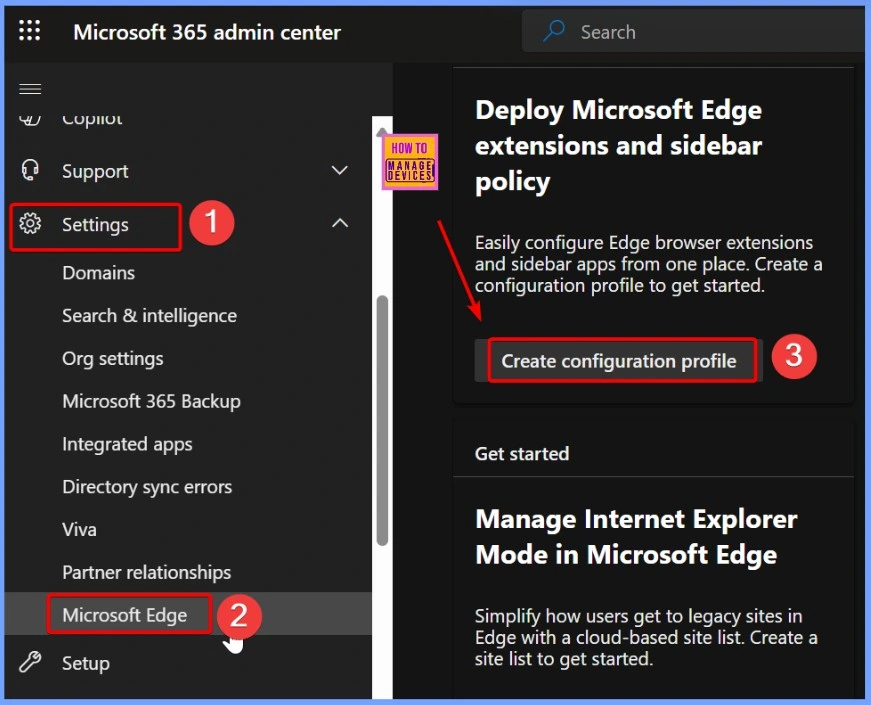
Log into the Microsoft 365 Admin Center with your administrator credentials. In the left navigation menu, go to Settings. From there, select Microsoft Edge. Under Deploy Microsoft Edge Extensions and sidebar policy, choose Create configuration profiles to start configuring your Edge policies.
- Enable Entra Website SSO using Configuration Profiles for Edge Browser using Microsoft 365 Admin Center
- Brand Identity Advanced Customization Options for Microsoft Edge Browser for Business
- Importance to Add Name for MS Edge Browser Windows
- MS Edge Browser Automatic Options to Organize Tabs Stay Organized with Tab Groups
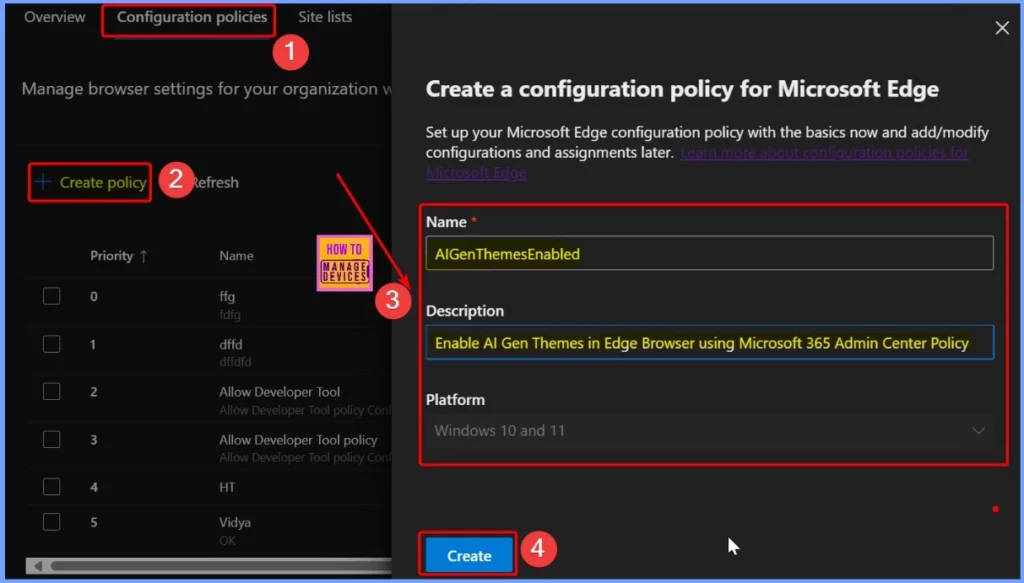
You will see an option to Create a Policy in the Configuration Policies section. Click Create Policy, then complete the form by filling in the required information. The table below provides more details on each field you must fill out.
| Required Field | Details |
|---|---|
| Name | AIGenThemesEnabled |
| Description | Enable AI Gen Themes in Edge Browser using Microsoft 365 Admin Center Policy |
| Platform | Windows 10 and 11 |
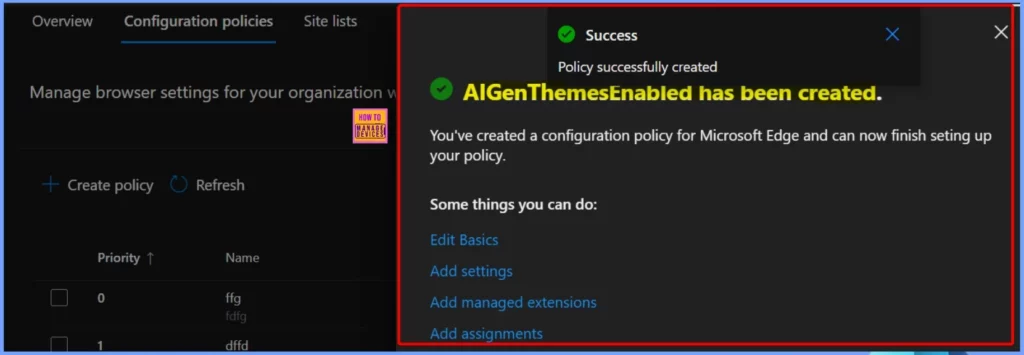
The policy has been created successfully, as shown in the screenshot below. A message also confirms that you have set up a configuration policy for Microsoft Edge, and you can now complete the final steps to finish setting up your policy.
AIGenThemesEnabled
Click the Add Settings button under the Settings tab. This crucial menu allows you to deploy various policy settings.
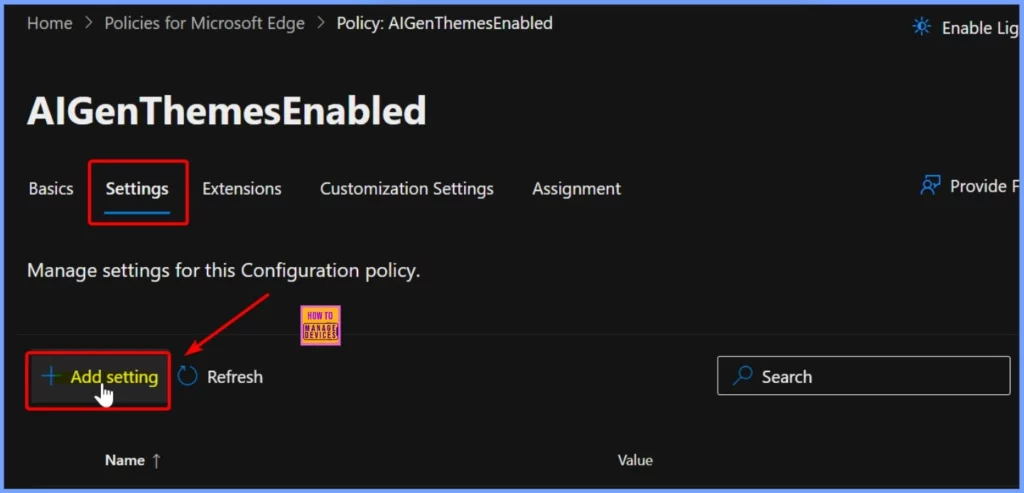
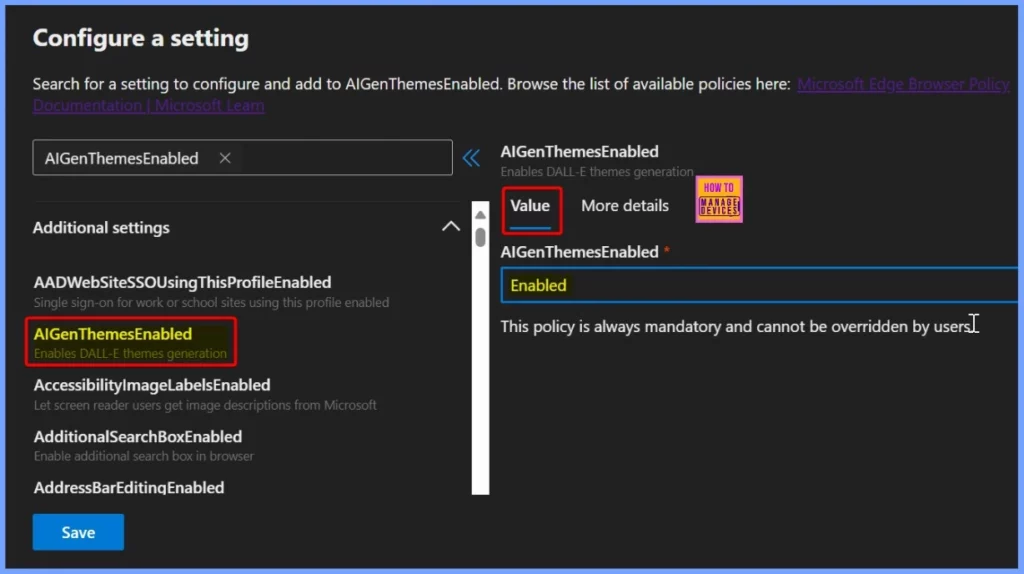
After clicking the Add settings button, choose the AIGenThemesEnabled setting from the Additional Settings section. The Value tab is essential because it allows you to turn this setting on or off.
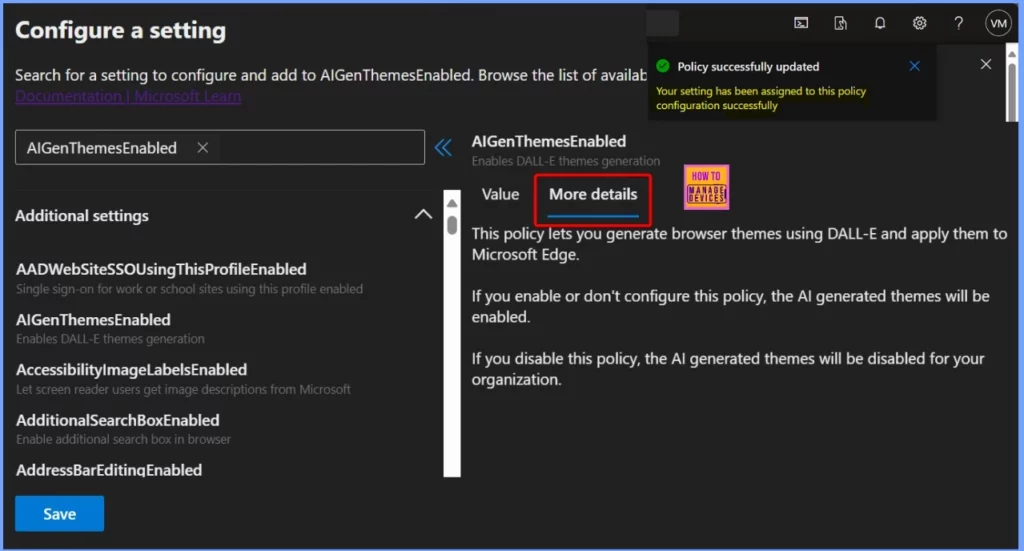
The More Details tab provides the following information: This policy allows you to create browser themes using DALL-E and apply them in Microsoft Edge. The AI-generated themes will be available if you enable or leave this policy unconfigured. However, if you turn off this policy, the AI-generated themes will not be available for your organization.
After clicking the Save button, you will see a notification in the top right corner of the screen confirming that the policy has been updated successfully, as shown in the screenshot below.
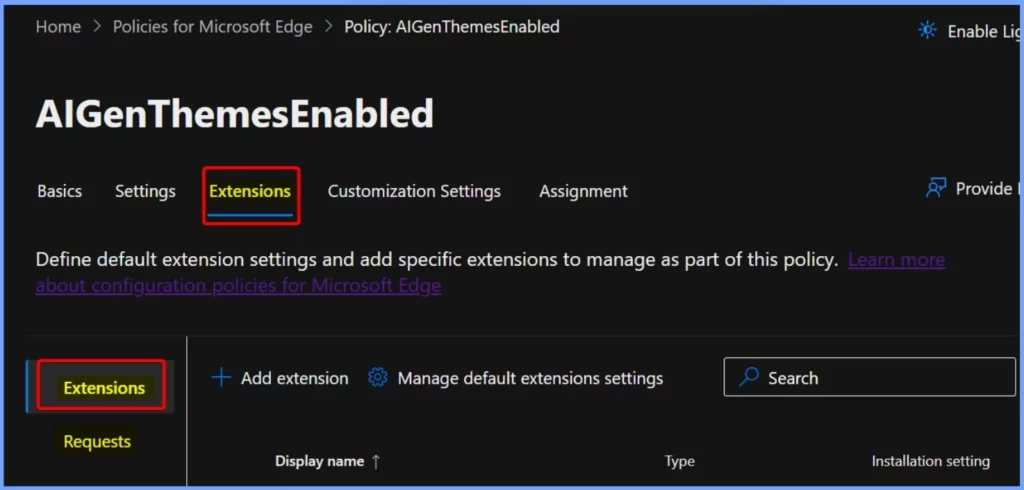
To add an extension, follow these steps – First, choose a profile and navigate to the Extensions section. Next, click on Add extension. Pick an extension from the Microsoft Edge Add-ons store or enter an external extension ID. Finally, click on Select to complete the process.
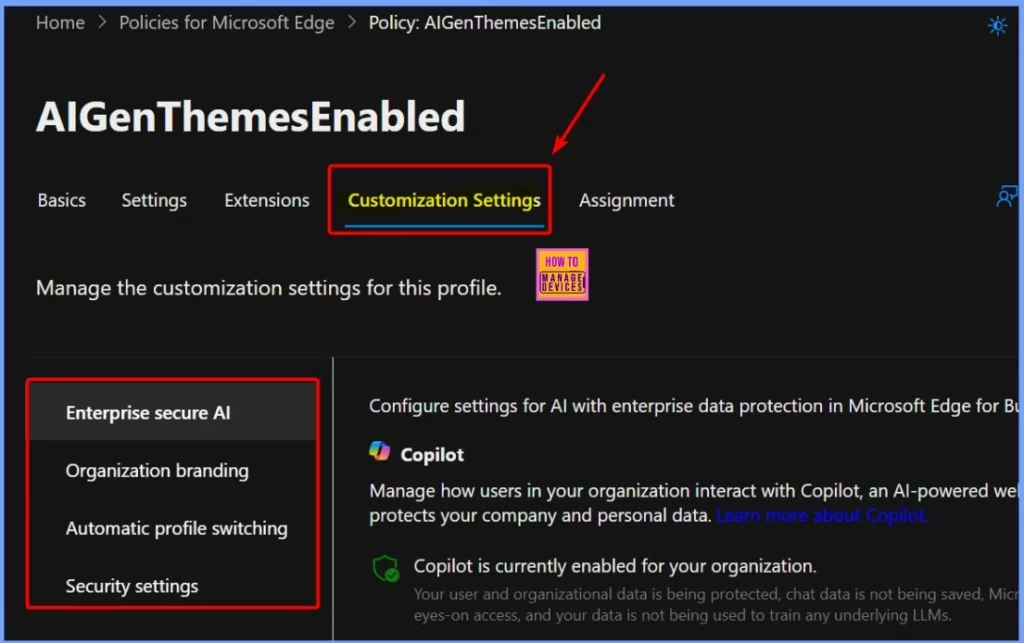
In the Customization Settings tab, you can easily manage AI settings for a profile by navigating to the Enterprise Secure AI section. This is where you can adjust different AI-related settings. Any changes you make on this page will be shown in the Policies tab for that profile. If you modify an existing setting, your new change will override the previous configuration.
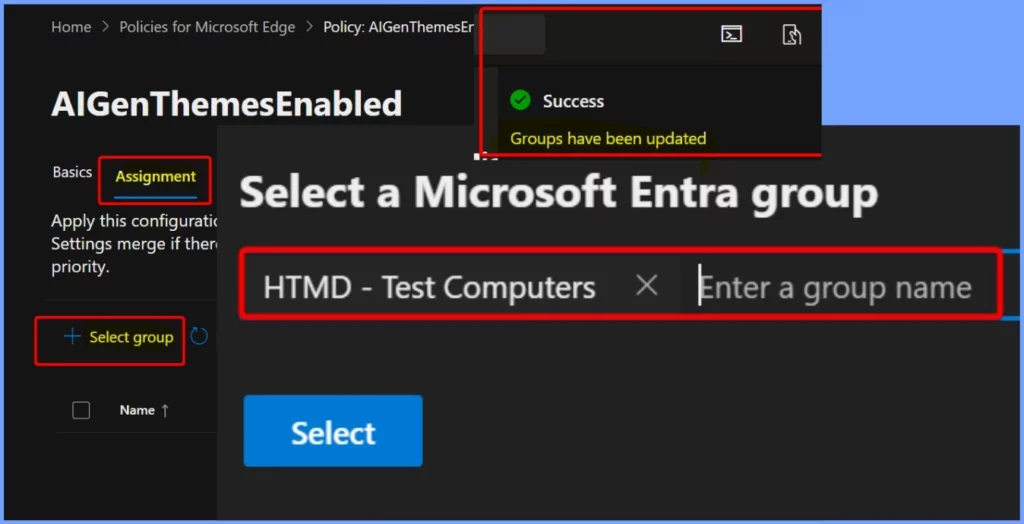
The Assignment tab is a section within various management tools, such as Microsoft 365 Admin Center or Intune, allowing administrators to control which users, groups, or devices receive a specific policy or configuration.
- Choose the Select Group button from the Assignment tab
- Enter a Group Name and click the Select button
- The notification shows that the Group have been updated successfully
Need Further Assistance or Have Technical Questions?
Join the LinkedIn Page and Telegram group to get the latest step-by-step guides and news updates. Join our Meetup Page to participate in User group meetings. Also, Join the WhatsApp Community to get the latest news on Microsoft Technologies. We are there on Reddit as well.
Author
Anoop C Nair has been Microsoft MVP from 2015 onwards for 10 consecutive years! He is a Workplace Solution Architect with more than 22+ years of experience in Workplace technologies. He is also a Blogger, Speaker, and Local User Group Community leader. His primary focus is on Device Management technologies like SCCM and Intune. He writes about technologies like Intune, SCCM, Windows, Cloud PC, Windows, Entra, Microsoft Security, Career, etc.




Discussion