






Enable Accessibility Image Labels in Edge Browser using Microsoft 365 Admin Center
Let’s discuss how to Enable the Accessibility Image Labels in Edge Browser using Microsoft 365 Admin Center. The AccessibilityImageLabelsEnabled policy is designed to help users who rely on screen readers by providing descriptions for images that lack alternative text or labels.
This policy benefits visually impaired individuals, allowing them to understand the content of web pages better where images might otherwise be inaccessible. It is available on Windows and macOS systems, but only from version 97 or later.
Accessibility Image Labels in the Edge Browser is a feature designed to help people who use screen readers to access the web. It automatically generates descriptions for images on websites that don’t already have labels or “alt text“.
This guide will teach you how to enable the Accessibility Image Labels feature in the Edge Browser through the Microsoft 365 Admin Center. The setting can be managed through the Microsoft 365 Admin Center, allowing admins to enable or disable this feature across devices. This ensures users can benefit from automated image descriptions when needed.

Table of Contents
What Does the Accessibility Image Labels Policy Do?
This policy allows screen reader users to get automatic descriptions (alt text) for images on websites that don’t have labels.
Enable Accessibility Image Labels in Edge Browser
This is an important feature. Only the image content is sent to Microsoft’s servers to create a description when this feature is on. No user data is shared, and Microsoft doesn’t store or log the image data, ensuring user privacy.
| Enable Accessibility Image Labels in Edge Browser |
|---|
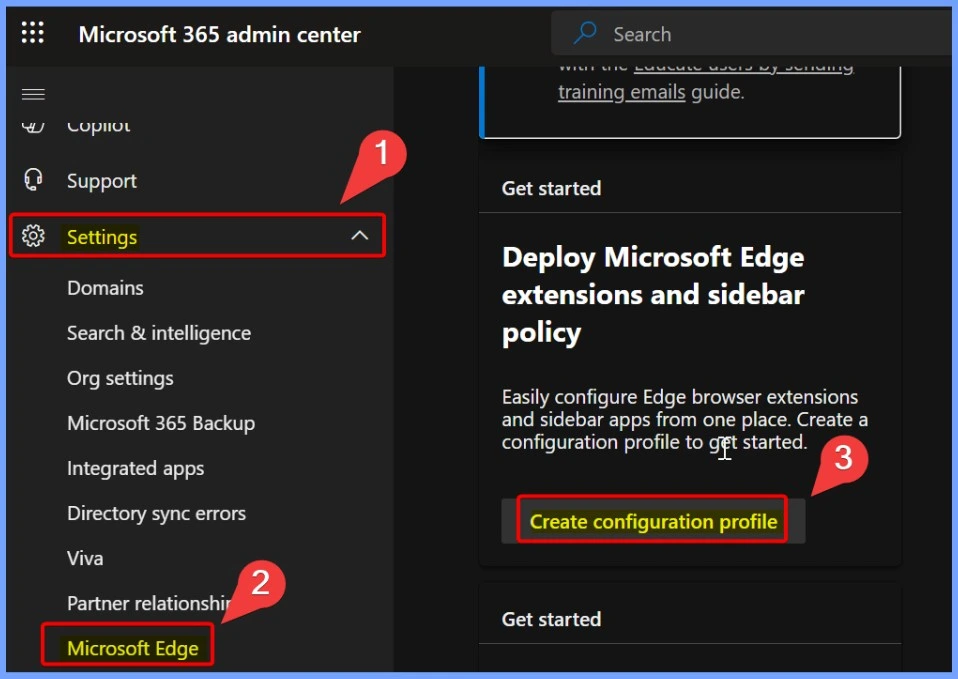
| Go to Microsoft 365 Admin Center > Settings > Microsoft Edge |
| Move to “Deploy Microsoft Edge extensions and sidebar policy” and then Select the “Create Configuration profile” Option |
- Enable Additional Search Box in Edge Browser using Microsoft 365 Admin Center Policy
- Enable AI Gen Themes in Edge Browser using Microsoft 365 Admin Center Configuration Policy
- Brand Identity Advanced Customization Options for Microsoft Edge Browser for Business
The Create Policy option allows you to set up and manage various policies for users easily. With this option, creating a Configuration Profile in Edge is straightforward. For a detailed guide on configuring these policies, one of our posts explains how to Set up and manage Edge browser configuration policies.
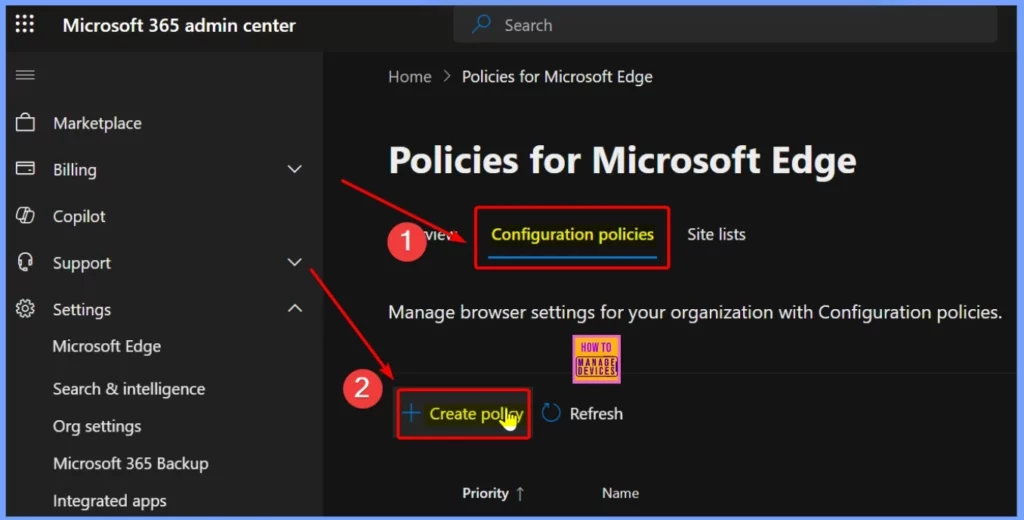
Create a Configuration Policy for Microsoft Edge
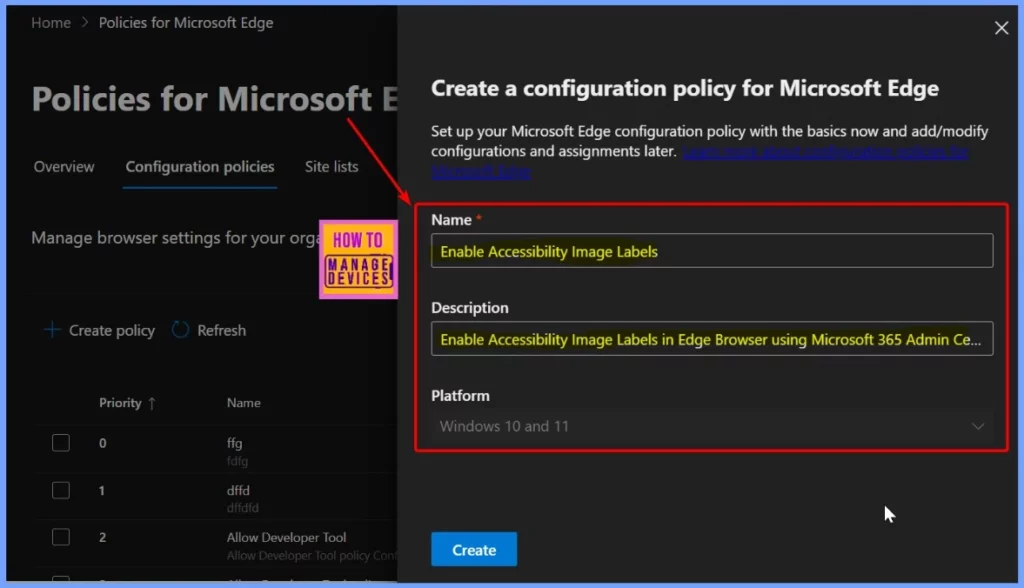
In the screenshot, I have named the policy “Enable Accessibility Image Labels”. Adding a description is optional, but I included one to clarify the policy’s purpose: “Enable accessibility image labels in Edge browser using Microsoft 365 Admin Center.” This description helps identify the policy’s role in improving accessibility by enabling image labels in Edge.
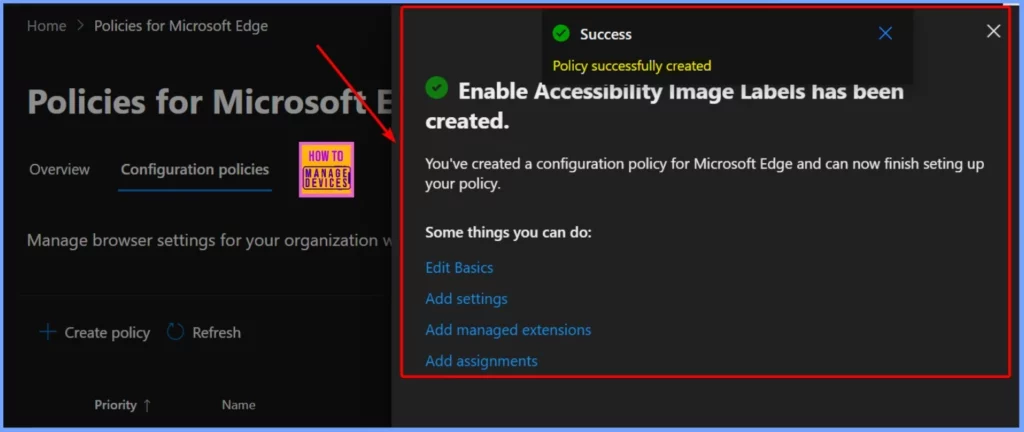
The policy “Enable Accessibility Image Labels” has been successfully created. A notification confirms this setup and mentions that a configuration policy for Microsoft Edge has been created. You can now complete any additional steps needed to set up the policy.
Enable Accessibility Image Labels Settings
To manage the Enable Accessibility Image Labels settings, go to the Settings tab. Here, you can adjust and customize the policy settings. In the Add Settings section, you can configure specific options, such as turning on or off the feature and other related settings.
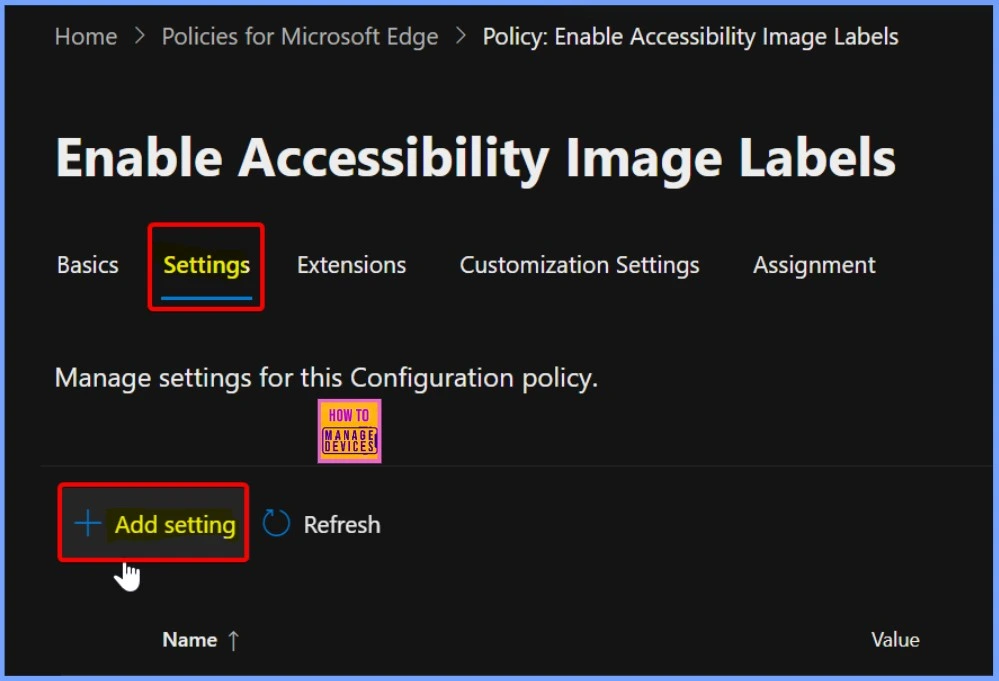
Enable the Accessibility Image Labels Settings
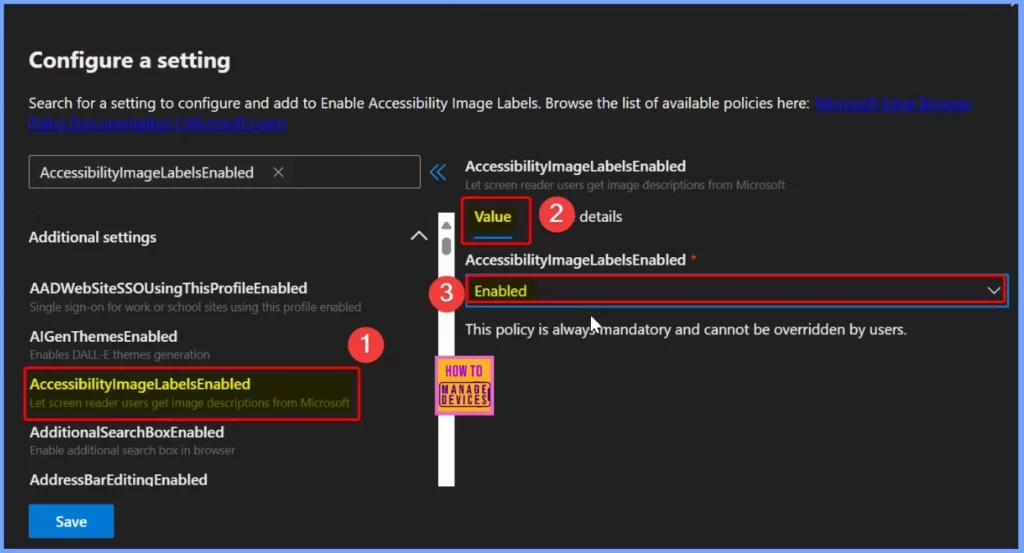
Under Additional Settings, select the AccessibilityImageLabelsEnabled feature. In the Value tab, you can turn this setting on or off. This option lets you decide if the accessibility image labels feature should be active. This feature helps improve accessibility by providing image descriptions in Edge for users who rely on screen readers.
- Enable Entra Website SSO using Configuration Profiles for Edge Browser using Microsoft 365 Admin Center
- Importance to Add Name for MS Edge Browser Windows
- MS Edge Browser Automatic Options to Organize Tabs Stay Organized with Tab Groups
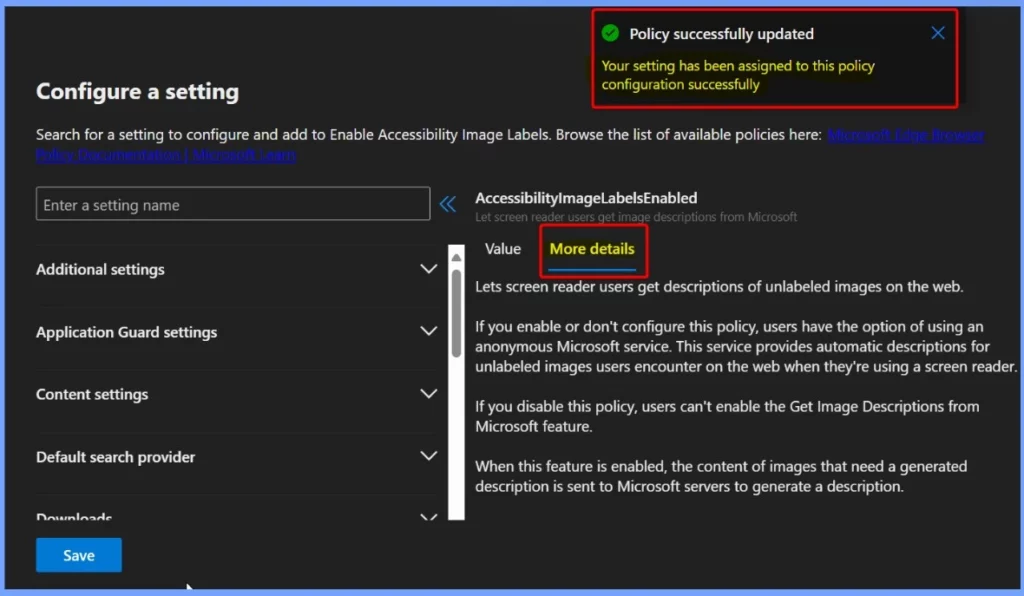
The More Details tab shows the policy description, giving you more context about what it does. After clicking the Save button, a notification confirms that the setting has been successfully assigned to this policy configuration. This lets you know that the policy is active and ready for use in Microsoft Edge.
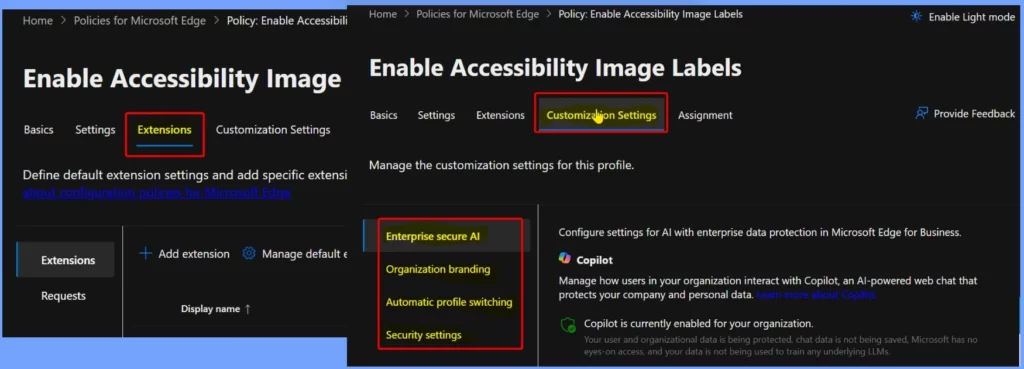
Extensions and Customization Settings
The Extensions and Customization settings are the second and third tabs that help you manage how extensions and customizations are applied in Microsoft Edge. The screenshot allows you to show more details.
Assignment Tab
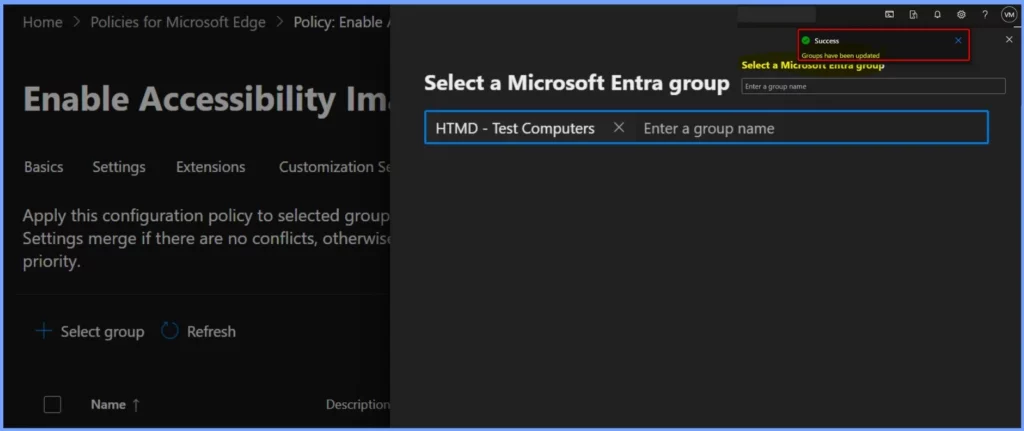
The Assignment tab is the last tab that helps you assign the policy to specific users or groups. This allows you to apply the Enable Accessibility Image Labels setting to the right devices or profiles, ensuring the policy is activated for the intended users.
Need Further Assistance or Have Technical Questions?
Join the LinkedIn Page and Telegram group to get the latest step-by-step guides and news updates. Join our Meetup Page to participate in User group meetings. Also, Join the WhatsApp Community to get the latest news on Microsoft Technologies. We are there on Reddit as well.
Resources
Microsoft Edge Browser Policy Documentation | Microsoft Learn
Author
Anoop C Nair has been Microsoft MVP from 2015 onwards for 10 consecutive years! He is a Workplace Solution Architect with more than 22+ years of experience in Workplace technologies. He is also a Blogger, Speaker, and leader of the Local User Group Community. His primary focus is on Device Management technologies like SCCM and Intune. He writes about technologies like Intune, SCCM, Windows, Cloud PC, Windows, Entra, Microsoft Security, Career, etc.




Discussion