






Allow Secondary Authentication Device on Windows using Intune
Let’s discuss how to allow Secondary Authentication Device on Windows using Intune. This policy setting controls whether secondary authentication devices can be used to sign in to Windows.
For Personal (Consumer) Devices, secondary authentication is enabled by default. Users can set up and use a security key or phone to log in in addition to their main password. This option is off for Business Devices, so secondary authentication devices are not allowed unless the organization specifically enables them.
This policy controls whether users can sign in to Windows using an extra device, like a phone or security key. Using a secondary authentication device adds more security because it allows Multi-Factor Authentication (MFA). This means users have an extra layer of security and don’t have to rely only on passwords to log in.
This post provides all the information you need about enabling secondary authentication devices on Windows through Intune. This feature allows you to set up additional devices, like phones or security keys, to make signing into Windows more secure.

Table of Contents
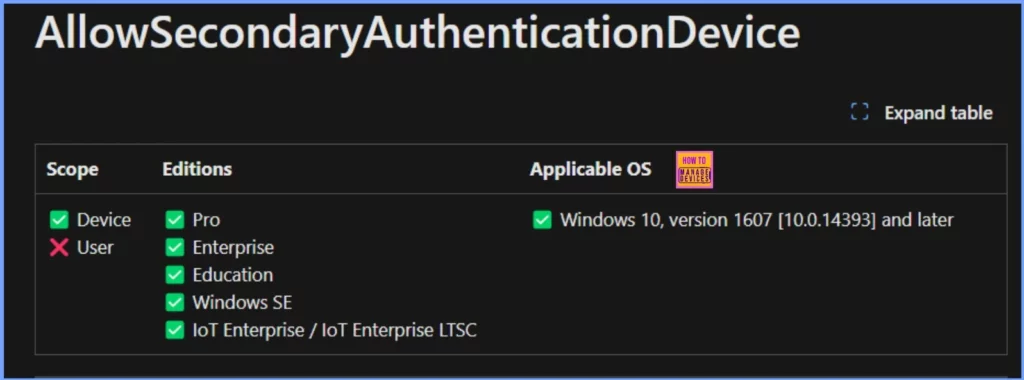
Windows CSP Details AllowSecondaryAuthenticationDevice
This policy lets users sign in to a Windows 10 desktop using a companion device, like a phone, fitness band, or IoT device, as a second authentication factor with Windows Hello.
- If you enable or leave this policy set to “not configured,” users can sign in with Windows Hello on their companion device.
- If you disable this policy, users won’t be able to use a companion device for Windows Hello authentication.
| Property Name | Property Value |
|---|---|
| Format | int |
| Access Type | Add, Delete, Get, Replace |
| Default Value | 0 |
- New Native Support for Cross-Device Authentication on Windows Passkeys
- New External Authentication Methods In Microsoft Entra ID
- Microsoft Moves Per-User Multifactor Authentication to Entra ID for Easier Management
Allow Secondary Authentication Device on Windows using Intune
Using Intune, you can control whether these devices are allowed, making managing security for personal and work devices easier. This guide will help you understand how to set it up, the default settings, and how to ensure it works smoothly for your users.
| Action |
|---|
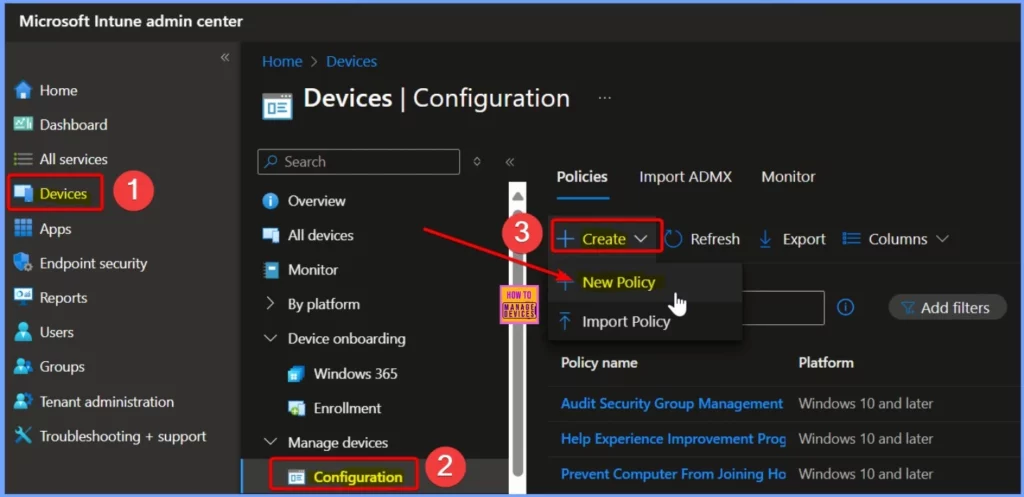
| Sign in Go to Intune Admin Center portal and sign in |
| From the main menu, select Devices. |
| Under Devices, click on Windows to view Windows-specific options. |
| In the Windows section, select Configuration profiles to manage or create profiles. |
| Click Create a profile to start setting up a new configuration profile. |
To create a new profile, choose Windows 10 and later as the platform and set the Profile Type to Settings catalog. After selecting these options, click the Create button to configure the profile.
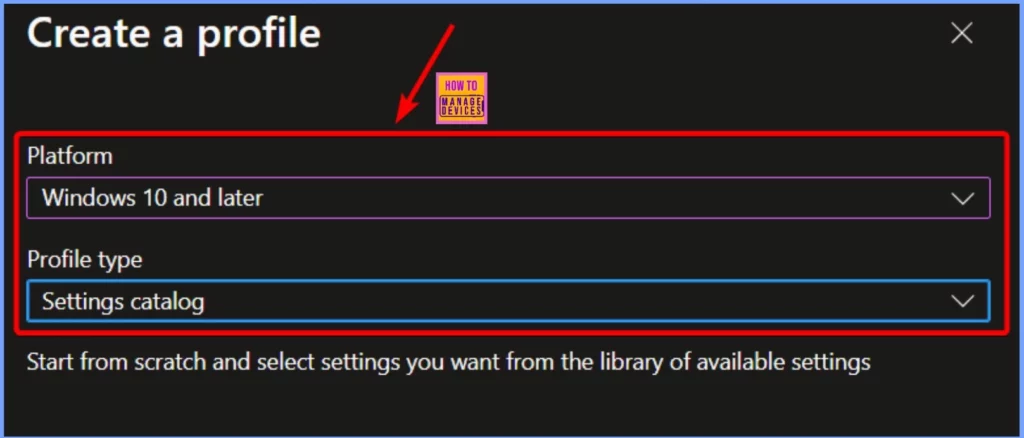
Create a Profile to Allow Secondary Authentication Device
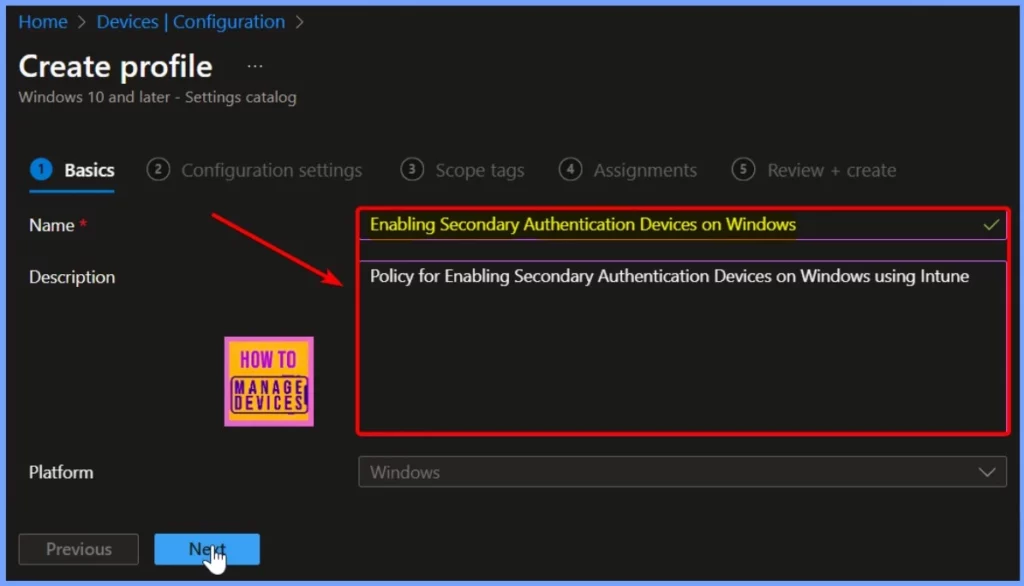
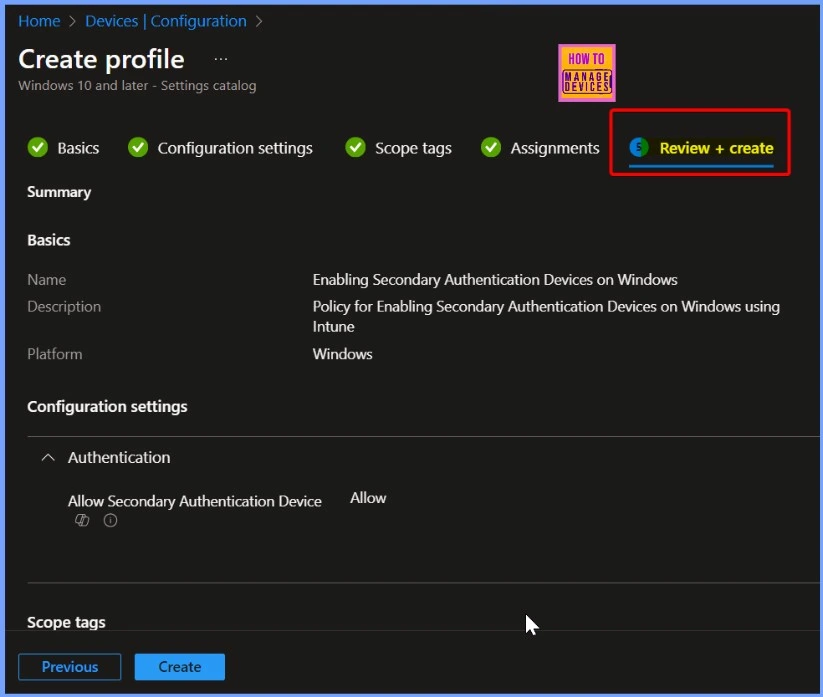
On the Basics page, name the configuration profile “Enabling Secondary Authentication Devices on Windows.” Add a brief description if needed; for example, “Policy for enabling secondary authentication devices on Windows using Intune.” Then, click Next to continue.
Authentication
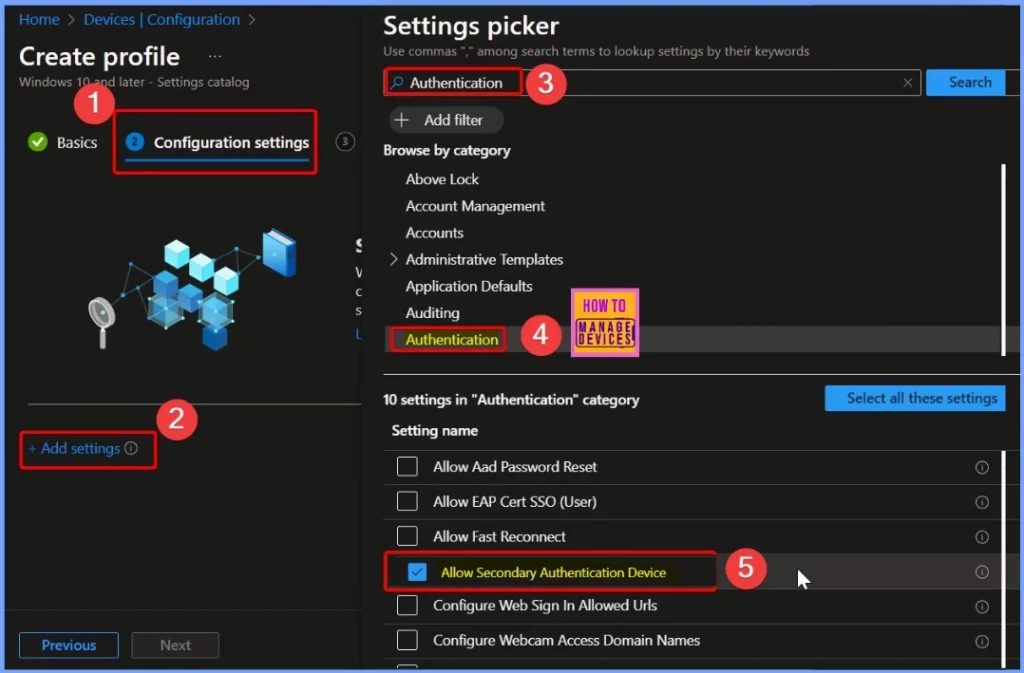
In the Configuration settings tab, click on the + Add settings link. In the Settings Picker window, type “Authentication” in the search bar, and 10 related settings appear. Find and select Allow Secondary Authentication Device from the list.
Allow Secondary Authentication Device
This policy allows secondary authentication devices to work with Windows. The default must be on for consumer devices (defined as local or Microsoft account-connected devices) and off for enterprise devices (such as cloud domain-joined, cloud domain-joined in an on-premises-only environment, cloud domain-joined in a hybrid environment and BYOD).
In the next major release of Windows 10, the default for this policy for consumer devices will be changed to off. This will only affect users not already set up a secondary authentication device.
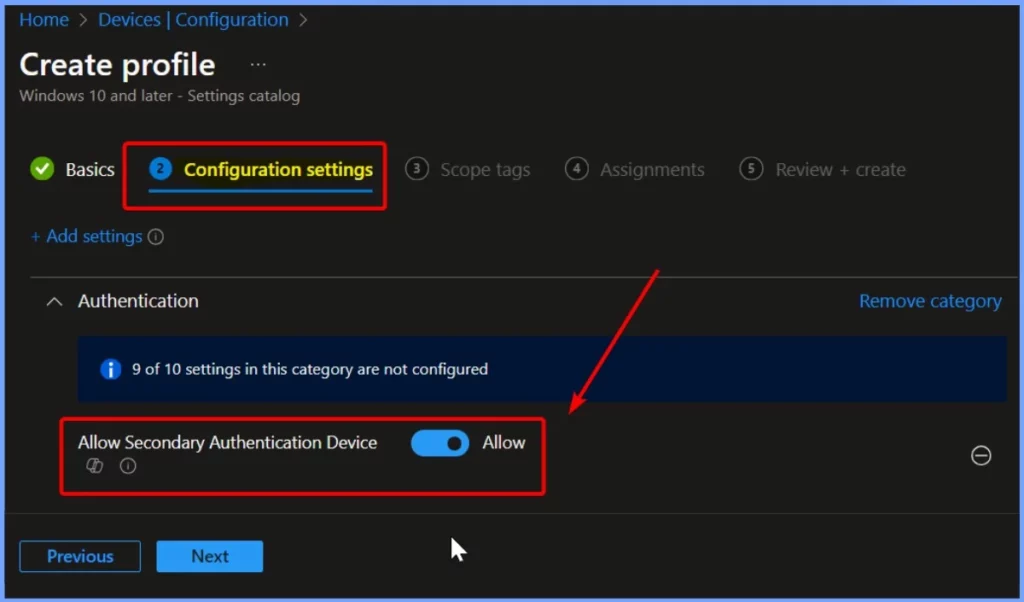
- To enable the Allow Secondary Authentication Device setting, toggle the switch to the right.
- This will activate the setting. The screenshot below provides more details on how to do this.
Assignments and Scope Tags
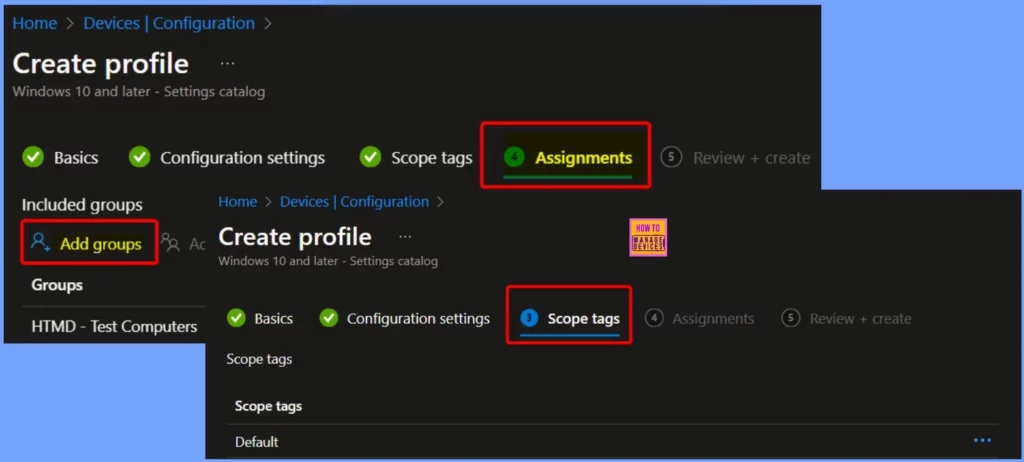
The Assignments tab in Intune defines which users, groups, or devices will receive the configuration profile you’ve created. The Scope Tag tab helps to determine who can see and manage the policy within Intune.
Review + Create
The Review + Create tab is the final step in the Intune profile creation process. Here, you review all the settings and configurations you’ve applied to ensure everything is correct before creating the profile.
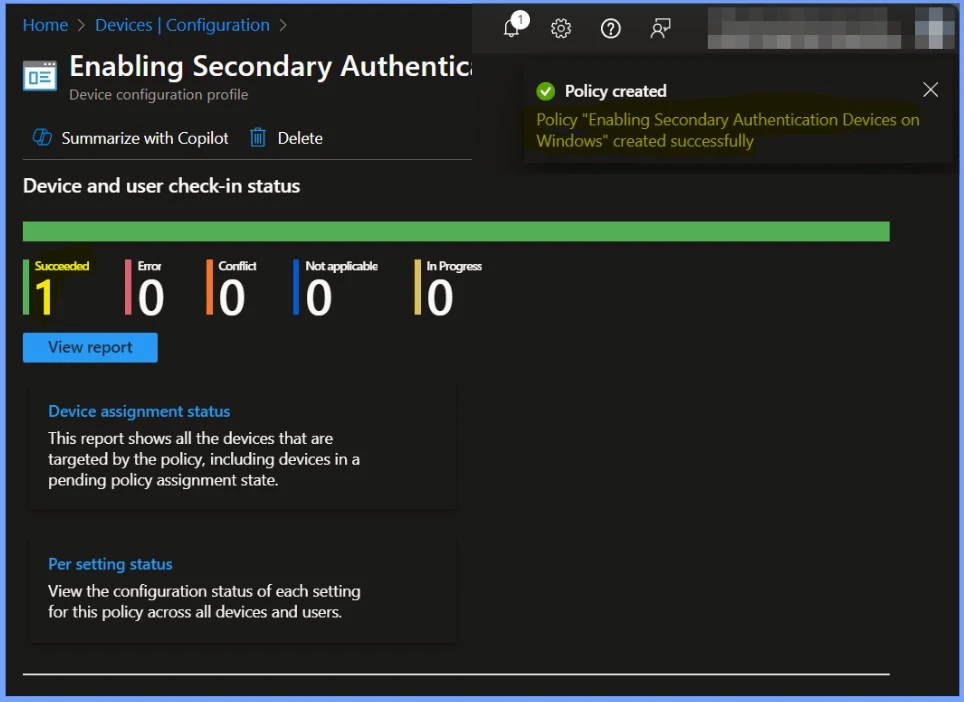
Monitor the Device and User Check-in Status
The Allow Secondary Authentication Device on Windows was created successfully. The Device and user check-in status is 1 succeeded. The screenshot below helps you show more details.
End User Experience – Client Side Verification
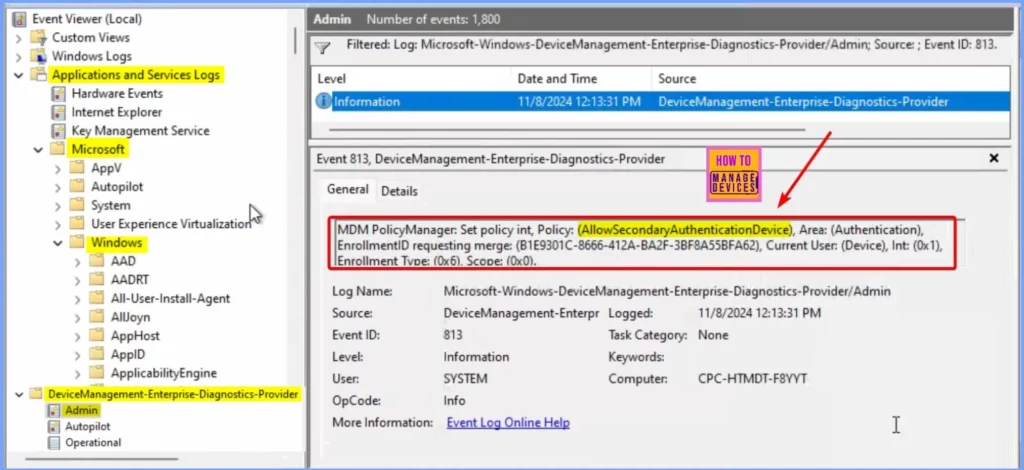
You can use the Event Viewer Logs to verify the Allow Secondary Authentication Device policy enforcement on Windows 10 or 11 devices managed through Intune. Specifically, check Event IDs 813 and 814 to confirm whether the policy is correctly applied.
You can find these logs by navigating to the following path: Event Viewer > Applications and Services Logs > Microsoft > Windows > DeviceManagement-Enterprise-Diagnostics-Provider > Admin.
This will show you the details related to the policy and help ensure it’s being enforced on the device.
MDM PolicyManager: Set policy int, Policy: (AllowSecondaryAuthenticationDevice), Area: (Authentication), EnrollmentID requesting merge: (B1E9301C-8666-412A-BA2F-3BF8A55BFA62), Current User: (Device), Int: (0x1), Enrollment Type: (0x6), Scope: (0x0).
Need Further Assistance or Have Technical Questions?
Join the LinkedIn Page and Telegram group to get the latest step-by-step guides and news updates. Join our Meetup Page to participate in User group meetings. Also, Join the WhatsApp Community to get the latest news on Microsoft Technologies. We are there on Reddit as well.
Author
Anoop C Nair has been Microsoft MVP from 2015 onwards for ten consecutive years! He is a Workplace Solution Architect with more than 22+ years of experience in Workplace technologies. He is also a Blogger, Speaker, and leader of the Local User Group Community. His primary focus is on Device Management technologies like SCCM and Intune. He writes about technologies like Intune, SCCM, Windows, Cloud PC, Windows, Entra, Microsoft Security, Career, etc.


Discussion