






Enable Disable Quick Links on New Tab Page in MS Edge Browser
Let’s discuss Turning on or Off Quick Links on New Tab Page in Microsoft Edge. Microsoft Edge is the most popular browser and a proprietary cross-platform. Microsoft offers many features to enhance users’ abilities.
Do you know what Quick Links are on the New Tab Page in Edge? Quick Links are shortcuts to your most visited sites that show on the New Tab page by default. Microsoft Edge will automatically add quick links to sites you visit most often to the New Tab page.
You can easily enable and disable Quick Links on the New Tab Page in Microsoft Edge. Users can also manually add, remove, or rename quick links. Enabling quick links on the new tab page helps users access their most visited links.
In this blog post, I will explain how to Turn On or off quick links on the New Tab Page in Microsoft Edge. Some methods are available for enabling and disabling. All the methods will be easy for you, so let’s check each technique together.

Table of Contents
Advanatges of Quicks Liks on the New Tabe Page on Edge?
Quick Links provides easy access to your most frequently visited websites, saving you time and effort in navigating them. The following are the advantages.
1. It is very convenient for users
2. It allows customization
3. Helps to increase efficiency
4. It improves productivity
5. Provides Visual Appeal
Are there any GPO Group Policy Settings?
Turn On or Off Quick Links on New Tab Page in Microsoft Edge
As mentioned above, some methods exist for turning Quick Links on or off the Edge New tab. You can choose the following methods to enable or disable quick links on the New Tab page.
- How to Disable AI Overview in Google Search Results using Edge Browser Settings
- Turn ON or OFF Edge Browser Additional Flexible Search Box on Your Windows Desktop Device
- Customize Alt + Tab Keys Behavior to Show the Number of App Tabs such as Notepad Edge Chrome Browsers
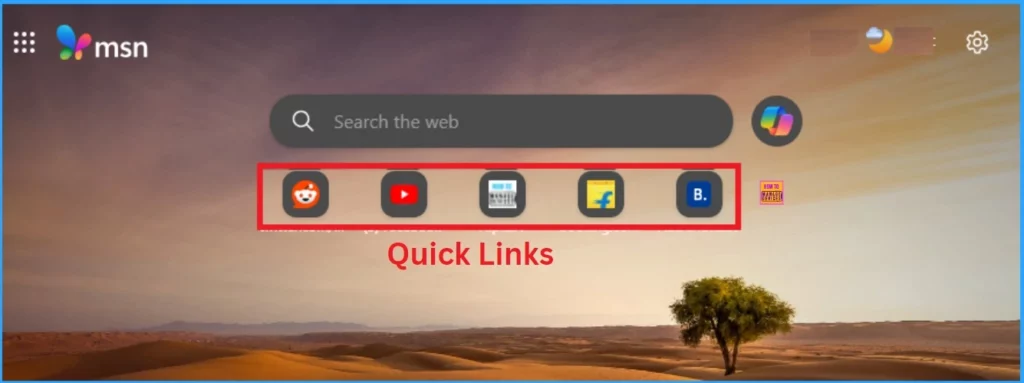
Result Image
The Result image shows the Quick Links on the Edge New Tab. You can apply many methods on your PC to add Quick Links on the new tab page of your Edge.
Current User from New Tab Page
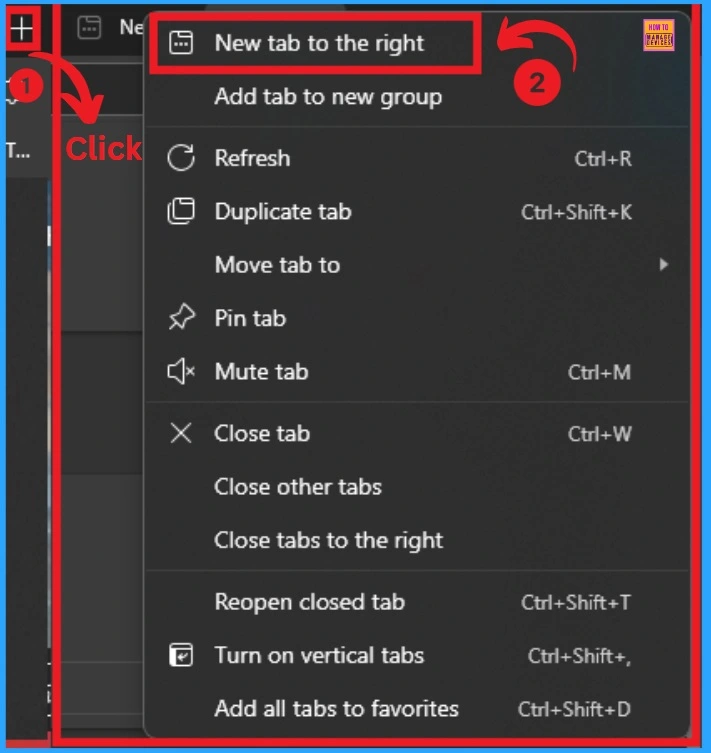
You can easily enable quick links from the new tab page from the Current User. To do this, Open the Edge browser and press Ctrl+T. Click/tap on the New tab button (+). Right-click on a tab, and click/tap on the New tab to the right.
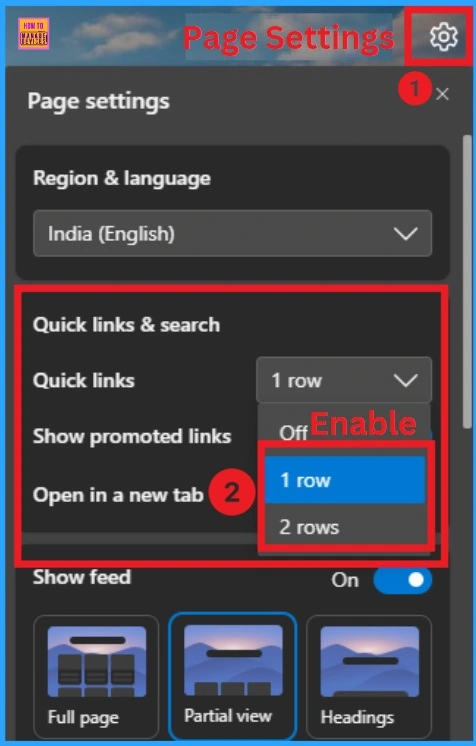
Click on the Page Settings icon from the New tab window. Then select the drop-down arrow near the quick link option, and select the 1-row or 2-row option to enable quick links. To disable it click on the Off option.
Current User from Settings
Use Current User from Settings to turn on or off quick links on the new tab page on the Edge. First, open the Edge browser.
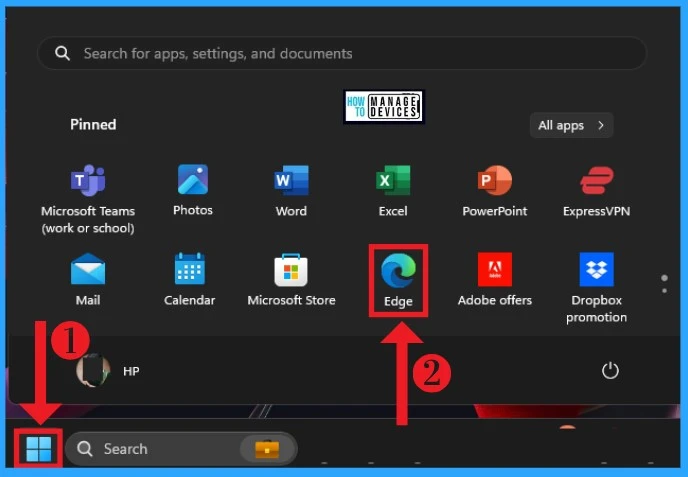
- Click on the Start Menu and Open Microsoft Edge
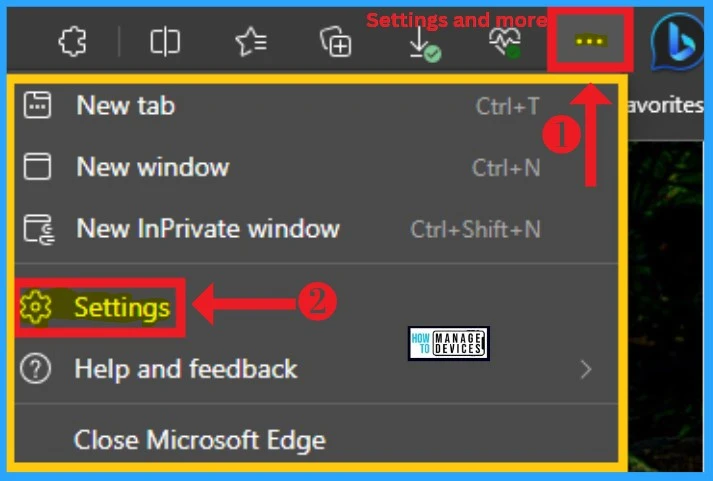
After Opening Microsoft Edge, click the 3-dot option (Settings and More). The Settings and More section has many choices. Select Settings from Settings and More.
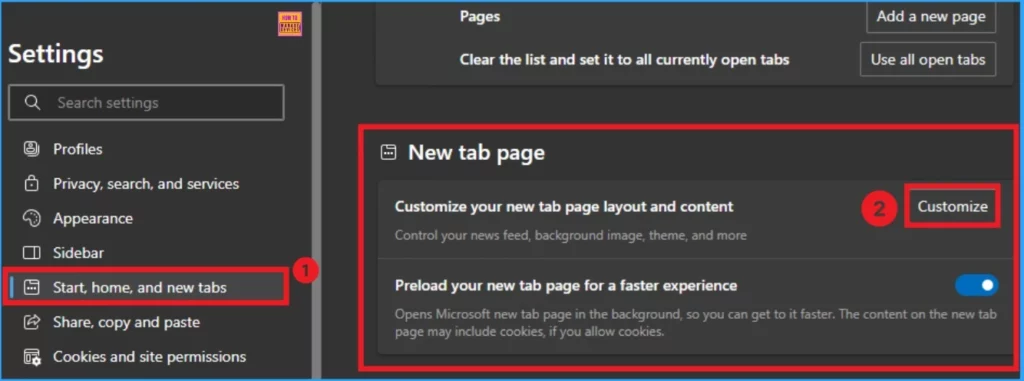
After opening the Setting Menu, you can see several options. Select the Start, home, and new tabs option from the left side of the Edge Settings. Click on the Customize button from the Customize your new tab page layout and content option.
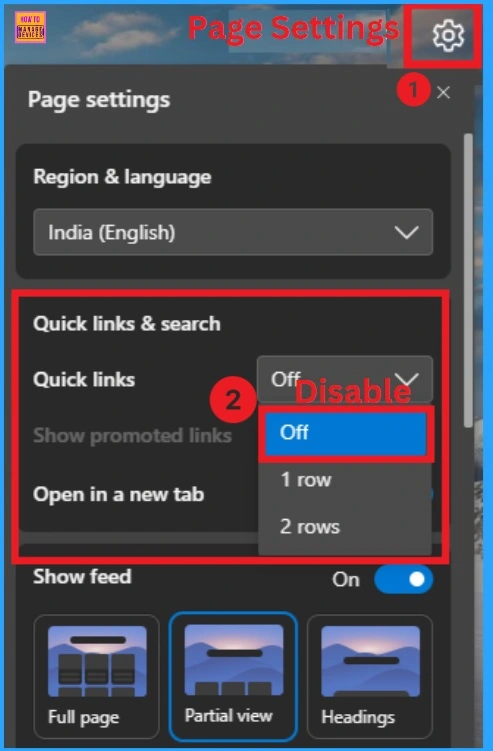
Enable Quick Liks
After clicking on the Customize option, you will get the Edge Page Settings. Here, you can see the Quick links and search options. Under this option, you can also see the Quick Links option and a drop-down arrow near it. Click on the Drop down arrow and select the 1 or 2-row option to enable quick links.
Disable Quick Links
To disable Quick Links, click the off option from the drop-down arrow near the Quick Links. After clicking on the Off option, quick links will be disabled.
- Microsoft Edge Browser Uses AI to Automatically Group and Ungroup Tabs by Common Themes
- 5 Methods Open Microsoft Edge InPrivate Browsing Window
- How to Enable or Disable Media Autoplay for Websites in Microsoft Edge Browser
All Users using Registry Editor
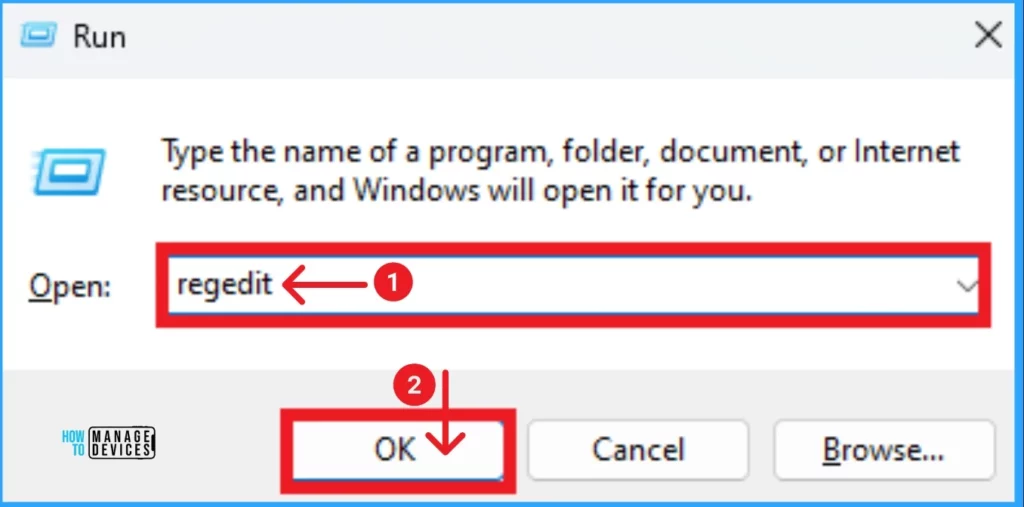
Using Registry Editor, you can quickly enable and disable text Suggestions. You can access Registry Editor via Run Command.
- Press Win +R on your PC.
- Type regedit in the text box and click on the OK button.
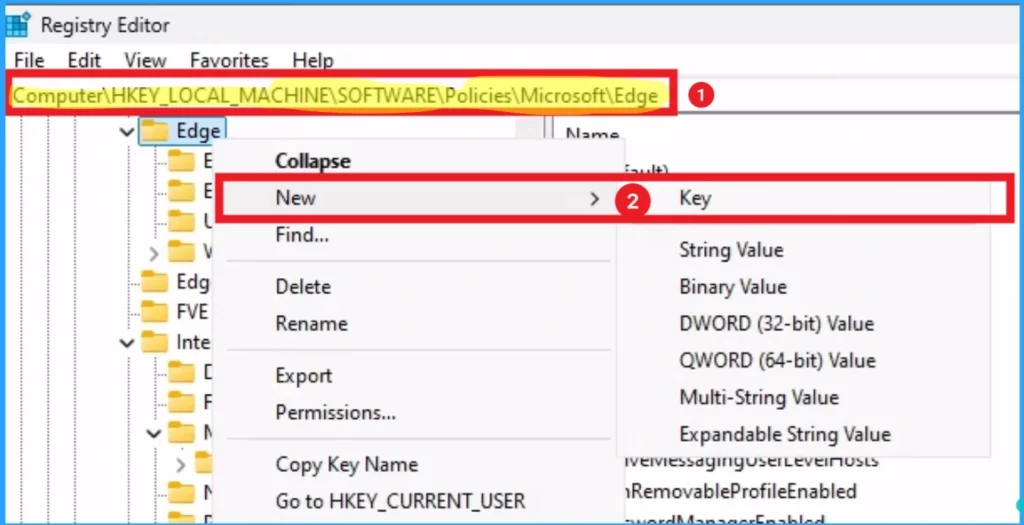
After Opening the Registry Editor, you can easily enable or disable Turn On or Off Quick Links on the New Tab Page in Microsoft Edge. You can do this with the path Computer\HKEY_LOCAL_MACHINE\SOFTWARE\Policies\Microsoft\Edge. If you can’t find NewTabPageQuickLinksEnabled on Edge, you can create a new key.
- Right on the Edge, click on the New option from the context menu, and then select the Key option.
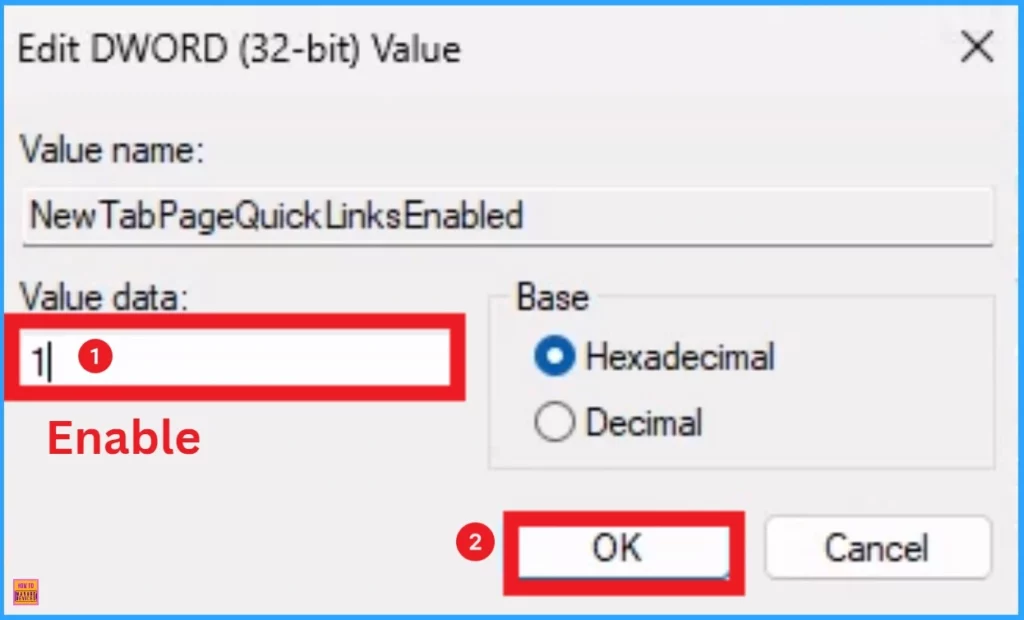
Then, Name the key NewTabPageQuickLinksEnabled. Double-click on NewTabPageQuickLinksEnabled and edit the value data to 1 to enable this feature. Click on the OK button.
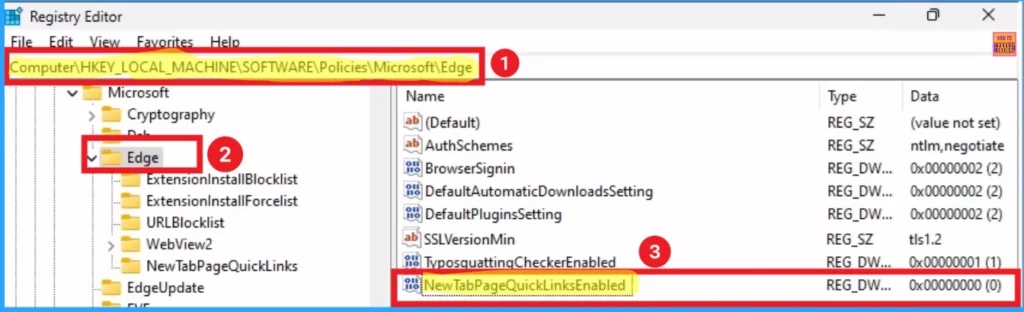
To disable Autoplay, use the path Computer\HKEY_LOCAL_MACHINE\SOFTWARE\Policies\Microsoft\Edge. Double-click the NewTabPageQuickLinksEnabled and edit the value data to 0 to disable this feature. Click on the OK button.
Microsoft Intune Policy
You can easily turn on or off Quick Links on the New Tab Page in Microsoft Edge using Intune Policy. Through Intune Templates, you can turn it on or off.
- Sign in to the Microsoft Intune admin center
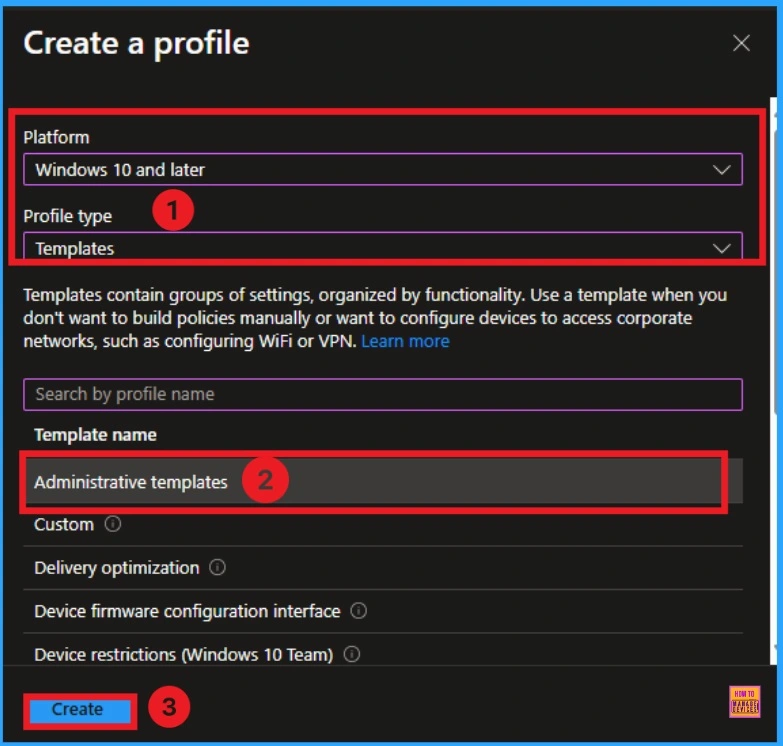
- Select Devices > Configuration profiles > Create profile
- In Create Profile, select Platform: Select Windows 10 and later
- Select the Templates as the profile type
- You can search the Policy name on the search bar
- Select the Administrative Template from the Template name
- Click on the Create button
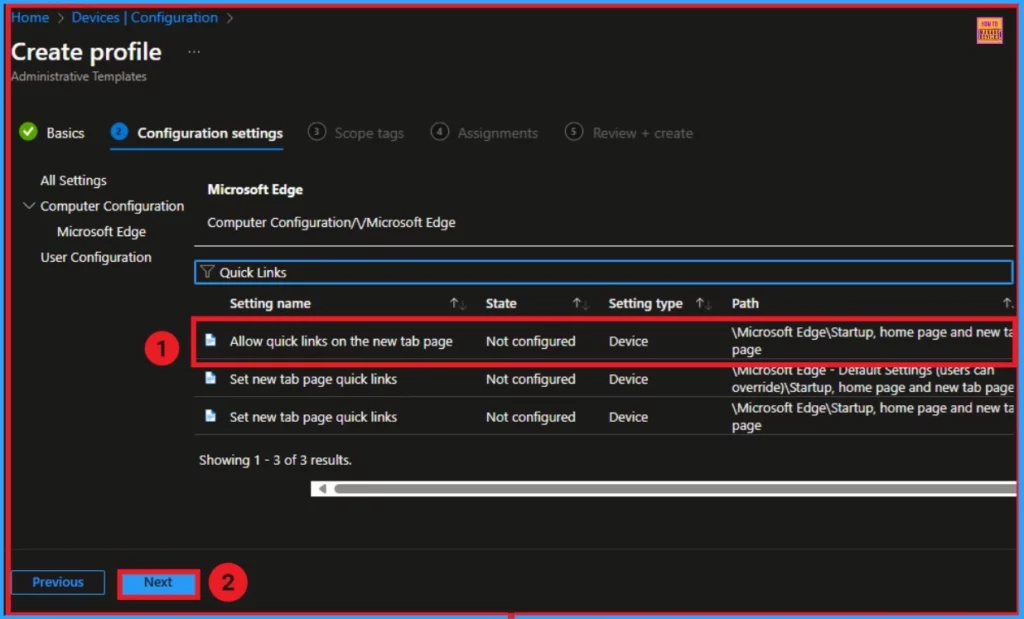
After that, on the Configuration Settings tab, you can select Computer Configuration or Device Configuration from All Settings. Then, select Microsoft Edge from this window. You can filter the quick links policy from this window.
Then select your policy. Allow quick links to appear on the new tab page. You will have a window for quick links on the new tab page. You can enable or disable this policy from the window below. The table below shows the changes to the device after you enable or disable this policy.
| Enable | Disable | Not Configured |
|---|---|---|
| If you enable or don’t configure this policy, Microsoft Edge displays quick links on the new tab page, and the user can interact with the control, turning quick links on and off. Enabling this policy does not force quick links to be visible – the user can continue to turn quick links on and off. | If you disable this policy, Microsoft Edge hides quick links on the new tab page and disables the quick links control in the NTP settings flyout. | This policy only applies for Microsoft Edge local user profiles, profiles signed in using a Microsoft Account, and profiles signed in using Active Directory. To configure the Enterprise new tab page for profiles signed in using Azure Active Directory, use the M365 admin portal. |
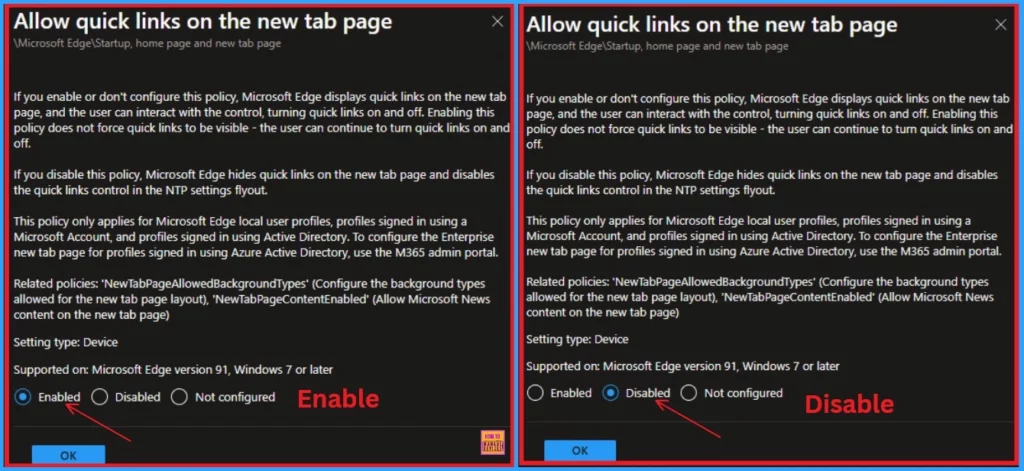
Related policies: ‘NewTabPageAllowedBackgroundTypes‘ (Configure the background types allowed for the new tab page layout), ‘NewTabPageContentEnabled‘ (Allow Microsoft News content on the new tab page)
Need Further Assistance or Have Technical Questions?
Join the LinkedIn Page and Telegram group to get the latest step-by-step guides and news updates. Join our Meetup Page to participate in User group meetings. Also, Join the WhatsApp Community to get the latest news on Microsoft Technologies. We are there on Reddit as well.
Author
Anoop C Nair has been Microsoft MVP from 2015 onwards for ten consecutive years! He is a Workplace Solution Architect with more than 22+ years of experience in Workplace technologies. He is also a Blogger, Speaker, and leader of the Local User Group Community. His primary focus is on Device Management technologies like SCCM and Intune. He writes about technologies like Intune, SCCM, Windows, Cloud PC, Windows, Entra, Microsoft Security, Career, etc.




Discussion