






How to Install Google Backup and Sync App with Intune Using Enterprise App Catalog App
Let’s discuss how to install Google Backup and Sync App with Intune Using the Enterprise App Catalog App. Microsoft Intune allows users to install the app using the Enterprise App Catalog App. Now, Google Backup and Sync installation is simpler.
Do you know how to install the Google Backup and Sync app? Google Backup and Sync is a desktop application for Windows and macOS that allows users to back up and sync their files and photos to Google Drive and Google Photos.
Install this app to protect your organization. It helps back up important files and documents to Google Drive, reducing the risk of data loss due to hardware failures, accidental deletions, or other issues. It also improves accessibility and ensures the security of critical information.
In this blog, I will explain how to Install the Google Backup and Sync App with Intune Using the Enterprise App Catalog App. Installation Step-by-step instructions are provided in this post, and you can ensure the organisation’s security.

Table of Contents
What is Google Backup and Sync App?
How to Install Google Backup and Sync App with Intune Using Enterprise App Catalog App
With Enterprise App Catalog, users can quickly install an application. It allows organizations to discover, deploy, and manage prepackaged applications. Follow the below steps to install Google Backup and Sync App.
- Sign in to the Microsoft Intune Admin portal.
- Select Apps > All Apps> + Add.
- From the Select App type page, Select Enterprise App Catalog App
- Click on the Select button
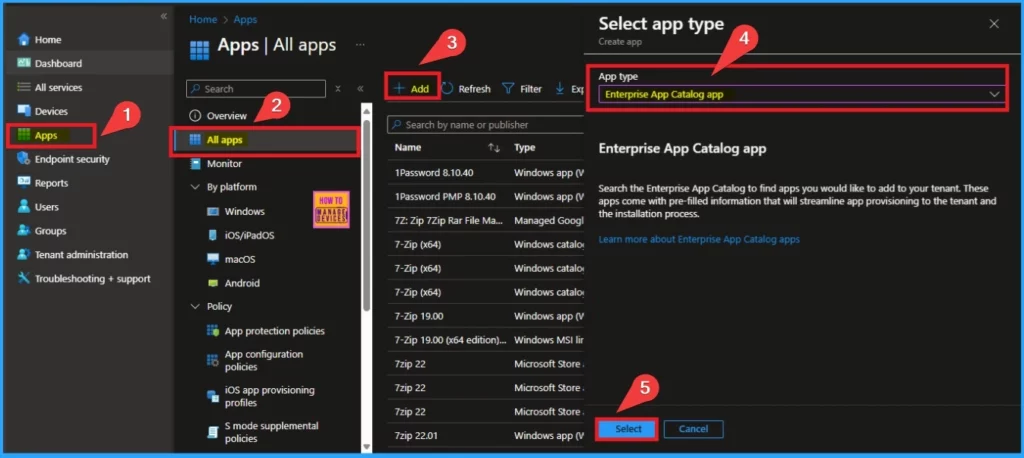
- Deploy Windows Catalog App type using Intune Enterprise Application Catalog
- 6 Exciting Features Coming to Intune Enterprise App Management
- Guidelines for Installing Microsoft PC Manager from New Microsoft Store in Intune
After that, you will get a new window that will help you add an app. This page includes many tabs, such as App information, Program, Requirements, etc. The first tab is App information.
- Click on the hyperlink search the Enterprise App Catalog
- You can search specific apps on this window
- Select your app from this window (Google Backup and Sync)
- Then click on the Next button
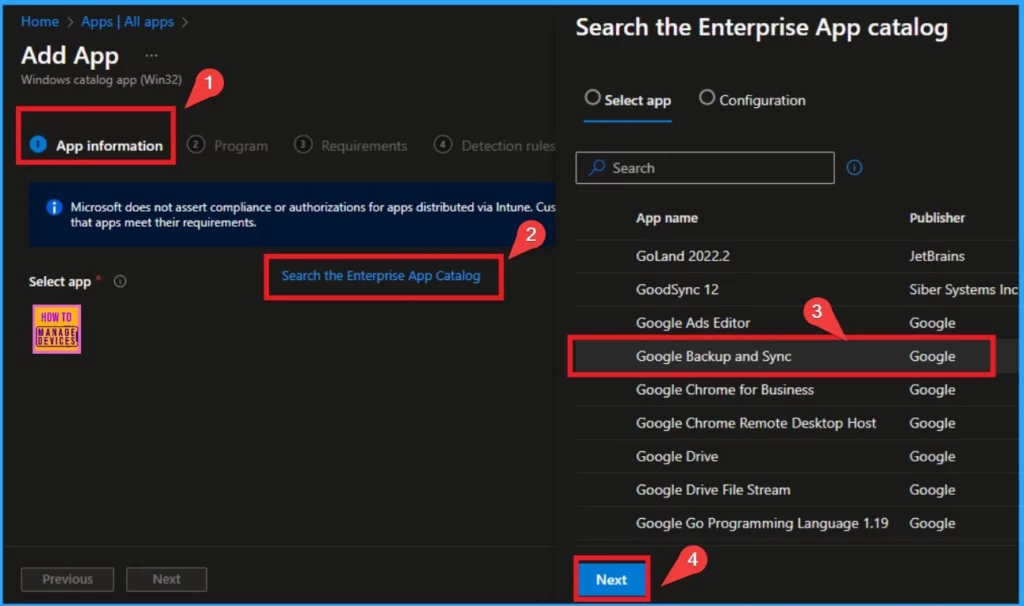
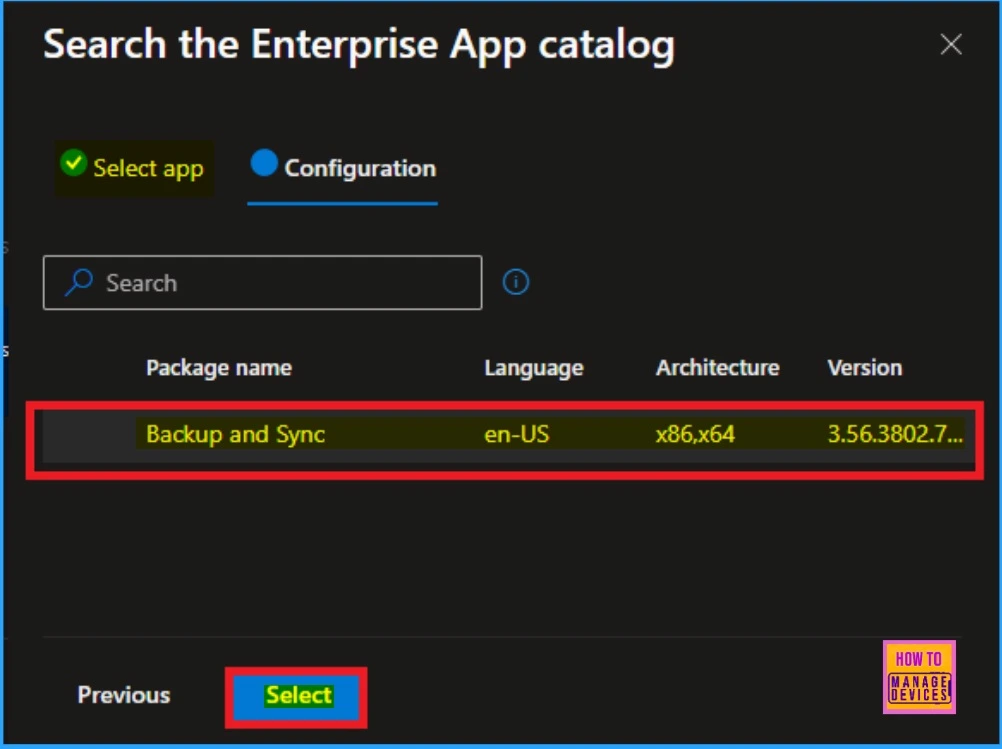
After that, the selected app will be shown on the next page. Here, you can see 2 tabs, Select app and Configuration. The Configuration tab shows the details of the selected app. The below table shows more details.
| Package Name | Language | Architecture | Version |
|---|---|---|---|
| Backup and Sync | en-US | x86,x64 | 3.56.3802.7766 |
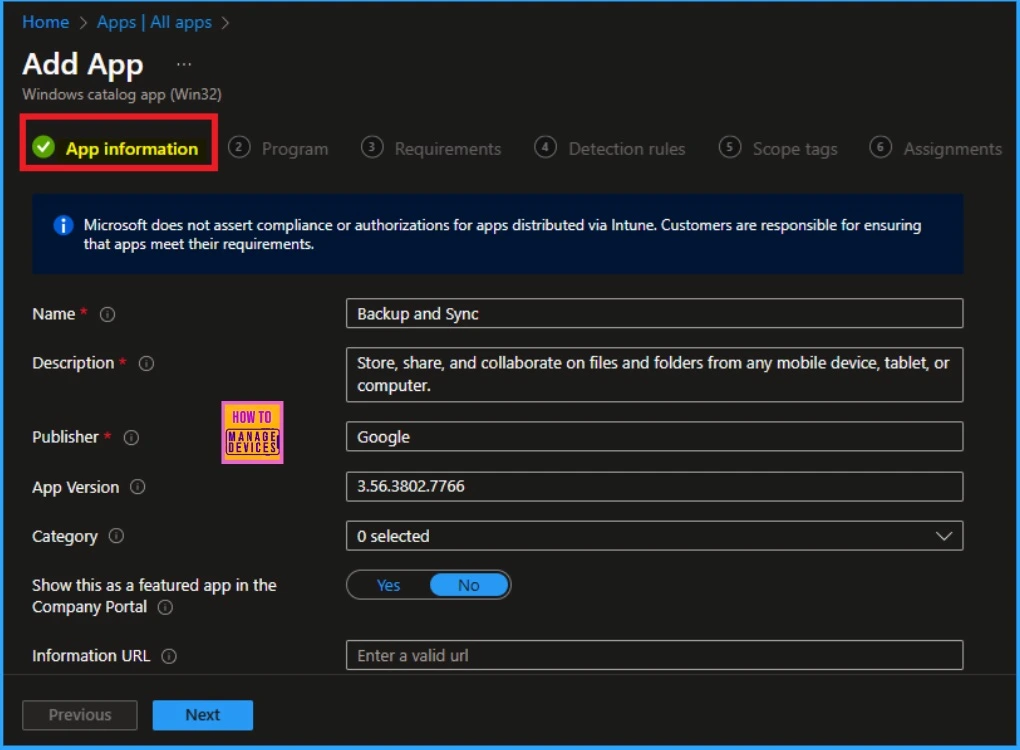
App Information Settings
The App Information tab contains information related to the selected app. This includes the app’s name, description, publisher, App version, category, etc. After verifying all this information, you can continue.
Adding Logo of Google Backup and Sync App
On the App information tab, you can also add the logo of the selected app. So see the option for adding logo slightly scroll down the tab and you can see the Logo option. Click on the Select image hyperlink to add logo. Click on the file icon shown on the pop up window.
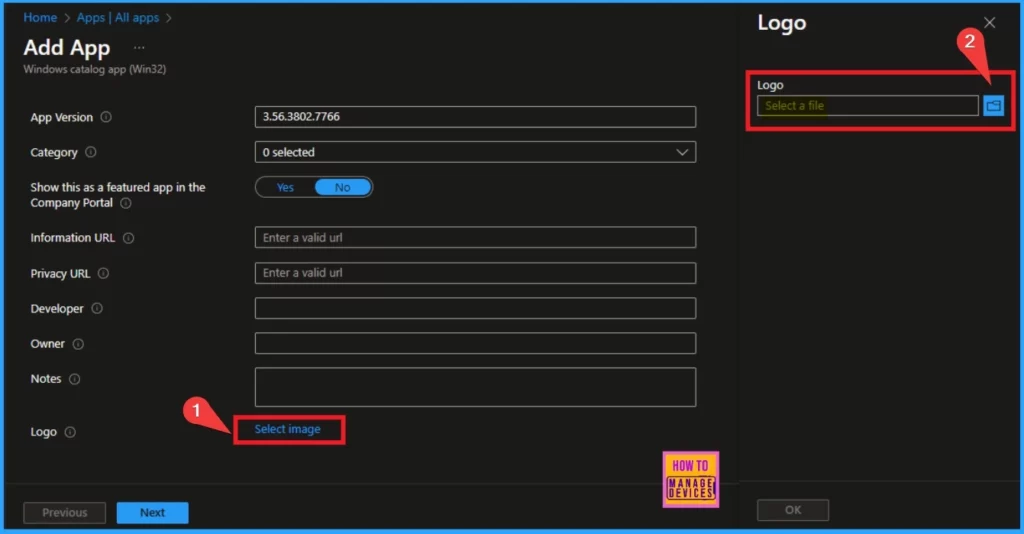
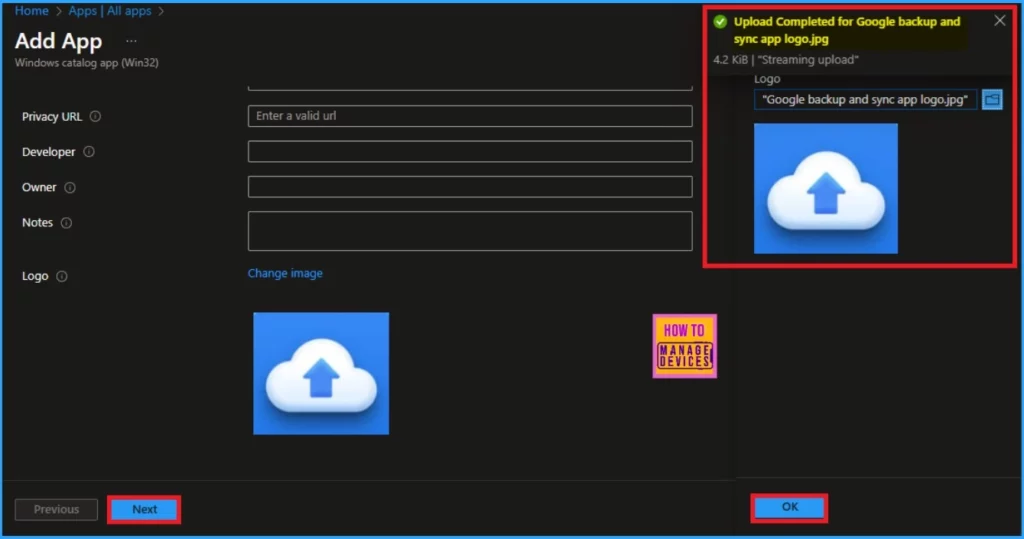
Then, your file explorer will open, and you can select the logo saved on your desktop. After selecting the logo, it will appear on the app information page.
- Click on the OK button to continue
- Click on the Next button
- You will get a notification on the portal as Uploaded completed
Program
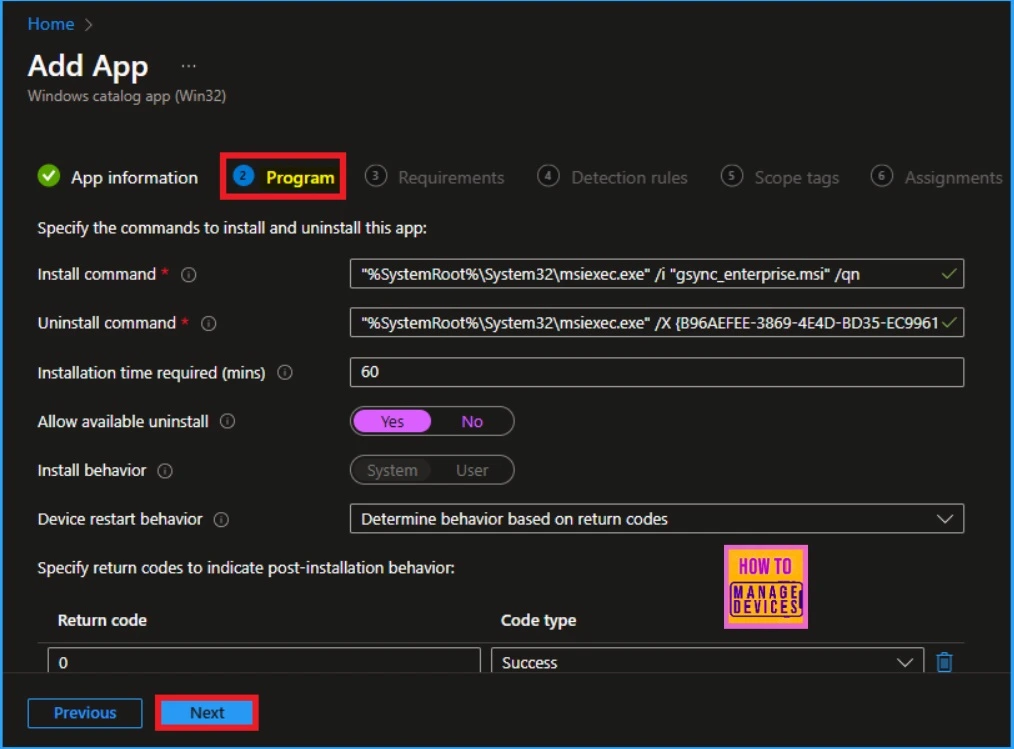
The Program tab shows the information related to app installation, uninstallation, commands Installation time required (mins) etc. You can allow or disallow available installation.
- Select ‘Yes‘ to provide the uninstall option for this app for users from the Company Portal.
- Select ‘No‘ to prevent users from uninstalling the app from the Company Portal.
You can also see the Specify return codes on this page to indicate post-installation behaviour. The table below shows the different commands on the Program Settings Tab.
| Install Command | Uninstall Command | Installation time required (min) | Allow Uninstall |
|---|---|---|---|
| “%SystemRoot%\System32\msiexec.exe” /i “gsync_enterprise.msi” /qn | “%SystemRoot%\System32\msiexec.exe” /X {B96AEFEE-3869-4E4D-BD35-EC9961BD333D} /qn | 60 | Yes |
Requirement
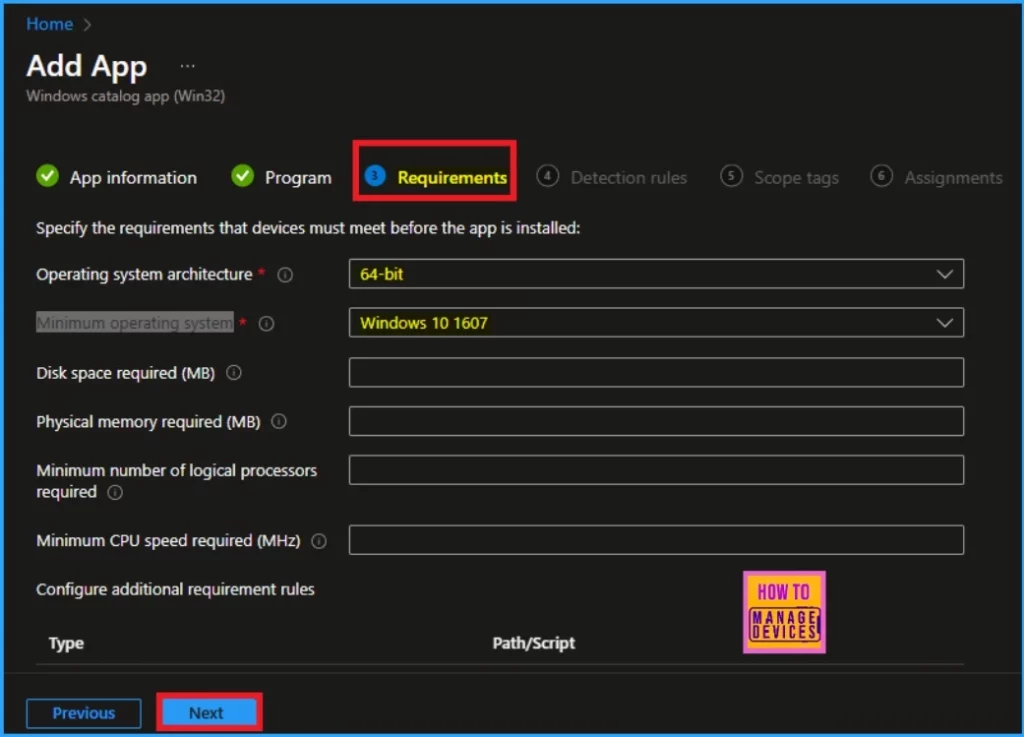
In the Requirement tab, you can Specify the requirements that devices must meet before installing the app. These include Operating system architecture and a Minimum operating system. Click on the Next button to continue.
- Guidelines for Installing Microsoft PC Manager from New Microsoft Store in Intune
- Create and Deploy Python Applications with Intune Enterprise App Catalog App
- How to Deploy Azure Functions Core Tools with Intune Using Enterprise App Catalog App
Detection Rule
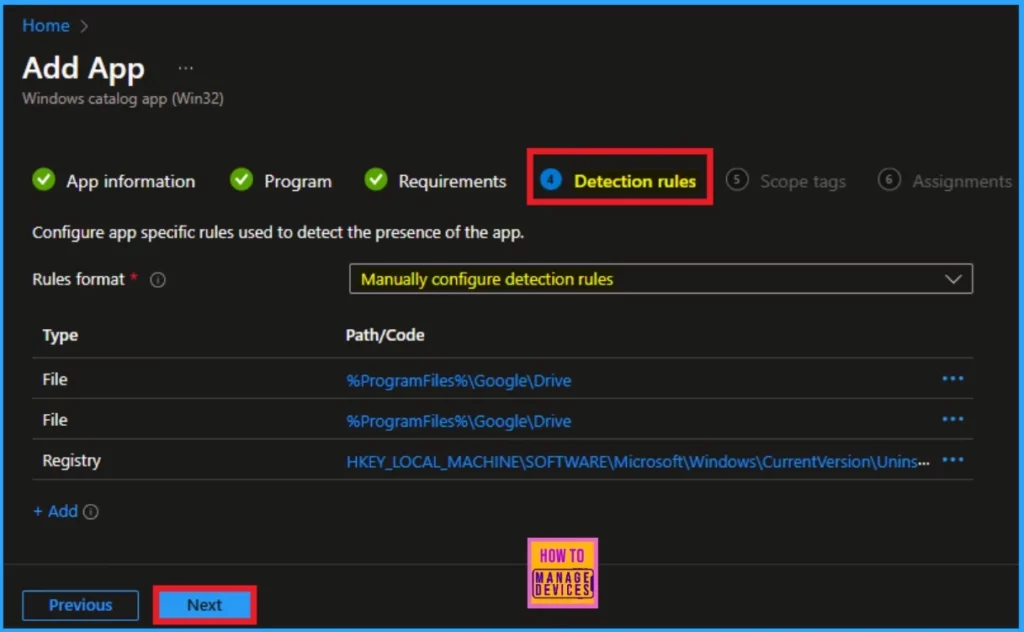
The detection Rule tab allows you to configure app-specific rules to detect the app’s presence. There is no need to bring changes on this tab. Microsoft Intune Enterprise app catalogue app helps to install the apps without changing Detection rules.
- Click on the Next Button
Scope Tag
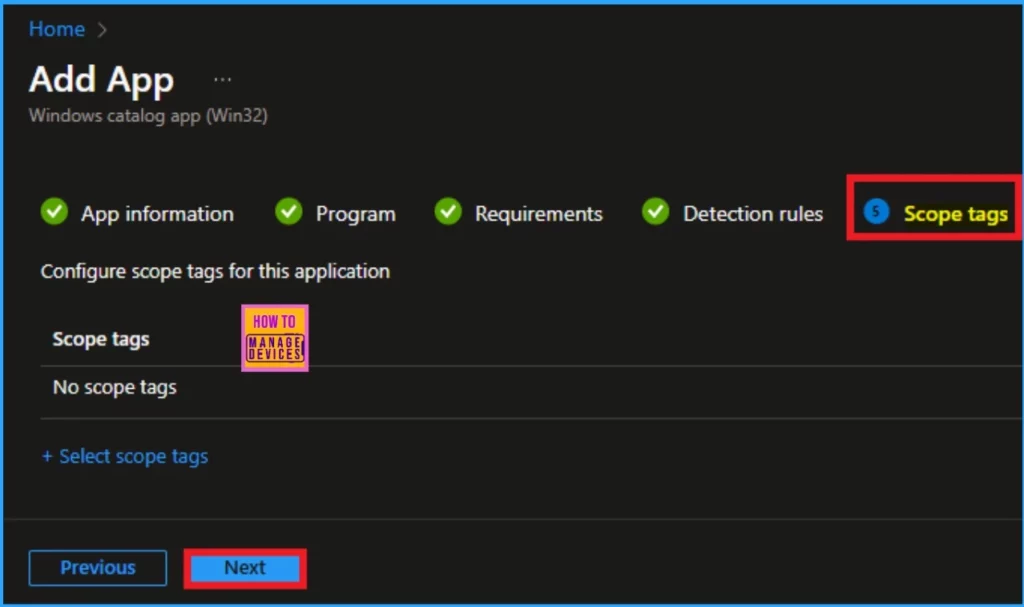
On the Scope tag page, there is no need to add scope tags. You can skip this section. Click on the Next button to continue installation.
Assignments
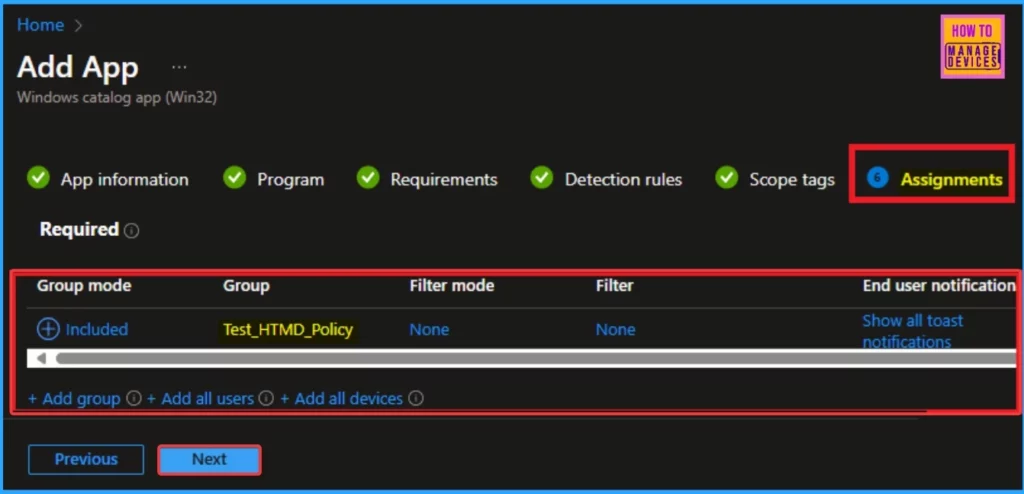
You can add a group or groups to install the Google Backup and Sync app on the Assignments tab. Click on the Add group and select group or groups. Then click on the Select button to add a group to the Assignment. Then you can see the selected group is shown on the Assignment tab.
- Click on the Next button
Review + Create
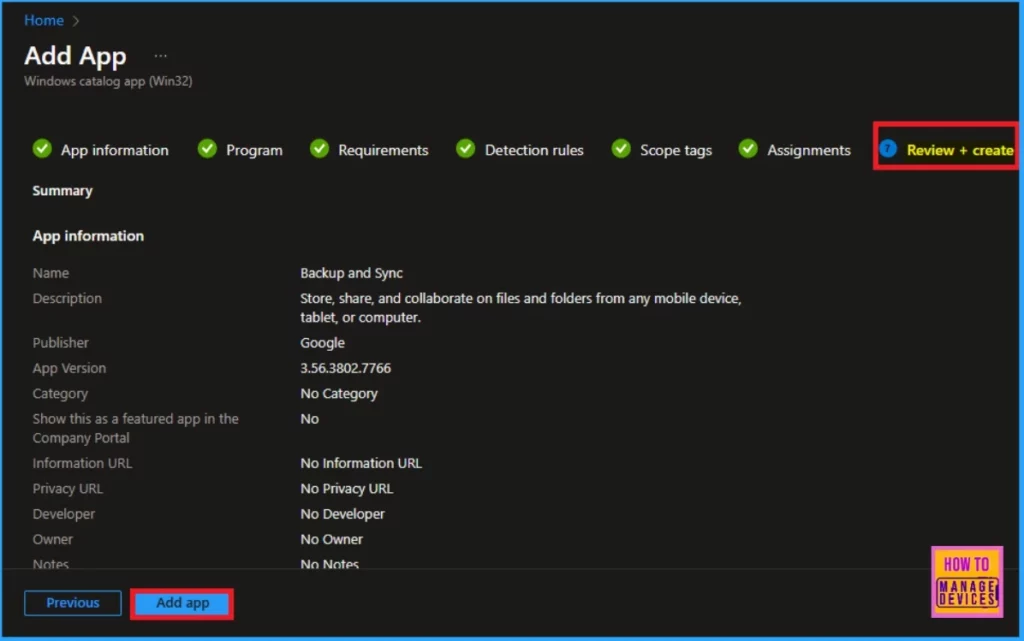
The Review + Create tab shows all information about the selected app. Before installing the app, you can check all the details of the tabs. This page shows the summary of the app’s installation.
- Click on the Add App option to complete the installation
Monitor Google Backup and Sync App Status
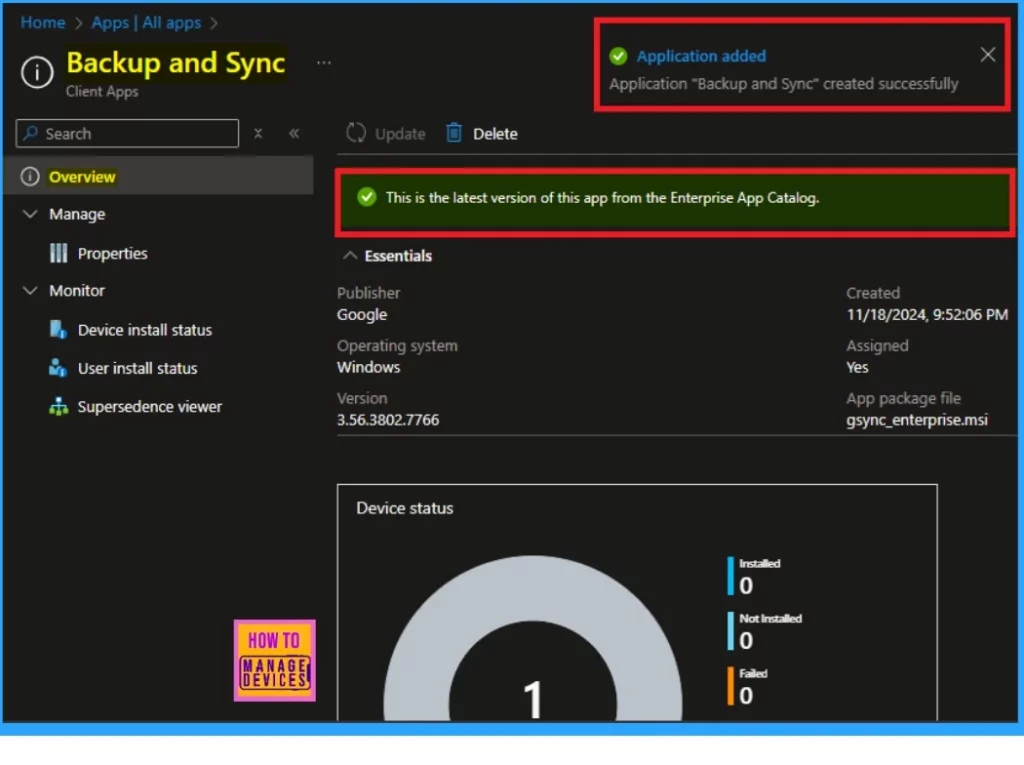
After clicking on the Add app option, you will get a notification on the Intune Portal. The notifications as application added. Then you can monitor the status of the installed app on the portal.
- Apps > All Apps
- Double-click on the installed app from the App Apps page
- The screenshot below shows the 1 App installed
The Google Backup and Sync app installed is the latest version from the Enterprise App Catalog. The table below shows more details.
| Publisher | Operating System | Version | Created | Assigned | App Package File |
|---|---|---|---|---|---|
| Windows | 3.56.3802.7766 | 11/18/2024, 9:52:06 PM | Yes | gsync_enterprise.msi |
End User Experience
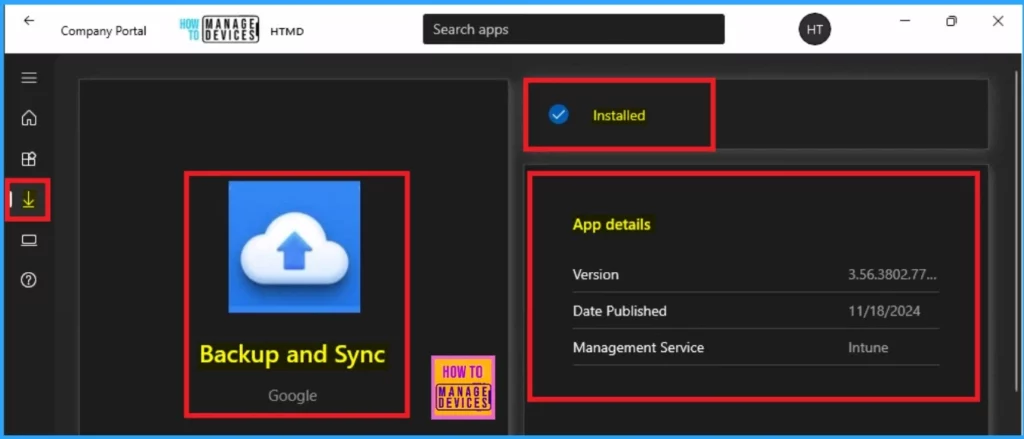
After the Google Backup and Sync app is deployed, it will be automatically installed on the workstations. You can check it on the Workstation. To verify the installation, open the Company Portal on the workstation, go to Downloads & Updates, and check if the Google Backup and Sync application appears as installed.
Need Further Assistance or Have Technical Questions?
Join the LinkedIn Page and Telegram group to get the latest step-by-step guides and news updates. Join our Meetup Page to participate in User group meetings. Also, Join the WhatsApp Community to get the latest news on Microsoft Technologies. We are there on Reddit as well.
Author
Anoop C Nair has been Microsoft MVP from 2015 onwards for 10 consecutive years! He is a Workplace Solution Architect with more than 22+ years of experience in Workplace technologies. He is also a Blogger, Speaker, and Local User Group Community leader. His primary focus is on Device Management technologies like SCCM and Intune. He writes about technologies like Intune, SCCM, Windows, Cloud PC, Windows, Entra, Microsoft Security, Career, etc.


Discussion