






New Windows 365 Client Endpoint Windows 365 Link the First Cloud PC Device and Native Management via Intune
Today, we are excited to share the New Windows 365 Client Endpoint Windows 365 Link, the First Cloud PC Device and Native Management via Intune. As you all know, Microsoft Ignite will always announce innovations and updates that greatly enhance users’ experience. Now, it is time for Microsoft Ignite 2024.
Microsoft Ignite 2024 introduced a new user device called Windows 365 Link. This is one of the best environments introduced, and this device provides many helpful features for users. With Windows 365 Link, Microsoft only aims to increase productivity and security for organizations.
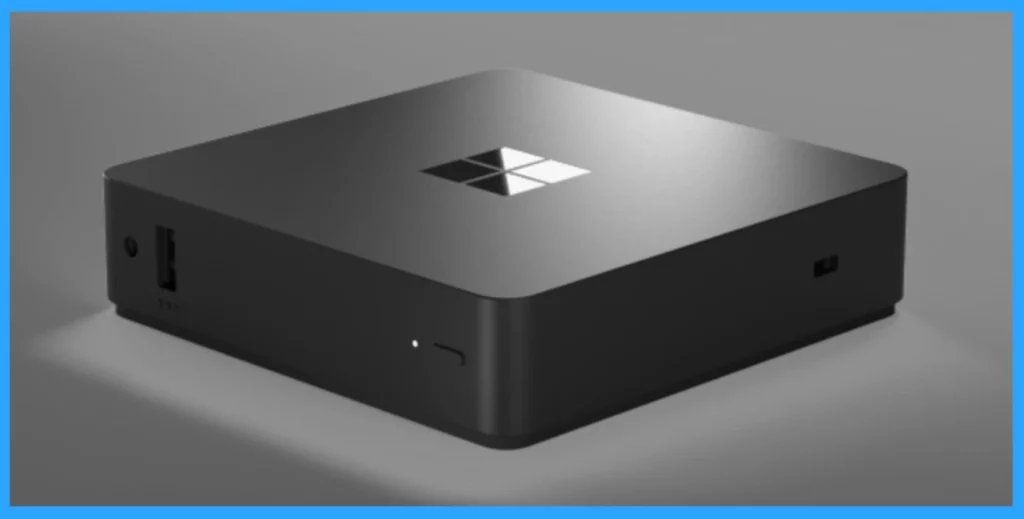
The Windows 365 launch may be in 2025. Microsoft announced it will be a small device measuring just 4.72 inches or 1.18 inches tall. However, this tiny device offers many options, such as connectivity options and other specifications.
This new device provides a better cloud experience for organizations. As you all know, Windows 365 introduced the Cloud PC in 2021. As of now, Microsoft is introducing a device for better productivity and improving IT efficiency, and it is now introducing Windows 365 Link.

Table of Contents
When can we use Windows 365 Link?
What is the size of the Windows 365 Link?
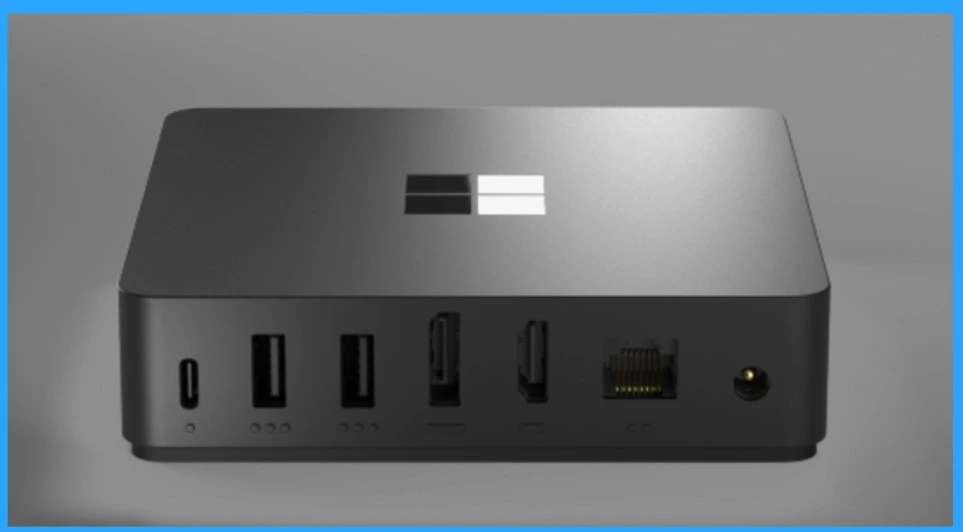
What types of ports are on Windows 365 Link?
New Windows 365 Client Endpoint Windows 365 Link the First Cloud PC Device and Native Management via Intune
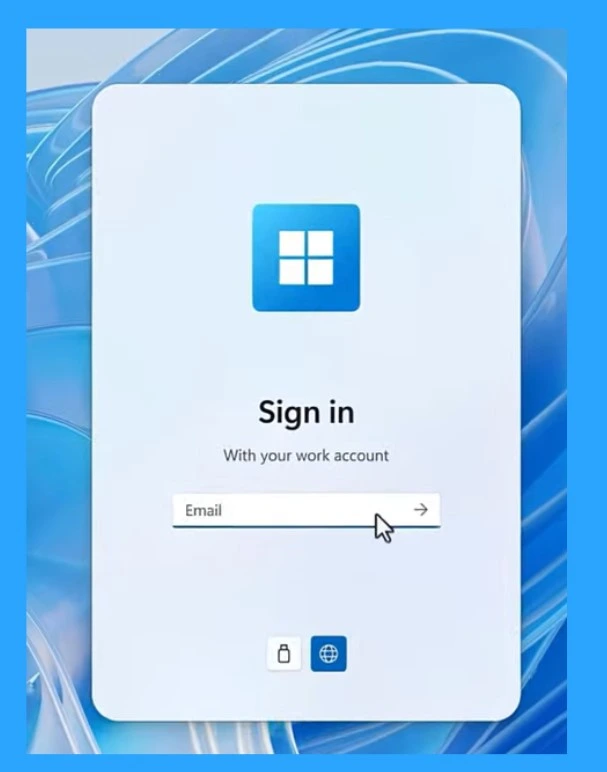
Above, we discussed an overall view of the New Windows 365 Client Endpoint, Windows 365 Link, the First Cloud PC Device, and Native Management via Intune. Windows 365 Link is like a small Windows-based operating system. It easily connects to Windows 365 and quickly signs in to your Cloud PC.
- Once signed in, you can securely access a Windows desktop in the Microsoft cloud.
- It is very easy for IT Admins to manage and set up the device.
- It can be managed on other PCs using Microsoft Intune.
- HEVC Video Coding and Symmetric NAT with RDP Shortpath Support with Windows 365 Cloud PC 2409
- Most Asked 54 Windows 365 Cloud PC Interview Questions and Answers
- Top 75 Latest Intune Interview Questions and Answers
Integration to the Cloud
The Windows Link is best for integration to the cloud. We can expect the best performance and security from Windows Link. This device is built to improve performance and help users stay productive. Windows Link quickly starts booting directly to the cloud. Also, it provides instant access to Windows 365.
| No | Features of Windows 365 Link |
|---|---|
| 1 | It lets users quickly start or pick up where they left off on their Cloud PC. |
| 2 | It has a compact and lightweight design that is perfect for productivity. |
| 3 | The Windows Lik can be Highly responsive for fast booting and waking from sleep. |
| 4 | It allows dual 4K monitor support. |
| 5 | It allows four USB ports, an Ethernet port |
| 6 | Bluetooth 5.3 for seamless wireless connections. |
| 7 | Smooth connectivity with both wired and wireless peripherals. |
| 8 | Wi-Fi 6E for fast and reliable connectivity. |
Easily Managing Cloud PC Endpoints Windows 365 Link devices with Intune
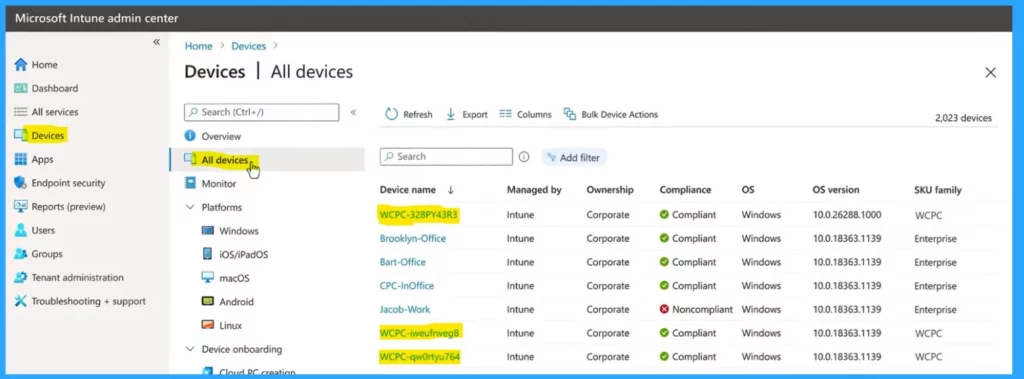
Managing endpoints is difficult, but the Windows link offers an easy way. With Microsoft Intune, you can manage these devices just like other PCs. The devices start with the name WCPC (for Windows CPC), making them easy to find. The name is set to be defaulted. Windows 365 Link also automatically stays up to date.
Prioritizes Security
Security is essential for everyone. Windows Link offers the best security features by its performance. According to the built-in nature of Windows Link offers security by eliminating local data, apps, and admin privileges, reducing the risk of device compromise. Minimizing vulnerabilities through the Lockdown OS is one of its best parts.
- The device supports passwordless sign-in through Microsoft Entra ID
- It allows multifactor authentication via the Microsoft Authenticator app, passkeys with a QR code, or a FIDO USB security key.
- It also enabled the Security Baseline by default.
- Secure Boot, Trusted Platform Module (TPM), Hypervisor Code Integrity, BitLocker encryption, and Microsoft Defender for Endpoint are all permanently enabled to enhance device security.
Need Further Assistance or Have Technical Questions?
Join the LinkedIn Page and Telegram group to get the latest step-by-step guides and news updates. Join our Meetup Page to participate in User group meetings. Also, Join the WhatsApp Community to get the latest news on Microsoft Technologies. We are there on Reddit as well.
Author
Anoop C Nair has been Microsoft MVP from 2015 onwards for 10 consecutive years! He is a Workplace Solution Architect with more than 22+ years of experience in Workplace technologies. He is also a Blogger, Speaker, and Local User Group Community leader. His primary focus is on Device Management technologies like SCCM and Intune. He writes about technologies like Intune, SCCM, Windows, Cloud PC, Windows, Entra, Microsoft Security, Career, etc.




Discussion