






Hide the Try the New Outlook Toggle in Outlook using Intune Settings Catalog Policy
Let’s discuss creating a policy related to Hiding the Try the New Outlook Toggle in Outlook using the Intune Settings Catalog. You can easily create a new policy in Microsoft Intune to hide the try-new Outlook toggle for users.
The new Outlook for Windows is designed to provide a more consistent and unified user experience by combining various Outlook features. It is automatically available to all users with Microsoft Entra, and Exchange Online accounts as long as they have the proper license.
If you switch to the new Outlook for Windows preview from the classic version, you will be taken to the new Outlook every time you try to open the classic version. However, you can return to the classic Outlook anytime by selecting the toggle within the new Outlook app to switch back.
In our post about hiding the “New Outlook” toggle in the Outlook Desktop app using Intune, we explain the remote action to control whether users can access the option to try the new Outlook look. By configuring a policy in Intune, you can hide this toggle, preventing users from switching between the old and new versions of Outlook on their desktops.

Table of Contents
Where is the “Try the New Outlook” Toggle Available?
The “Try the new Outlook” toggle is available in the Current Channel, Monthly Enterprise Channel (MEC), and Semi-Annual Enterprise Channel (Preview).
Who Can Access the New Outlook for Windows by Default?
The new Outlook for Windows is automatically enabled for all properly licensed users with a Microsoft Entra account and an Exchange Online account.
Is there Any Difference between the New Outlook and the Older Version?
Yes, while the new Outlook brings a refreshed look and improved experience, it may lack some features that were available in the older version, leading to disappointment for users who expected the same functionality.
End User Experience
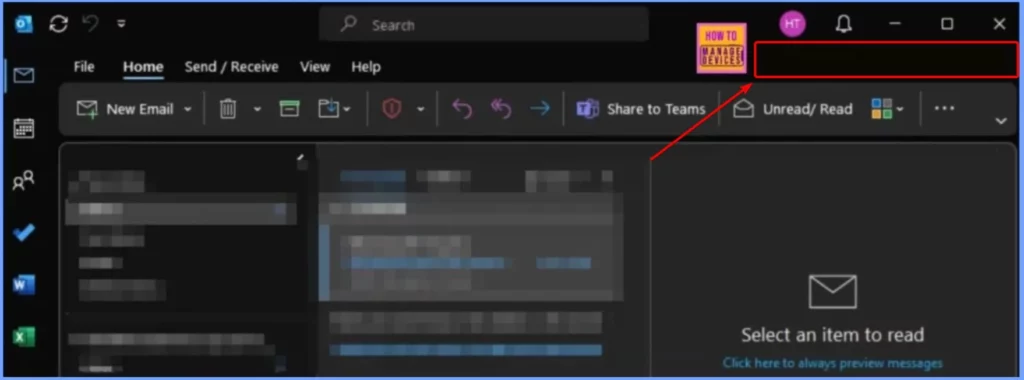
The image below shows where the “Try the new Outlook” toggle appears for users in the Outlook classic desktop app. By default, this option is located in the app’s top-right corner. However, users who launch the Outlook desktop app do not see this toggle, meaning the option to try the new Outlook is hidden.

- New Outlook For Windows Desktop App Features Walkthrough
- How To Disable Office Update Notifications Using Intune
- Change to Classic or Modern Theme in Outlook for Windows 11
Hide the Try the New Outlook Toggle in Outlook using Intune Settings Catalog Policy.
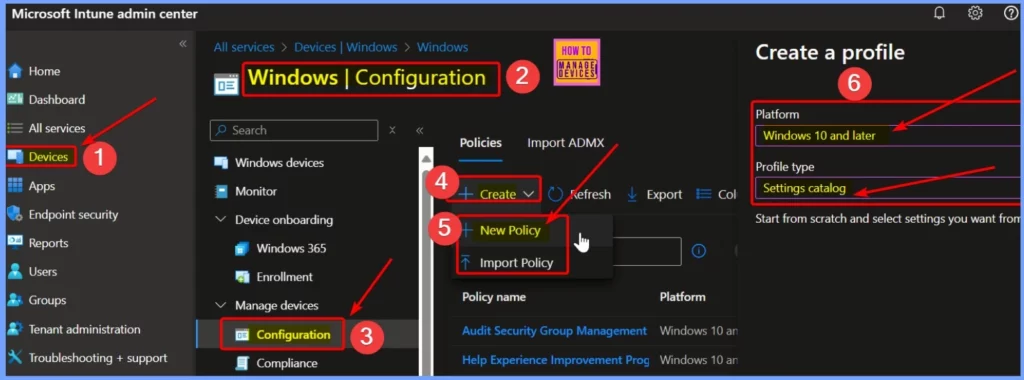
Follow these steps to create a policy in Microsoft Intune that hides the “Try the new Outlook” toggle for users: Sign in to the Intune admin center. Navigate to Devices > Windows.
- Under Manage Devices, click Configuration and then select Create > New Policy.
- In the Create a Profile window, configure the following:
- Platform: Windows 10 and later
- Profile Type: Settings Catalog
- Once configured, click Next and continue the process to create the policy.
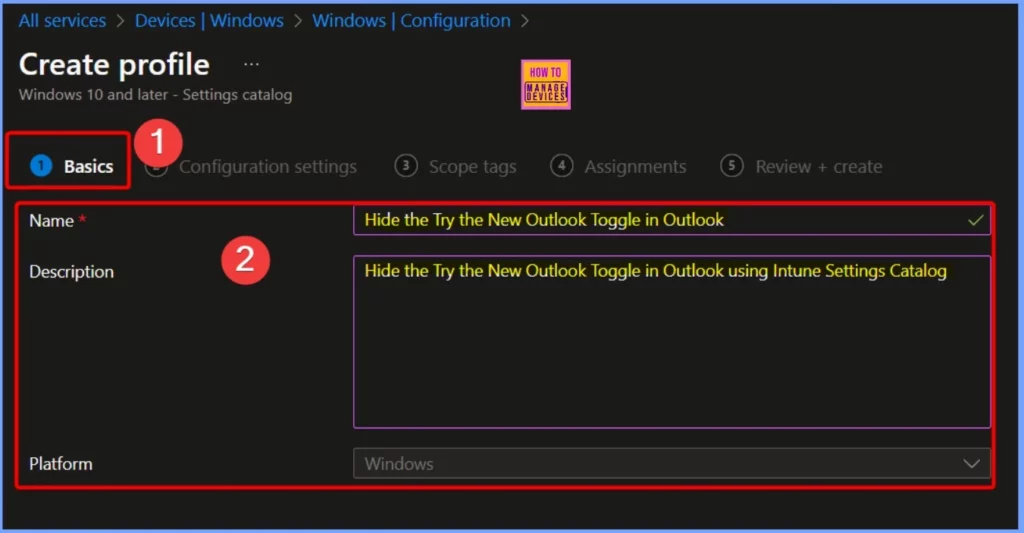
Name and Description of the Policy
In the next step, specify a policy profile name, such as “Hide Try the New Outlook Toggle.” You can also add a brief description to explain the policy’s purpose, like “This policy hides the ‘Try the new Outlook’ toggle for users to prevent switching to the new Outlook experience.” Once you have added the profile name and description, click Next to proceed with the policy creation process.
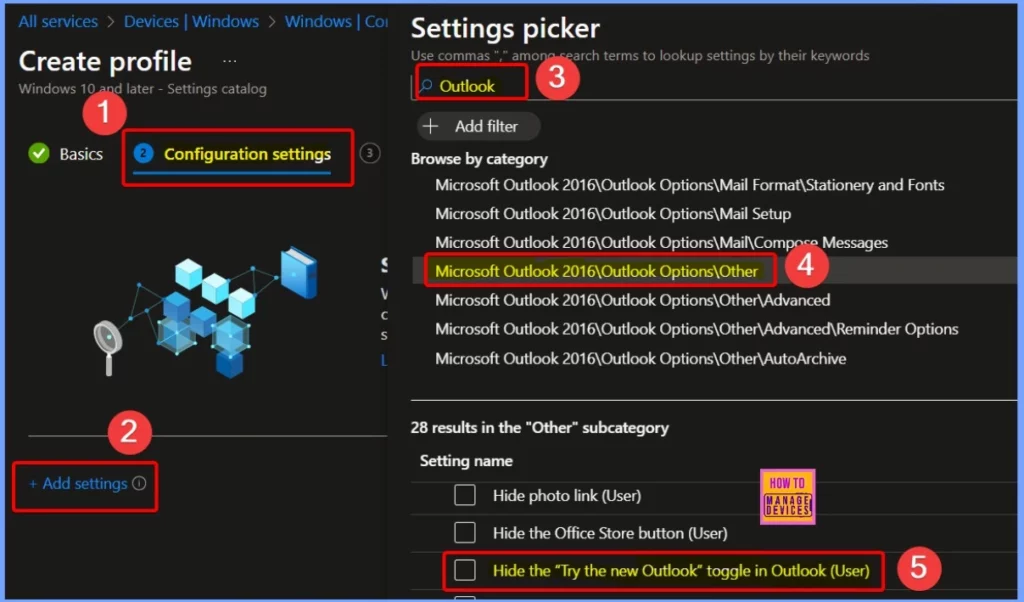
Settings Picker
Click the + Add Settings link in the Configuration Settings section under the Settings Catalog. In the Settings picker window, type “Outlook” in the search box and Search. From the results, select the category Microsoft Outlook 2016\Outlook Options\Other.
There are 28 results available under the Other subcategory. You should find and select the setting “Hide the ‘Try the new Outlook’ toggle in Outlook (User).” After selecting it, close the Settings Picker window.
- Change to Classic or Modern Theme in Outlook for Windows 11
- Conflict Errors in Outlook When Updating or Cancelling Meetings
- Recall Message Functionality Failure in Outlook Desktop
- How to Set Out of Office in Outlook
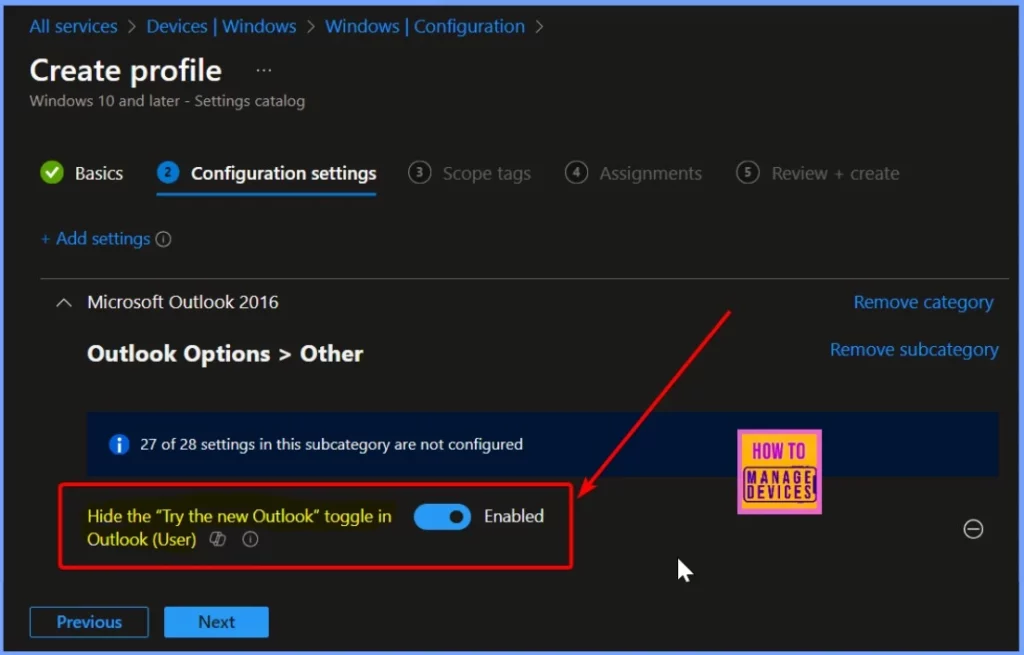
Hide the ‘Try the New Outlook’ Toggle in Outlook (User)
This policy setting controls whether the “Try the new Outlook” toggle is displayed in Outlook. If you enable this policy setting, the toggle for “Try the new Outlook” will be hidden, and users cannot switch between the existing and new Outlook experiences.
If you disable or do not configure this policy setting, the toggle for “Try the new Outlook” will be displayed. Note: This policy only applies to subscription-based Microsoft 365 Apps.
| Settings | Enable |
|---|---|
| Hide the ‘Try the new Outlook’ toggle in Outlook (User) | Toggle the Pane to the Right side |
Scope Tags and Assignments
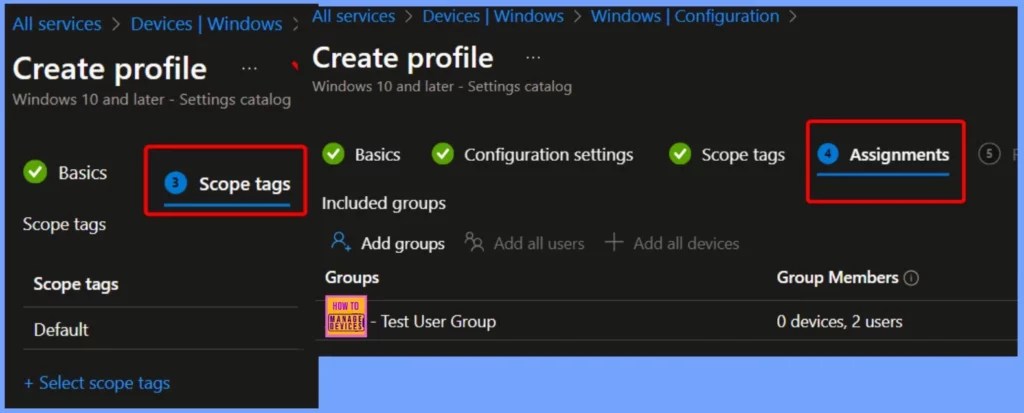
In the Scope Tags section, you can specify scope tags. These tags are optional. In the Assignments window, select the user groups that should receive this policy. It’s a good practice to assign the policy to a few test user groups first and then, if testing goes well, gradually expand it to a larger group.
Review + Create
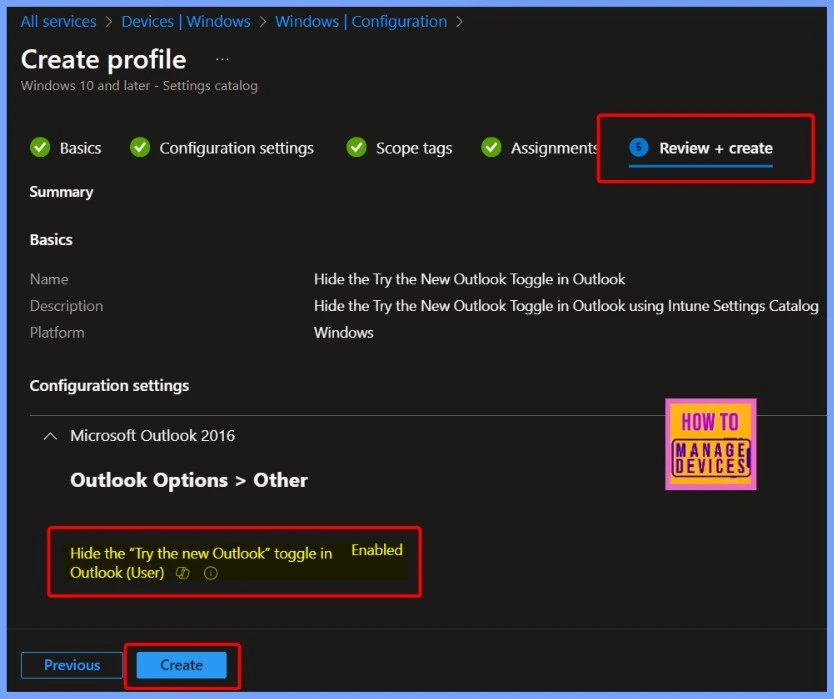
On the Review + Create page, review all the settings you’ve configured to hide the “Try the new Outlook” toggle via Intune. Once you have confirmed everything is correct, click Create to finalize and apply the policy.
Monitoring the Hide the ‘Try the new Outlook’ Toggle in Outlook (User) Status
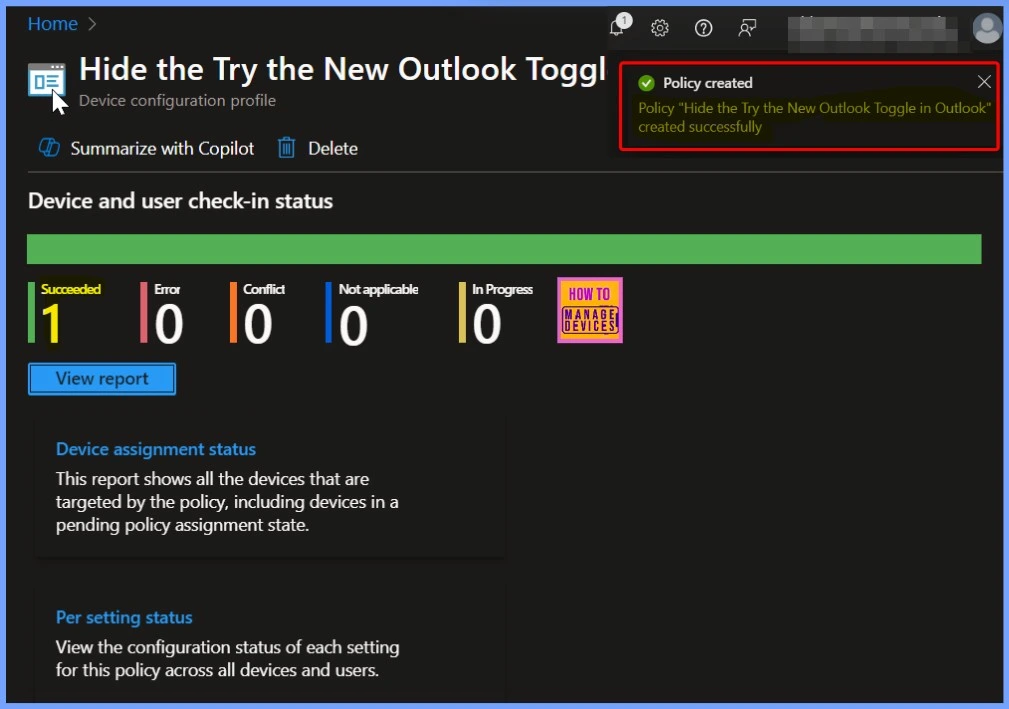
Once you create a configuration policy in Intune, you will see a notification that says, “Policy Hide the ‘Try the new Outlook’ toggle in Outlook (User) created successfully.” This confirms that the policy has been successfully set up and is being applied to the selected groups.
- Fix Outlook Error when Updating Meeting in Personal or Shared Calendar
- Classic Outlook Startup Crashes Caused by ucrtbase.dll and Learn How to Run Clean Rules Command
- Outlook Word or OneNote Closing Unexpectedly While Typing
Check Registry to Hide or Enable the “Try the New Outlook” Toggle in Outlook Desktop
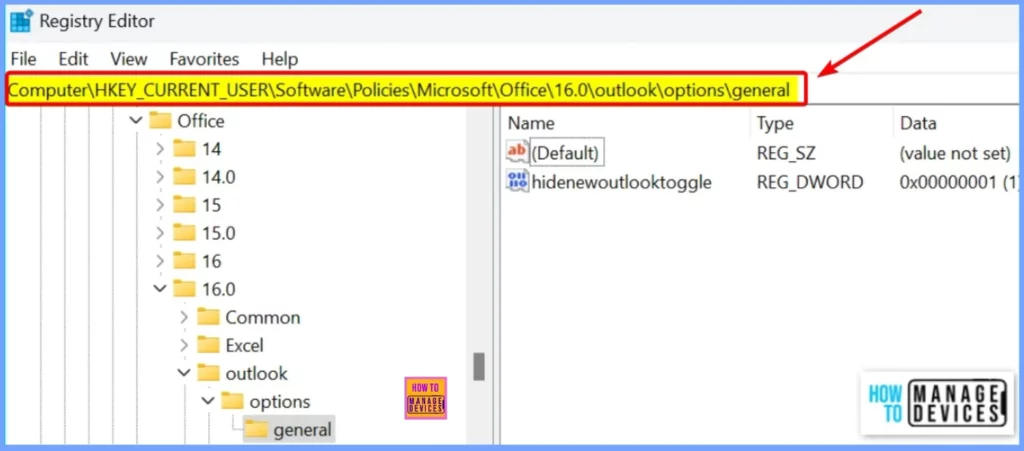
To control the visibility of the “Try the new Outlook” toggle, you can modify the Windows registry. To enable the toggle, set the registry key “HideNewOutlookToggle” to dword:00000001. This allows the toggle to appear in the Outlook desktop app. Conversely, if you want to hide the toggle, adjust the value in the registry accordingly.
//This value hides the Try the new Outlook” toggle in Outlook Desktop.
[HKEY_CURRENT_USER\Software\Policies\Microsoft\Office\16.0\Outlook\Options\General]
“HideNewOutlookToggle”=dword:00000000
End Result
Here is the final result. The window below shows that you can permanently hide the “Try the new Outlook” toggle using an Intune policy. This ensures users cannot access it.
Need Further Assistance or Have Technical Questions?
Join the LinkedIn Page and Telegram group to get the latest step-by-step guides and news updates. Join our Meetup Page to participate in User group meetings. Also, Join the WhatsApp Community to get the latest news on Microsoft Technologies. We are there on Reddit as well.
Author
Anoop C Nair has been Microsoft MVP from 2015 onwards for 10 consecutive years! He is a Workplace Solution Architect with more than 22+ years of experience in Workplace technologies. He is also a Blogger, Speaker, and Local User Group Community leader. His primary focus is on Device Management technologies like SCCM and Intune. He writes about technologies like Intune, SCCM, Windows, Cloud PC, Windows, Entra, Microsoft Security, Career, etc.


Discussion