






New Copilot Actions to Customize Your Template Settings to Automate Everyday Tasks
Copilot Actions is Now Available to Automate Everyday Tasks! Copilot Actions is a great way to simplify gathering insights before customer meetings. Using templates, you can automate tasks that pull information from various sources, such as emails, calendar events, documents, and more, all in one place.
Nicole Herskowitz will highlight the newest features of Microsoft 365 Copilot in the Ignite 2024 session and show how It is changing how we work by improving productivity and rethinking business processes. With tools like Copilot Studio and Power Platform, Copilot helps you make the most of your data and business systems.
Copilot is an AI-powered assistant built into Microsoft 365 tools (like Word, Excel, PowerPoint, Outlook, Teams, and more) to help users be more productive by automating tasks, generating content, and providing intelligent suggestions.
This post will cover everything you need to know about Copilot Actions, which are now available to help automate everyday tasks. Copilot Actions makes it easier to manage routine activities by using simple tools and templates.

Table of Contents
Copilot Actions Now Available to Automate Everyday Tasks
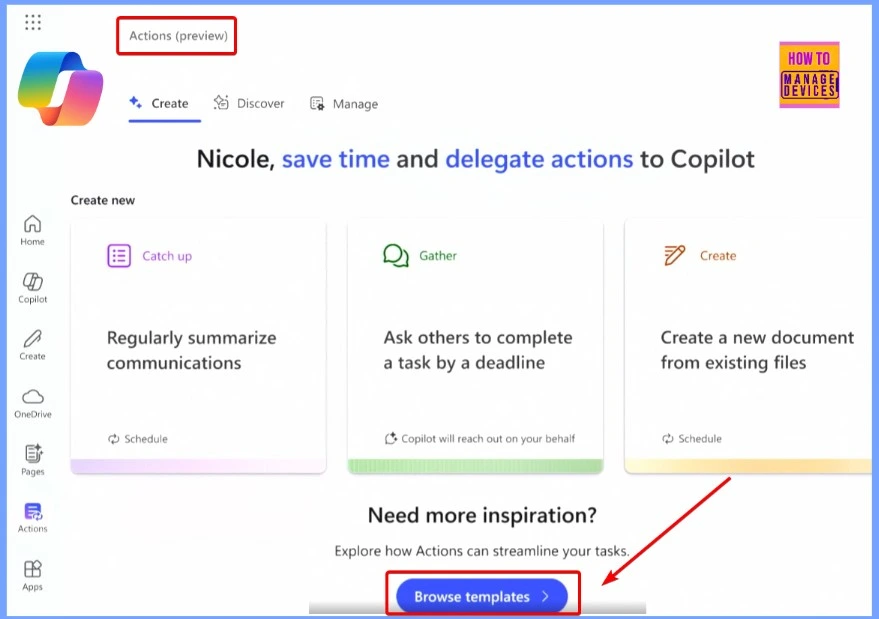
With Copilot Actions, you can easily automate your tasks. On the Copilot Actions screen, you will find options to explore different actions that can help simplify your work. To get started, click the “Browse Templates” button in the screenshot below. This will let you see various templates designed to streamline your tasks and save you time.
- Top 5 Windows 11 Security Features Microsoft Announced for During Ignite 2024
- Top 4 Security Copilot Use Cases and Prompts for Entra Shared by Microsoft
- New Dedicated Mode Experience in Windows 365 Frontline
- New Shared Mode Experience in Windows 365 Frontline Unlocking New Possibilities for Task Productivity
Browse and Select the Right Template for Your Needs
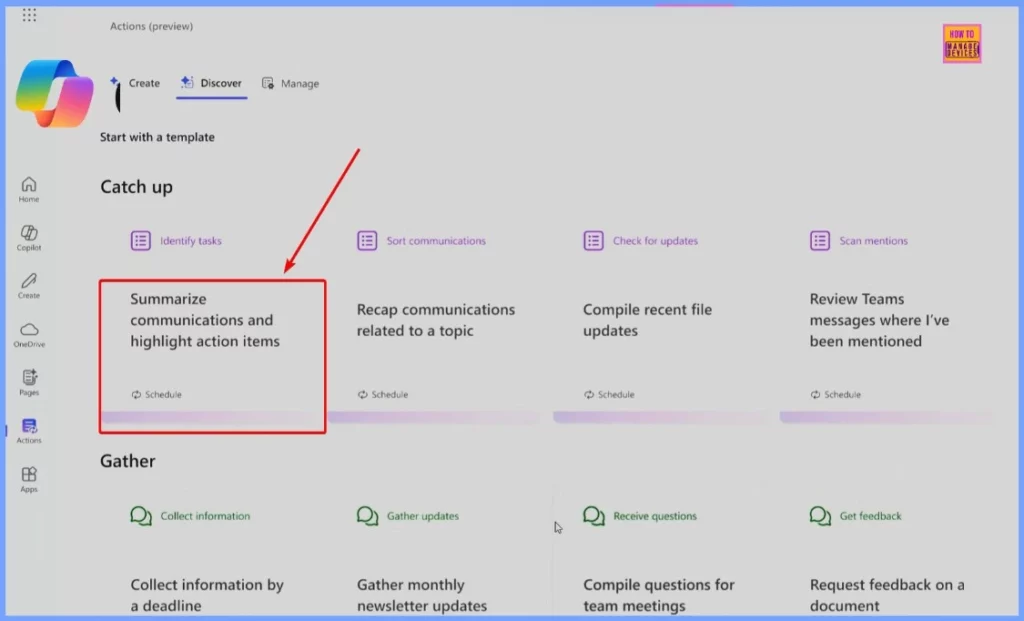
These are the available templates. Take some time to browse through them and select the one that best fits your needs. If you’re looking to gather information from all your communications—like emails, Teams chats, and meetings—you can pick a template that focuses specifically on pulling together those details. This will help you get a clear, organized view of everything you need.
| Browse and Select the Right Template for Your Needs |
|---|
| Communication and highlighting action items |
| Recap communications related to a topic |
| Compile recent file updates |
| Review Teams messages where I’ve been mentioned |
| Collect information Gather updates |
| Collect information by a deadline |
| Gather monthly newsletter updates |
| Compile questions for team meetings |
| Request feedback on a document |
Customize Your Template Settings
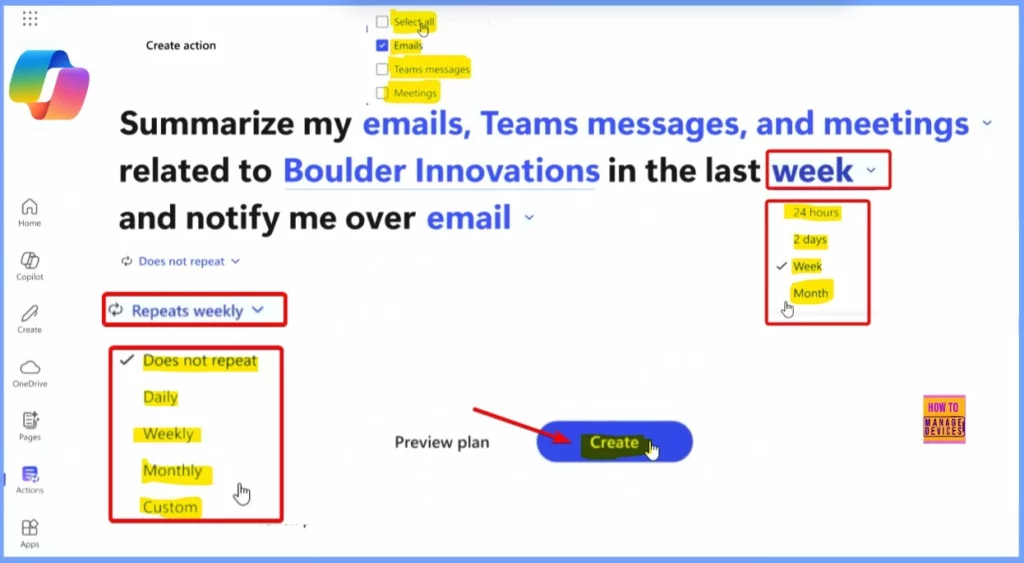
This is the template we selected. Here, you can choose to focus on different types of communication, such as emails, meetings, or Team messages, or select all of them. In the “Week” section, you’ll find 24-hour, 2-day, week, or month options to narrow down the time frame. Once you’ve selected all the settings that fit your needs, click the “Create” button.
| Repetition Options |
|---|
| Does not Repeat |
| Daily |
| Weekly |
| Monthly |
| Custom |
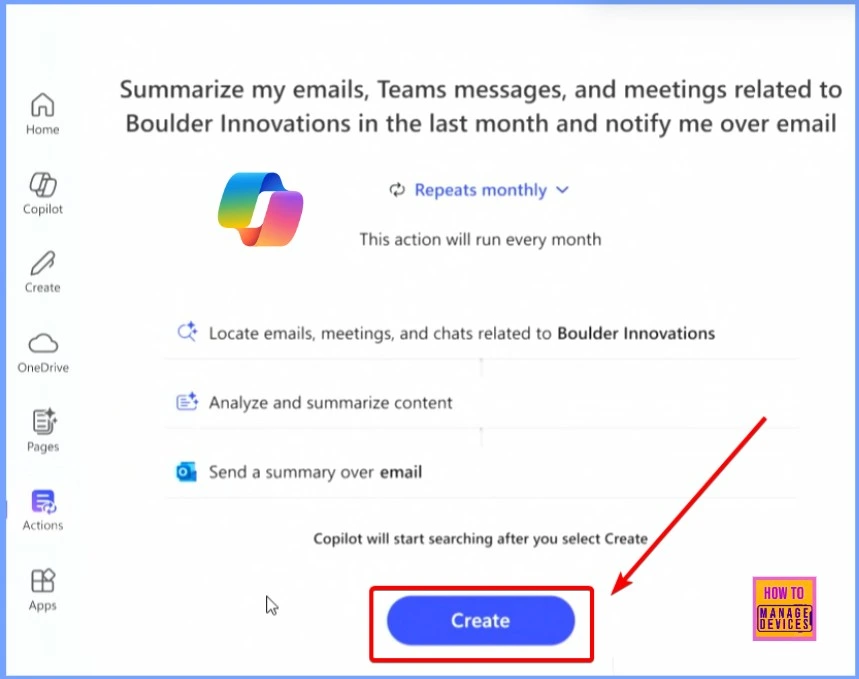
We selected the template: “Summarize my emails, Teams messages, and meetings related to Boulder innovations in the last month and notify me over email.” Once you click the “Create” button, Copilot will start searching for all the relevant information. Click the “Create” button below to begin the process.
Manage Settings
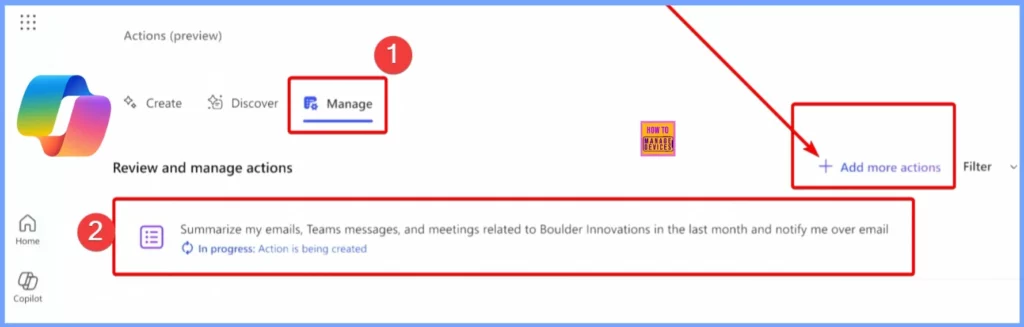
Under “Manage settings,” you can review and manage your actions. If you want to add more actions, click the “+ Add more Actions” link. The window below shows more details on how to add and customize actions to suit your needs.
End-User Experience
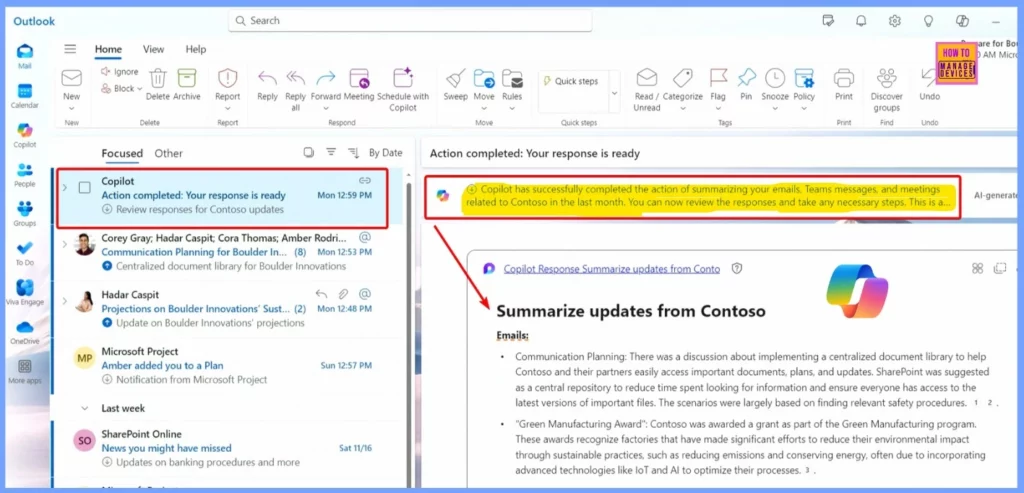
When you switch to Outlook, you’ll see that the Copilot action has been completed successfully. A message will appear: “Copilot has completed summarizing your emails, Teams messages, and meetings related to Contoso in the last month. You can now review the responses and take any necessary steps.”
Need Further Assistance or Have Technical Questions?
Join the LinkedIn Page and Telegram group to get the latest step-by-step guides and news updates. Join our Meetup Page to participate in User group meetings. Also, Join the WhatsApp Community to get the latest news on Microsoft Technologies. We are there on Reddit as well.
Resources
Enhance IT expertise and efficiency with Copilot in Microsoft Intune
Author
Anoop C Nair has been Microsoft MVP from 2015 onwards for 10 consecutive years! He is a Workplace Solution Architect with more than 22+ years of experience in Workplace technologies. He is also a Blogger, Speaker, and Local User Group Community leader. His primary focus is on Device Management technologies like SCCM and Intune. He writes about technologies like Intune, SCCM, Windows, Cloud PC, Windows, Entra, Microsoft Security, Career, etc.



Discussion