






Enable Disable Speech Recognition in Microsoft Edge Through Microsoft 365 Admin Center Policy
Hi, we are discussing Enable Disable Speech Recognition in Microsoft Edge through the Microsoft 365 Admin Center Policy today. As you all know, speech recognition is one of the specific features of Microsoft Edge. When busy schedules work with speech recognition, it is very easy to reduce the workload.
Speech recognition is now the best feature in edge browsers for boosting user interaction and accessibility. Microsoft Edge uses advanced speech recognition to enhance user experience and make workflows more efficient. With this feature, users can control the web browser through voice commands.
Speech recognition allows users to perform browser searches through voice commands. It is one of the best, right? So, for administrators, enabling this feature is one of the essential things to do to make users more productive.
The Microsoft 365 Admin Center Policy allows administrators to manage settings in Microsoft products, such as Edge. These policies can control features like speech recognition, ensuring a secure and efficient browsing experience.

Table of Contents
What is Speech Recognition in a Browser?
Enable Disable Speech Recognition in Microsoft Edge Through Microsoft 365 Admin Center Policy
We discussed many things about speech recognition; now, we must see how to enable or disable it in Edge through the Microsoft 365 admin centre policy. Refer to our other posts for detailed guides on enabling and disabling various Edge features using the MS 365 Admin Center Policy. These posts will provide you with simple steps and details.

- Turn Off Online Speech Recognition Using Intune MEM
- How to Enable or Disable Voice Access in Windows 11
- Enable Disable Search Bar Allowed in Edge Through Microsoft 365 Admin Center Policy
Enable Speech Recognition Disable in Microsoft Edge Using Microsoft 365 Admin Center Policy
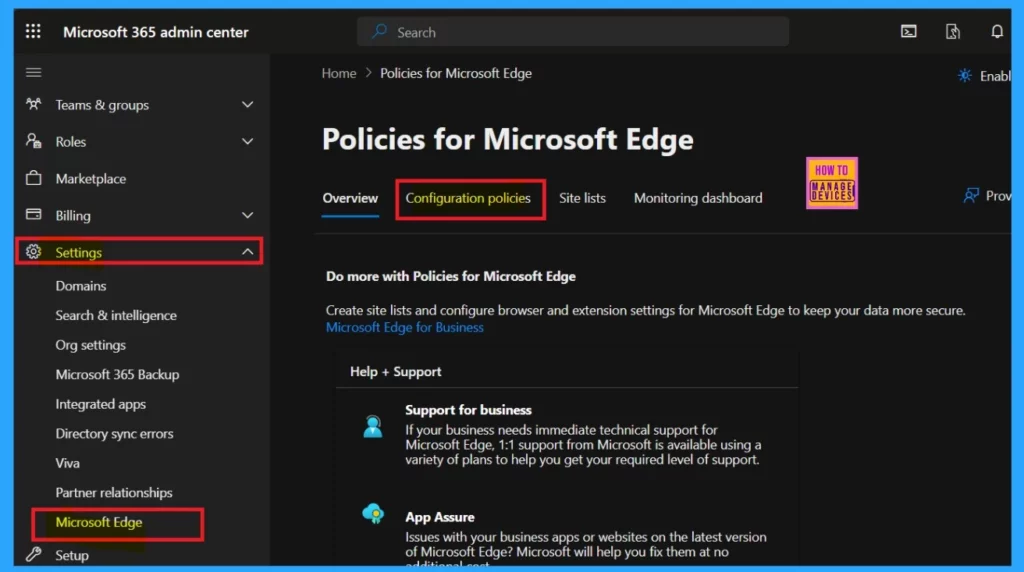
First, you must sign in to the Microsoft admin center and login with your credentials. Now you have to navigate Settings >Microsoft Edge >Configuration profile. Click on the Configuration profile.
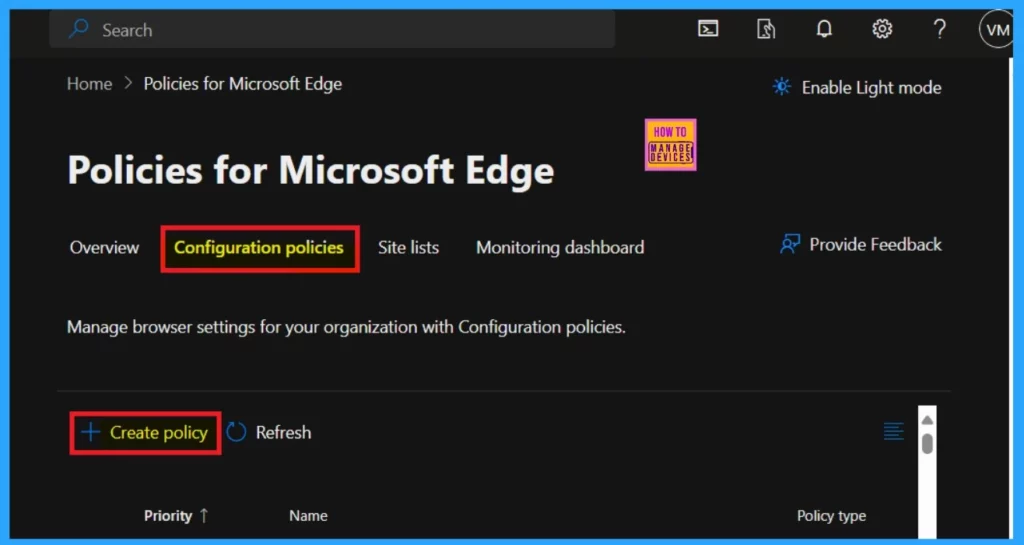
You are now on the page for Microsoft Edge configuration. Here, you can create a new policy for speech recognition, right? The Create policy option is there; click on it.
Basics
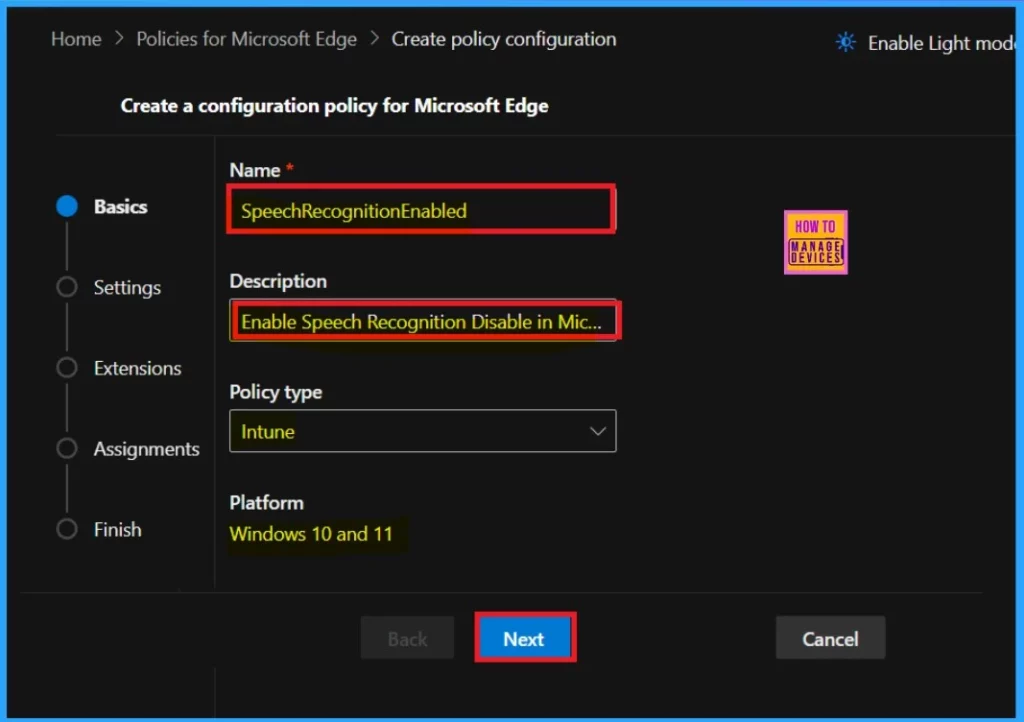
Now you are on the basic Page. As you all know, configuration policies have 5 steps, such as basic settings extension, etc. In the basic section, you must enter the policy’s Name. Here, I added Speech recognition, and in the Description, I entered the following:” Enable Speech Recognition Disable in Microsoft Edge Through Microsoft 365 Admin Center Policy,” for example.
- Then, the policy type is Intune, and the platform must be Windows 10 and 11.
- Click on the Next for the next page.
| Configuration Steps |
|---|
| Basic |
| Settings |
| Extension |
| Assignments |
| Finish |
Settings
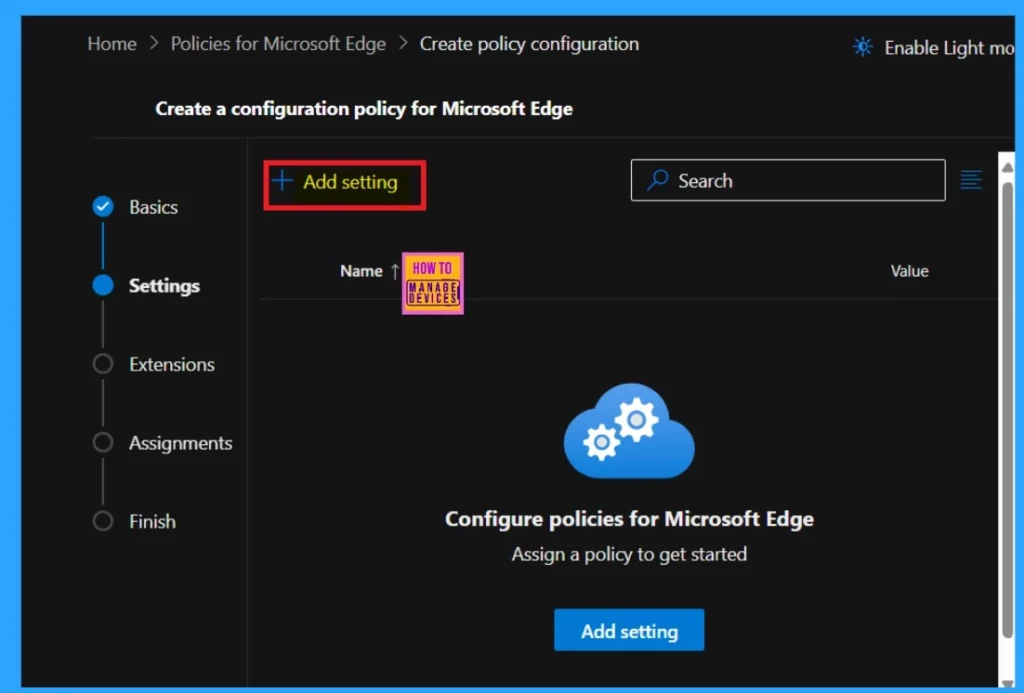
After the basic section, we are in the critical section of a configuration, such as Setting. Setting is essential to controlling a feature, so we can’t skip this one. So Click on the Add Settings option.
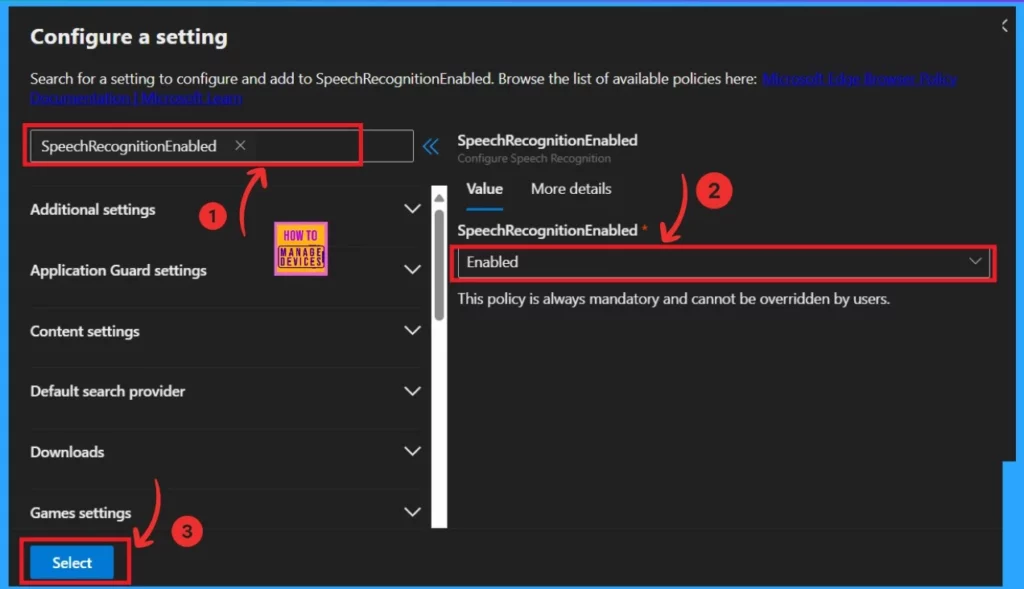
On the settings page, you can find the policy name under the setting categories, such as additional Settings Application guard settings, or you can directly enter the policy name (Search Recognition) in the search bar. After that, you will get the value-added options on the right side of the window. Here, you can enable the option by clicking on the drop-down arrow.
More Details
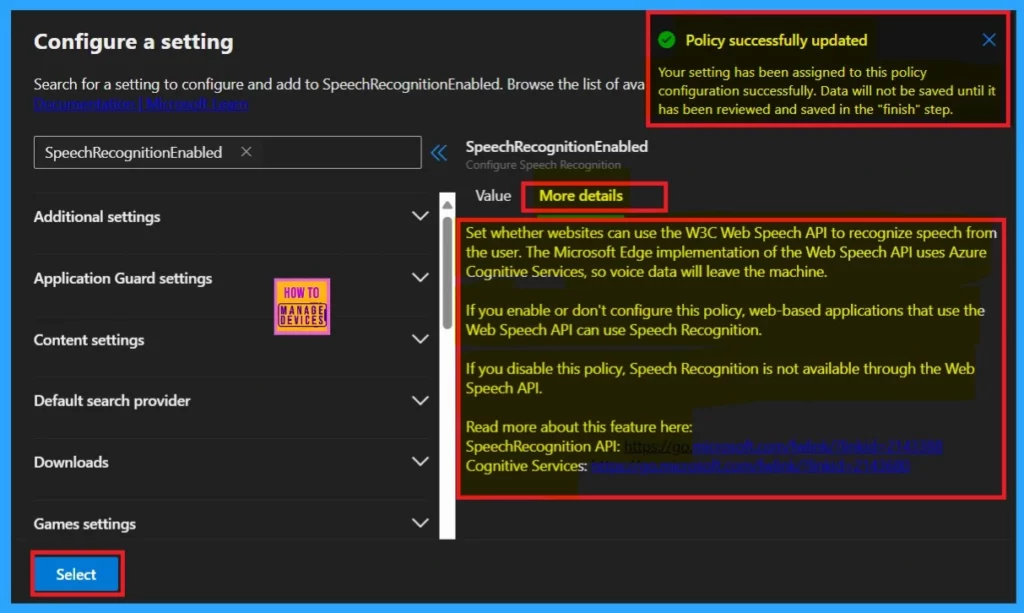
In the value section, you will notice that the more details option provides more details about the particular Setting. This option explains how Microsoft Edge allows websites to use speech recognition technology to understand what you say.
Also, ” Set whether websites can use the W3C Web Speech API to recognize speech from the user. The Microsoft Edge implementation of the Web Speech API uses Azure Cognitive Services so that voice data will leave the machine”.
- Click on the Next
- Now, you will be notified that the policy has been successfully updated.
| Settings | Info |
|---|---|
| Enable | Web apps can listen to your voice and convert it into text when enabled. If you turn this feature on or don’t change any settings, websites can use speech recognition. |
| Disable | It disables websites that can’t use speech recognition. |
Extension
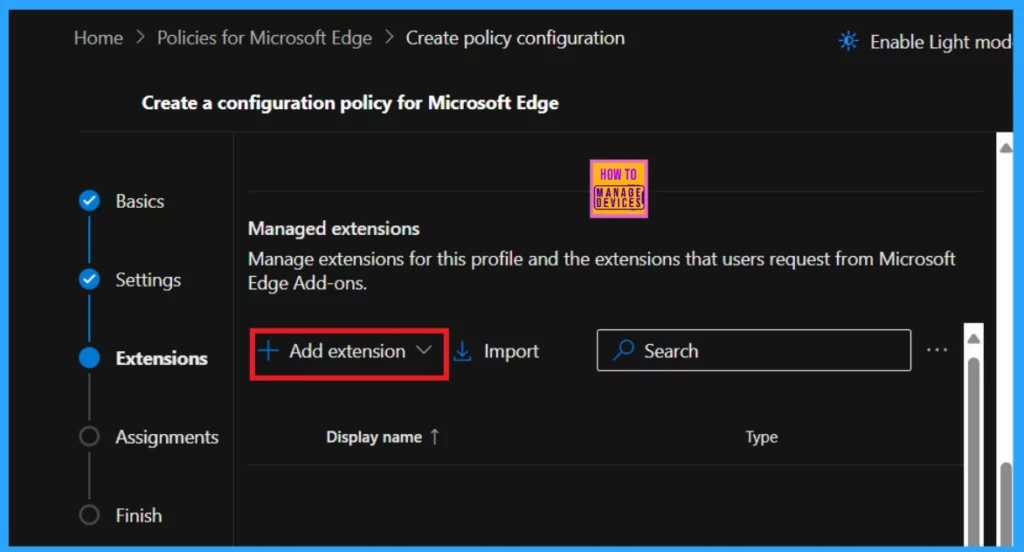
In the Microsoft 365 Admin Center, you can manage extensions (add-ins) for Microsoft Edge and other Office apps. You can skip this section. There is no need for this section in this policy. For the next page, click on the Next option.
Assignments
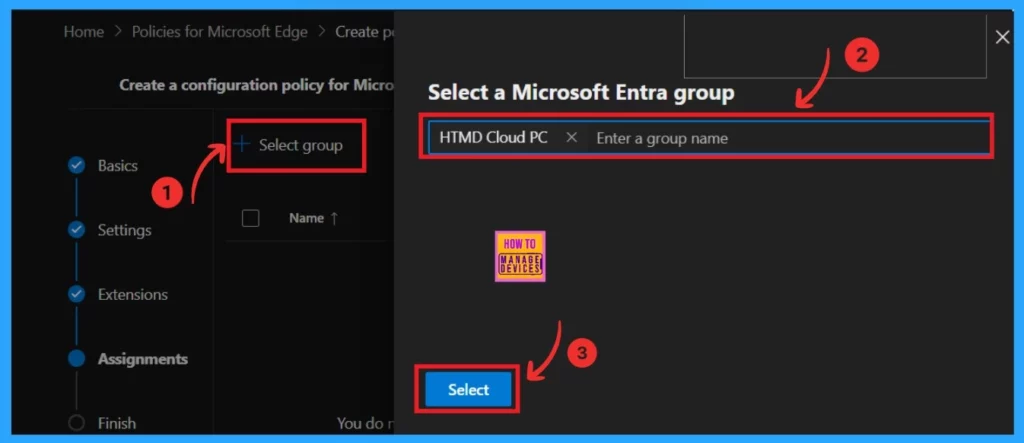
The Assignment section is another important section for a configuration policy, just like settings. Here, you can assign the policy to a number of groups so the group members(users) can use speech recognition. So click on the Select a group option.
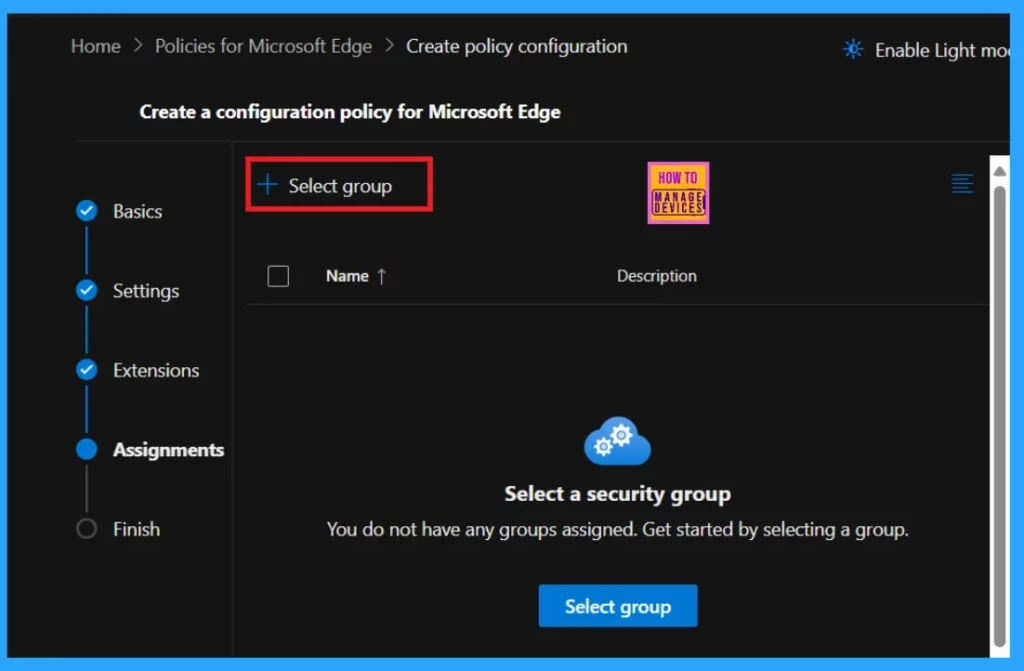
After clicking on the select group option, you can select the group that wants to deploy the policy. For example, I selected the HTMD Cloud PC group and then clicked on the select option.
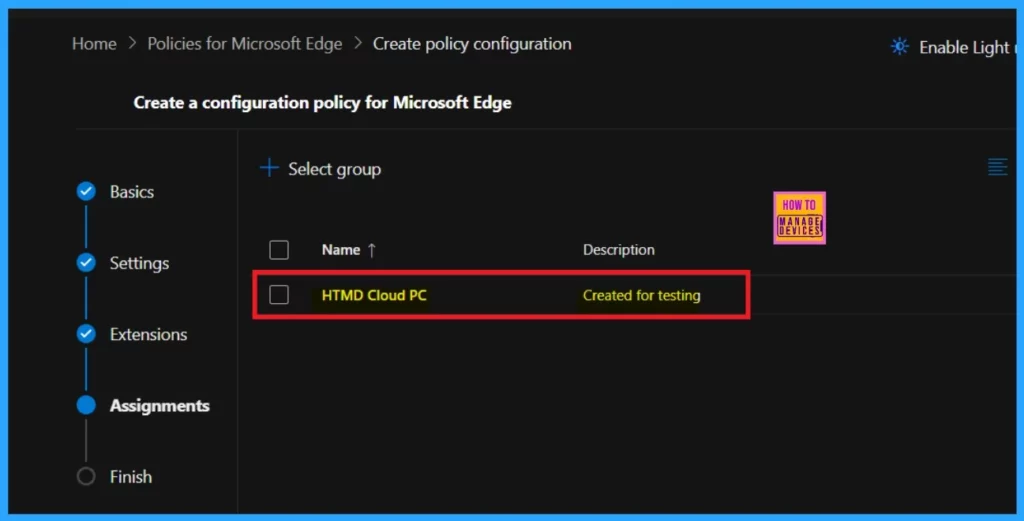
You can see that the policy is created for testing for the selected groups. And you know applying this policy to the group will take some time. So you can wait for it or use the sync option on the company portal.
Finish
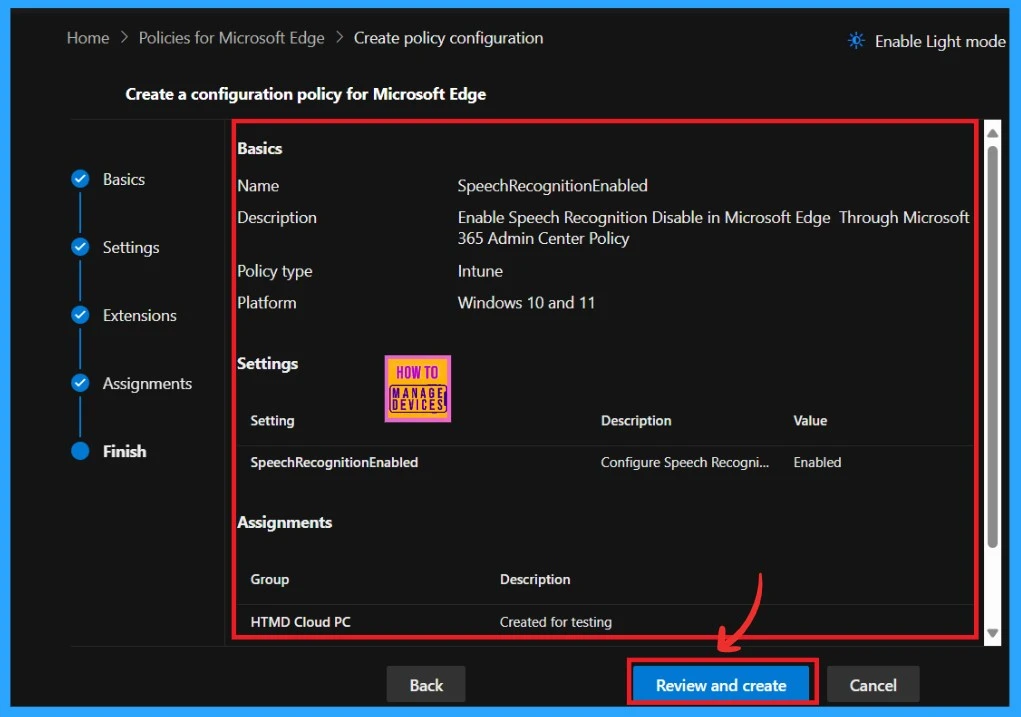
The last step is the finish option. Here, you can see that the overall details are given to the speech recognition policy, and you can easily edit them before you create the policy. Now, you can click on the Review and create an option after checking if everything you entered is correct.
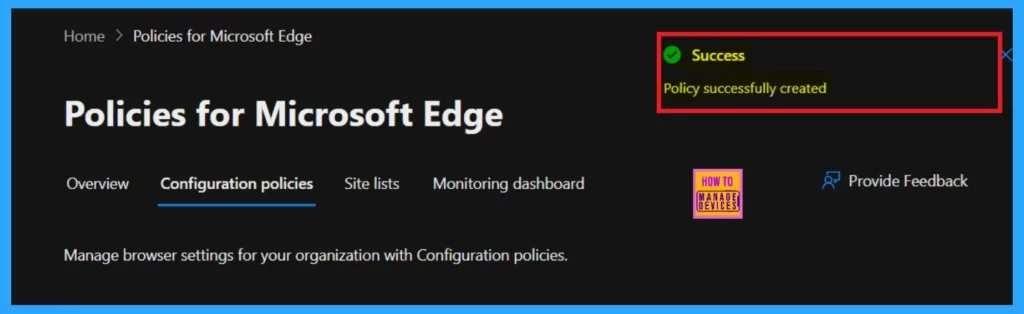
After clicking the review and create button, you will be notified that the policy was successfully created. You can then wait 8 hours to deploy it to the assigned groups. I already mentioned that you can use the sync option in the company portal.
Result Image
When you open Microsoft Edge, you can use the shortcut key Win+H to open Speech Recognition. Try using voice commands or dictation to see if speech recognition is available.
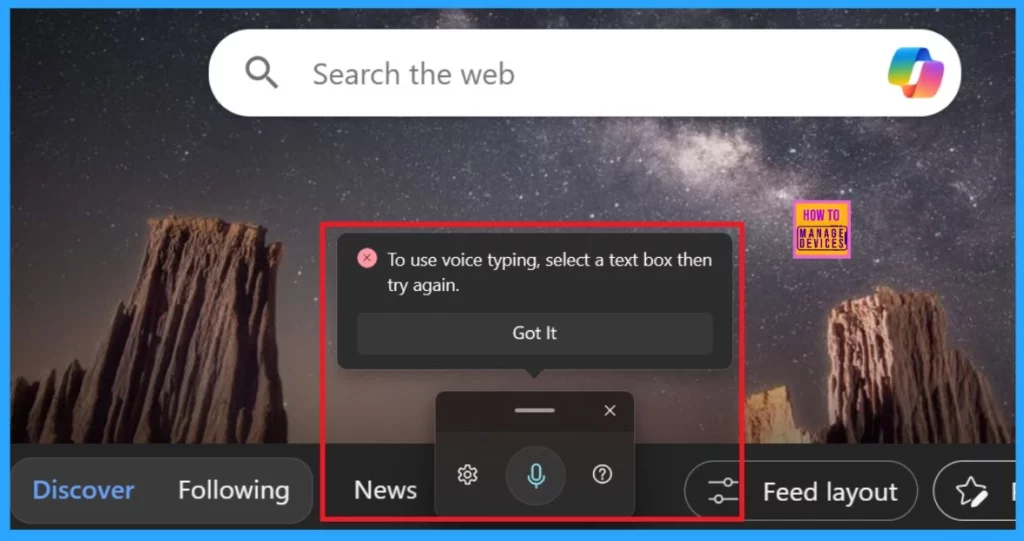
You can use this by selecting a text box and giving voice commands. Here, you can see that I selected the Google text box and then clicked the Mic and said, “Hello, I’m voice commands,” which I typed into the Google search.
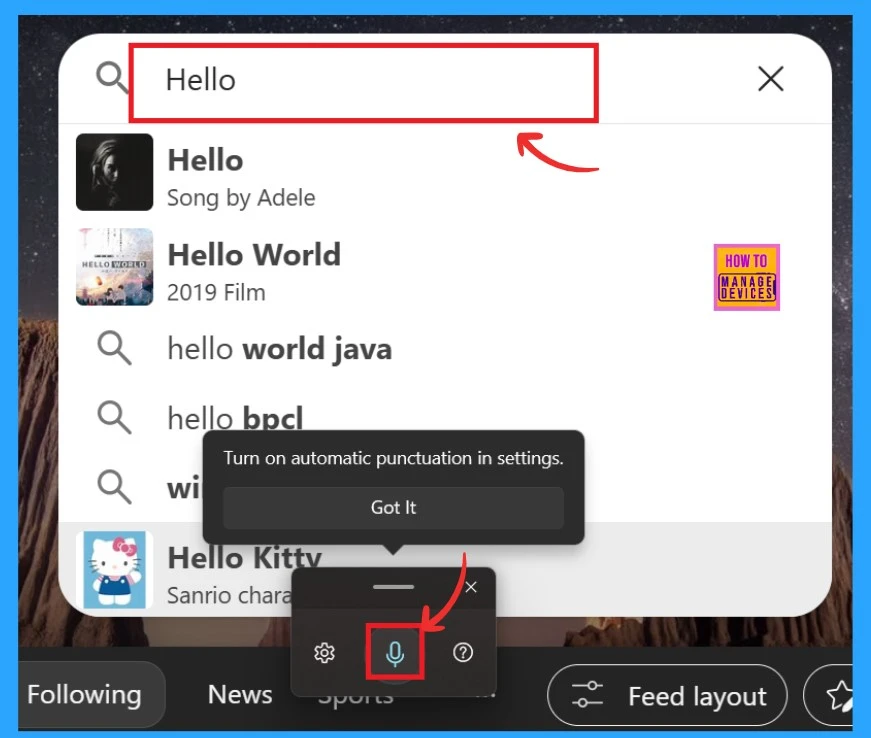
Disable an Existing Policy
This is a better option than Making Changes to the existing policy. Here, you know we created an enabled policy; now, we can disable the policy through the existing one. So first, you have to log in to MS 365 and do the same as we did (Settings > MS Edge > Configuration Policy).
- In the configuration policy, you can see that already created policies are in a list.
- You can select the speech recognition policy from that list.
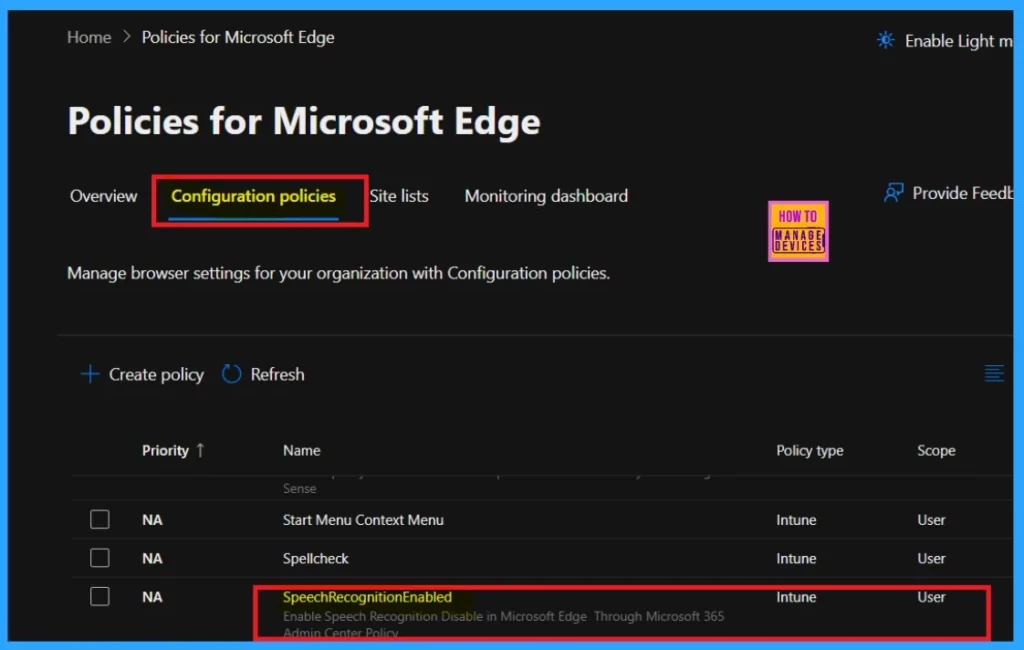
You will get the policy details page when you click on the speech recognition policy. Click on the setting option. The screenshot below shows this, and it will guide you.
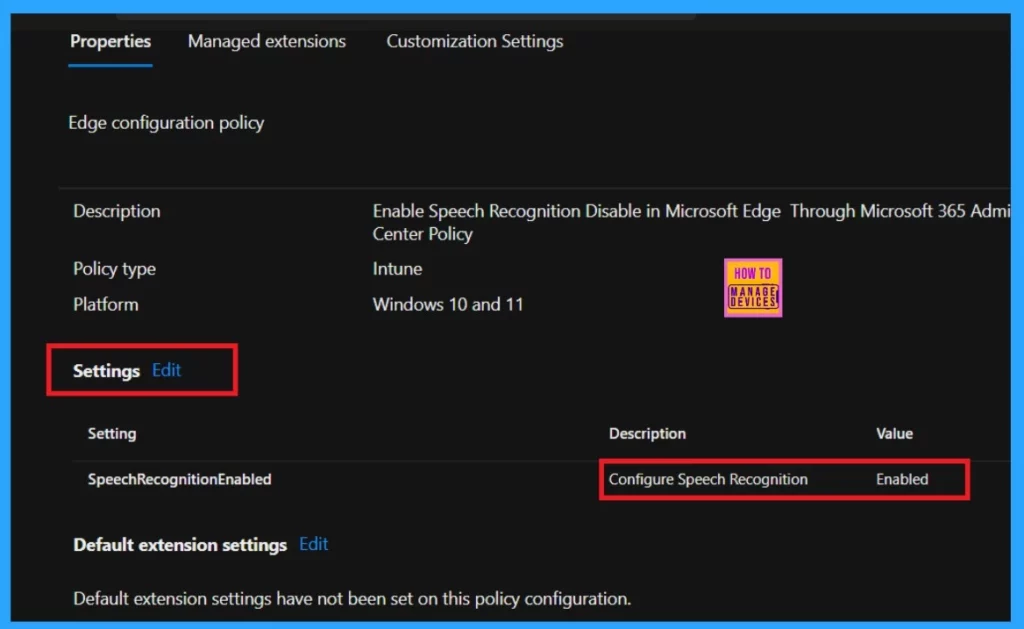
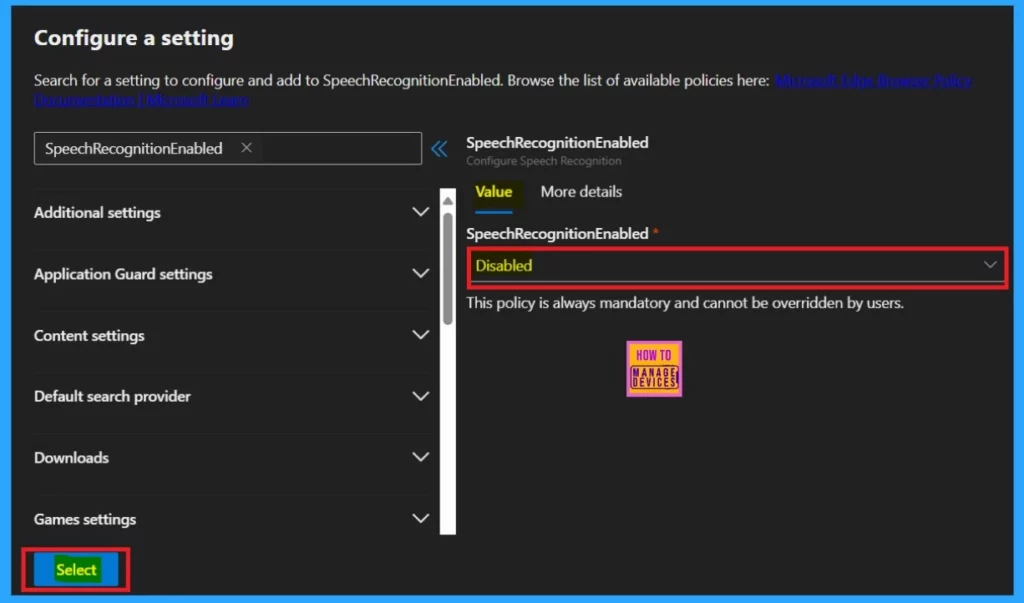
On the settings page, you can access the value-added option you are using in the enable section. To do so, click on the value section, the drop-down arrow, and select the Disable option. Then click on the Select option.
Result Image
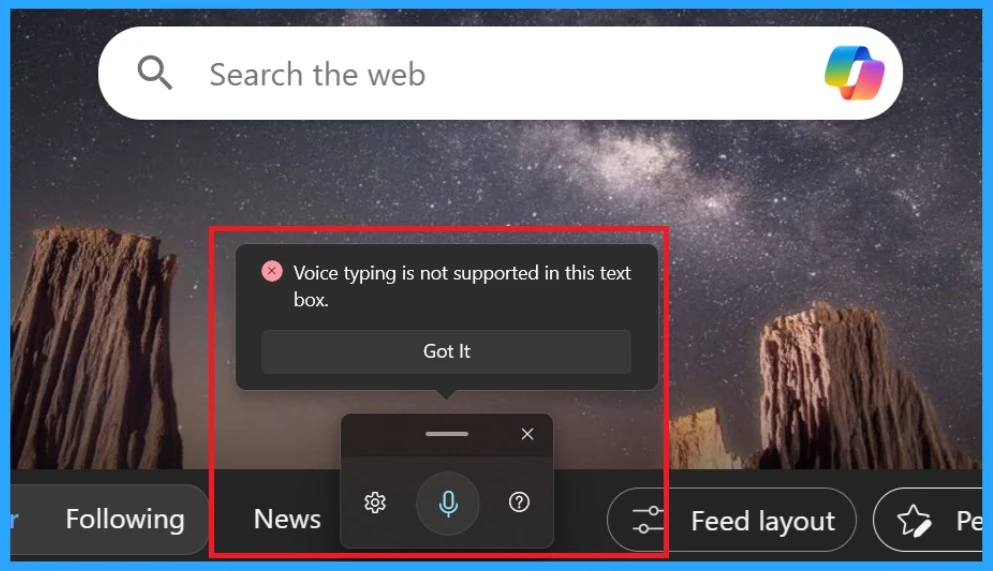
After the policy deployment time, you can check it on Microsoft Edge. Open Microsoft Edge; you can use the shortcut key Win+H to open Speech Recognition. Then, you will see that voice typing is not supported in this text box.
Need Further Assistance or Have Technical Questions?
Join the LinkedIn Page and Telegram group to get the latest step-by-step guides and news updates. Join our Meetup Page to participate in User group meetings. Also, Join the WhatsApp Community to get the latest news on Microsoft Technologies. We are there on Reddit as well.
Author
Anoop C Nair has been Microsoft MVP from 2015 onwards for 10 consecutive years! He is a Workplace Solution Architect with more than 22+ years of experience in Workplace technologies. He is also a Blogger, Speaker, and Local User Group Community leader. His primary focus is on Device Management technologies like SCCM and Intune. He writes about technologies like Intune, SCCM, Windows, Cloud PC, Windows, Entra, Microsoft Security, Career, etc.




Discussion