






How to Install Power BI Desktop App using Intune Enterprise App Catalog App
Let’s discuss how to Install the Power BI Desktop App using the Intune Enterprise App Catalog App. Using the Intune Enterprise App Catalog App, you can easily install the Power BI Desktop App for your organization. Microsoft adds the Power BI Desktop app to the Enterprise App catalog app.
As you know that Power BI is a Powerful data Visualization and business intelligence tool. It is developed by Microsoft that allows users to connect to various data sources, transform and model the data. Power BI also helps to create interactive reports and dashboards.
An organization can choose this tool to access real-data from various sources and it offers a cost-effective solution for business intelligence, with flexible pricing options to suit different organizational needs. It integrates seamlessly with other Microsoft products like Excel, Azure, and Dynamics 365 etc.
With Enterprise app catalog app in Intune, you can quickly depoly this app for your organzation. Enterprise Catalog app simplifies the app management process by allowing you to discover and add apps directly from the Intune console. In this blog post i will give you step by step guidance to install this app.

Table of Contents
What is the Difference between Enterprise App Catalog App and Microsoft Store App?
How to Install Power BI Desktop App using Intune Enterprise App Catalog App
Enterprise App Catalog App helps you to deploy the the latest version of Power BI Desktop app so you can keep this app up-to-date. You can save time and reduce complexity with Intune Enterprise App Catalog app.
- Sign in to Microsoft Intune Portal
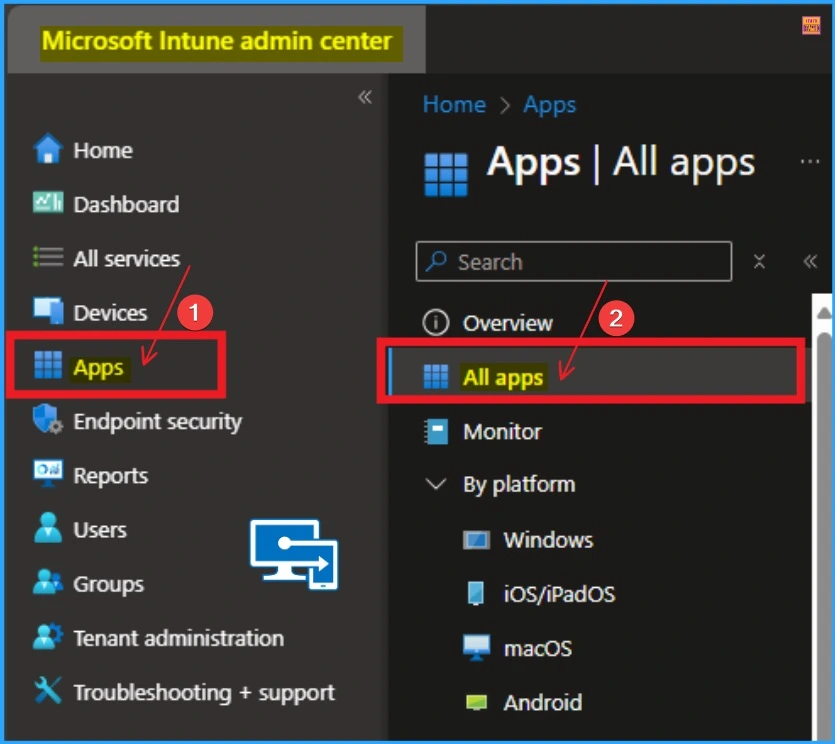
- Select Device blade from the left side of the portal.
- How to Install Google Backup and Sync App with Intune Using Enterprise App Catalog App
- Deploy Windows Catalog App type using Intune Enterprise Application Catalog
- 6 Exciting Features Coming to Intune Enterprise App Management
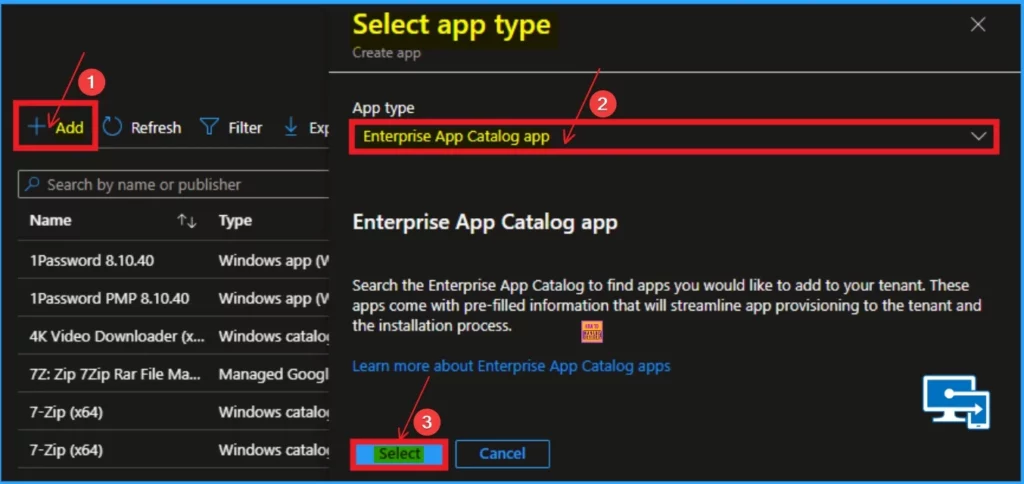
After selecting all apps section, click on the +Add button. From this window you can select app type. Here I select Enterprise App Catalog App. After that click on the Select button.
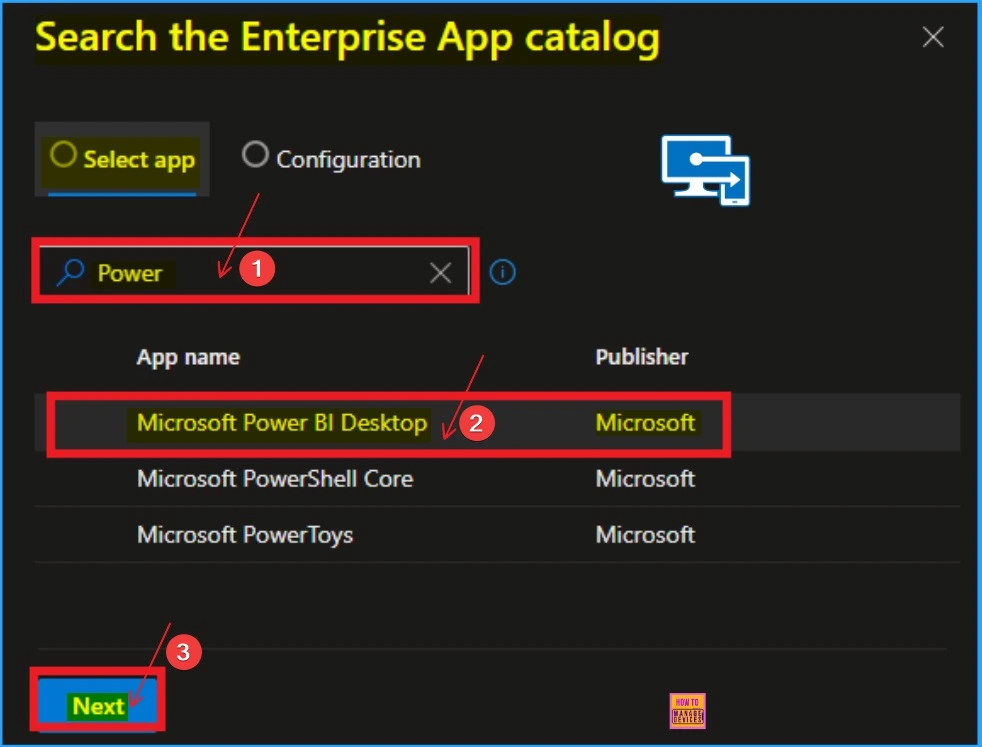
On the Next window you can see 2 tabs such as Select app and Configuration. And also you can search and select an Enterprise App. Here i search for Power on the Searchbar. I got 3 result such as Microsoft Power BI Desktop, Microsoft PowerShell Core, Microsoft PowerToys etc.
- Select Power BI Desktop app
- Click on the Next button
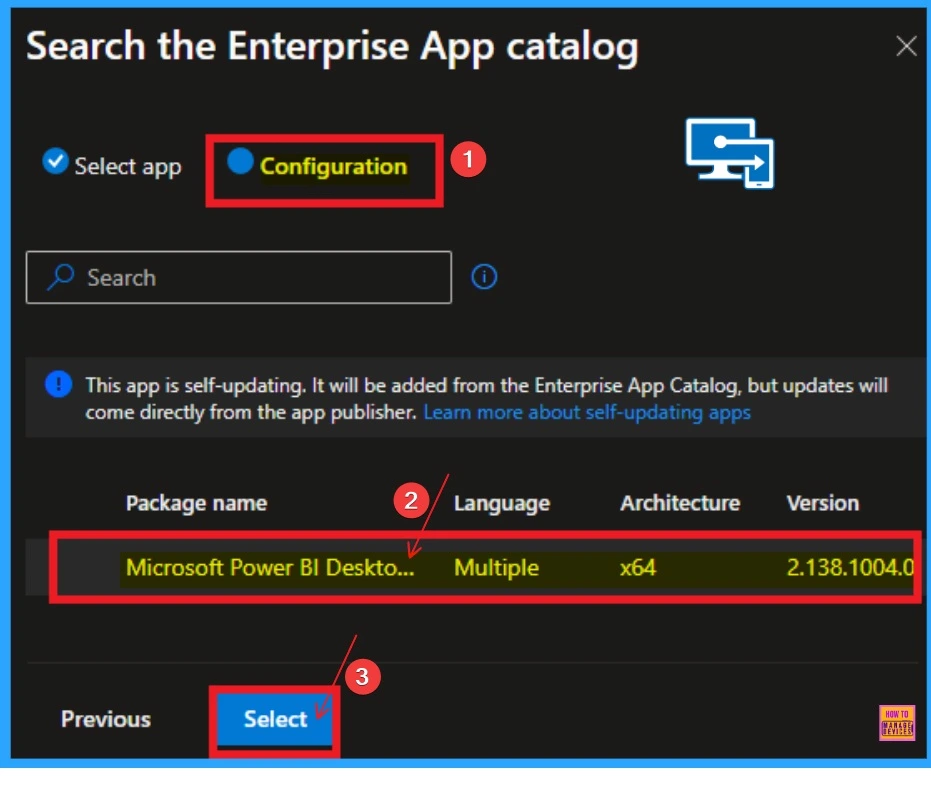
After that select the Configuration tab and you can see the details of Power BI Desktop app. This window also shows information like “This app is self-updating. It will be added from the Enterprise App Catalog, but updates will come directly from the app publisher“.
- Click on the select button
| Package Name | Language | Architecture | Version |
|---|---|---|---|
| Microsoft Power BI Desktop | Multiple | x64 | 2.138.1004.0 |
App Information
App Information tab includes various details of the selected app (Power BI Desktop app). The details includes Name, Description, Publisher, App name etc.
- Click on the Next button
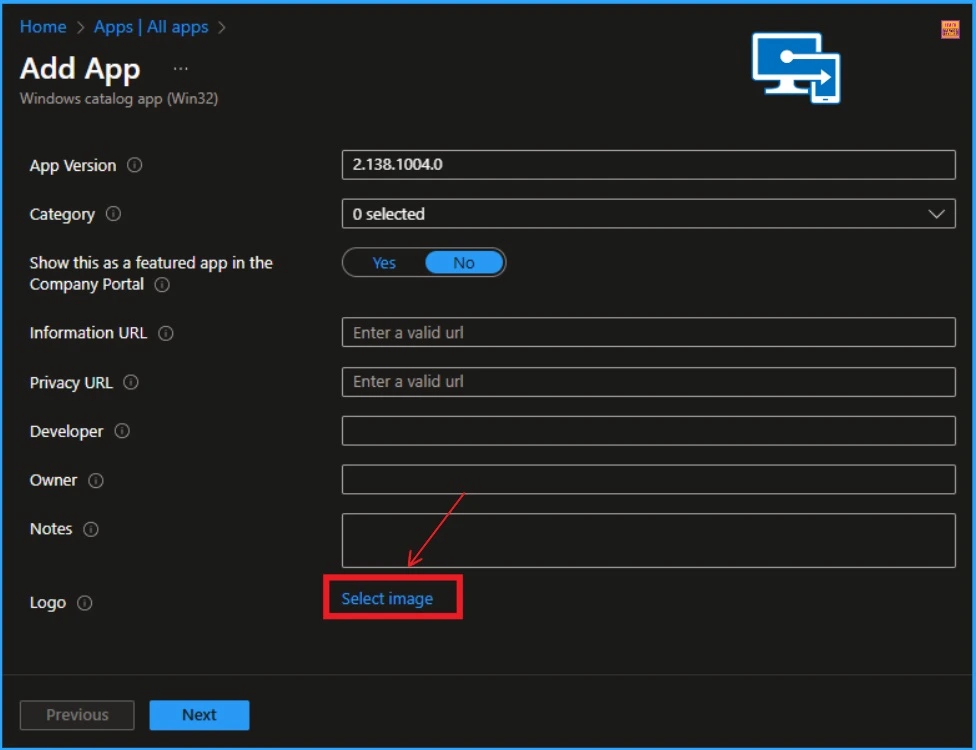
on the App Information tab you can also see some other details. You can Add Logo of the Power BI Desktop app from this window. Click on the select Image hyperlink near the Logo.
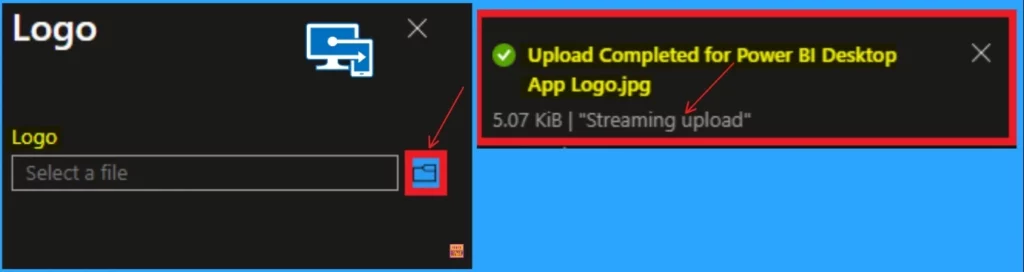
After that, click on the file icon shown on the Logo window. You can select the logo from your device. After selecting the logo you will get a message on the Intune Portal as “Upload Completed“.
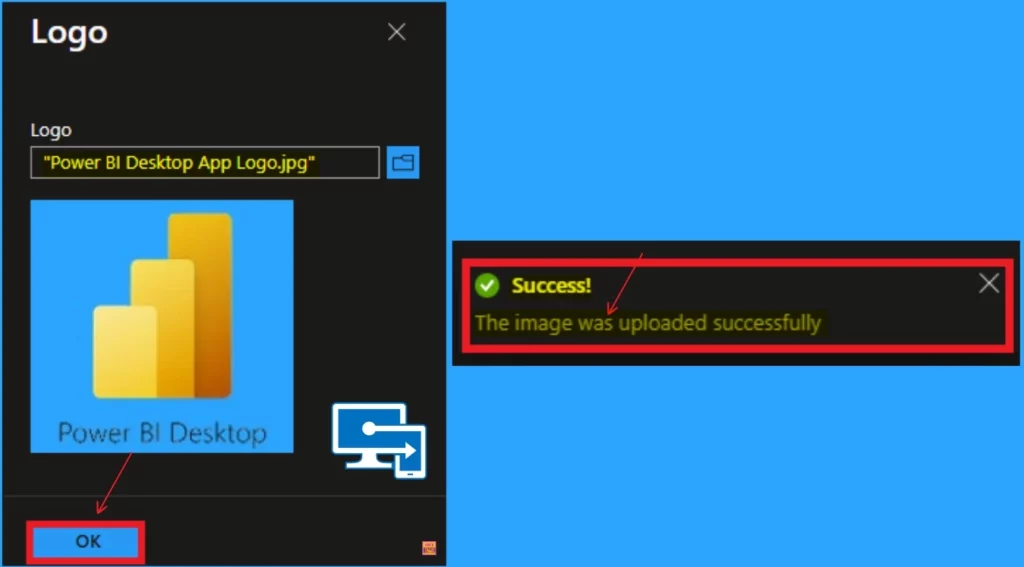
And you can see the logo is shown on the App Information tab. Click on the OK button and you will get the success message.
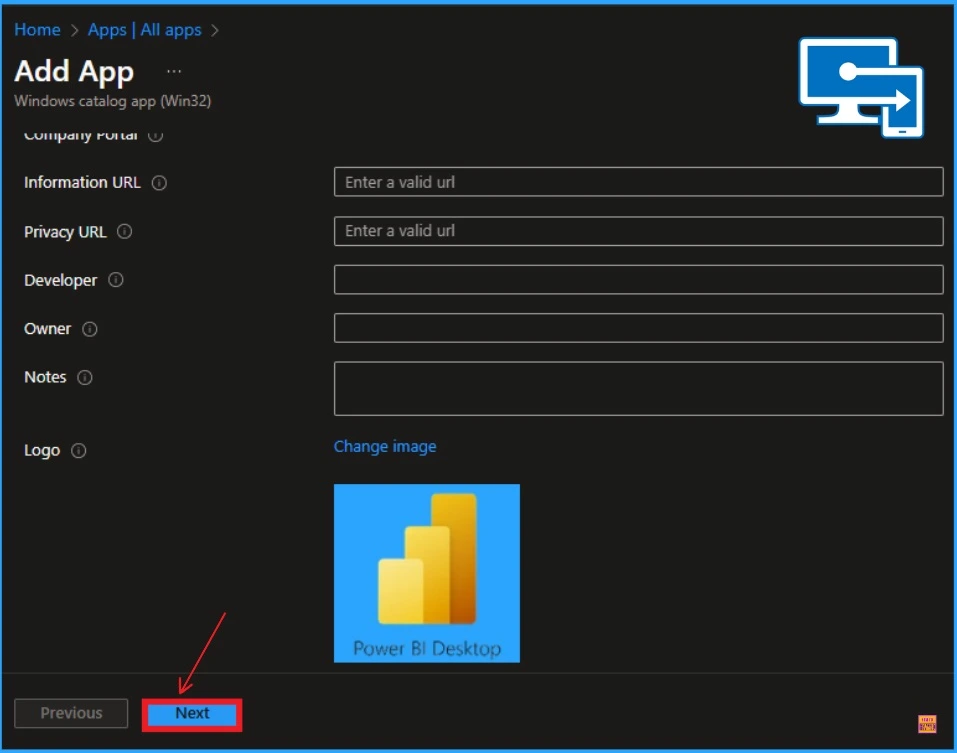
The below window shows the Power BI app logo is appear on the App Information tab. If you want to change the logo, you can click on the Change image option. Click on the Next button.
Program Tab
The Program Tab shows the information related to app installation, uninstallation, commands Installation time required (mins) etc. You can allow or disallow available installation.
| Install Command | UnInstall Command | Installation time required (min) | Allow Uninstall |
|---|---|---|---|
| “%SystemRoot%\System32\msiexec.exe” /i “PBIDesktop_x64.msi” /qn ACCEPT_EULA=1 | “%SystemRoot%\System32\msiexec.exe” /X {93F13A44-4AE4-4FF9-9840-126CC3DD7CF2} /qn | 60 | Yes |
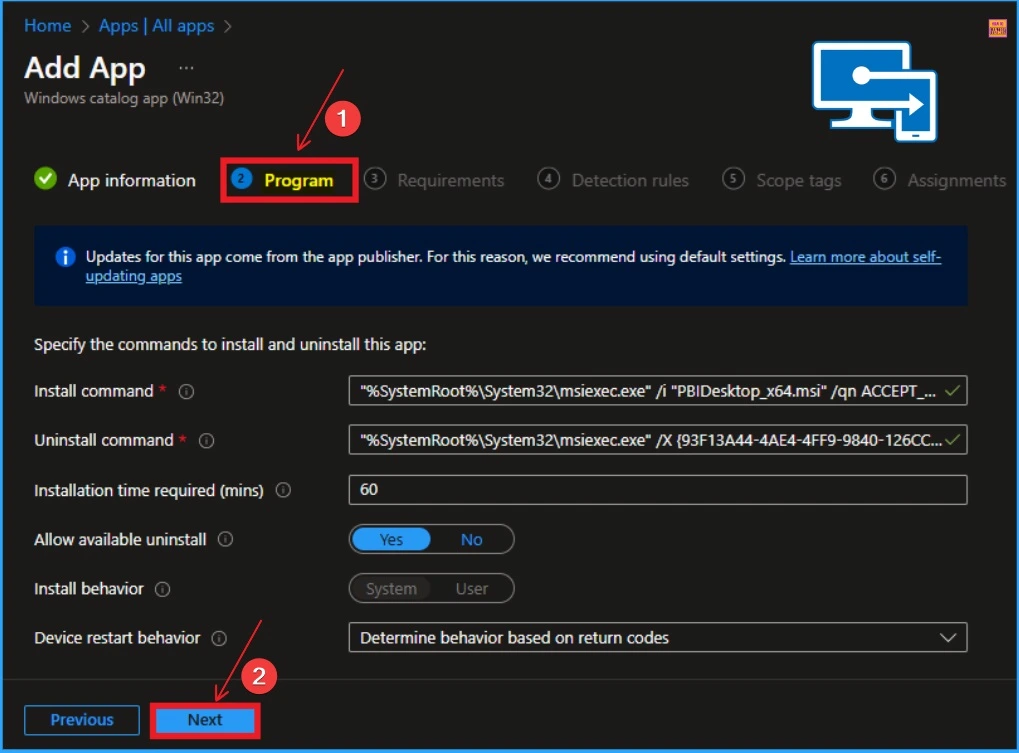
Requirement
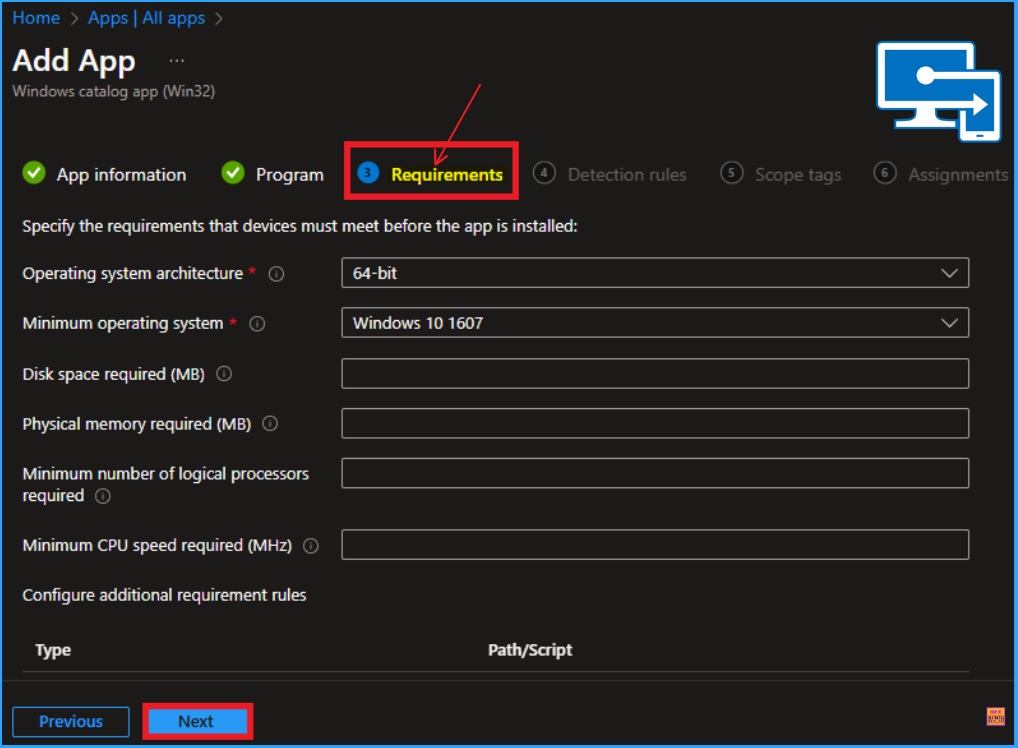
On the Requirement tab, you dont want to add anything. you can Specify the requirements that devices must meet before installing the app. These include Operating system architecture and a Minimum operating system. Click on the Next button to continue.
- Guidelines for Installing Microsoft PC Manager from New Microsoft Store in Intune
- Create and Deploy Python Applications with Intune Enterprise App Catalog App
- How to Deploy Azure Functions Core Tools with Intune Using Enterprise App Catalog App
Detection Rule
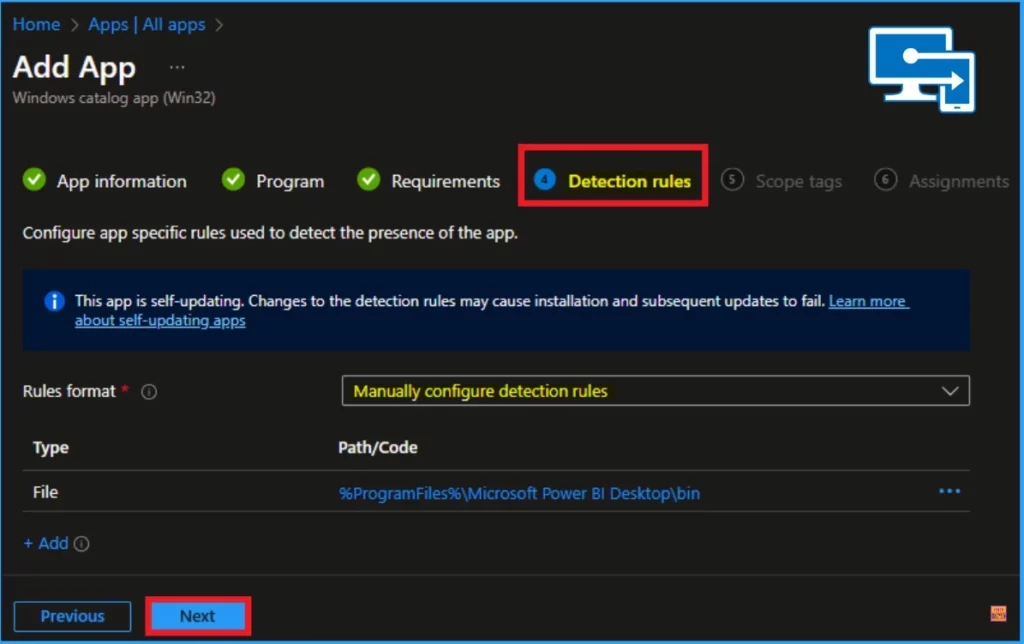
The detection Rule tab allows you to configure app-specific rules to detect the app’s presence. There is no need to bring changes on this tab. Microsoft Intune Enterprise app catalogue app helps to install the apps without changing Detection rules.
- Click on the Next Button
Scope Tag
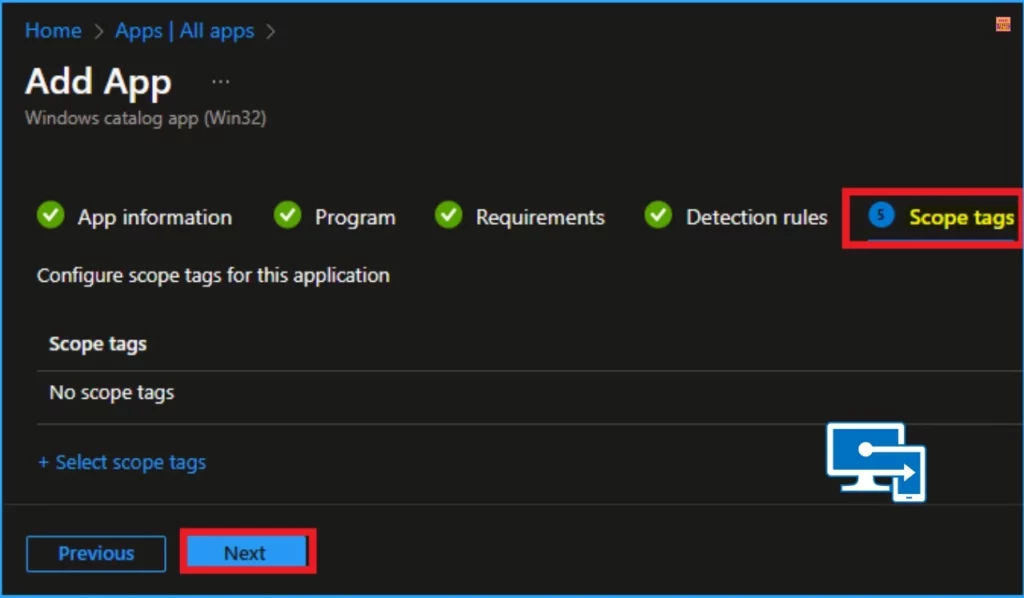
Scope tag is the next step on Enterprise App catalog app to deploy an App. This section is not mandatory to deploy an app in Intune. You can Skip this step. Click on the Next button to Continue.
Assignments
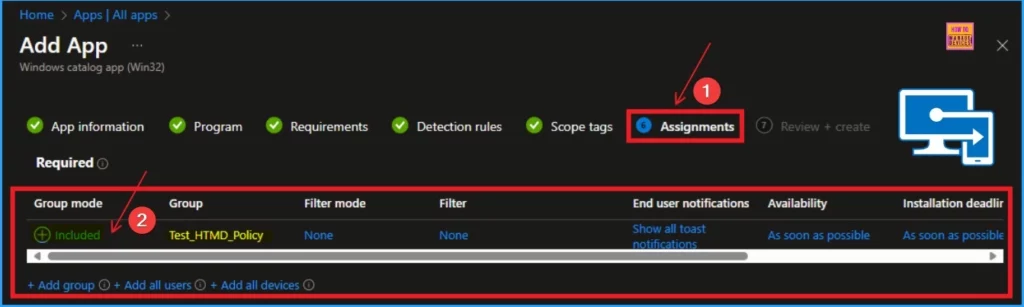
On the Assignments section you can add groups to deploy Power BI Desktop app. Here you can see Included groups and excluded groups. Click on the Included groups and you will a get a new window to add group. Select your group and Click on the Next button.
Review +Create
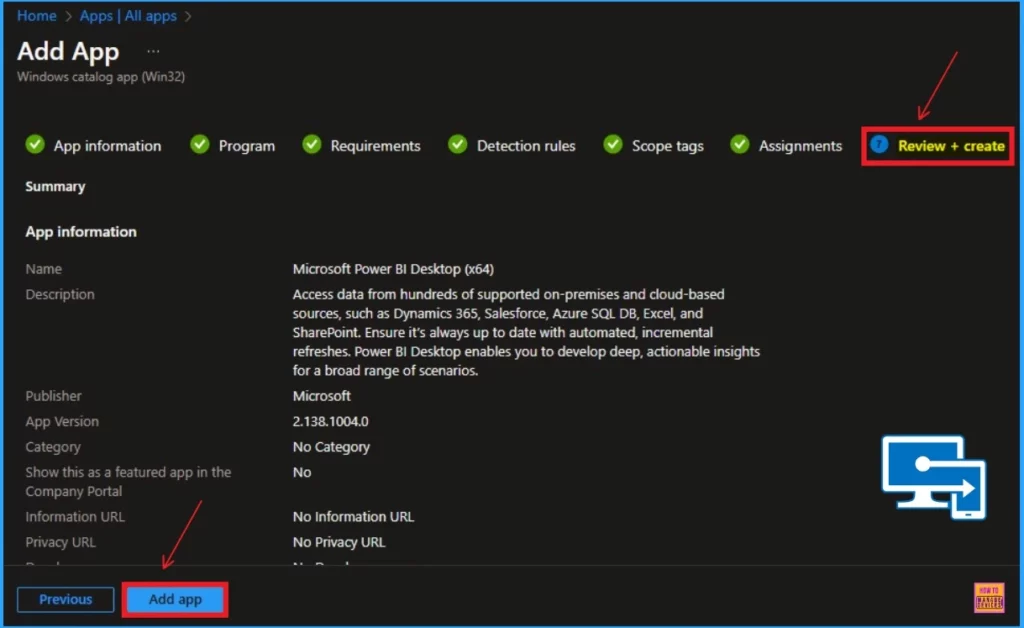
The Review + Create tab shows all information about the selected app. Before installing the app, you can check all the details of the tabs. This page shows the summary of the app’s installation.
- Click on the Add App option to complete the installation
Monitor Power BI Desktop App
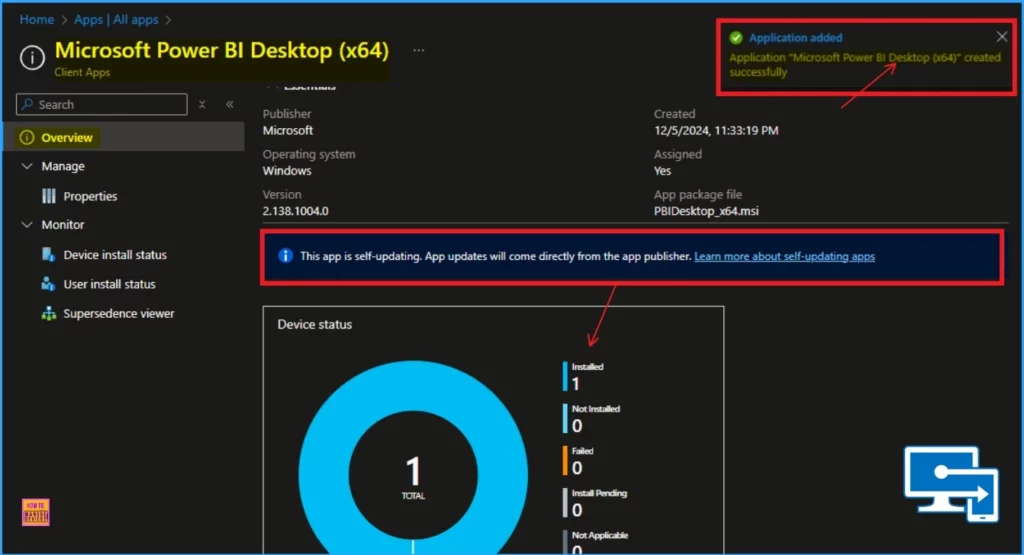
After clicking on the Add app option a notification will get you on the Intune Portal. The Notification is Application added and you can monitor the the status of the installed app on the portal.
- Apps > All Apps
- Double-click on the installed app from the App Apps page
- The screenshot below shows the 1 App installed
| Publisher | Operating System | Version | Created | Assigned | App Package File |
|---|---|---|---|---|---|
| Microsoft | Windows | 2.138.1004.0 | 12/5/2024, 11:33:19 PM | Yes | 12/5/2024, 11:33:19 PM |
End User Experience
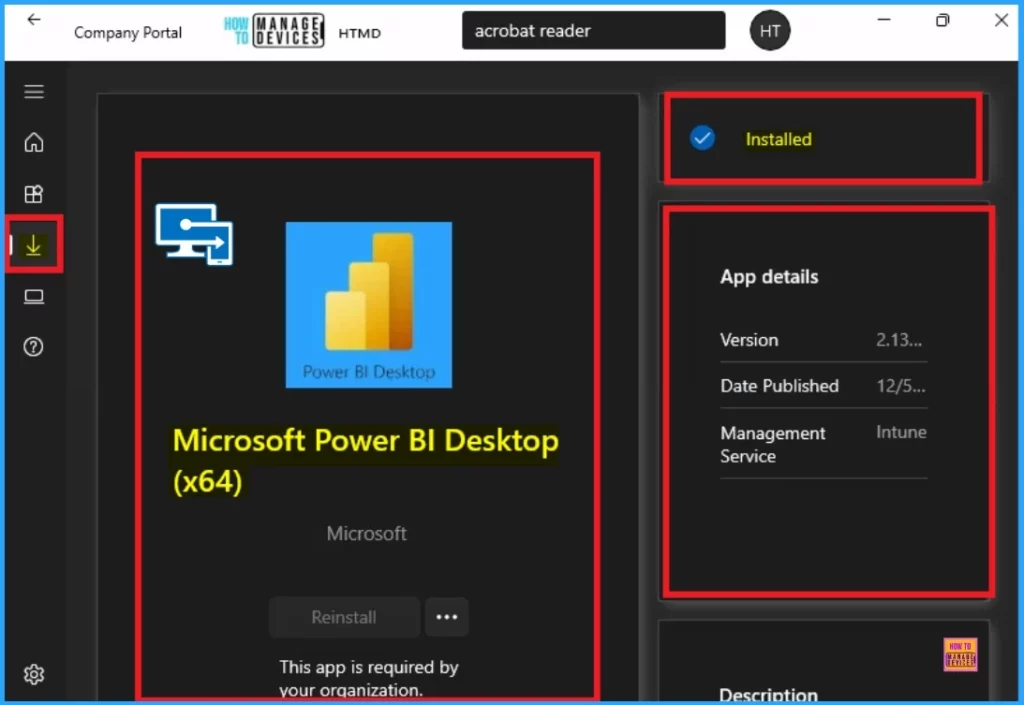
When the Power BI Desktop Installed it will be automatically installed on the workstations. You can check it on the Workstation. To verify the installation, open the Company Portal on the workstation, go to Downloads & Updates, and check if the Power BI Desktop application appears as installed.
Need Further Assistance or Have Technical Questions?
Join the LinkedIn Page and Telegram group to get the latest step-by-step guides and news updates. Join our Meetup Page to participate in User group meetings. Also, Join the WhatsApp Community to get the latest news on Microsoft Technologies. We are there on Reddit as well.
Author
Anoop C Nair has been Microsoft MVP from 2015 onwards for 10 consecutive years! He is a Workplace Solution Architect with more than 22+ years of experience in Workplace technologies. He is also a Blogger, Speaker, and Local User Group Community leader. His primary focus is on Device Management technologies like SCCM and Intune. He writes about technologies like Intune, SCCM, Windows, Cloud PC, Windows, Entra, Microsoft Security, Career, etc.


Discussion