






Enable Drop Feature in Edge Browser Using Microsoft 365 Admin Center Configuration Policy
Let’s discuss Enable Drop Feature in Edge Browser Using Microsoft 365 Admin Center Configuration Policy. The drop feature in Microsoft Edge is a handy tool for sharing files and notes. This feature allows you to share files and notes seamlessly across your devices.
Have you used the drop feature before? If not, try it; it will be a great experience. There are different ways to enable the Drop feature on the Edge Browser. But how can an organization allow this feature? Using Microsoft 365 Edge Policy, you can enable the Drop feature for your organization.
This feature will benefit your organization with centralized management, enhanced security, etc. Administrators can easily manage and configure the Drop feature across all devices within the organization from a single location.
Using the Microsoft 365 Admin Center, you can ensure that the Drop feature is enabled securely and controlled, adhering to your organization’s security policies. I will share step-by-step guidance on Enable the Drop feature in Edge Using Microsoft 365 Admin Center Configuration Policy here.

Table of Contents
What are the Advantages of Drop Feature on Microsoft Edge?
1. It provide a Seamless File Sharing
2. Cross-Device Sync
3. It has User- Friendly Interface
4. It has Secure Storage
5. Convenient Access
Enable Drop Feature in Edge Browser Using Microsoft 365 Admin Center Configuration Policy
Once this feature is enabled, you can find the Drop button in the Edge toolbar. This feature is especially useful for quickly transferring documents, photos, and notes between your PC and mobile devices. The Drop feature streamlines sharing files and notes, saving time and improving productivity.
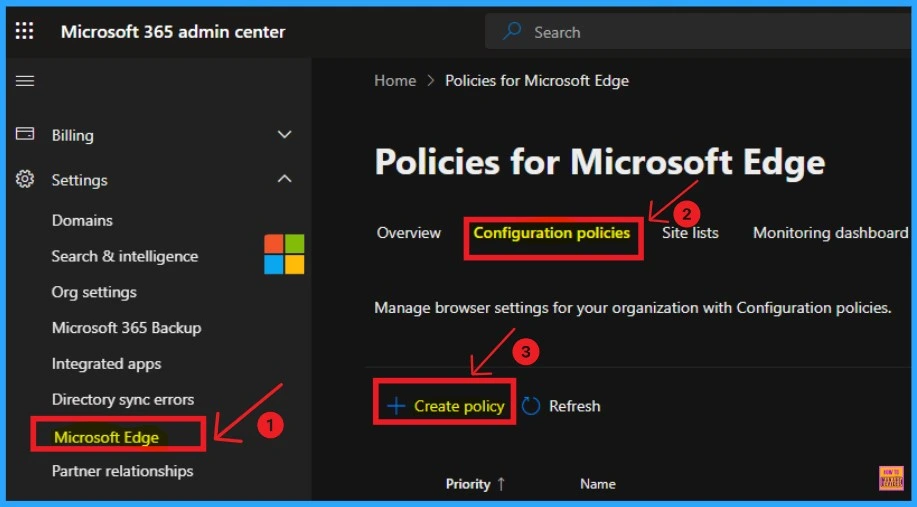
You can enable this feature for your organization using the Settings menu in the Microsoft 365 admin center. First, you have to log in to the Microsoft 365 admin center.
- Click on the Settings on the Microsoft 365 admin center
- Select Microsoft Edge from the Settings
- Select the Configuration Policies tab
- Click on the +Create Policy
- Prevent Users From Start Screen Customization Using Intune Policy
- Enable Disable Screenshot Policies In Edge Using Microsoft 365 Admin Center Policy
- Enable Address Bar Editing in the Edge Browser using the Microsoft 365 Admin Center Policy
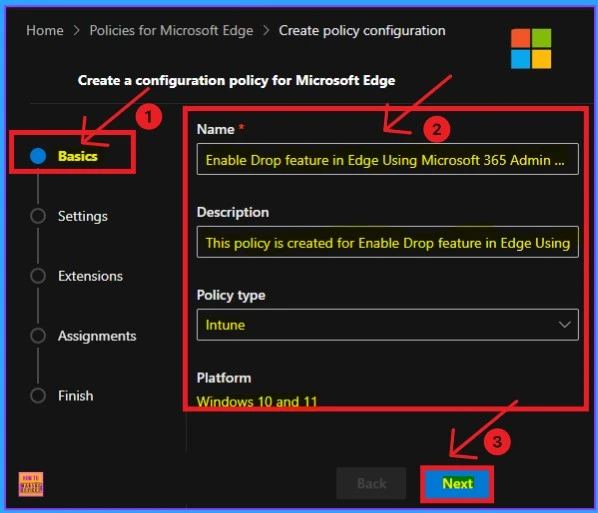
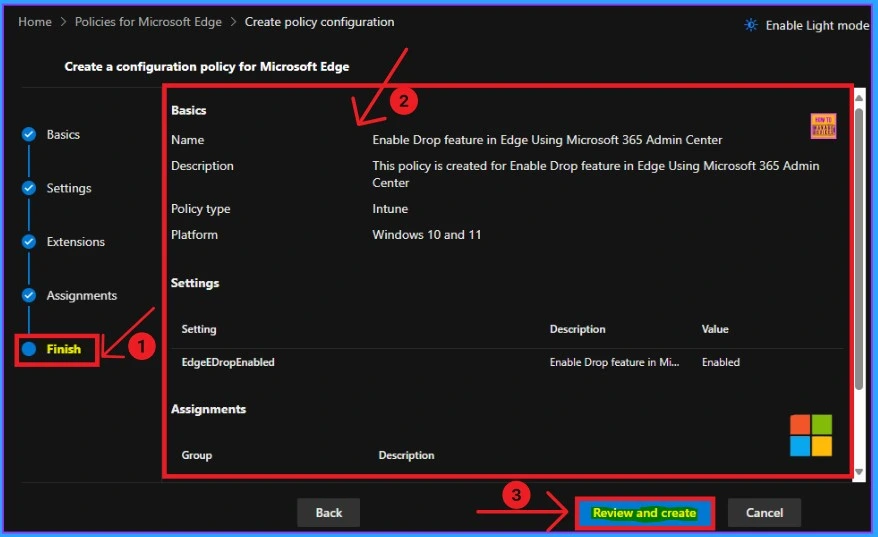
Then you will get the Basic tab for adding Name and Description for the policy. Enter the Name and Description and click on the Next button.
- Name – Enable Drop Feature in Edge Using Microsoft 365 Admin Center
- Description – This policy is created to Enable the Drop Feature in Edge Using Microsoft 365 Admin Center
- Policy Type – Intune
- Platform – Windows 10 and later
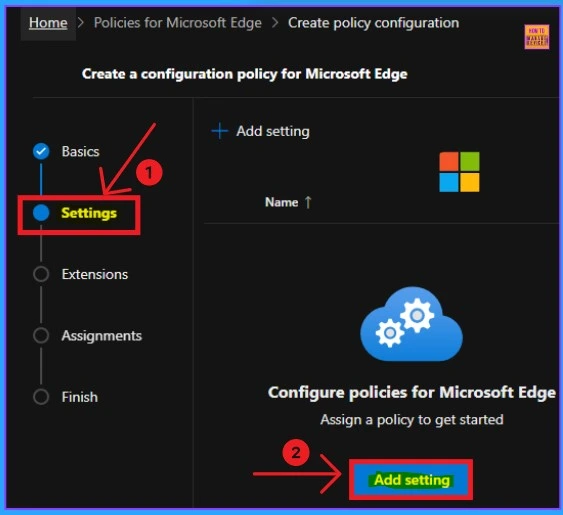
Settings Tab
The Settings Tab is the second tab for creating a Configuration Policy on Microsoft Edge. You can Add settings (Policy) for your organization on this tab. Click on the Add settings button.
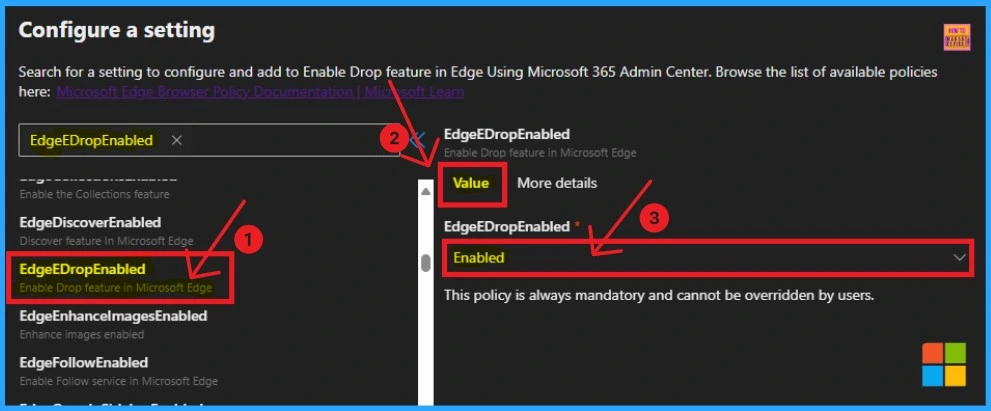
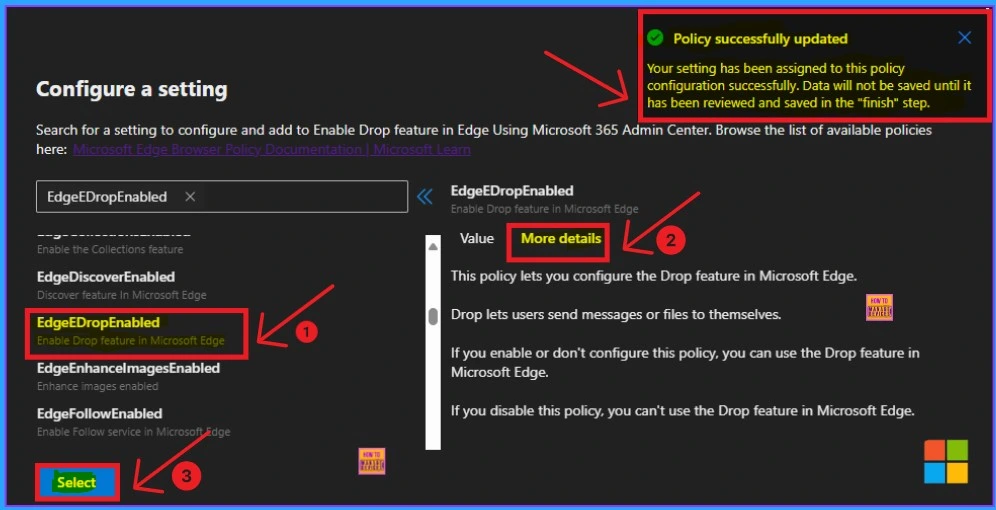
After clicking on Add Settings, you can configure a setting from the different settings options shown on the Microsoft 365 admin center. Here, I chose EdgeEDropEnabled from the Additional Settings. After selecting the settings, you can see two tabs, Value and More Details.
- Value – Enable or Disable
The More Details tab shows the details of the selected settings. After confirming the details, click on the Select Button to continue. The table below shows the details included in the More Details tab.
| Enable | Disable | Not Configured |
|---|---|---|
| If you enable this policy, you can use the Drop feature in Microsoft Edge | If you Disable this policy you can’t use the Drop feature in Microsoft Edge | If you don’t configure this policy, you can use the Drop feature in Microsoft Edge |
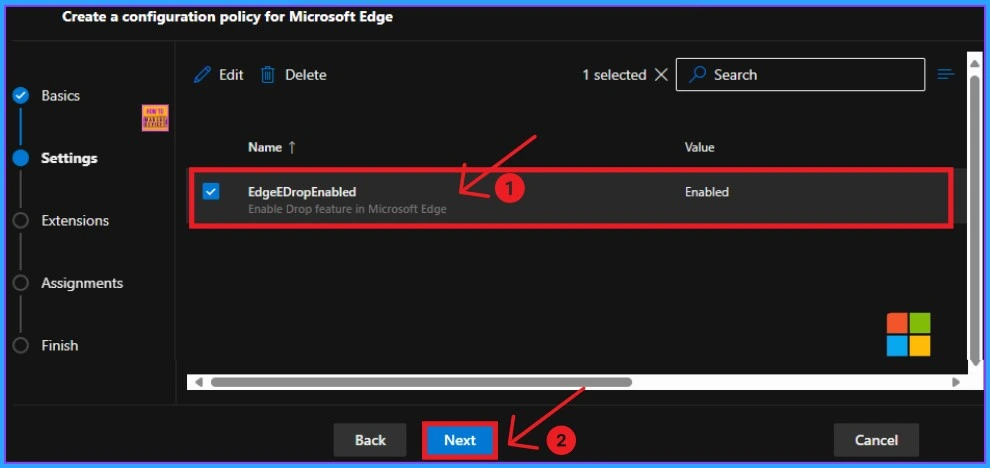
Then, you can see the Selected settings shown on the admin portal. Click on the Checkbox near the Settings and click on the Next Button.
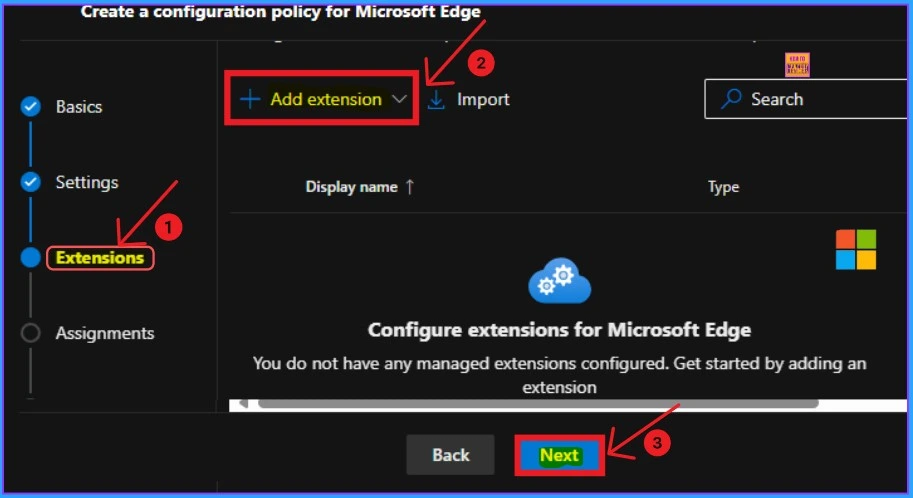
Extension Tab
The Extension Tab is not important for creating Microsoft 365 Admin Center policies. You can skip this section and continue. This tab helps you add blockers, password managers, or productivity tools. Click on the Next button.
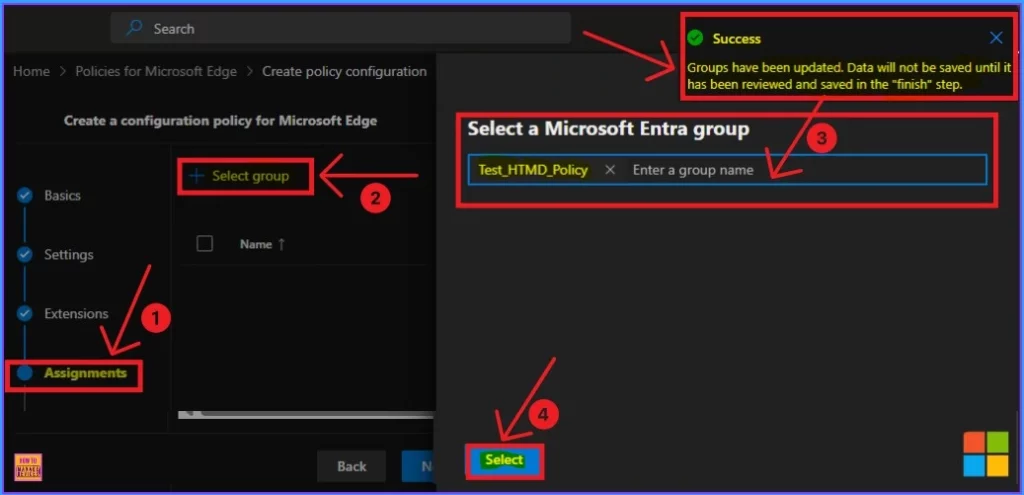
Assignments
The Assignments tab is crucial in policy creation. This tab helps you select groups to assign the chosen settings. To do this, click on the +Select group option, select a Microsoft Entra Group, and click the Select button. After that, you will get a success notification.
Finish Tab
In the Finish Tab, you can check all the details added for the policy creation. After verifying these settings, click the “Review and Create” button to finalize the policy.
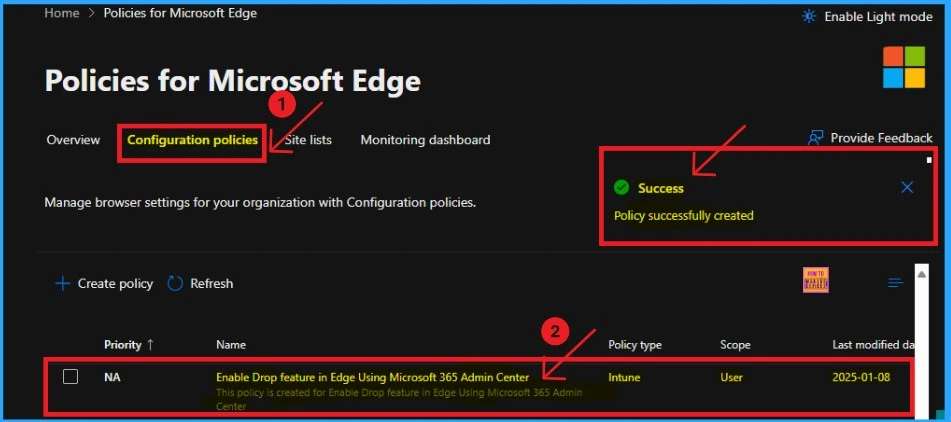
The portal will display a success message after you click on the “Review and Create” button and successfully create the policy. The policy created is shown in the configuration policies section.
Client Side Verification
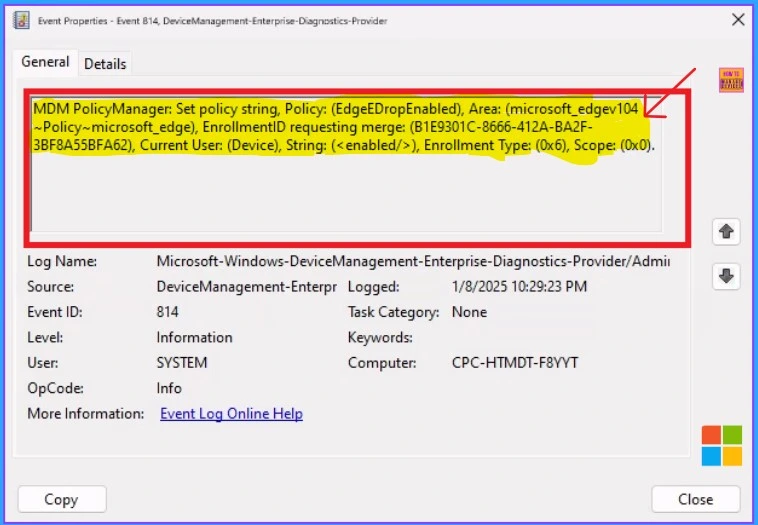
Using the Event log, you can do the Client Side Verification. An event log is a file that records significant events that occur on a computer, network, or other system. It contains information about the event, such as the date, time, severity, and application or process involved.
- You can check the successful Event log with 813 or 814 Event ID
- To access this Event ID, Go to Applications and Services Logs > Microsoft > Windows > Devicemanagement-Enterprise-Diagnostics-Provider > Admin.
- Here, the Success Event ID is 814
MDM PolicyManager: Set policy string, Policy: (EdgeEDropEnabled), Area: (microsoft_edgev104
~Policy~microsoft_edge), EnrollmentID requesting merge: (B1E9301C-8666-412A-BA2F-
3BF8A55BFA62), Current User: (Device), String: (), Enrollment Type: (0x6), Scope: (0x0).
End Result
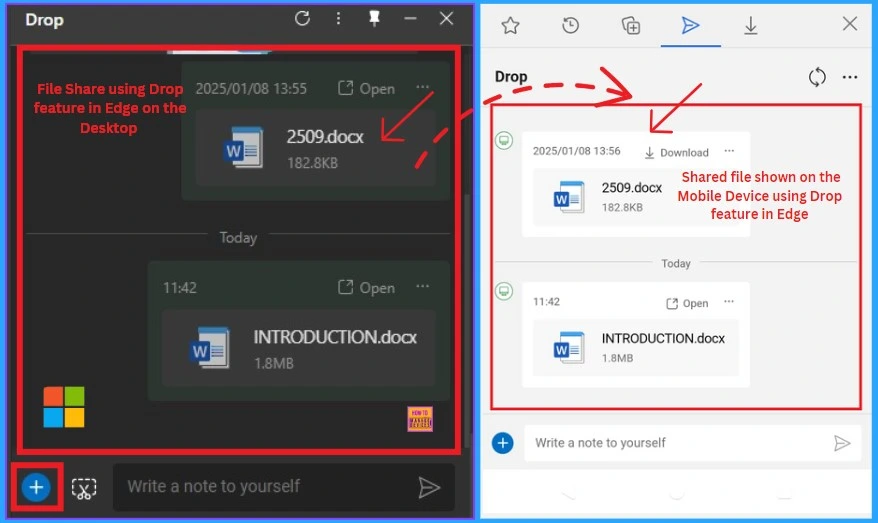
Select the + button or type in the message box below to send your first file or note. Or drag and drop files here to select them faster. Your files and notes will be available across all your signed in mobile and PC devices. Here i send a file on the desktop using drop feature. The shared file is also shown on the Mobile Device.
Need Further Assistance or Have Technical Questions?
Join the LinkedIn Page and Telegram group to get the latest step-by-step guides and news updates. Join our Meetup Page to participate in User group meetings. Also, Join the WhatsApp Community to get the latest news on Microsoft Technologies. We are there on Reddit as well.
Author
Anoop C Nair has been Microsoft MVP for 10 consecutive years from 2015 onwards. He is a Workplace Solution Architect with more than 22+ years of experience in Workplace technologies. He is a Blogger, Speaker, and Local User Group Community leader. His primary focus is on Device Management technologies like SCCM and Intune. He writes about technologies like Intune, SCCM, Windows, Cloud PC, Windows, Entra, Microsoft Security, Career, etc.




Discussion