






Best way to Install GrepWin through Enterprise App Catalog App using Intune
Let’s discuss the best way to Install grepWin Through Enterprise App Catalog App in Intune. As many of you may know, the Enterprise App Catalog is an Intune feature that provides a collection of pre-packaged Win32 apps.
These applications are easy to deploy and manage through Intune, simplifying policy deployment for IT administrators. Our blog posts have covered various app installations through the Enterprise app catalog app. In this post, we will install the grepWin application through the Enterprise app catalog app.
grepWin is a powerful tool for Windows users that allows for advanced text searches in files. This tool is valuable as it enables users to search for and replace text across multiple files, making it essential for developers, system administrators, and anyone managing large text data. grepWin is user-friendly and works smoothly on Windows.
Using grepWin saves time and simplifies tasks. It’s an excellent tool for anyone who needs to manage a large amount of text. In this post, we created a different app, grepWin. So, let’s check how to install this app through Intune and determine the process we must follow.

Table of Contents
What is GrepWin?
Install GrepWin Through Enterprise App Catalog App in Intune
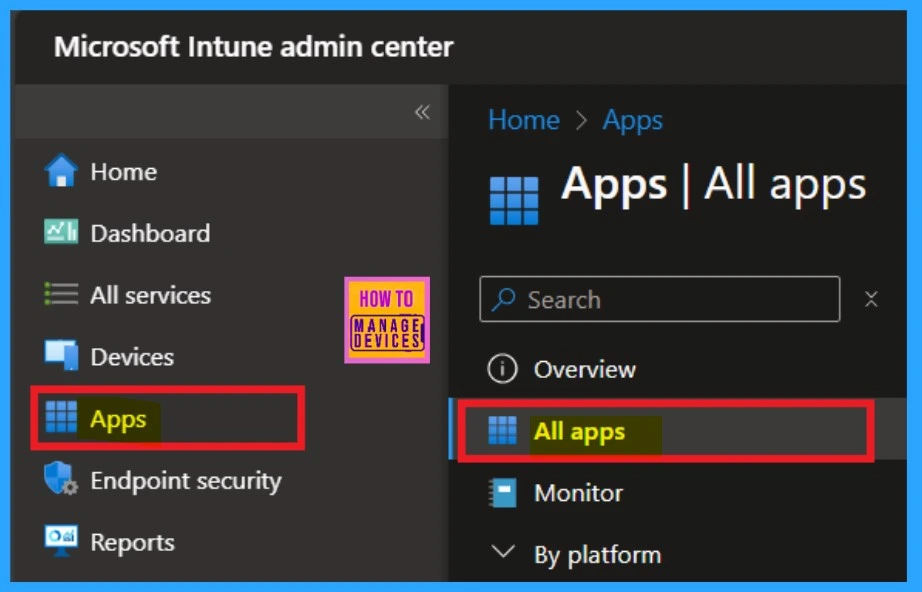
The above discussion provided a brief overview of the grepWin app and the Enterprise App Catalog app. Now, let’s see how to install grepWin. To install the grepWin app through the Enterprise App Catalog, by log into the Microsoft Intune Admin Center. Then, navigate to the “Apps” section and select “All Apps.”
- How to Install Power BI Desktop App using Intune Enterprise App Catalog App
- How to Install Google Backup and Sync App with Intune Using Enterprise App Catalog App
- Deploy Windows Catalog App type using Intune Enterprise Application Catalog
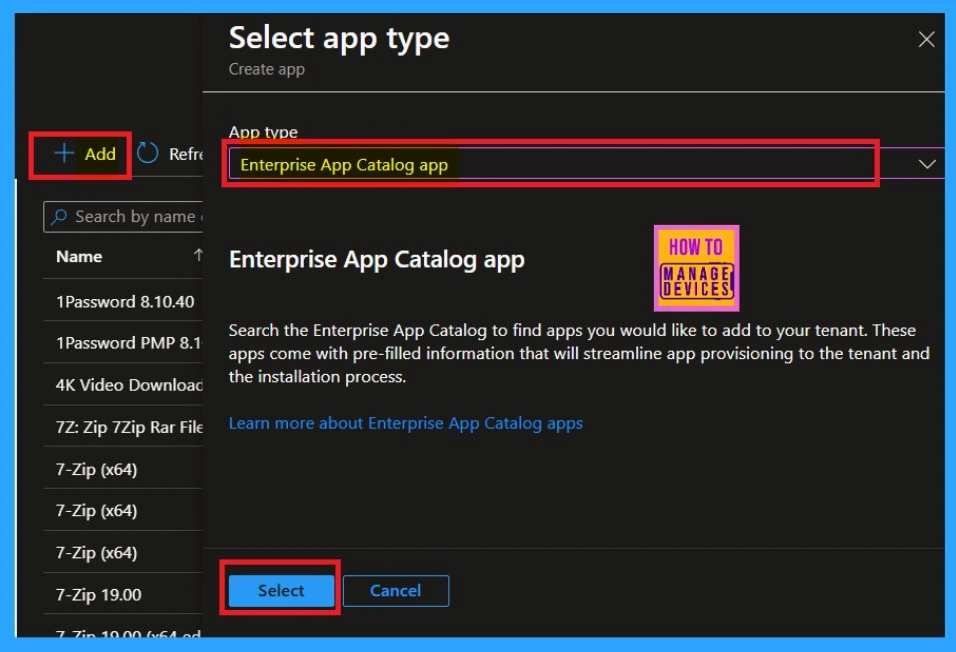
After clicking on All Apps, you will see an +Add option on the right side of the window. Click on that, and a Select App Type window will appear. Here, you can choose the type of app you want to add, such as Enterprise App Catalog App.
App Information
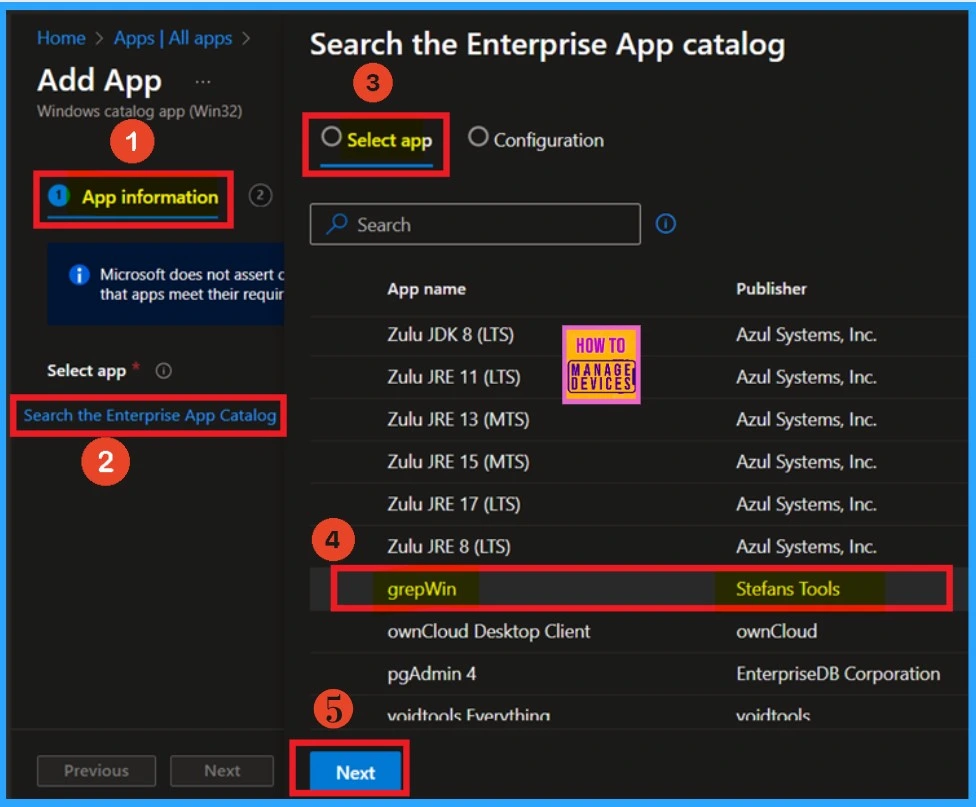
Now, the first section is visible on your screen: the App information page. Here, you need to select your preferred app from the list. On the app information page, you will see hyperlinks for “Search the Enterprise App Catalogue App.
Click on that hyperlink, and a search window will appear for you to find apps in the enterprise and catalogue sections. In this search window, you can look for the grepWin app. Once you find it, click on it and then click “Next.”
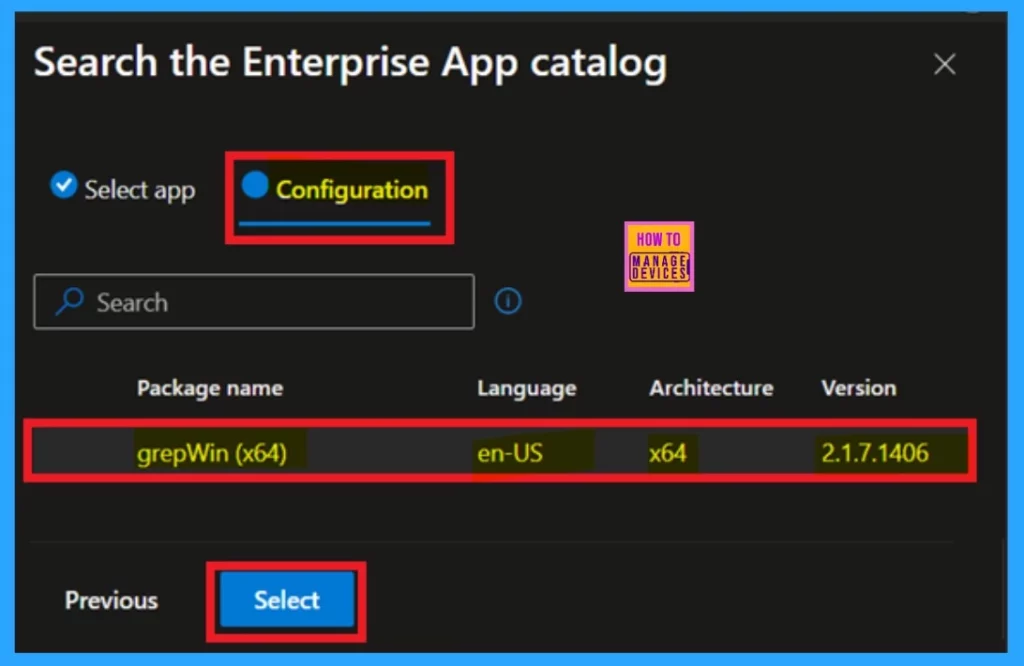
After selecting the enterprise app from your catalog, you can choose the version in the configuration tab. This tab allows you to view different types of app versions. If only one version is displayed, simply click on it and then select “Choose” or select.
| Package Name | Language | Architechture | Version |
|---|---|---|---|
| grepWin (x64) | en-US | x64 | 2.1.7.1406 |
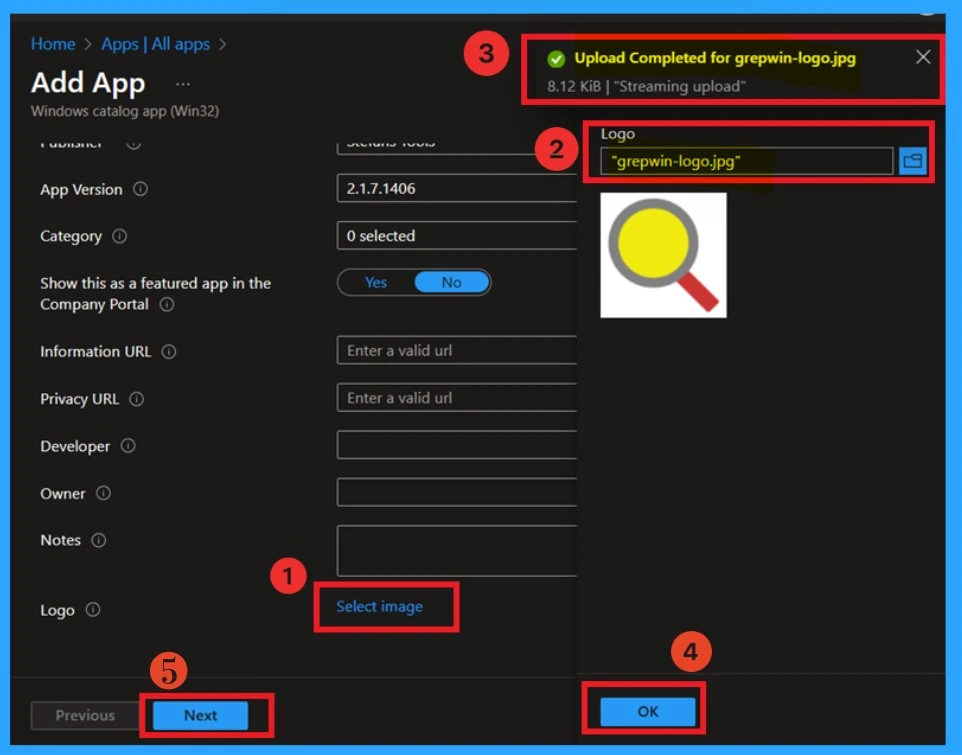
After selecting the version, you’ll be taken to the App Information screen. Scroll down to find the “Select Image” option, which is a hyperlink. Click on it to add a logo to your app. Once you click, you’ll see a file upload option where you can upload the logo you downloaded earlier.
- After the upload is successful, you will receive a notification confirming the logo has been uploaded.
- Now the logo will be visible on your App information page.
- Then click on the Next.
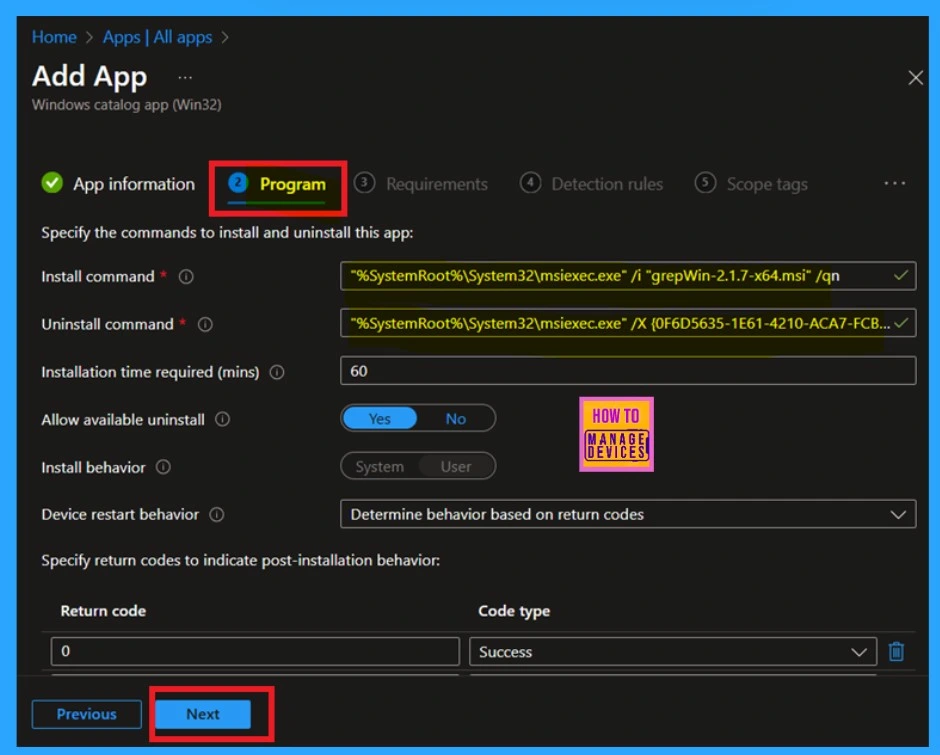
Program
After reviewing the app information, you will reach the program page, which contains details about the installation command and its behavior. Although you have the option to modify the installation settings here, it is unnecessary to make any changes since this policy is being applied through the enterprise app catalog.
- You can simply skip this section and proceed by clicking the Next button.
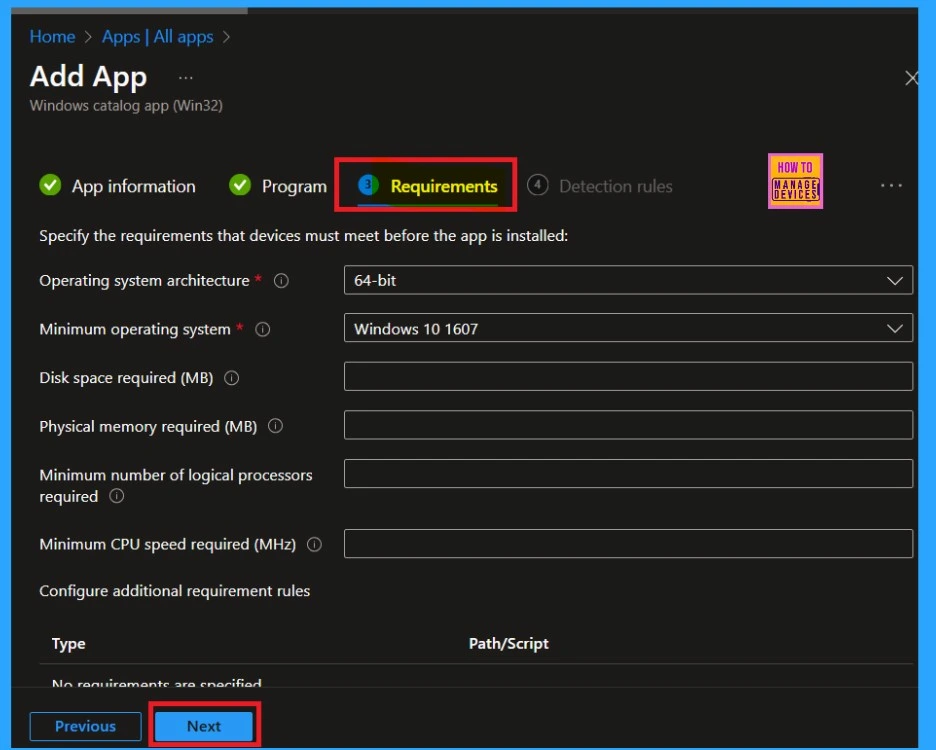
Requirements
After the program page, we proceed to the requirements page, which is quite similar to the program page. This section is mandatory, so no further action is needed from our side. You should review the details provided here, such as the operating system architecture and the minimum disk space required for installation.
- Once you’ve reviewed all the information, click the “Next” button to continue.
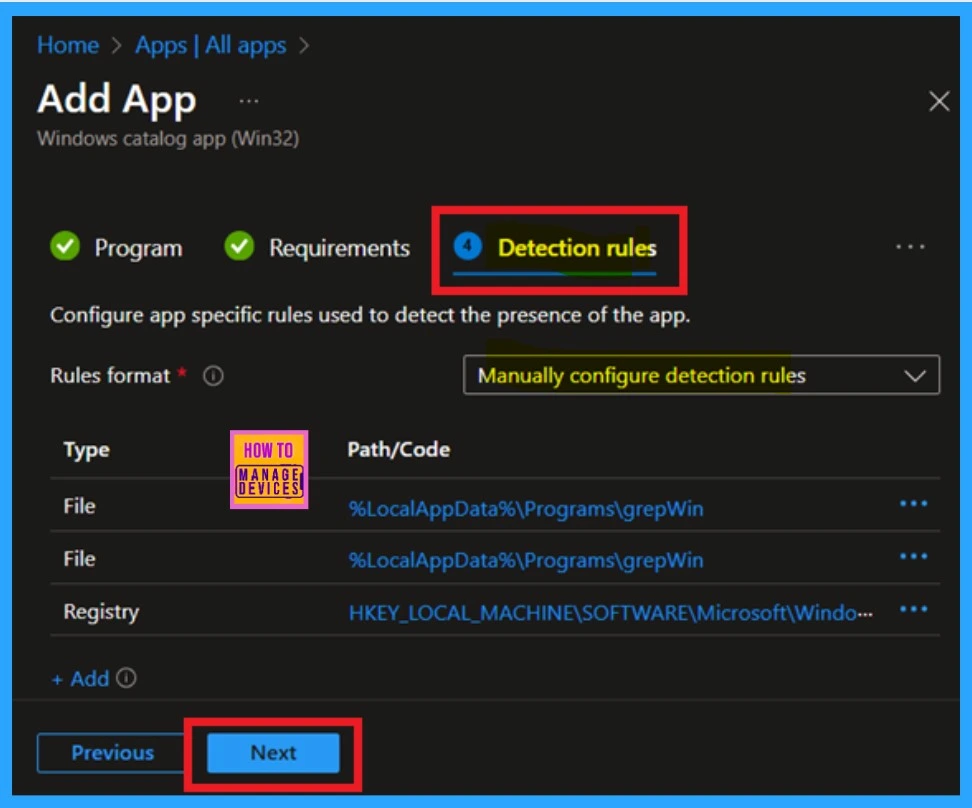
Detection Rules
The next tab is the Detection Rule tab, which contains information about file locations and registry paths. This section is for reference only, and no action is required from you at this stage. I chose to skip this section and proceeded by clicking the “Next” button for further proceedings.
Scope Tags
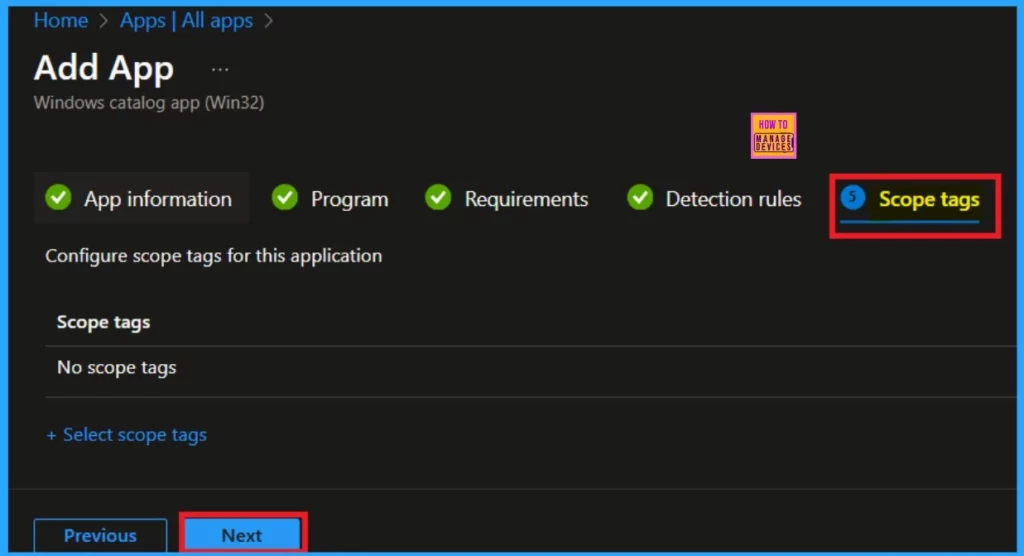
Scope tag is a section in policy creation it will assign settings or resources to specific groups or environments. They help filter policies based on such as department, region, or purpose. Here I decided not to add any scope tags, so I skipped this step by clicking Next. However, if you wish to add scope tags, you can do so at this stage.
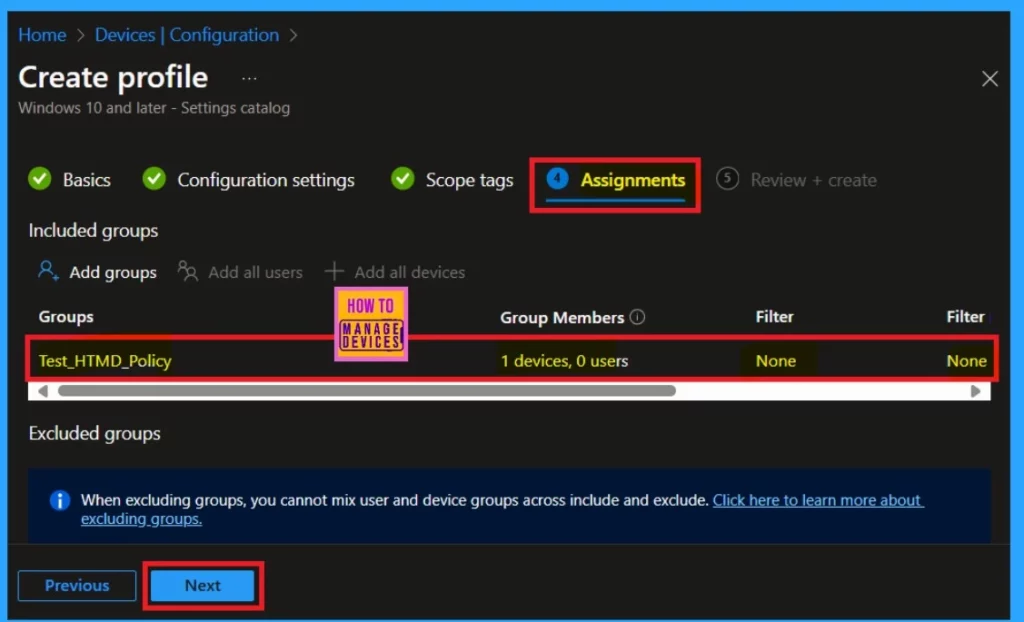
The next section is the important Assignments section, where you can assign groups to the policy. This policy is for deploying specific groups, you can add them by clicking “Add Groups” under the Requirement option. Once you’ve selected the groups you want to deploy the policy to, click “Next” to continue.
Review + Create
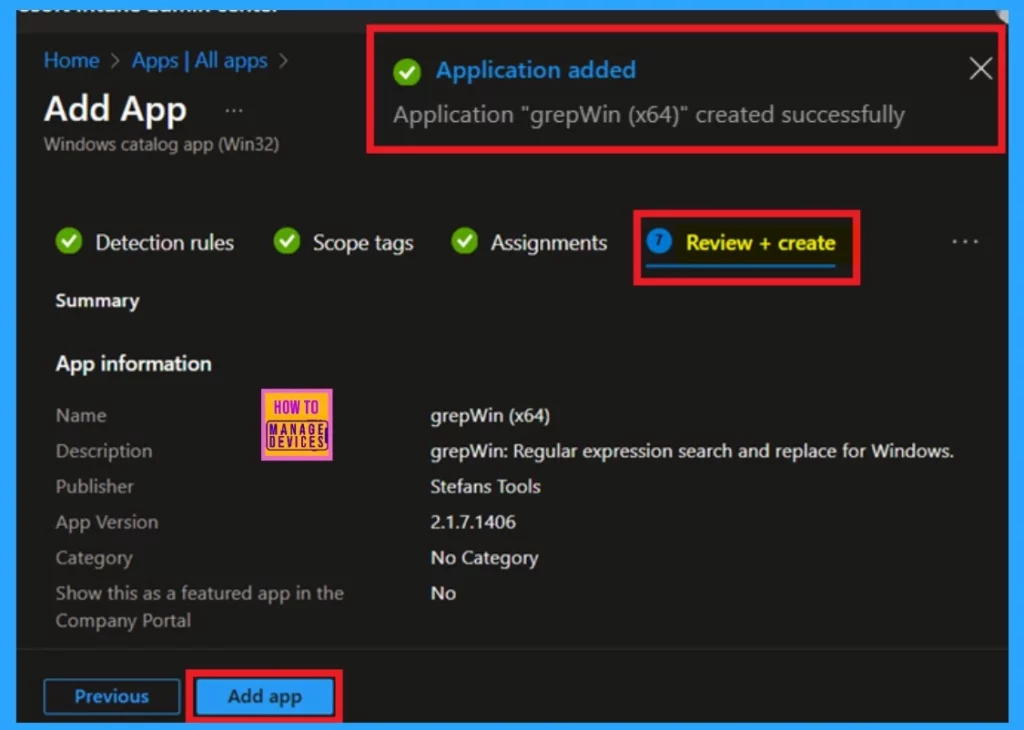
The final step in creating the policy is the Review + Create page. This is like a summary, displaying all the details you’ve entered for the policy, such as the Configure settings, publisher, app version, and more. Once you’ve reviewed all the information, click “Add App.” You will then receive a notification confirming that the policy has been successfully created.
Monitor Status
Monitoring status of a policy after creation is crucial to ensure it’s been set up correctly. It typically takes about 8 hours for the policy to be created, but you can speed up the process by using the Company Portal Sync option. I use this sync to get quicker results.
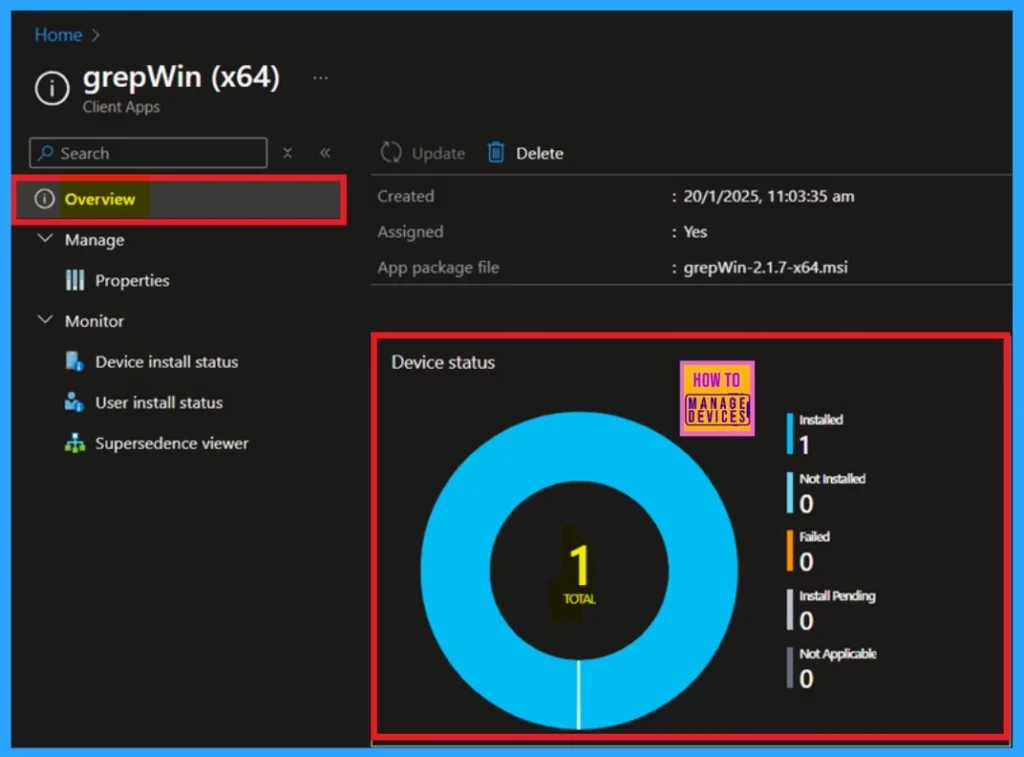
To check the monitoring status, go to Apps > All Apps and search for the policy you created. For example, I searched for “grepWin” and found the results. If the installation is successful, the device status will show as “1.” If there are any conflicts or errors, they will appear in the monitoring status.
End User Experiance
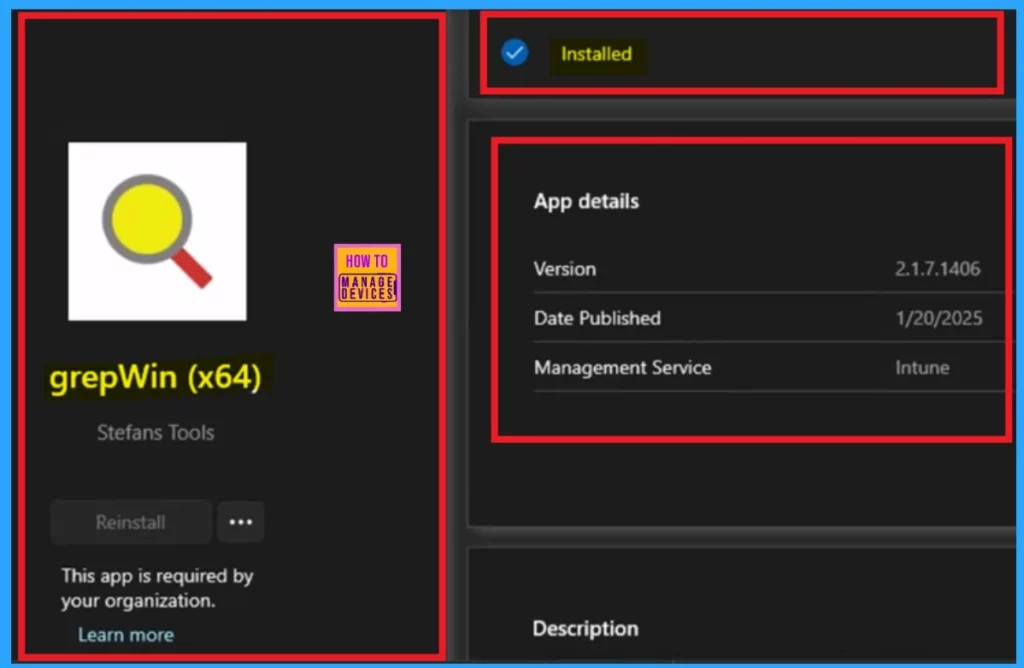
To check the end-user experience, follow these steps such as Open the Company Portal and select the Download and Updates option. This will be effective either after the waiting period or once you’ve used the sync option. After clicking on Download and Updates, you’ll see a list of apps that have been installed within your organization.
| App Version | Management service | Description | Publisher |
|---|---|---|---|
| 2.1.7.1406 | MS Intune | grepWin: Regular expression search and replace for Windows. | Stefans Tools |
Need Further Assistance or Have Technical Questions?
Join the LinkedIn Page and Telegram group to get the latest step-by-step guides and news updates. Join our Meetup Page to participate in User group meetings. Also, Join the WhatsApp Community to get the latest news on Microsoft Technologies. We are there on Reddit as well.
Author
Anoop C Nair has been Microsoft MVP for 10 consecutive years from 2015 onwards. He is a Workplace Solution Architect with more than 22+ years of experience in Workplace technologies. He is a Blogger, Speaker, and Local User Group Community leader. His primary focus is on Device Management technologies like SCCM and Intune. He writes about technologies like Intune, SCCM, Windows, Cloud PC, Windows, Entra, Microsoft Security, Career, etc.


Discussion