






Add or Remove Windows Batch File in Context Menu in Windows 11
Let’s learn how to add or remove Windows Batch File in Context Menu in Windows 11. A batch file is a script that contains a series of commands that can be executed by the Windows command prompt (cmd.exe). A batch file is a text file created in Notepad or other text editor.
A batch file bundles or packages a set of commands into a single file in serial order. Without a batch file these commands would have to be presented one at a time to the system from a keyboard. The new context menu allows users to quickly create a new time in the current location.
The default new context menu items include to create a new folder, shortcut, bitmap image, text document, zipped folder and library. You can also add the Windows Batch File to the new context menu to make it easier for users to create BAT file when required.
Using Registry file you can add or remove Windows Batch File in the Context menu. The step by step process is described in detail in the post. Batch files save time by eliminating the need to re-type commands.


Table of Contents
Are there any Group Policy and Intune Policy Settings or any other settigns to Add or Remove Windows Batch File in Context Menu?
What is Batch File?
How Batch File Works?
Use of Batch File
Batch files save time by eliminating the need to re-type commands. Batch files can simplify complex processes. Batch files can be used to load programs, run multiple processes, or perform repetitive actions.
- 2025 January KB5049981 Windows 10 Patch and 8 Zero-Day Vulnerabilities and 159 Flaws
- Best Way to Allow Language in Intune Via Settings Catalog
- Easy Guide to Configure EPM Reusable Settings with Intune
NOTE: Batch files can be dangerous if they are infected or malicious. To protect yourself, make sure you have an antivirus program installed and running.
Add or Remove Windows Batch File in Context Menu in Windows 11
There are some common commands are available in batch file which helps to process required task. Batch file helps to Create a file, Delete a file, Rename a File, Load programs, Run Multiple processes and perform repetitive action. Some commands are shown in the table below:
| Commands | Used for |
|---|---|
| DIR | Lists all directories, sub-directories, and files in the current working directory |
| CD | Changes the current workign directory |
| VER | Displays the user’s Windows version |
| CLS | Clears the command prompt screen |
| ECHO | Turns the prompt on or off |
| @ | Hides which command is running |
| HELP | Lists all availalbe commands in the cmd |
You can also deploy Batch File using Intune Step by Step Guide – Click Here.
Registry File
Using the registry editor, you can add or remove Windows Batch File in the context menu in Windows 11. This procedure is done using the Registry Editor. Let’s discuss the step-by-step guidelines for it.
Now, open Run Window, and press Windows Key + R from the keyboard simultaneously. This is the keyboard shortcut to open the run window. Now, type regedit and press Enter.
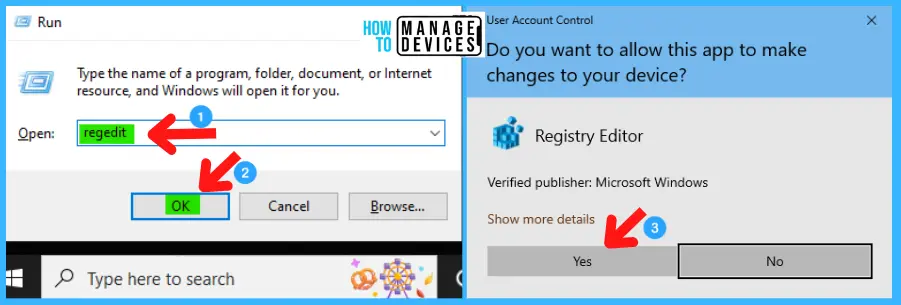
NOTE! Take Backup—If any mistake occurs in the Registry Editor, it may affect the system. It is advisable to take a backup of the Registry before proceeding. To back up, go to File in the top left corner of the Registry Editor. Click on it, then select Export and save the backup.
- Go to File.
- Right-click on HKEY_CLASSES_ROOT
- Click on Export.
- Please save it.

Add Windows Batch File
Use the .reg file to add Windows Batch File in the context menu in Windows 11. To create a .reg file, open NotePad, type the following code, and name it Add-BAT-New-Context-Menu. Then, save it on the desktop using the .reg extension, which enables the cloud content search.
Windows Registry Editor Version 5.00

[HKEY_CLASSES_ROOT\.bat\ShellNew]
"NullFile"=""
Add or Remove Windows Batch File in Context Menu in Windows 11 – Fig. 4
When the file is saved at your selected location, double-click on it. The User Account Control Window will open; click Yes to continue. Then, the Registry Editor Waring window will open.
Adding information can unintentionally change or delete values and cause components to stop working correctly. If you do not trust the source of this information in the path you created, do not add it to the registry; otherwise, click Yes to continue.
The following window shows that the key and value you added have been successfully added to the registry editor. Now click on OK and restart your PC to add the applicable test.

Restart your device after completion of the above process and now you can open any file manager click on the New then you can see the Windows Batch File option is there. And you can right click on the desktop, click on New then you can see the Windows Batch File option as shown below.

Remove Windows Batch File
Use the .reg file to remove Windows Batch File in the context menu in Windows 11. To create a .reg file, open NotePad, type the following code, and name it Remove-BAT-New-Context-Menu. Then, save it on the desktop using the .reg extension, which enables the cloud content search.
Windows Registry Editor Version 5.00

[-HKEY_CLASSES_ROOT\.bat\ShellNew]
When the file is saved at your selected location, double-click on it. The User Account Control Window will open; click Yes to continue. Then, the Registry Editor Waring window will open.
Adding information can unintentionally change or delete values and cause components to stop working correctly. If you do not trust the source of this information in the path you created, do not add it to the registry; otherwise, click Yes to continue.
The following window shows that the key and value you added have been successfully added to the registry editor. Now click on OK and restart your PC to add the applicable test.

Restart your device after completion of the above process and now you can open any file manager click on the New then you cannot see the Windows Batch File option there. And you can right click on the desktop, click on New then you cannot see the Windows Batch File option as shown below.

I hope the information on Add or Remove Windows Batch File in Context Menu in Windows 11 is helpful. Please follow us on the HTMD Community and visit our website, HTMD Forum, if you like our content. Suggest improvements, if any, and we would love to know which topic you want us to explore next.
Need Further Assistance or Have Technical Questions?
Join the LinkedIn Page and Telegram group to get the latest step-by-step guides and news updates. Join our Meetup Page to participate in User group meetings. Also, Join the WhatsApp Community to get the latest news on Microsoft Technologies. We are there on Reddit as well.
Author
Alok graduated with a Master of Computer Applications (MCA) degree. He loves writing on Windows 11 and related technologies. He likes to share his knowledge, quick tips, and tricks with Windows 11 or Windows 10 with the community.




Discussion