






Microsoft Intune Introduces Screen Capture Blocking for iOS or iPadOS MAM Protected Apps
Microsoft Intune Introduces Screen Capture Blocking for iOS or iPadOS MAM Protected Apps! Microsoft Intune has rolled out a new feature that blocks screen capture in mobile application management (MAM)-protected apps for iOS/iPadOS. This addresses a key security gap for organizations utilizing MAM without device enrollment.
This update ensures that users attempting to capture or share their screen from a managed account within a MAM-protected app will receive a blank screen rather than the app’s actual content. This change reinforces Intune’s secure-by-default policy and can be customised through app protection settings, providing organisations with enhanced control over their data security.
Two essential steps must be followed to block screen capture in MAM-protected apps. First, the app must be updated to a newer version compatible with Intune’s security features. Without this update, the app won’t be able to implement the necessary protection.
Second, the app must be configured with an app protection policy in Intune that restricts the sharing of company data with other apps. This policy setting is crucial, as it ensures that screen capture is blocked by preventing any sensitive information from being shared externally. Only when both these requirements are met will screen capture be successfully blocked.

Table of Contents
When is Screen Capture Blocked in MAM-Protected Apps?
The screen capture will be blocked if the app is updated to a compatible version, and Intune’s protection policy restricts sharing company data with other apps.
When is Screen Capture NOT Blocked?
Screen capture will not be blocked if the app protection policy allows sharing data with all apps, even if the app is protected.
What are the Requirements for Blocking Screen Capture?
To block screen capture, the app must be updated to a newer version that works with Intune’s security features and configured with an app protection policy restricting data sharing with other apps.
Can Screen Capture be Blocked for All Apps?
No, screen capture can only be blocked for MAM-protected apps with a restricted data-sharing policy. If data sharing is allowed with all apps, screen capture will not be blocked.
Screen Capture Blocking for iOS or iPadOS MAM Protected Apps
Sometimes, even though you have app protection settings, you might still want to allow screen capture in specific situations, like sharing the screen with apps managed by your company’s policy.
Intune has introduced a setting that lets you turn off the default rule that blocks screen capture to achieve this. This gives you more control over when screen capture is allowed while keeping the app protection settings intact.
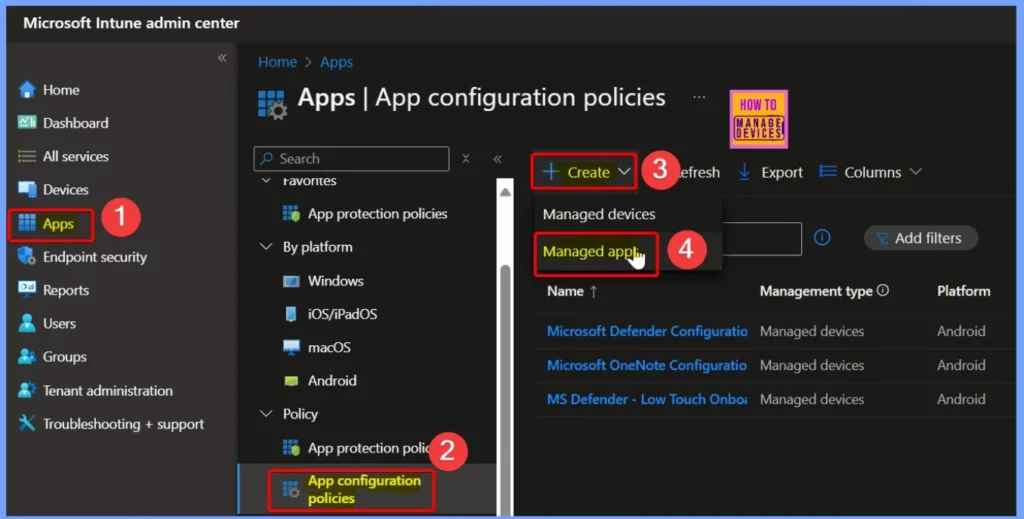
The table below summarises the process to allow screen capture on iOS devices in Intune.
| Steps to Allow Screen Capture on iOS Devices in Intune |
|---|
| Navigate to the Microsoft Intune admin center |
| Select Apps. |
| Click on App configuration policies. |
| Choose to Create and then select Managed Apps. |
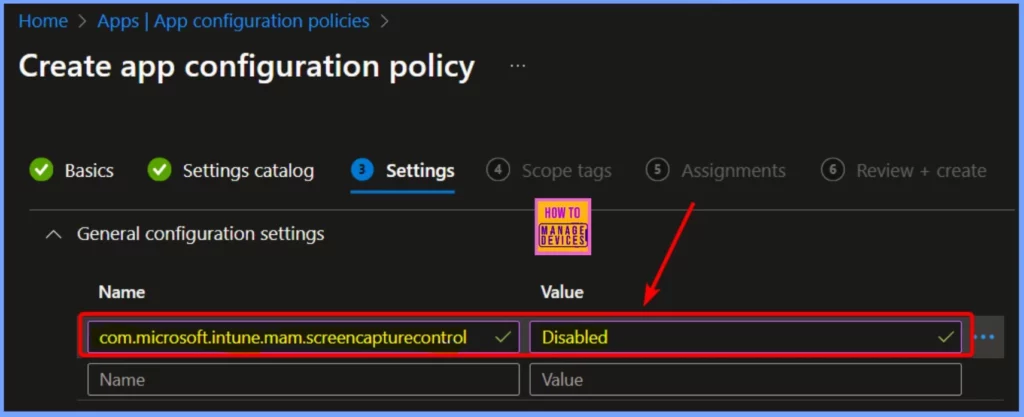
| Add the configuration key com.microsoft.intune.mam.screencapturecontrol = Disabled to allow screen capture. |
- Issue with Microsoft Intune App Protection Policies Not Targeting Newly Added Apps
- Create Intune App Protection Policies for iOS iPadOS
- How to Create App Protection Policies for Windows MAM Devices
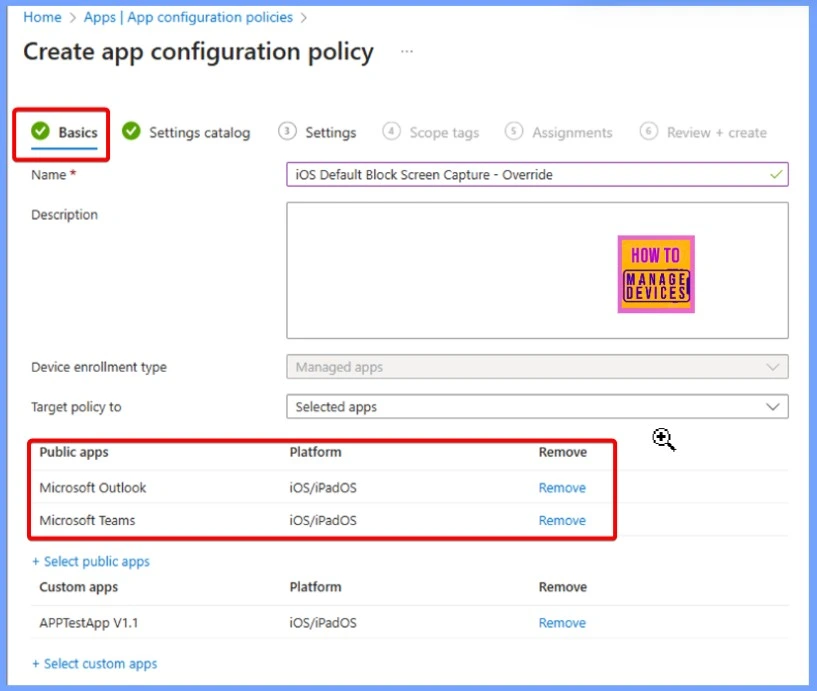
Selecting Target Apps for App Protection Policy
You must select the apps you want to target on the Basics page with the app protection policy. The policy changes you configure, such as allowing or blocking screen capture, will affect these selected apps.
- Intune App Protection Policies for Android and iOS Devices
- Enforce Users to use Intune Approved Apps with App Protection Policies using Conditional Access Policies
General Configuration Settings
Go to the “General configuration settings” section on the Settings page. Add the key “com.microsoft.intune.mam.screencapturecontrol” and set its value to “Disabled“. This will turn off the default screen capture blocking and allow screen capture for the targeted apps.
Need Further Assistance or Have Technical Questions?
Join the LinkedIn Page and Telegram group to get the latest step-by-step guides and news updates. Join our Meetup Page to participate in User group meetings. Also, Join the WhatsApp Community to get the latest news on Microsoft Technologies. We are there on Reddit as well.
Resources
New block screen capture for iOS/iPadOS MAM-protected apps | Microsoft Community Hub
Author
Anoop C Nair has been Microsoft MVP from 2015 onwards for 10 consecutive years! He is a Workplace Solution Architect with more than 22+ years of experience in Workplace technologies. He is also a Blogger, Speaker, and leader of the Local User Group Community. His primary focus is on Device Management technologies like SCCM and Intune. He writes about technologies like Intune, SCCM, Windows, Cloud PC, Windows, Entra, Microsoft Security, Career, etc.


cool new option though it would have been nice if it wasn’t on by defualt for Intune deployments already out. had a group of unhappy users when screenshots just stopped working for them and had to do a change with a lot of paperwork to roll it back.