






Device Offboarding Manager PowerShell Tool for Simplified Device Lifecycle Management
Let’s discuss the Device Offboarding Manager PowerShell Tool for Simplified Device Lifecycle Management. Ugur Koc developed a powerful PowerShell tool to simplify and speed up device management. This tool helps IT admins handle tasks more efficiently, making their work easier and saving valuable time.
The Device Offboarding Manager is designed to simplify and streamline managing device lifecycles across Microsoft Cloud services like Intune, Autopilot, and Entra ID.
This tool brings everything into one place instead of jumping between different portals, saving IT admins time and effort. Managing devices across tools like Microsoft Intune, Autopilot, and Entra ID can take a lot of time, especially when switching between different portals for tasks like offboarding or maintenance.
This tool is designed to simplify your job by bringing all the important features into one place. Its simple, user-friendly interface saves you time and effort. You can handle tasks in bulk, like offboarding many devices at once, making your daily work faster and more efficient.

Table of Contents
What are the Key Highlights of Device Offboarding Manager?
The Device Offboarding Manager makes managing devices much easier, faster, and more efficient for IT admins. It simplifies tasks like offboarding and maintenance, smoothing daily work and saving time.
Centralised Management –
It brings everything together in one place, eliminating the need to navigate multiple portals.
User-Friendly Interface –
It offers a clean and intuitive interface that simplifies complex tasks.
Streamlined Bulk Operations –
Speeds up bulk tasks, such as offboarding multiple devices, saving significant time.
Device Offboarding Manager PowerShell Tool
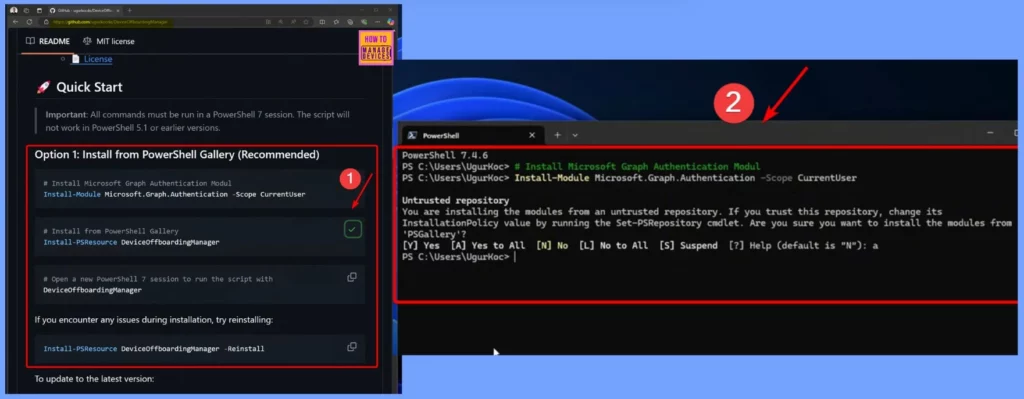
To start this project, we’ll begin with its GitHub repository, which provides detailed information and includes screenshots. For this post, we’ll focus on the Quick Start section in GitHub repository . First, ensure you have PowerShell 7 installed on your device. If it’s not installed, you’ll need to set it up. Additionally, you’ll need the Microsoft Graph Authentication module.
Open the Terminal inside the Virtual Machine (VM). At the top, you can confirm that PowerShell version 7.4.6 is installed. Next, copy and paste the commands from the Quick Start guide. The Microsoft Graph Authentication module is important because it allows us to authenticate to both the Intune and Entra ID tenants.
- Surface Management Portal in Intune a Simplified Device Management for IT Admins
- Top 75 Latest Intune Interview Questions and Answers
- 37 hours of SCCM Training – latest technical content
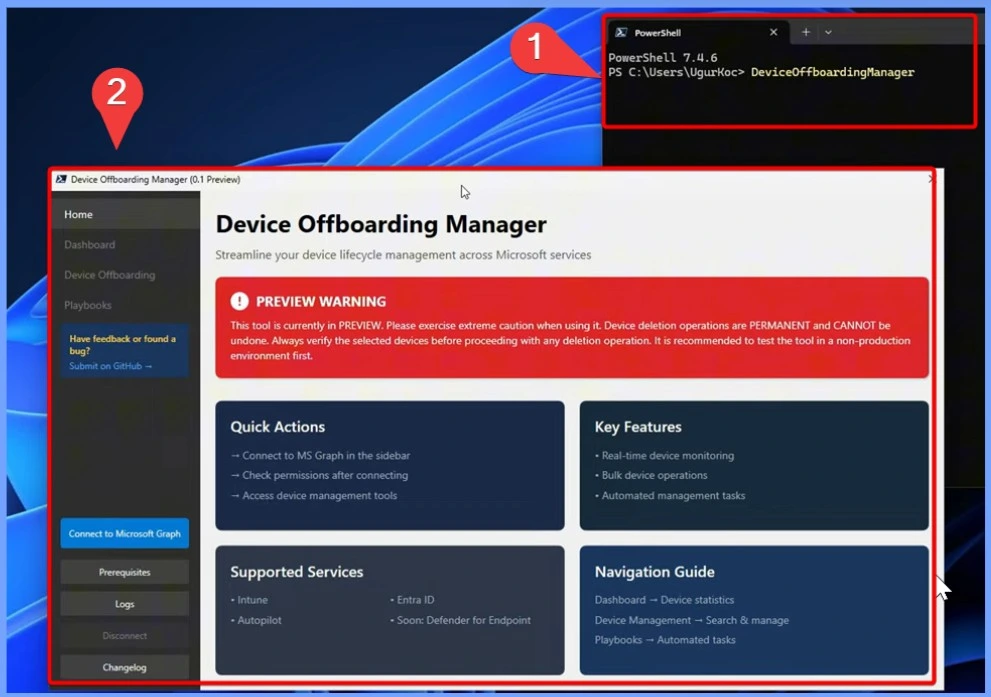
Finally, run the script by typing its name and executing it. Before that, we’ll create a new PowerShell session. Once the script runs, a User Interface (UI) should open. The script is given below.
PowerShell 7.4.6
PS C:\Users\Ugurkoc> # Install Microsoft Graph Authentication Modul
PS C:\Users\UgurKoc> Install-Module Microsoft.Graph.Authentication -Scope CurrentUser
Untrusted repository
You are installing the modules from an untrusted repository. If you trust this repository, change its
InstallationPolicy value by running the Set-PSRepository cmdlet. Are you sure you want to install the modules from
‘PSGallery’?
[Y] Yes [A] Yes to All [N] No [L] No to All [s] Suspend [?] Help (default is “N”): a
PS C:\Users\Ugurkoc> # Install from PowerShell Gallery
PS C:\Users\Ugurkoc> Install-PSResource DeviceOffboardingManager
Untrusted repository
You are installing the modules from an untrusted repository. If you trust this repository, change its Trusted value by
running the Set-PSResourceRepository cmdlet. Are you sure you want to install the PSResource from ‘PSGallery’?
[Y] Yes [A] Yes to All [N] No [L] No to All [S] Suspend [?] Help (default is “N”): a
PS C:\Users\UgurKoc>
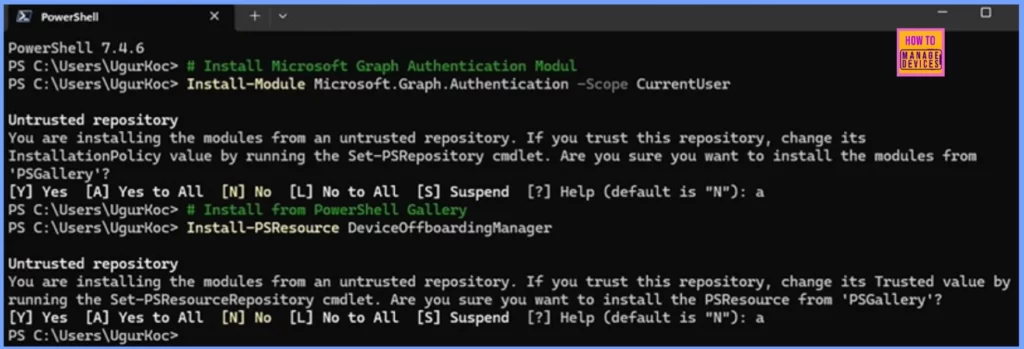
Some processes run in the background. To continue, paste the Device Offboarding Manager script into PowerShell. After the script runs, a user interface (UI) will open.
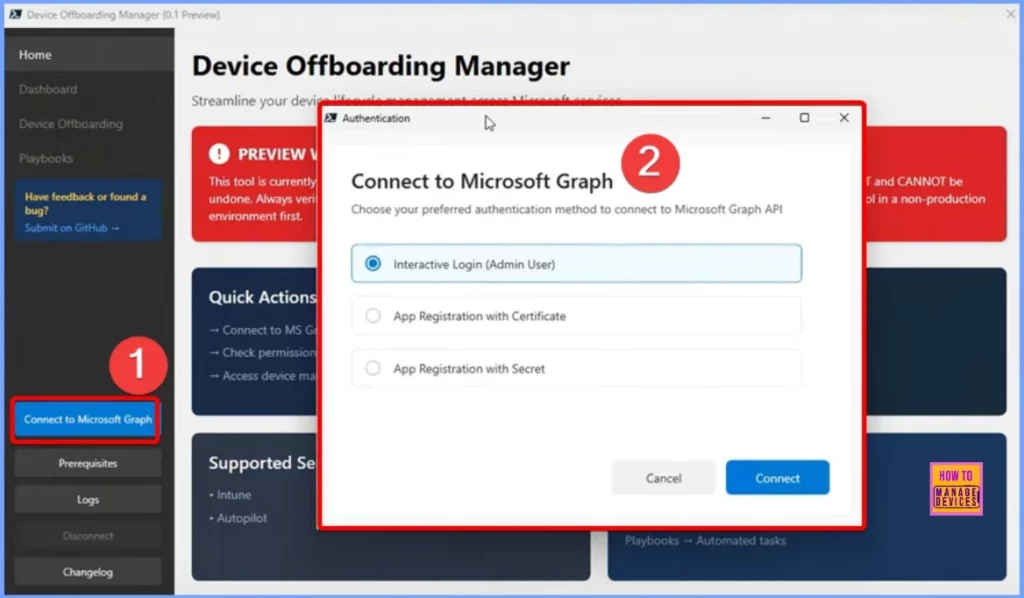
Connect to Microsoft Graph
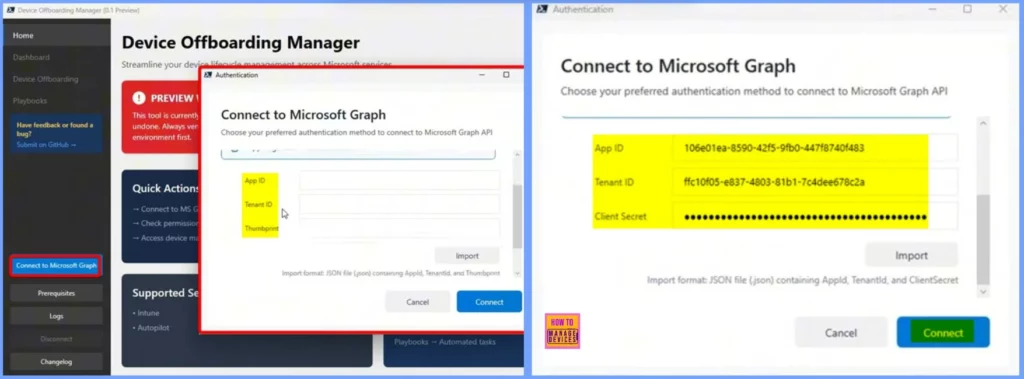
Choose your preferred authentication method to connect to the Microsoft Graph API. The Connect to Microsoft Graph feature offers three options: Interactive Login (Admin User), App Registration with Certificate, and App Registration with Secret.
App Registration with Certificate
If you select App Registration with Certificate, you must provide your Application ID and Tenant ID. Alternatively, you can import a JSON file containing these details. In this demo, Ugur uses App Registration with Secret, clicks the Import button, and selects one of two JSON files on the desktop.
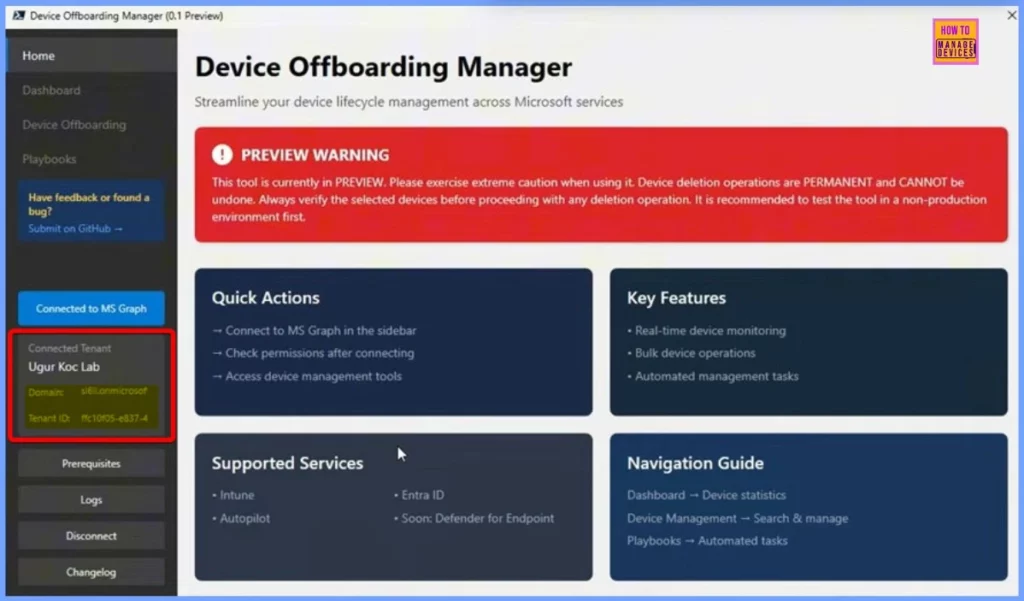
The left sidebar menu displays important details, including your tenant name, domain, and tenant ID. The below screenshot shows more information.
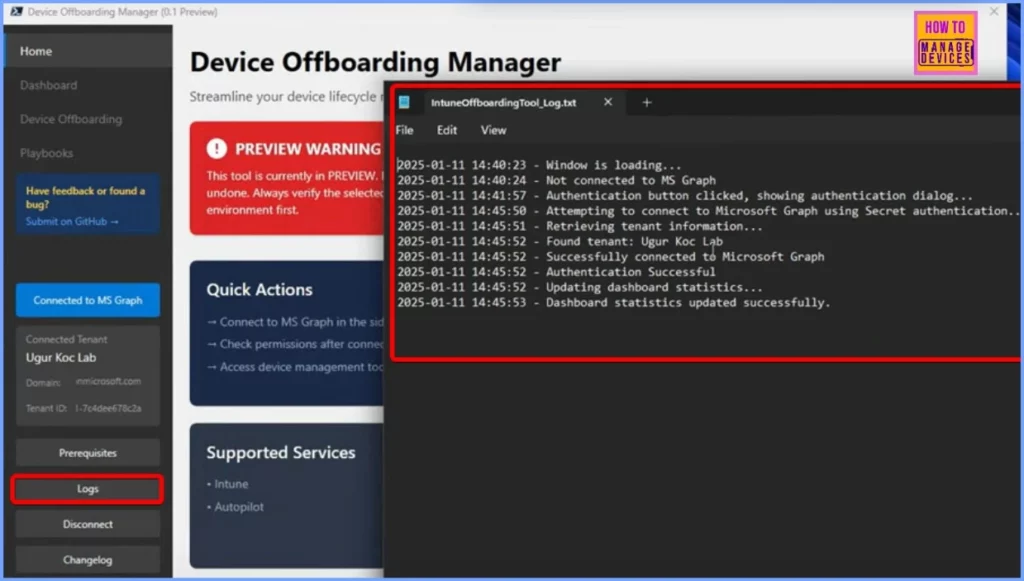
Logs
If you look at the logs now, you’ll see more details. The connection to the tenant is established, and the dashboard has also been updated. The screenshot below shows more information.
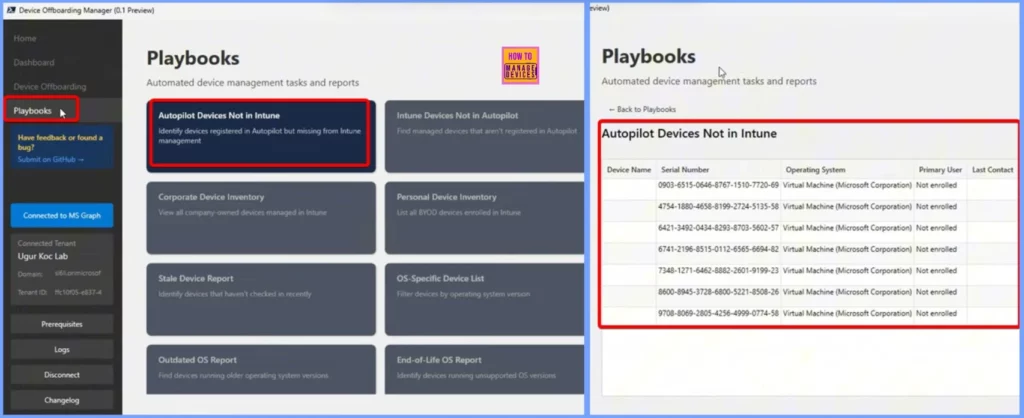
PlayBooks
This playbook identifies devices registered in Autopilot but not enrolled in Intune or removed from Intune without being cleared from Autopilot. It helps pinpoint orphaned or unmanaged Autopilot devices, allowing for better tracking and management.
Additionally, other playbooks are available for handling various management tasks related to both Autopilot and Intune devices.
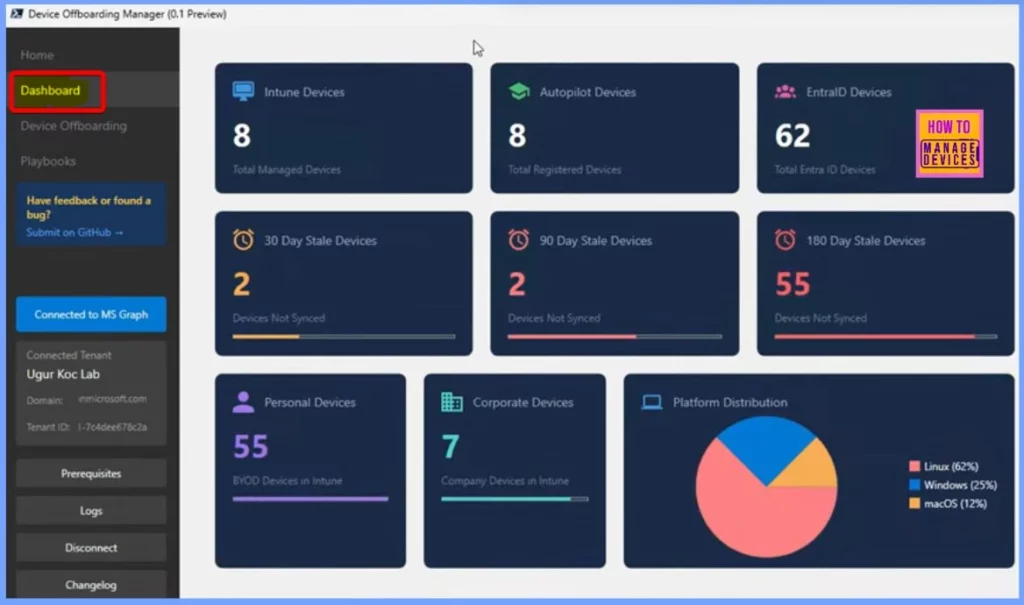
Dashboard
After connecting to the tenant, you can use the dashboard feature, which updates in real time. When you click the dashboard button, the script fetches device data from Intune Autopilot and Entra.
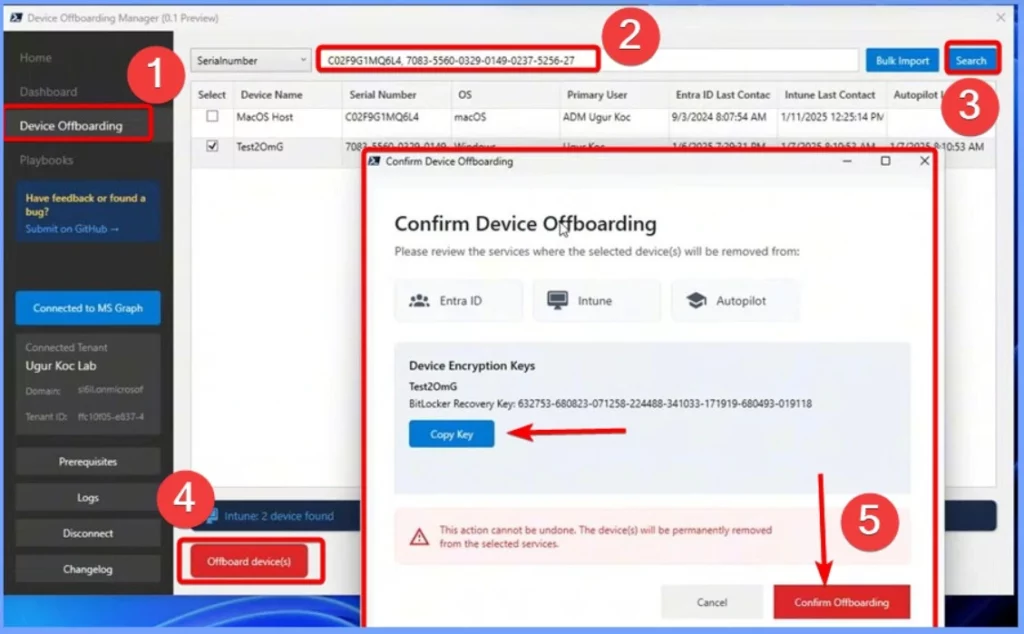
Confirm Device Offboarding
In Device Offboarding, you can search for devices by name or serial number. Once found, select the devices and click Offboard Devices. There is also a Bulk Import option where you can upload a CSV file. Remember, deletions in Intune or Entra ID are final and cannot be undu. Clicking Confirm Offboarding will permanently remove the selected devices from Intune and Entra.
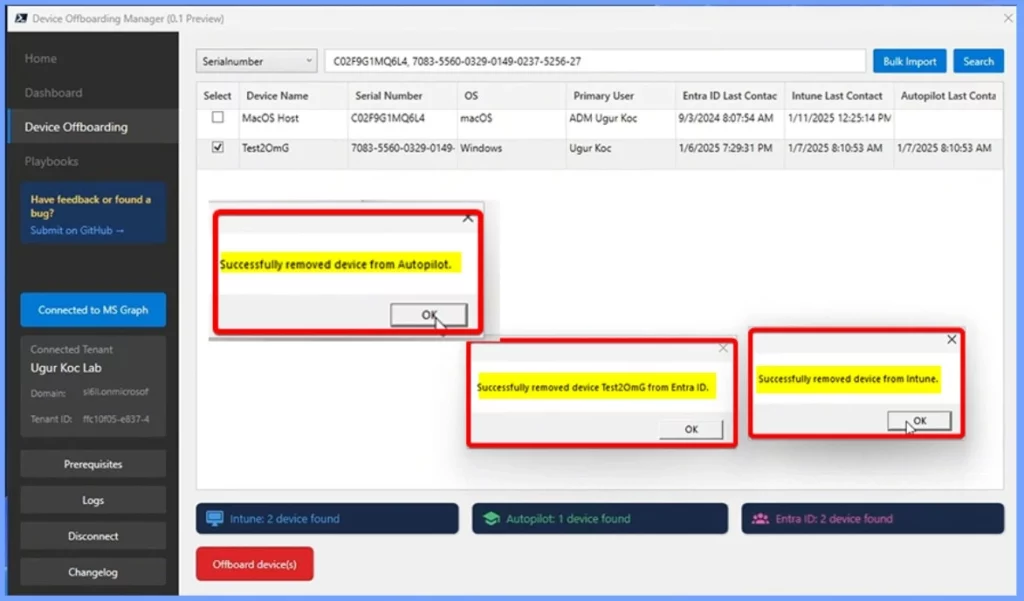
End Result
The screenshot below shows that the device was successfully removed from Autopilot, Intune and Entra. The below screenshot shows more details.
Need Further Assistance or Have Technical Questions?
Join the LinkedIn Page and Telegram group to get the latest step-by-step guides and news updates. Join our Meetup Page to participate in User group meetings. Also, Join the WhatsApp Community to get the latest news on Microsoft Technologies. We are there on Reddit as well.
Resources
Device Offboarding Manager – Walkthrough and Feature Overview – YouTube
Author
Anoop C Nair has been Microsoft MVP from 2015 onwards for 10 consecutive years! He is a Workplace Solution Architect with more than 22+ years of experience in Workplace technologies. He is also a Blogger, Speaker, and Local User Group Community leader. His primary focus is on Device Management technologies like SCCM and Intune. He writes about technologies like Intune, SCCM, Windows, Cloud PC, Windows, Entra, Microsoft Security, Career, etc.
Discussion