






Enable Disable Power Button Action on Battery using Intune Settings Catalog Policy
Let’s discuss Enable Disable Power Button Action on Battery using Intune Settings Catalog Policy. Microsoft Intune Provides a Power Button Action Configuration Policy. You can configure the policy on your device and your organization using Settings Catalog.
Have you heard about the Power Button Action On Battery? The power button action refers to the specific action your computer takes when you press the power button. This action works while your computer is running on battery power.
This feature is completely customized and performs various actions depending on your preferences and power management needs. We have already discussed the Energy Saver Battery Threshold On Battery in our post related to the Power Management policy.
The Power Button Action On Battery policy setting specifies what action Windows takes when a user presses the sleep button. This blog post will explain how to create a Power Button Action On Battery Policy step by step.

Table of Contents
What are the Benefits of Power Button Action on Battery in Intune?
1. It provide consistency across devices
2. Helps to increase productivity
3. Enhance user experience
Enable Disable Power Button Action on Battery using Intune Settings Catalog Policy
As mentioned above it is a customizable feature and you can choose specific actions of this policy according to your specific needs. More over this policy helps you to manage energy consumption more effectively.
- How to Enable or Disable Battery Saver in Windows 11 | Energy Saver Battery Threshold Policies
- How to Allow or Block Edge Swipe Policy under Lock Down using Intune Settings Catalog
- Enable the Clear Browsing Data on Exit option using the Intune Settings Catalog
Windows CSP Details of Power Button Action On Battery
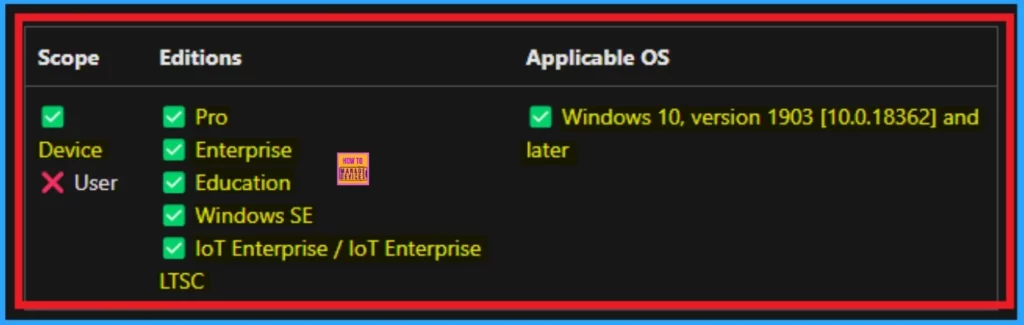
The screenshot below shows the CSP details of Power Button Action On Battery. Here you can see, applicable OSs of this policy and Editions. By checking these details you can start the configuration policy creation. The below table shows the more details.
| Scope | Editions | Applicable OS |
|---|---|---|
| Device | Pro | Windows 10, version 1903 [10.0.18362] and later |
| Enterprise | ||
| Windows SE | ||
| loT Enterprise / loT Enterprise LTSC |
Steps for Enabling Power Button Action On Battery
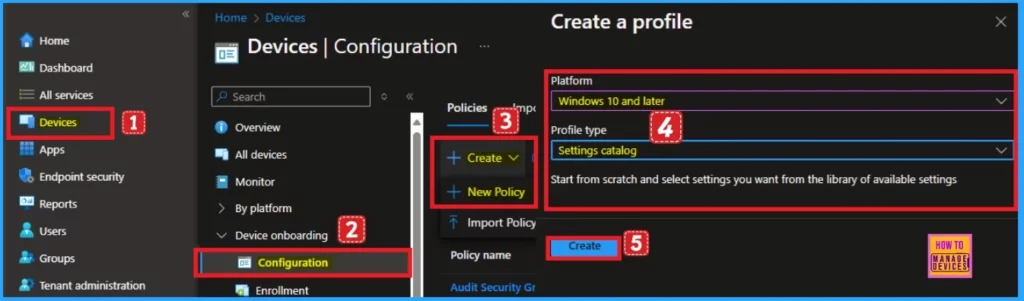
You can configure a settings catalog policy on the Microsoft Intune Portal. To start creating the policy, open the Microsoft Intune Admin Center. Then go to Devices > Configuration > Create > Policy.
After you can create a profile on Intune Portal to configure the policy. For this you have to select Platform and Profile Type. Here i select Windows 10 and later as Platform and Settings Catalog as Profile type.
- Click on the Create button
Basic Tab
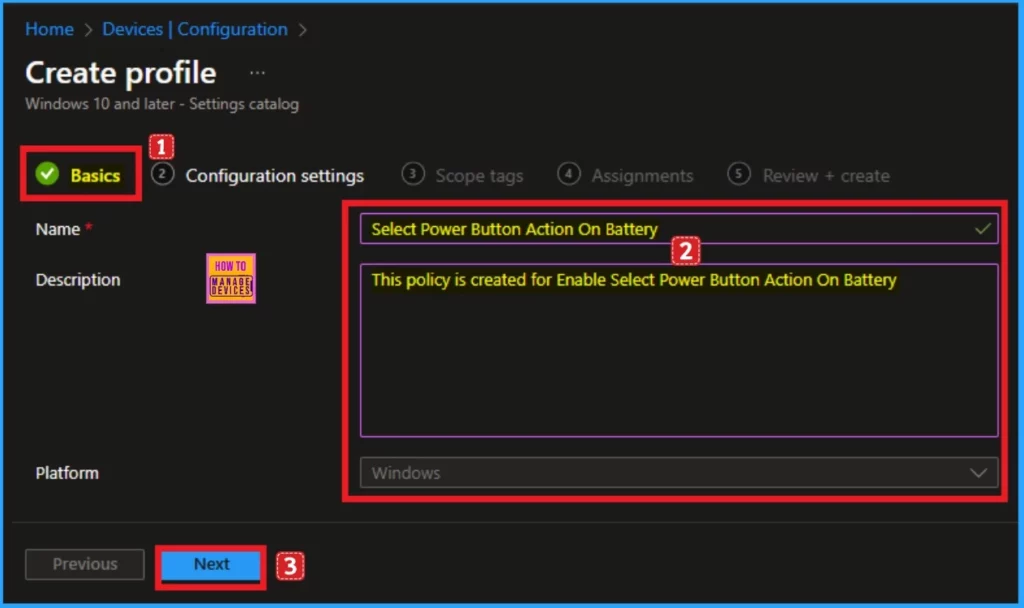
On the Basic tab, you must add a Name and Description for your policy. The name is a mandatory field that helps you identify the policy, so you must add an appropriate Name. Description is optional here, and it is better to add it in this section.
- Name – Select Power Button Action on Battery
- Description – This policy is created for Enable Select Power Button Action on the Battery
- Click on the Next button
Configuration Settings
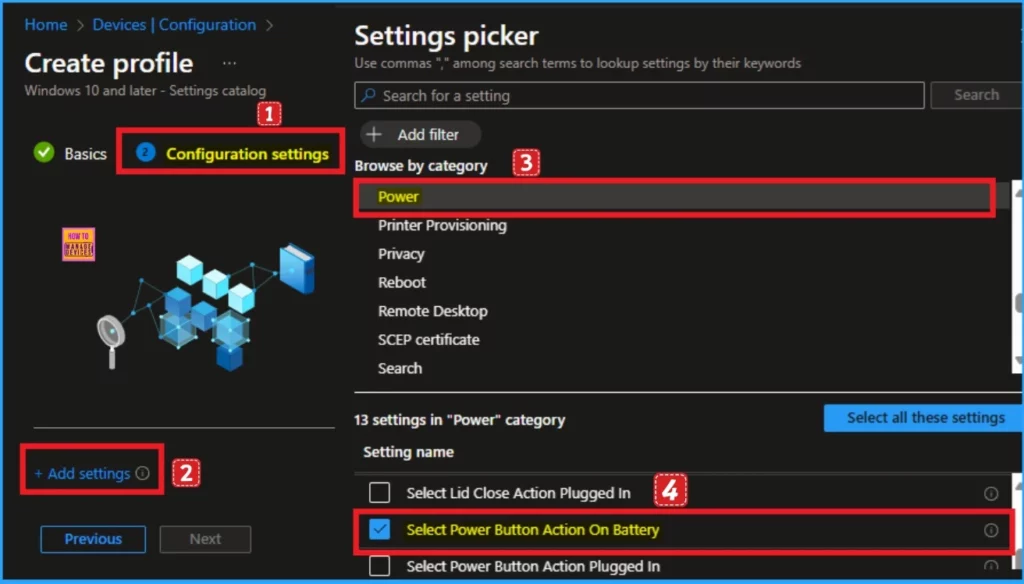
Configuration settings are the major part of Intune Settings Catalog policy creation. On the Configuration tab, click on the +Add settings hyperlink to add a setting (policy). After clicking on this hyperlink, you will open a new window to select your settings.
- Select Power Category on the Settings Picker.
- Click on the checkbox near Select Power Button Action on Battery.
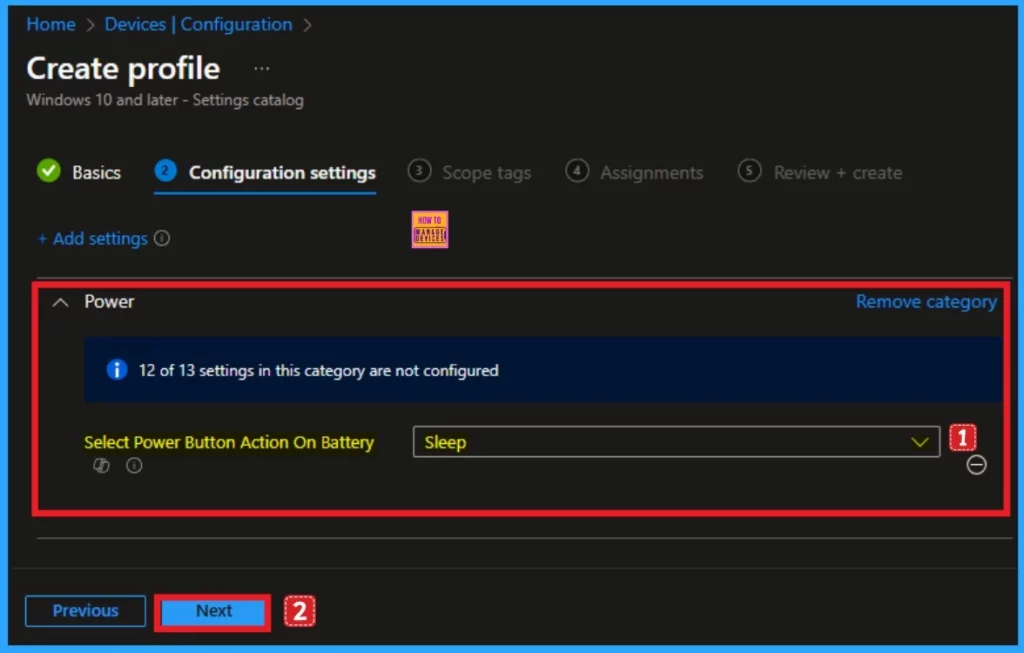
After selecting this policy, it will appear in the Configuration Settings tab. Here, you can see different actions available on the Power Button Action on Battery policy. Click on the Drop arrow to see these actions. By default, the Sleep action is selected. Click on the Next button. Follow the table to learn more about actions.
| Actions | Details |
|---|---|
| Sleep | The computer enters a low-power state, saving your session in memory and quickly resuming when you press the power button again. |
| System hibernate sleep state | The computer saves your session to the hard drive and powers off completely, using no power. It resumes to the previous state when turned back on. |
| Shut Down | The computer powers off entirely, closing all programs and saving data before turning off. |
| Take no action | No action is taken when the power button is pressed. |
Scope Tags
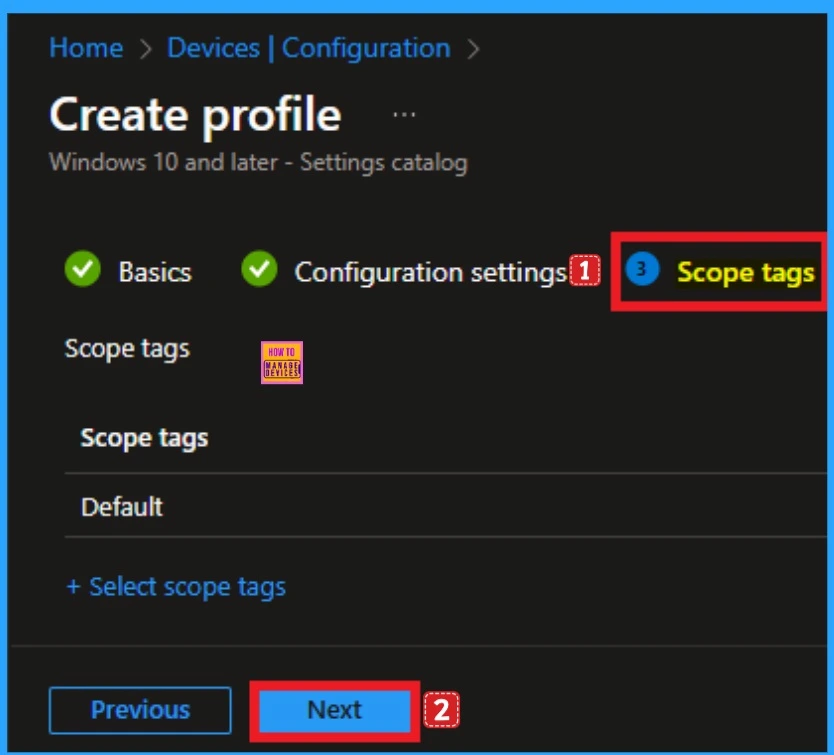
Scope tags are not a compulsory step in Intune Settings Catalog Policy Creation. If you would like to add a Scope tag, you can do it by clicking on the + Select scope tags. Here, I skip this section and click on the Next button.
Assignments Tab
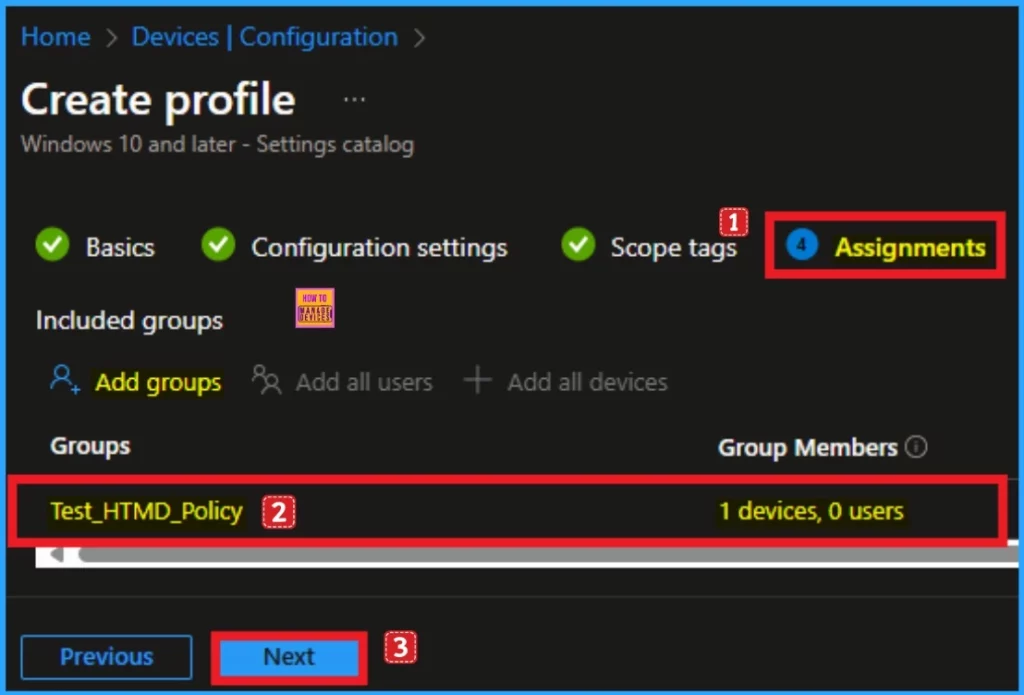
The assignments tab is equally important as the Configuration Settings tab. On this tab, you can select a group to which you will assign the Power Button Action On Battery. To add a group, click on the add groups option under included groups.
- Select group from the list of groups in your tenant
- Click on the Select button.
- After that, click on the Select button
- Then the group will appear on the Assignments tab
- Click on the Next button
Review + Create Tab
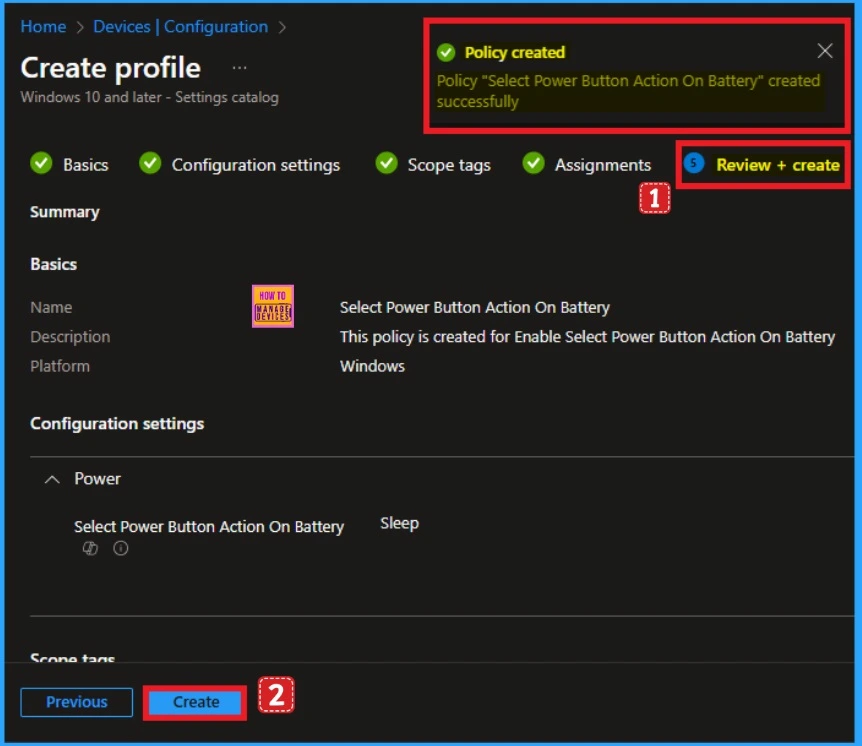
The Review + Create Tab is the final tab that shows all the previous steps of the Configuration policy creation. From this window, you can make changes and create policies. After verifying the details, click on the Create button. Then, you will get a success Notification.
Monitoring Status of Power Button Action on Battery
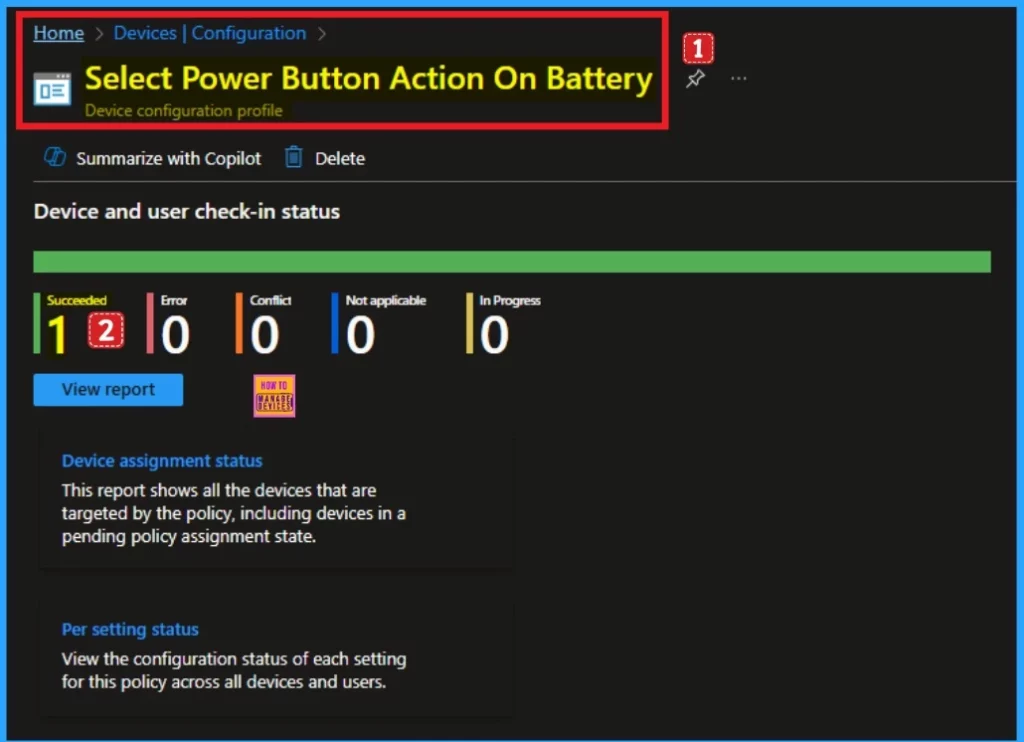
After creating the policy, you should sync your device on the company portal for faster deployment. After syncing the device, you can check the status of the policy on the Intune portal. To check the status follow the below steps.
- Devices > Configuration > Policies
- Under Policies, search your policy Name
- Here you can see the Succeeded as 1
Client Side Verification – Event Viewer
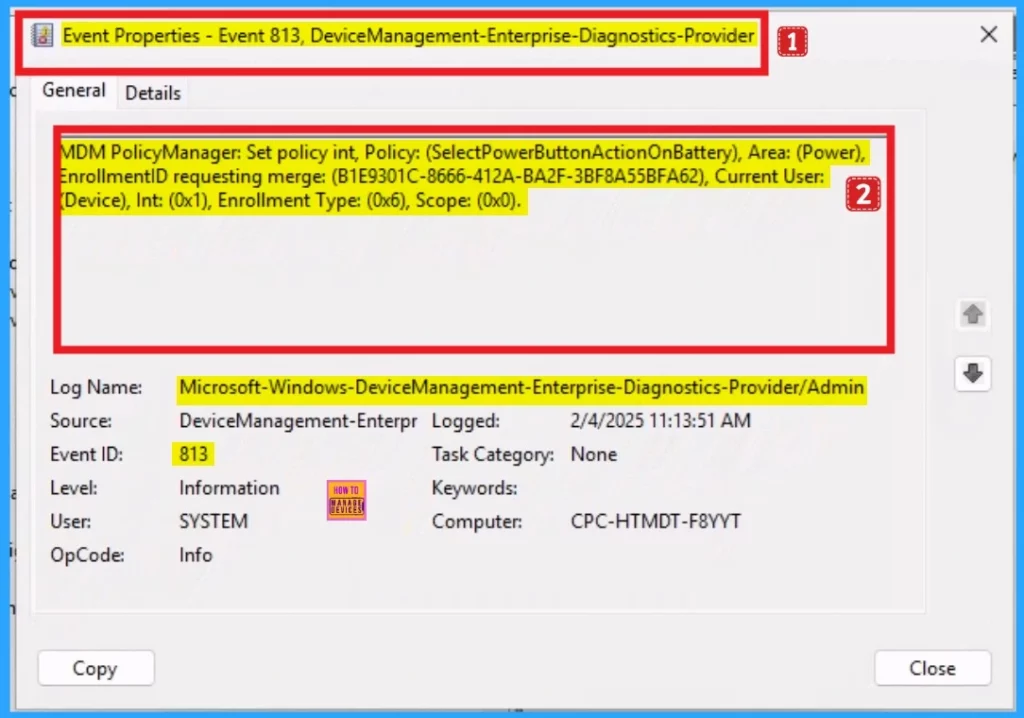
After that, you can check the client-side verification on the Event Viewer. To access the Event Viewer, Click on the Start Menu and Search for Event Viewer. Click on the Yes button on the User Account Control window. To get the successful Event ID, follow the below steps.
- Applications and Services Logs > Microsoft > Windows > DeviceManagement- Enterprise-Diagnostics-Provider > Admin
- The success result can be seen on the Event ID 813
MDM PolicyManager: Set policy int, Policy: (SelectPowerButtonActionOnBattery), Area: (Power),
EnrollmentID requesting merge: (B1E9301C-8666-412A-BA2F-3BF8A55BFA62), Current User:
(Device), Int: (0x1), Enrollment Type: (0x6), Scope: (0x0).
Need Further Assistance or Have Technical Questions?
Join the LinkedIn Page and Telegram group to get the latest step-by-step guides and news updates. Join our Meetup Page to participate in User group meetings. Also, Join the WhatsApp Community to get the latest news on Microsoft Technologies. We are there on Reddit as well.
Author
Anoop C Nair has been Microsoft MVP from 2015 onwards for 10 consecutive years! He is a Workplace Solution Architect with more than 22+ years of experience in Workplace technologies. He is also a Blogger, Speaker, and Local User Group Community leader. His primary focus is on Device Management technologies like SCCM and Intune. He writes about technologies like Intune, SCCM, Windows, Cloud PC, Windows, Entra, Microsoft Security, Career, etc.


Do you have idea how to also prevent users to change settings by using control panel power options? I have tried with OMA URI setting, but did not prevent changes, at least in my case