






Intune Method for Installing AIMP App using Enterprise App Catalog App
Hello, everyone. Let’s discuss installing AIMP app through Microsoft Intune as an enterprise app in the catalog. As you may know, Microsoft Intune is a cloud-based service that provides a wide range of features, one of the best being the enterprise app catalog.
This feature allows users to install various types of applications for their organizations. The Enterprise App Catalog is a free packaged solution that reduces IT administrators‘ workload. In our earlier posts, we discussed different types of apps and their installations. Today, we will focus on installing the AIMP app through Microsoft Intune.
The AIMP app, also known as Artem Izmaylov Media Player, is known for its features and provides the best experience for Users who love music. This application uses AIMP on Windows, macOS, Linux, and Android. One of the best things about AIMP is its ease of use.
You can quickly make playlists, and the app can even create playlists based on the type of music you like. This helps you discover new songs and keep your music organized. You can also add effects like echo, reverb, and more bass to make your music sound better.

Table of Contents
What is the AIMP App?
Intune Method for Installing AIMP App Through Enterprise App Catalog App
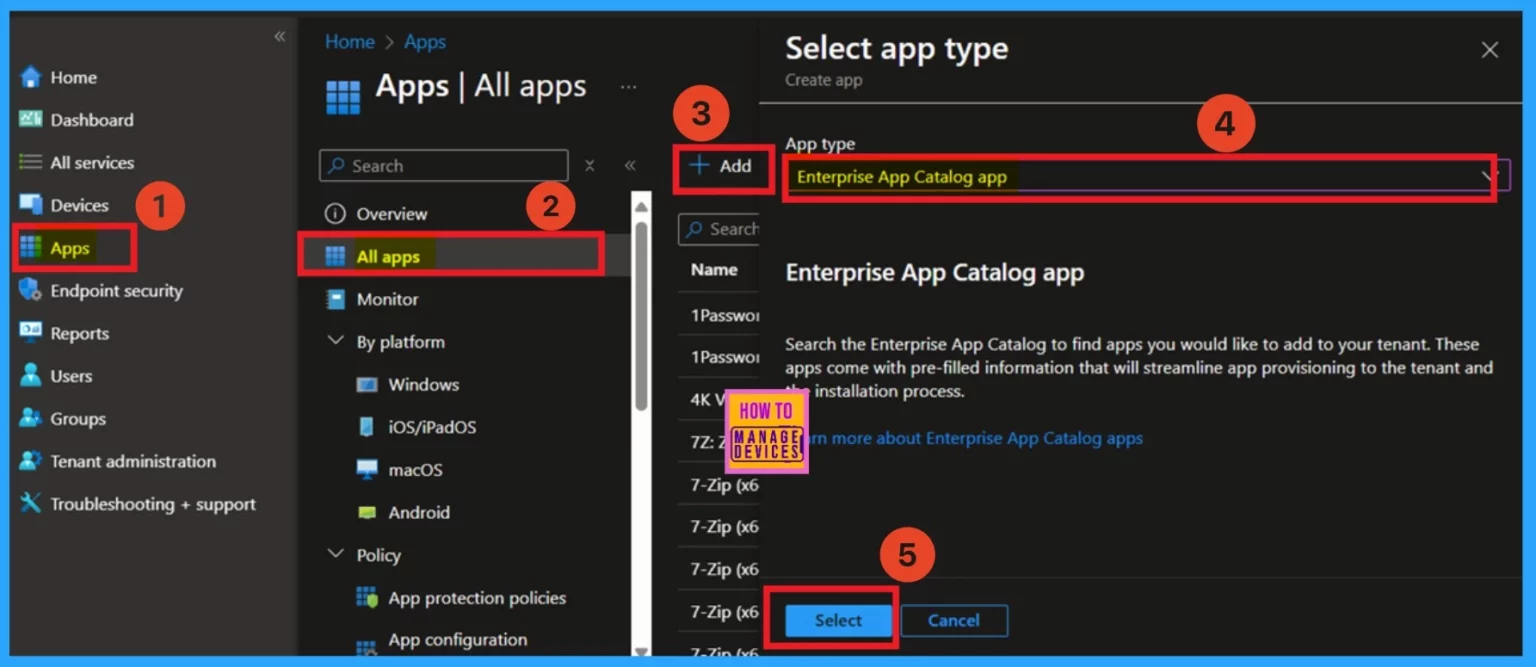
We discussed various aspects of the AIMP app, including its features and an overview of enterprise and catalog apps. Now, let’s move on to how to install the AIMP app using Microsoft Intune. First, you must sign in to the Microsoft Intune Admin Center.
Next, navigate to the “Apps> All apps” in the All-Apps window, you will see +Add.” Click on that, then select the app type as “Enterprise Catalog” and click on “Select.”
- Windows 365 and AVD Support MMR Multimedia Redirection for Call Center VOIP Apps
- PDF24 Creator Deployment using Intune Enterprise App Catalog App
- How to Install the Frame App using Intune Enterprise App Catalog App
App Information
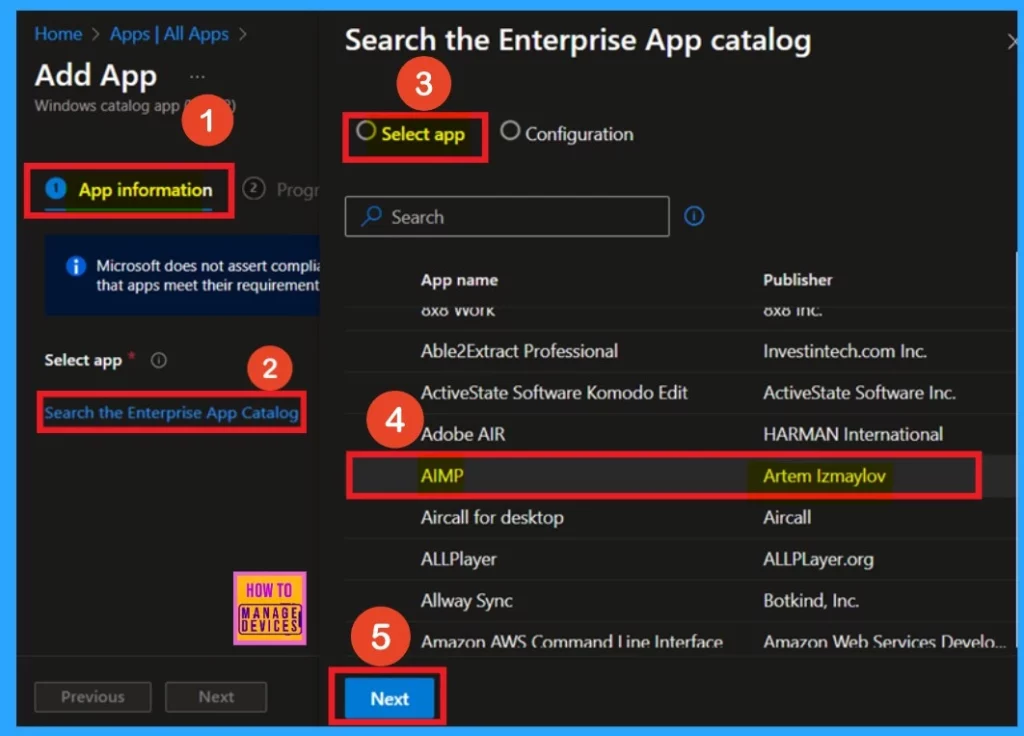
You are now on the app information page. You can see a hyperlink to an option called “search for the Enterprise app catalog app.” Click on that link, and you will be taken to the app selection page. On this page, you will find various types of apps that you can install for your organization. Select the AIMP app and then click on the “Select” option.
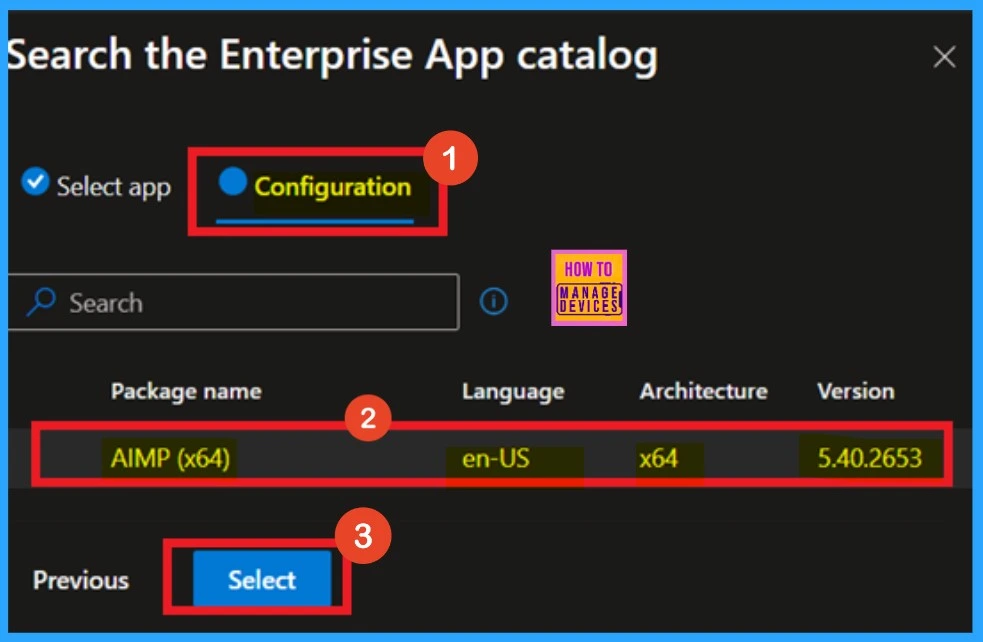
Next, you will be directed to the configuration tab. Here, you can choose the version of the app you wish to install. Multiple app versions may be available in some cases, but only one version is shown in this instance. Select that version and click “Next.”
| Package | Language | Architecture | Version |
|---|---|---|---|
| AIMP | en-US | *64 | 5.402653 |
Add a Logo
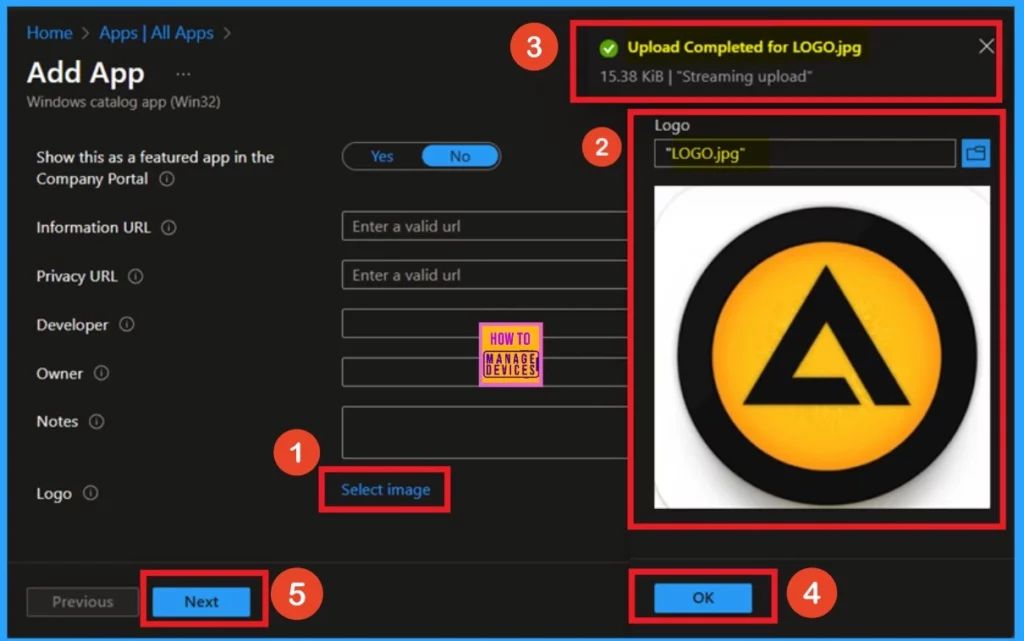
After selecting the version, you will be on the app information page. Scroll down until you find the option labeled “Select Image.” This option allows you to upload an app icon for your deployment. First, click on “Select Image.” Then, choose the image or logo you want to add to the app.
I downloaded an image, saved it in my files, and uploaded it. Once the upload is complete, you will receive a notification confirming the successful upload. Click “OK,”
- The icon will be displayed on your app information page. To proceed, click “Next.”
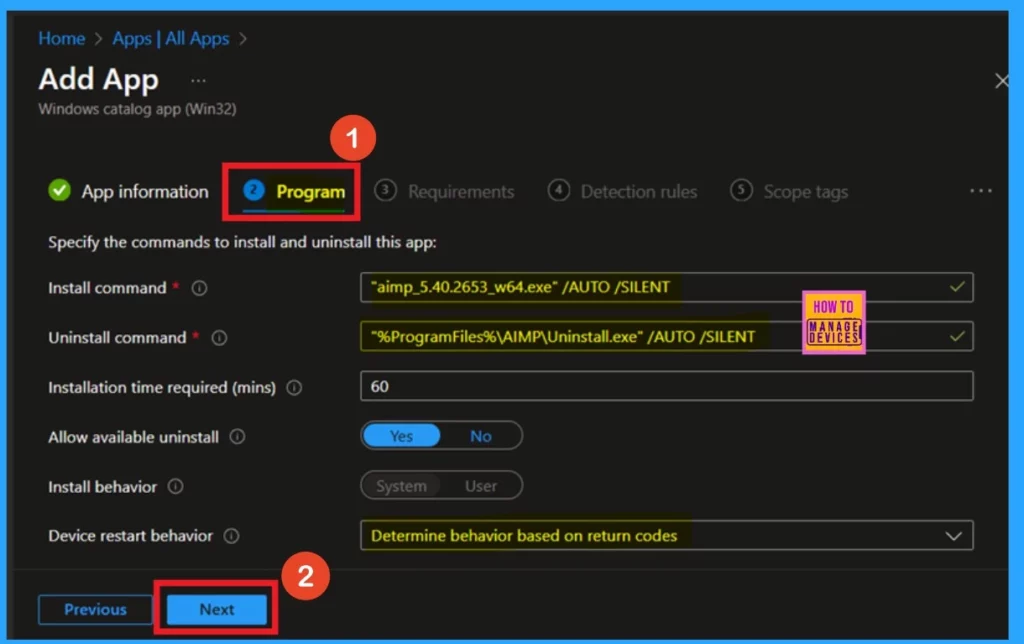
After reviewing the app information, you will go to the program page. Here, you will find the installation and uninstallation commands and details. No action is required from you in this section; click “Next” to continue.
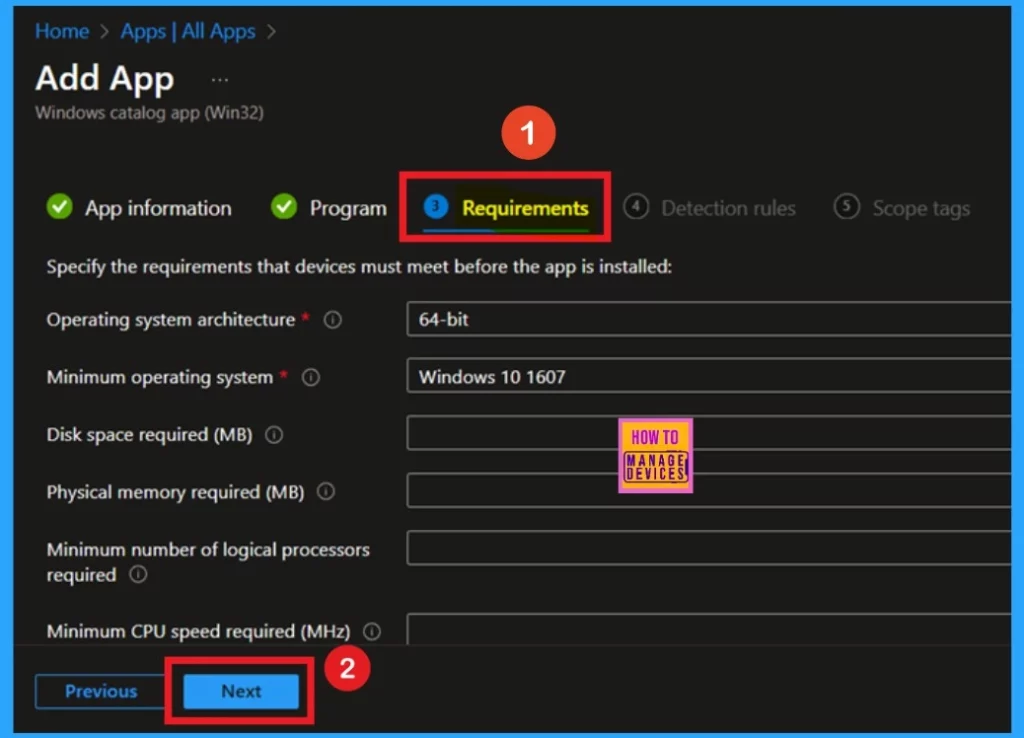
The next tab, labeled Requirements, is located after the program section, and this tab is mandatory. It provides information about the operating system architecture and specifies a minimum requirement of a 64-bit operating system, specifically Windows 10, version 1607. You don’t need to act here, so please click “Next.”
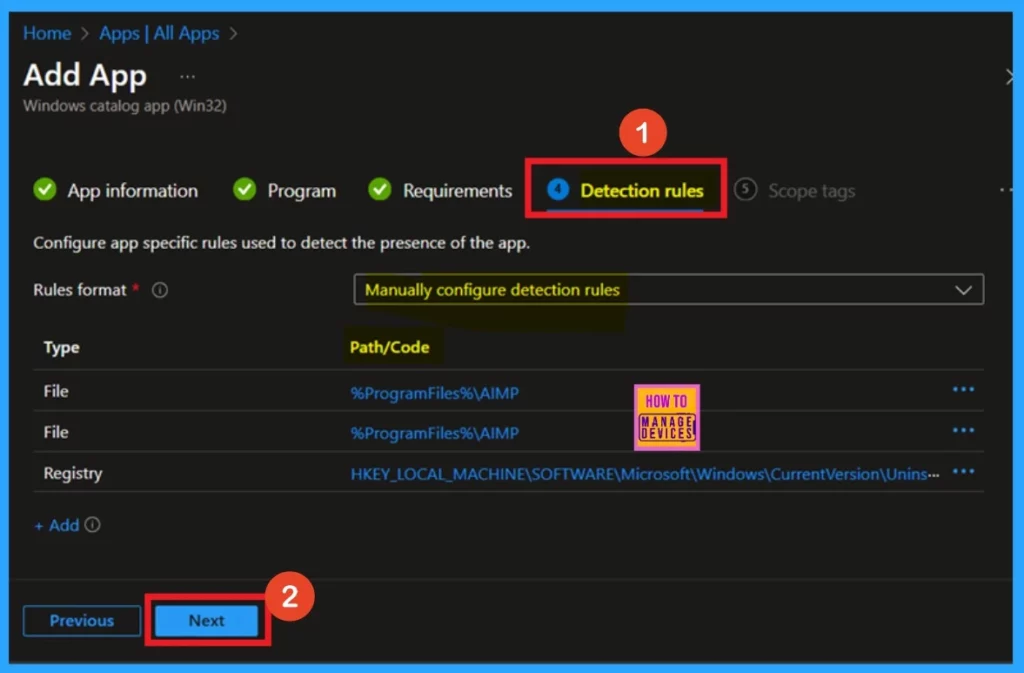
The Detection Rule Tab appears after setting the Requirements. Here, you can view the format for the mandatory detection rules. You will also find the configuration path for the file and the registry. While this section is not compulsory, no further action is needed on your part, so you can skip it. Click on Next.
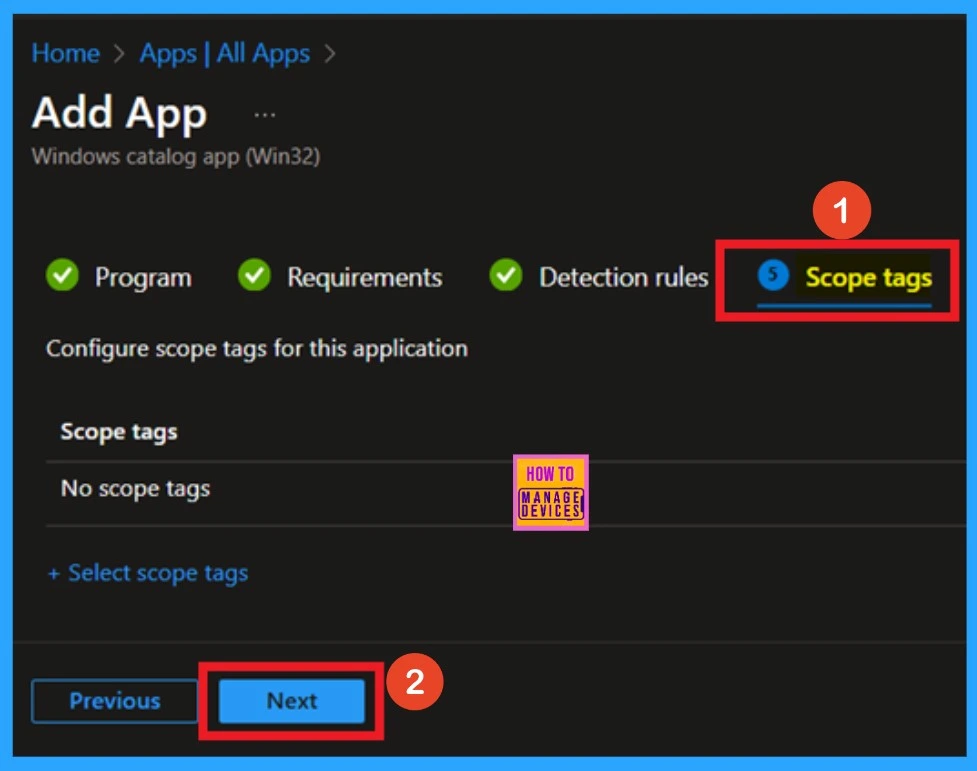
The scope tag section is after the detection rule. Since this option is mandatory, you don’t need to take any action. This section is usually used to assign a scope tag to a group. However, if I don’t need to utilize this section so that I will click the Next button.
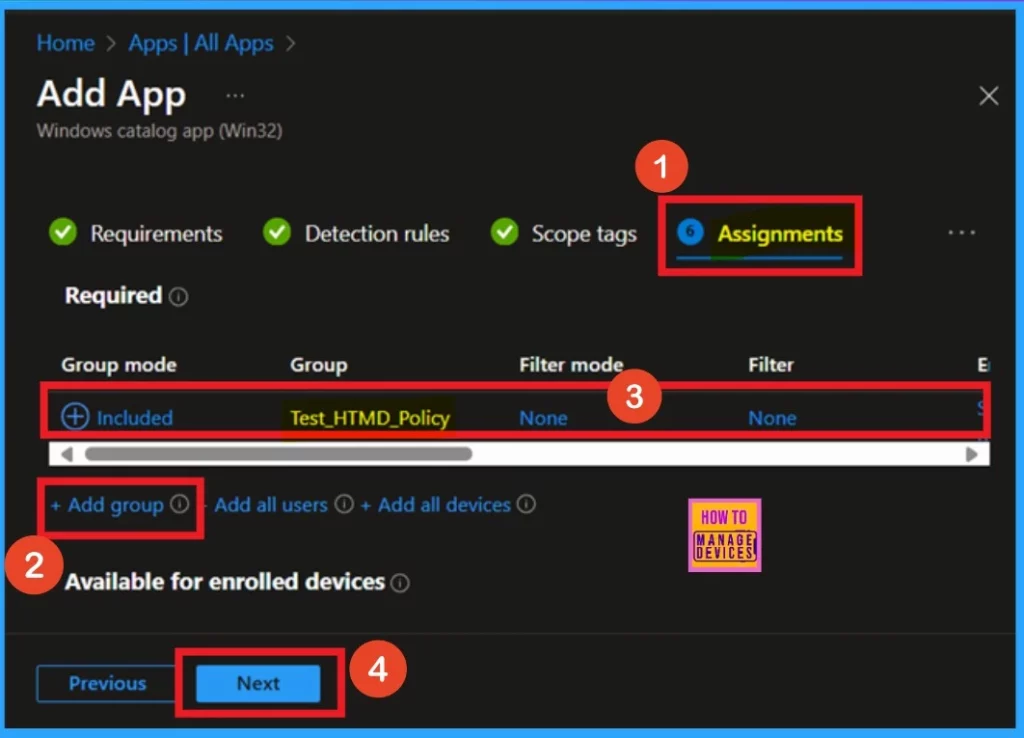
Assignments are another important section. Here, you need to assign groups to the policy. In this section, you will see the option to add a group under the required section. Click on that option and select the group for which you want to install the app. After selecting the group, you’ll notice it added to the included section.
- Click on the Next.
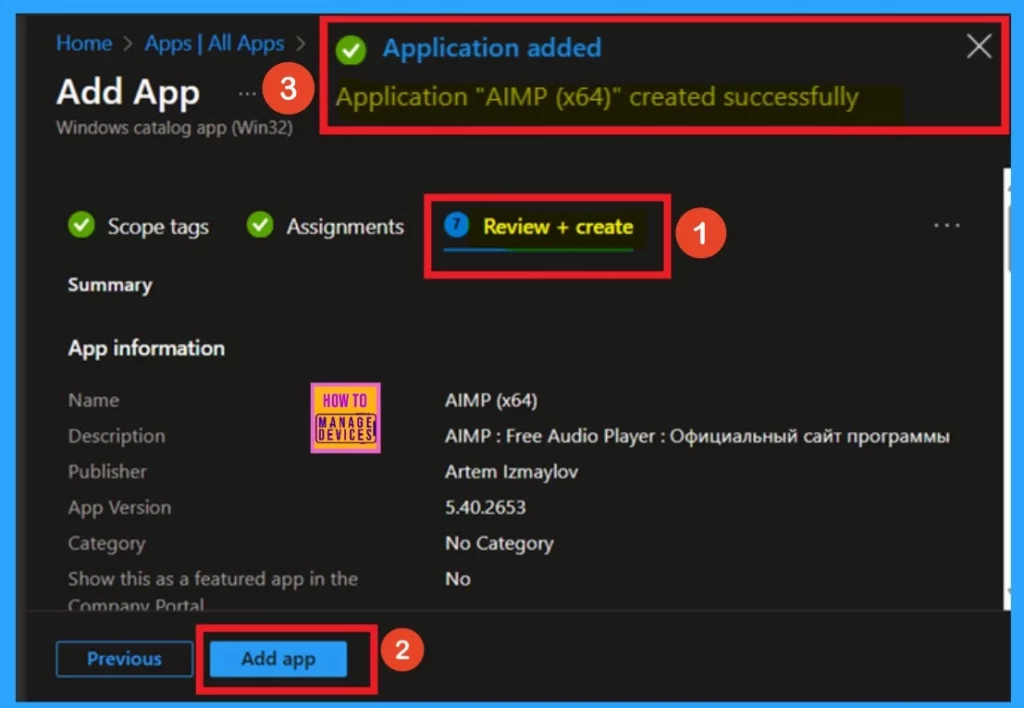
The “Review + Create” section is the final step of the installation process. It summarizes all the information you’ve entered during the app installation. This section reviews important details such as the app name, description, publisher, and version. After reviewing this information, you can click on the “Add Apps” option to proceed.
- You will then receive a notification confirming that your AIMP app was created successfully.
Monitor Status
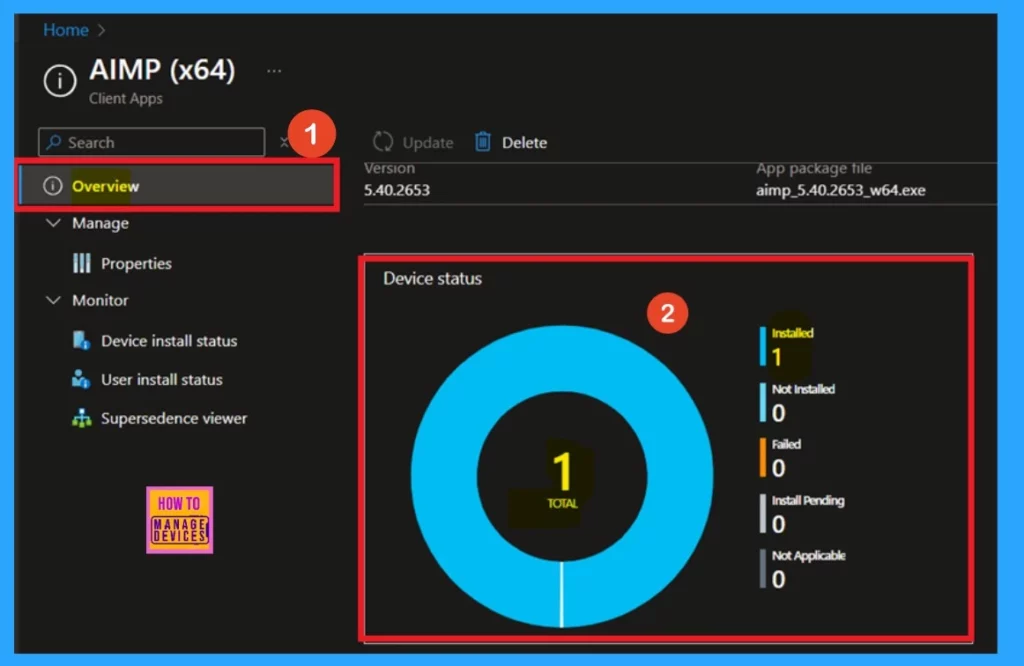
The Monitor status is crucial as it indicates whether your app is installed. This section details the number of installed apps, any failed apps, and other information. To do this, first, navigate to Apps > All Apps. Then, Type “ AIMP App“ in the search bar to locate your app.
- Once you find the AIMP App, click on it to open its details.
- This will redirect you to the Overview page, where you can review the device status.
End User Experiance
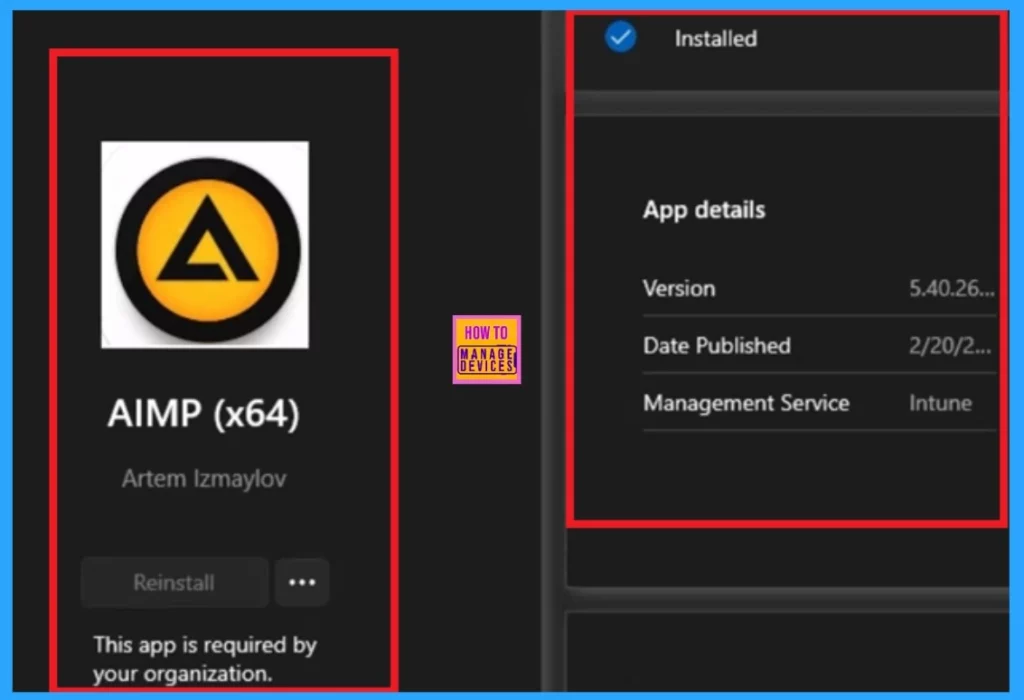
The end-user experience is Important. When you install an app within your organization or for a specific group, verifying that the installation was successful is important. To check for end user experiance, open the company portal and select the “Download and Update” option. Then, search for the app you installed.
- I found results that included details such as the version number, publication date, and management service.
Need Further Assistance or Have Technical Questions?
Join the LinkedIn Page and Telegram group to get the latest step-by-step guides and news updates. Join our Meetup Page to participate in User group meetings. Also, join the WhatsApp Community to get the latest news on Microsoft Technologies. We are there on Reddit as well.
Author
Anoop C Nair has been Microsoft MVP for 10 consecutive years from 2015 onwards. He is a Workplace Solution Architect with more than 22+ years of experience in Workplace technologies. He is a Blogger, Speaker, and Local User Group Community leader. His primary focus is on Device Management technologies like SCCM and Intune. He writes about technologies like Intune, SCCM, Windows, Cloud PC, Windows, Entra, Microsoft Security, Career, etc.


Discussion