






New Windows AI Settings in Intune Allow Recall Enablement Disable AI Data Analysis and More
New Windows AI Settings in Intune Allow Recall Enablement Disable AI Data Analysis and More! The Windows Settings Catalog is a central place for all settings in a device policy. It lists all available options, making it easy for administrators and users to customize and manage device settings.
Microsoft has expanded the Windows Settings Catalog with new options specifically for AI features. Users can now access and adjust various AI settings directly within the familiar Settings interface. This update provides greater control over how AI functions within Windows, allowing for personalized experiences and fine-tuned configurations.
Windows 11 has new AI features like Recall, Cocreator, Generative AI, Image Creator and Copilot that boost productivity but also raise data privacy concerns. Organizations should carefully consider how to use these tools to balance benefits with security.
Windows now offers enhanced control over AI features in the Settings Catalog. Administrators can manage data analysis, restrict specific URLs and apps from using Recall snapshots, and limit storage space and duration for snapshots, enabling tailored data privacy policies.

Table of Contents
New Windows AI Settings in Intune AllowRecallEnablement DisableAIDataAnalysis and More
To manage Windows AI features, start by checking the WindowsAI section in the Policy CSP. You can enable or disable features like Image Creator in Paint, Windows Recall, and Windows Copilot. Administrators can find these settings at the path ./Device/Vendor/MSFT/Policy/Config/WindowsAI for devices or users. This gives them control over which AI features are available.
| Policy Name | Device Path | User Path | Default Value |
|---|---|---|---|
| AllowRecallEnablement | ./Device/Vendor/MSFT/Policy/Config/WindowsAI/AllowRecallEnablement | ./User/Vendor/MSFT/Policy/Config/WindowsAI/DisableAIDataAnalysis | 1 |
| DisableAIDataAnalysis | ./Device/Vendor/MSFT/Policy/Config/WindowsAI/DisableAIDataAnalysis | 0 | |
| SetDenyUriListForRecall | ./Device/Vendor/MSFT/Policy/Config/WindowsAI/SetDenyUriListForRecall | ./User/Vendor/MSFT/Policy/Config/WindowsAI/SetDenyUriListForRecall | |
| DisableCocreator | ./Device/Vendor/MSFT/Policy/Config/WindowsAI/DisableCocreator | 0 | |
| DisableGenerativeFill | ./Device/Vendor/MSFT/Policy/Config/WindowsAI/DisableGenerativeFill | 0 | |
| DisableImageCreator | ./Device/Vendor/MSFT/Policy/Config/WindowsAI/DisableImageCreator | 0 | |
| SetCopilotHardwareKey | ./User/Vendor/MSFT/Policy/Config/WindowsAI/SetCopilotHardwareKey | ||
| SetDenyAppListForRecall | ./Device/Vendor/MSFT/Policy/Config/WindowsAI/SetDenyAppListForRecall | ./User/Vendor/MSFT/Policy/Config/WindowsAI/SetDenyAppListForRecall | |
| SetMaximumStorageDurationForRecallSnapshots | ./Device/Vendor/MSFT/Policy/Config/WindowsAI/SetMaximumStorageDurationForRecallSnapshots | ./User/Vendor/MSFT/Policy/Config/WindowsAI/SetMaximumStorageDurationForRecallSnapshots | 0 |
| SetMaximumStorageSpaceForRecallSnapshots | ./Device/Vendor/MSFT/Policy/Config/WindowsAI/SetMaximumStorageSpaceForRecallSnapshots | ./User/Vendor/MSFT/Policy/Config/WindowsAI/SetMaximumStorageSpaceForRecallSnapshots | 0 |
| TurnOffWindowsCopilot | ./User/Vendor/MSFT/Policy/Config/WindowsAI/TurnOffWindowsCopilot | 0 |
- Controlling Cocreator Access In Windows Paint Using Microsoft Intune
- Windows 11 AI Based Automatic Super Resolution Settings Reveal
- Windows PC Recall Feature Photographic Memory
- Enhanced Data Protection Available For Windows 11 Pro And Enterprise Editions
- Protect Sensitive Apps from Windows Recall using Intune
- Configure Recall Snapshot Storage to Optimize Device Performance using Intune
How to Access the New Windows AI Settings in Settings Catalog
Navigate to the Microsoft Intune Admin Center to access and configure these new AI settings. Select Devices, then proceed to Manage Devices. Under Manage Devices, choose Configuration.
- Initiate creating a new policy by clicking Create
- Select New policy.
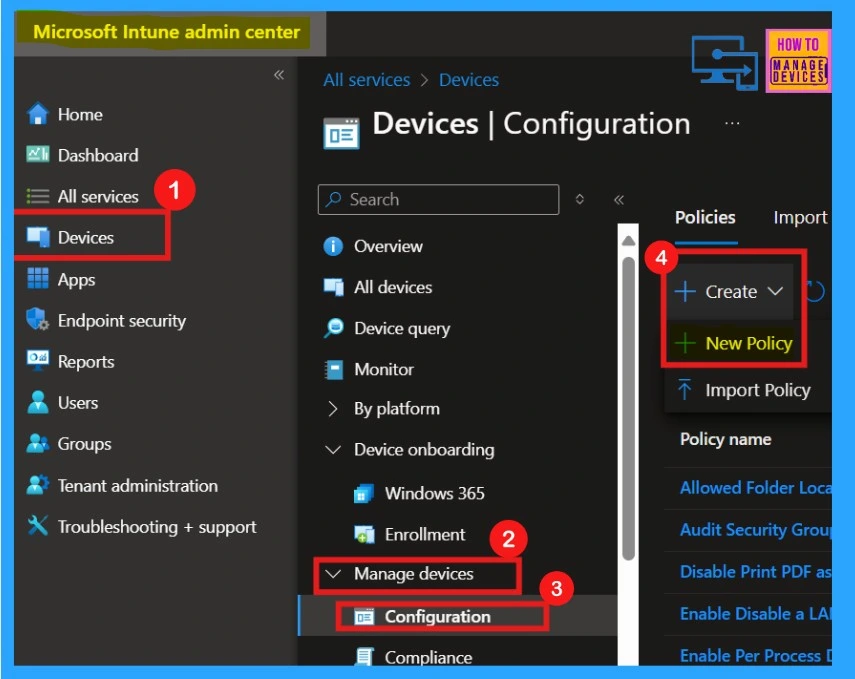
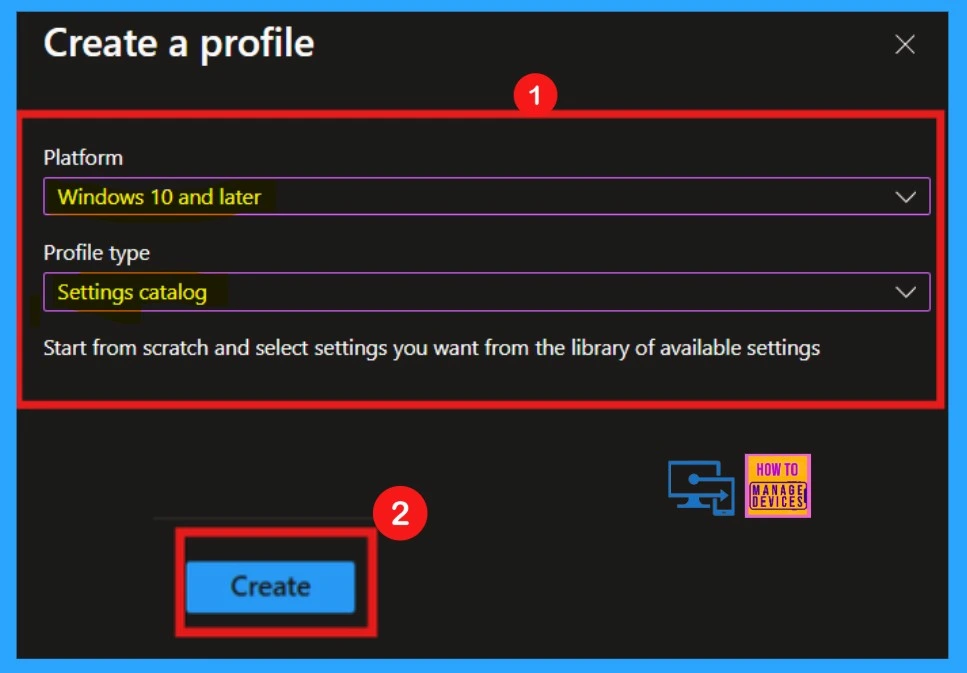
Upon selecting New Policy, a pop-up window will appear where we must add Platform and Policy type to configure a policy. This will allow you to browse and implement the latest AI configuration options.
- Platform – Windows 10 and later
- Profile type – Settings catalog
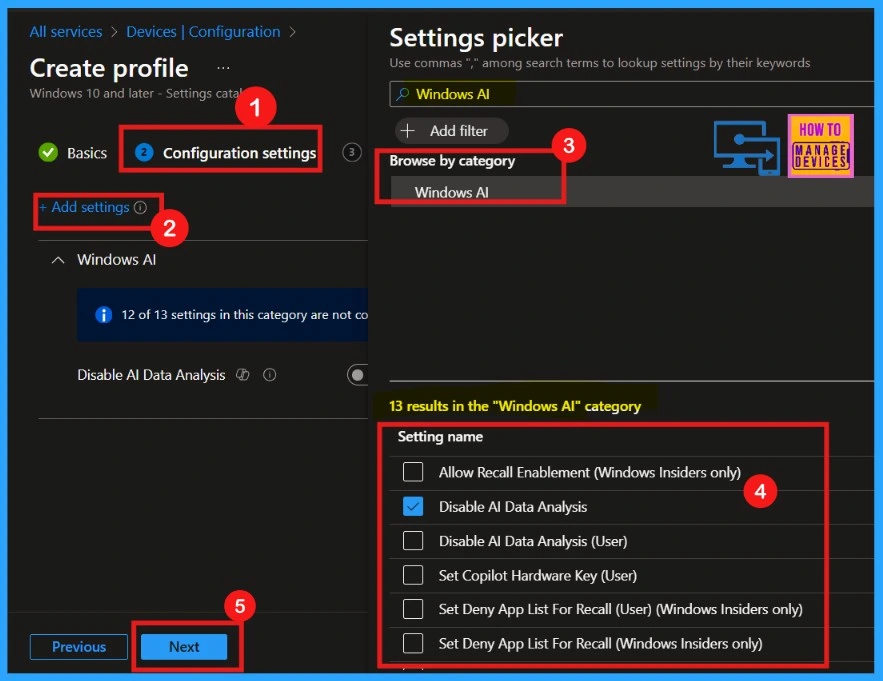
When creating a new policy, fill out the Basics tab with the Policy Name, which is required for the organization. We can add an optional description for context. Click Next to proceed. The second step is Configuration settings, where we can search for the desired policy by clicking Add Settings.
When clicking on Add Settings, the Settings Picker will appear. We can search for our policy name or category by typing a keyword into the search bar. I typed Windows AI as a category. Now, we can select our desired policy from the available lists of Windows AI settings.
- Allow Recall Enablement (Windows Insiders only)
- Disable AI Data Analysis
- Disable AI Data Analysis (User)
- Set Copilot Hardware Key (User)
- Set Deny App List For Recall (User) (Windows Insiders only)
- Set Deny App List For Recall (Windows Insiders only)
- Set Deny Uri List For Recall (User) (Windows Insiders only)
- Set Deny Uri List For Recall (Windows Insiders only)
- Set Maximum Storage Duration For Recall Snapshots (User) (Windows Insiders only)
- Set Maximum Storage Duration For Recall Snapshots (Windows Insiders only)
- Set Maximum Storage Space For Recall Snapshots (User) (Windows Insiders only)
- Set Maximum Storage Space For Recall Snapshots (Windows Insiders only)
- Turn Off Copilot in Windows (User)
Following the initial policy configuration, the process involves three remaining steps: applying scope tags for organizational categorization, assigning the policy to specific user or device groups, and finally, reviewing and creating to confirm and deploy the policy. These steps ensure that the configured settings are accurately targeted and implemented.
Resources
Need Further Assistance or Have Technical Questions?
Join the LinkedIn Page and Telegram group to get the latest step-by-step guides and news updates. Join our Meetup Page to participate in User group meetings. Also, join the WhatsApp Community to get the latest news on Microsoft Technologies. We are there on Reddit as well.
Author
Anoop C Nair has been Microsoft MVP for 10 consecutive years from 2015 onwards. He is a Workplace Solution Architect with more than 22+ years of experience in Workplace technologies. He is a Blogger, Speaker, and Local User Group Community leader. His primary focus is on Device Management technologies like SCCM and Intune. He writes about technologies like Intune, SCCM, Windows, Cloud PC, Windows, Entra, Microsoft Security, Career, etc.


Discussion