






Enable or Disable IME Network Access for Text Input using Intune Policy
Let’s discussEnable or Disable IME Network Access for Text Input using Intune Policy. As you all know, setting catalog is one of the crucial features in Intune. With this, users can deploy different types of policies for organizations. IME stands for Input Method Editor, a tool designed for typing characters and symbols not readily available on standard keyboards.
This tool is particularly effective for various Chinese, Japanese, and Korean languages. IMEs are beneficial for organizations as they enable users to input complex characters or symbols through a combination of keyboard inputs.
Additionally, IMEs can predict and suggest the next character or word as you type, similar to predictive text on mobile keyboards. With the new settings catalog, allowing or blocking IME usage on your devices is now possible. Input Method Editors (IMEs) enable users to type complex characters quickly and accurately.
They are essential for typing in various languages, completing professional work, and facilitating daily online communication. For Korean users, an IME allows for easy switching between typing in English and Korean. So in this post ltes look how to deploy the policy through Intune.

Table of Contents
How can Users Get More Input Suggestions on their Devices?
Users can enable features like Open Extended Dictionary, Internet search integration, and cloud candidates to get input suggestions that aren’t in the device’s local dictionary.
In Windows 10, version 1803, new suggestion services were added to the Japanese IME. By setting AllowIMENetworkAccess to 1, all these suggestion services become available for predictive input. The most restricted value is 0.
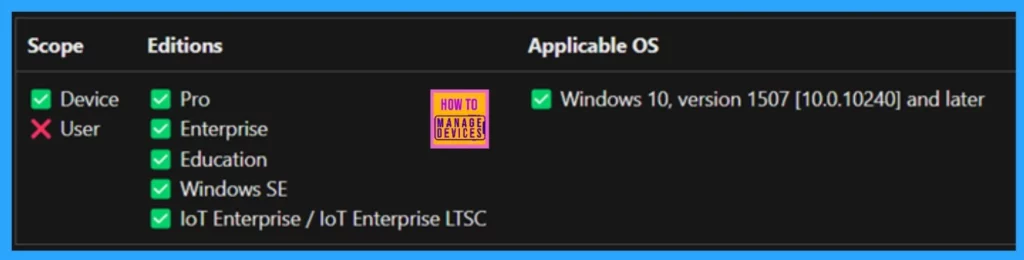
IME Network Access for Text Input – Windows CSP Details
We discussed various topics, such as allowing or Blocking IME network access through Intune policies. Now, let’s delve into some details about Configuration Service Providers (CSPs). CSP is similar to Group Policy extensions, enabling administrators to control specific settings effectively.
- Enable Offline Maps Auto Update using Intune Setting Catalog Policy
- How to Deploy Allow Device Name to be Sent in Windows Diagnostic Data in Intune Via Setting Catalog
- Top 75 Latest Intune Interview Questions and Answers
Create a Policy
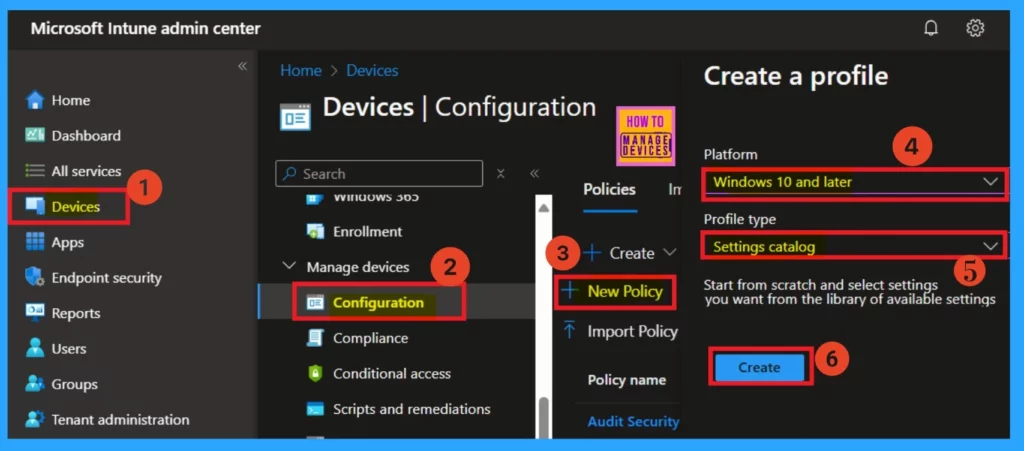
Now let’s look how to deploy this policy through Microsoft in Intune. first, you have to sign into the Microsoft intune admin center. Now,navigate through Devices> configurations, and you will get a, +create options in the right side where you have to select New policy in the new policy.
You have to select the platform as Windows 10 and later, add profile type as Setting catalog. Then click on the create option.
Basics Settings
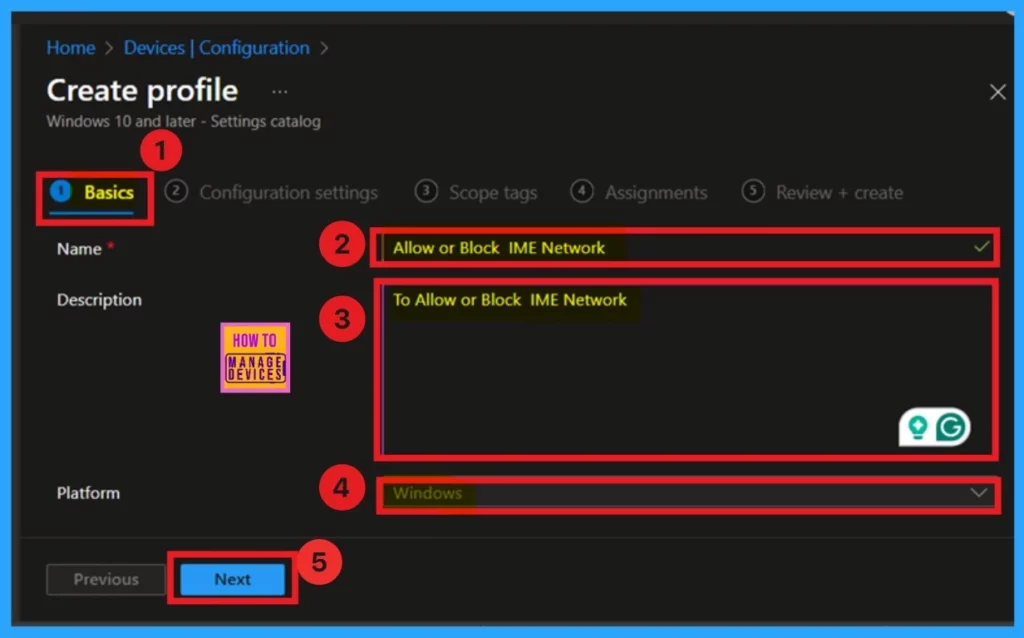
After creating a profile, you will now proceed to the Basics tab. The Basics tab is very important, as it allows you to enter the essential details of the policy. First, you need to provide a name for the policy. For this example, you can name the policy “Allow or Block IME Network.” Adding a description of the policy is also helpful, as this will help you understand it later.
- Next, you will notice the platform setting. You don’t need to make any changes here; it is already set to Windows.
- Once you have completed these steps, click Next.
Text Input
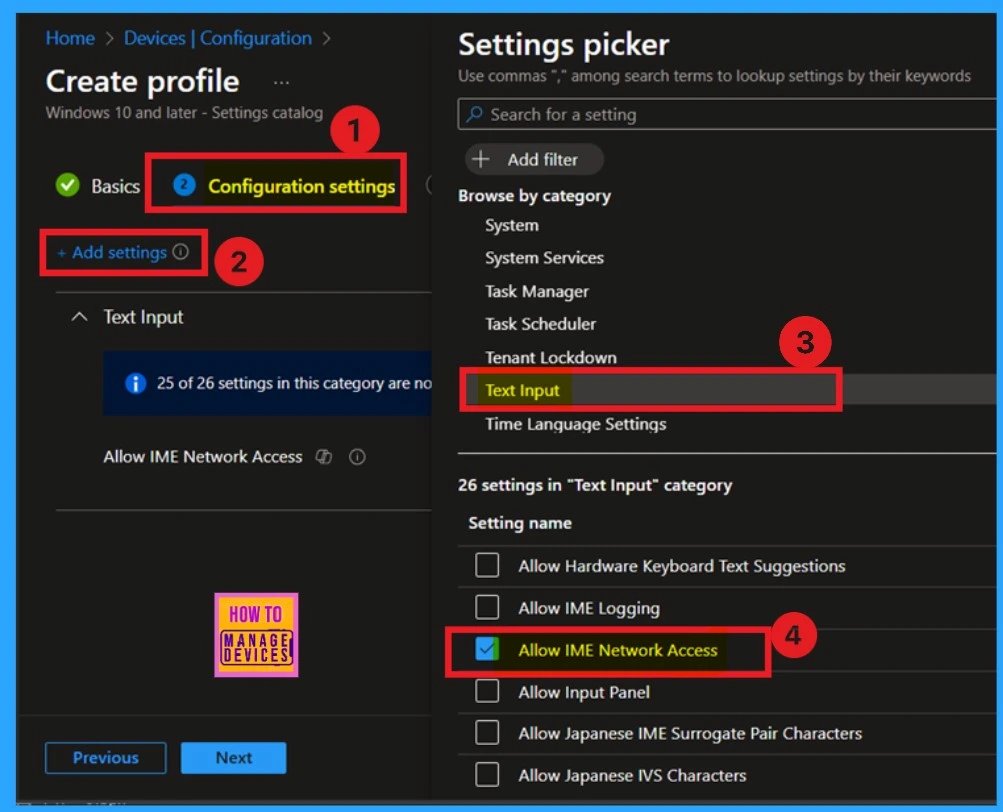
After covering the basics, you will move on to the configuration settings. In the configuration settings, click on the “Add Setting” option. This will open a settings picker window where you can search for Text Input. When you select Text Input, a list of settings will appear.
Here, you can choose “All IME Network Access.” Once you’ve made your selection, close the settings picker window.
Block All IME Network Access
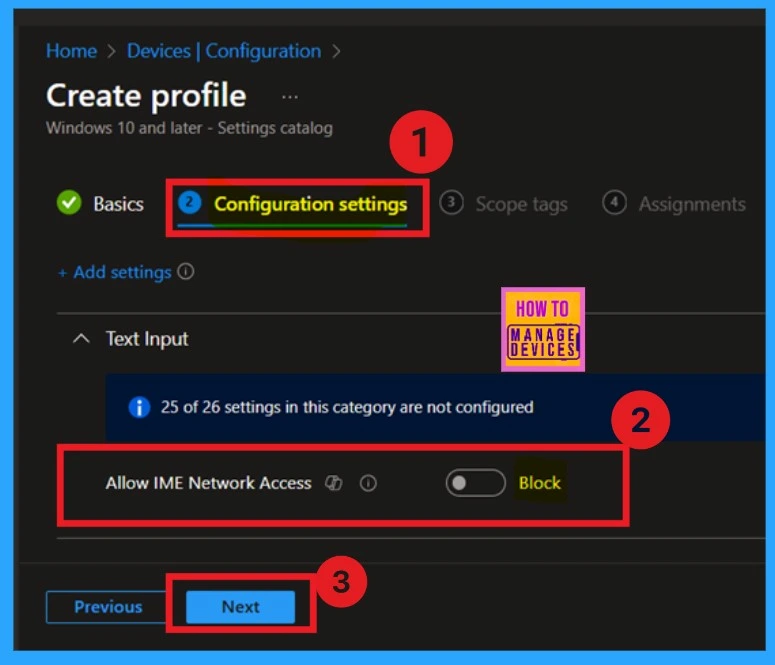
After closing the settings picker window, you will see that “All IME Network Access” is displayed in your configuration settings. It is set to “Blocked” by default, as indicated by the toggled option showing “Block.” If you wish to proceed with this setting, click Next.
Allow All IME Network Access
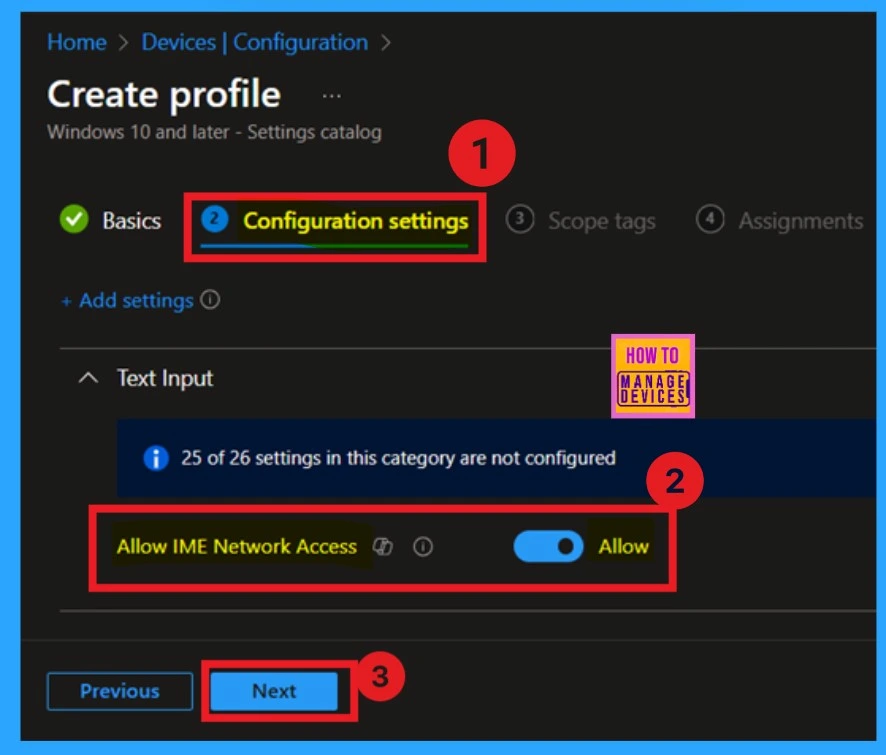
If you want to allow this policy for deployment, you have to toggle the pane from the left to the right, and now you can see that the block option has been changed to Allow. You can also see that blue colour on the Pane. That means your Policy is now allowed. Now, you can click on the next.
- Here in this post I showing the Allow IME network.
- If you want the Block you can go with the below steps because its same after configuration.
Scope Tags
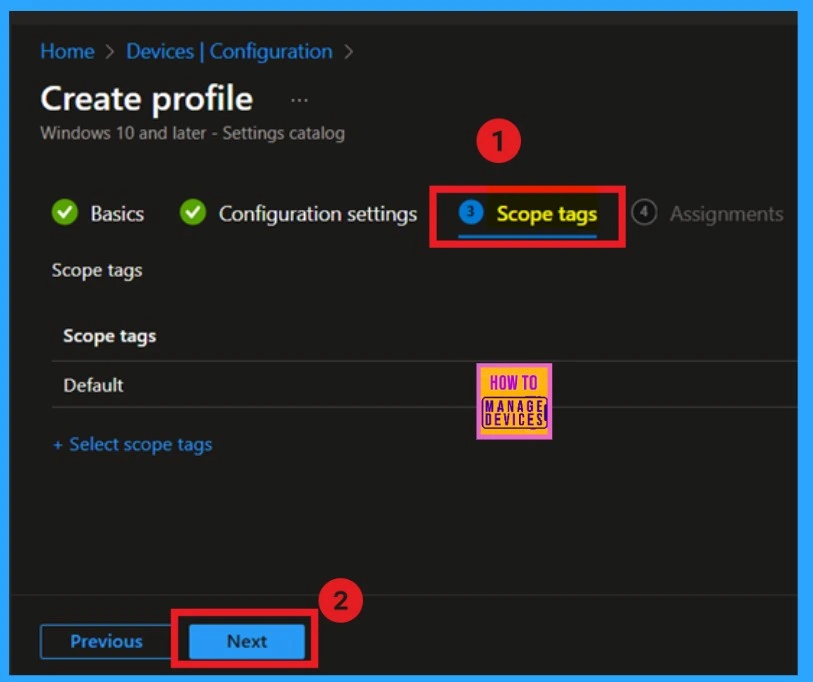
After the configuration tab, you will find the scope tags section. Here, you can add a scope tag for the policy, but it is not mandatory, so I will skip this section and click Next.
Assignments
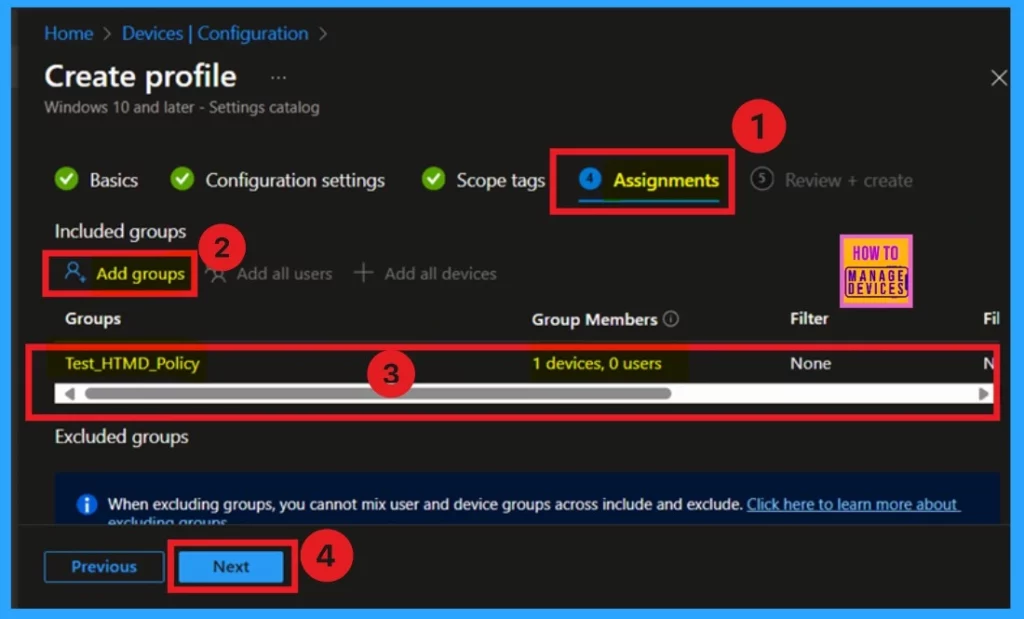
The next step is the assignment tab, which plays a crucial role in policy deployment. In this section, you can include the group you want to apply the policy to. I clicked “Add Groups” under the Include Group option.
When I clicked Add Groups, I received a list of suggested groups. I selected the group I wanted; now you can see it on your assignment page. After this, click Next to proceed.
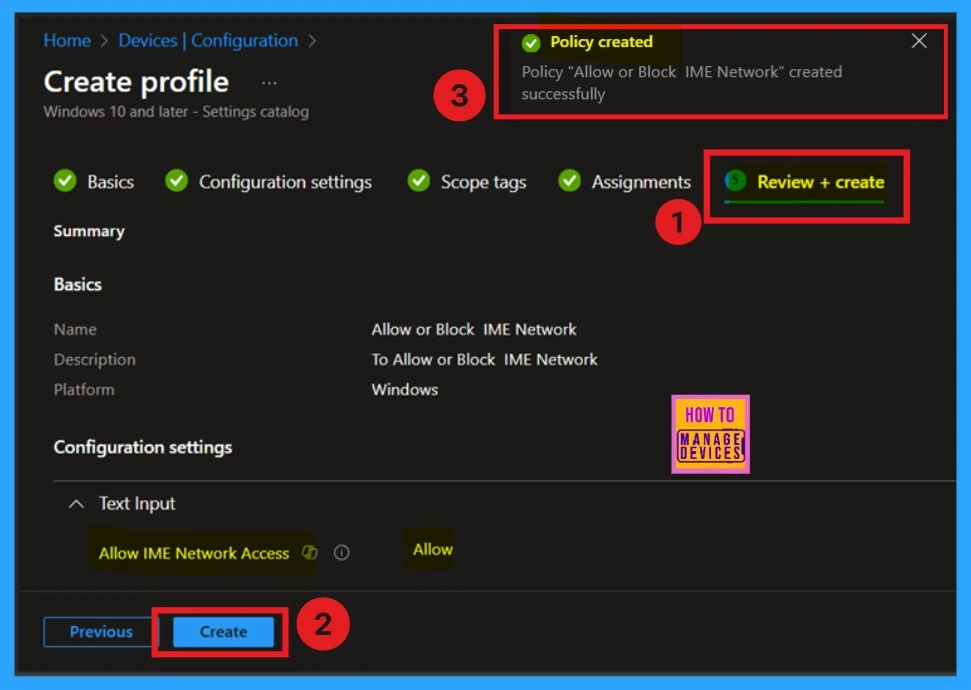
After the assignments, you are now on the review + create option, and this is the final stage of policy creation here. You can see all the details about the policy, such as basics, details, configurations details, etc. If you have reviewed all the summaries and have no problem with the setting details, click on the Create option.
- When you click on the create, you will get a notification. That means policy is successfully created.
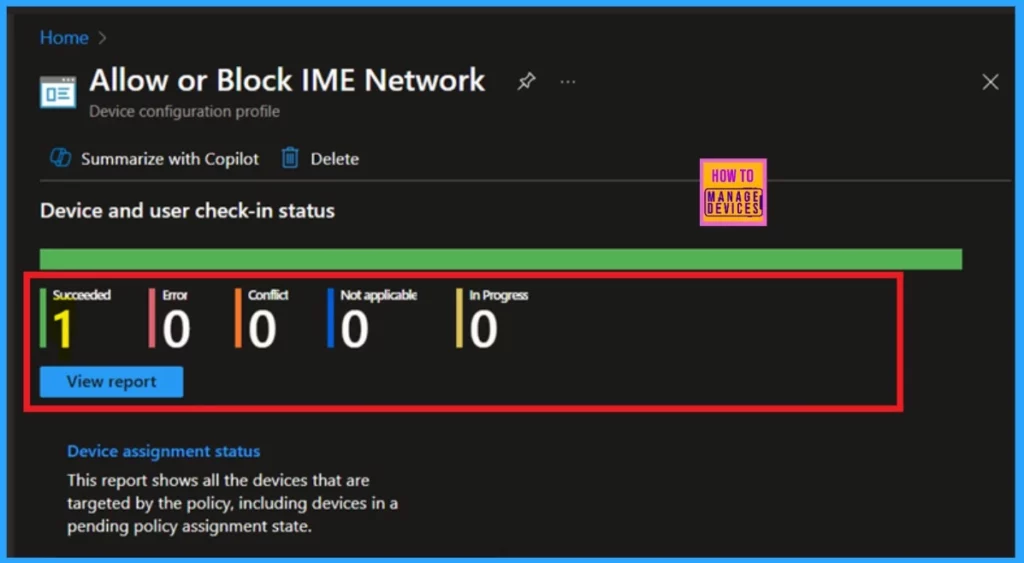
Device and User Check in Status
When you create a new policy for a device, it typically takes up to 8 hours to apply automatically. However, you can speed up this process by manually syncing the policy. After syncing, you can verify that the policy has been successfully used by checking the Intune. To do this, go to Device > Configuration and select the policy.
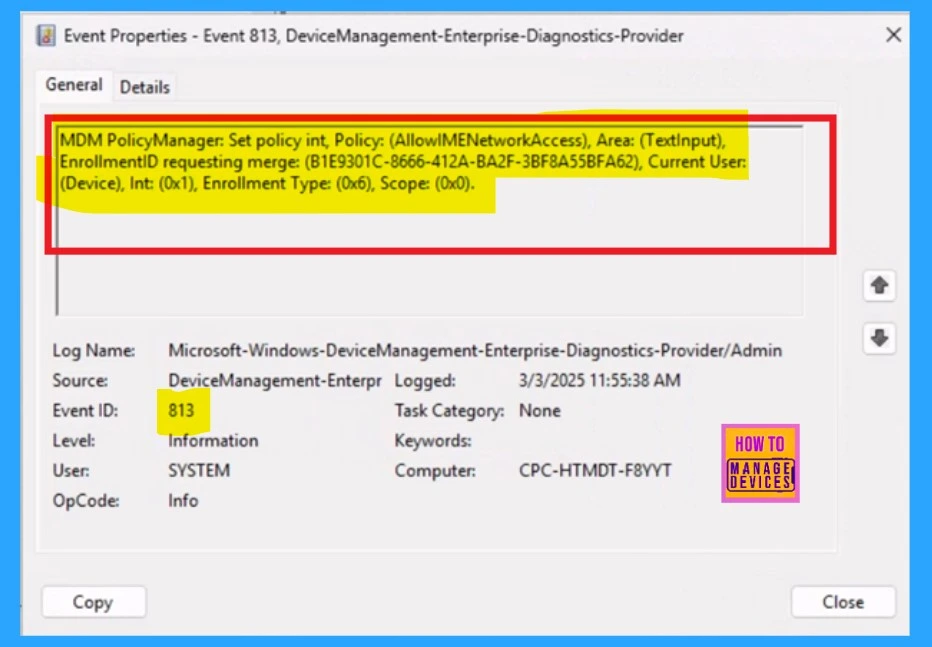
Client Side Verification
To monitor the status of Intune, you can use Event Viewer. Go to the Start and type Event Viewer. Then, navigate to Application and Services Logs > Microsoft > Windows > DeviceManagement–Enterprise–Diagnostics–Provider > Admin.
- In the right pane, click Filter Current Log, enter 813 in the Event IDs field, and click ok.
| Policy Details |
|---|
| MDM PolicyManager: Set policy int, Policy: (AllowIMENetworkAccess), Area: (TextInput), EnrollmentiD requesting merge: (B1E9301C-8666-412A-BA2F-3BF8A55BFA62), Current User: (Device), Int: (0x1), Enrollment Type: (0x6), Scope: (0x0). |
Need Further Assistance or Have Technical Questions?
Join the LinkedIn Page and Telegram group to get the latest step-by-step guides and news updates. Join our Meetup Page to participate in User group meetings. Also, Join the WhatsApp Community to get the latest news on Microsoft Technologies. We are there on Reddit as well.
Author
Anoop C Nair has been Microsoft MVP for 10 consecutive years from 2015 onwards. He is a Workplace Solution Architect with more than 22+ years of experience in Workplace technologies. He is a Blogger, Speaker, and Local User Group Community leader. His primary focus is on Device Management technologies like SCCM and Intune. He writes about technologies like Intune, SCCM, Windows, Cloud PC, Windows, Entra, Microsoft Security, Career, etc.


Discussion