






Block DeepSeek on iOS or iPadOS using Intune Blocked App Bundle IDs Policy
Let’s discuss Block DeepSeek on iOS or iPadOS using Intune Blocked App Bundle IDs Policy. Settings Catalog allows you to block the DeepSeek app for Supervised iOS/iPadOS. Restricting the launch of the DeepSeek AI assistant tool in Supervised devices is now important for every Organization.
Due to data privacy and security concerns, the DeepSeek Application faced scrutiny and bans in several countries. This update has made it challenging for organizations to block the application’s usage from devices. You can also easily restrict DeepSeek on supervised devices.
We already have a post about blocking the DeepSeek website on macOS devices. You can check this blog post and apply it to your organization. In this way, you can make restrictions on managed devices. By restricting this application, you can ensure security and privacy.
Block the app from being shown or being launchable is the most effective way to block DeepSeek on supervised iOS/iPadOS devices. In this blog post, I will help you to dive deep into all the details related to Block DeepSeek on Supervised iOS/iPadOS.

Table of Contents
What are Supervised Devices?
What is a Restriction Payload in iOS/iPadOS Settings Catalog?
For example, a restriction can be added that prevents an iPhone or iPad from using AirPrint. Another restriction can be added to prevent the sharing of passwords over AirDrop on an iPhone, iPad and Mac. Certain restrictions on an iPhone may be mirrored on a paired Apple Watch.
Block DeepSeek on iOS or iPadOS using Intune Blocked App Bundle IDs Policy
The iOS/iPadOS Settings Catalog allows you to block DeepSeek app usage in your organization. The banning news of DeepSeek apps and its website are the reason for restricting this application from organizations in different countries.
- Managing Apple Watch Pairing On Supervised IOS Devices Using Intune
- Different Methods to Block or Remove the DeepSeek App and Website from Managed Devices using Intune
- How to Block Deepseek App usage MS Defender for Cloud Apps
- New Device Restriction Settings Available in Apple Settings Catalog
Steps to Block DeepSeek AI Assistant in Supervised Device
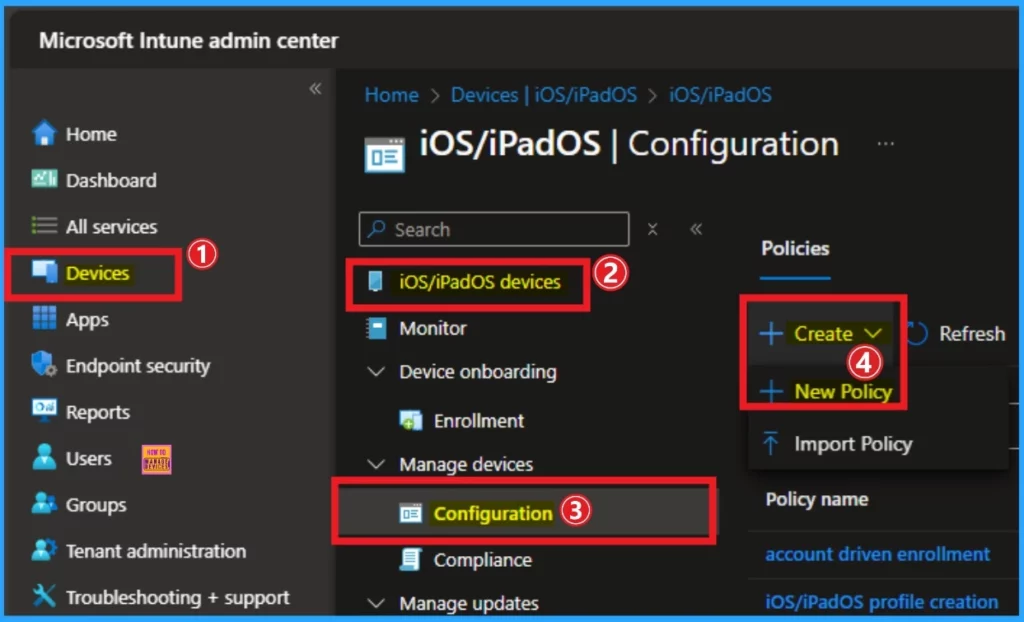
To block or restrict the DeepSeek in Supervised devices, you have to launch the Intune Admin center. Admins can easily create polices to restrict users from these app. To block app usage, Sign in to Intune admin center. Go to Device > iOS/iPadOS devices > Configuration >+Create > New Policy.
Create a Profile
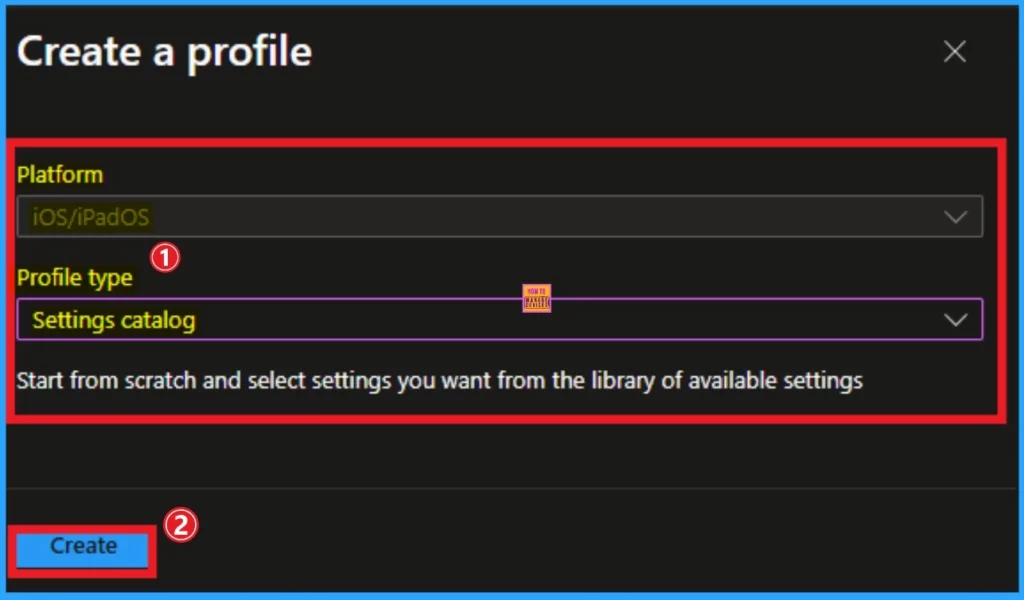
To block DeepSeek, you have to create a profile to begin policy creation. In this stage, we have to select the platform and Profile type. The Platform (iOS/iPadOS) is already selected in the above screenshot. I chose Settings Catalog. Click on the Create Button.
Basic Tab
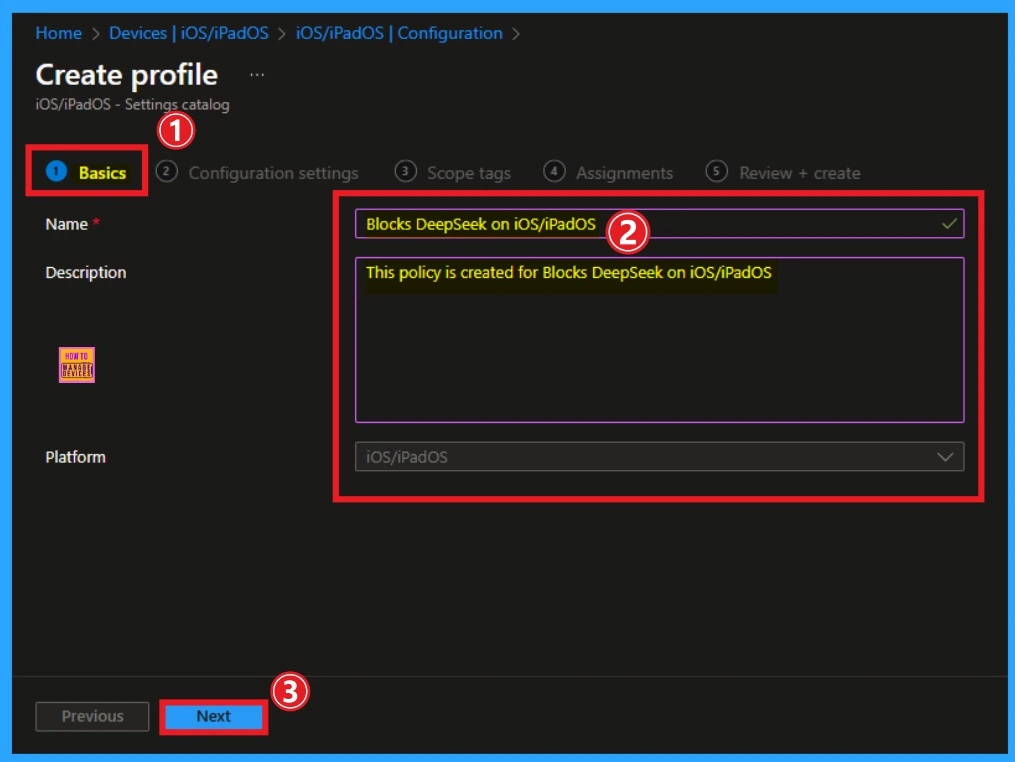
Next is the basic tab, which helps you add a name and description for your policy. The Name is a mandatory field, and it helps you identify the policy settings. The description is not compulsory, and it is better to recognize the purpose of the policy later. After that, click on the Create button.
- Name – Blocks DeepSeek on iOS/iPadOS
- Description – This policy is created for Blocks DeepSeek on iOS/iPadOS
Configuration Settings
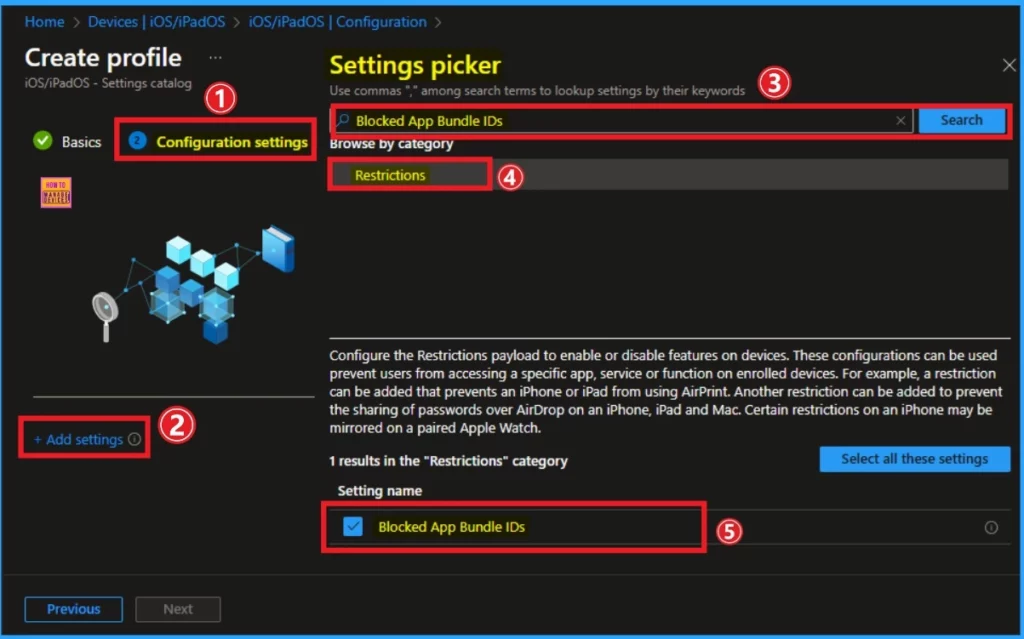
The Configuration Settings tab helps you determine your organization’s policy settings. To select a policy, click on the +Add Settings hyperlink. Then, you will get the Settings Picker, where you can find the settings by search or browse by category. Here, you have to block DeepSeek, so search for Blocked App Bundle IDs policy Settings.
- Search the Blocked App Bundle IDs on the search button.
- Select Restrictions Category.
- Select Block App Bundle IDs.
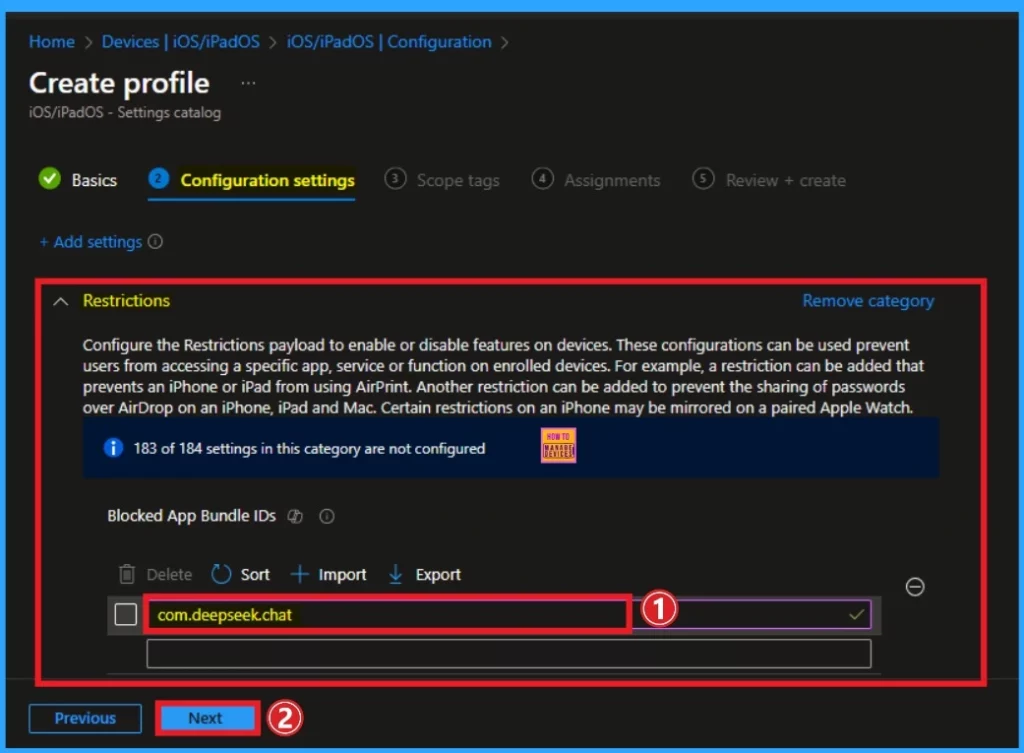
Afterwards, the selected settings will appear on the Configuration Settings tab. To block the DeepSeek application, you can enter the Bundle ID in the Text box. Here, the Bundle ID is com.deepseek.chat After entering this bundle ID, click on the Next button.
| Blocked App Bundle IDs |
|---|
| If present, prevents bundle IDs listed in the array from being shown or launchable. Include the value com.apple.webapp to restrict all webclips. Requires a supervised device. Available in iOS 9.3 and later. |
Scope Tags
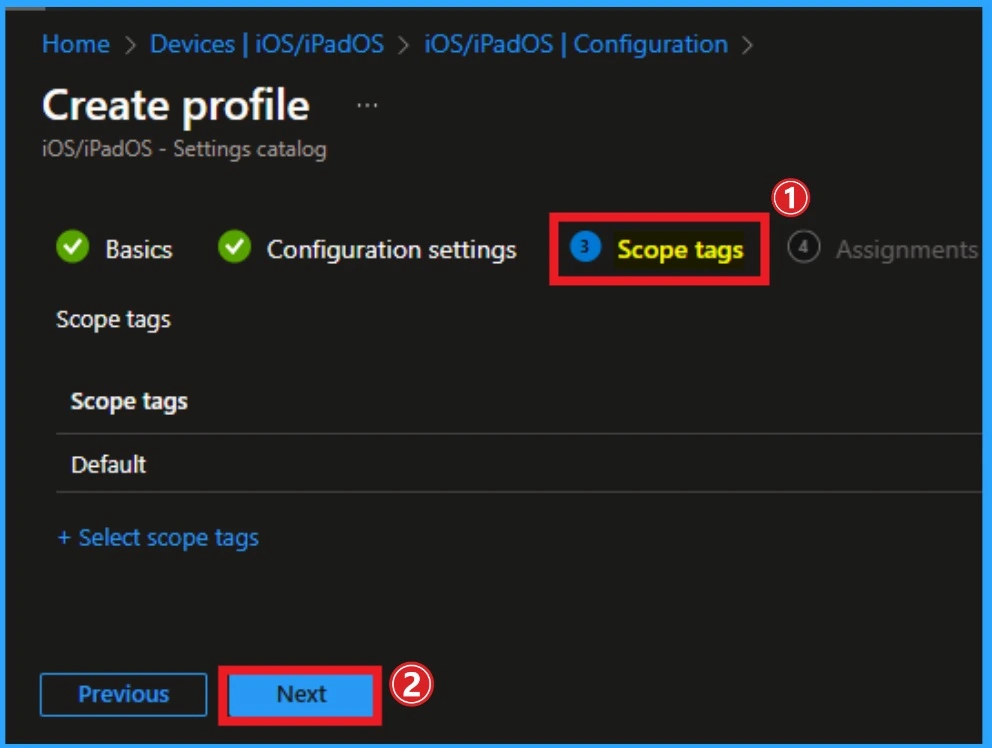
The Scope tags section is not necessary for this policy. If you want to add a Scope tag, go for it. I am going to skip this section here. Click on the Next button to continue.
Assignments Tab
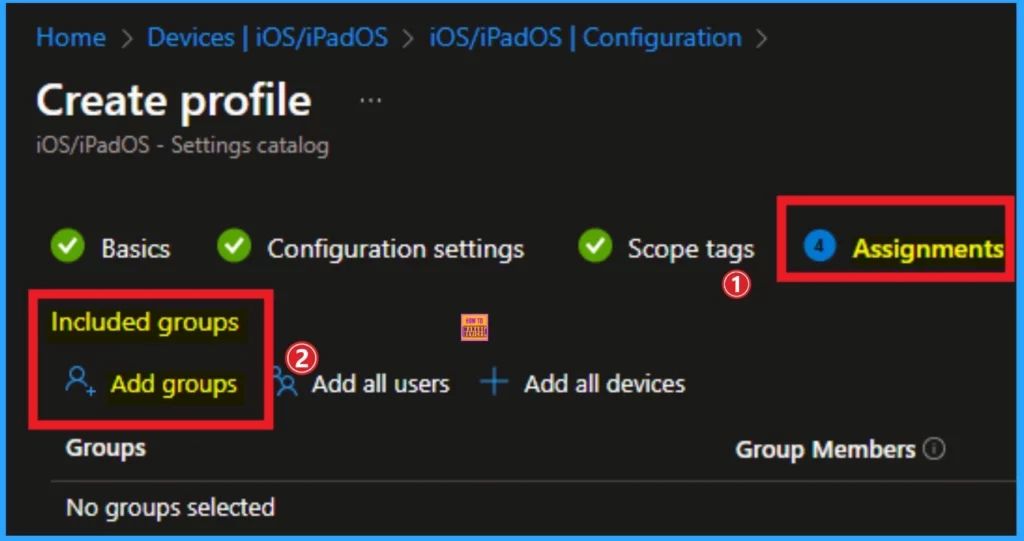
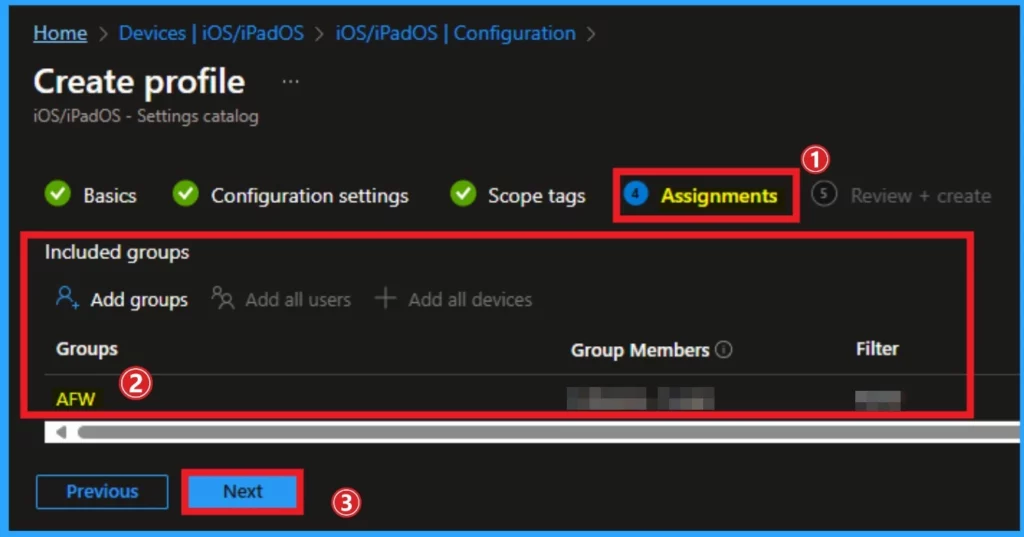
The Assignment tab is very crucial for restricting the DeepSeek application. On this tab, you can select groups to assign the policy to restrict DeepSeek application. Click on the +Add groups under Included groups.
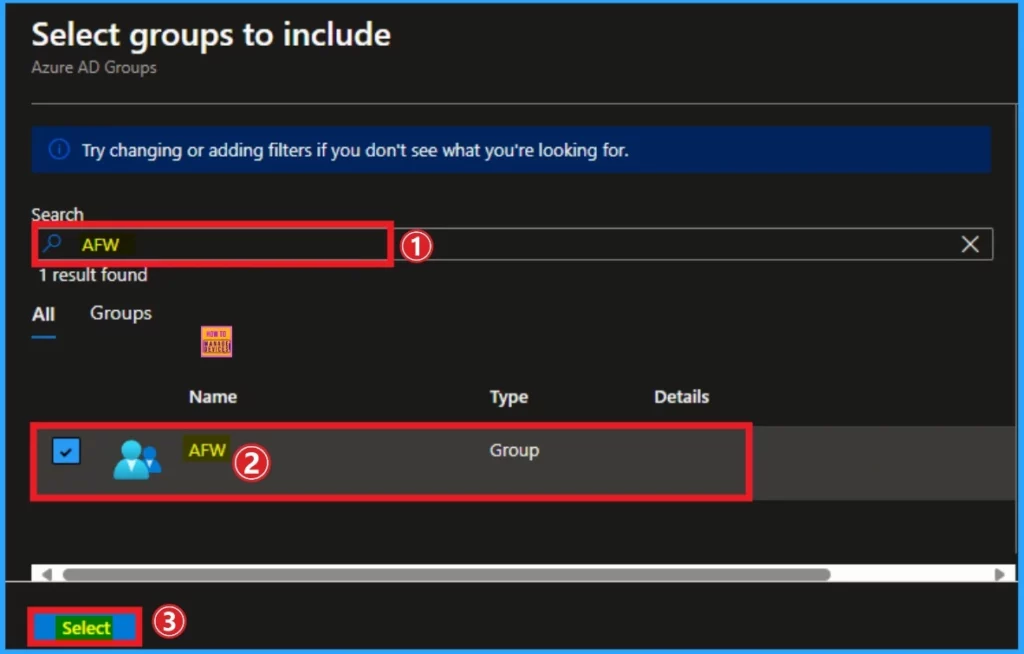
After that, you will get a Select Groups to Include page. Here you can search for groups. Here, I search for the group and select the group to which I want to assign the Block App Bundle IDs. Click on the Select button.
Then, the selected group is shown on the Assignments tab. You can also remove the selected group from this tab. After that, click on the Next button to continue.
Review + Create Tab
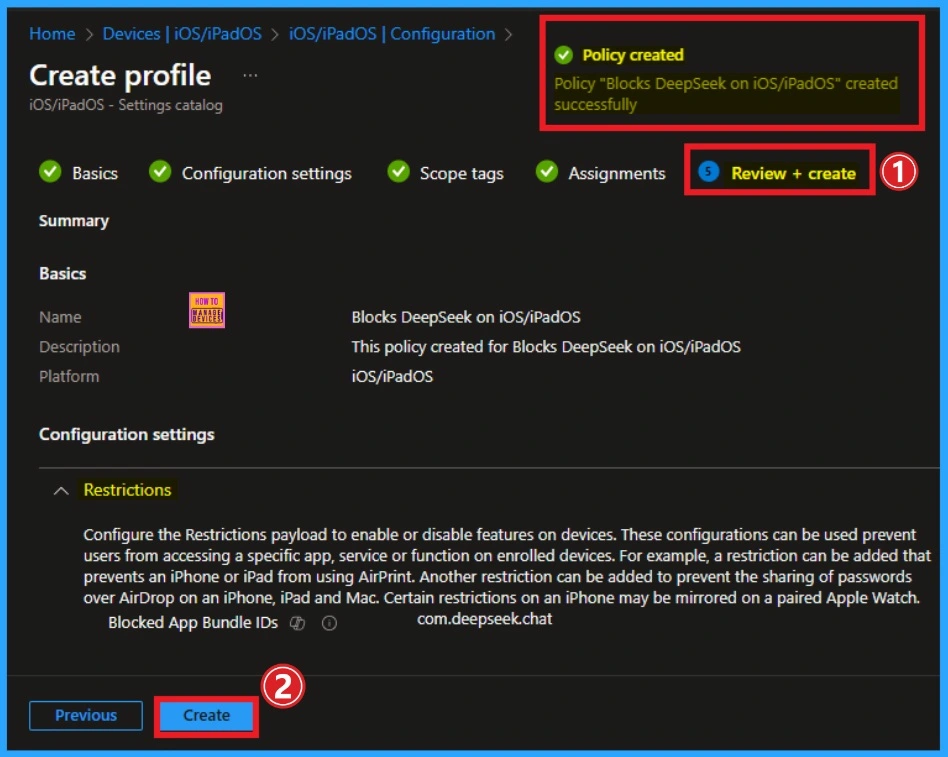
It is the last step to finalizing your organization’s policy. If you want to make any changes, you can go back to the previous page; otherwise, you can finalize the policy by clicking on the Create button. Then, you will get the success notification.
Monitoring Status
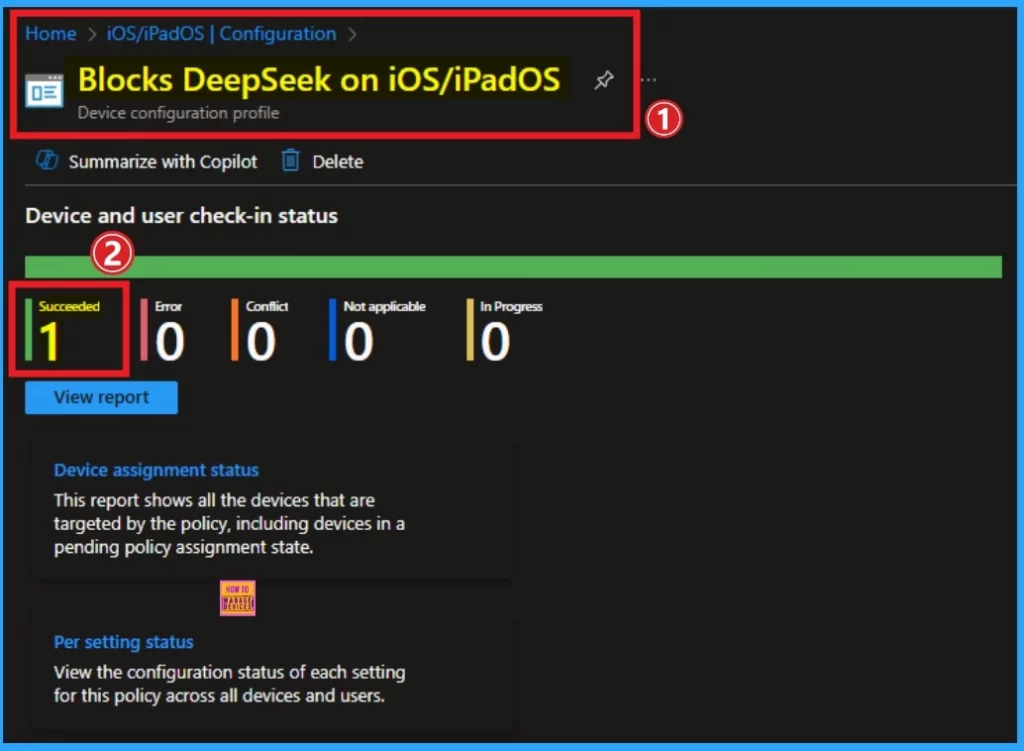
After creating the policy, you can sync the device on the company Portal. This helps you deploy the policy quickly. After that, you can check the Monitoring status on the Intune portal.
To check the Monitoring Status go to devices > iOS/iPadOS devices > Configuration. Then search for the policy on the search bar. On this page, you can see the policy is succeeded.
Need Further Assistance or Have Technical Questions?
Join the LinkedIn Page and Telegram group to get the latest step-by-step guides and news updates. Join our Meetup Page to participate in User group meetings. Also, join the WhatsApp Community to get the latest news on Microsoft Technologies. We are there on Reddit as well.
Resource
Blocking and removing apps on Intune managed devices (Windows, iOS/iPadOS, Android and macOS)
Author
Anoop C Nair has been Microsoft MVP for 10 consecutive years from 2015 onwards. He is a Workplace Solution Architect with more than 22+ years of experience in Workplace technologies. He is a Blogger, Speaker, and Local User Group Community leader. His primary focus is on Device Management technologies like SCCM and Intune. He writes about technologies like Intune, SCCM, Windows, Cloud PC, Windows, Entra, Microsoft Security, Career, etc.


Discussion