






How to Configure Windows 365 Disaster Recovery Plus in Intune
Let’s discuss how to configure Windows 365 Disaster Recovery Plus in Intune. Microsoft Introduced Disaster recovery considerations in Windows 365 to enhance the IT endpoint strategy. Through this approach, Microsoft offers a secure, scalable, and seamless Windows 365 Cloud PC experience.
This feature allows users to access their personalized Windows environment from anywhere, on any device. It has several options for business continuity and disaster recovery (BCDR). Windows 365 Disaster Recovery Plus will be generally available in spring 2025.
Microsoft is dedicated to improving user experience in Windows 365 Cloud PC. Last year, Windows 365 Cloud PCs Across Regions Granular Move was introduced to allow administrators to move Cloud PCs between regions or Azure network connections (ANC) with greater flexibility.
This feature is specifically designed for users whose Cloud PC use demands high disaster recovery performance in case of an outage. In this blog post i will help you to Configure Windows 365 Disaster Recovery Plus in Intune.


Table of Contents
Are all Windows 365 Regions Available to Select as an Alternate Region for Windows 365 Disaster Recovery Plus?
If a user has Multiple Cloud PCs, can Each Device have a Different Windows 365 Disaster Recovery Plus Configuration?
How to Configure Windows 365 Disaster Recovery Plus in Intune
This new feature is currently available in preview as a licensed add-on for Windows 365 Enterprise Edition only. This feature replicates Cloud PC disk snapshots in an alternate region. The following table shows the important points.
| Important Points |
|---|
| When the alternate region is activated, users will be pointed to a temporary Cloud PC |
| It also allows users to access their temporary Cloud PC with all installed applications and settings based on the latest restore point during an outage |
| But any of your work is saved during an outage |
| Your work should be saved on another option in the Microsoft Cloud, such as Microsoft OneDrive or Microsoft SharePoint. |
| After the temporary Cloud PC is deactivated, no applications, data, or other information will be preserved from the temporary Cloud PC |
- How to Create a Device Filter for Windows 365 Link Device using Intune
- Latest RDP Connectivity Requirements for Windows 365 and AVD
- New Dedicated Mode Experience in Windows 365 Frontline
Steps to Configure Windows 365 Disaster Recovery Plus
Windows 365 Disaster Recovery Plus Configuration can be easily completed with a few steps. To configure it, users must first have an appropriate Windows 365 Enterprise license assigned. Using Microsoft Intune, you can easily configure it.
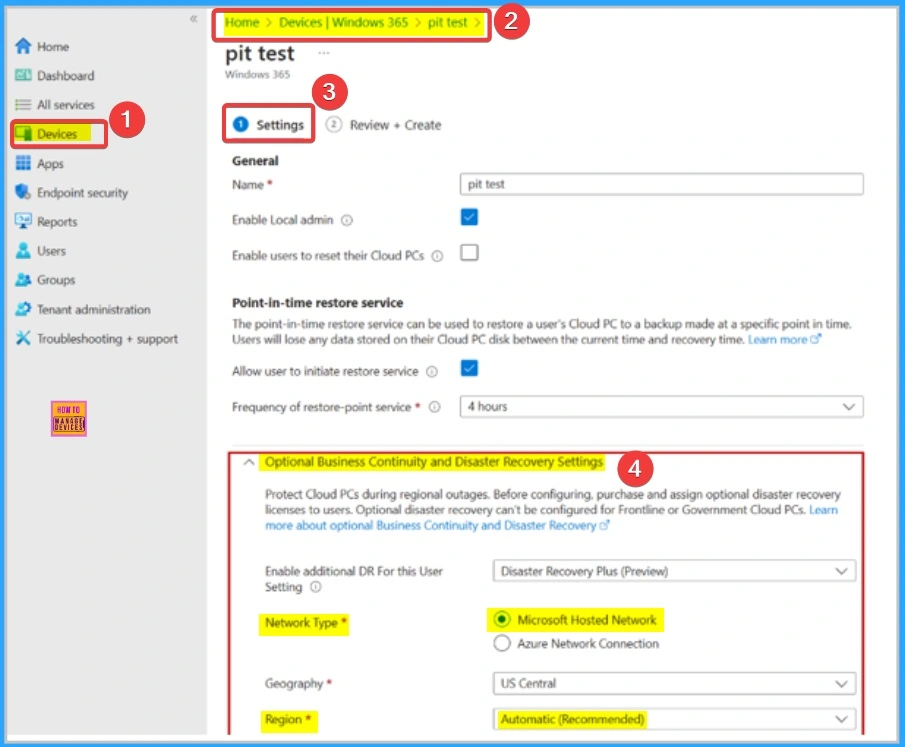
- Open Microsoft Intune admin center
- Go to Devices > Windows 365 > User Settings
- Under User Settings, Select Optional Business Continuity and Disaster Recovery
- You can select desired Optional Business Continuity Disaster Recovery Settings
- Here, the desired setting is Disaster Recovery Plus
- Select Microsoft Hosted Network or Azure Network Connect (ANC) for the network type
- Select the desired geography and region option
Once configured, this automatically creates the temporary Cloud PCs and maintains them.
Monitoring and Maintenance
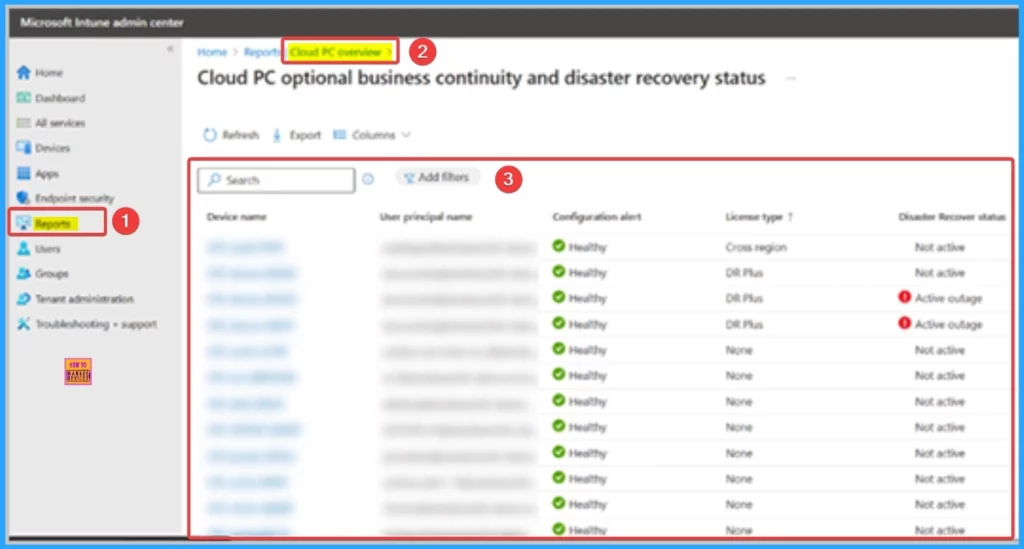
Monitoring and maintaining Windows 365 Disaster Recovery Plus is very easy. Using the Cloud PC optional BCDR status report, Windows 365 disaster recovery add-ons, including Windows 365 Disaster Recovery Plus, are simple to monitor and maintain.
This report helps you to know that monitoring and maintaining this feature is very easy. Using the Cloud PC optional BCDR status report, Windows 365 disaster recovery add-ons, including Windows 365 Disaster Recovery Plus, are simple to monitor and maintain.
- Open Microsoft Intune admin center
- Go to Reports > Cloud PC overview >
- Cloud PC optional business continuity and disaster recovery status
Note : After the initial configuration, it will take several hours for the first temporary Cloud PC to be available in the alternate region.
Steps to Activate and Deactivate
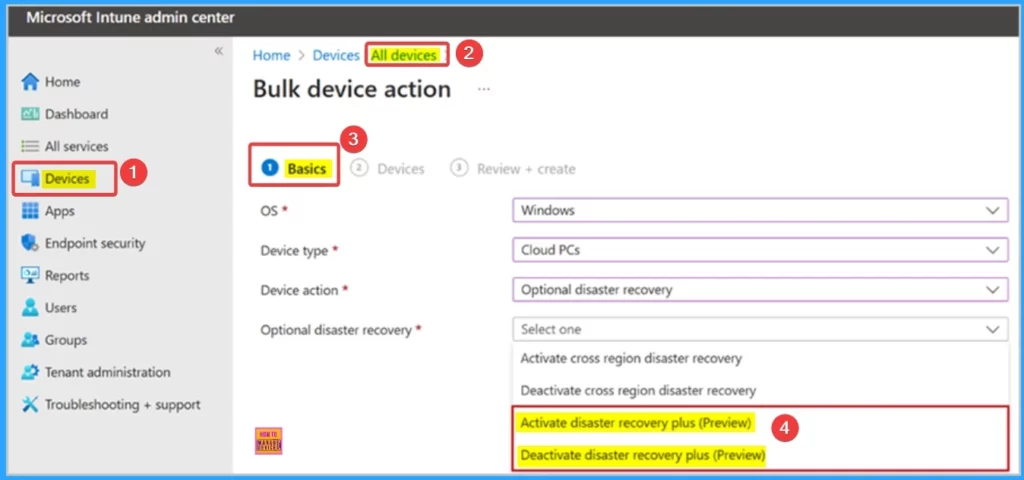
Windows 365 Disaster Recovery Plus, like other BCDR add-ons, may be activated and deactivated to move users to their temporary Cloud PCs during an outage or for testing. The add-ons of disaster recovery are designed to be used in case of a large-scale event. Using Intune, you can activate and deactivate temporary Cloud PCs. Follow the list.
- Open Microsoft Intune admin center
- Go to Devices > All devices > Bulk device action > Optional disaster recovery.
Windows 365 Disaster Recovery Plus may be applied to a set of individual users or user groups to provide fast and simple activation or deactivation.
Difference between Windows 365 Cross-Region Disaster Recovery and Windows 365 Disaster Recovery Plus
During a disaster, each add-on replicates Cloud PC disk snapshots to another region. Windows 365 Disaster Recovery Plus provides enhanced disaster recovery capabilities, such as a shorter Recovery Time Objective (RTO), preallocated capacity, and a shorter Recovery Point Objective (RPO) compared to Windows 365 Cross-Region Disaster Recovery.
| Windows 365 Cross-Region Disaster Recovery | Windows 365 Disaster Recovery Plus |
|---|---|
| Within four hours for Cloud PC tenants with up to 50,000 Cloud PCs in a region | Within 30 minutes for Cloud PC tenants with up to 50,000 Cloud PCs in a region |
| Defined by the cadence of point-in-time recovery snapshots | Within 60 minutes |
Need Further Assistance or Have Technical Questions?
Join the LinkedIn Page and Telegram group to get the latest step-by-step guides and news updates. Join our Meetup Page to participate in User group meetings. Also, Join the WhatsApp Community to get the latest news on Microsoft Technologies. We are there on Reddit as well.
Resource
Windows 365 Disaster Recovery Plus extends Cloud PC resilience
Author
Anoop C Nair has been Microsoft MVP for 10 consecutive years from 2015 onwards. He is a Workplace Solution Architect with more than 22+ years of experience in Workplace technologies. He is a Blogger, Speaker, and Local User Group Community leader. His primary focus is on Device Management technologies like SCCM and Intune. He writes about technologies like Intune, SCCM, Windows, Cloud PC, Windows, Entra, Microsoft Security, Career, etc.




Discussion