






Enable Disable Talk a Voice Conversation with Copilot in Windows
Hi, Introducing Enable Disable Talk a Voice Conversation with Copilot in Windows, which is now rolling out for Windows Insiders. As you all know, Copilot is one of the best technologies created to assist users. With Copilot, users can achieve the best productivity.
Nowadays, AI has a strong place in most of the users and this will make them more accessible and efficient. Copilot in Windows are mainly assisting users in their PC more efficiently. This is also helpful to do their task quickly. This AI-powered assistant offers personalized help, task automation, and enhanced accessibility, making it a valuable tool for all Windows users.
The new feature Press to Talk will help the user to interact with the Copilot for to do their day to task. This new feature is for Copilot app on Windows to Windows Insiders. Press to talk feature allowing instant response from copilot it is beneficial for users Workflow.
In this new update is available for the Copilot app version 1.25024100.0. We know that many recent updates on Copilot are make a great impact for the users. In this new feature with voice interaction, Microsoft is making it easier for users to work without getting distracted.

Table of Contents
Enable Disable Talk a Voice Conversation with Copilot in Windows
Above, we discussed many things related this new feature called Press to Talk in Copilot and us discovered an overview of Copilot benefits for users. Now this feature is rolling out on the Windows Insiders. Now let’s look how it’s to be worked on the Devices.
- You can talk to Copilot using your voice by pressing a hotkey, so you can get quick answers without stopping what you’re doing.
- New Grid and Category Views Coming to the Start Menu in Windows 11
- 4 Methods to Enable Disable the Most Used Apps List on the Start Menu in Windows 11
- Start Menu Stop Working in Windows 11 Insider Preview Build
How it Works
Press to Talk Feature is very easy to work with the Copilot, with a hotkey user can easily interact with the Copilot. First you have to check that the uppdates are getting on your Pc by checking out the Version of Copilot (version 1.25024100.0 and Higher).
| Important Things to Know about Press to Talk |
|---|
| The update is being rolled out gradually, so not all Insiders will receive it immediately. This new version of the Copilot app is now built as a native XAML app and features a refreshed user interface. |
| To start a voice chat, hold down Alt + Spacebar for 2 seconds |
| To stop, just press the Esc key. |
| If the user is not talking for a while, Copilot will automatically end the chat. |
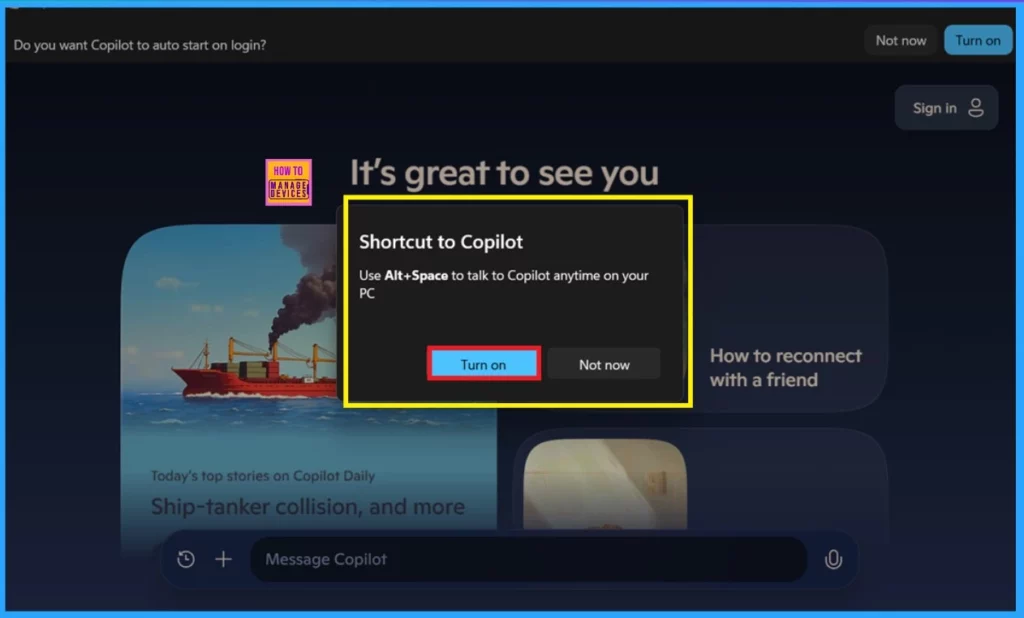
- First, open the Copilot on Windows; then you will get a dialog box showing ” Shortcut to Copilot.
- This will help you to use Alt+Space to talk to Copilot anytime on your PC.
- You can click on the Turn on option.
Start a Voice Conversation
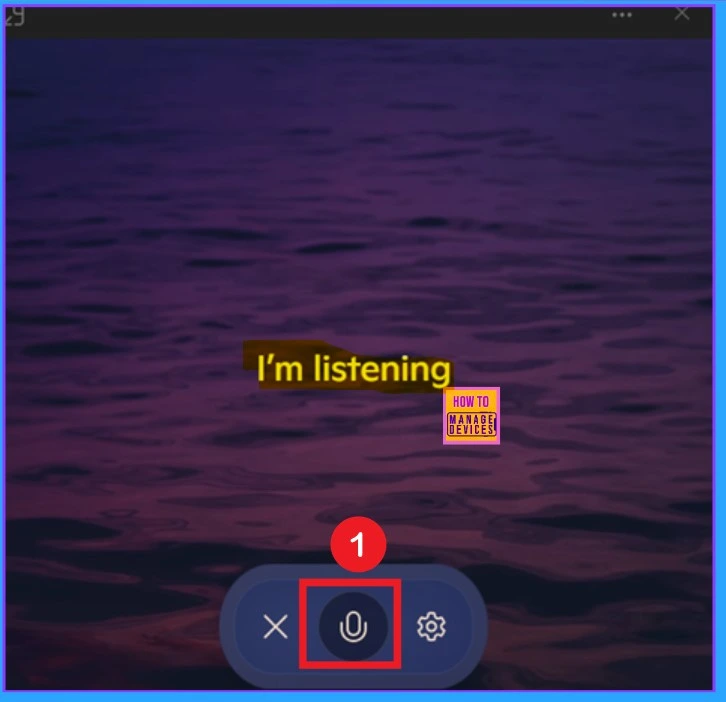
Now you can start a voice chat with the Copilot any time, you have to hold down Alt + Spacebar for 2 seconds. Then Now you will get the microphone icon displayed on your screen. It showing that I’m Listening. Also, you can see a settings and close button near the Microphone.
- When you start a conversation, the Copilot ask, “Hey there! How’s your day going? And what’s your name?”
Settings for the Press to Talk
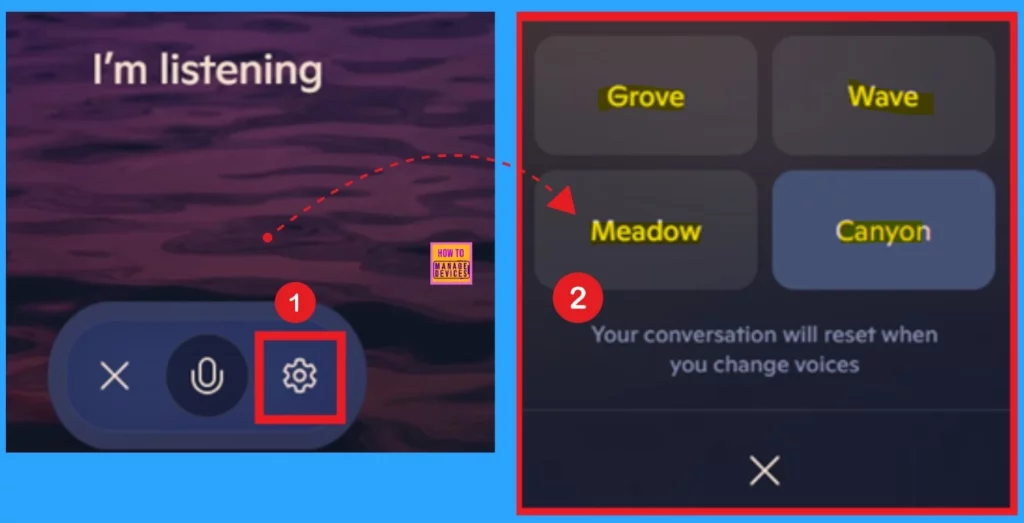
When you click on the Alt+Space for 2 seconds, you will get a Microphone right? here youy can see a Settings Icon when you click on that you will get 4, voice options for your copilot app on windows. For example If you want to litsten a women voice you have to select the Grove option. The other 3 options are mens voice in diffrent tone and style.
| Voice Options |
|---|
| Grove |
| Wave |
| Meadow |
| Canyon |
Need Further Assistance or Have Technical Questions?
Join the LinkedIn Page and Telegram group to get the latest step-by-step guides and news updates. Join our Meetup Page to participate in User group meetings. Also, join the WhatsApp Community to get the latest news on Microsoft Technologies. We are there on Reddit as well.
Resource
Copilot on Windows: Press to talk begins rolling out to Windows Insiders
Author
Anoop C Nair has been a Microsoft MVP for 10 consecutive years from 2015 onwards. He is a Workplace Solution Architect with more than 22+ years of experience in Workplace technologies. He is a Blogger, Speaker, and Local User Group Community leader. His primary focus is on Device Management technologies like SCCM and Intune. He writes about technologies like Intune, SCCM, Windows, Cloud PC, Windows, Entra, Microsoft Security, Career, etc.




Discussion