






Configure Disk Cache Size in MS Edge Browser using M365 Admin Center Policy
Let’s discuss how to configure Disk Cache Size in MS Edge Browser using M365 Admin Center Policy. To enhance security, privacy, and user experience, the newest Microsoft Edge release provides a wide selection of customizable policies.
Disk Cache Size policy allows administrators to enforce a specific disk cache size, overriding any user-defined settings. Values below a few megabytes will be automatically increased to a practical minimum, preventing overly restrictive cache limitations.
This policy controls Microsoft Edge’s disk cache size. Setting it to 0 locks the cache to the default size, preventing user modifications. Leaving the policy unconfigured allows the default size but enables users to adjust it using a command-line flag.
The Disk Cache Size policy in Edge provides a general guideline for cache usage rather than a hard limit. While actual disk usage may vary slightly, it will remain relatively close to the specified value, balancing performance with efficient storage management.

Table of Contents
What is the Recommended Disk Size for Cache in MS Edge?
Configure Disk Cache Size in MS Edge Browser
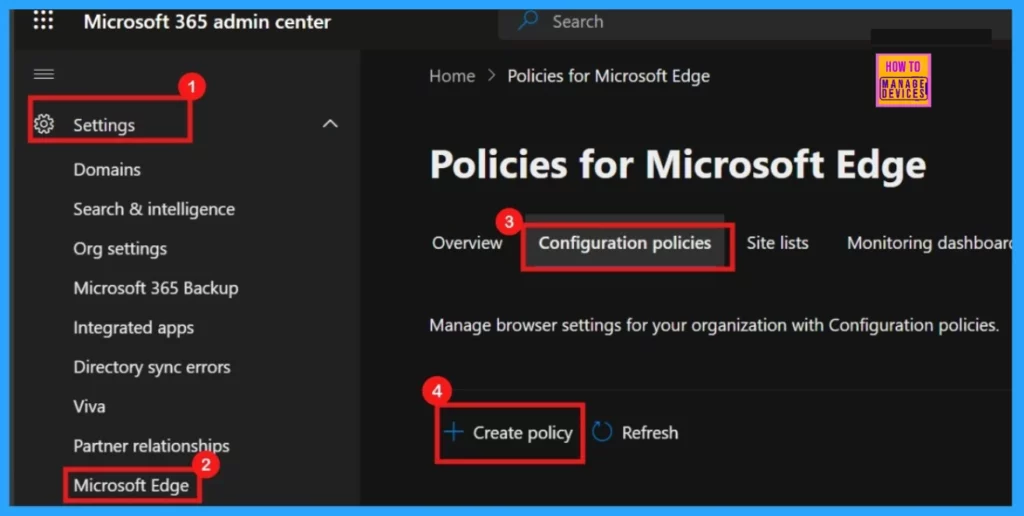
Using the Microsoft 365 admin center, administrators can enforce specific Disk Cache Size settings for Microsoft Edge throughout their organization. This is achieved by navigating to the appropriate policy configuration section and deploying a new policy.
- Settings > MS Edge > Configuration Policies > + Create policy
- Issue On Minimum PIN Length For Startup In Disk Encryption Policies In Intune
- Best Method to Prevent Microsoft Teams from Office New Installations or Updates using Intune
- Best Methods To Reset Windows 11 PIN Fix Forgot PIN Issue
- Storage Sense Cleanup of Temporary Files for Freeing Up Disk Space in Windows 11
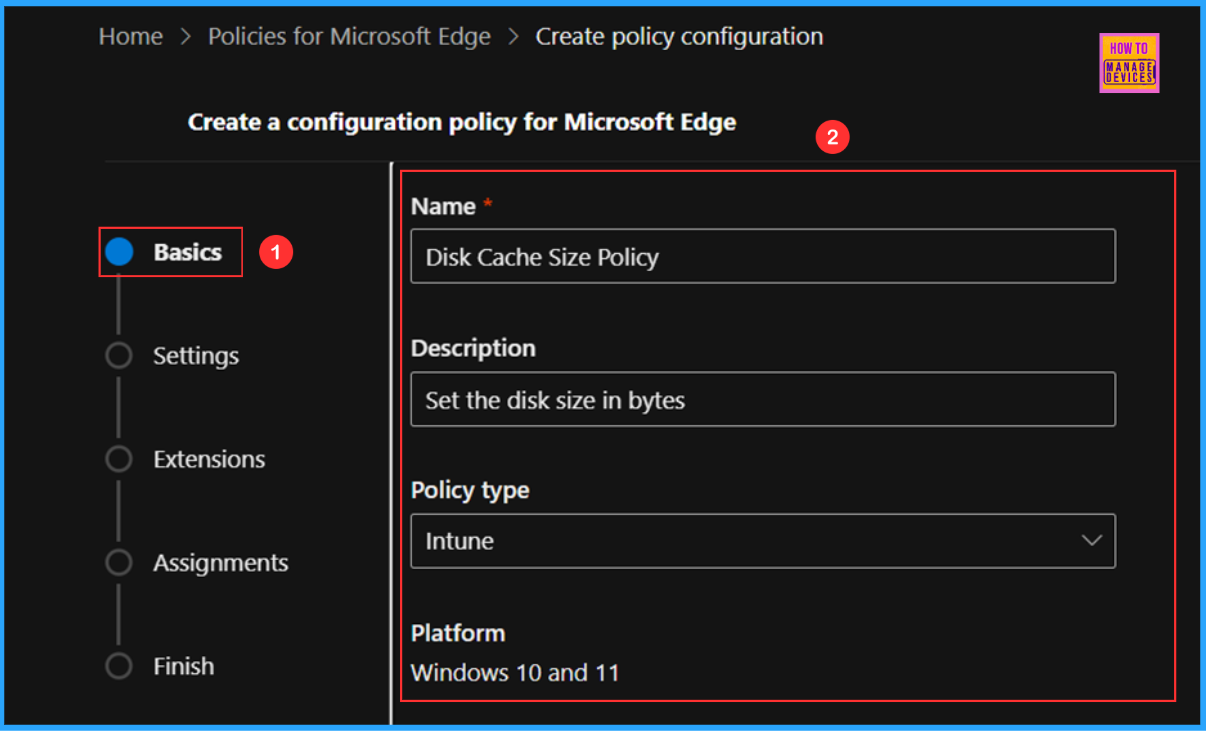
When initiating a new policy, the Basics section requires key details for proper functionality. This includes a required Name and an optional Description for easy identification. Additionally, specifying the Policy Type and Platform is crucial to guarantee the policy is applied to the intended systems and users.
| Name | Description | Policy Type | Platform |
|---|---|---|---|
| Disk Cache Size | Set disk cache size, in bytes | Intune | Windows 10 and 11 |
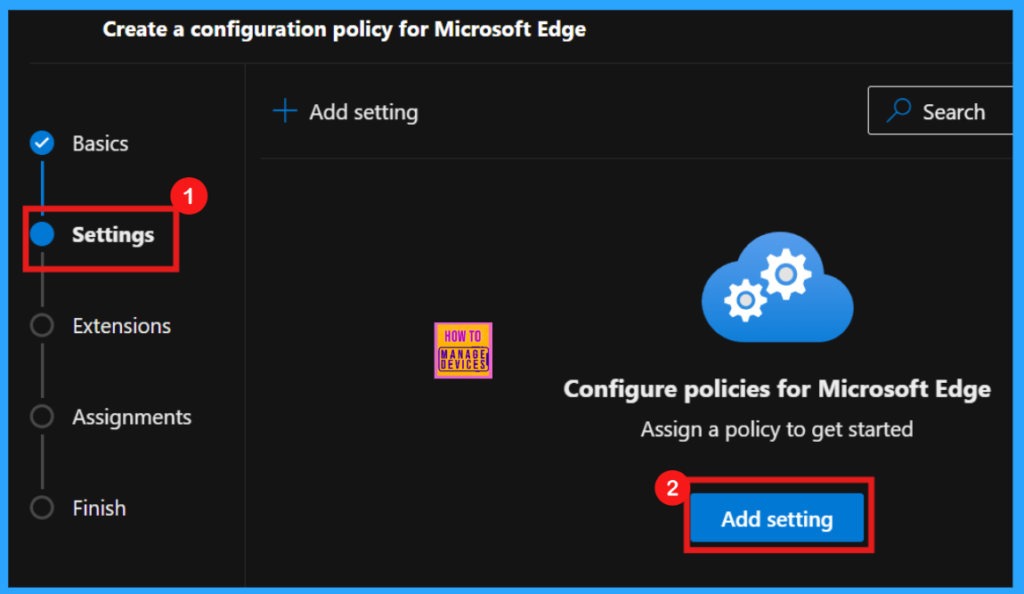
By accessing the Settings, administrators gain the ability to modify Edge’s functions and performance to match organizational security and productivity requirements. Start customizing by selecting + Add Setting.
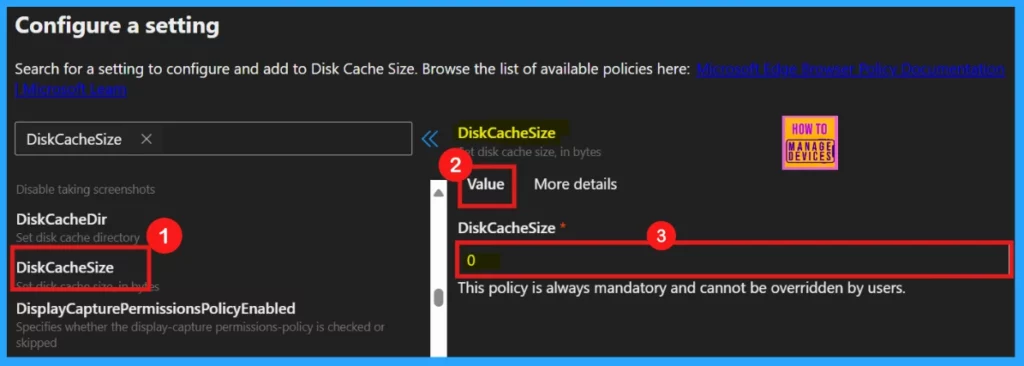
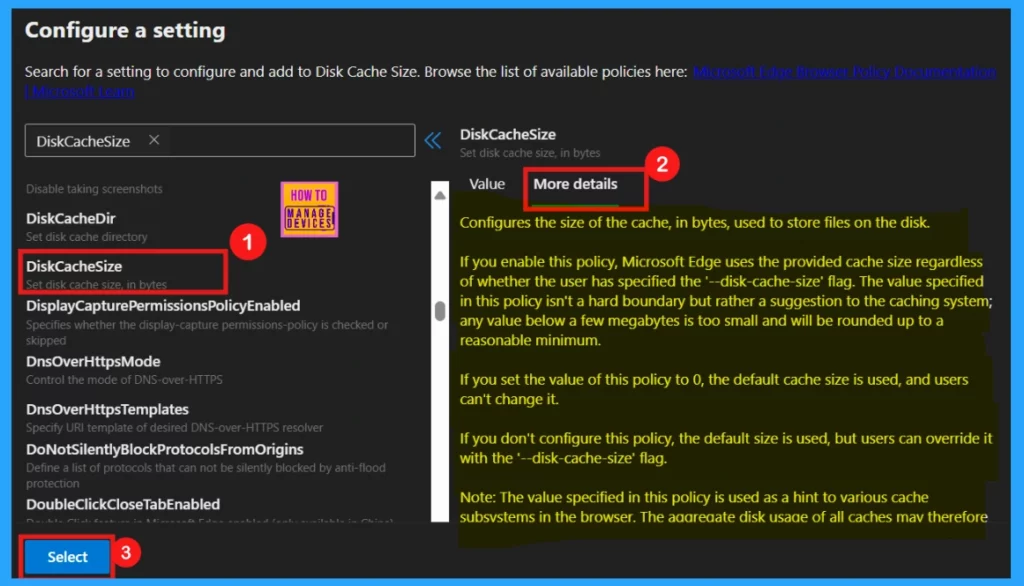
Upon selecting Add settings, the Configure a Setting window allows administrators to explore various Edge settings under Additional Settings. Choosing a specific setting, like Disk Cache Size, opens a pop-up with tabs for setting the desired value and accessing detailed information about the setting’s purpose.
- Setting the Disk Cache Size to 0 enforces the default cache size and disables user modifications.
Beyond setting the value, the More details tab offers essential information about the chosen policy. It ensures a full understanding of its impact before implementation. After a thorough review of the policy’s function and details, clicking Select confirms and applies the configured settings.
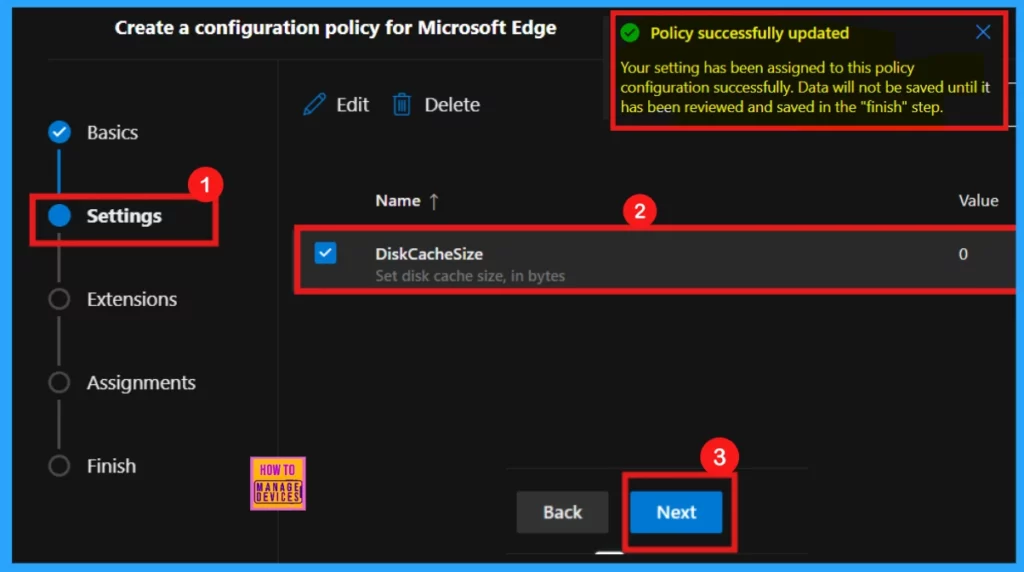
After clicking Select, a confirmation notification appears, indicating that the Disk Cache Size policy has been updated, but the changes aren’t final. The configuration requires a review and save during the Finish step. To proceed with the policy’s implementation, the administrator must click Next and complete the remaining steps.
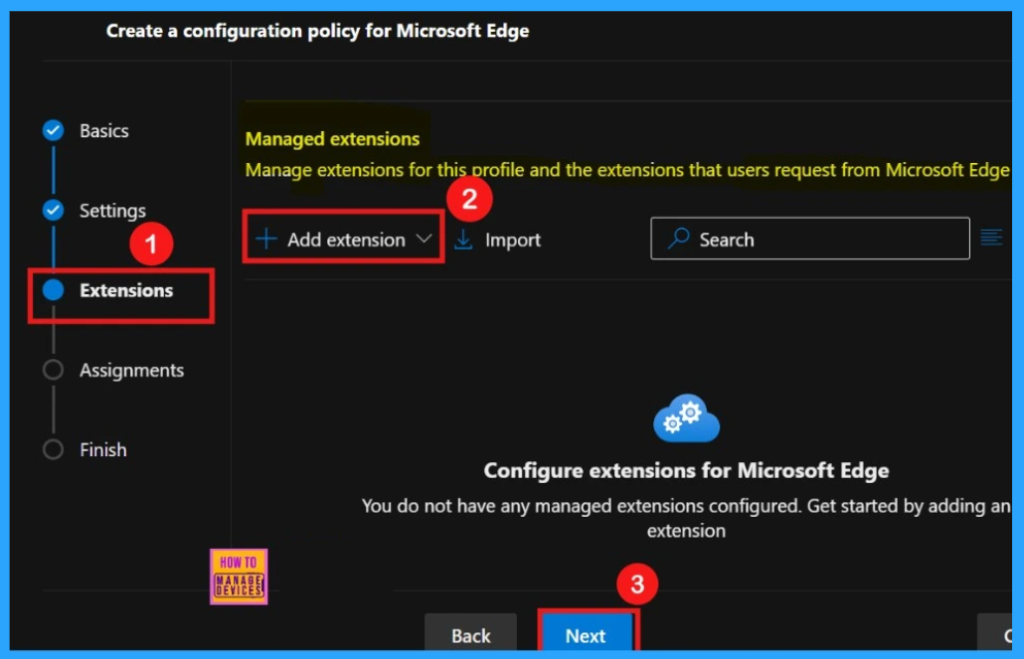
During policy creation, the Extensions page allows for the addition of optional features. While default extensions may already be present, clicking +Add extension enables further customization. This step is entirely optional, allowing administrators to proceed with policy creation without adding any extensions if they are not required.
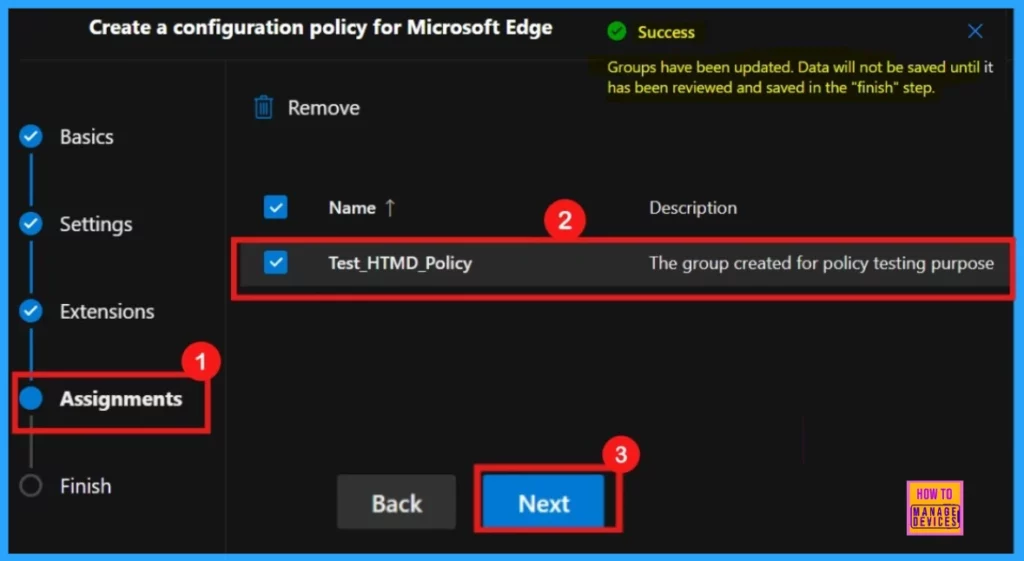
The Assignments section is vital for policy deployment, enabling targeted application to specific groups. By clicking +Select group, administrators can choose from Microsoft Entra’s default groups, ensuring the policy affects only the intended users or devices. Confirming the selection with Select finalizes the assignment.
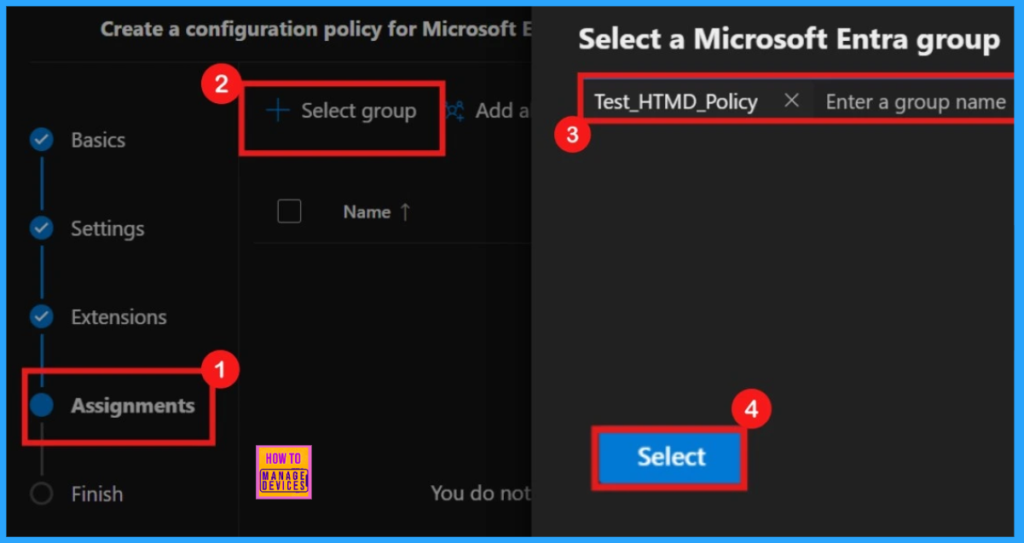
Upon selecting the group, a confirmation message will appear, indicating the group assignment was successful. A new window will then present your policy, showing its name and description with checkboxes. Tick the box for the policy you want to implement and click Next to go to the next step.
- Easy way to Create Autopatch Multi-Phase Release with Intune Feature Update Policy
- Copilot with Endpoint Privilege Manager to Identify Potential Elevation Risks using Intune
- Enable or Disable Prevent Typosquatting Prompt Override Policy in MS Edge Browser using M365 Admin Center
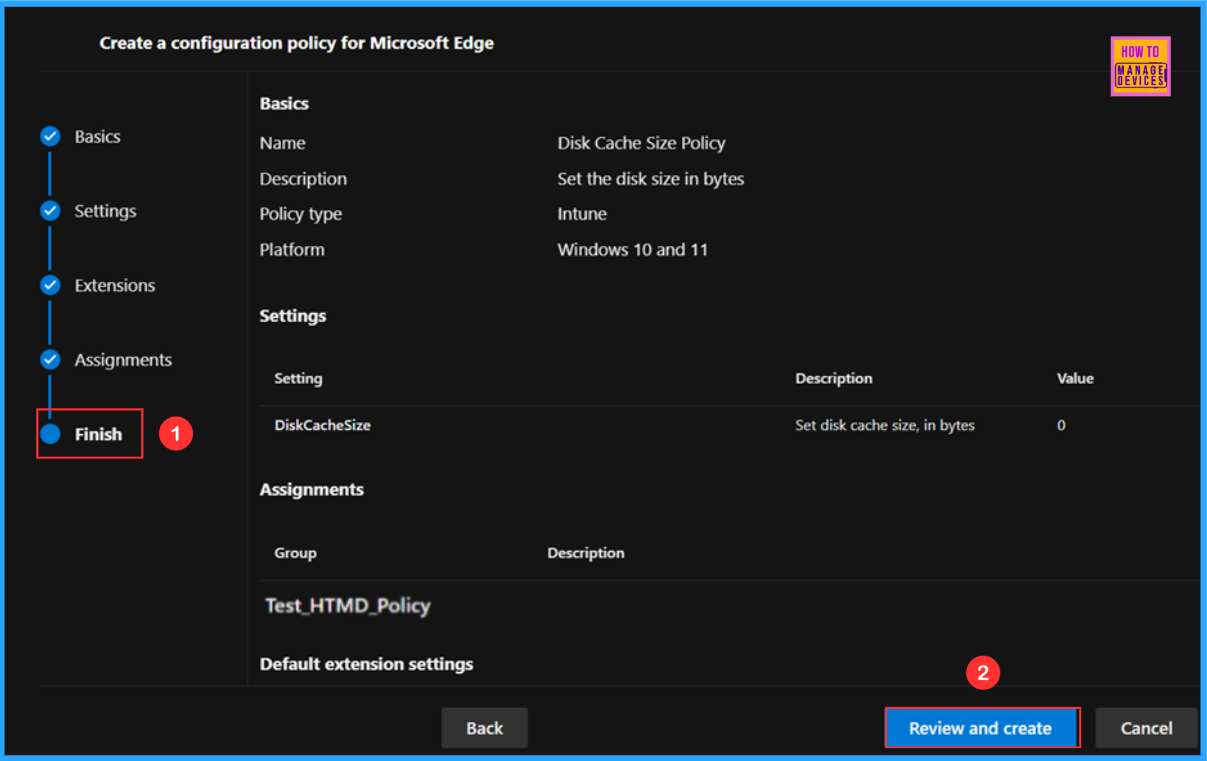
The Finish tab provides a comprehensive overview of the policy, consolidating all previously entered details. This allows for a final review before implementation. If any adjustments are needed, the Back button facilitates navigation to earlier sections for modifications. Once satisfied, clicking Review and Create finalizes and deploys the policy.
Monitor the Disk Cache Size Policy
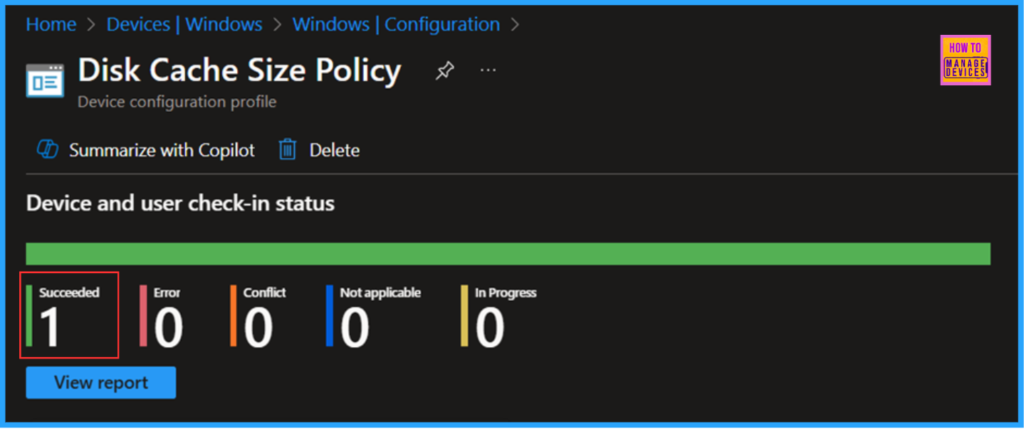
Our configuration policy has been deployed to the Test_HTMD_Policy, Microsoft Entra ID Device group. Once the device is synced, the policy will take effect immediately. To monitor the policy deployment status from the Intune Portal, follow the steps below.
- Navigate to Devices > Windows > Configuration > Search for the “Disk Cache Size Policy” configuration policy.
- Under the Device and user check-in status, you can see the policy’s deployment status
End Result
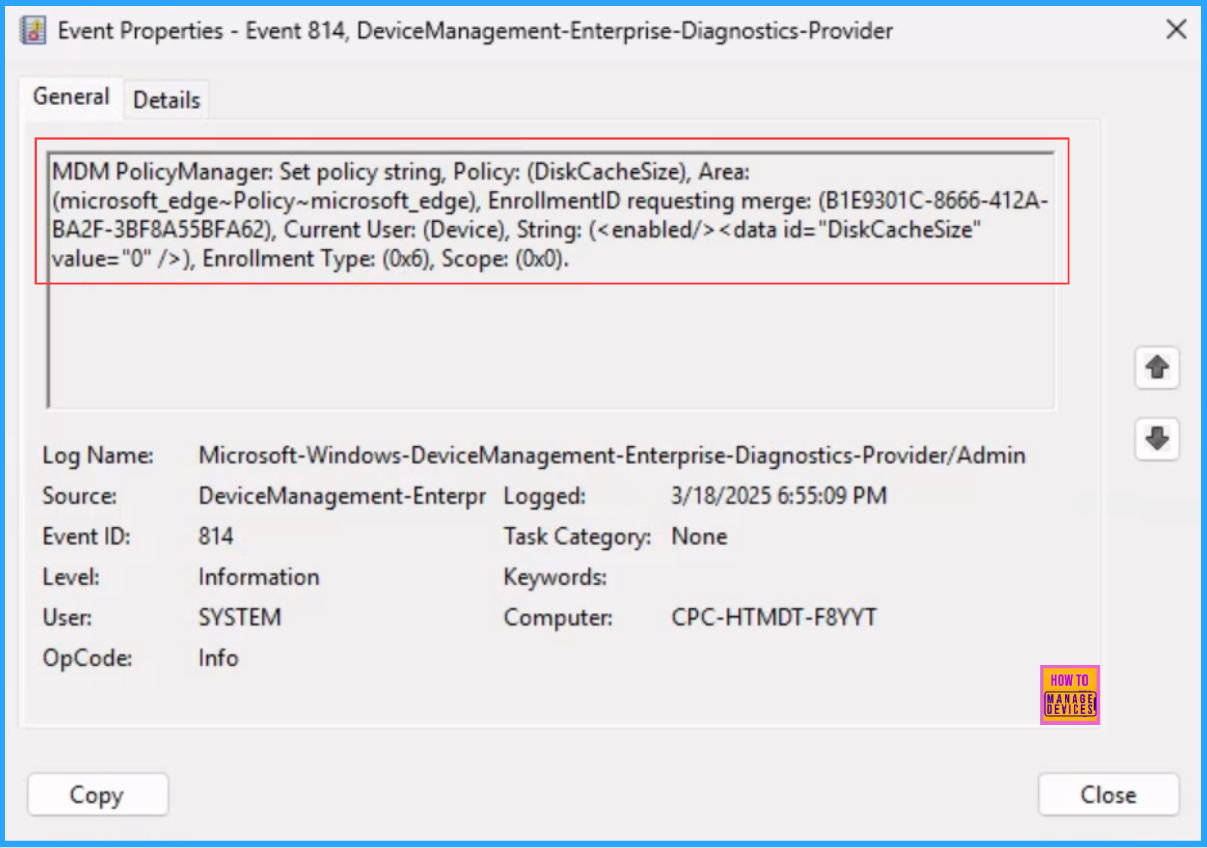
We have to check whether the Disk Cache Size Policy policy is working fine or not. Log on to one of the policy-targeted devices. This time we can check the policy status via Event Logs. Open Event Viewer from the device.
- Navigate to Applications and Services Logs > Microsoft > Windows > Devicemanagement-Enterprise-Diagnostics-Provider – Admin
Filter the latest logs with 814 Event ID so it make easy to find. the success log. The screenshot below shows that the policy is successfully applied to the system and our policy has been worked as configured.
Need Further Assistance or Have Technical Questions?
Join the LinkedIn Page and Telegram group to get the latest step-by-step guides and news updates. Join our Meetup Page to participate in User group meetings. Also, Join the WhatsApp Community to get the latest news on Microsoft Technologies. We are there on Reddit as well.
Author
Vaishnav K has over 11 years of experience in SCCM, Device Management, and Automation Solutions. Writes and imparts knowledge about Microsoft Intune, Azure, PowerShell scripting, and automation. Check out my profile on LinkedIn.




Discussion