






Enable or Disable Hotspot Authentication in Networks using Intune Policy
Let’s discuss Enable Disable Hotspot Authentication using Intune Policy. As you all know that the setting catalog is one of the best features in MS Intune and its very essential for policy deployment. Hotspot authentication is important for secure internet access.
This is commonly used in public environments such as Airports, hotels, and educational institutions. We recently published many setting catalog policies through Intune. In this post, we are deploying a policy for hotspot authentication. As you all know, Hotspot authentication is one of the crucial features in the Wireless network connection.
The Wireless Internet Service Provider roaming (WISPr) protocol is a system that helps users connect easily to different Wi-Fi networks in public places. Enabling this setting will help the user to users automatically connect to Wi-Fi without needing to log in each time. This is great for quick and easy connection.
Also, turning off this setting means users will have to manually log in through a web browser each time, which can be a cause for security issues. Hotspot authentication helps ensure that only authorized users can connect to a network, keeping it secure. Authentication is very powerful for keeping things secure.

Table of Contents
What Happens if the Policy Setting for WISPr Protocol Support is Enabled?
Enable Disable Hotspot Authentication – CSP Details
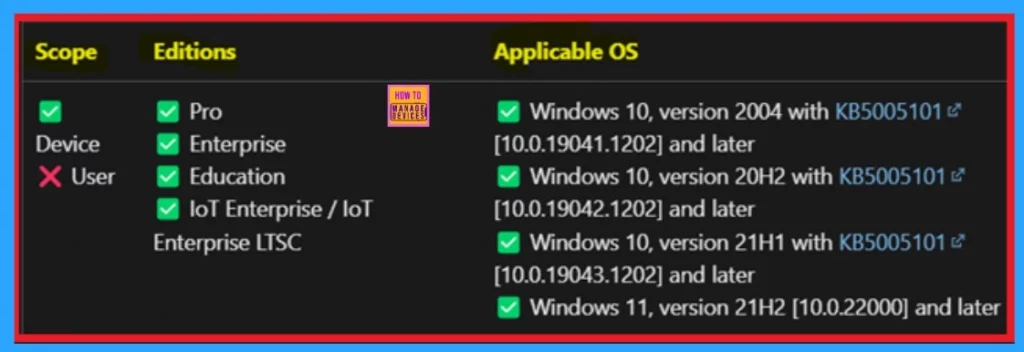
When setting up an Intune policy to Enable Disable Hotspot Authentication using Intune Policy. Also, in policy creation it’s important to understand the Configuration Service Provider (CSP) details. These details tell you which operating system and version the policy will work with, ensuring the policy is applied correctly to the right devices.
This setting is a placeholder only and should not be used in a production environment. The description framework properties for this setting are as follows.
| Property Name | Property Value |
|---|---|
| Format | chr (string) |
| Access Type | Add, Delete, Get, Replace |
./Device/Vendor/MSFT/Policy/Config/ADMX_hotspotauth/HotspotAuth_Enable
- Prevent Unauthorized Access By Configuring Screen Saver Lock Timing Using Intune Policy
- Fix No Internet Issue in Mobile Hotspot Connection in Windows 11
- How to Enable Disable Wake on LAN in Windows 11
- How to Find Wi-Fi Network Password in Windows 11
Create a Policy
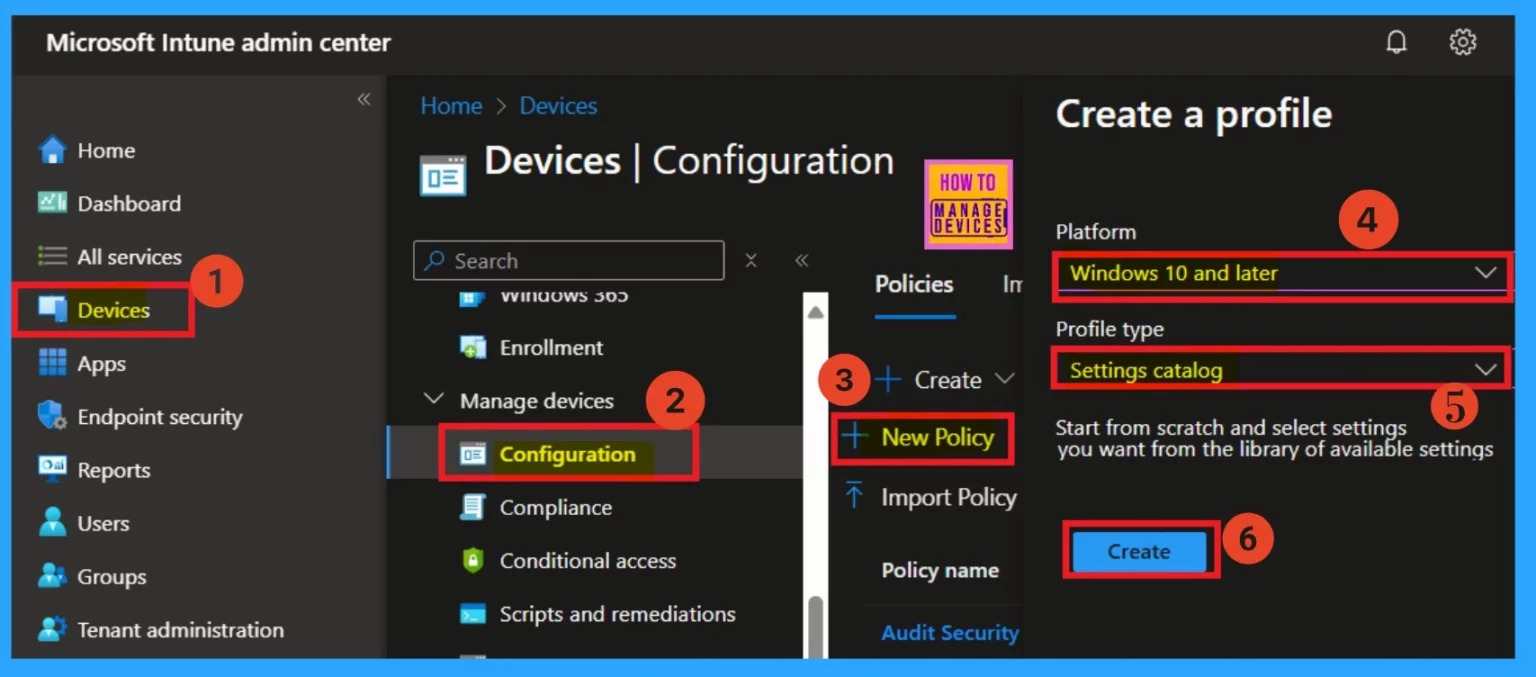
To deploy this policy using Microsoft Intune, start by signing in to the Microsoft Intune admin center. Then, go to Devices > Configurations. On the right side, click on the + Create option and select New policy.
- You have to select the platform as Windows 10 and later.
- Add the profile type as the Setting catalog.
- Then click on the Create option.
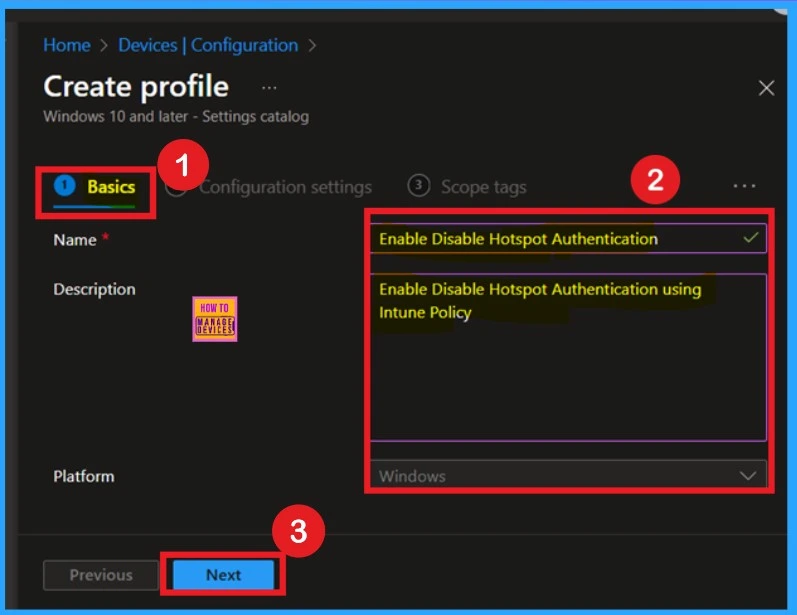
Basics
To deploy this policy using Microsoft Intune, follow these detailed steps: First, sign in to the Microsoft Intune admin centre using your administrator credentials. Once you’re logged in, navigate to the Devices section in the left-hand menu, and then select Configurations.
This will bring you to the configuration policies page. On the right side of the screen, you will see a + Create button. Click on this button, and from the options that appear, choose New Policy.
- You have to select the platform as Windows 10 and later.
- Add the profile type as Setting catalog.
- Then click on the create option
Configuration Settings- Settings Picker
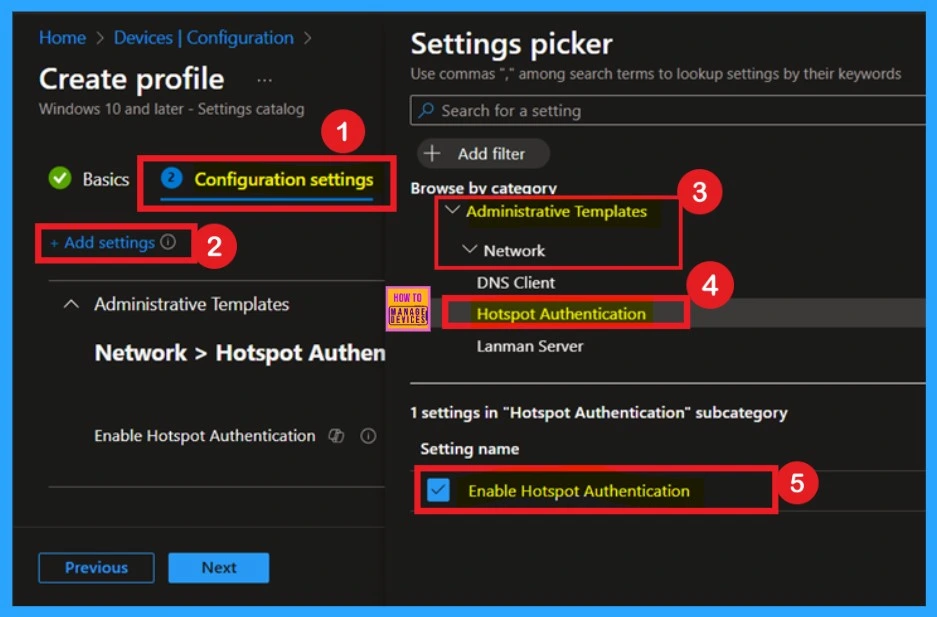
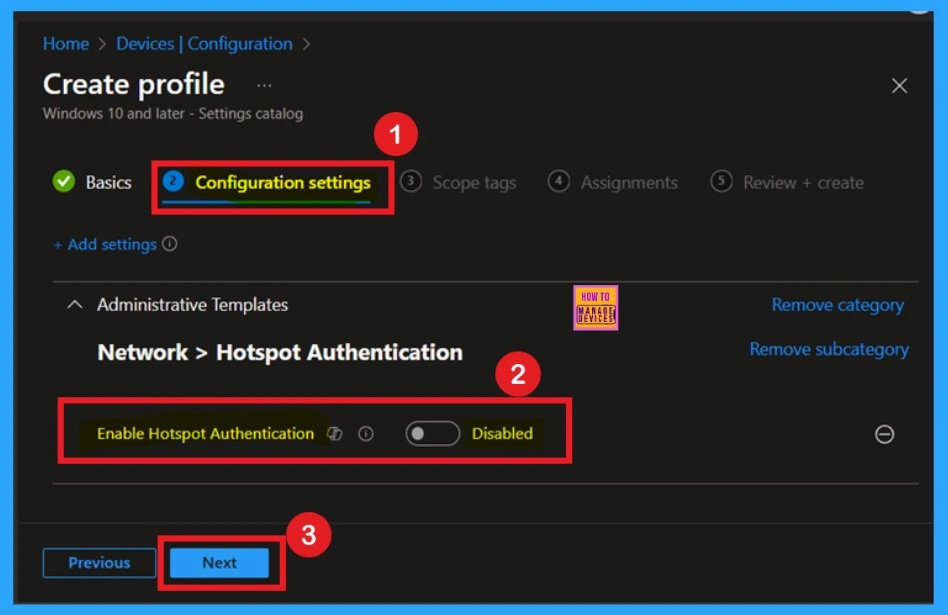
The next is configuration settings. In the configuration settings, you have to click on the +Add setting option in a hyperlink. When you click on that, you will get a settings picker window. You have to select the Administrative templates > Network >Hotspot authentication. When you click on the hotspot authentication, you will get a Setting name to Enable hotspot authentication.
- Now you can close the Settings Picker Window.
Disable Hotspot Authentication
When you close the settings picker, now you can see the Enable hotspot authentication in your configuration settings, page and that also in Disable mode by default, if you want to continue with that, click on the Next.
Enable Hotspot Authentication
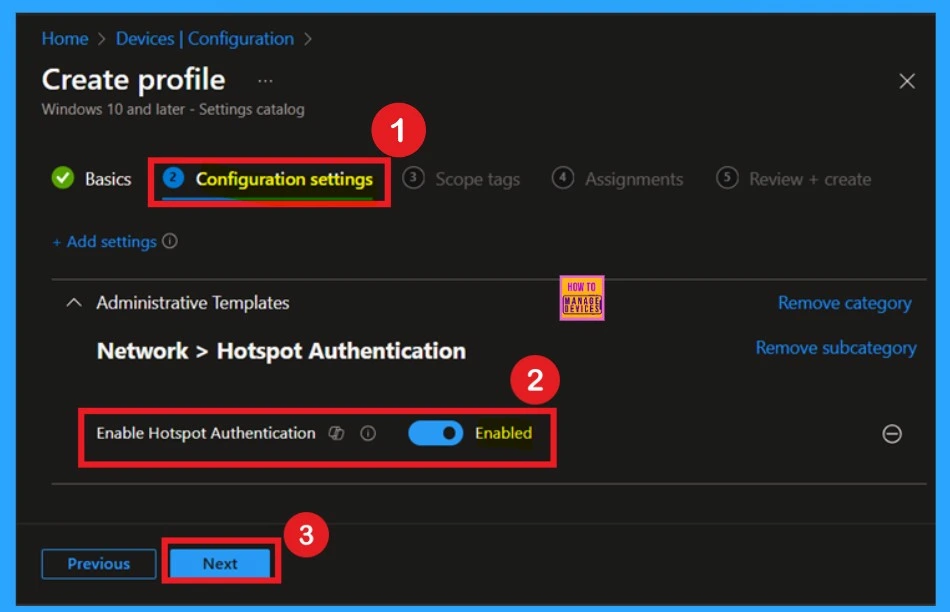
If you want to enable Hotspot Authentication, you can toggle the option by moving the switch from the left to the right. You’ll notice that the toggle appears blue. After that, click on Next. You can proceed with the following steps. Whether you Enable or Disable the settings, the steps are the same for both options.
Scope Tags
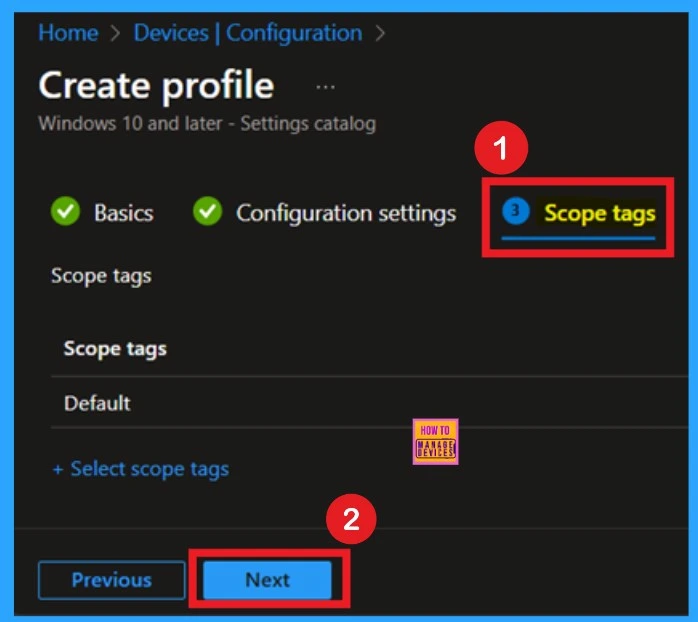
The next step is the Scope tag. While adding a scope tag to your policy is useful for the organization, it is not a required step. If you choose not to use a scope tag, you can simply skip this step and proceed by clicking Next to move forward with the policy deployment process.
Assignments
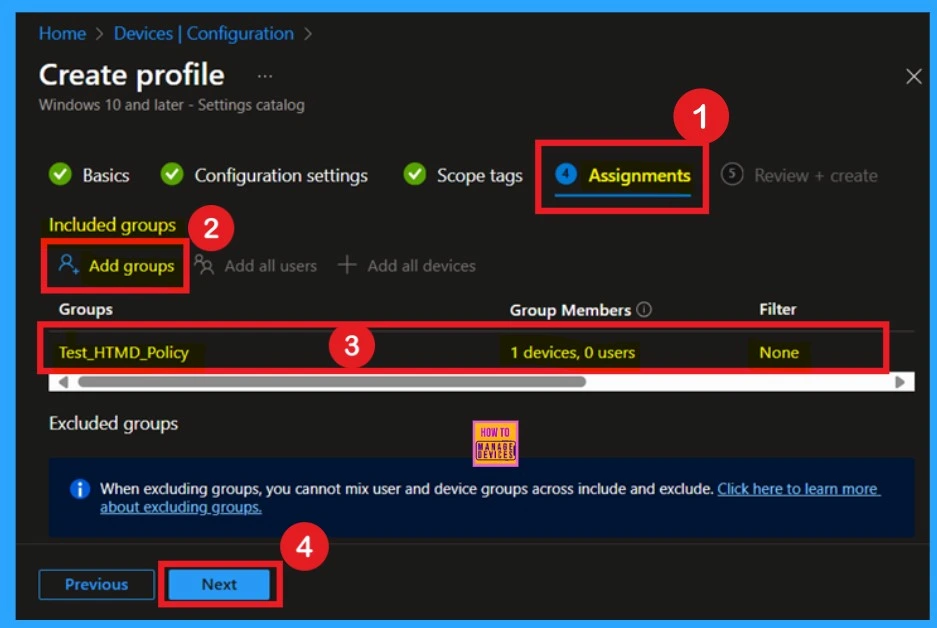
The next step the is the Assignment tab, which plays a key role in deploying policies. In this section, you can define the specific group or groups to which you want the policy to be applied. To do this, I clicked on Add Groups under the Include Groups option.
- This allowed me to select the desired group for the policy deployment.
- Once I selected the appropriate group, I clicked Next to continue with the policy setup and move on to the next steps in the deployment process.
Review + Create
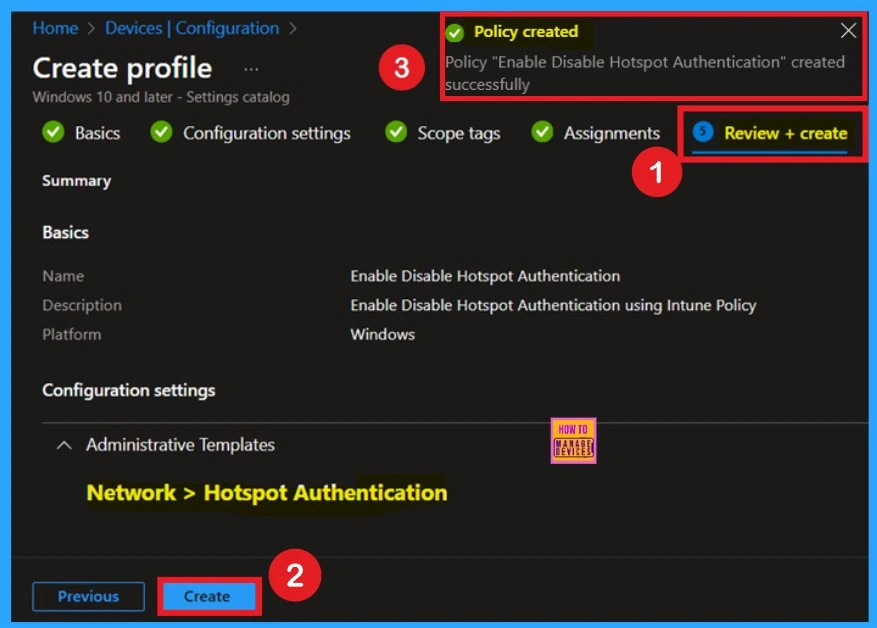
The Review + Create option is the final step in the policy creation process. In this section, you have the opportunity to review all the details you’ve entered for the policy, including settings, assignments, and configurations.
- Now click on the create and now you will get a successful Notification.
Monitor Status
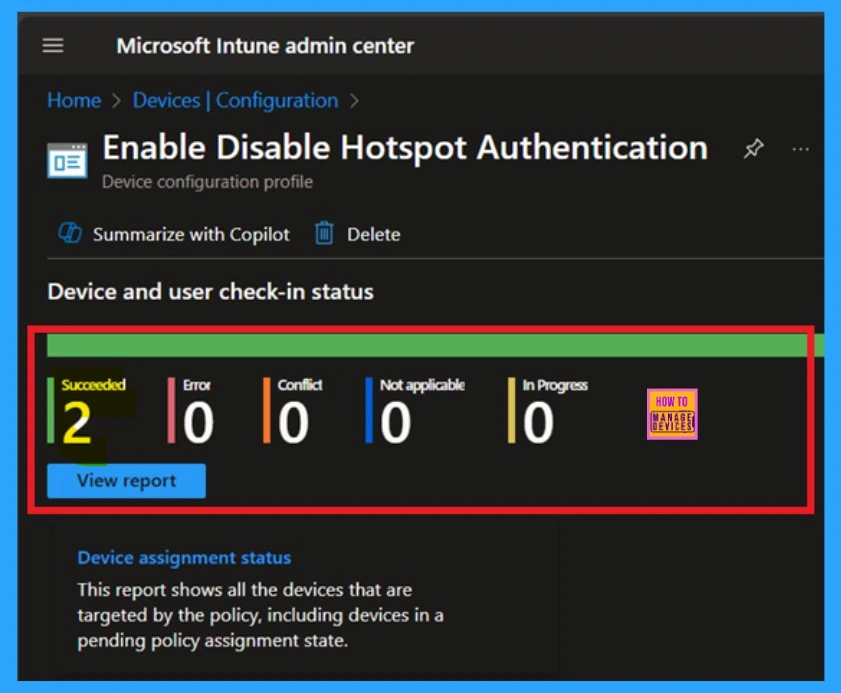
When you create a new policy for a device, it typically takes up to 8 hours for the policy to apply automatically. However, you can expedite this process by manually syncing the policy. After syncing, you can confirm that the policy has been successfully applied by checking it in Intune.
- To do this, go to Devices > Configuration, and then select the policy.
End Result
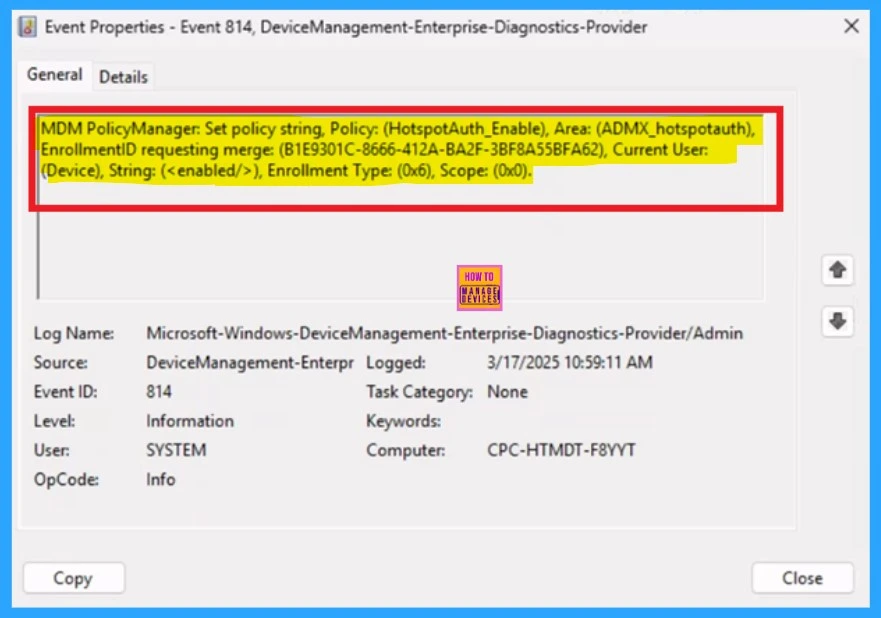
To check the monitor the status, you can use Event Viewer. Start by opening the Start menu and typing “Event Viewer.” Then, navigate to the following path: Application and Services Logs > Microsoft > Windows > DeviceManagement-Enterprise-Diagnostics-Provider > Admin.
- In the right pane, click on Filter Current Log, enter 814 in the Event IDs field, and click OK.
| Policy Details |
|---|
| MDM PolicyManager: Set policy string, Policy: (HotspotAuth_Enable), Area: (ADMX_hotspotauth), EnrollmentiD requesting merge: (B1E9301C-8666-412A-BA2F-3BF8A55BFA62), Current User: (Device), String: (), Enrollment Type: (0x6), Scope: (0x0). |
Need Further Assistance or Have Technical Questions?
Join the LinkedIn Page and Telegram group to get the latest step-by-step guides and news updates. Join our Meetup Page to participate in User group meetings. Also, Join the WhatsApp Community to get the latest news on Microsoft Technologies. We are there on Reddit as well.
Author
Anoop C Nair has been a Microsoft MVP from 2015 onwards for 10 consecutive years! He is a Workplace Solution Architect with more than 22+ years of experience in Workplace technologies. He is also a Blogger, Speaker, and leader of the Local User Group Community. His primary focus is on Device Management technologies like SCCM and Intune. He writes about technologies like Intune, SCCM, Windows, Cloud PC, Windows, Entra, Microsoft Security, Career, etc.


Discussion