






Force Minimum YouTube Restricted Mode Policy in Microsoft Edge Browser using M365 Admin Center
Let’s discuss Force Minimum YouTube Restricted Mode Policy (ForceYouTubeRestrict) in Microsoft Edge Browser using Microsoft 365 Admin Center. Microsoft Edge is the default, faster, and more feature-rich browser on modern Windows PCs, replacing Internet Explorer.
Force Minimum YouTube Restricted Mode Policy enforces a minimum YouTube Restricted Mode, ensuring consistent, safer viewing. Administrators gain control over YouTube content filtering with this policy. Several techniques exist to lock the Restricted Mode setting, making it unmodifiable by users.
When configuring YouTube’s Restricted Mode, there are three options available to set the Policy. Selecting Strict enforces the strongest restrictions, while Moderate permits only moderate or strict levels, preventing users from turning off filtering altogether. Choosing Off or leaving it unconfigured allows user choice, but external YouTube policies may still apply.
YouTube’s Restricted Mode filters mature content, is valuable for parental control, and can be locked to prevent changes. This feature, available on browsers and apps, also hides comments. This ensures a safer viewing experience, and methods exist to both enable and disable it.

Table of Contents
What are the Three Options for Configuring YouTube’s Restricted Mode Policy?
When configuring YouTube’s Restricted Mode policy, use these settings: Off allows users to choose their settings, Moderate ensures at least moderate filtering, and Strict enforces the highest level of restriction. This mapping provides clear control over YouTube content access based on administrative needs.
Off (0) : Do not enforce Restricted Mode on YouTube
Moderate (1) : Enforce at least Moderate Restricted Mode on YouTube
Strict (2) : Enforce Strict Restricted Mode for YouTube
Force Minimum YouTube Restricted Mode Policy
ForceYouTubeRestrict policy provides administrators with the ability to tailor YouTube access within their managed environment. Administrators gain control over YouTube content filtering with this policy. Many methods can grey out this setting and prevent users from changing it.
The Microsoft 365 Admin Center manages cloud operations, including user and license control. Today I am going to deploy the Force Minimum YouTube Restricted Mode Policy through the Microsoft 365 Admin Center.
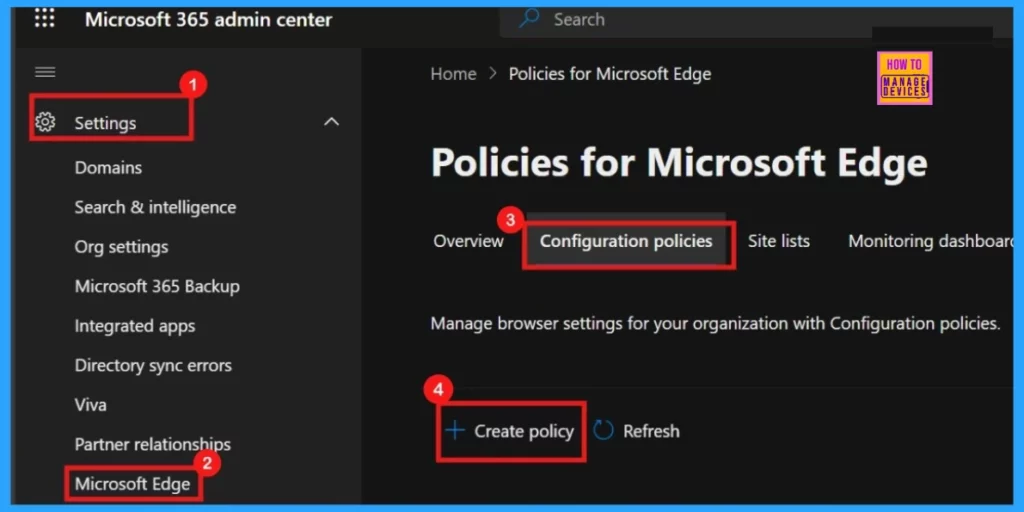
- Log in to Microsoft 365 Admin Center > Settings
- From Settings Select Microsoft Edge > Configuration Policies > Create policy.
- Top 75 Latest Intune Interview Questions and Answers
- Enable Disable Browser Guest Mode in Microsoft Edge Browser using M365 Admin Center
- Enable Or Disable Prevent Typosquatting Prompt Override Policy In MS Edge Browser Using M365 Admin Center
Basics
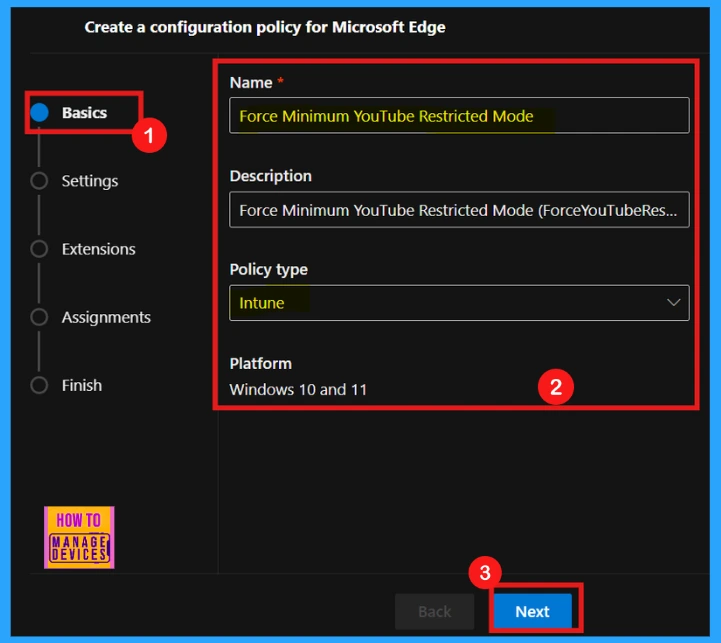
When setting up the new policy, the Basics section allows you to define key details like the policy’s name, description, type, and platform, aiding in future identification. Complete these fields and proceed to the Next configuration step.
| Policy Name | Description | Policy Type | Platform |
|---|---|---|---|
| Force Minimum YouTube Restricted Mode | Force Minimum YouTube Restricted Mode Policy enforces a minimum YouTube Restricted Mode, ensuring consistent, safer viewing. | Intune | Windows 10 and 11 |
Settings
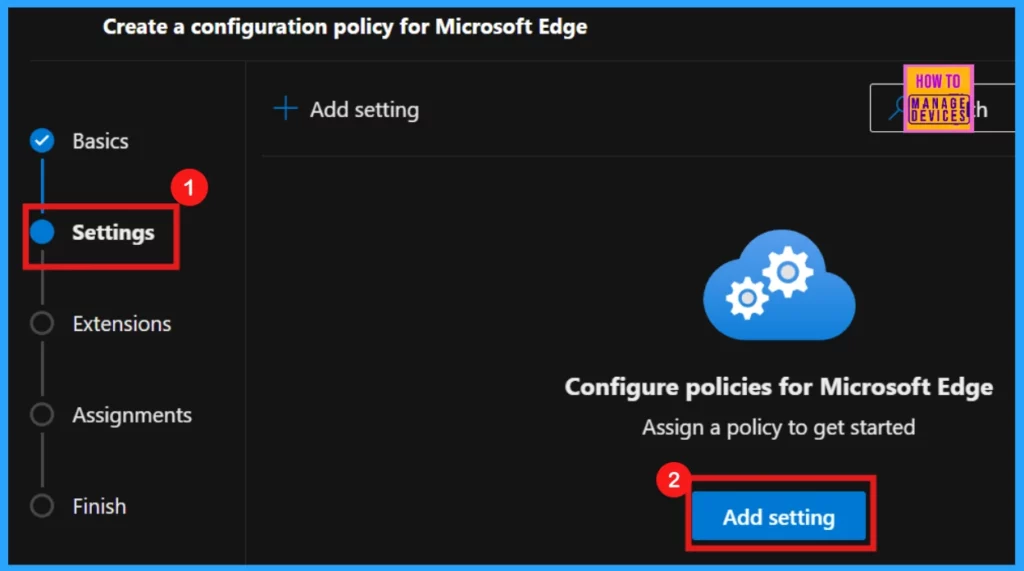
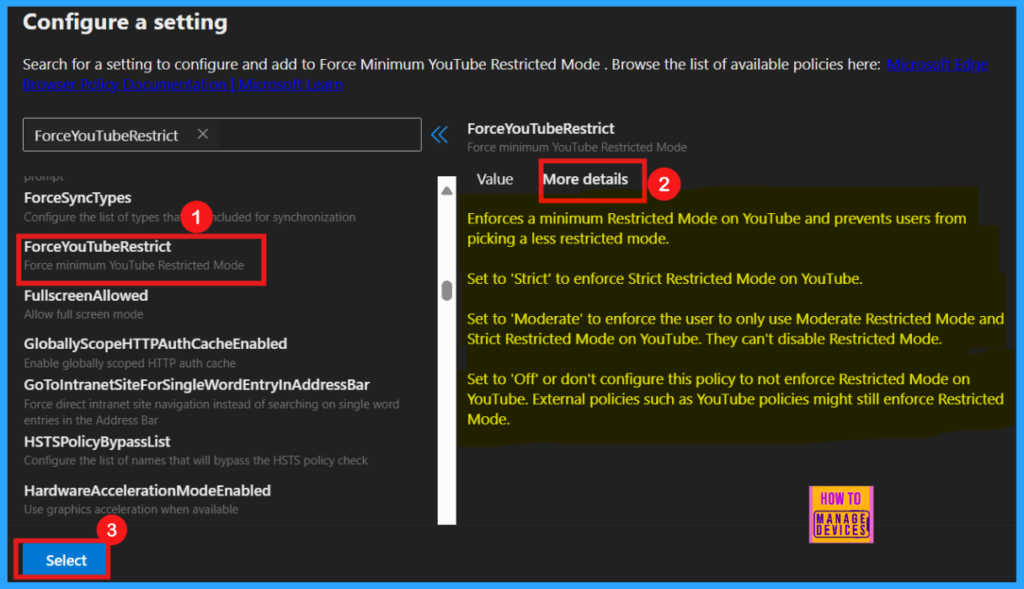
In the policy configuration stage, we can find an + Add Settings option, which leads to the Configure a setting page. Here, we can specify the ForceYouTubeRestrict (Force Minimum YouTube Restricted Mode) policy by searching for its name within the Additional Settings section.
- + Add Settings > Search the policy name under Additional Settings.
Configure a Setting
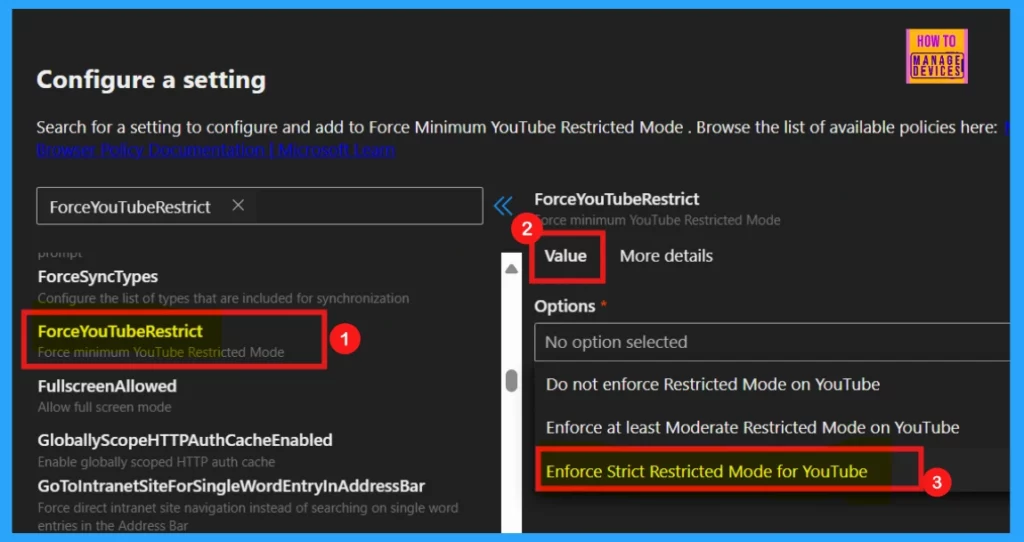
Configure a setting window will showcase the selected policy’s technical details like Value and More Details. In the value section we can select enable, disable or a some behaviour changes whcih is suitable for this policy.
Value
The Value section of the Force Minimum YouTube Restricted Mode policy offers three distinct options (Refer to Table 2) to control YouTube content filtering. These options dictate the level of restriction enforced, allowing administrators to tailor the viewing experience to their specific needs.
- Here, I select the Enforce Strict Restricted Mode for YouTube option.
| Options | Features |
|---|---|
| Do not enforce Restricted Mode on YouTube (Off (0) | Users who choose to turn off Restricted Mode accept the responsibility for encountering content that may be considered inappropriate or unsuitable for certain audiences. |
| Enforce at least Moderate Restricted Mode on YouTube (Moderate (1) | Moderate Restricted Mode filters potentially mature content on YouTube, balancing access with a safer viewing experience. |
| Enforce Strict Restricted Mode for YouTube (Strict (2) | Enabling Strict Restricted Mode on YouTube significantly filters potentially mature or inappropriate content. While it may limit access to some content, it prioritizes a more controlled and family-friendly environment. |
When examining More Details, we can view the policy’s complete description. The Configuration setting is crucial for policy creation. After selecting your desired setting, a confirmation notification will appear, verifying that the policy has been successfully updated.
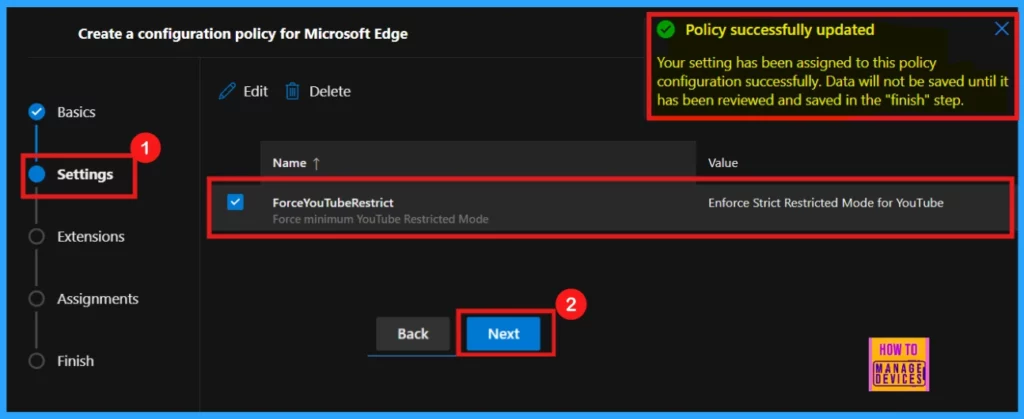
.Following the select action, the chosen policy’s name and value will be displayed. We must then check the box to the policy name and proceed by clicking the Next button, moving forward in the policy configuration process.
- But Data will not be saved until it has been reviewed and saved in the Finish step.
Extensions
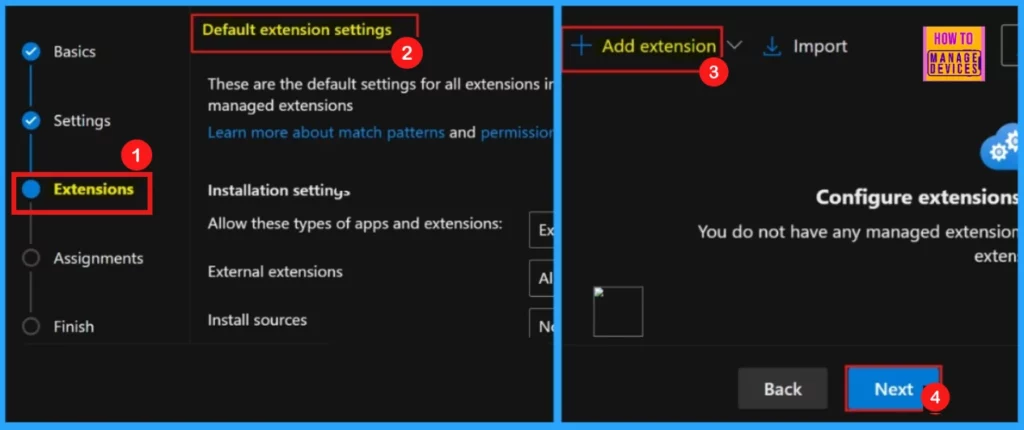
Policy Extensions allow for customization through installation settings, permissions, URLs, and other parameters. Adding these extensions tailors the policy’s functionality to specific requirements.
- Click the + Add extension to add an extension.
- If no additional customization is required, proceed without adding any extensions.
Assignments
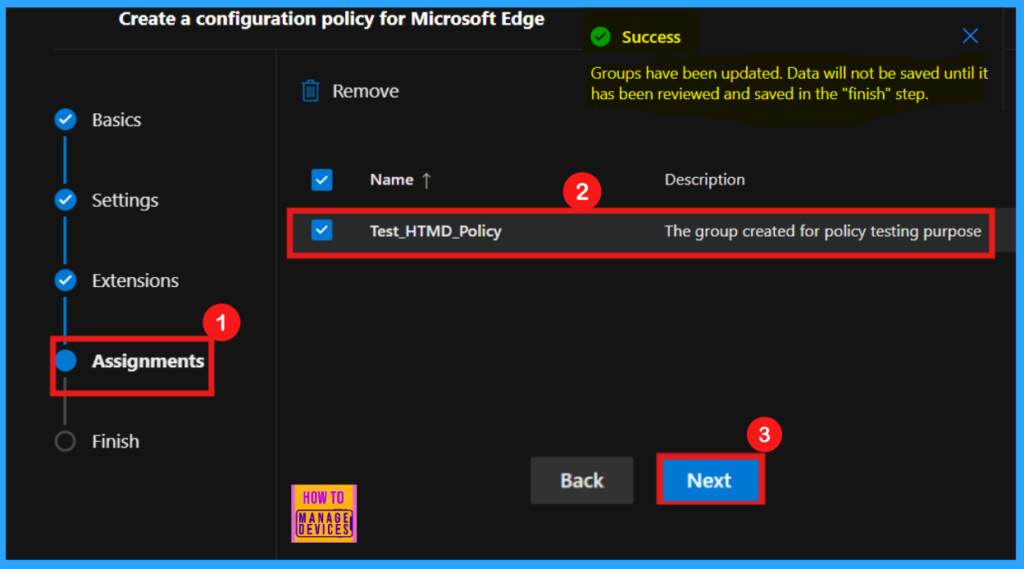
The assignments section lets target specific user groups with the policy, ensuring that only those within the selected group receive the configured settings. By choosing a group from the default Microsoft Entra groups, we can control who is affected by the policy. It helps us to effectively managing access to features and settings.
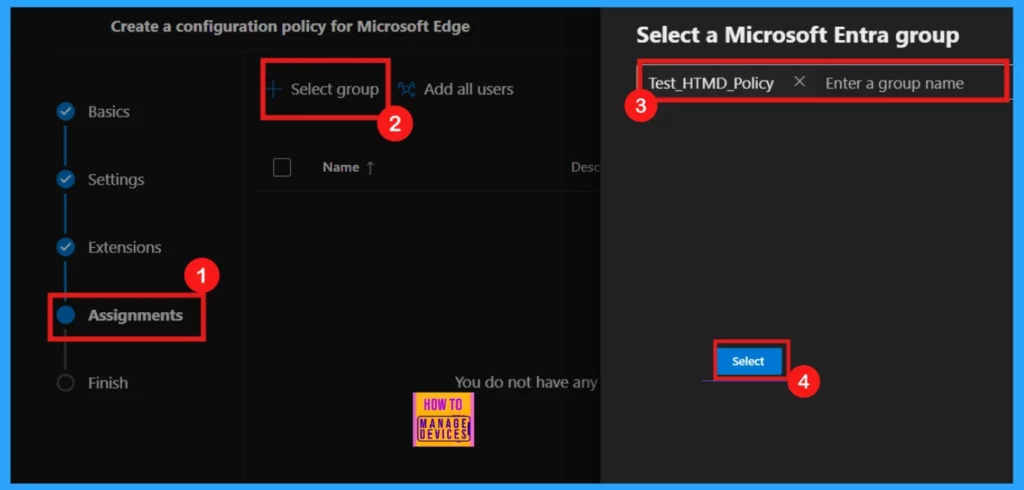
Upon selecting the group, a confirmation message indicates a successful group assignment. In this case, the Test_HTMD_Policy group, specifically created for policy testing, has been designated for this policy.
Finish
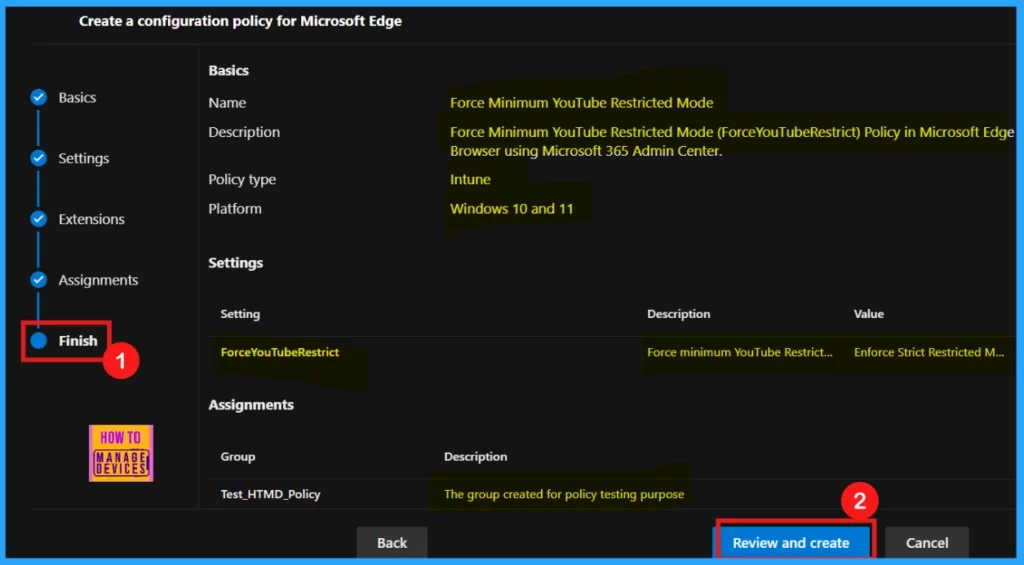
Finish is the final stage of policy creation, which involves reviewing all configured settings. If we need to make changes, use the Back button and modify the details. Once satisfied, click Review and Create to finalize and deploy the policy.
Monitoring Status
Following policy creation, manual synchronization via the company portal is necessary to apply the changes. After synchronization, the newly created policy will be visible on the Policies for Microsoft Edge page, confirming its successful implementation.

Device and User Check-in Status
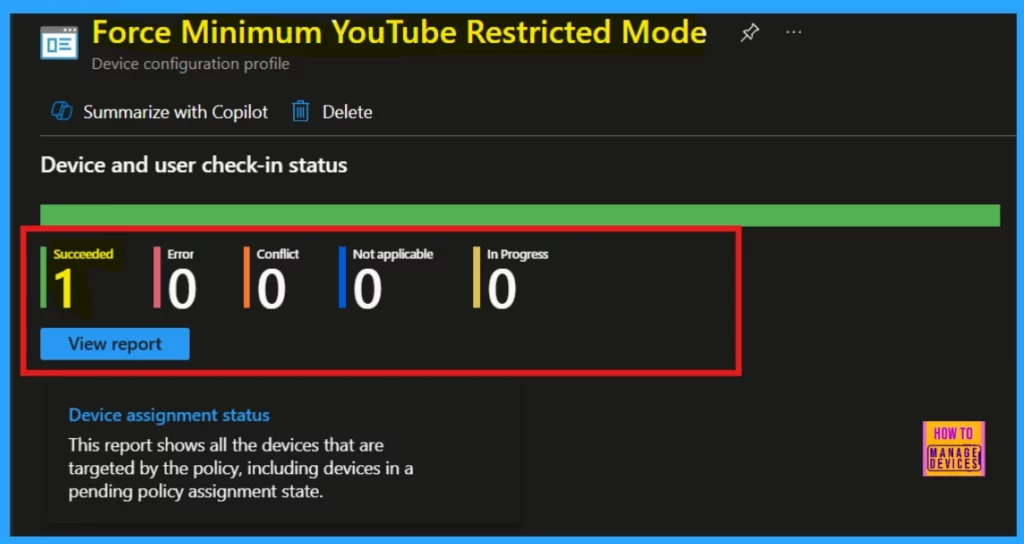
For quicker policy deployment after creation, synchronize your device with the company portal. Subsequently, monitor the policy’s status within the Intune Portal by navigating to Devices > Configuration, searching for your policy under the Policies tab, and verifying the one that succeeded status. This confirms the successful application of the policy to your device.
Client Side Verification – Event Viewer
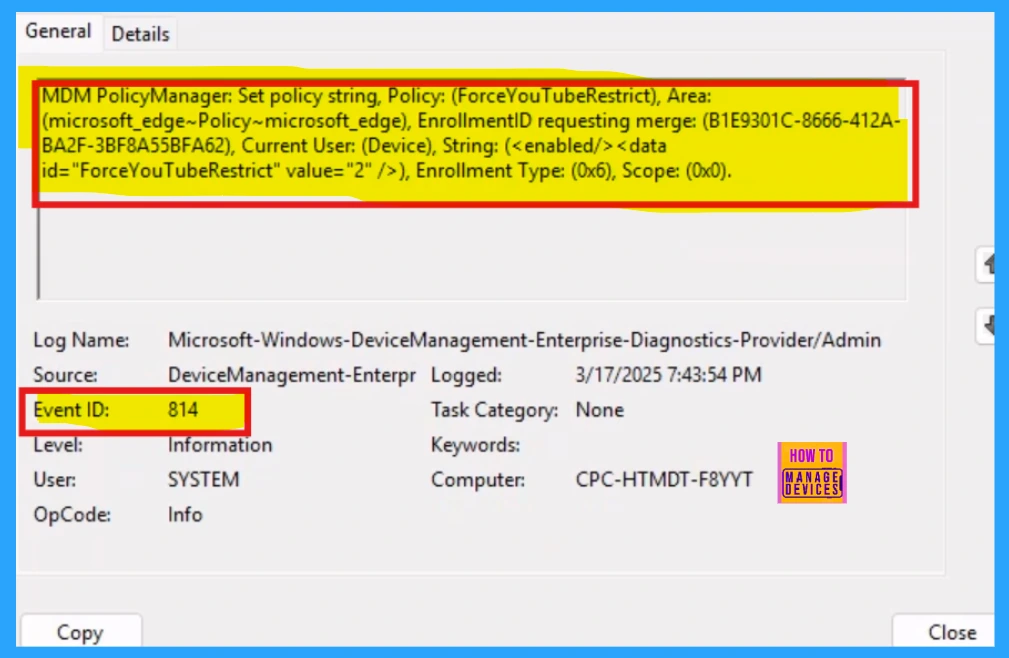
Client-side verification allows for immediate policy compliance checks directly on the user’s device, reducing server load. By accessing the Event Viewer, you can confirm if policy settings are valid and applied correctly, providing instant feedback on policy enforcement.
End User Experience
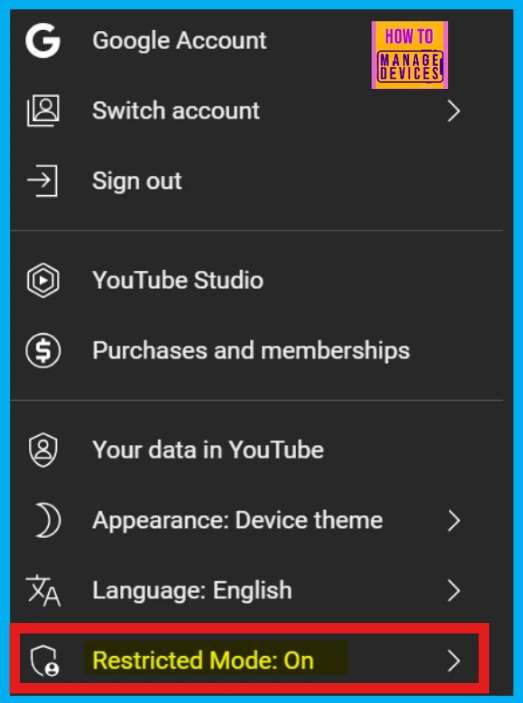
To verify the policy’s effect on the end user, open Microsoft Edge. You should then be able to confirm whether the ForceYouTubeRestrict (Force Minimum YouTube Restricted Mode) policy is actively functioning within the browser’s interface.
- Launch Microsoft Edge by double-clicking its shortcut or using the Windows search bar.
- Now go to the YouTube site and click on the Account Picture icon in the left top corner.
- Then click on the Restricted Mode option.
Need Further Assistance or Have Technical Questions?
Join the LinkedIn Page and Telegram group to get the latest step-by-step guides and news updates. Join our Meetup Page to participate in User group meetings. Also, Join the WhatsApp Community to get the latest news on Microsoft Technologies. We are there on Reddit as well.
Author
Anoop C Nair has been Microsoft MVP for 10 consecutive years from 2015 onwards. He is a Workplace Solution Architect with more than 22+ years of experience in Workplace technologies. He is a Blogger, Speaker, and Local User Group Community leader. His primary focus is on Device Management technologies like SCCM and Intune. He writes about technologies like Intune, SCCM, Windows, Cloud PC, Windows, Entra, Microsoft Security, Career, etc.




Discussion