






How to Configure Auto Import At First Run Policy in Edge Browser using M365 Admin Center
Hi Folks, I will explore how to configure Auto Import At First Run Policy in Edge Browser using M365 Admin Center today. Microsoft 365 offers a range of valuable applications, online services, and enhanced security, and Microsoft Edge is now the default browser on Windows.
Auto Import At First Run policy helps to silently and automatically import browser data from another browser when Edge is first opened. Microsoft Edge Legacy will always migrate your browser data quietly during the first run, no matter what this policy says.
When this policy is set to FromDefaultBrowser, data from the device’s default browser is imported. Microsoft Edge will silently omit the import if the browser defined in the policy is not available on the device. Setting this policy to DisabledAutoImport completely skips the first-run import and prevents automatic data transfer.
To customize the first-run import, combine this policy with policies like ImportAutofillFormData, ImportBrowserSettings, and ImportFavorites. This enables administrators to tailor the imported data to meet specific needs.

Table of Contents
What is the Auto Import At First Run Policy in Microsoft Edge?
This policy gives administrators the ability to decide if users’ browser data, including favorites, passwords, and cookies, is automatically transferred into Microsoft Edge upon its first run. This provides control over the initial user setup experience.
Policy Options Mapping of Auto Import At First Run Policy in Microsoft Edge
Policy options mapping is a tool that analyses and visualises how policy actions will impact situations and who will be involved. This allows for better policy development and understanding of the policy environment. It also helps with risk assesment. The following table will show the available options of Auto Import At First Run Policy in Microsoft Edge.
| Auto-Import Policy Options | Value | Description |
|---|---|---|
| DefaultBrowser | 0 | Automatically imports all supported datatypes and settings from the default browser |
| InternetExplorer | 1 | Automatically imports all supported datatypes and settings from Internet Explorer |
| GoogleChrome | 2 | Automatically imports all supported data types and settings from Google Chrome |
| Safari | 3 | Automatically imports all supported datatypes and settings from Safari |
| DisabledAutoImport | 4 | Disables automatic import, and the import section of the first-run experience is skipped |
| MozillaFirefox | 5 | Automatically imports all supported datatypes and settings from Mozilla Firefox |
- Force Minimum YouTube Restricted Mode Policy in Microsoft Edge Browser using M365 Admin Center.
- Configure Disk Cache Size in MS Edge Browser using M365 Admin Center Policy
- Enable or Disable Prevent Typosquatting Prompt Override Policy in MS Edge Browser using M365 Admin Center
Configure Auto Import At First Run Policy in Edge Browser using M365 Admin Center
The Auto Import At First Run setting in Edge controls automatic data import from other browsers on startup. Settings for this can be managed through the Microsoft 365 Admin Center, using either Intune or Group Policy.
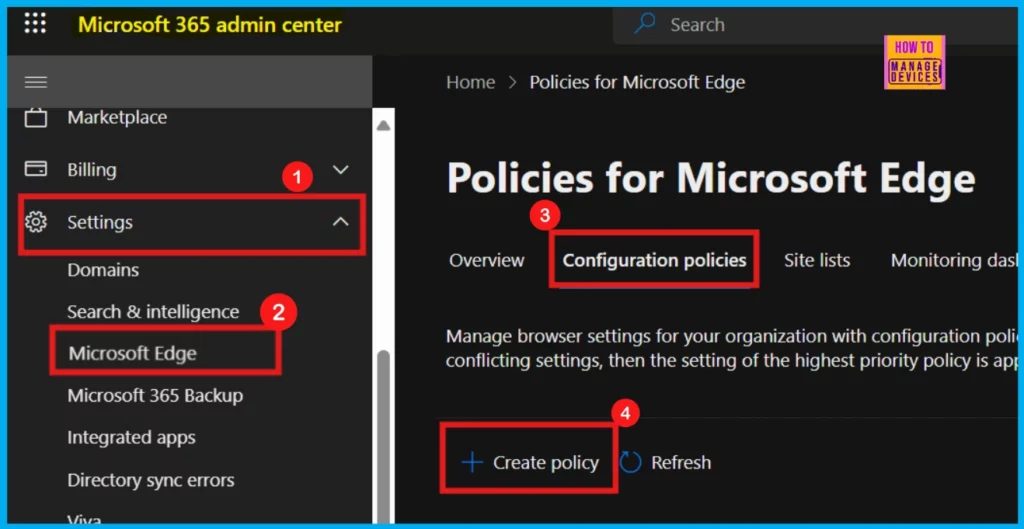
- Microsoft 365 admin center > Settings > Microsoft Edge > Configuration Policies > Create Policy
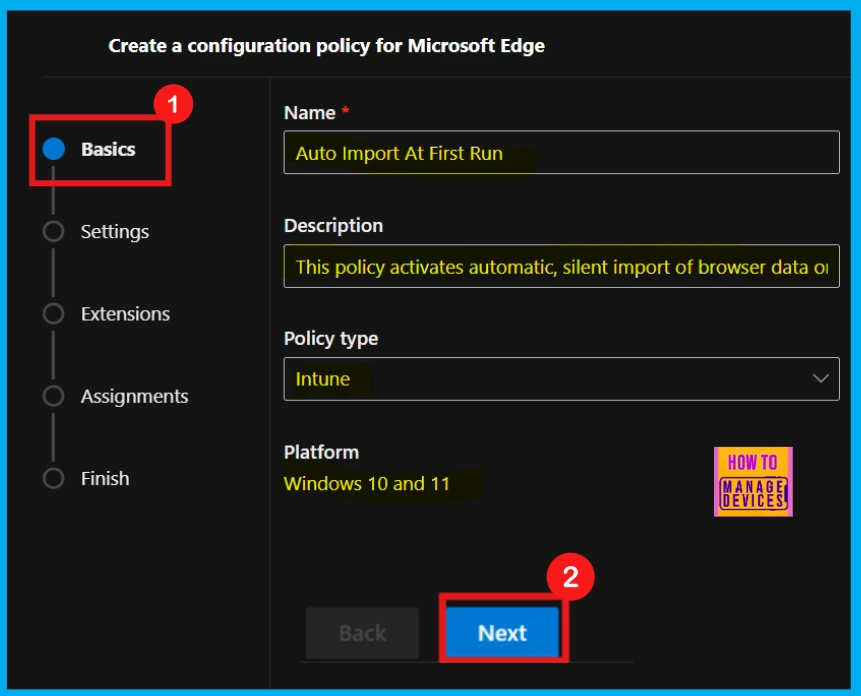
Basics
The Basics section of policy creation requires a descriptive Name for easy identification. An optional Description can further clarify the policy’s purpose. This section also conveniently displays the Policy Type and the target Platform, providing a clear overview of the policy’s scope and application.
| Policy Name | Description | Policy Type | Platform |
|---|---|---|---|
| Auto Import At First Run | This policy activates automatic, silent import of browser data on the first run. | Intune | Windows 10 and 11 |
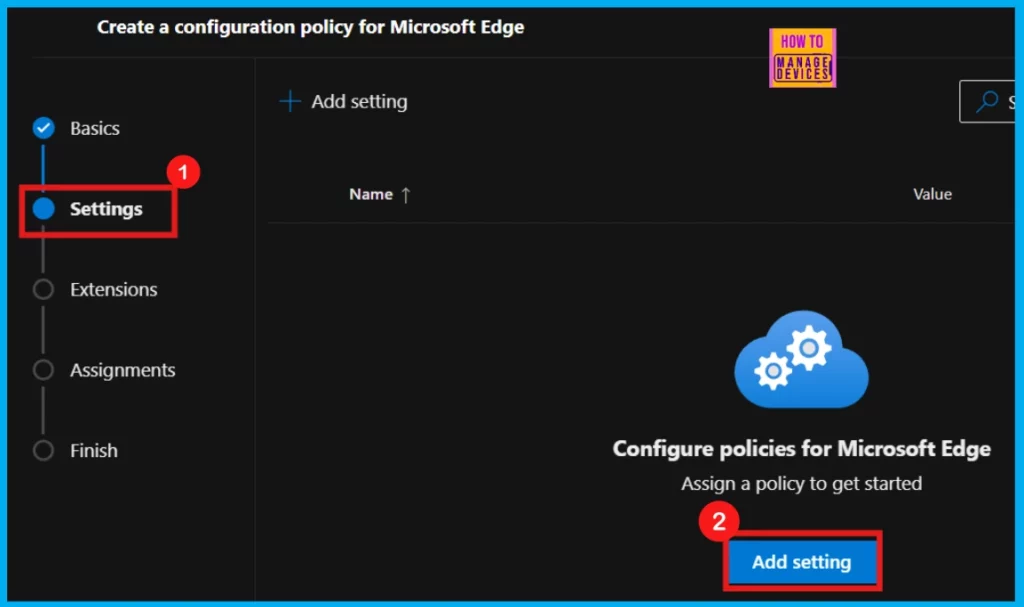
Settings
The Settings section allows for detailed policy customization. Clicking the +Add Settings button opens a selection of configurable options, allowing administrators to define the policy’s parameters.
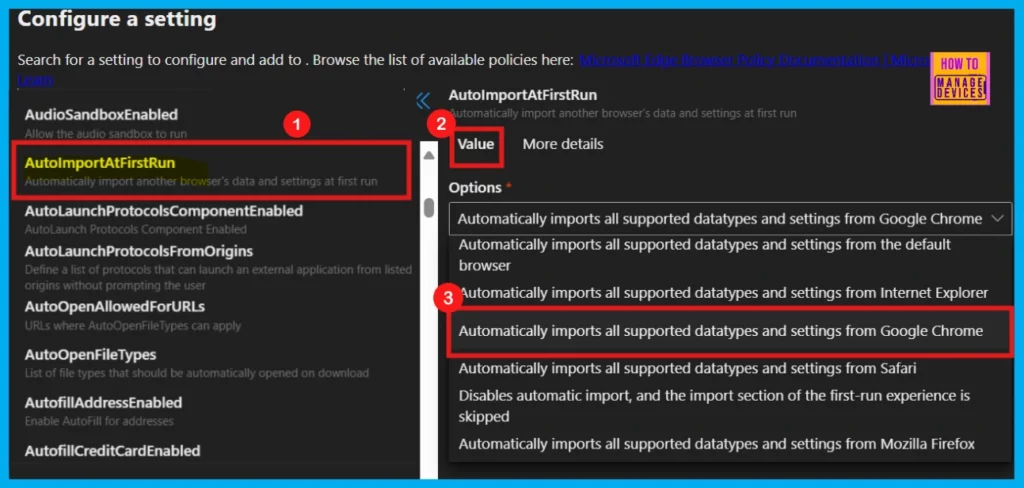
Configure a Setting
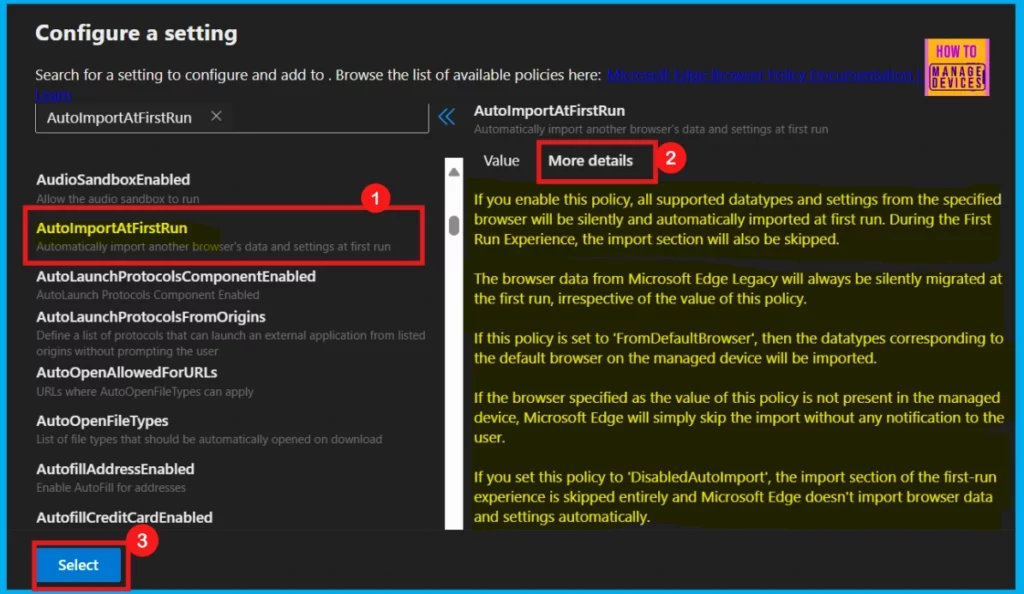
To configure a policy setting, search for it by name. Once we find the desired policy, click on it. A pop-up window will appear in the right pane where we can see the Value and More Details which have very important role to configure a Policy.
Value
The Value tab then appears, offering Enable, Disable, or specific feature options via a dropdown. Choosing the desired option activates the selected policy setting. This allows administrators to easily manage policy functionality.
- For instance Auto Import At First Run policy is offer in many areas to activate which I already mention above (refer Table 1).
- I select Automatically imports all supported datatypes and settings from Google Chrome.
More Details
The More Details tab provides in-depth information about the chosen policy settings, offering a comprehensive view of its functionality. Upon selecting the Select button, a confirmation notification appears, indicating successful policy updates. The accompanying screenshot illustrates the details available within this tab.
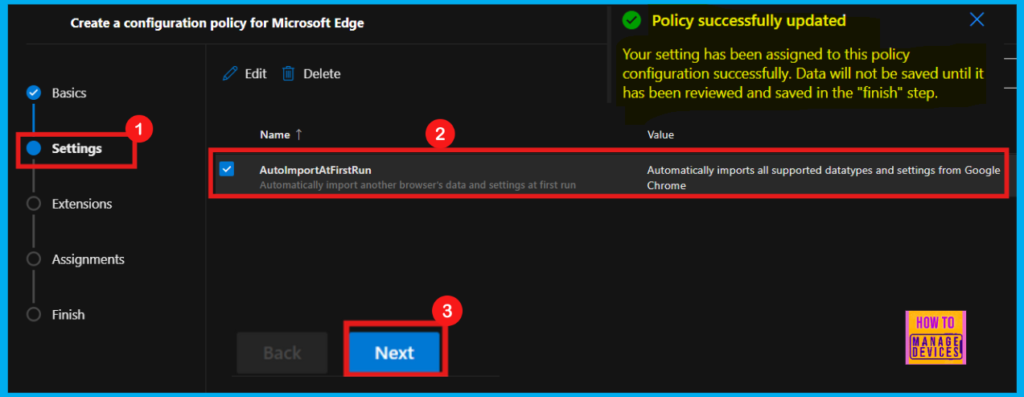
After clicking Select, a notification will appear to confirm that the policy has been updated. Then, in the new window, verify the policy name and its value, check the box next to the policy name, and click Next to proceed.
Extensions
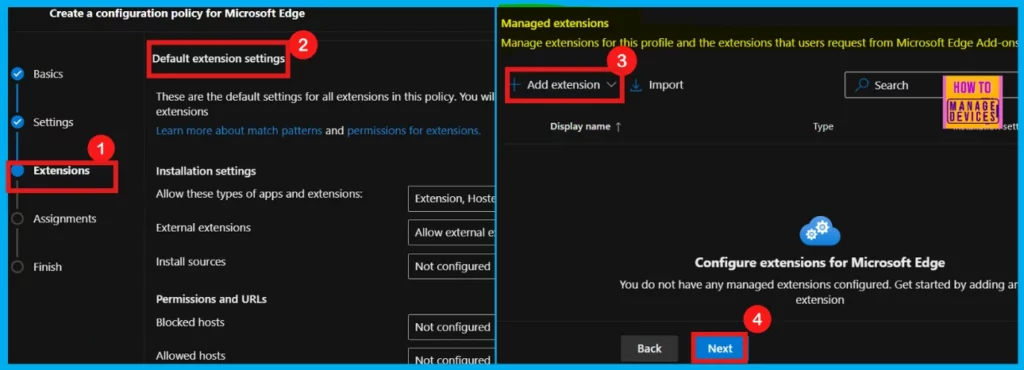
In the Extensions section, you can enhance your policy by adding specific extensions. This includes configuring installation, permissions, and URLs. Use + Add extension to incorporate necessary functionality, or skip this section if no extensions are required.
- Click Next to proceed
Assignments
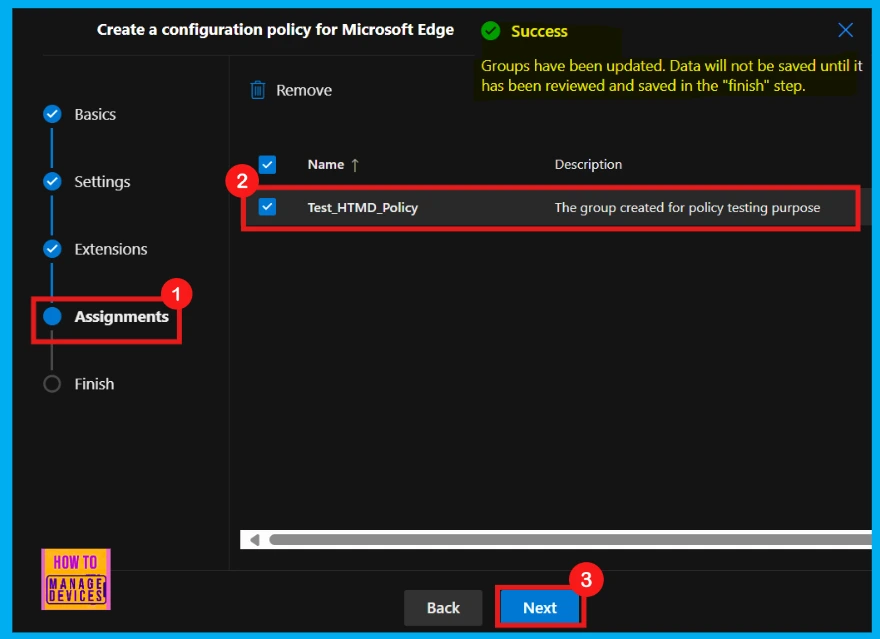
In the Assignments section, we can define which user groups receive the policy. Click on the Select group and choose from available Microsoft Entra groups to control who receives it.
- Click Select to move on.
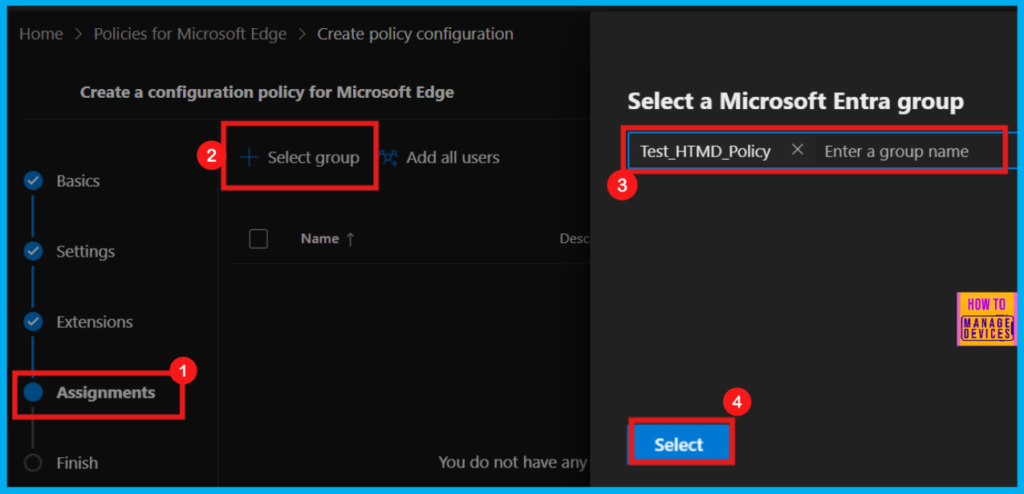
Upon selecting a Microsoft Entra group, a confirmation message indicates the group’s assignment. The group Test_HTMD_Policy has been assigned, and its description states, The group created for policy testing purpose.
Finish
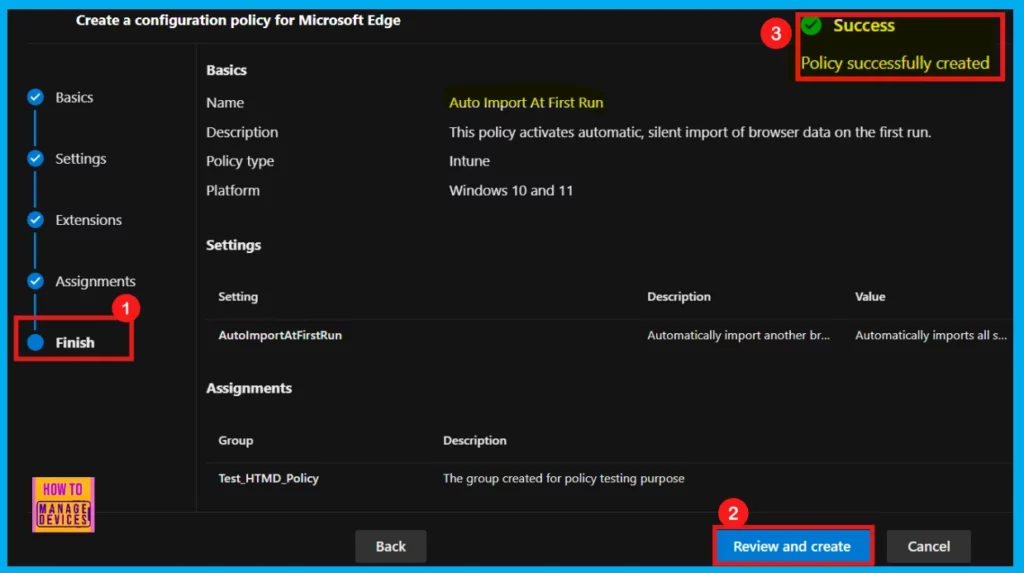
The final Finish step allows for a thorough review of the policy. If modifications are needed, use Back option. Once verified, click on Review and Create to applies the policy. A message, Policy successfully created, will confirm the action.
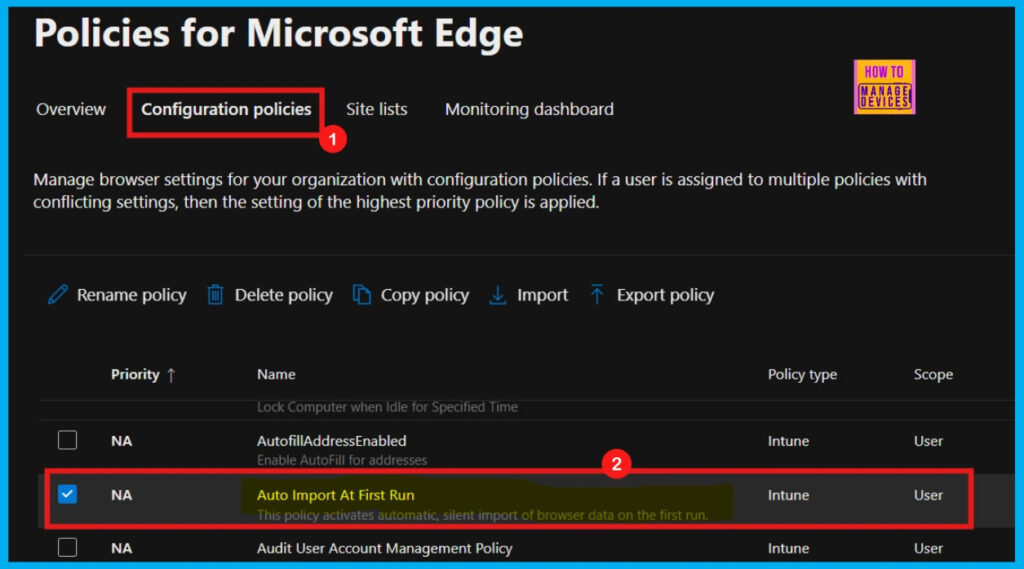
To apply the newly created policy to devices, a manual sync is required through the Company Portal. Following synchronization, the policy will be visible on the Policies for Microsoft Edge page.
- Settings > Microsoft Edge > Configuration Policies > search for the created policy
Monitoring Status
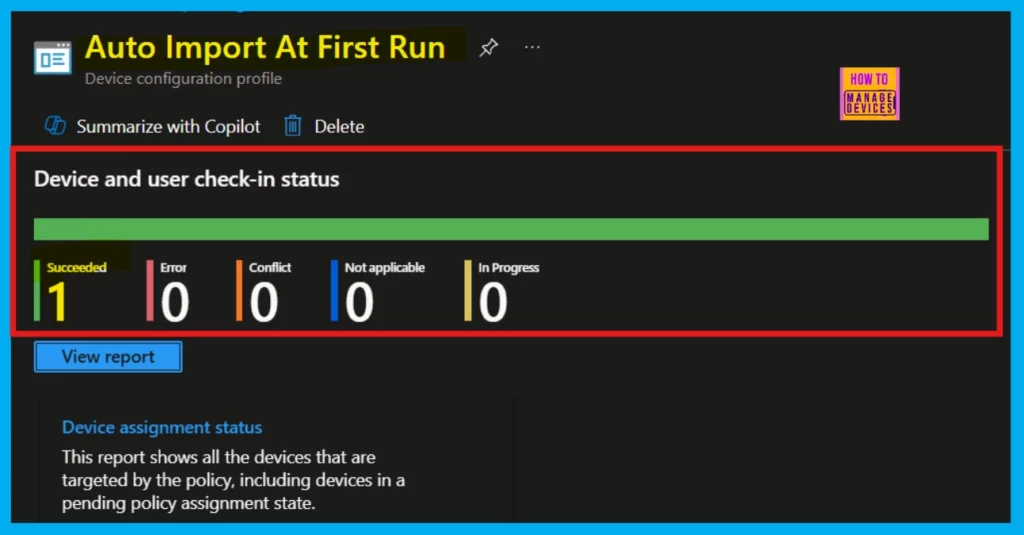
Confirm policy deployment by checking its status in the Intune Portal after a manual Company Portal sync. Navigate to Devices > Configuration, locate the policy under the Policies tab, and confirm a succeeded status, indicating successful policy implementation on the device.
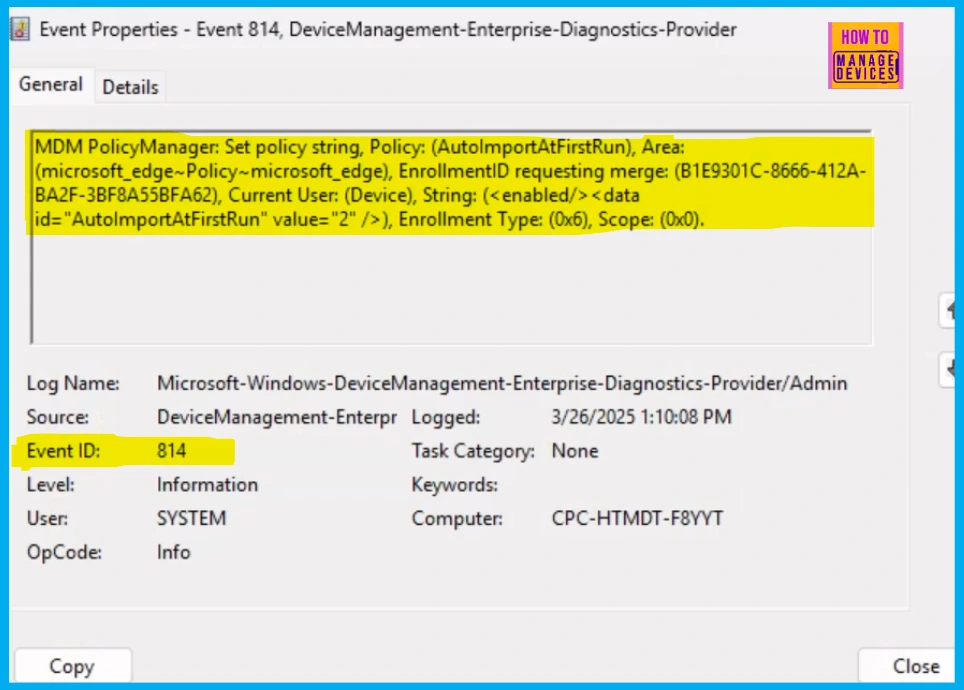
Client Side Verification through Event Viewer
Client-side verification allows users to directly monitor policy compliance on their devices through the Event Viewer. It reducing server load and providing immediate results.
MDM PolicyManager: Set policy string, Policy: (AutoImportAtFirstRun), Area: (microsoft_edge~Policy~microsoft_edge), EnrollmentID requesting merge: (B1E9301C-8666-412A-BA2F-3BF8A55BFA62), Current User: (Device), String: (), Enrollment Type: (0x6), Scope: (0x0).
End User Experience
To check if the Auto Import At First Run policy was successfully implemented in Edge via the M365 Admin Center, launch the browser. Then, open Edge’s settings by clicking the three-dot menu (…), located in the top-right corner of the window, and choosing Settings.
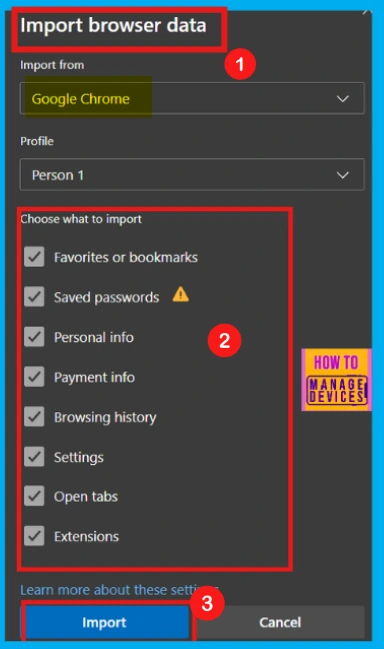
- Settings> Profiles > Import data from Google Chrome > Import
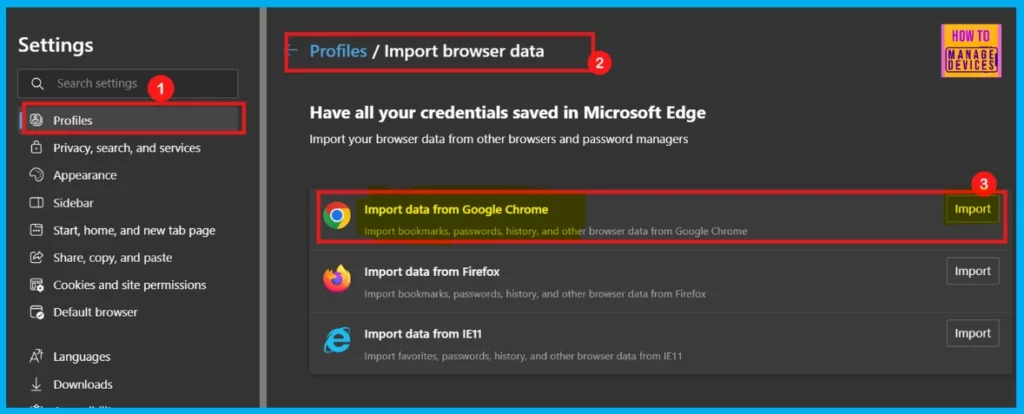
When the Auto Import At First Run policy is configured to FromGoogleChrome, Microsoft Edge will automatically transfer specific data types from Google Chrome during its initial startup. This includes items like Favorites, saved passwords, Addresses and more, and browsing history, Extensions, cookies etc., providing a seamless transition for users migrating to Edge.
Need Further Assistance or Have Technical Questions?
Join the LinkedIn Page and Telegram group to get the latest step-by-step guides and news updates. Join our Meetup Page to participate in User group meetings. Also, Join the WhatsApp Community to get the latest news on Microsoft Technologies. We are there on Reddit as well.
Author
Anoop C Nair has been Microsoft MVP for 10 consecutive years from 2015 onwards. He is a Workplace Solution Architect with more than 22+ years of experience in Workplace technologies. He is a Blogger, Speaker, and Local User Group Community leader. His primary focus is on Device Management technologies like SCCM and Intune. He writes about technologies like Intune, SCCM, Windows, Cloud PC, Windows, Entra, Microsoft Security, Career, etc.




Discussion