






Best Guide to Setting Up Live Chat in Microsoft Teams for Small Businesses
Hai let’s discuss Best Guide to Setting Up Live Chat in Microsoft Teams for Small Businesses. As you all know, Microsoft Teams is an effective platform for communicating with colleagues and conducting official meetings. We have been using MS Teams for a while now, and we know that it gets updated in various ways, making it very effective for users.
Recently, Microsoft Teams received an update that includes many new features now available in Preview. In this post, we are discussing the Live Chat feature in Teams, which will be available in May 2025. One of the latest updates is the Live Chat feature, made to help small businesses offer smooth and effective customer support.
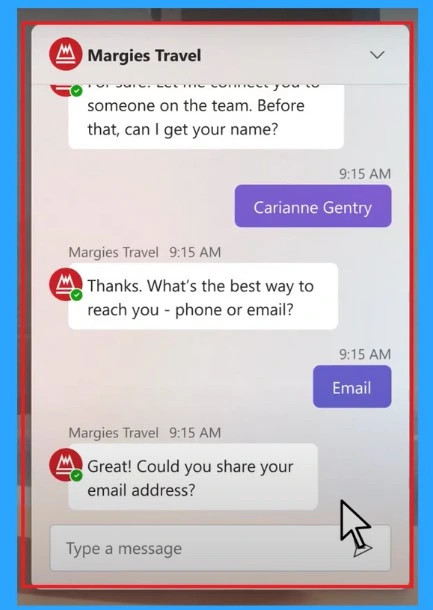
It helps small businesses connect with customers or website visitors instantly, making interactions more personal and quicker. The most important part of Teams new live chat is It includes real-time notifications, which instantly alert team members when a customer starts a chat.
Also, it offers a centralized dashboard simplifies communication with the customers. Live Chat in Microsoft Teams, designed specifically for small businesses. This feature lets your customers connect with you directly from your website, receiving instant answers to their questions.

Table of Contents
Best Guide to Setting Up Live Chat in Microsoft Teams for Small Businesses
Above we discussed an overall view on the topic of our new Teams new feature called Live chat. This feature is mainly focusing on small business because it helps to staying connected to your customers is crucial. Whether it’s about product details, pricing, or support always connected to your customers is always affect your business positively.
- Staying Connected with the Customers will help you to stay productive.
- How to Enhance your Teams Experience with Snap Resizable Panes and Zoom Controls Features
- Upgrade MS Teams Rooms To Windows 11 By October 14 2025 For Enhanced Features And Security
- Microsoft Teams Introduces Super Resolution AI-Enhanced Video Quality
Setup Live Chat
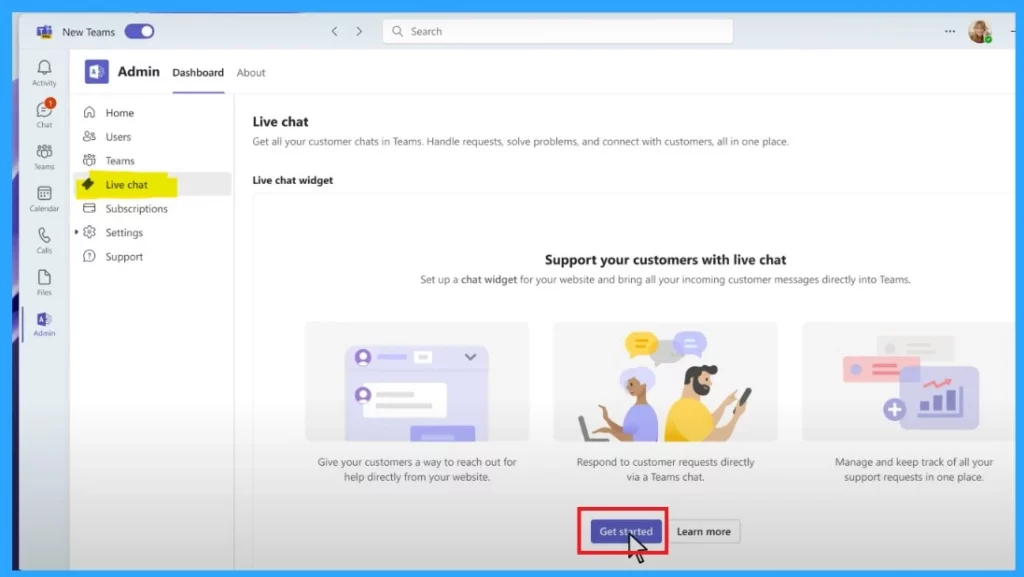
It’s simple to set up, works smoothly, and it is accessible on any device. When you open the teams sign in as a admin. Then access the live chat by open the admin app in teams and select Live chat from the menu on the left.
- Click on the Get started option.
| Step | Procedure |
|---|---|
| Step-1 | Customize Chat |
| Step-2 | Create Team for Chat |
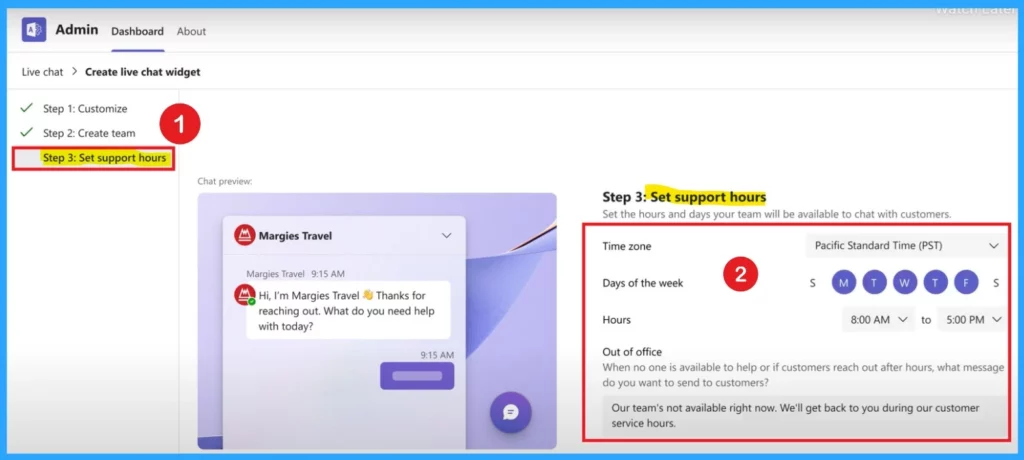
| Step-3 | Set Support Hours for Chat |
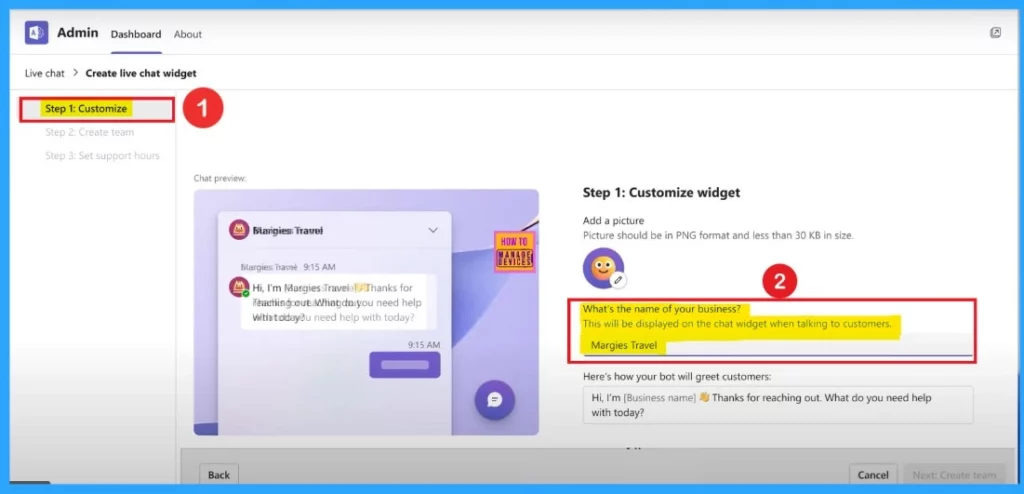
Customize Chat
There are 3 steps for setup the live chat on the teams. First step is the customization. Here you have to give a name to your name to personalize the chat widget. It will ask like What’s the name of your business? in the example it given as ”Margies Travel”.
- Then click on next step.
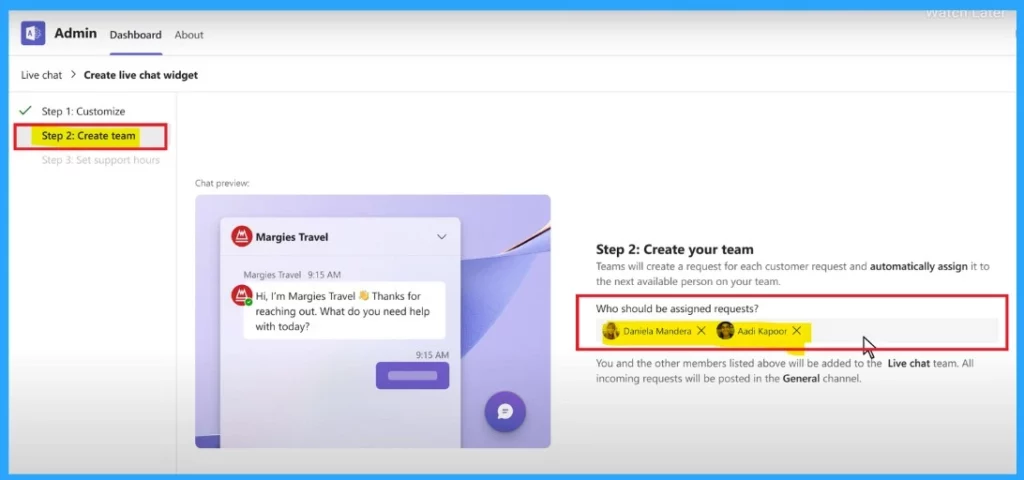
Create Team for Chat
Add users to the customer support team who will handle chat requests. Note that only users with a Microsoft 365 Business license can be added, with a maximum of 25 users. Whe you select the users you can click on the Next step.
Set Support Hours for Chat
Now you have to allow the days and times your team will be available to chat with customers. You can also customize the bot’s response for times when no one is available. When no one is available to help or if customers reach out after hours you can also create message for the users.
- Once you’ve configured the settings, click Save Changes to finalize the setup.
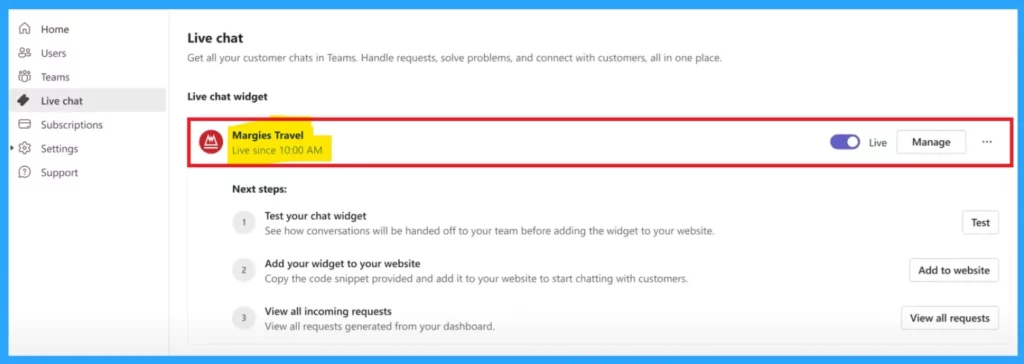
Now you can see that your Live chat will be created successfully. Get all your customer chats in Teams. Handle requests, solve problems, and connect with customers, all in one place.
Need Further Assistance or Have Technical Questions?
Join the LinkedIn Page and Telegram group to get the latest step-by-step guides and news updates. Join our Meetup Page to participate in User group meetings. Also, Join the WhatsApp Community to get the latest news on Microsoft Technologies. We are there on Reddit as well.
Author
Anoop C Nair has been a Microsoft MVP from 2015 onwards for 10 consecutive years! He is a Workplace Solution Architect with more than 22+ years of experience in Workplace technologies. He is also a Blogger, Speaker, and leader of the Local User Group Community. His primary focus is on Device Management technologies like SCCM and Intune. He writes about technologies like Intune, SCCM, Windows, Cloud PC, Windows, Entra, Microsoft Security, Career, etc.

Discussion