






How to Delete Allow Clipboard History Policy in Intune Step by Step Guide
Let’s discuss How to Delete Allow Clipboard History Policy in Intune Step by Step Guide. With Microsoft Intune, You can easily delete a policy. Intune Policies are creating to enforce specific settings on devices in your organization. Like this you can easily remove that policy also in Intune.
In Microsoft Intune, An Intune Admin Deleting a Policy is based on different scenarios. As we all know that a policy creating for a device is to set specific settings, restrictions. It helps Intune admins to manage the device securely. If the created policy no longer needed, Admin can easily delete it.
Sometimes adimn need to delete an old policy to replace it with a new one that aligns better with current organizational requirements. Today we are going to delete the Allow Clipboard History Policy on Intune. This policy setting determines whether history of Clipboard contents can be stored in memory.
Here I am going to delete the Clipboard History Policy which was already created. Here you will get the step by step guidance of deleting a policy. Also scenarios of deleting a Policy in Microsoft Intune.

Table of Contents
How to Delete Allow Clipboard History Policy in Intune Step by Step Guide
As mentioned above different scenarios fored by admins to delete a policy. With any reasons admins should remember that, the deleted policy cannot be recovered, so proceed with caution. The below table shows the dcenarios.
| Scenarios |
|---|
| Policy No longer Needed |
| Policy Revision |
| Troubleshooting Policy Conflicts |
| Policy Testing |
| Outdated Platforms |
- Step By Step Process Of Remove Or Uninstall App Using Intune
- Learn How to Delete or Remove App Assignment from Intune using Step by Step Guide
- How to Remove Assigned Group from Energy Saver Battery Threshold Policy in Intune Settings Catalog
- Enable or Disable Unattended Sleep Timeout on Battery using Intune Policy
Steps to Delete Policy in Intune
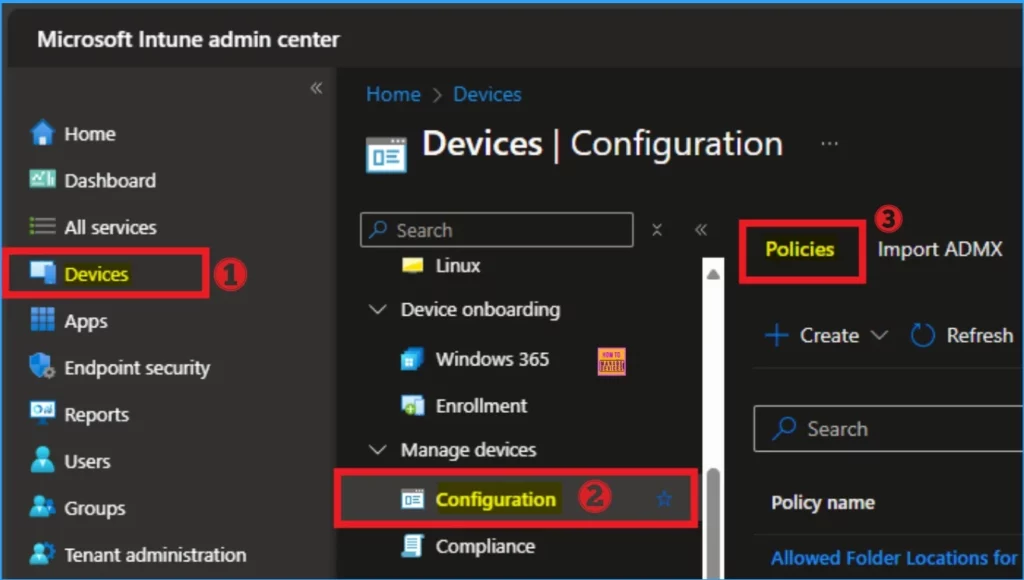
To remove the policy, Open the Intune Admin center. Then select the Devices blad and Select Configuration from Devices. Then go to the Policies. Here you can see list of created policies on your Tenant.
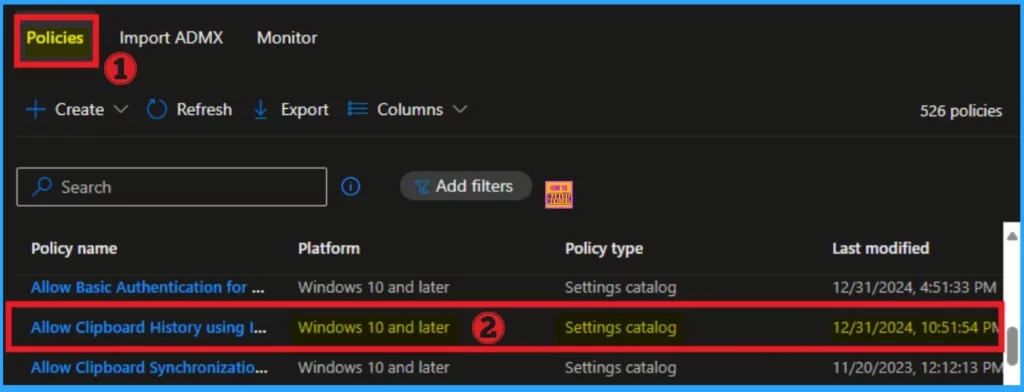
On the Policies section, you can easily find the policy which you want to delete. To find quickly, you can use search box. Here i am going to delete Allow Cliboard history policy.
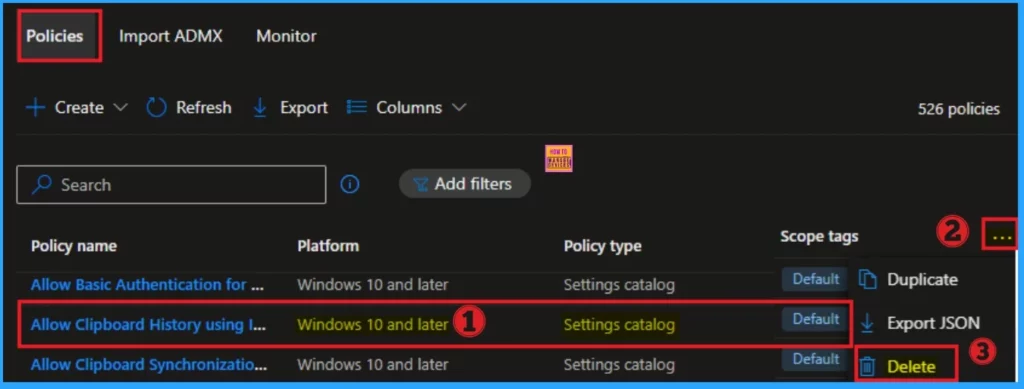
On the below screenshot, you can see different details of created policy such as policy name, platform policy type etc. To delete the Polcy, click on the 3 dot option and Click on the Delete button.
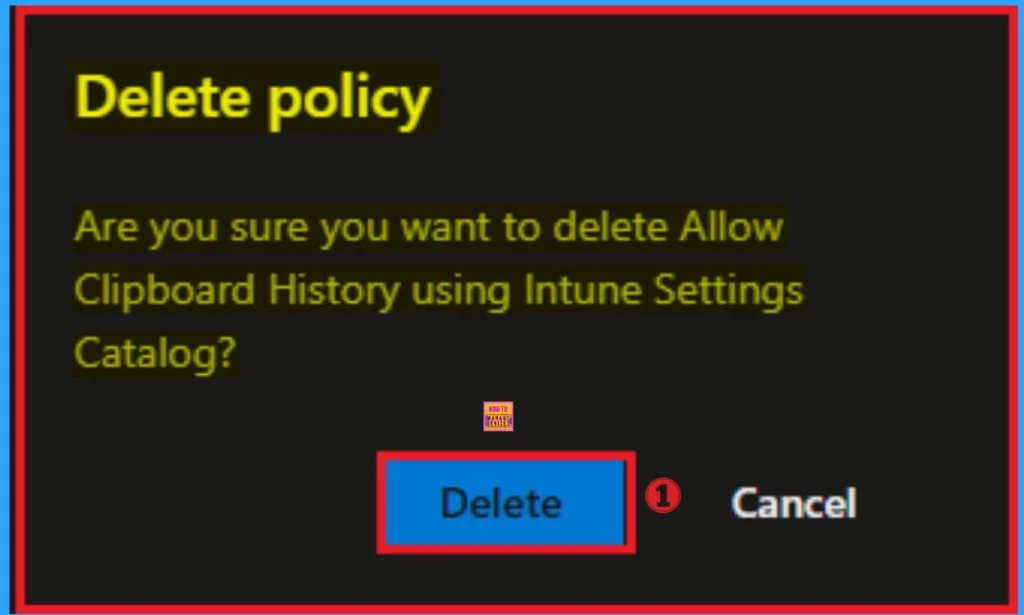
After clicking on the delete button, you will get a new window which shows a message like “Are you sure want to delete Allow Clipboard History using Intune Settings Catalog?. Click on the Delete Button.
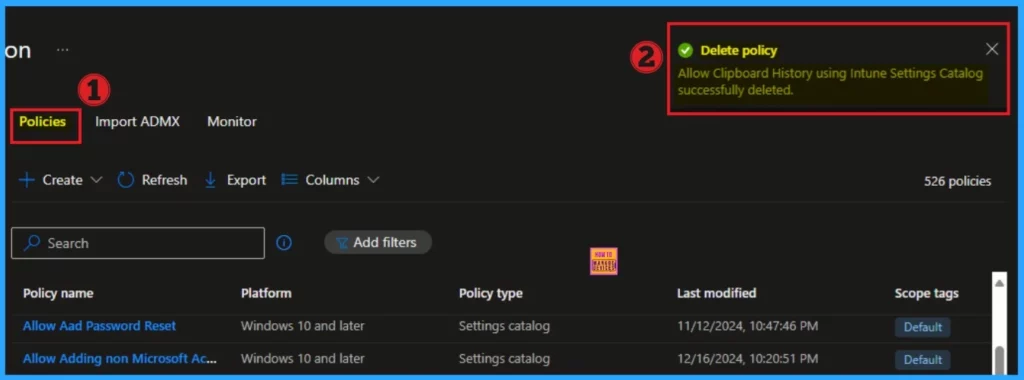
When you click on the Delete button, you will get a notification on Intune. The notification is like Allow Clipboard History using Intune Settings Catalog successfully deleted. Look at the below screenshot.
Sync Device on Company Portal
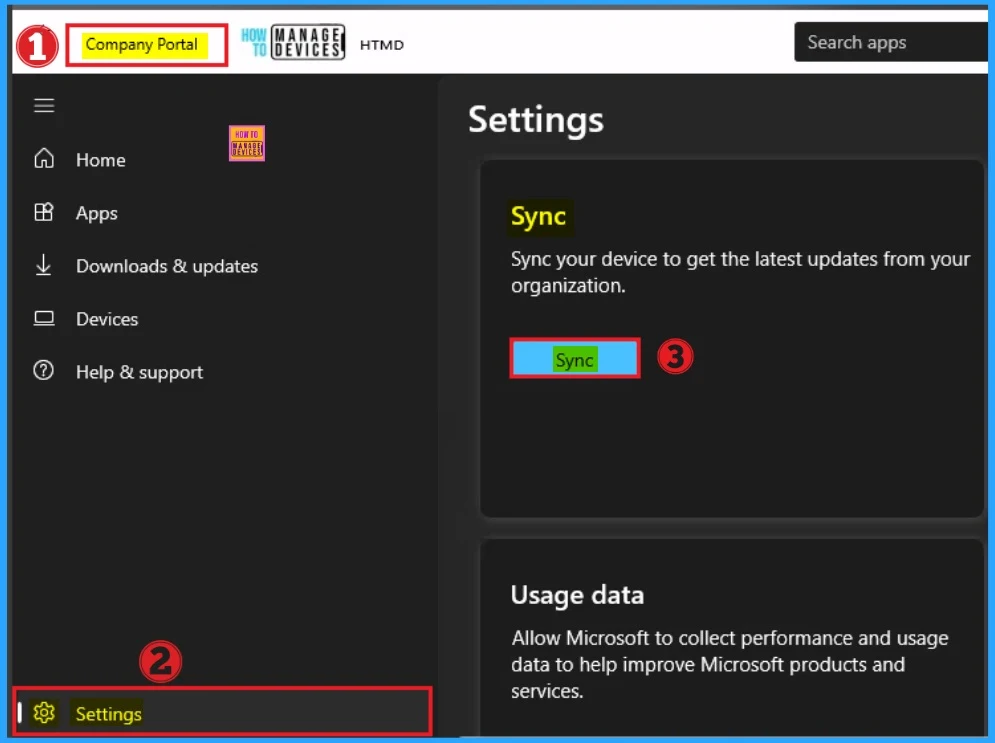
To delete the policy from the assigned device, sync the device on the company Portal. Manual syncing helps to fastly delete the Policy from the device. To sync the device open the company portal and go to settings. Click on the Sync button.
End Result
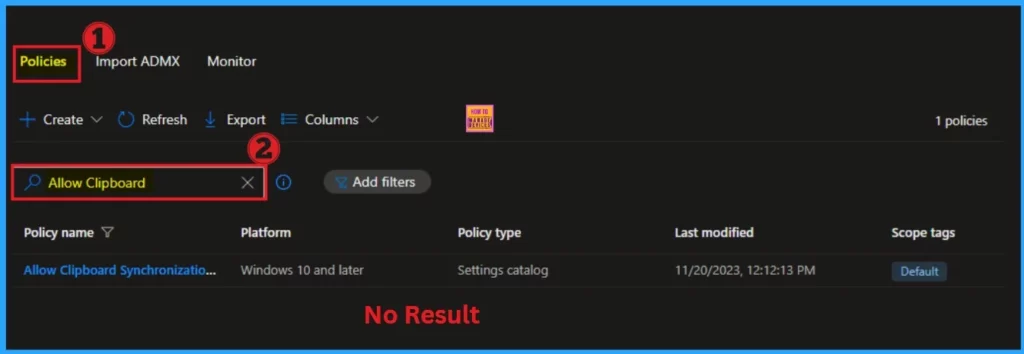
After syncing complete you can check the policy on the Intune Portal. Go to the Configuration, and search for clipboard History on the search box. Here no result matching. That means the policy is successfully removed.
Need Further Assistance or Have Technical Questions?
Join the LinkedIn Page and Telegram group to get the latest step-by-step guides and news updates. Join our Meetup Page to participate in User group meetings. Also, Join the WhatsApp Community to get the latest news on Microsoft Technologies. We are there on Reddit as well.
Author
Anoop C Nair has been Microsoft MVP for 10 consecutive years from 2015 onwards. He is a Workplace Solution Architect with more than 22+ years of experience in Workplace technologies. He is a Blogger, Speaker, and Local User Group Community leader. His primary focus is on Device Management technologies like SCCM and Intune. He writes about technologies like Intune, SCCM, Windows, Cloud PC, Windows, Entra, Microsoft Security, Career, etc.


Discussion