






How to Set Up White Dark Theme Sign-In Experience Passkeys and Enhanced Authentication
Hi, let’s discuss how to Set Up White Dark Theme Sign-In Experience Passkeys and Enhanced Authentication. As you all know that security is one of the important things in every platform especially all users are concerned about the Account Sign in.
In that case Microsoft Introduce the new enhanced authentication for the billion accounts and it is allowing the best, secure, and user-friendly system. This update will simplify sign-in and sign-up processes across platforms like Windows, Xbox, and Microsoft 365. By April, users will notice a redesigned experience using the Microsoft’s Fluent 2 design language.
Fluent 2 design language in authentication enhances clarity, simplicity, and accessibility while ensuring a smooth user Experience. In the redesigned MS account sign in helps the introduces passkeys, a secure format for the traditional passwords.
With this new changes user will get the best security through authentication. These changes speed up authentication, minimize distractions, and ensure a consistent experience across all device. So in this post lets look in to a quick overview of New Microsoft Account Sign-In.

Table of Contents
White Dark Theme Sign-In Experience Passkeys and Enhanced Authentication
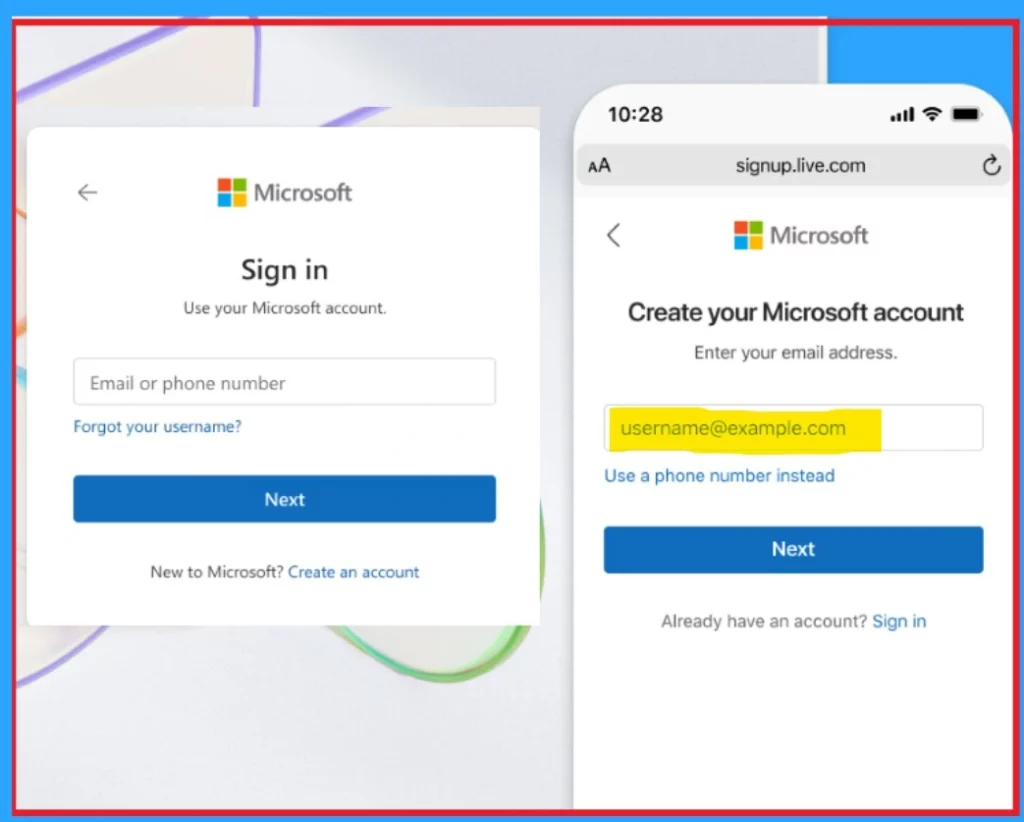
Above discussed an overall view on the topic of Microsoft Account Sign-In for New User Experience . According to Microsoft Improved authentication reducing screen clutter, and arranging steps logically. The centered layout keeps users focused, and the responsive design ensures it works well on all devices, from phones to desktops.
| New Improvements |
|---|
| Improved authentication |
| White and Dark theme sign in experiance |
| Using Passkeys instend of Passwords |
- Prevent Unauthorized Access By Configuring Screen Saver Lock Timing Using Intune Policy
- Sign-in to Microsoft Apps with Passkey on Android using Authentication Broker Intune Company Portal
- Cloud PC Support for FIDO Devices and Passkeys on macOS and iOS
- How to Enable Passkeys in Microsoft Authenticator
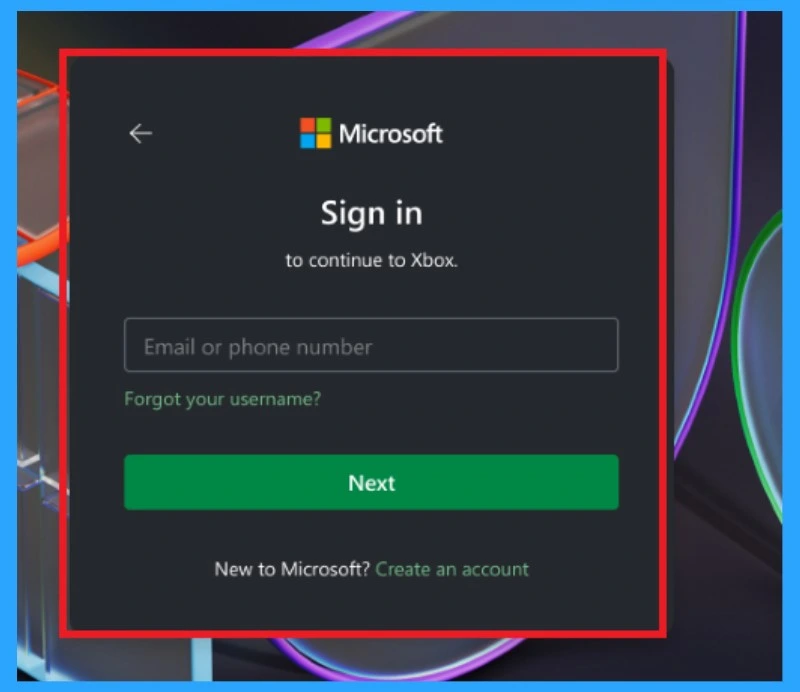
Microsoft always valued to the customers feedback so these updates are based on those feedbacks. So the important thing is the new sign in experience now will be in tha light and black themes. The games applications get this feature now and all other application will get the black theme soon.
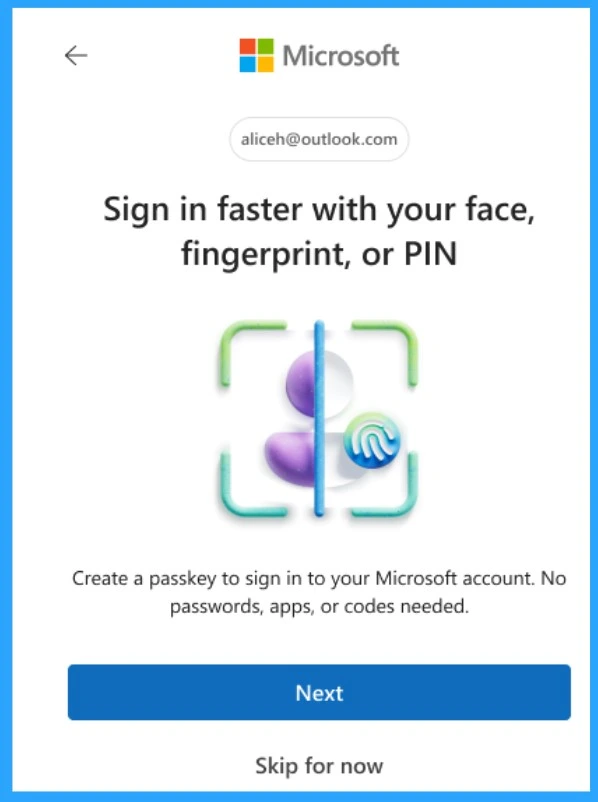
Use Passkeys
You can now completely remove passwords from your account and use passkeys instead. This new design prioritizes passwordless options, offering a Smooth and secure way to sign in. Users can use their existing email address to create a new account.
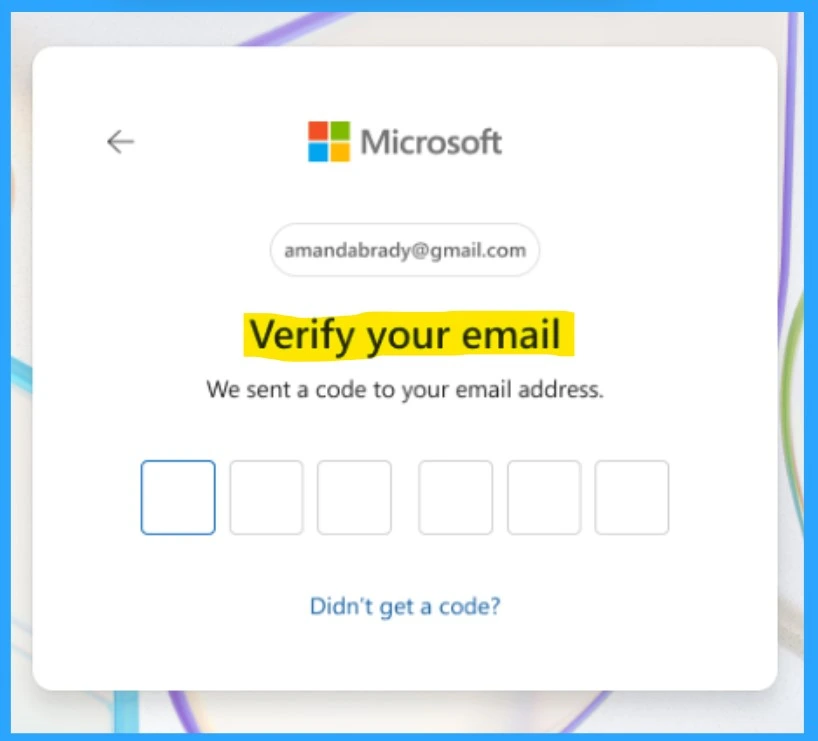
Use Existing Email
Those signing up through Microsoft Outlook can choose to create a new email, but using an existing email is usually easier. Using your own email makes account recovery easy. Instead of creating a password, you verify your email with a one-time code for a secure, password-free sign-in.
Need Further Assistance or Have Technical Questions?
Join the LinkedIn Page and Telegram group to get the latest step-by-step guides and news updates. Join our Meetup Page to participate in User group meetings. Also, Join the WhatsApp Community to get the latest news on Microsoft Technologies. We are there on Reddit as well.
Author
Anoop C Nair has been a Microsoft MVP from 2015 onwards for 10 consecutive years! He is a Workplace Solution Architect with more than 22+ years of experience in Workplace technologies. He is also a Blogger, Speaker, and leader of the Local User Group Community. His primary focus is on Device Management technologies like SCCM and Intune. He writes about technologies like Intune, SCCM, Windows, Cloud PC, Windows, Entra, Microsoft Security, Career, etc.
Discussion