






Easy way to Enable Fast Startup using Intune PowerShell Script
In this article I’ll discuss with you how to Enable Fast Startup using Intune PowerShell Script. Fast Startup is a Windows feature designed to speed up the boot process after a shutdown. It combines elements of a traditional shutdown with hibernation, allowing Windows to start up more quickly by saving system information to a file upon shutdown.
When Fast Startup is enabled, Windows logs off all users and closes applications, but instead of shutting down completely, it saves the current system state to a hibernation file. The next time the device powers on, it loads that saved state, which significantly reduces startup time.
For Fast Startup to function, hibernation must be enabled on the device. Without hibernation, the feature cannot work. Users can enable both manually, but in enterprise environments, it’s more efficient to automate the process using tools like Microsoft Intune.
IT administrators can deploy a PowerShell script via Intune to remotely enable hibernation and Fast Startup across managed devices. This approach ensures consistent performance improvements across the organization without requiring manual user intervention.

Table of Contents
Prepare a PowerShell Script to Enable Fast Startup
Now we can create a script from scratch, and this script enables the Fast Startup feature by ensuring hibernation is turned on and updating the necessary registry key. It is intended for deployment through Microsoft Intune to improve boot performance.
| PS File Name | PowerShell Script |
|---|---|
| Enable_FastStartup.ps1 | ##Ensure hibernation is enabled, as it’s required for Fast Startup ##Set the registry value to enable Fast Startup ##Author: Vaishnav K $RegistryPath = “HKLM:\SYSTEM\CurrentControlSet\Control\Session Manager\Power” $PropertyName = “HiberbootEnabled” $PropertyValue = 1 Set-ItemProperty -Path $RegistryPath -Name $PropertyName -Value $PropertyValue -Type DWORD -Force -Confirm:$False |
- Quick Fix to your Windows OS Issues with Detection and Remediation Scripts with Intune
- Easy Way to Install a Language Pack using Intune PowerShell Script
- Quick and Easy Way to Turn on PowerShell Audit using Intune Policy
Create a Platform Script in Intune to Enable Fast Startup
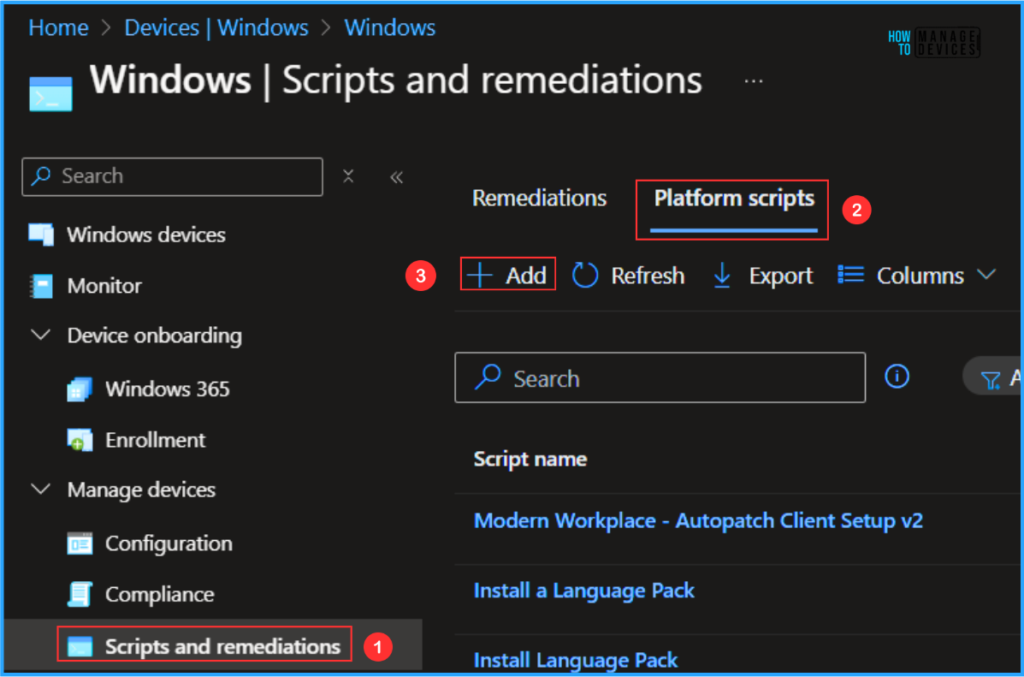
Follow the steps to enable Fast Startup using the Intune PowerShell Script. Here I am using the Platform script to configure the same. Log in to the Microsoft Intune Admin Center using your admin credentials.
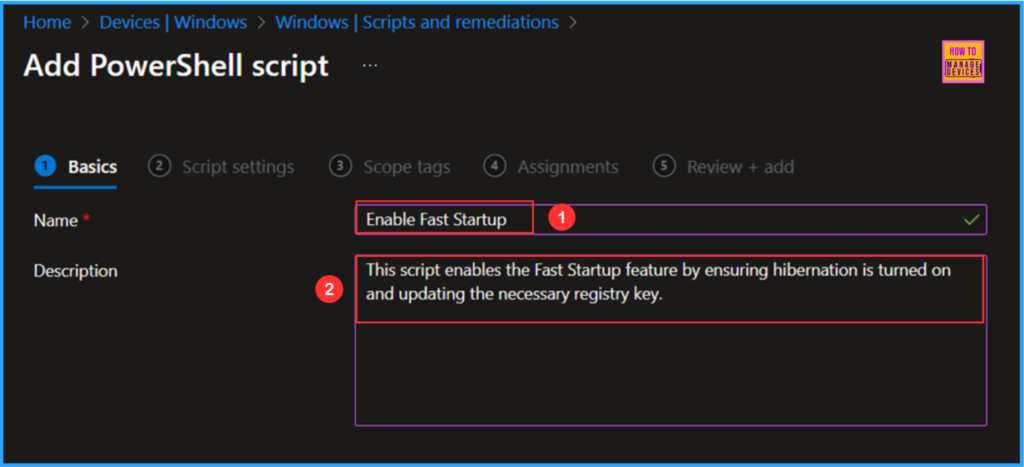
In the Basics details pane, we can give the PowerShell Script name “Enable Fast Startup” If needed, provide a short script description here. I am giving it as “This script enables the Fast Startup feature by ensuring hibernation is turned on and updating the necessary registry key,” and click Next.
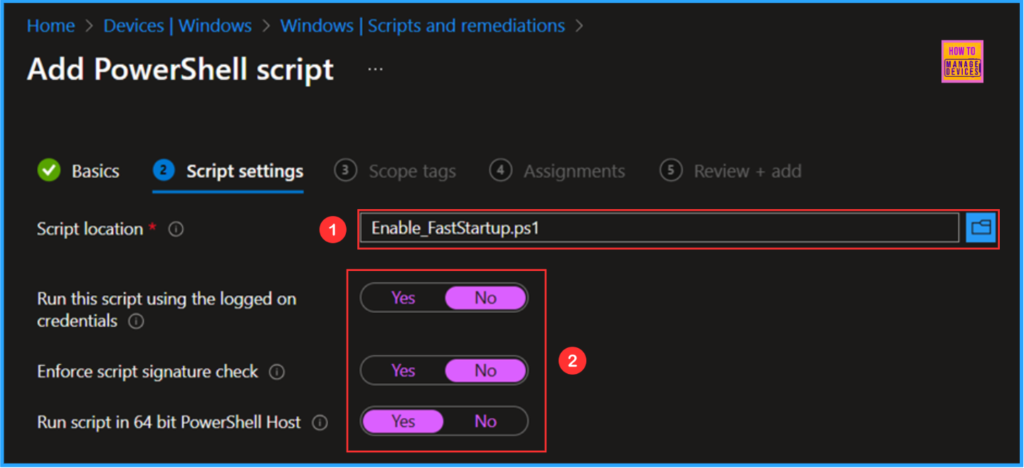
In the Script settings pane, we can configure the settings according to our requirements. The first option is mandatory. We have to browse and select our saved PS Script here.
- Script location – Browse and select the saved script Enable_FastStartup.ps1
- Run this script using the logged on credentials – No
- Enforce script signature check – No
- Run script in 64 bit PowerShell Host – Yes
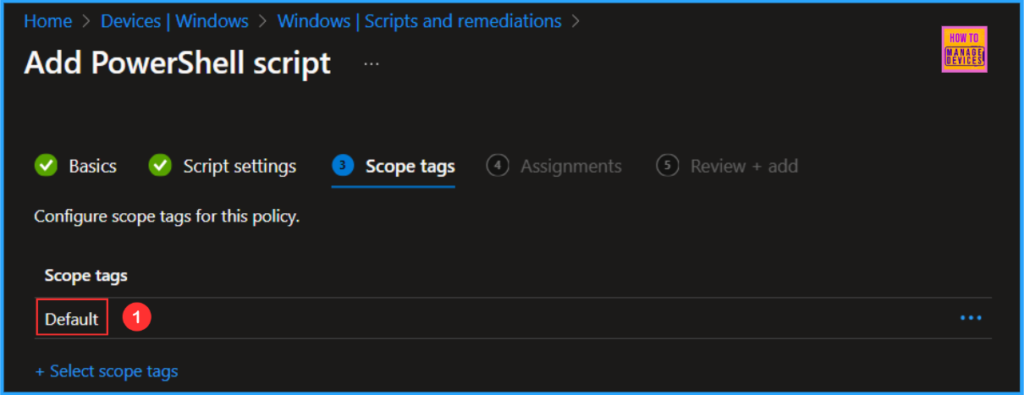
On the next page, leave the scope tags default; if any custom scope tags is available based on your requirement, you can also select it for this script deployment.
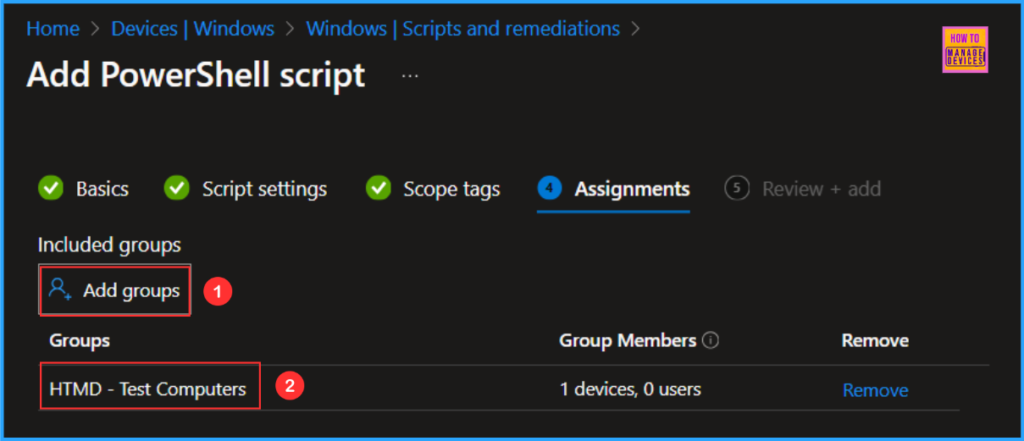
Click on Next and assign the script to HTMD – Test Computers. You can click Add groups and select the required device group in the Included groups section.
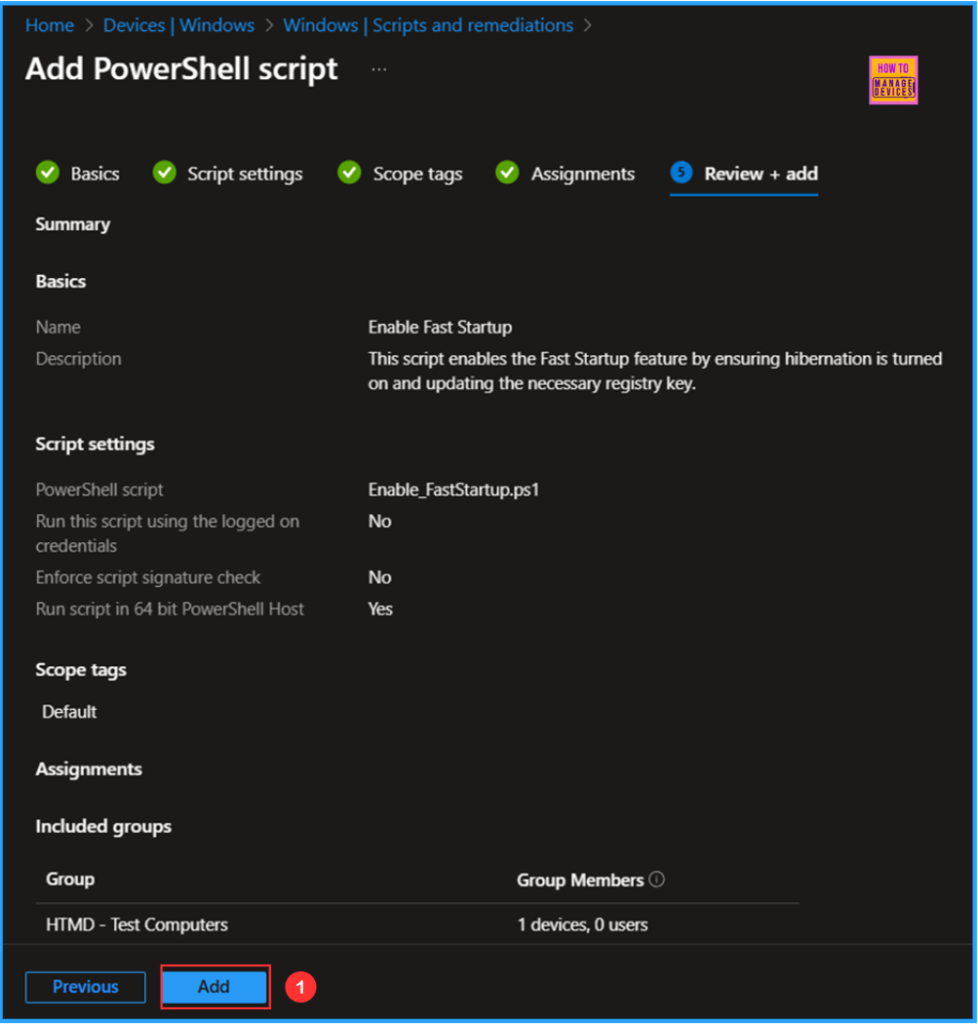
On the Review + Add pane, carefully review all the settings you’ve defined for the Enable Fast Startup using Intune PowerShell Script. Select Add to implement the changes once you’ve confirmed everything is correct.
- Simple Method to Disable Office Online Repair with Intune PowerShell Script
- Best Guide to Create a Local User with Intune Remediation Script
- Best Way to Set Lockout Policy Using Intune Platform Script Account Lockout Threshold Lockout Duration Unlock
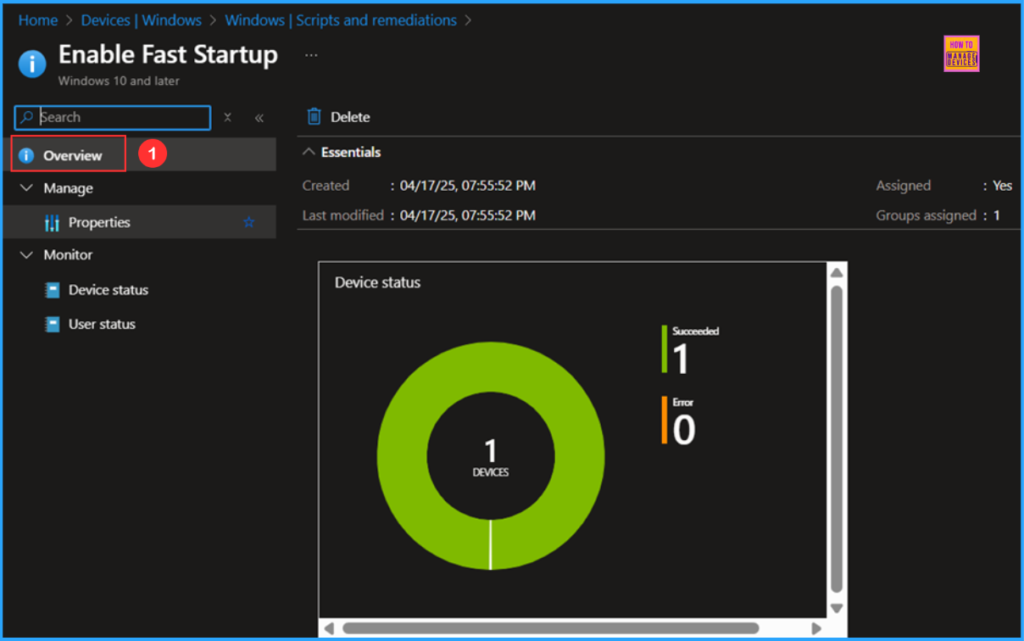
Monitor the Enable Fast Startup PowerShell Script Deployment
This Intune PowerShell Script has been deployed to the Microsoft Entra ID group (HTMD – Test Computers). The policy will take effect as soon as possible once the device is synced. To monitor the policy deployment status from the Intune Portal, follow the steps below.
- Navigate to Devices > Windows > Scripts and remediations > Platform scripts
Search for the “Enable Fast Startup” Script. The deployment status for this script can be seen under the Overview status. We can see that both the Device and User statuses have succeeded.
End User Experience – Enable Fast Startup PowerShell Script
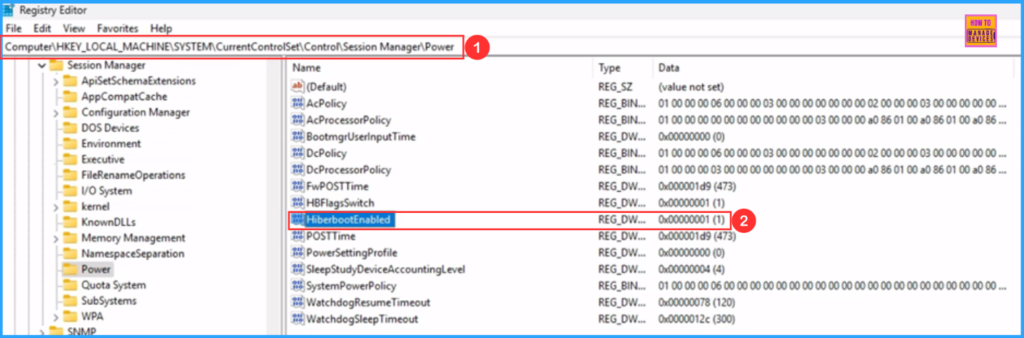
We have to check whether the Intune PowerShell Script has enabled Fast Startup (HiberbootEnabled) or not. Log in to one of the policy-targeted devices. Open Registry Editor and follow the registry path below.
- Open Run > Type Regedit > Navigate to Computer\HKEY_LOCAL_MACHINE\SYSTEM\CurrentControlSet\Control\Session Manager\Power
As per our setting, we can see the registry value is of “HiberbootEnabled” is now “1“, which means it’s enabled. So, we can conclude that the script deployment is working as expected!
Need Further Assistance or Have Technical Questions?
Join the LinkedIn Page and Telegram group to get the latest step-by-step guides and news updates. Join our Meetup Page to participate in User group meetings. Also, Join the WhatsApp Community to get the latest news on Microsoft Technologies. We are there on Reddit as well.
Author
Vaishnav K has over 11 years of experience in SCCM, Device Management, and Automation Solutions. He writes and imparts knowledge about Microsoft Intune, Azure, PowerShell scripting, and automation. Check out his profile on LinkedIn.


Discussion