






Enable or Disable Open in Sidebar Policy in MS Edge Browser using M365 Admin Center
Let’s discuss Enable or Disable Open in Sidebar Policy in MS Edge Browser using M365 Admin Center. Microsoft 365 admin center policies allows you to configure settings to manage the Edge Sidebar. With different policies you can easily manage sidebar.
As you know, Microsoft Edge sidebar allows you to multitask efficiently by providing quick access to tools, apps, and websites without leaving your current tab. It appears as a vertical panel on the right side of the browser window.
According to the organizational needs, you can quickly customize Edge Sidebar. Edge sidebar customization allows you to add Productivity Tools, Games, Built-in Apps, etc. You can refer to our post to know more about how Edge customization policy is possible in your organization.
Today I would like to help you to know how to Enable or Disable Edge Open in Sidebar Policy in MS Edge Browser using M365 Admin Center. Here I will explain my experience by Configure this policy using Microsoft 365 policies.

Table of Contents
Advantages of Edge Open in Sidebar Policy
1. Improved Productivity
2. Centralized Management
3. Sreamlined Workflow
Enable or Disable Open in Sidebar Policy in MS Edge Browser using M365 Admin Center
By configuring the Edge Open in Sidebar Policy admin can determine how users can access the Open in Sidebar feature on Edge. This feature is really helpful for users to access media on Edge Sidebar.
Open in Sidebar is a unique feature of Edge browser that design this feature by integrating with Productivity tools. This provide flexibility for users. The following details will help you to configure Edge Open in Sidebar.
- Configuration Profile for Edge Browser Extensions and Sidebar Management using Microsoft 365 Admin Center
- MS Edge Media Control Settings
- Enable Additional Search Box in Edge Browser using Microsoft 365 Admin Center Policy
Steps to Configure Edge Open in Sidebar Policy
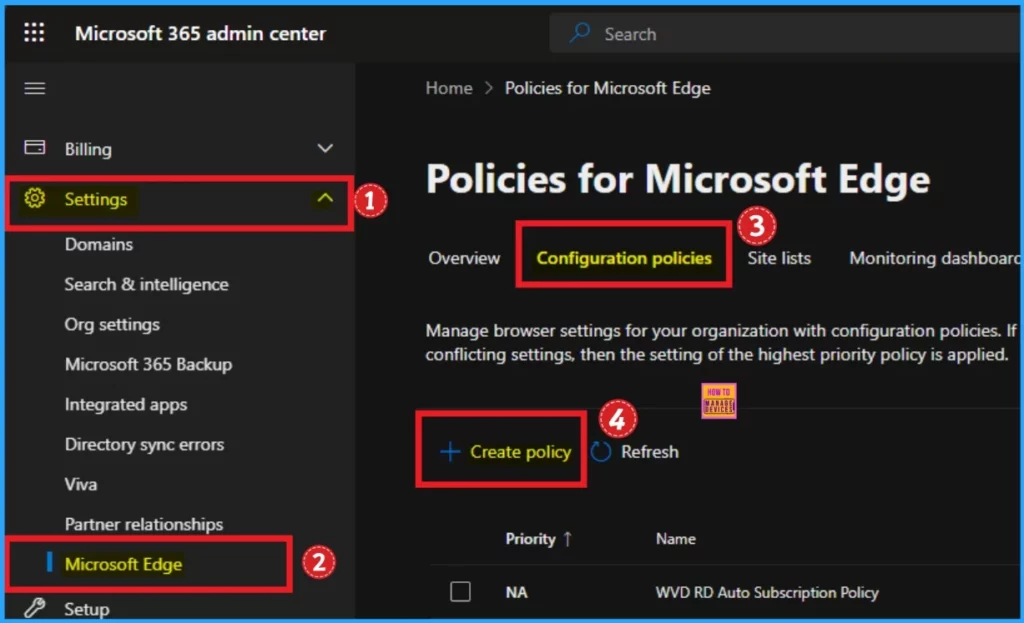
By following some simple steps, you can easily configure the edge open in sidebar policy. To start policy creation, Open the Microsoft 365 admin center. Go to Settings > Microsoft Edge > Configuration Policies > + New Policy.
On the Basic tab, You can add policy name and description according to the Policy. The Name field is very important and mandatory but Description is not necessary. The profile type and platform are automatically added. Click on the Next button.

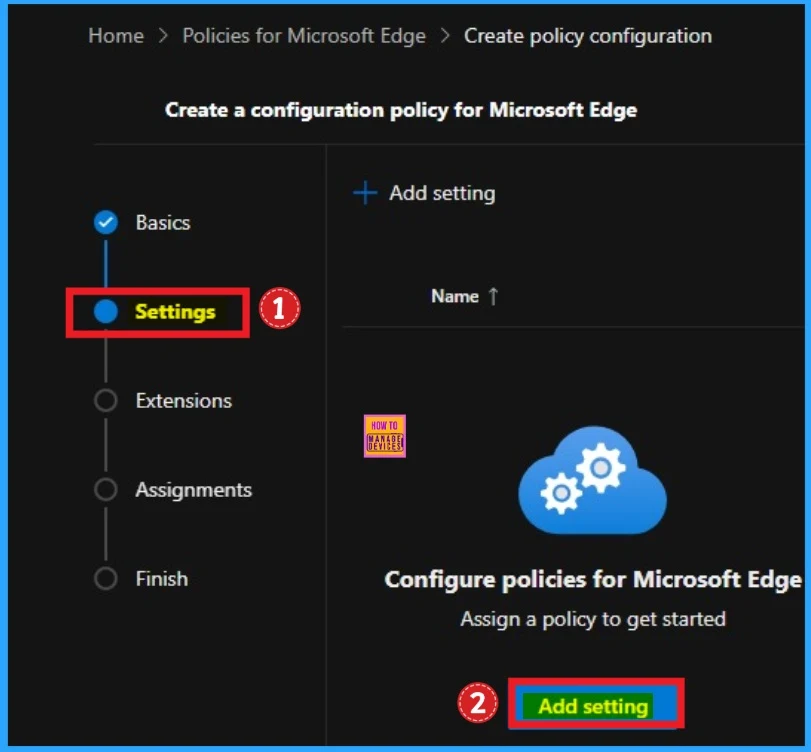
The Configuration settings tab contain different types of policy, that can be configure for your tenant. Click on the Add Setting from the configuration settings tab. Follow the below screenshot.
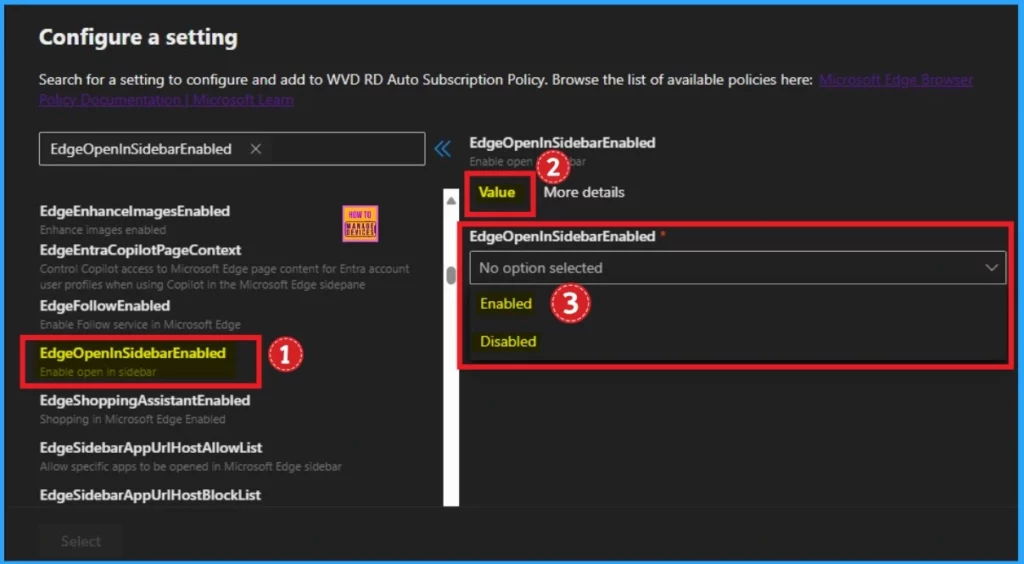
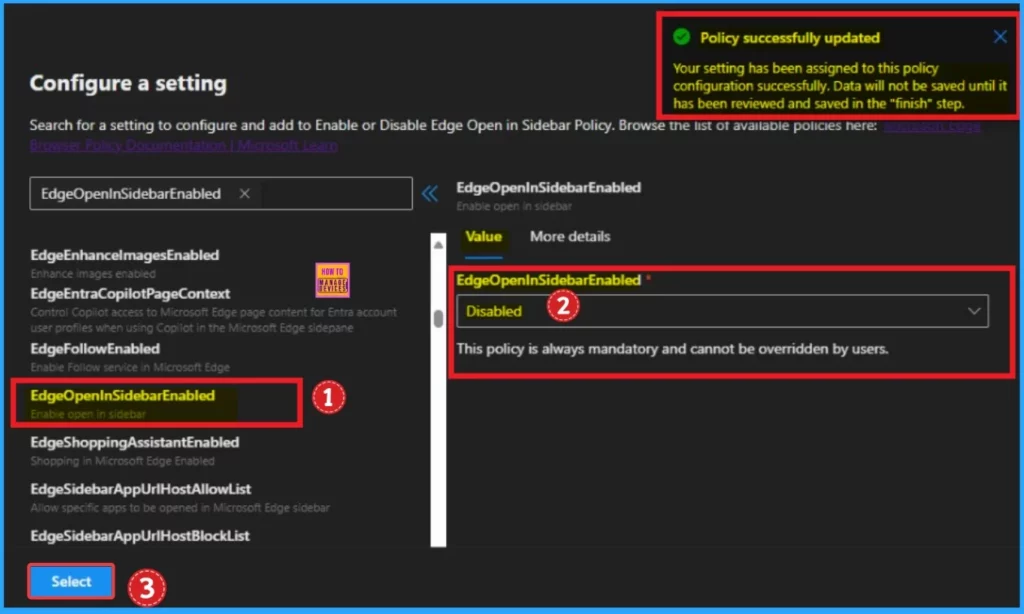
From the configuration a settings page, you can select policy settings from categories. Here I am going to select EdgeOpenInSidebarEnabled policy from Additional settings. From the value tab you can select avaialble values. For this policy available values are Enable or Disable. You can select values according to your needs.
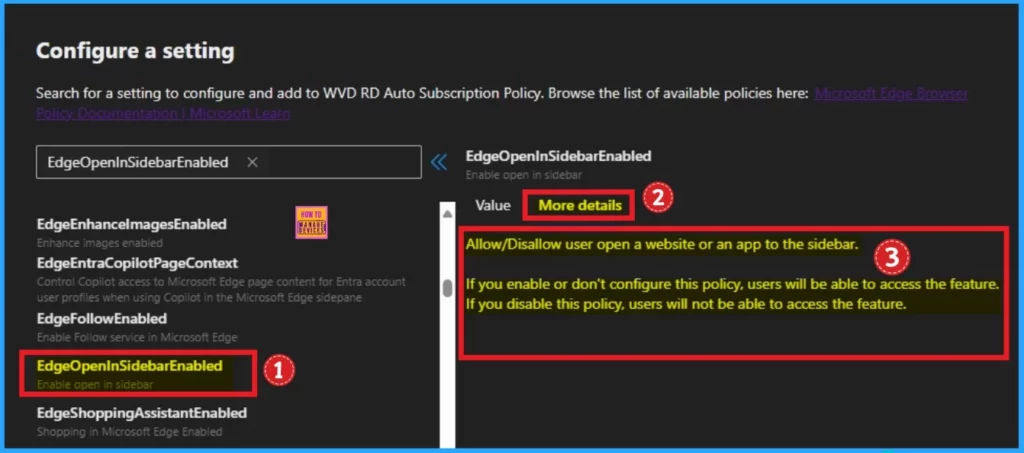
Near the value tab, you can see More details tab that shows more information of the selected policy. You can check this information and select applicable values for your tenant. The table below shows more details.
| Enabled | Don’t Configure | Disabled |
|---|---|---|
| If you enable this policy, users will be able to access the feature. | If you don’t configure this policy, users will be able to access the feature. | If you disable this policy, users will not be able to access the feature. |
Here I would like to disable Edge Open in Sidebar Enabled policy. By disabling this policy, users can’t able to access open in sidebar feature. Click on the Select button and you will get success notification.
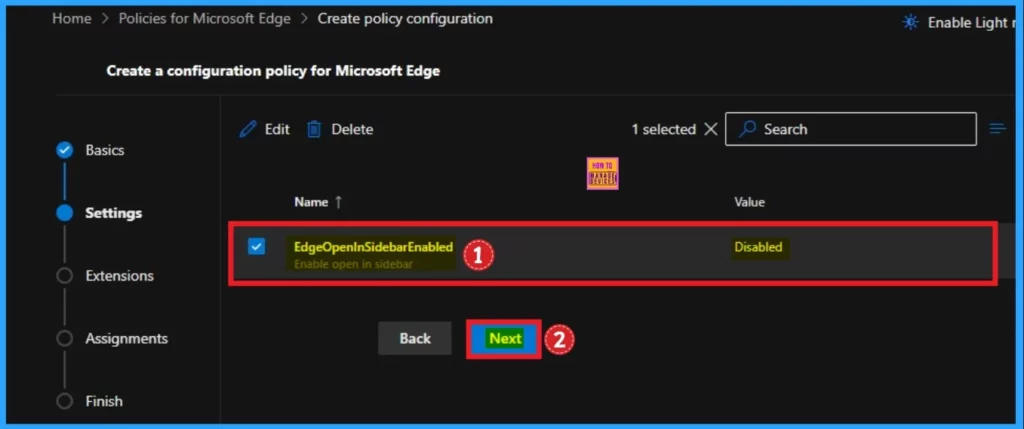
After that, you can close the configuration settings window. Then the created policy shown on the Settings page. Click on the Next button. Look at the below window for more clarity.
Extensions
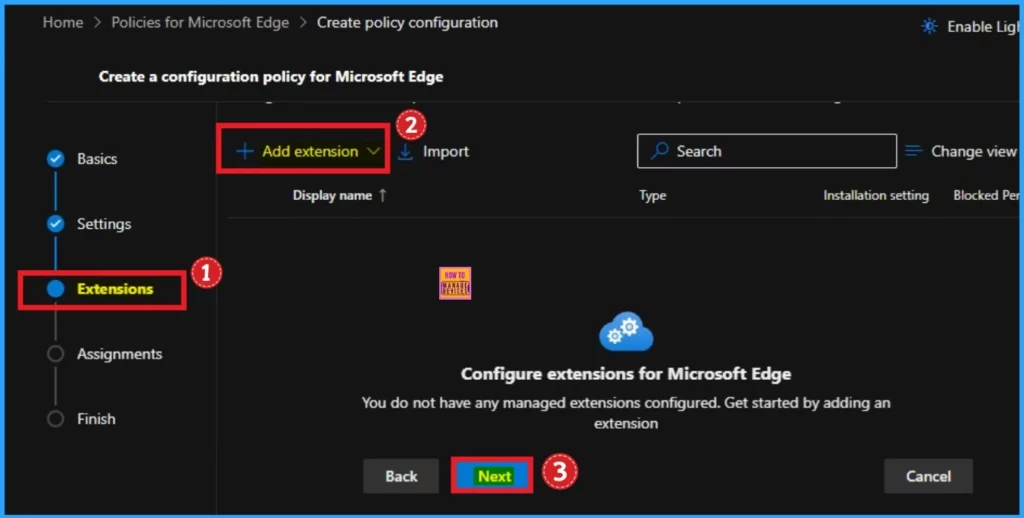
The extensions tab helps you add extensions like Edge Add-on, Sidebar app, External extension, etc. This is optional for your policy. You can add an extension. Here, I skip this section and click on the Next button.
Assignments
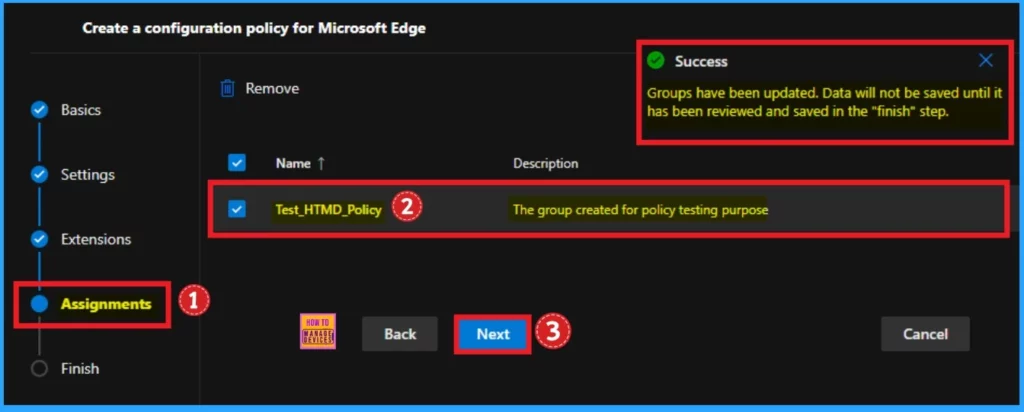
The assignments tab is the most important; it helps you select groups to add to the policy chosen. You can use different groups for this. Click on the +Select group and select a Microsoft Entra group.
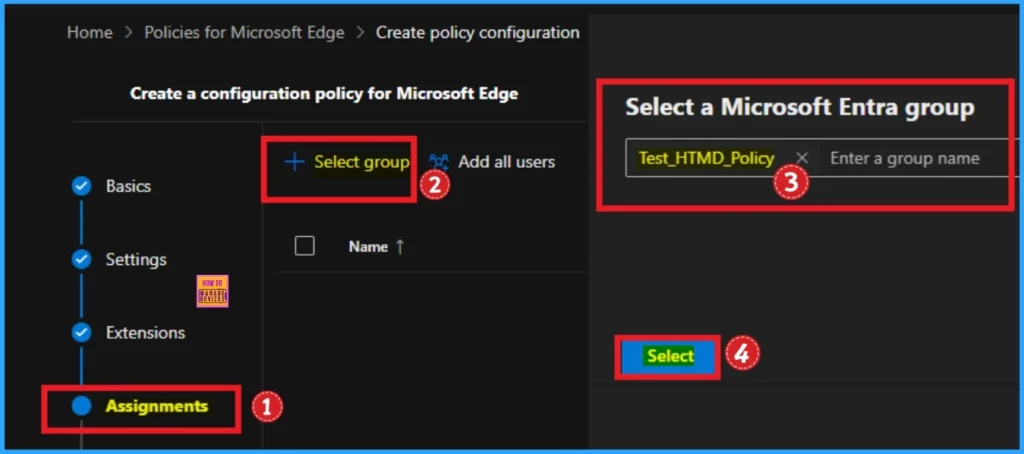
After choosing the group, you will receive a success notification. You can select multiple groups to assign the policy. Click on the Next button to continue.
Finish Tab
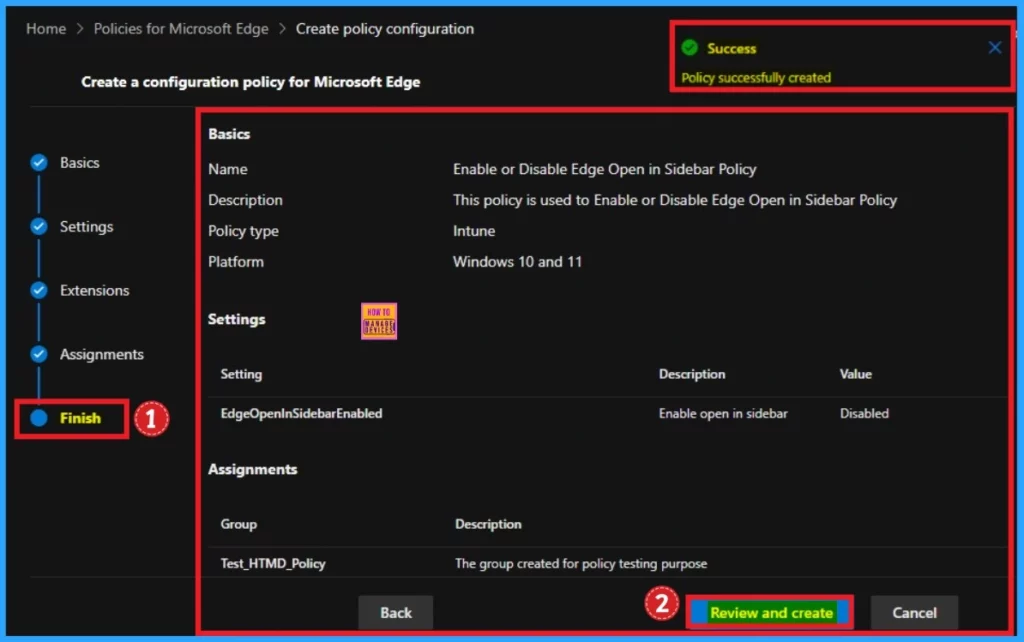
The Finish Tab shows all the information that is added on the previous tabs. Here, you can verify all the sections and make changes quickly. After confirming the details, click on the Review and Create button. The screenshot below will help you. After that, you will receive a success notification on the portal.
Monitoring Status
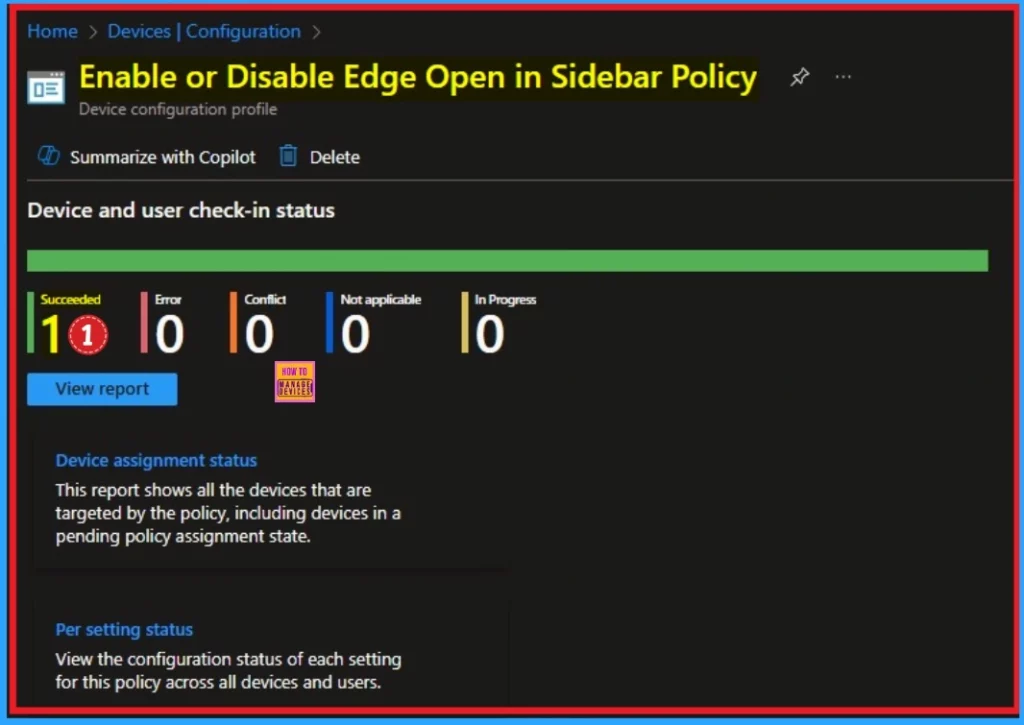
After you get a successful result on portal you can sync your device to the company portal for faster deployment. After that, you can check the Device and user check-in status on the Intune Portal. To check the status, follow the steps.
- Home > Devices > Configuration
- Search your policy under the Policies tab
- Here, you can see the one that succeeded
Client Side – Event Eviewer
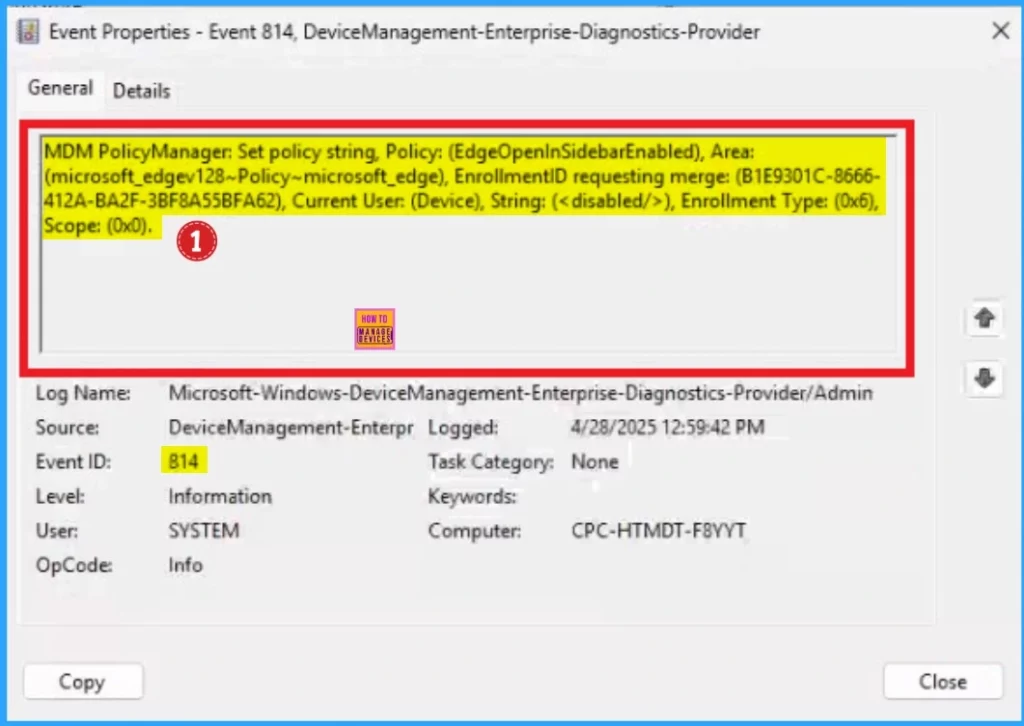
Checking Client Side Verification helps you to verify whether the policy was successfully created. Click on the Start Menu, Search Event Viewer, and open it. On the User Account Control window, click on the Yes button
On the Event Viewer.
Navigate > Applications and Services Logs > Microsoft > Windows > DeviceManagement- Enterprise-Diagnostics-Provider > Admin. The success result can be seen on Event ID 814.
End Result – Disable Edge Open in Sidebar
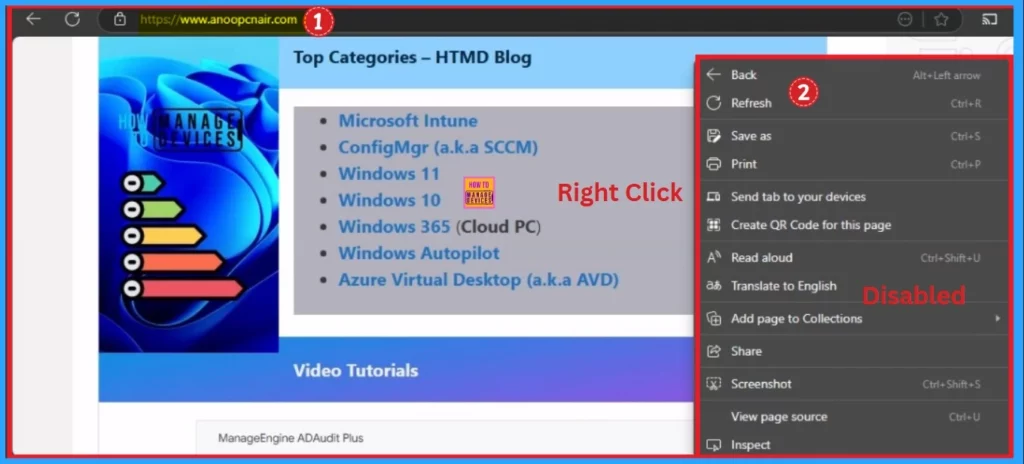
When you disable the Open in Sidebar policy, users can’t access this feature on Edge browser. Here I Open the Edge browser on the Assigned device and Open Anoop C Nair webisite. When Right click on the webpage and can’t see the Open in Sidebar feature. Look at the Context menu on the below screenshot.
End Result – Enable Edge Open Sidebar
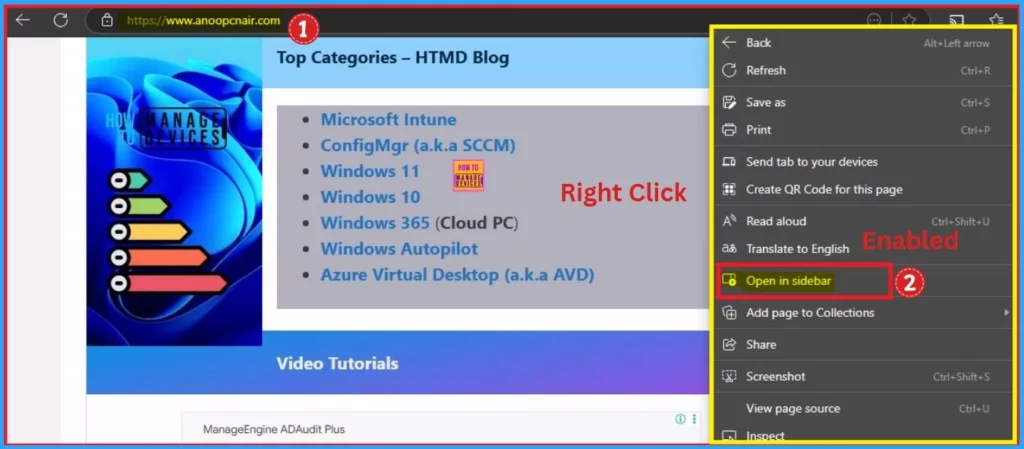
When you Enable Open in Sidebar policy you can access this feature on Edge. Here I Open the Anoop C Nair website on the Edge and right click on the webpage. Here I can access the Open in sidebar feature on Edge Browser.
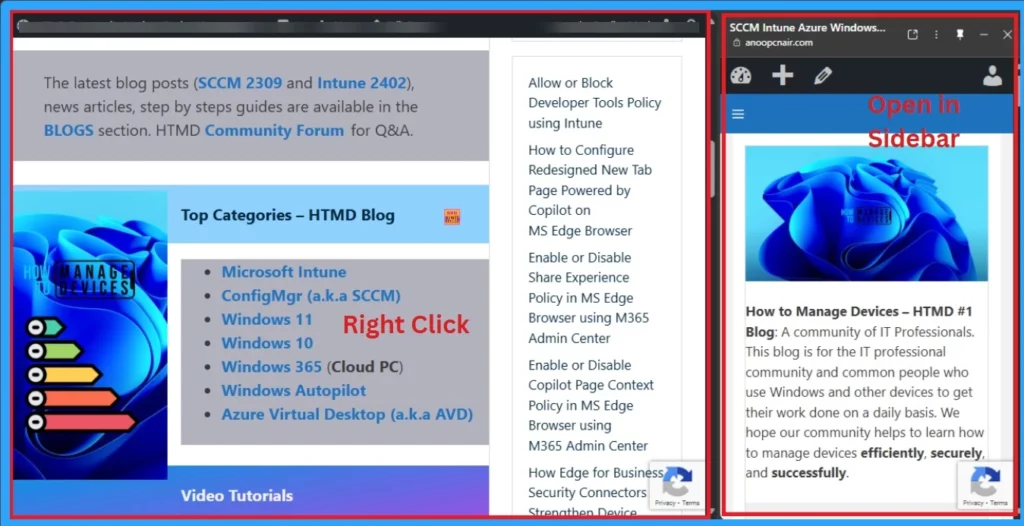
The below screenshot I Open the Webpage by using Open in Sidebar freature. By using this feature, I can quickly access this page without leaving current tab. Look at the below screenshot.
Need Further Assistance or Have Technical Questions?
Join the LinkedIn Page and Telegram group to get the latest step-by-step guides and news updates. Join our Meetup Page to participate in User group meetings. Also, Join the WhatsApp Community to get the latest news on Microsoft Technologies. We are there on Reddit as well.
Author
Anoop C Nair has been Microsoft MVP for 10 consecutive years from 2015 onwards. He is a Workplace Solution Architect with more than 22+ years of experience in Workplace technologies. He is a Blogger, Speaker, and Local User Group Community leader. His primary focus is on Device Management technologies like SCCM and Intune. He writes about technologies like Intune, SCCM, Windows, Cloud PC, Windows, Entra, Microsoft Security, Career, etc.




Discussion